Job profiles & assignments
What are job profiles?
Within a competency model, job profiles define which competencies are relevant for a specific role or position. With job profiles you can:
- Set which competencies are relevant for a role
- Configure individual weights and target values per role
- Store role-specific descriptions for competencies that differ from the general description
Example: A “Team lead” job profile might weight leadership competency more heavily than technical competency, and expect certain target values.
Create a job profile
Job profiles are managed inside a competency model.
-
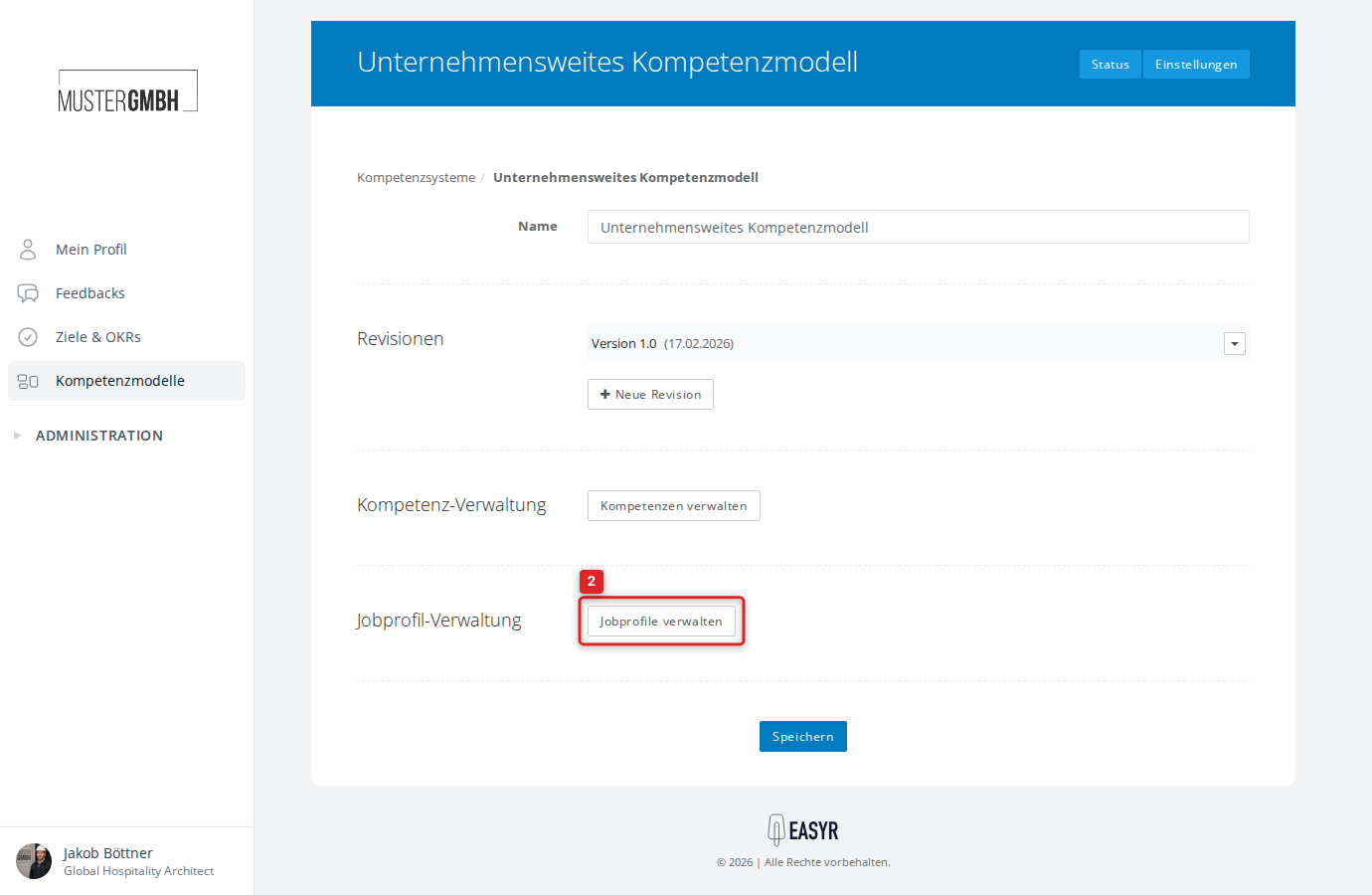
Go to your competency model and open the Settings.
-
In the Job profile management section, click Manage job profiles.
-
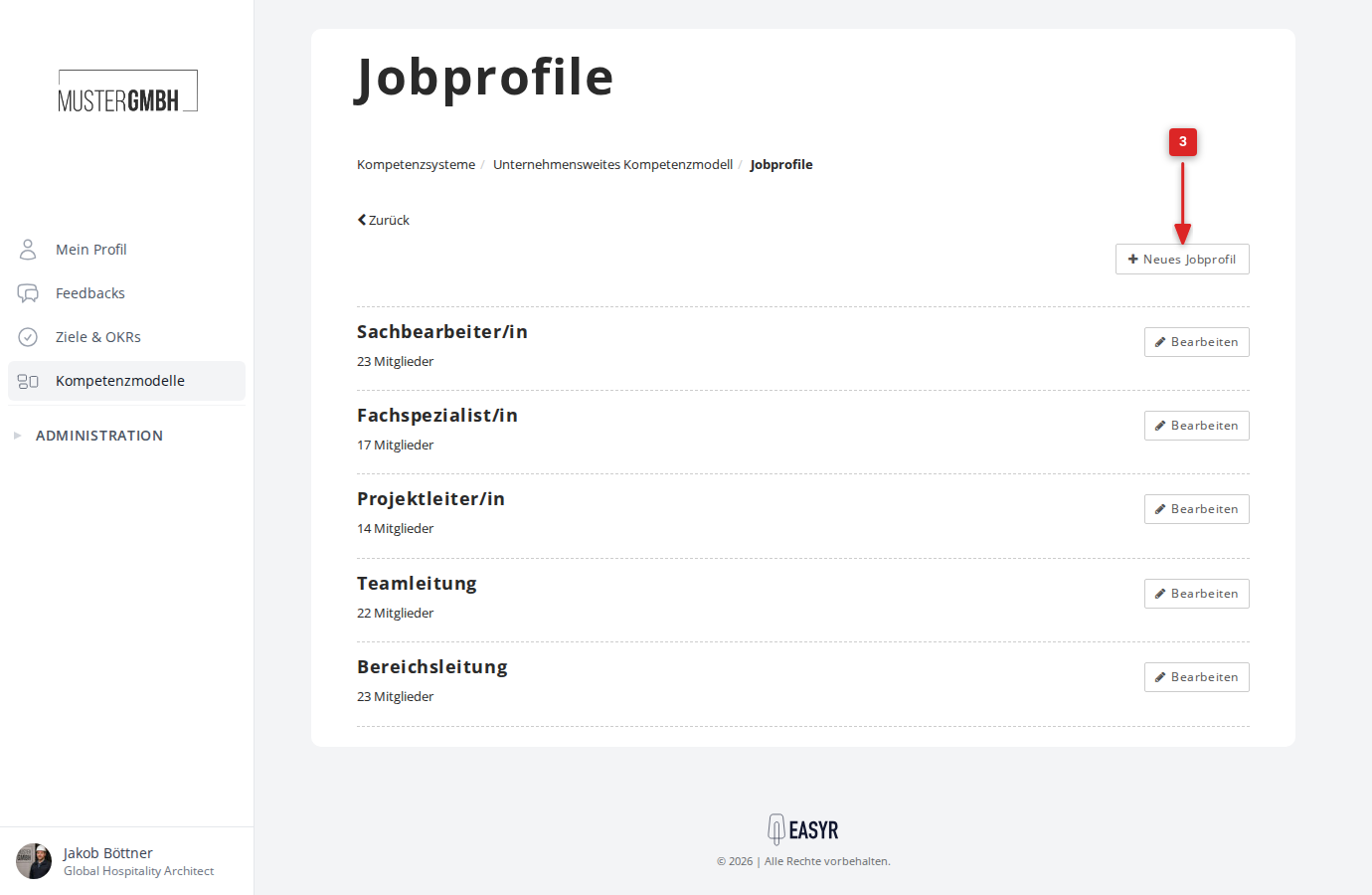
Click New job profile.
-
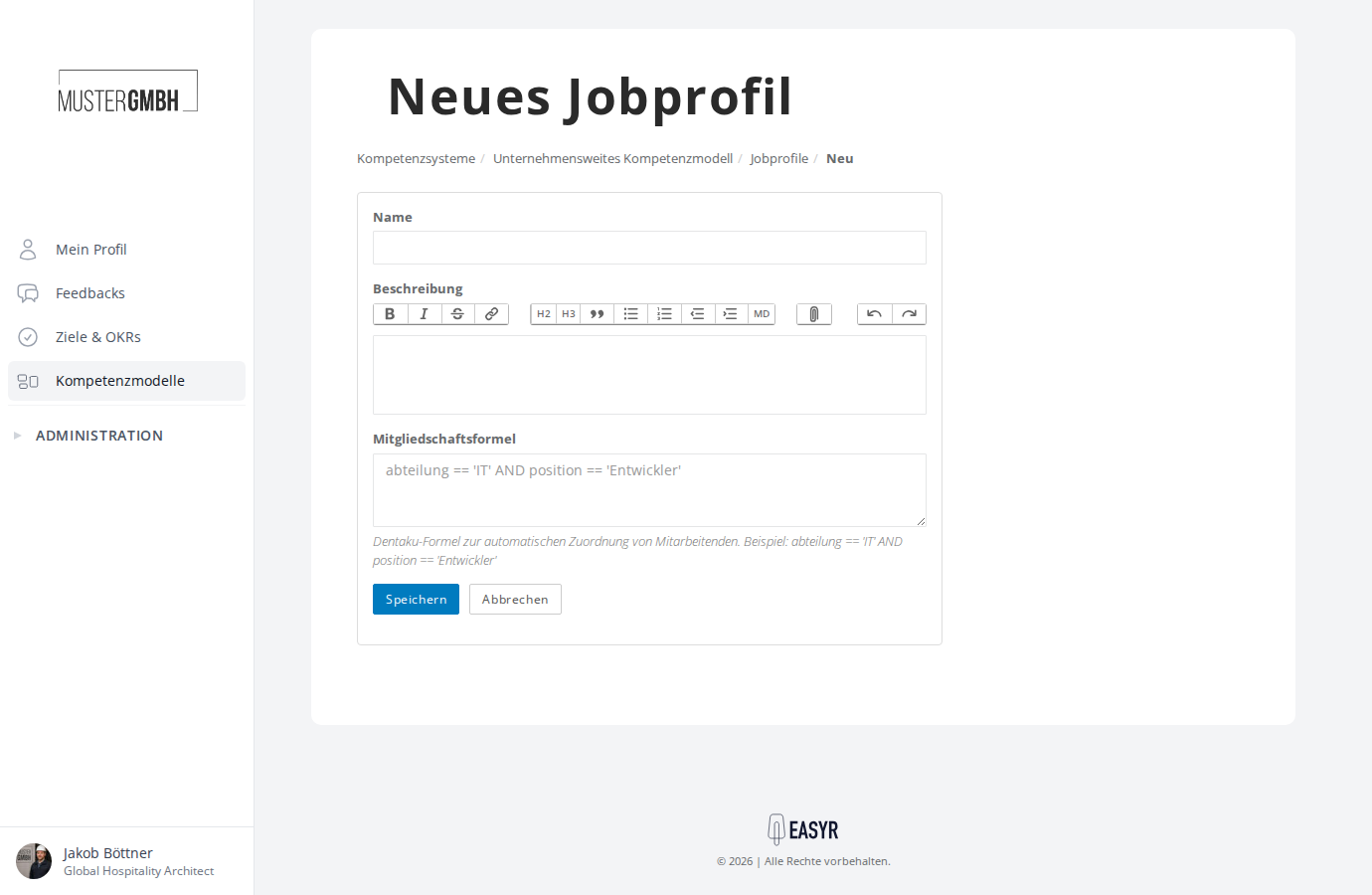
Fill in the following fields:
- Name: the name of the job profile (available in multiple languages)
- Description (optional): a rich-text description of the job profile
- Membership formula (optional): a Dentaku formula for automatically assigning employees (see “Assign employees” below)
-
Click Save.
Edit a job profile
In the job profile overview, click the job profile’s name or Edit. The edit page shows the same form as when creating (name, description, membership formula). Below the form, the Members section lists all currently assigned employees.
Assign employees
Employees can be assigned to a job profile in two ways:
Automatic assignment via membership formula
-
Open the job profile for editing.
-
In the Membership formula field, enter a Dentaku formula that defines which employees should be assigned to this profile.
- Example:
custom_fields.department == 'Sales' AND custom_fields.position == 'Team lead' - The formula uses the internal names of the custom fields (prefixed with
custom_fields.).
- Example:
-
Click Save.
-
Click the Sync button to update memberships based on the formula.
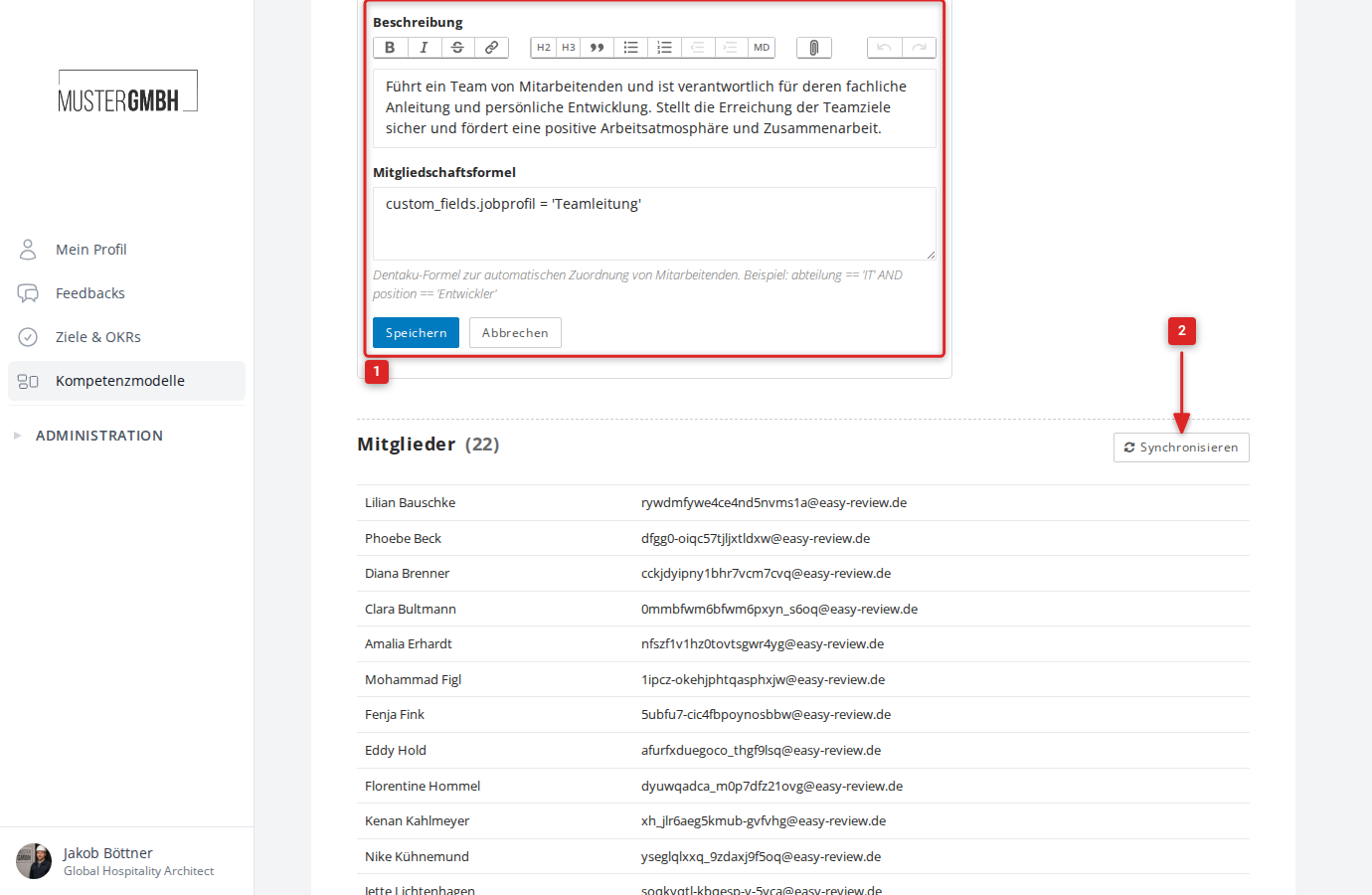
When you sync, easyreview automatically:
- Adds employees who match the formula but aren’t assigned yet
- Removes employees who no longer match the formula
Sync job profiles from a custom field
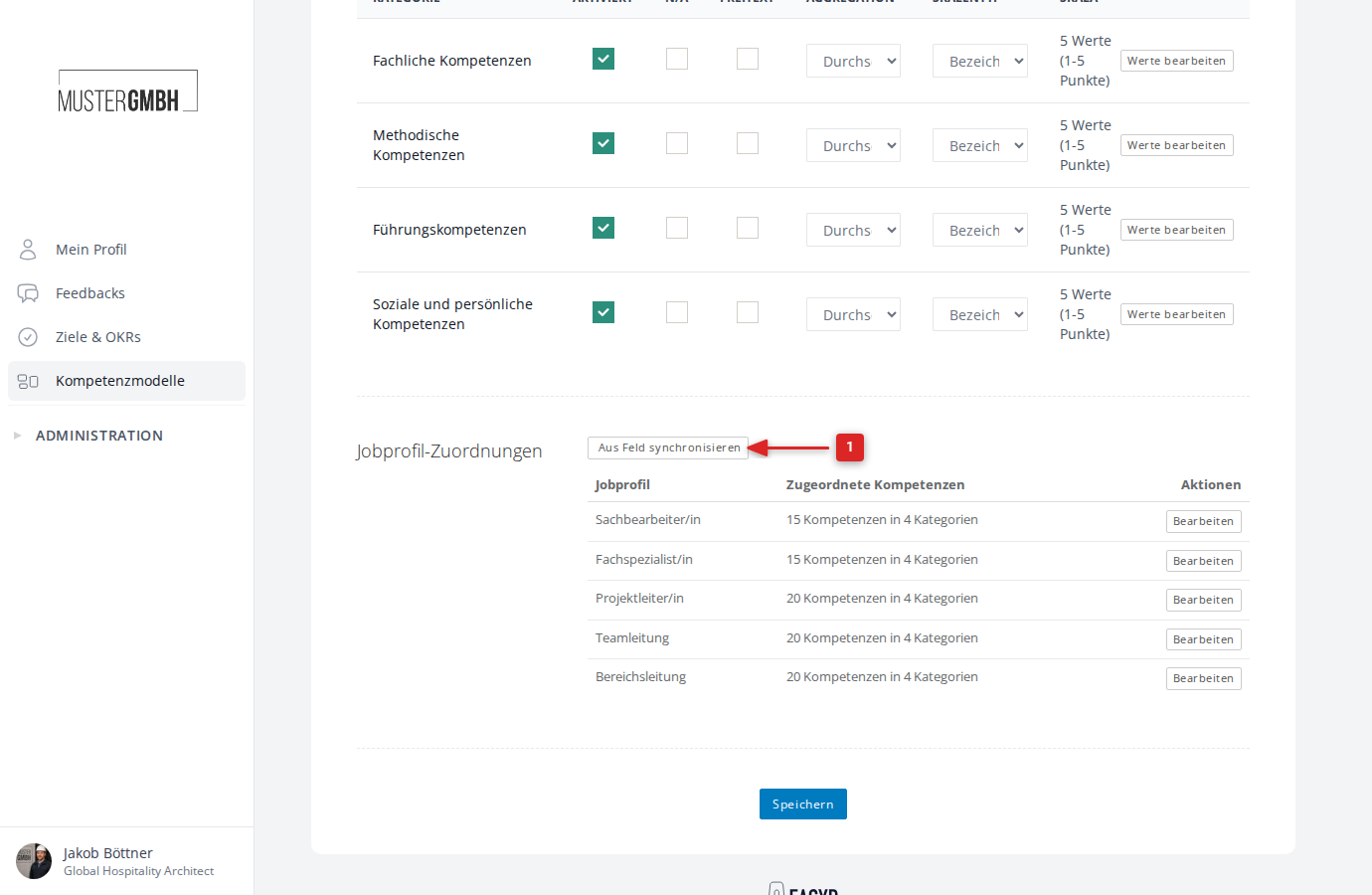
Alternatively, job profiles can be created and synced automatically from a custom field of type List. This function is on the edit page of a revision, in the Job profile assignments section.
The difference from the membership formula: this method manages the job profiles themselves (creating them, setting their formulas), whereas the membership formula only controls who is assigned to an already existing profile.
Steps:
-
Go to the revision and, in the Job profile assignments section, click Sync from field.
-
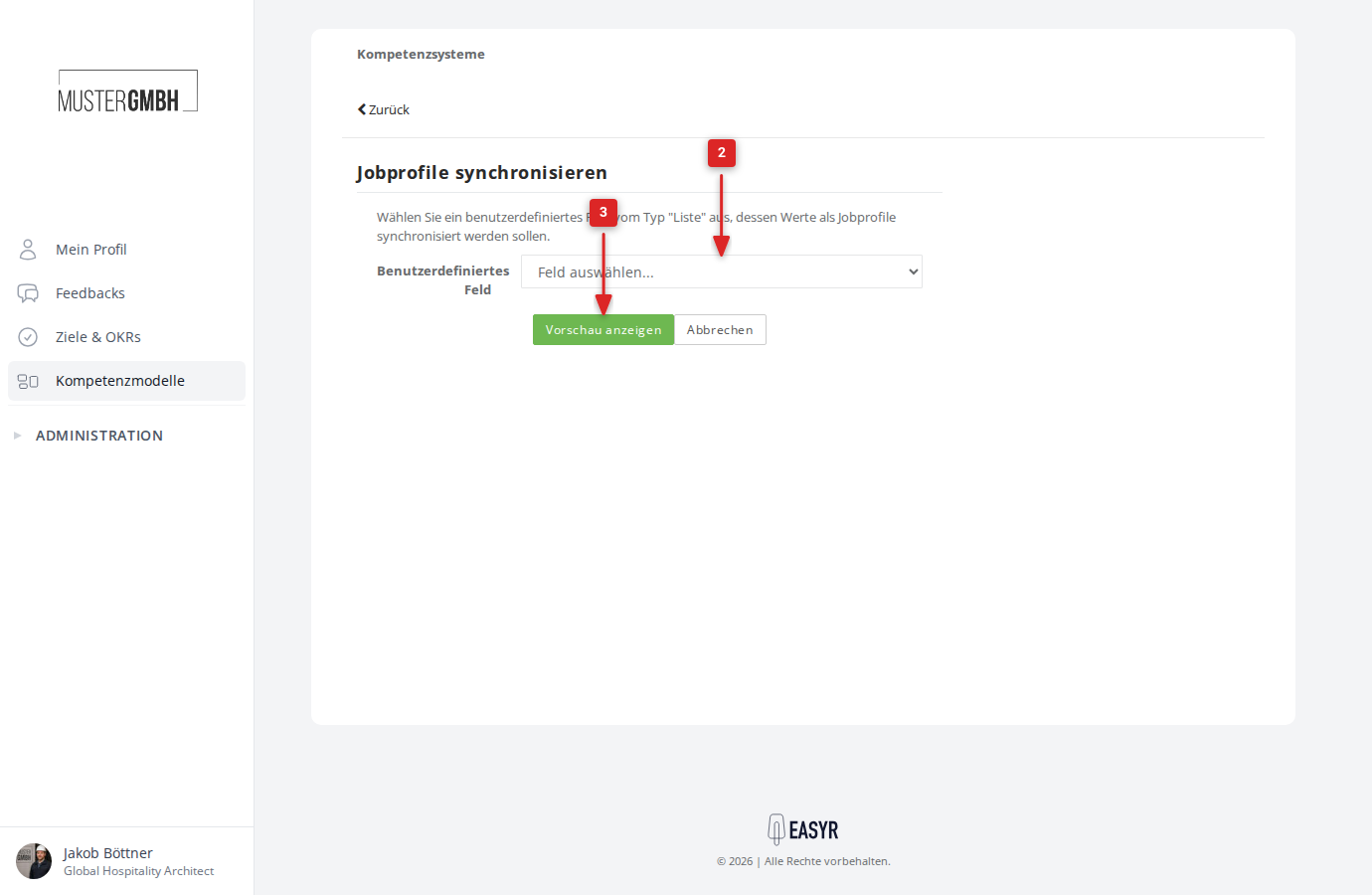
Select a custom field of type “List”.
-
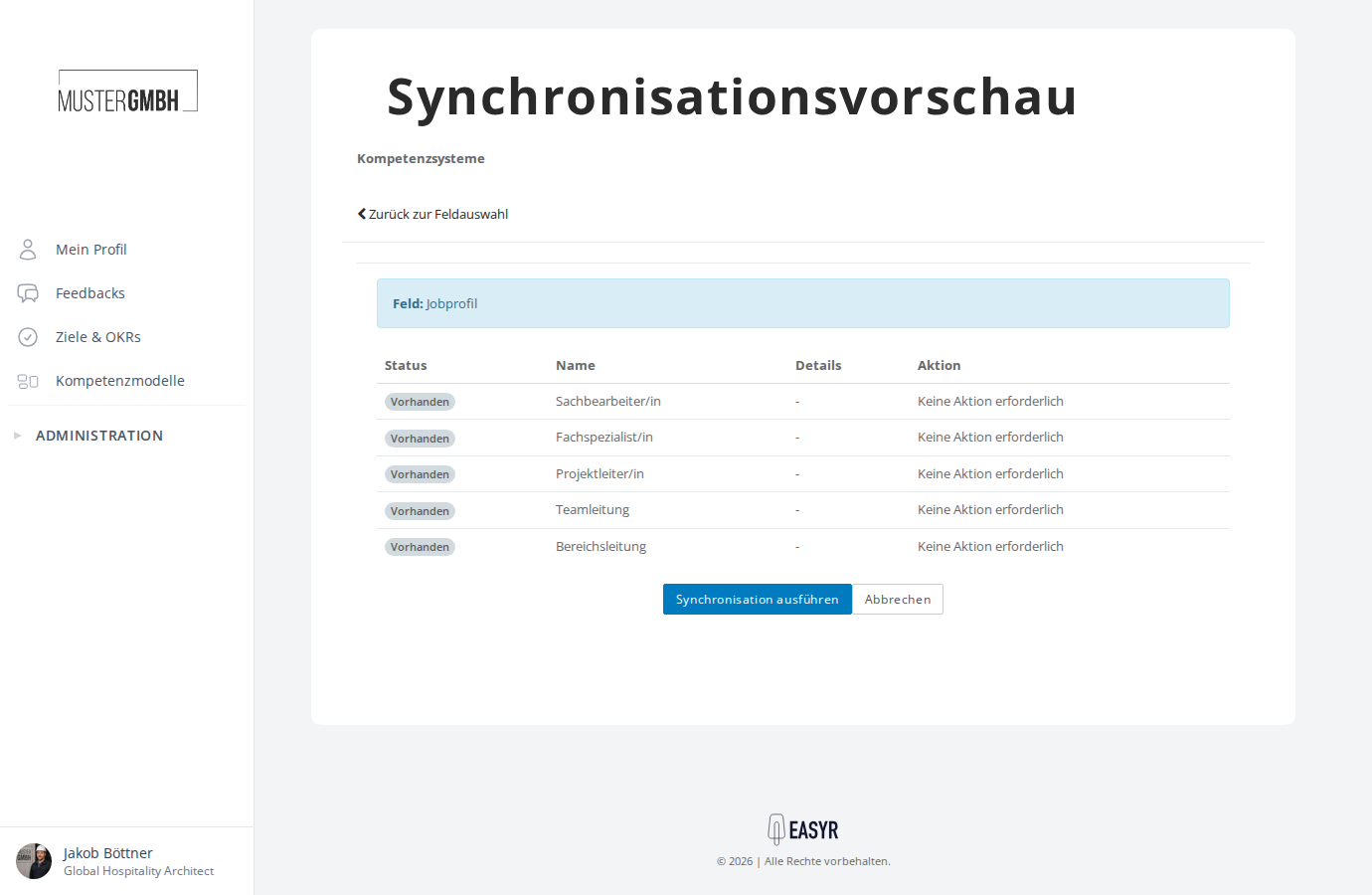
Click Show preview and review the listed changes.
-
Confirm with Run synchronization.
Status in the preview:
Each job profile gets a status in the preview that describes the planned action:
| Status | Meaning | Possible actions |
|---|---|---|
| New | The field value doesn’t exist as a job profile yet | Create / Skip |
| Existing | The job profile exists and the formula matches | No action required |
| Formula outdated | The job profile exists, but the membership formula differs | Update formula / Skip |
| Orphaned | The job profile exists, but the field value was removed | Keep / Remove mappings |
For new or outdated entries, you can choose per row which action to run before you start the synchronization.
Configure weights and target values
Weights and target values are configured per revision within the competency model, so you can store different configurations for different periods.
Open the assignment page
- Go to the revision you want (via the competency model’s settings).
- In the Job profile assignments section, you see an overview of all job profiles with the number of assigned competencies.
- Click Edit on the job profile you want.
Select and configure competencies
On the assignment page, you see all enabled categories with their competencies.
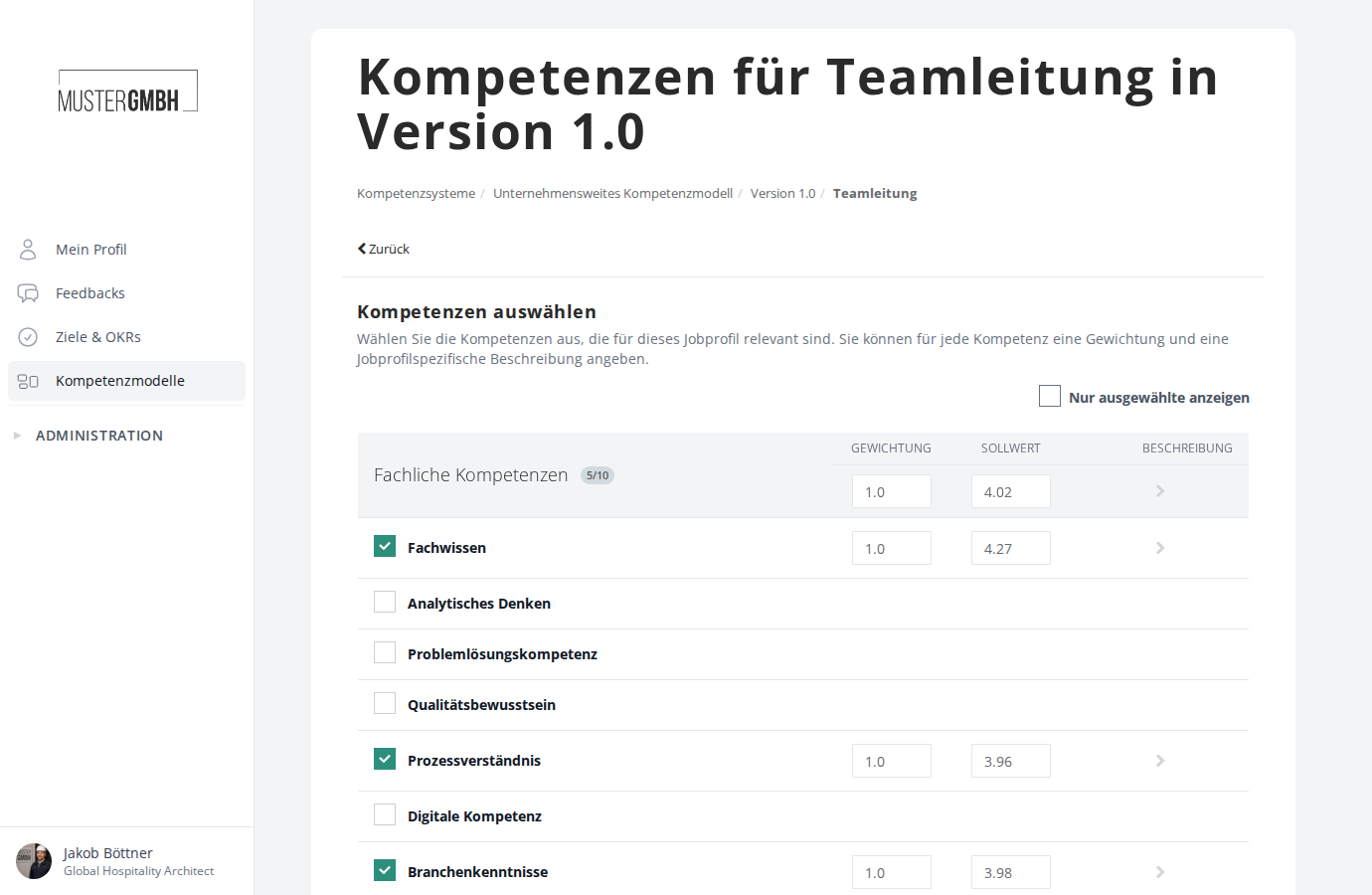
In each category header, a green badge shows how many of the category’s competencies are already selected, for example 5/10 for 5 of 10 possible competencies.
Per category
- Weight: how strongly this category contributes to the overall result (number, default: 1.0)
- Target value (optional): expected target value for this category
- Description (optional): role-specific description of the category, expandable via the arrow icon
Per competency
- Selection: use the checkbox to enable the competencies that are relevant for this job profile
- Weight: how strongly this competency contributes to the category result (only visible for selected competencies)
- Target value (optional): expected target value for this competency
- Individual description (optional): role-specific description of the competency, expandable via the arrow icon
Include free-text categories
When a category is configured so that participants can name their own competencies (“free-text competencies”), a single Include free-text category checkbox appears instead of individual competency rows. It determines whether this category is counted for this job profile during evaluation.
- Click Save to store the assignments.
Example
The “Team lead” job profile in a revision:
| Level | Name | Weight | Target value |
|---|---|---|---|
| Category | Leadership competency | 2.0 | 4 |
| Competency | Managing employees | 1.5 | 4 |
| Competency | Conflict resolution | 1.0 | 3 |
| Category | Technical competency | 1.0 | 3 |
| Competency | Analytical thinking | 1.0 | 3 |
Related articles
- Create and configure a competency model: define categories and competencies
- Manage revisions: scales, aggregation and category configurations
- View individual results: target-vs-actual comparison in the results
- Results overview & data export: overall results across all job profiles