Add a competency assessment to the questionnaire
What is a competency assessment?
The competency assessment is a special question type in the questionnaire editor of a review (feedback). It enables structured competency ratings based on a competency model you’ve set up beforehand. Participants rate the reviewed person’s competencies using the scale configured in the relevant revision.
Prerequisites:
- The competency model module must be enabled for your organization
- At least one competency model with a revision must be set up (→ Create and configure a competency model)
- The reviewed people must be assigned to a job profile (→ Job profiles & assignments)
Add the question to the questionnaire
To add a competency assessment question to a questionnaire:
- Open the feedback process and go to the Questionnaire editor.
- At the end of a page, click the + Element button.
- In the dropdown menu, select the Competency assessment question type.
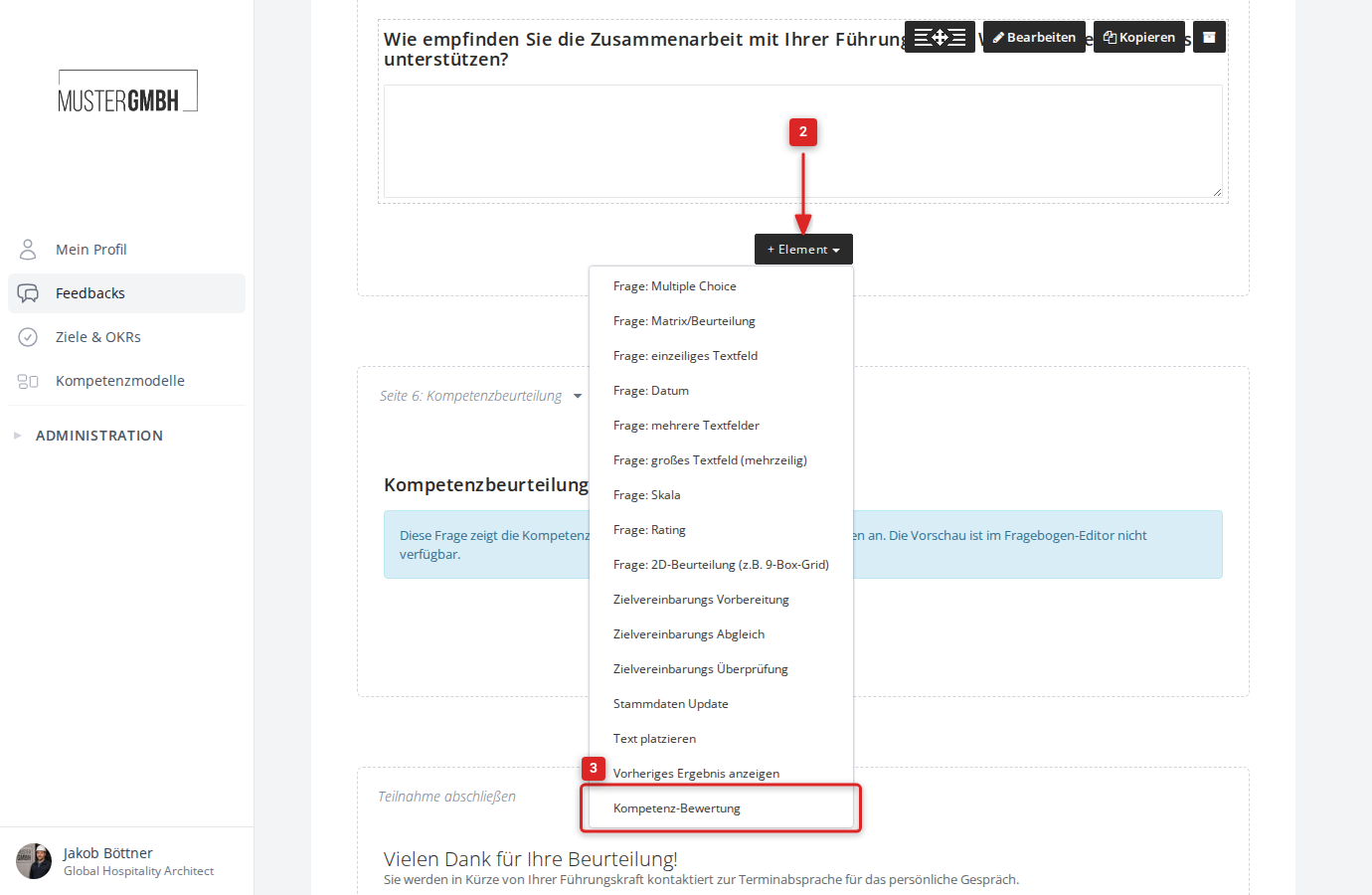
The configuration form for the competency assessment question opens.
Configure the question
The configuration form gives you the following settings:
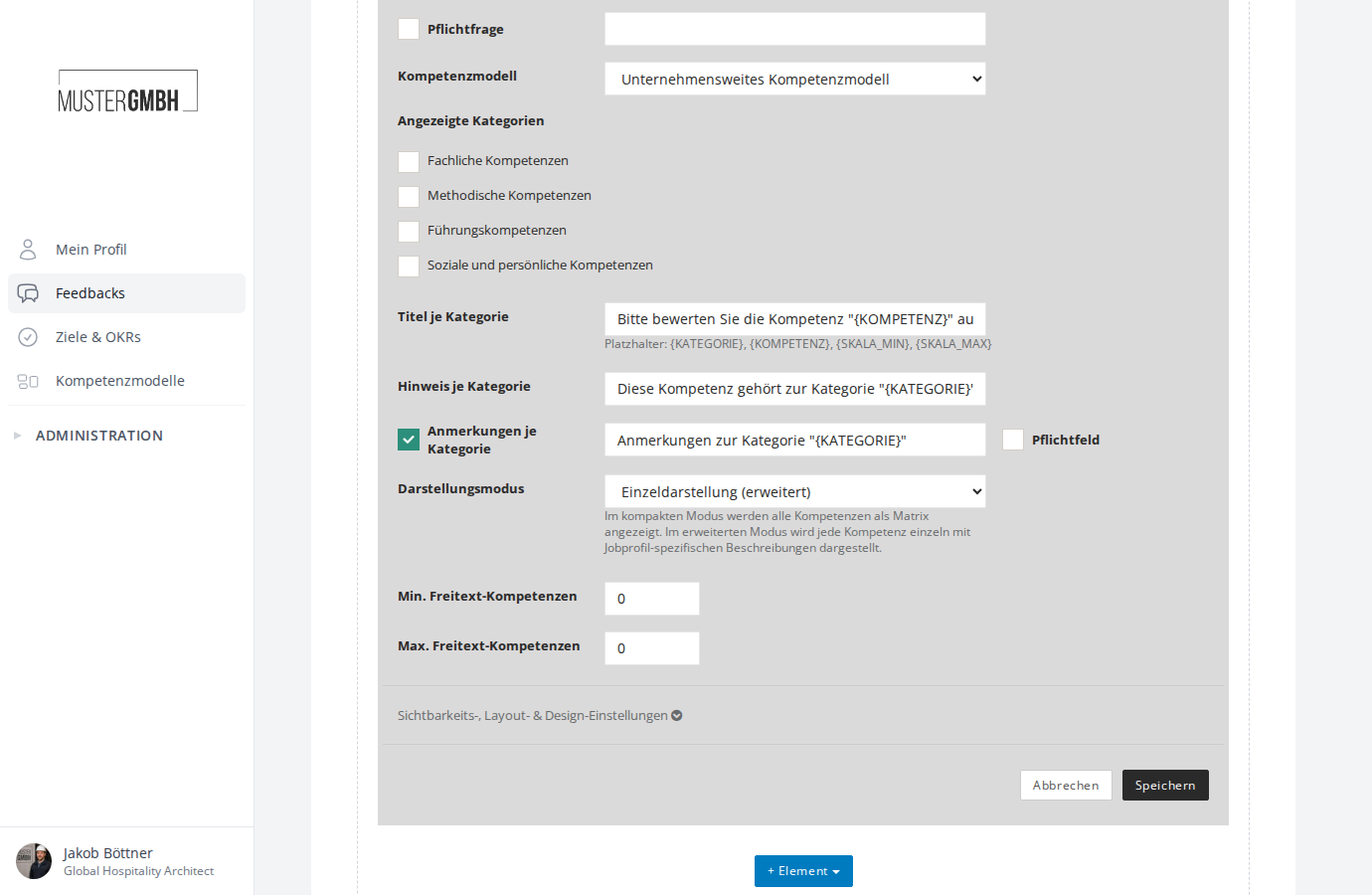
Required question
Enable the Required question checkbox to mark the question as mandatory. Optionally, you can enter a custom hint text that appears when the question isn’t answered in full.
Select a competency model
In the Competency model dropdown, select the model the rating should be based on. All competency models in the system are listed.
Displayed categories
After you select a competency model, the Displayed categories option appears. Here you set which of the model’s categories are rated in this question. If you don’t select any category, all categories are shown.
Title per category
In the Title per category field, you can set a template for the title shown above each category. Use dynamic placeholders for context-dependent text:
| Placeholder | Description |
|---|---|
{KATEGORIE} | Name of the current category |
{KOMPETENZ} | Name of the current competency |
{SKALA_MIN} | Minimum scale value |
{SKALA_MAX} | Maximum scale value |
Hint per category
In the Hint per category field, you can set a template for a hint text shown below each category’s title. The same placeholders as for the title are available.
Notes per category
Enable the Notes per category checkbox to show a text field for qualitative notes per category. You can:
- Enter a custom title for the notes field
- Enable the Required field checkbox to make filling in the notes mandatory
Display mode
In the Display mode dropdown, choose how the competencies are shown during participation:
- Matrix (compact): all competencies of a category are shown as a table, with competencies as rows and scale values as columns. This mode suits many competencies per category and enables fast input.
- Single view (expanded): each competency is shown individually with its full description and job-profile-specific information. This mode suits few competencies with long descriptions, since participants get more context for their rating.
Free-text competencies
When free-text categories are enabled in the competency model (→ Create and configure a competency model), you can set how many of their own competencies participants may add per category:
- Min. free-text competencies: minimum number of own competencies that must be added (default: 0)
- Max. free-text competencies: maximum number of own competencies that may be added (default: 0)
Link the revision to the edition
For the competency assessment question to appear during participation, a competency model revision must be linked to the edition.
- Open the settings of the feedback process.
- In the Editions card, click the ⋮ menu next to the edition and then Edit. You find further editions under All editions.
- In the dialog, under Competency model link, select the revision you want. Every competency assessment question in the questionnaire has its own selection.
- Click Save.
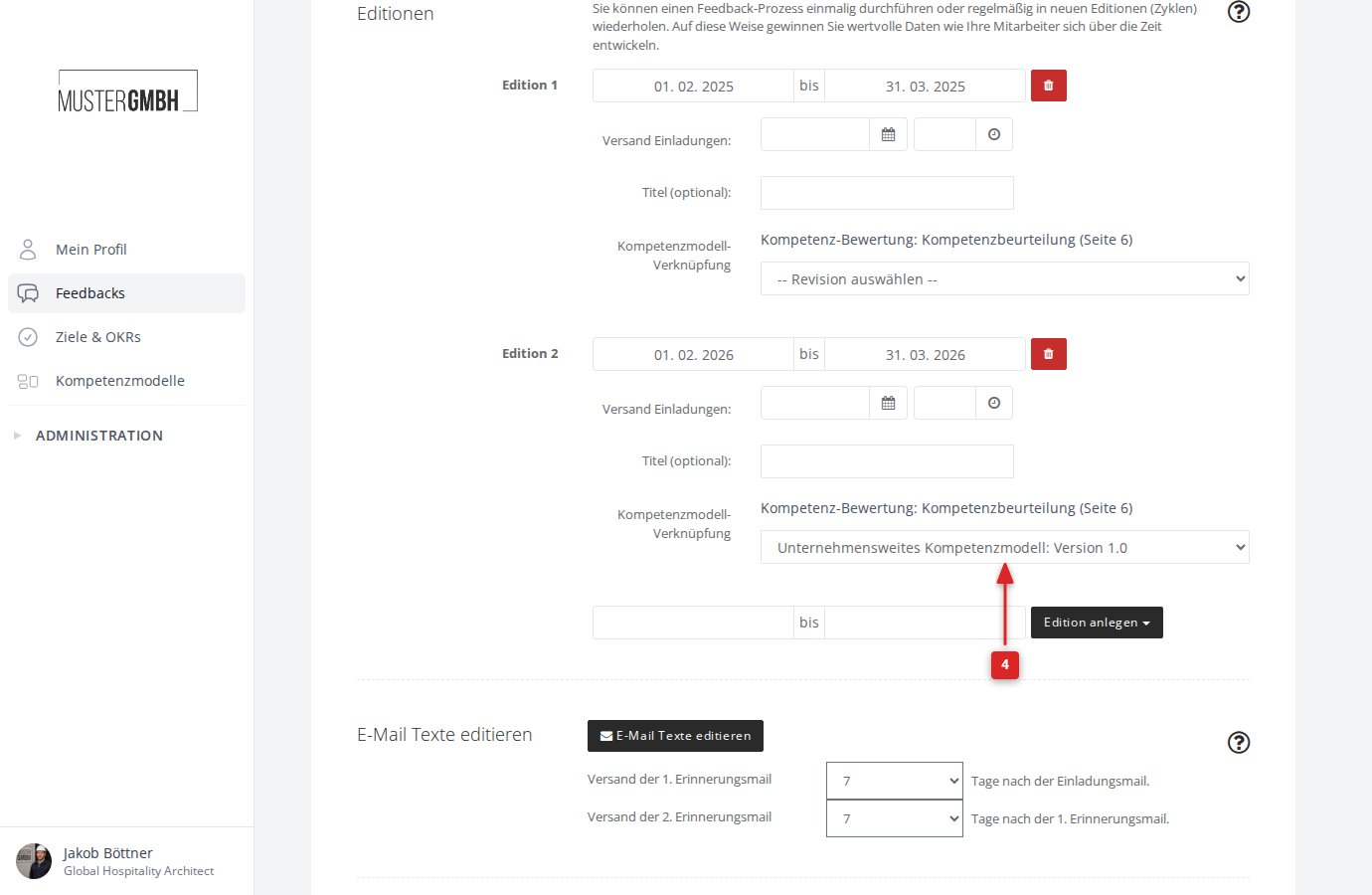
Because the link is set at the edition level, you can use different revisions in different editions — for example, when the rating scale changes from one edition to the next.
Preview in the questionnaire editor
The competency assessment question can’t be fully previewed in the questionnaire editor. Since the competencies shown depend on the reviewed person’s job profile and the linked revision, the editor shows a note instead. You see the full display only in the questionnaire preview or during actual participation.
Related articles
- Create and configure a competency model — define competencies, categories and free-text options
- Manage revisions — set scales and category configurations
- Take part in a competency assessment — how participants experience the question
- View individual results — results after the review