Take part in a competency assessment
Prerequisites
For the competency assessment to appear in the questionnaire, three conditions must be met:
- You have been invited to take part in a review.
- The person being assessed is assigned to a job profile in the selected competency model (see Job profiles and assignments).
- A revision of the competency model is linked to the edition (see Add a competency assessment to the questionnaire).
If any of these prerequisites is missing, a notice appears instead (see Error messages).
How the competency assessment is structured
The competency assessment shows the competencies of the assessed person’s job profile, organized into categories. Each category contains:
- The category name and description
- A list of competencies, each with a name, an optional description and a rating scale
- Optionally: a comment field per category
- Optionally: free-text competencies
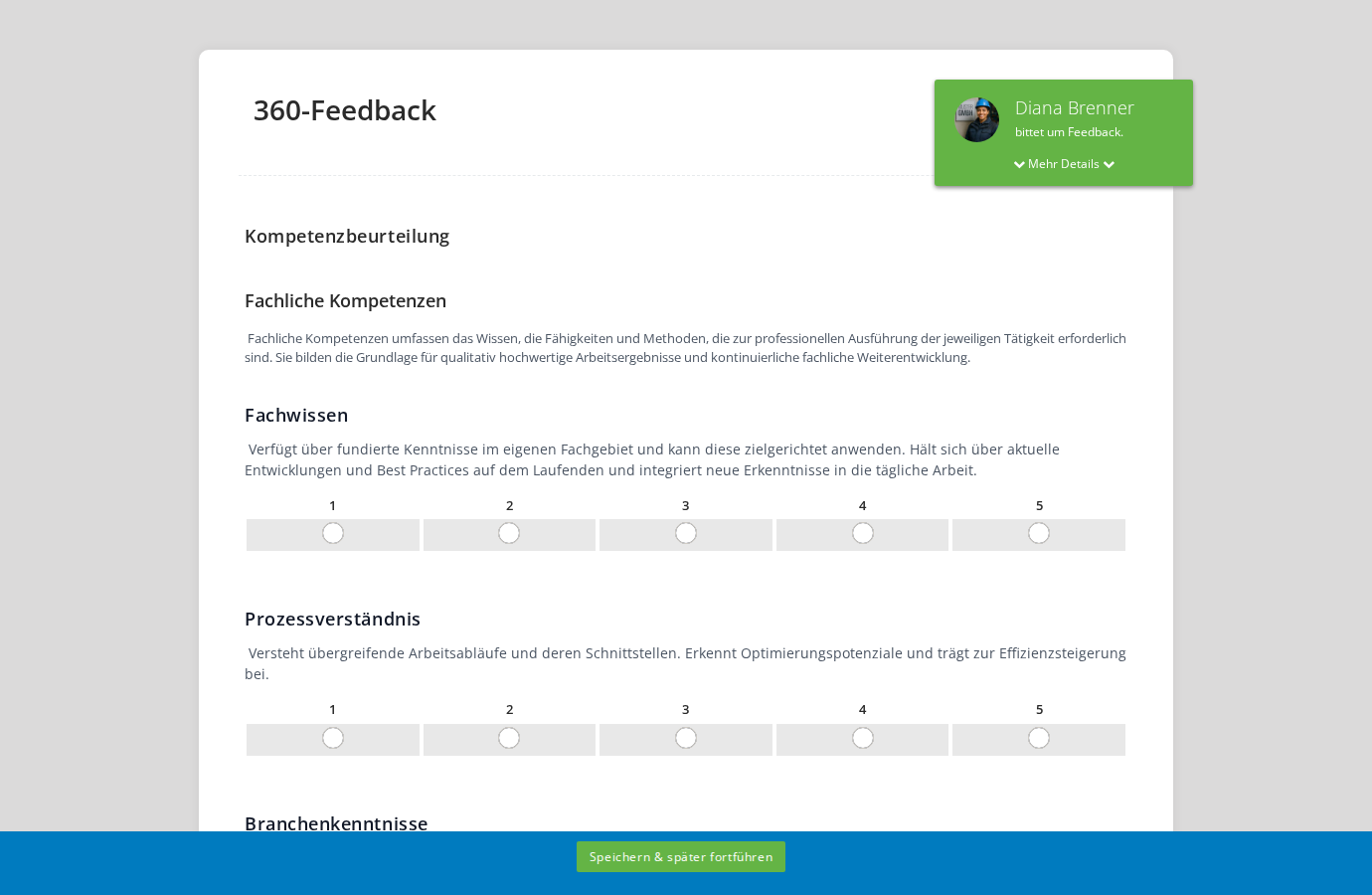
There are two display modes, configured by the administrator.
Compact display (matrix)
In the compact display, all competencies in a category are combined into a single table.
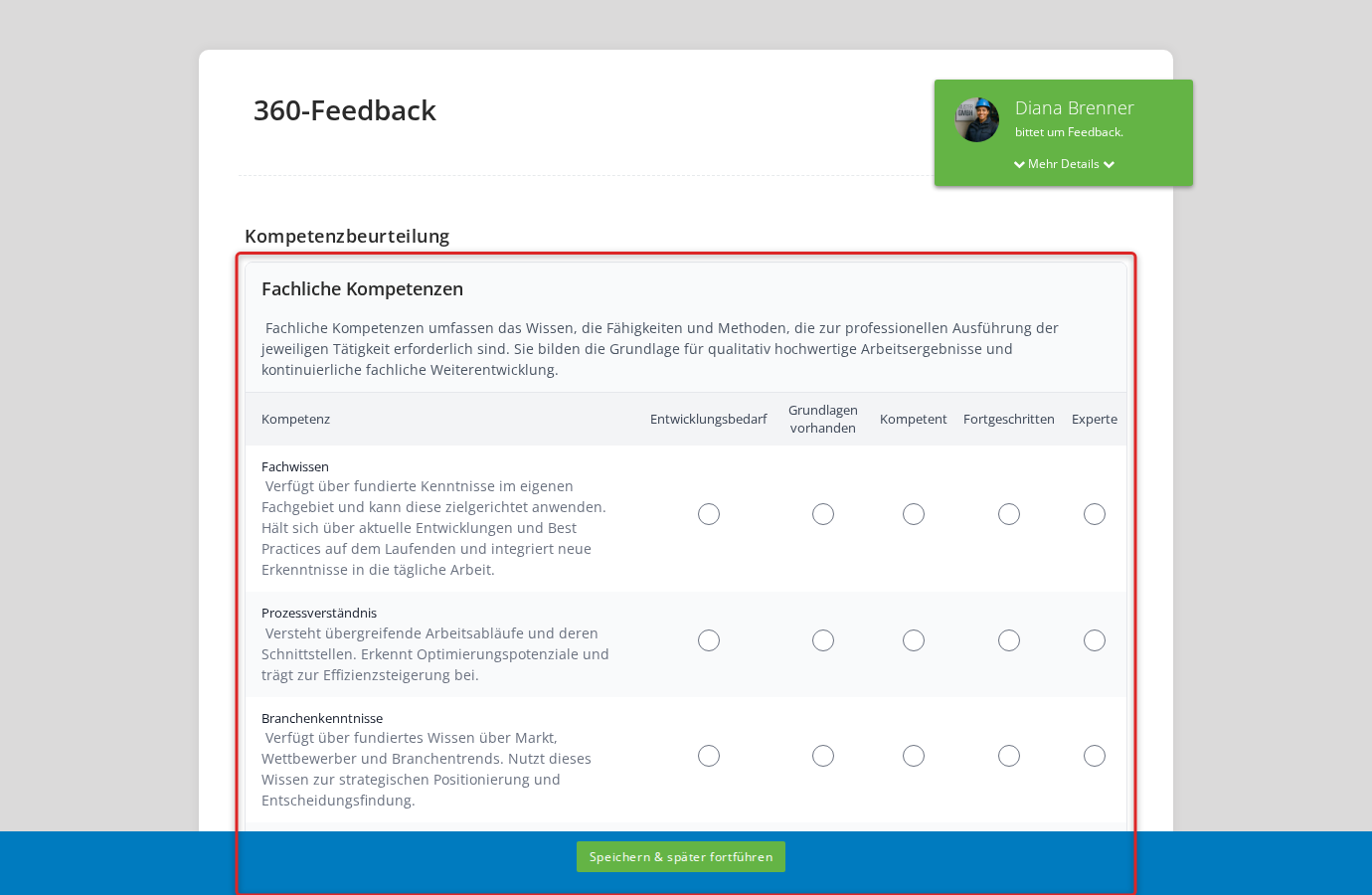
- Rows: Each competency is shown as its own row. A description may be shown next to the name.
- Columns: The column headers show the rating scale, for example “Needs development”, “Basics in place”, “Competent”, “Advanced”, “Expert”, or numeric values such as 1 to 5.
- Rating: Click the radio button in the relevant column to give a rating.
Change or remove a rating
- Click a different value to change your rating.
- Hold the Shift key and click the value you already selected to remove the rating completely.
“Not applicable” (N/A)
If the administrator has enabled it, an extra N/A column appears to the right of the rating scale. Choose this option when a competency is not relevant for the person being assessed. Competencies rated N/A are not included in the average calculation.
Expanded display
In the expanded display, each competency is shown as its own block.
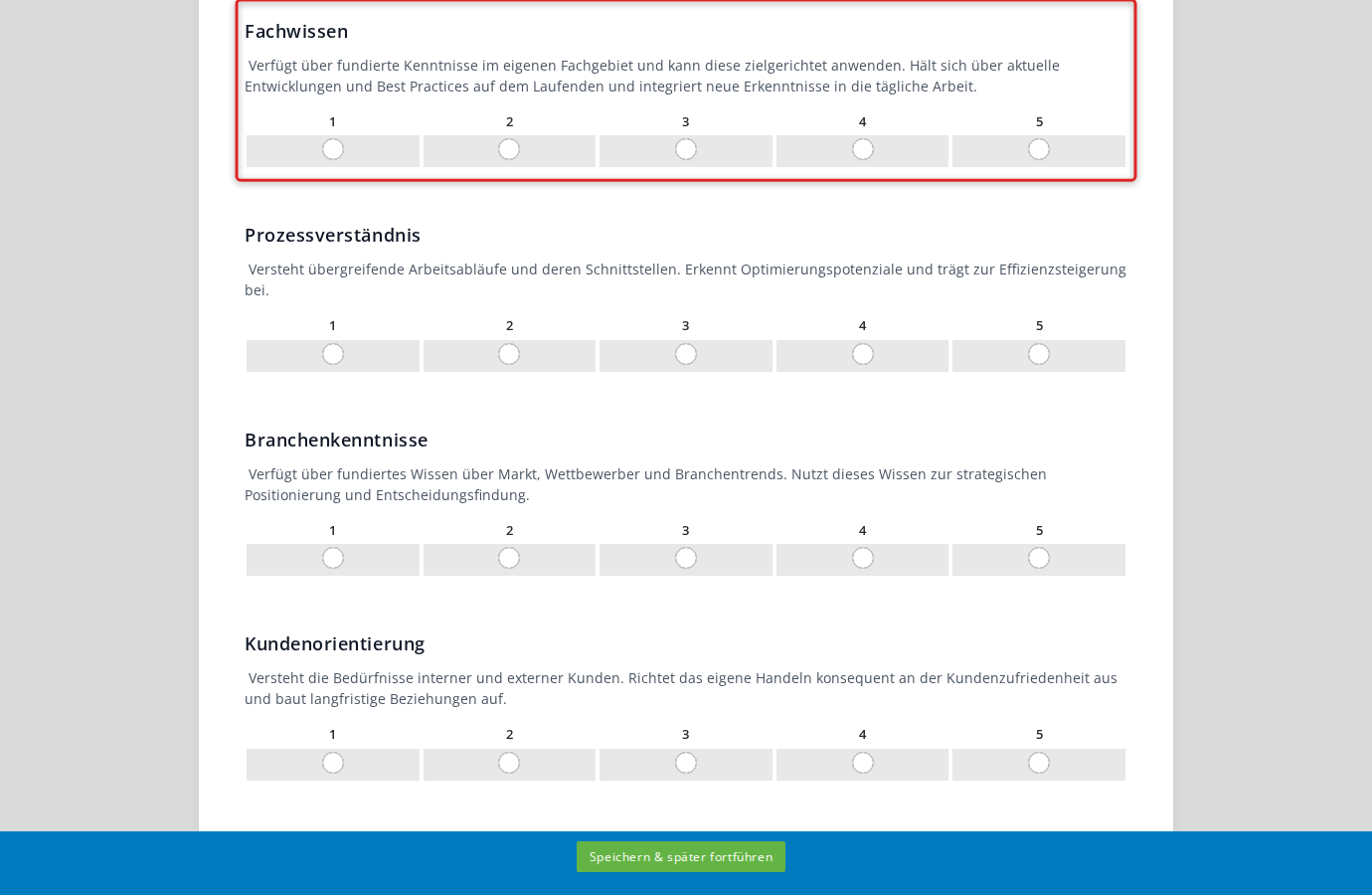
- The competency’s name and description are clearly visible.
- A numeric scale with clickable fields appears below the description.
- You rate the competency by clicking, just as in the compact display. Shift+click removes the rating.
Add free-text competencies
If free-text competencies are enabled for a category, you can add and rate your own competencies.
- Click Add competency below the predefined competencies.
- A new row with a text field appears. Enter the name of the competency.
- As you type, an autocomplete dropdown offers predefined suggestions. Pick a suggestion, or create a new entry via Create new: ”…”.
- Rate the free-text competency on the same scale as the predefined competencies.
Free-text competencies are marked with a blue Free-text badge. Depending on the configuration, there may be a minimum and maximum number. If a minimum is configured, empty entries are created automatically.
To remove an entry, click Remove next to it. Removing is only possible if you are above the configured minimum.
Comments
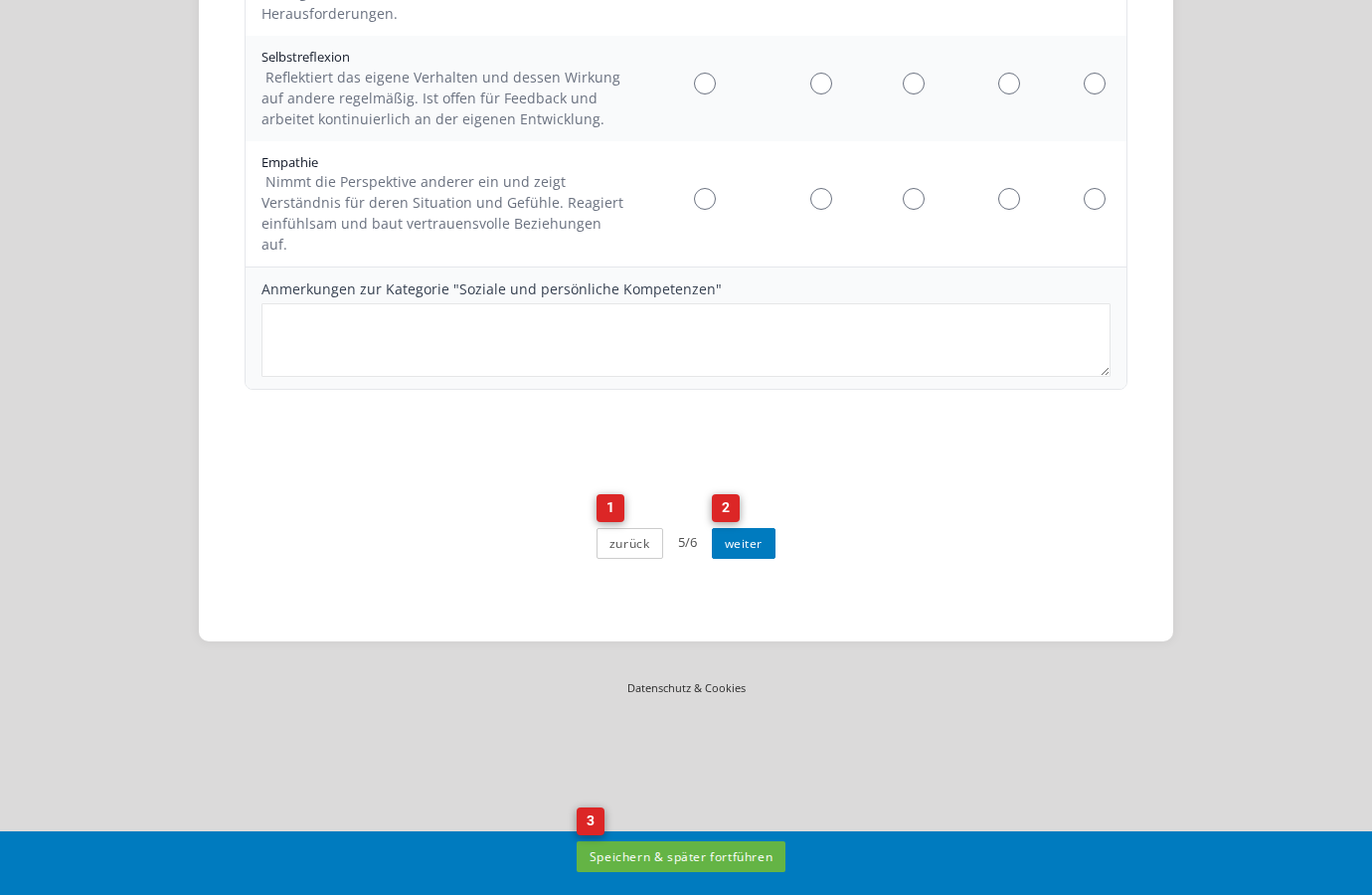
If the administrator has enabled it, a text field for qualitative comments appears below each category.
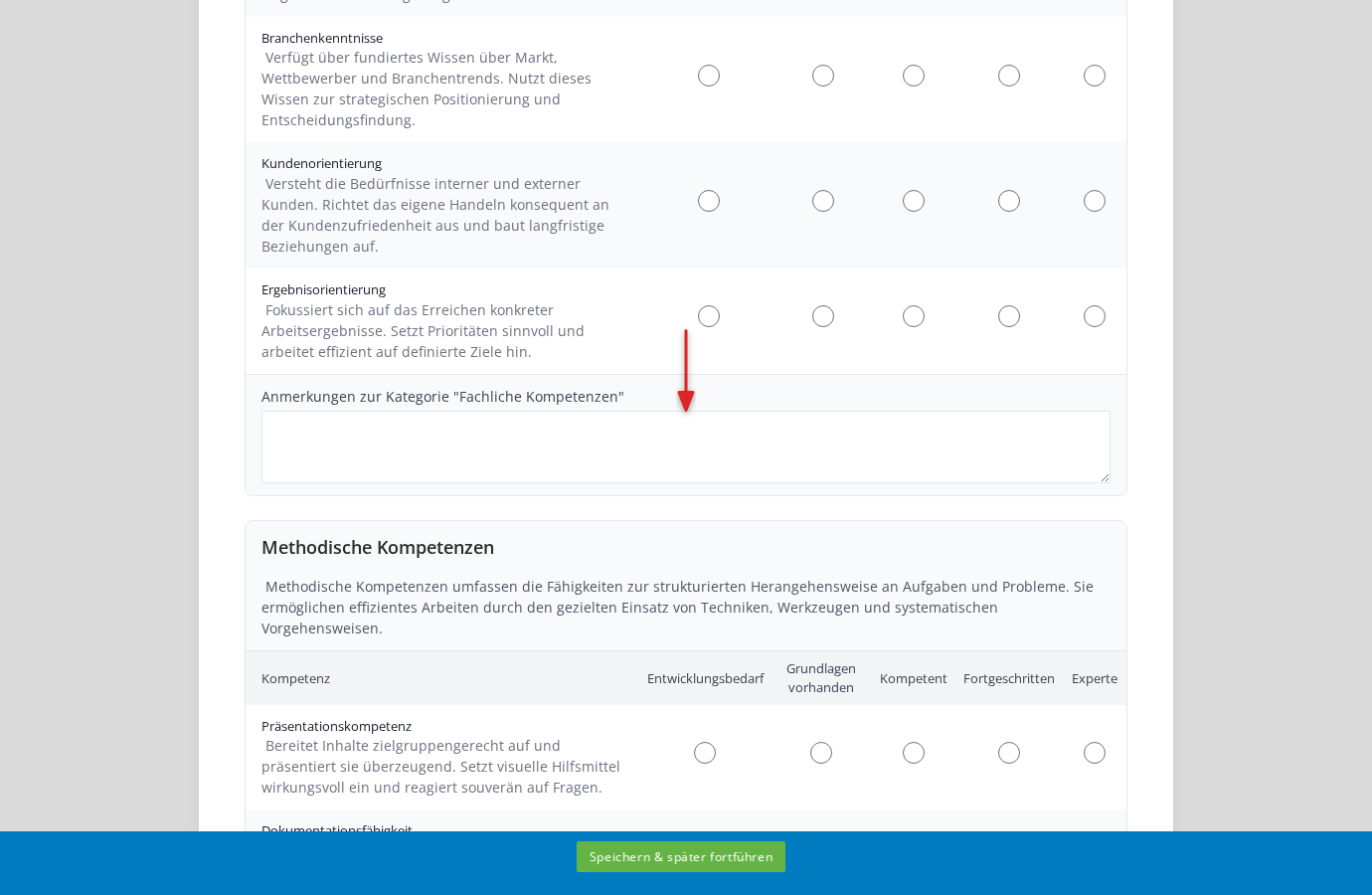
- The administrator can customize the field’s title (for example “Comments on the Technical competencies category”).
- If it’s configured as a required field, a red asterisk (*) appears next to the title. In that case you must enter a comment before you can complete the questionnaire.
Navigating the questionnaire
The competency assessment is part of the questionnaire and appears on its own page. At the bottom you’ll find:
- back and next: Move between questionnaire pages. Your entries so far are saved automatically when you change page.
- Save & continue later: Save your progress and resume later.
Error messages
If the competency assessment isn’t set up correctly, a notice appears instead of the rating fields:
| Message | Cause |
|---|---|
| No competency model revision has been linked for this edition. | No revision was selected in the edition settings. |
| The assessed person is not assigned to a job profile. | The person being assessed is not assigned to a job profile in the selected competency model. |
| No categories have been configured for the assessed person’s job profile. | The job profile has no active categories. |
| No rating scales have been defined yet for the configured categories. | The scale configurations are missing from the competency model revision. |
| No competencies in this category. | No competencies are assigned to a category. |
See also
- Add a competency assessment to the questionnaire — configuring the question type
- Job profiles and assignments — assigning an employee to a job profile
- View individual results — viewing results after the assessment