Manage revisions
What is a revision?
A revision is a versioned configuration of a competency model’s rating scales, aggregation methods and display options. Revisions let you make adjustments over time without losing historical rating data.
Example: From 2026, the rating scale should be extended from 1–5 to 1–6. Instead of changing the existing configuration (which would compromise the comparability of historical data), you create a new revision with the desired effective date.
Each revision has an Effective from date. easyreview automatically picks the right revision based on this date. The revision that applies is always the one with the most recent effective date that lies in the past.
First revision
When you create a new competency model, a first revision is created automatically. It has no scale configuration to begin with. The rating scales have to be set up per category.
Revisions on the settings page
The competency model’s settings page shows all existing revisions under the Revisions section. Each revision is shown with its name (or its effective date).
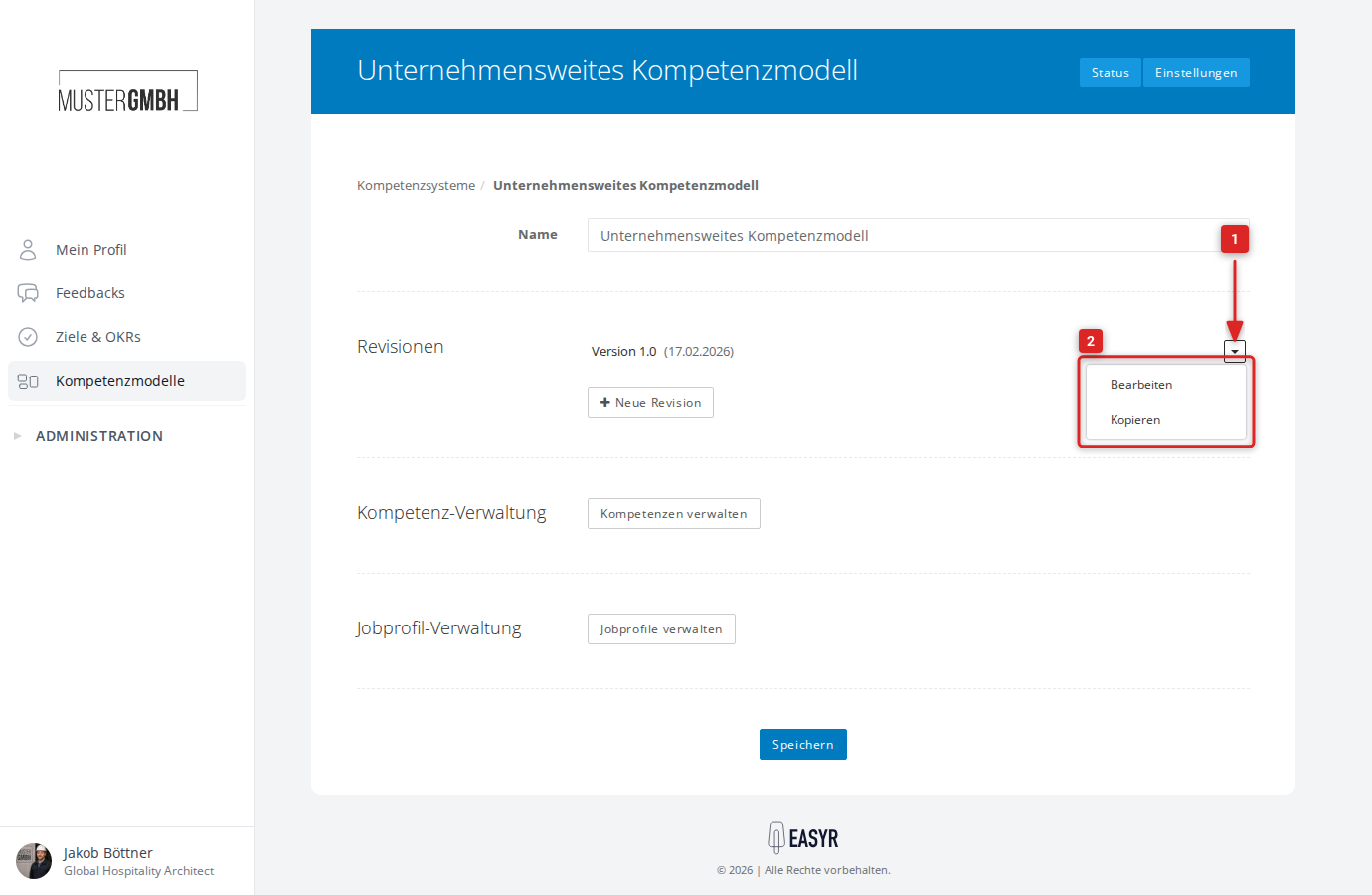
The dropdown menu next to a revision offers the following actions:
- Edit — opens the revision configuration
- Copy — creates a new revision with all settings of the existing revision as the starting point
- Delete — removes the revision (only visible when more than one revision exists)
Use the + New revision button to create a new, empty revision.
Create a new revision
- Go to the competency model’s settings.
- Click + New revision.
- Fill in the form:
- Name (optional): a descriptive name for the revision (e.g. “Scale 2026”). If no name is given, the effective date is used as the display name. The name can be maintained in multiple languages.
- Effective from: the date from which this revision applies. Each date may be used only once per competency model.
- Category aggregation: determines how the results of all categories are combined into the overall result. Average takes the mean of all category results. Sum adds the category results together.
- Click Save.
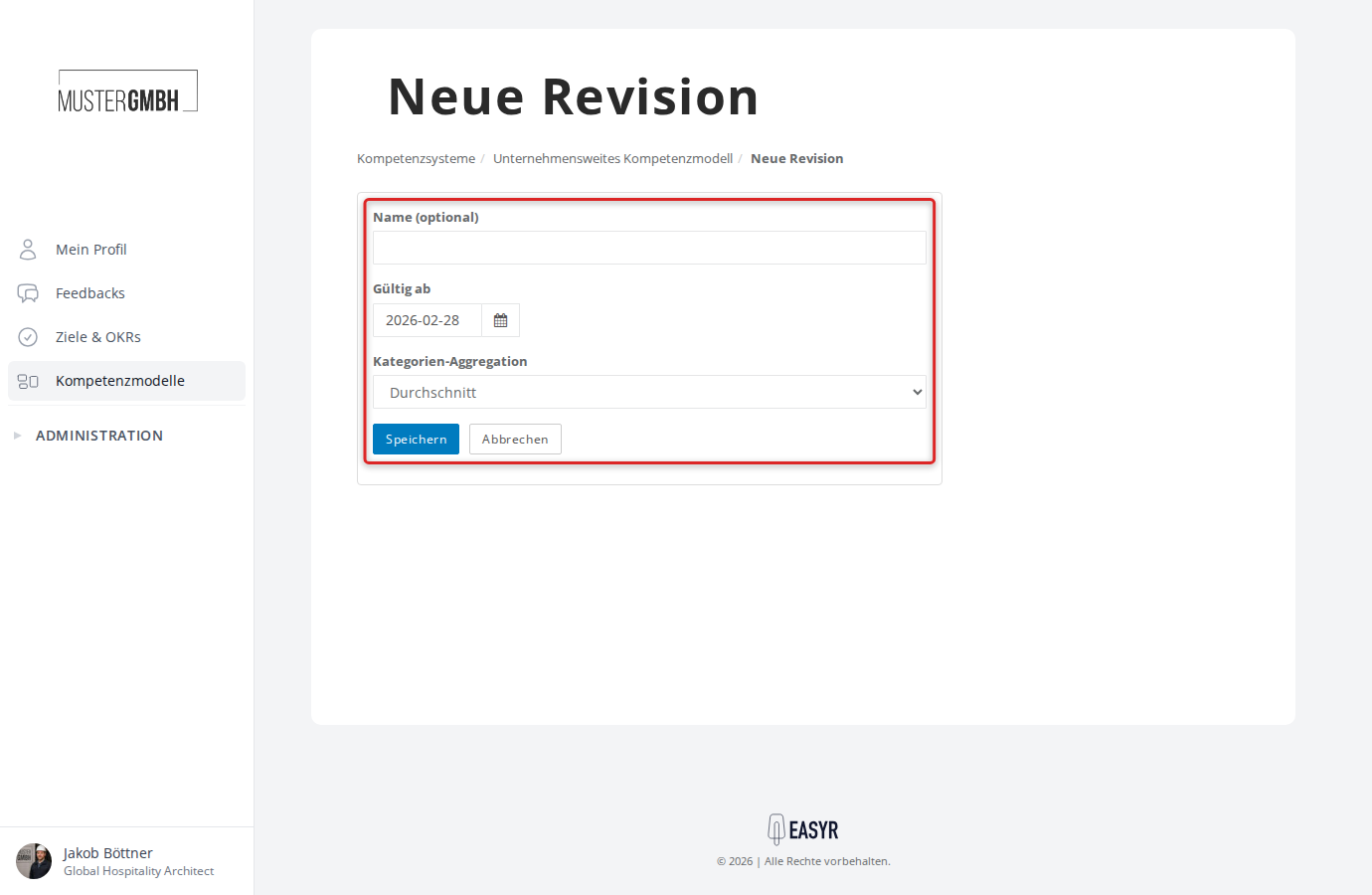
After saving, you’re taken to the revision’s edit page, where you can set up the category configurations.
Copy a revision
To use an existing revision as a template, open the source revision’s dropdown menu and click Copy. A new revision is created with today’s date that takes over all settings:
- Category aggregation and display options
- Scale configurations of all categories
- Job profile assignments (category and competency mappings)
Edit a revision
On a revision’s edit page, you configure all its details.
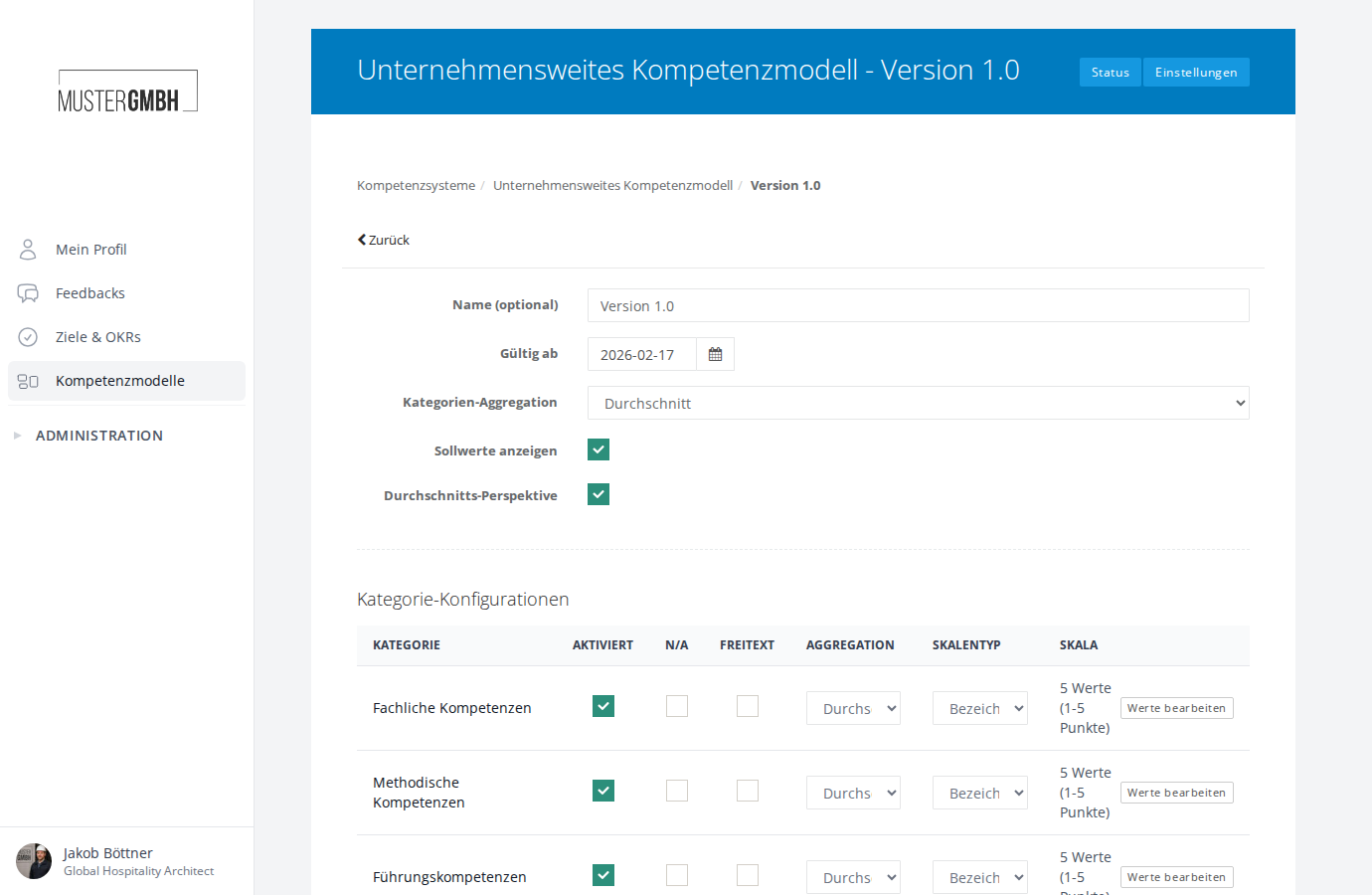
General settings
The basic settings are at the top of the page:
| Field | Description |
|---|---|
| Name (optional) | Descriptive name of the revision (multiple languages) |
| Effective from | Date from which this revision applies |
| Category aggregation | How the category results are combined into the overall result: Average or Sum |
| Show target values | Enables the target-vs-actual comparison in the results. Target values are defined via job profiles (→ Job profiles & assignments). |
| Average perspective | Shows an additional average line in the radar chart of the results (→ View individual results) |
Category configurations
Below the general settings is the Category configurations table. It lists all competency categories of the model and lets you configure each one individually.
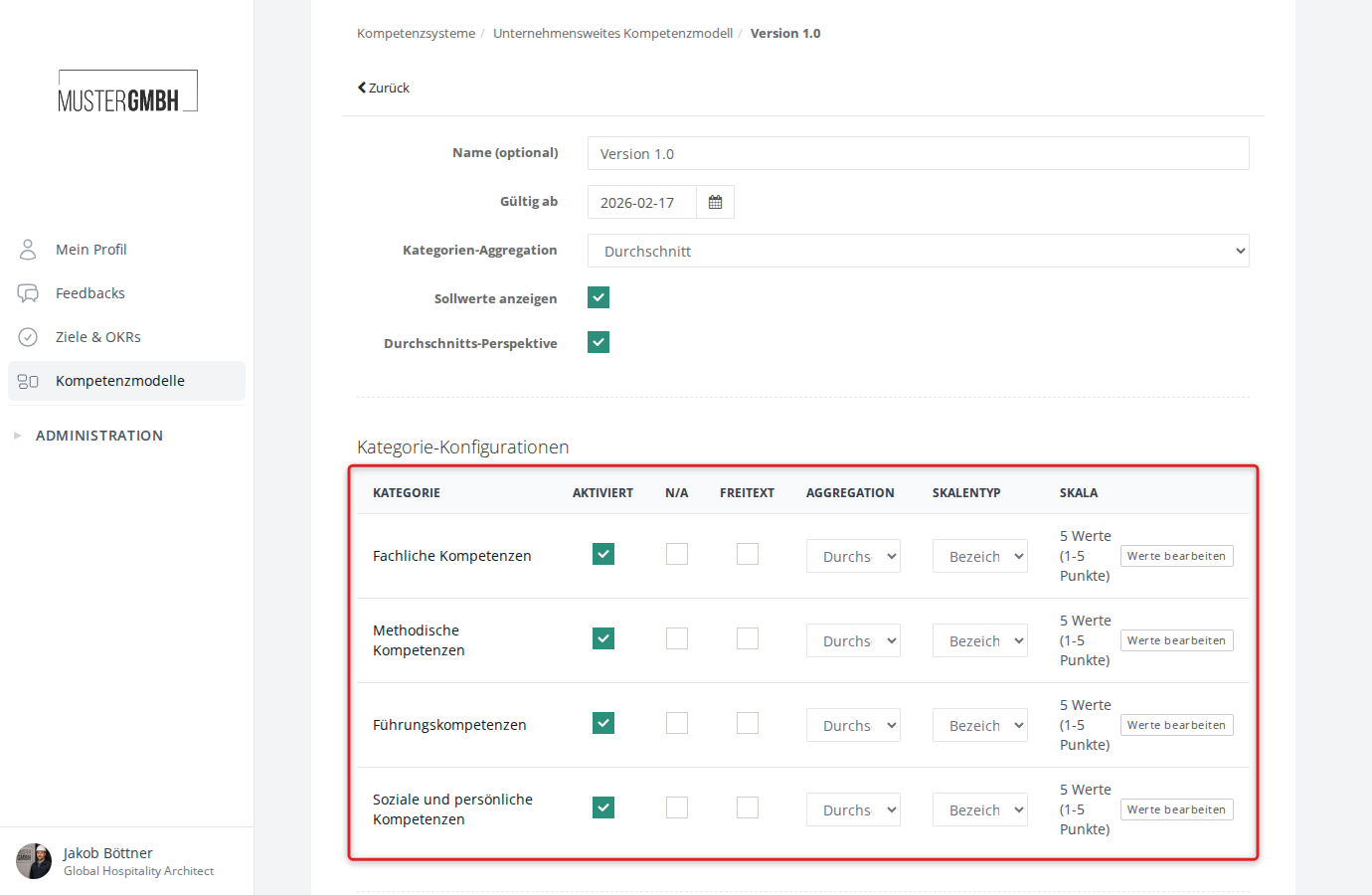
The table has the following columns:
| Column | Description |
|---|---|
| Category | Name of the competency category |
| Enabled | Checkbox — whether the category is active in this revision |
| N/A | Checkbox — whether participants can mark a competency as “not applicable” |
| Free-text | Checkbox — whether free-text competencies are allowed in this category |
| Aggregation | How competency ratings within the category are combined: Average or Sum |
| Scale type | Type of rating scale (see below) |
| Scale | Configuration of the chosen scale |
Scale type
Per category, you choose one of the following scale types:
Numeric range
Rating on a continuous number scale. You set a minimum value and a maximum value (e.g. 1–5).
In the table, the min/max values are shown directly as input fields.
Labels with point values
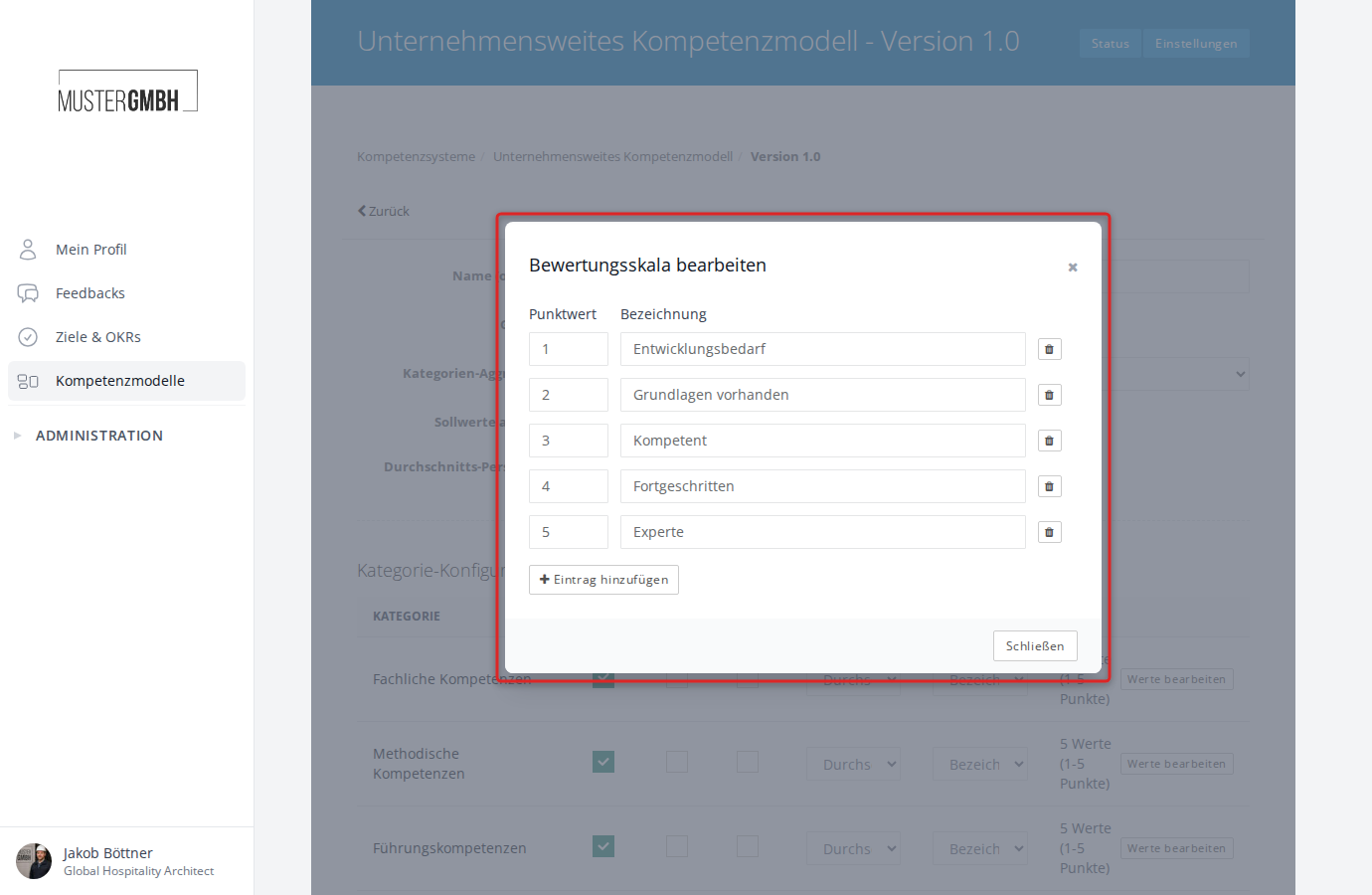
Rating via predefined steps, each with a point value and a label. Example:
| Point value | Label |
|---|---|
| 1 | Development needed |
| 2 | Basics in place |
| 3 | Competent |
| 4 | Advanced |
| 5 | Expert |
The table shows a summary (e.g. “5 values (1–5 points)”). The Edit values button opens a dialog where you can:
- Set the point value and label for each step
- Maintain labels in multiple languages (when the multi-language feature is enabled)
- Add or remove steps
Other options per category
- Enabled: categories that aren’t needed can be disabled in a revision without removing them from the competency model.
- N/A (not applicable): when enabled, participants can mark a competency as not applicable. It is then not counted in the evaluation.
- Free-text: enables or disables free-text competencies for this category (→ Create and configure a competency model).
Job profile assignments
At the bottom of the revision edit page is the Job profile assignments section. Here you see which job profiles are linked to the revision and how many competencies are assigned to each.
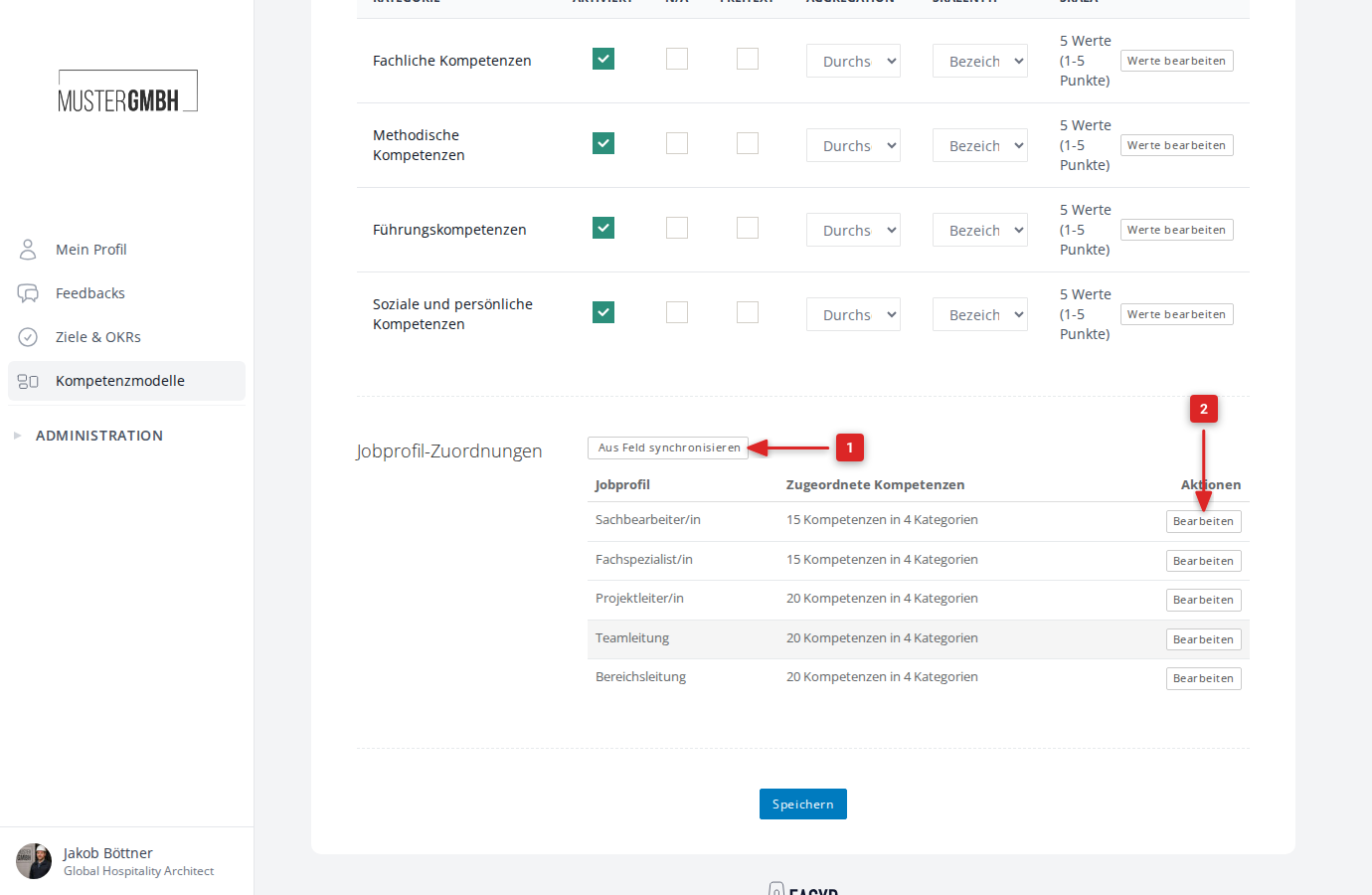
The Edit button next to a job profile takes you to the detailed competency mapping.
The Sync from field button lets you create or sync job profiles automatically from a custom field.
Overview page (Status)
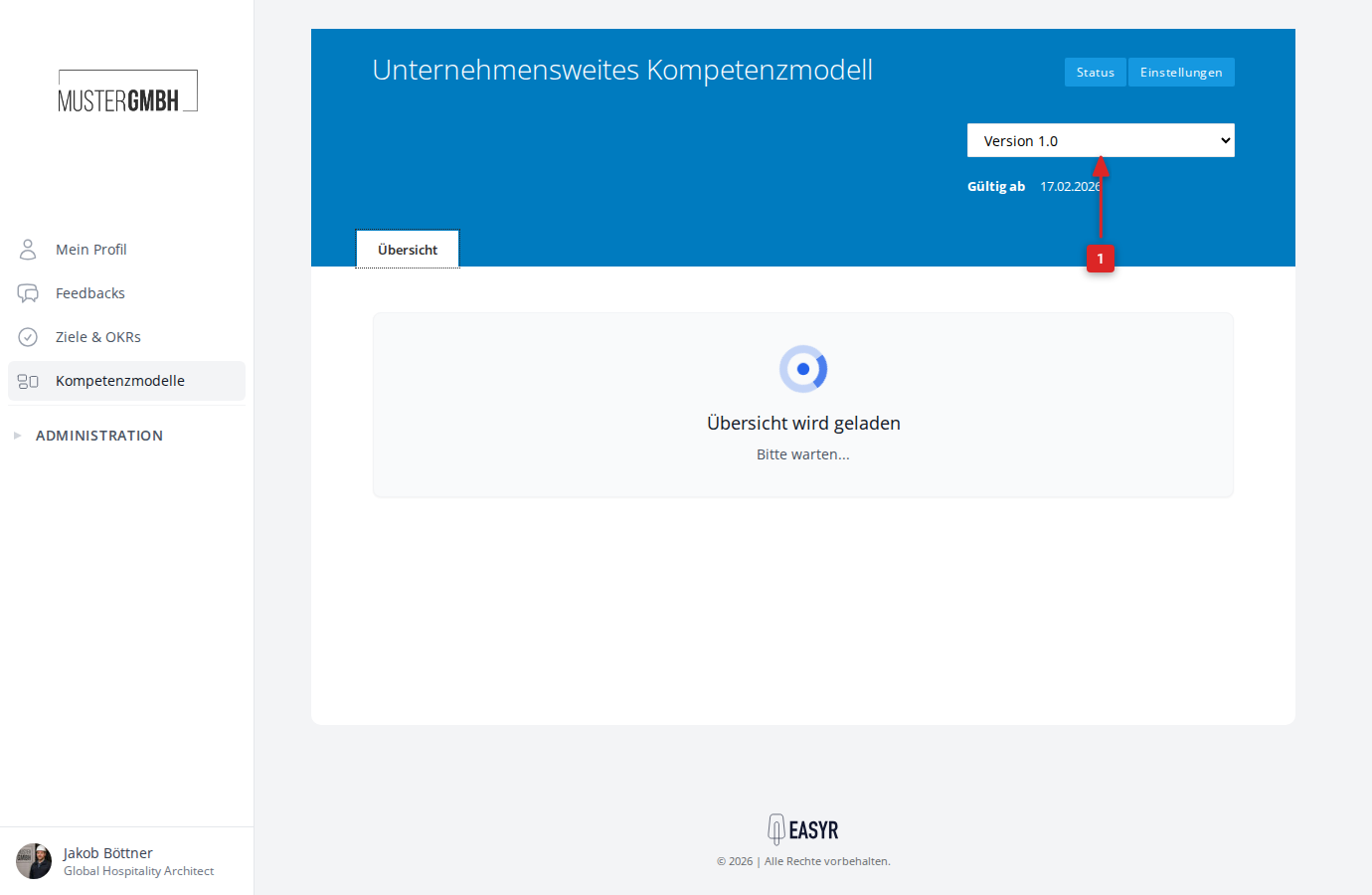
The Status button in the header takes you to the revision’s overview page. It shows a results table of all competency ratings for the current revision.
On the overview page, you can:
- Search for employees
- Apply filters
- Add extra competencies as columns via the competency selector
- Download an Excel export of the results (via the three-dot menu)
- Switch between revisions (via the dropdown in the header)
Related articles
- Create and configure a competency model — create categories and competencies
- Job profiles & assignments — weights and target values per job profile
- Add a competency assessment to the questionnaire — link the revision to the edition
- View individual results — results per participation group