Getting started with the audit log
The audit log records changes to master data, permissions and settings in easyreview. You can trace who made which change, and when.
The feature serves as a security tool: you can check whether, for example, access rights or the options of a review were changed without authorization.
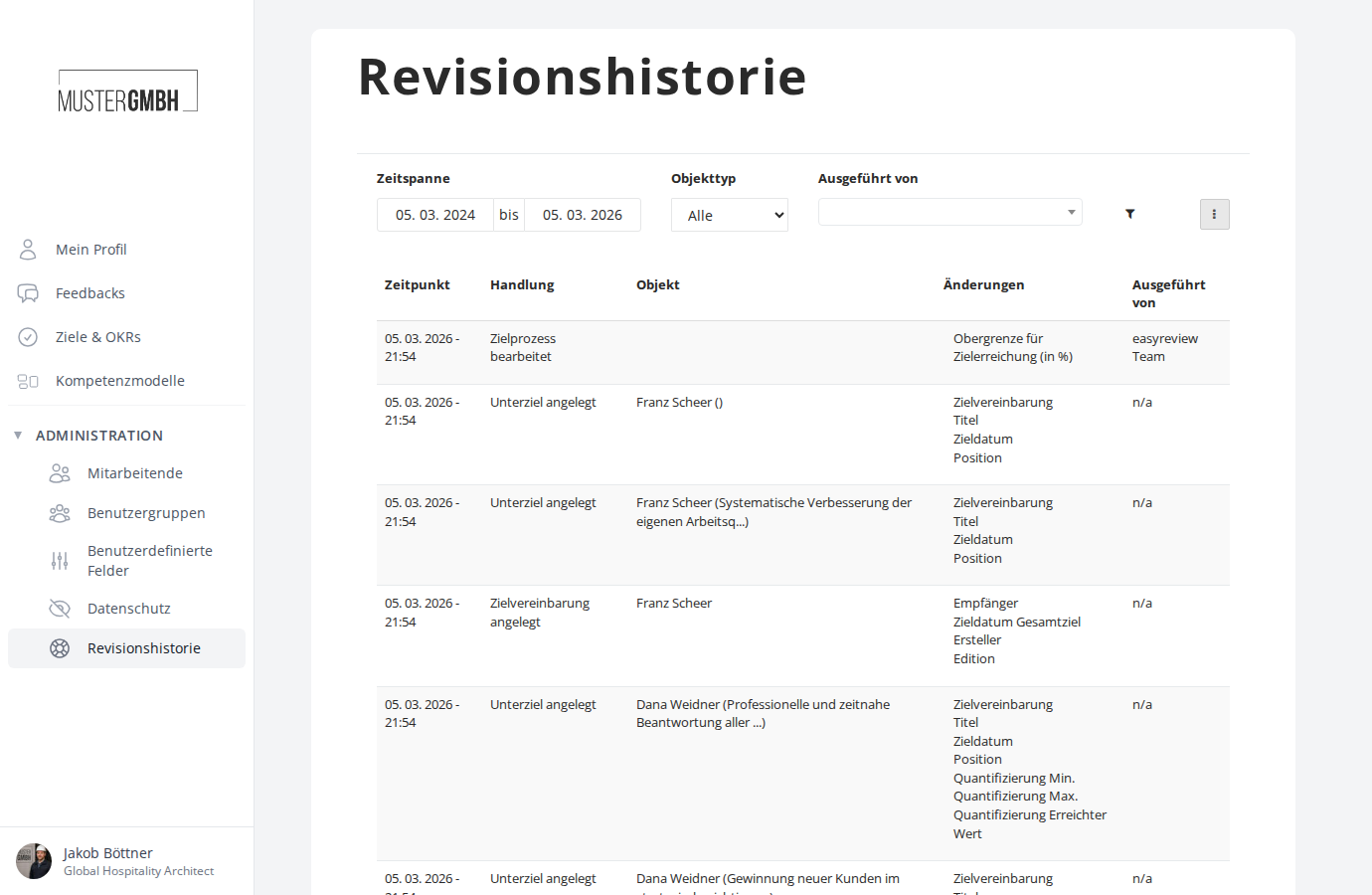
Requirements
To access the audit log you need the “Audit log” access permission. It is set up on request by the contractual contact person of your company through easyreview support.
Open the overview
- In the sidebar, in the “Administration” area, click “Audit log”.
- You see a table of the most recent changes.
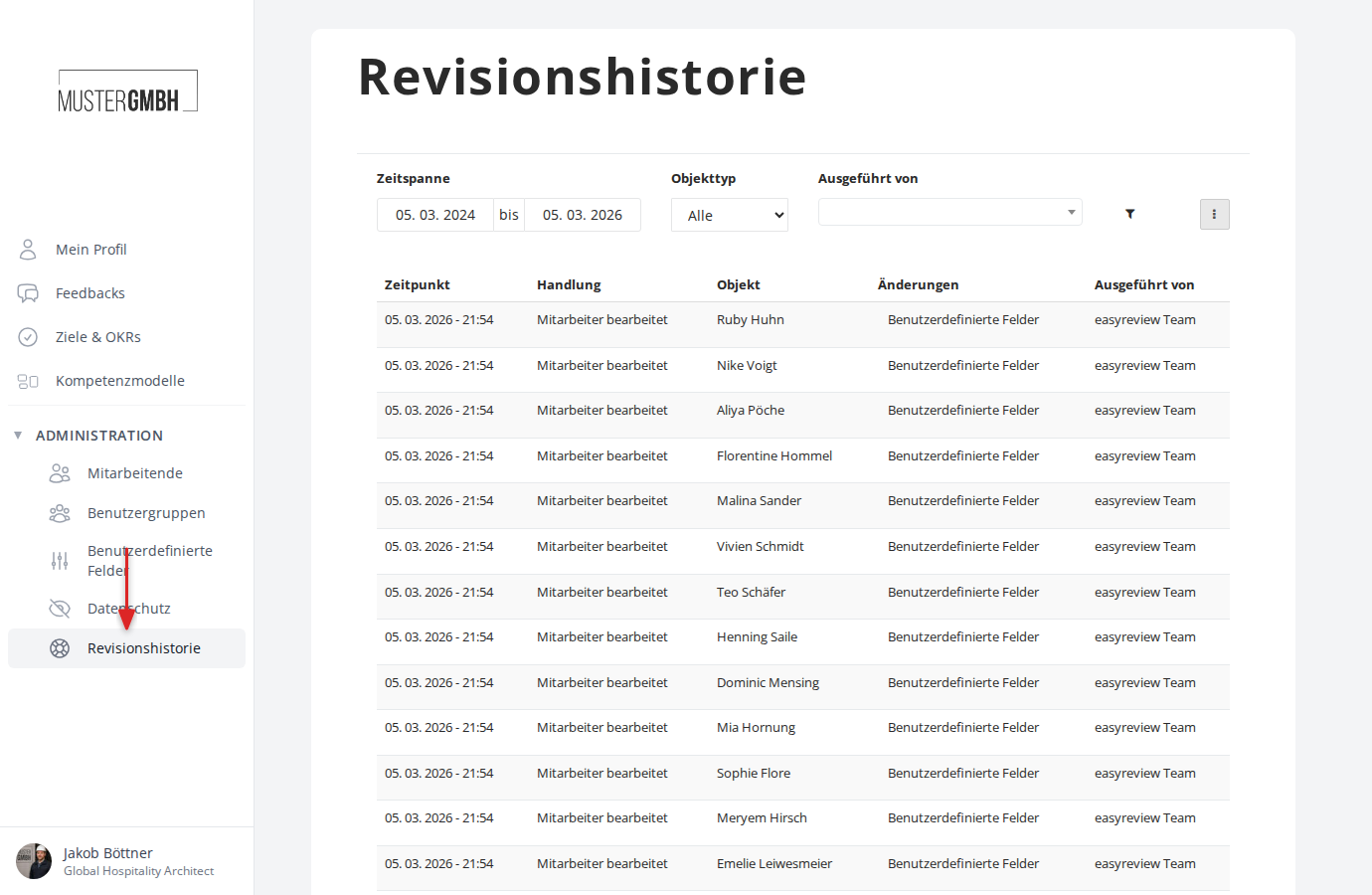
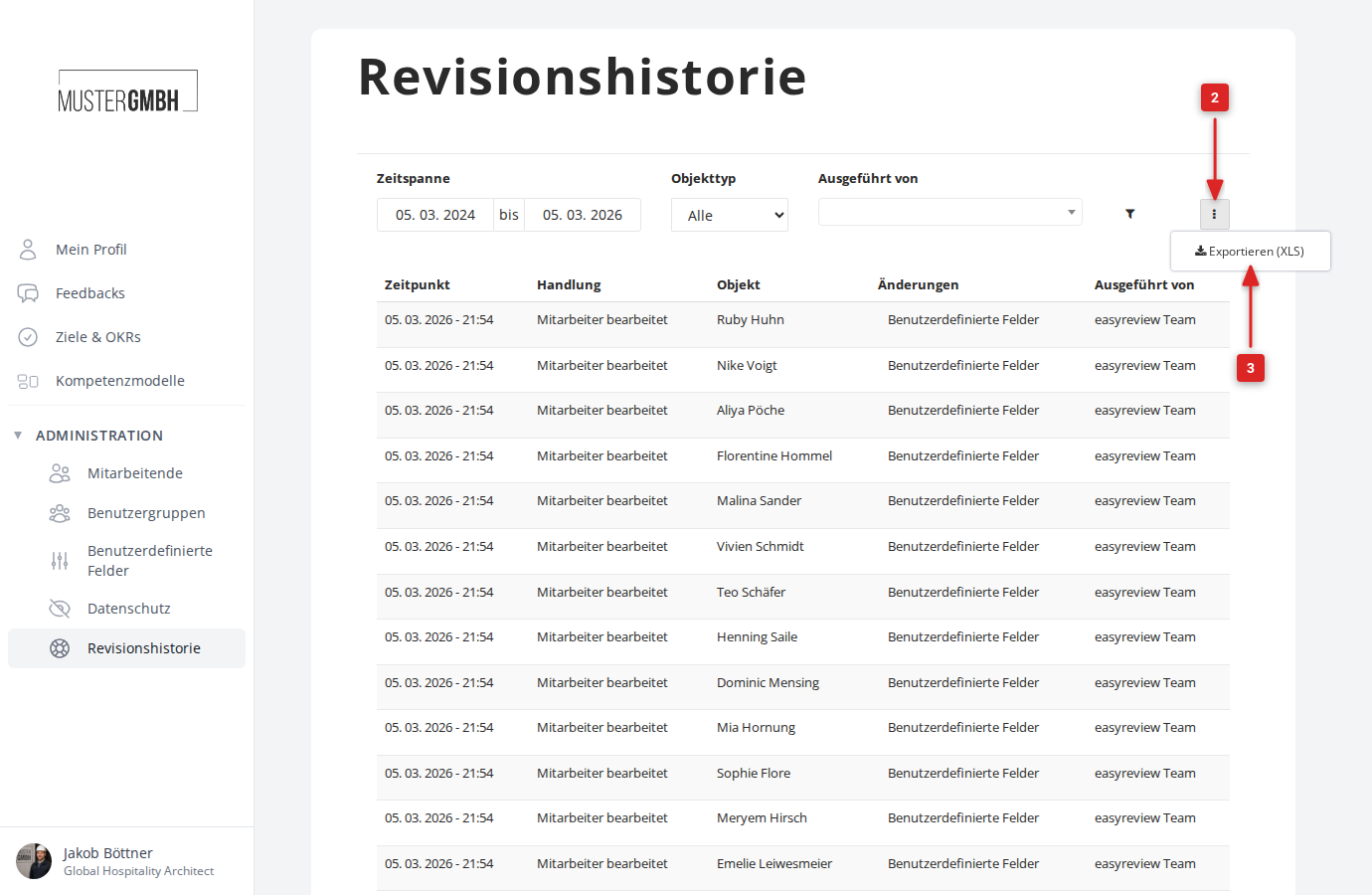
The table shows the following columns:
- Timestamp: when the change was made
- Action: the kind of change (created, changed, deleted) and the type of data changed
- Affected: the changed record, e.g. a link to the affected employee or feedback
- Changes: which data fields were changed
- Operator: who made the change. For changes made by easyreview support, “easyreview Team” appears.
Recorded object types
The audit log records changes to the following object types:
- Employee: master data, access rights and custom fields
- Feedback: title, reminder intervals and options such as sealing or diplomatic status
- Participant answer: changes to answer values in feedbacks
- Target agreement: recipient, name, visibility and reminder settings
- Key result: title, description, progress and weighting
- Target agreement process: title and completion settings
- Target agreement edition: name, period and associated target agreement process
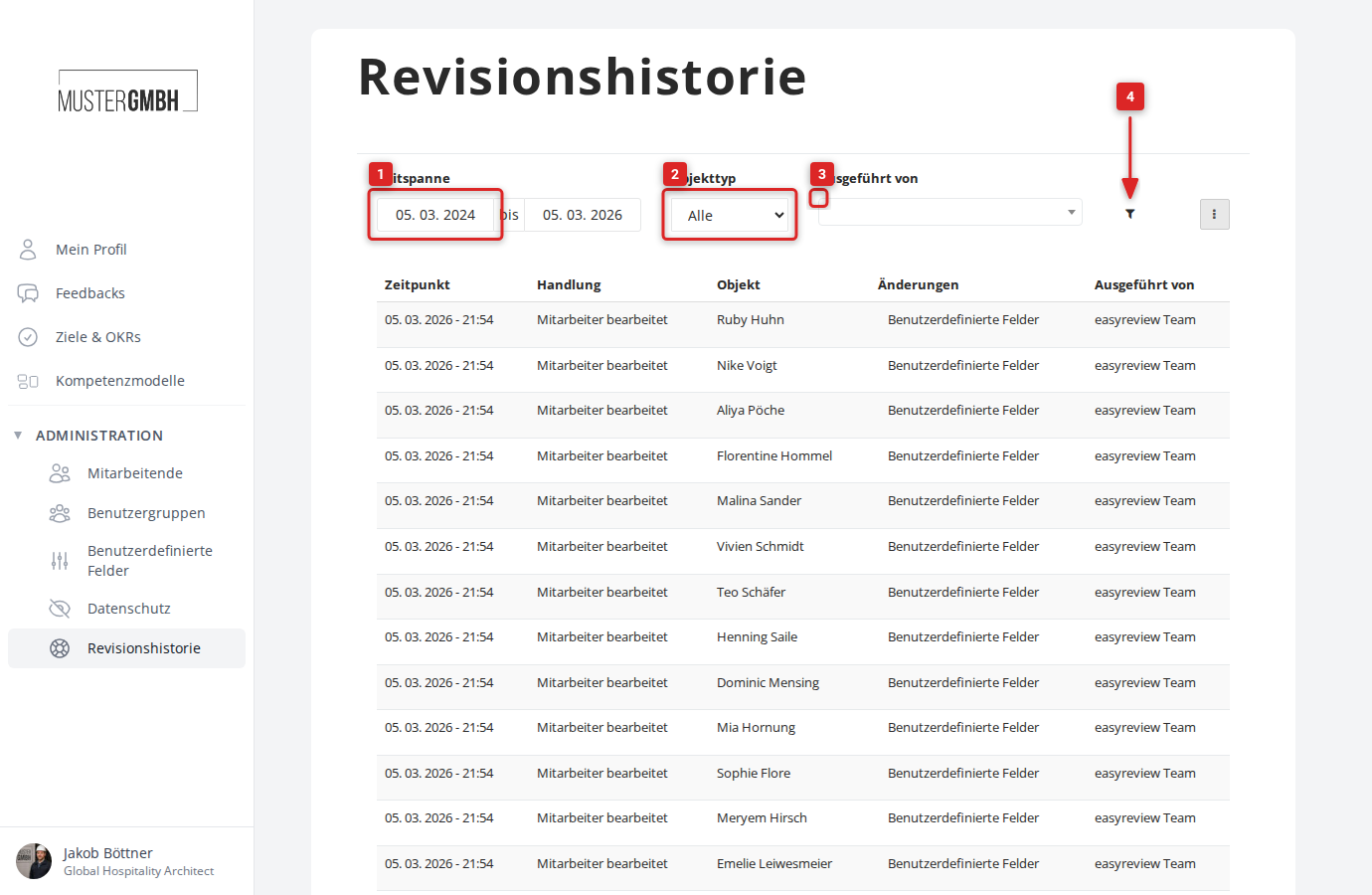
Filter
You can narrow down the changes shown:
- In the “Timeframe” area, set the start and end date you want.
- In the “Object type” field, choose which kind of changes you want to see (e.g. only employees or only target agreements).
- In the “Operator” field, choose the employee whose changes you want to narrow the display to.
- Click the funnel icon to apply the filter.
View the details of a change
- Open the overview page of the audit log.
- Click the timestamp of the change you want.
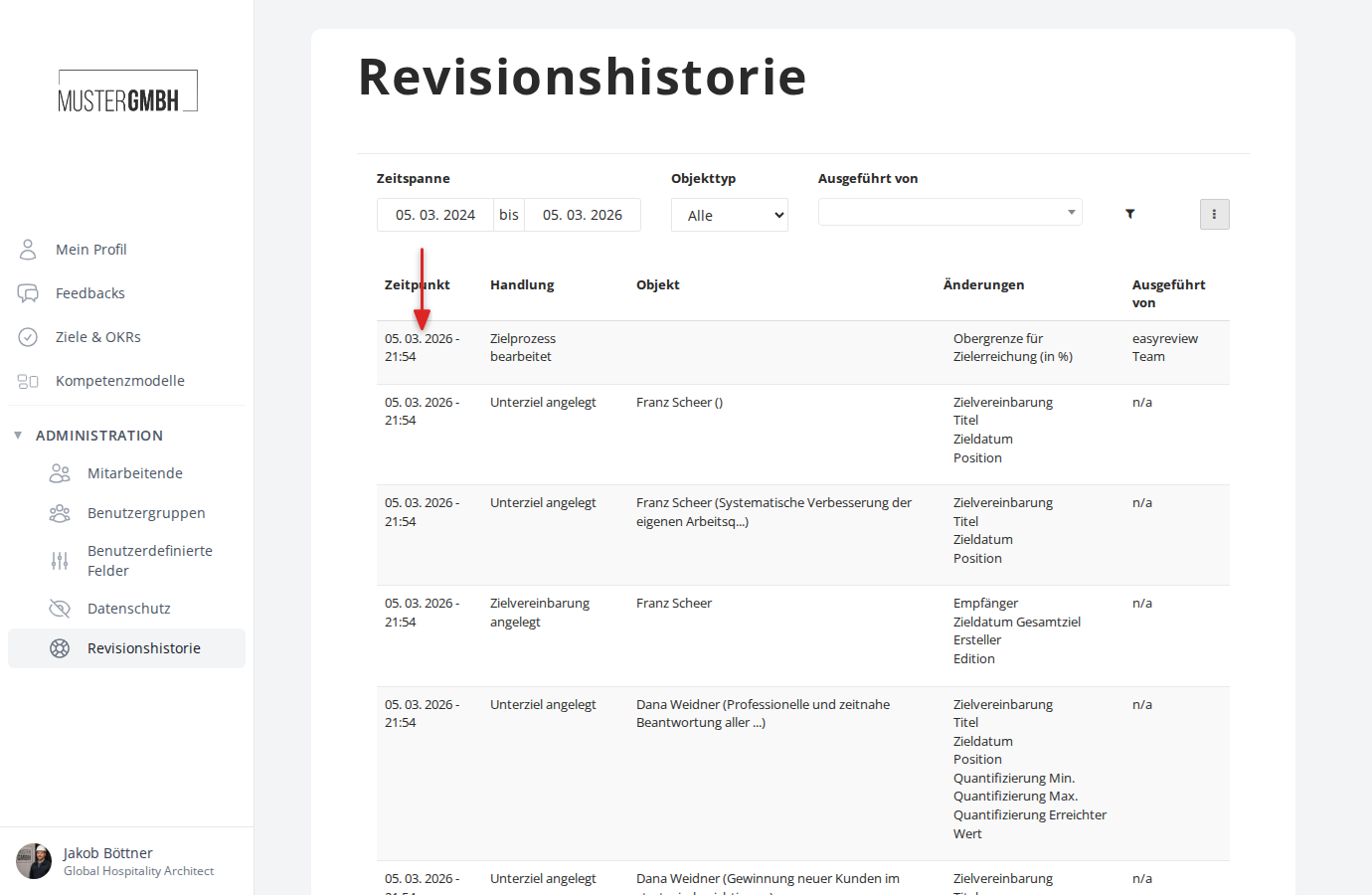
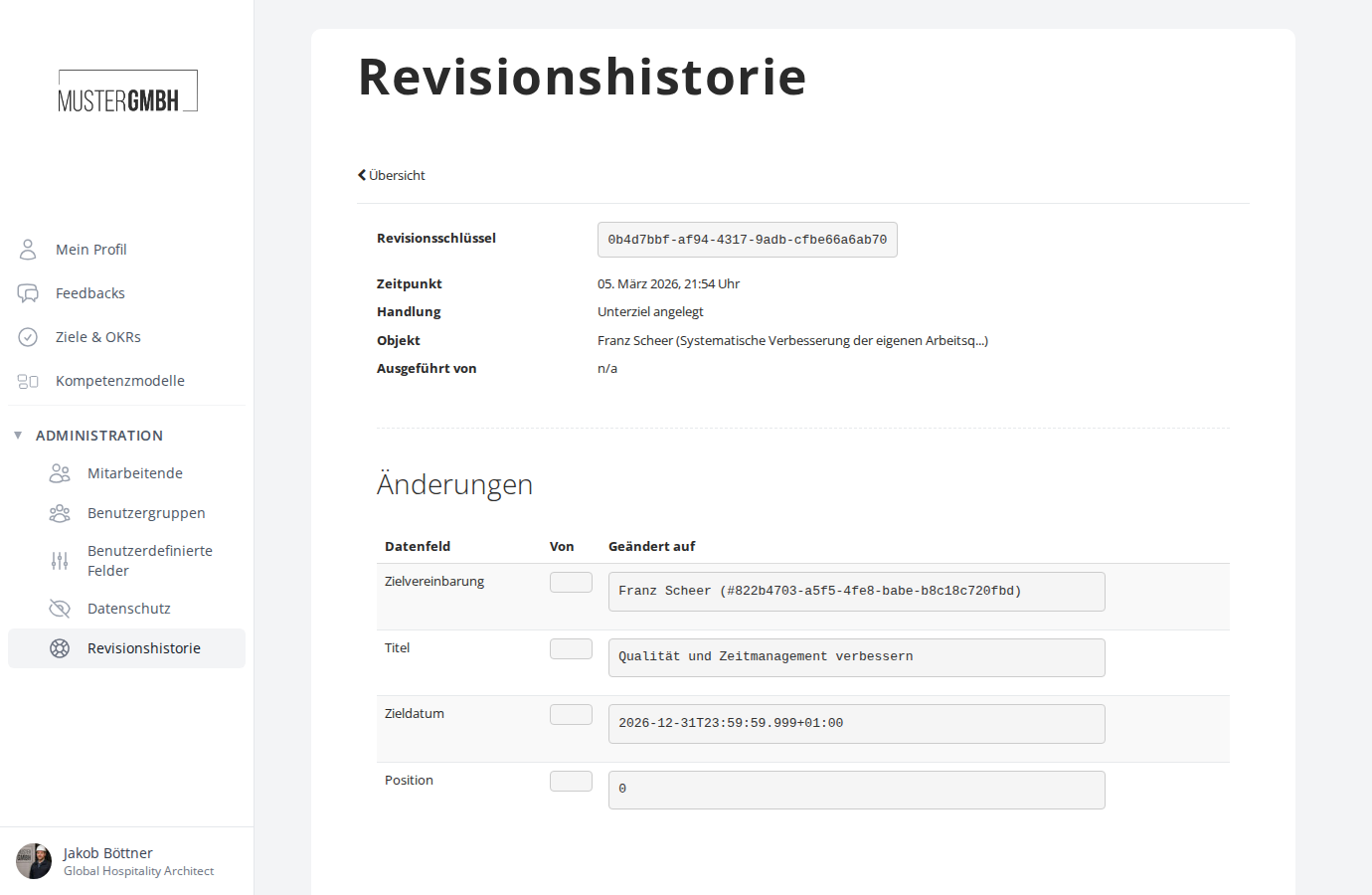
The detail page shows:
- Revision ID: a unique technical identifier for the change
- Timestamp: the exact time of the change
- Action: the kind of change and the type of data changed
- Affected: the changed record
- Operator: who made the change
In the “Changes” section you see a table with the columns “Data field”, “From” and “Changed to”. Each row shows one changed field with its old and new value.
Export the audit log (XLS)
You can download the audit log as an Excel file:
- Open the overview page of the audit log.
- Click the three dots in the top right corner of the screen.
- Click “Export (XLS)”.
View the changes for a single employee
You can open the audit log for a specific employee directly from the employee profile:
- Open the employee profile of the employee you want.
- Click the “Details” tab.
- Click “Show audit log” at the bottom of the Details tab.
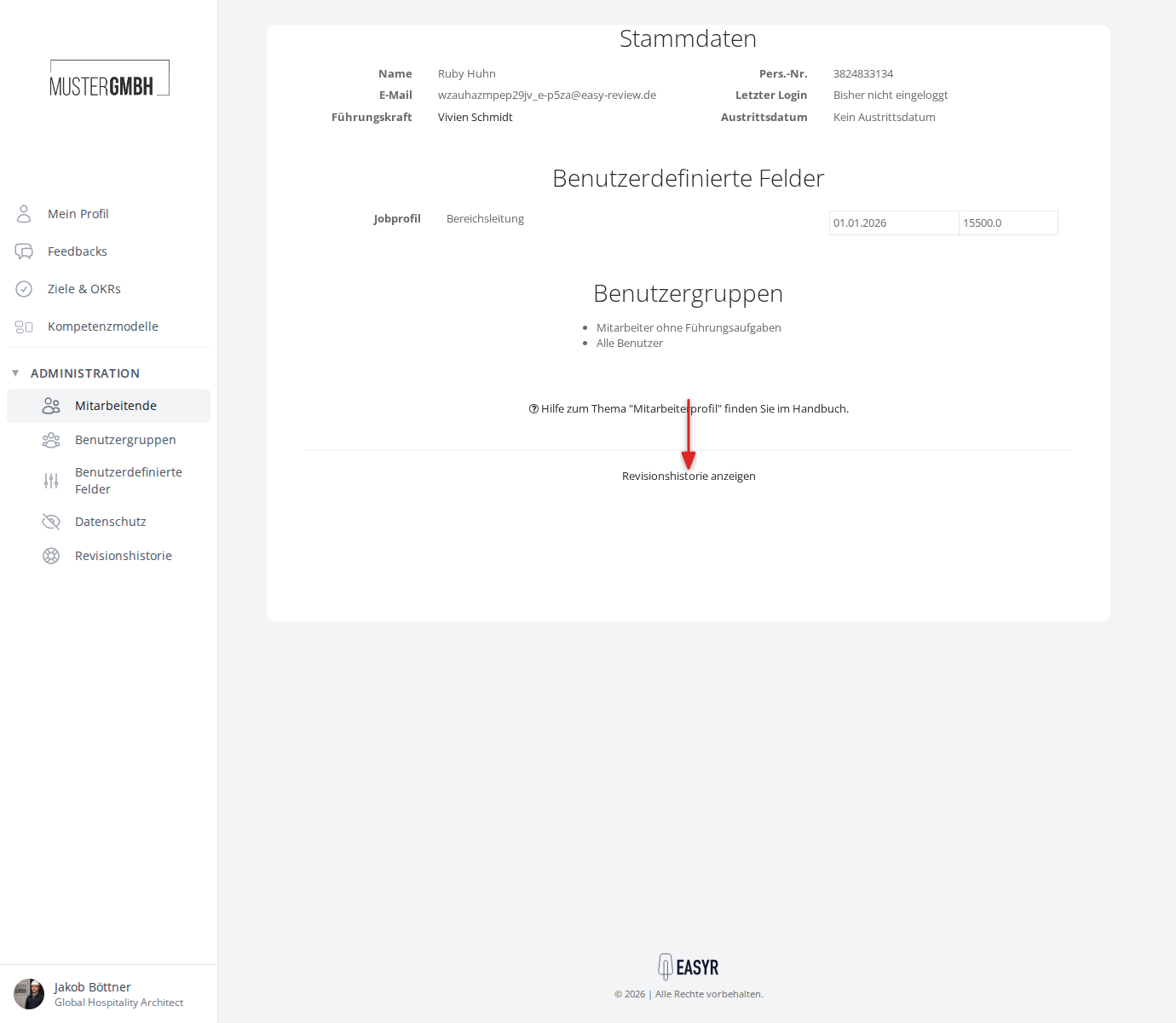
You then see a filtered view of the audit log that contains only changes to this employee.
View the changes for a feedback
You can also open the audit log for a specific feedback:
- Open the participant list of a review edition.
- Click the three dots in the top right of the participant list.
- Click “Show audit log”.
You then see only changes to this feedback.
Paging
At the bottom of the page you find the page navigation, which lets you page through to older changes.