Getting started with observations
Observations are private notes you keep about your colleagues. Use them to prepare for annual reviews without letting the details slip away over the course of the year. Every observation is visible to you and no one else.
Why use observations?
- Document performance across the whole year instead of relying on the last few months
- Jot down quick notes right after meetings or during project work
- Find all your notes about a colleague neatly gathered on their profile
- Extend a note over time by adding comments
Who can see your observations?
Observations are private notes. Each observation is visible only to the person who created it. The colleagues you write notes about cannot see them.
Opening observations
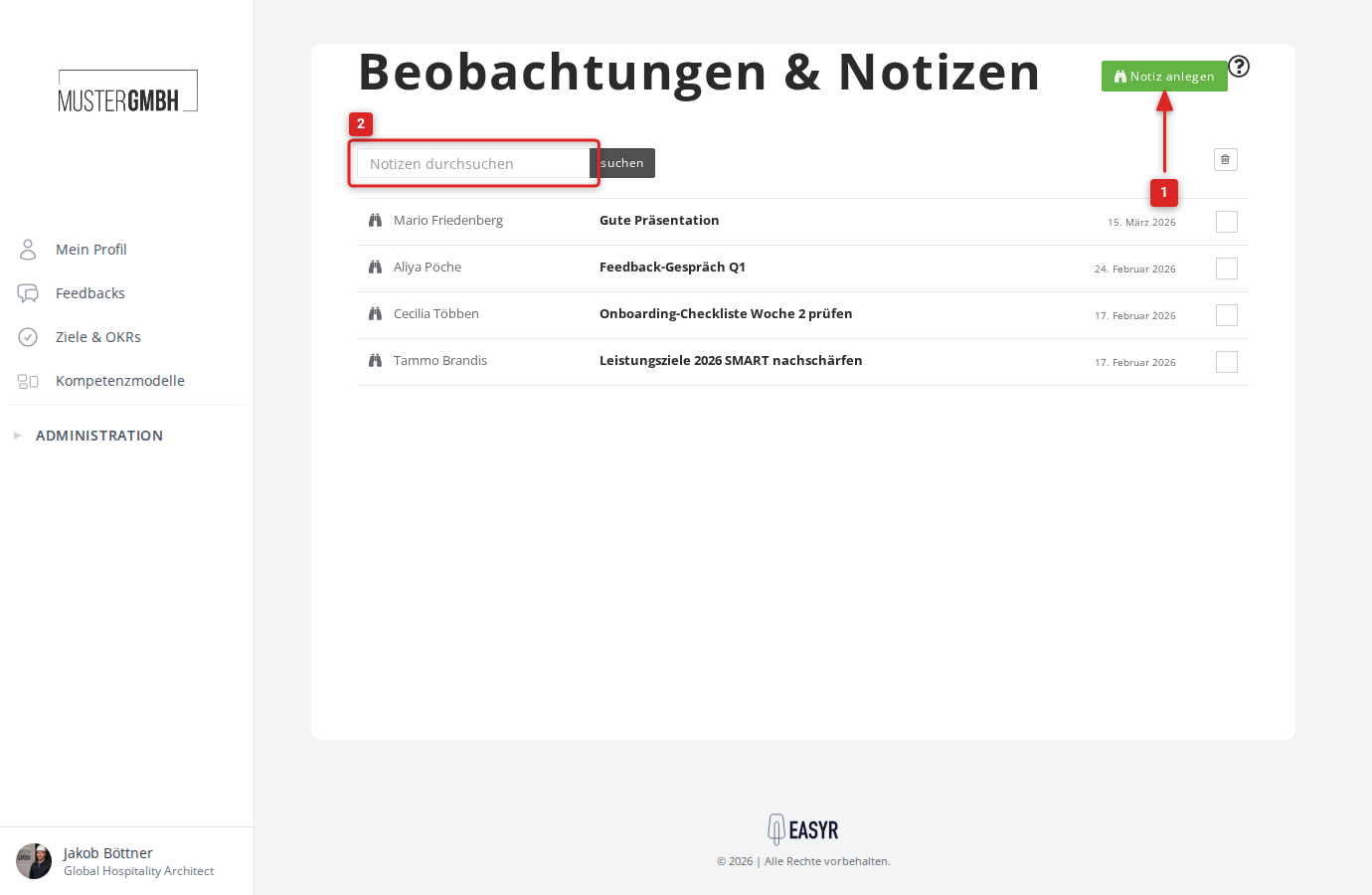
Open a colleague’s profile and click the Notes tab. There you see all your notes about that person, and you can create new ones straight away.
Creating a note
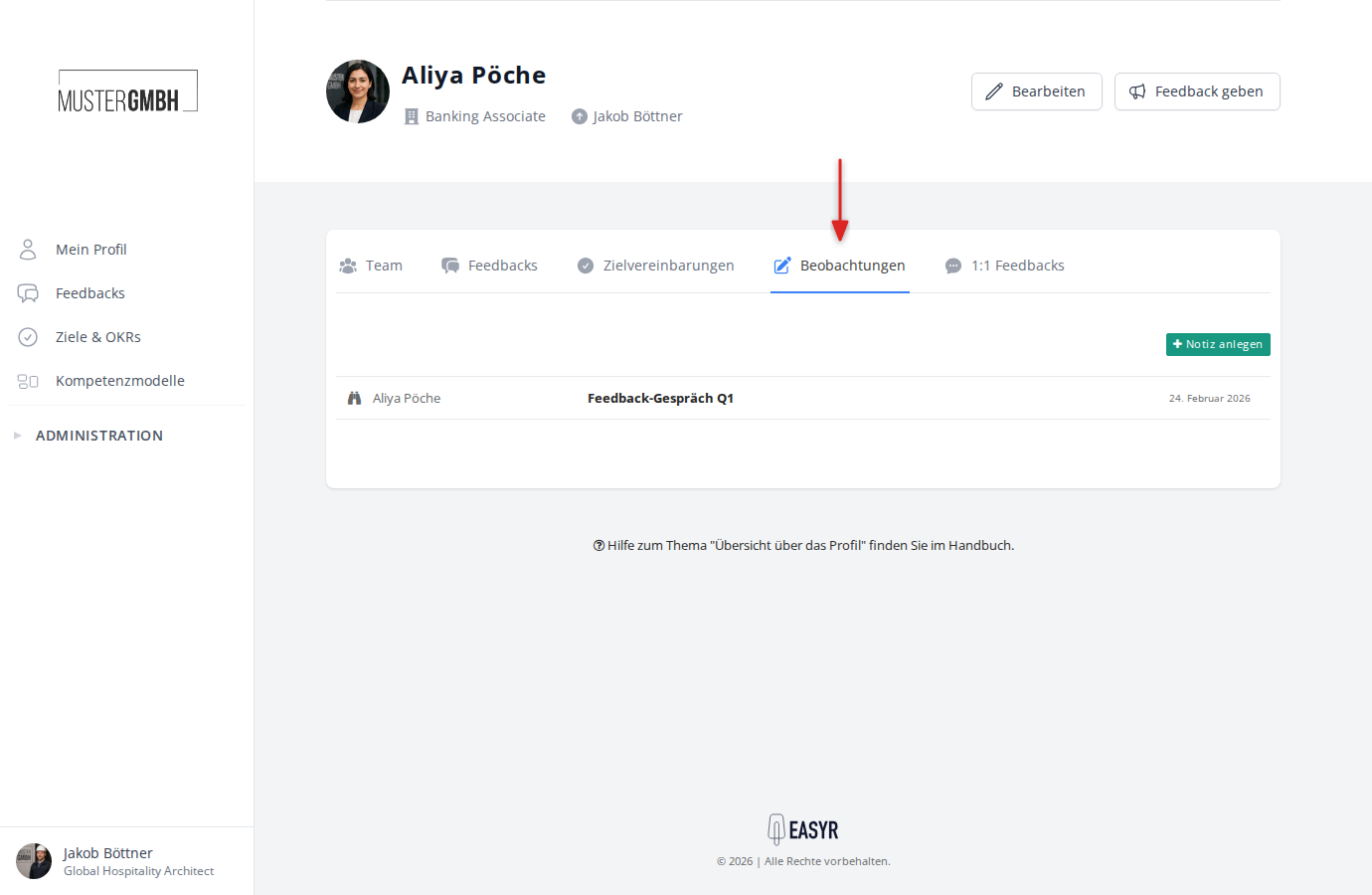
- Click Add note (in the Notes tab of a profile, or in the overview).
- In the For: field, choose the colleague the note is about. If you came from a profile, that colleague is already preselected.
- Enter a Title that will help you find the note again later.
- Write your note in the text field.
- Click Save.
Viewing a note
In the overview, click a note’s title to open its detail view. There you see:
- The colleague’s profile (with a link to their full profile)
- The title and text of the note
- Every comment you have added to the note
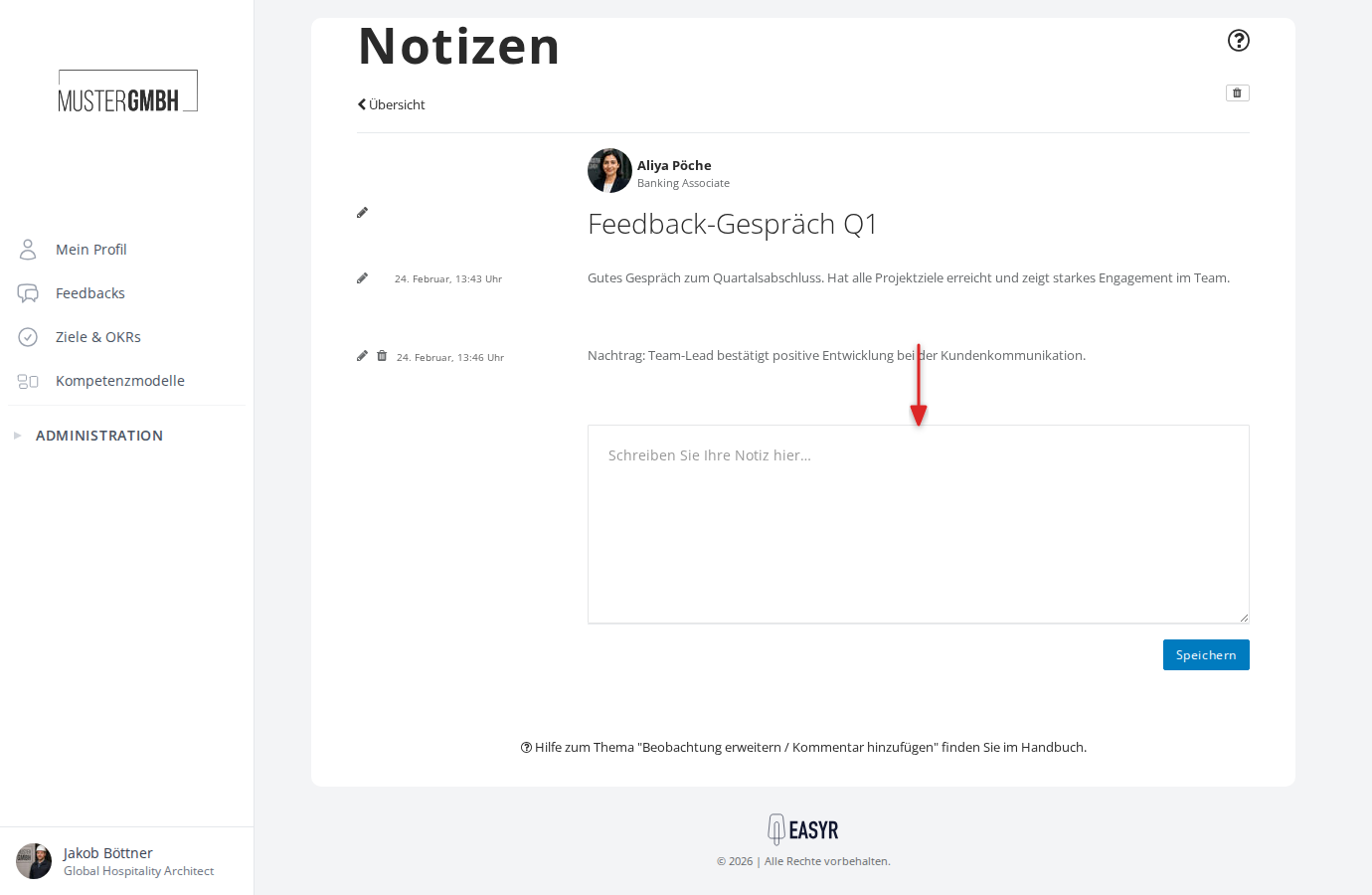
- A text field for adding another comment
Editing a note
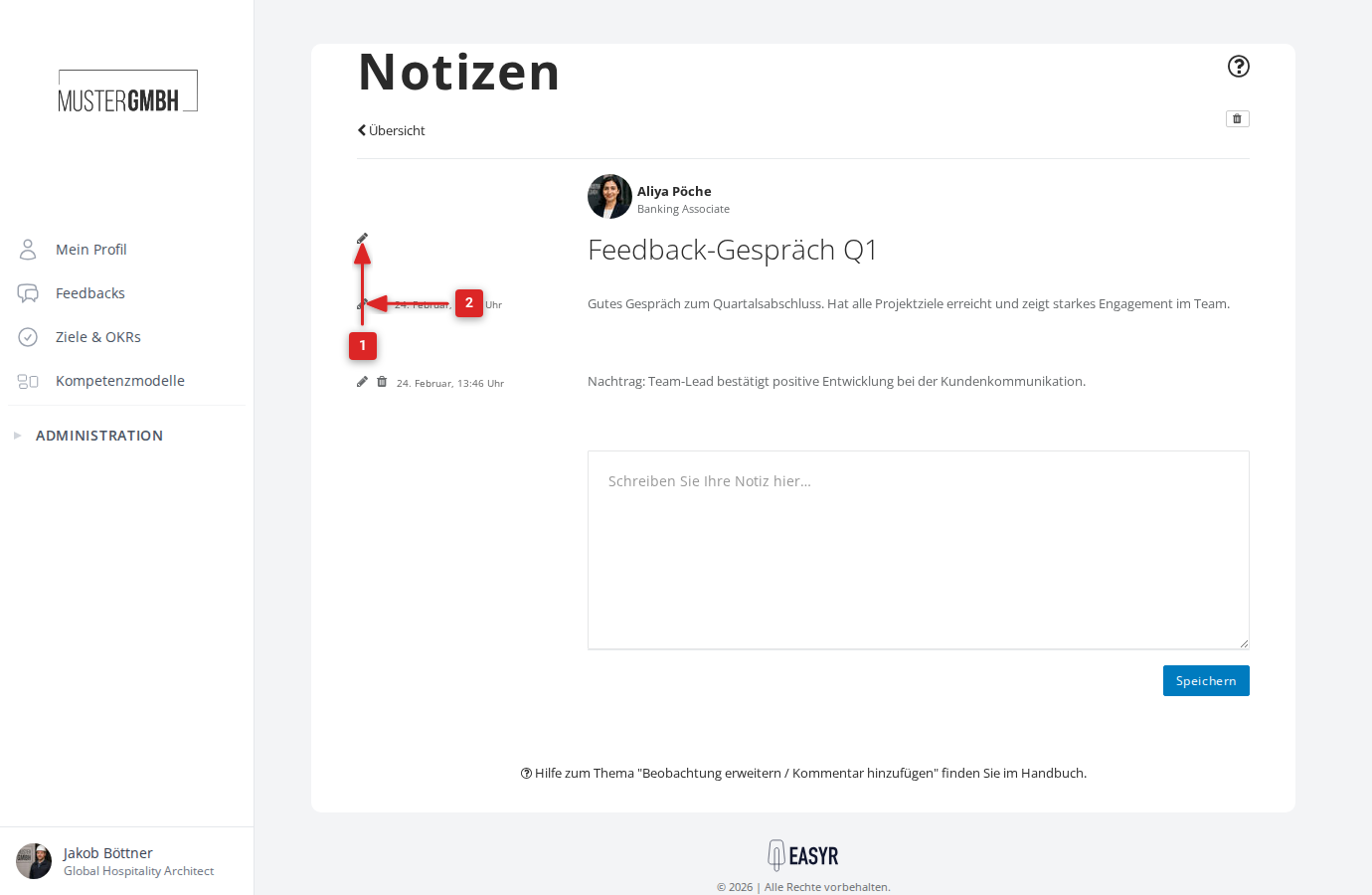
You can change a note’s title and text directly in the detail view.
- Open the note.
- Click the pencil icon next to the title or the text.
- Edit the content in the field that appears.
- Click Save.
Adding a comment
Comments extend an existing note with additional entries, so you can build up an observation over time.
- Open the note.
- Write your text in the Write your note here… field at the bottom of the page.
- Click Save.
The comment appears below the main note with its own date.
Editing or deleting a comment
In the detail view, each comment has a pencil icon (edit) and a trash icon (delete).
- Click the pencil icon to change the comment’s text.
- Click the trash icon to delete the comment. You are asked to confirm before it is removed.
Deleting a note
- Open the note in the detail view.
- Click the trash icon at the top right.
- Confirm the deletion in the dialog.
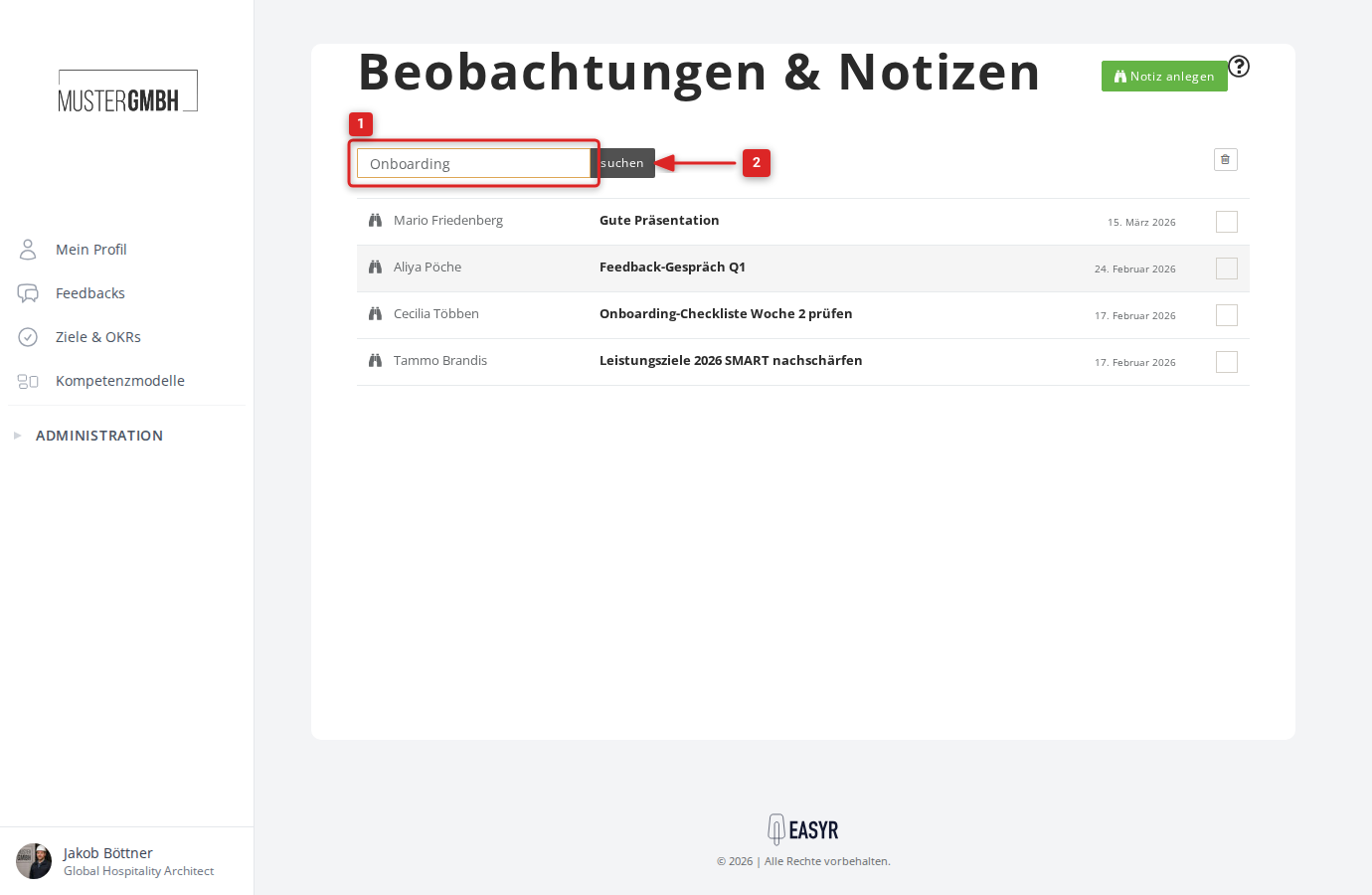
Deleting several notes at once
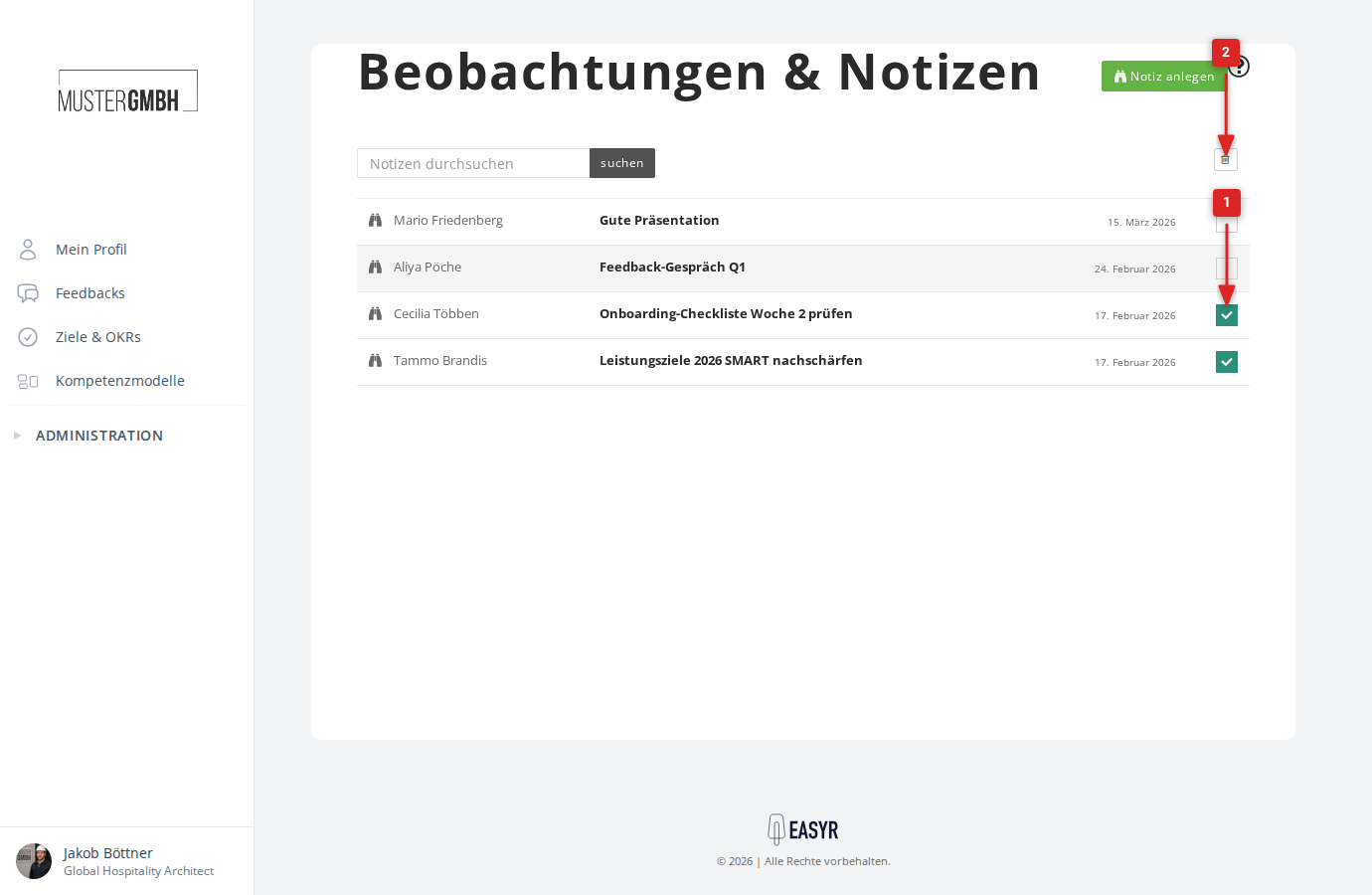
- In the overview, tick the checkboxes next to the notes you want to delete.
- Click the trash icon at the top right of the list.
- Confirm the deletion in the dialog.
Searching notes
The overview page has a search field. Enter a search term and click Search. The search covers the colleague’s name and the title and text of your notes.