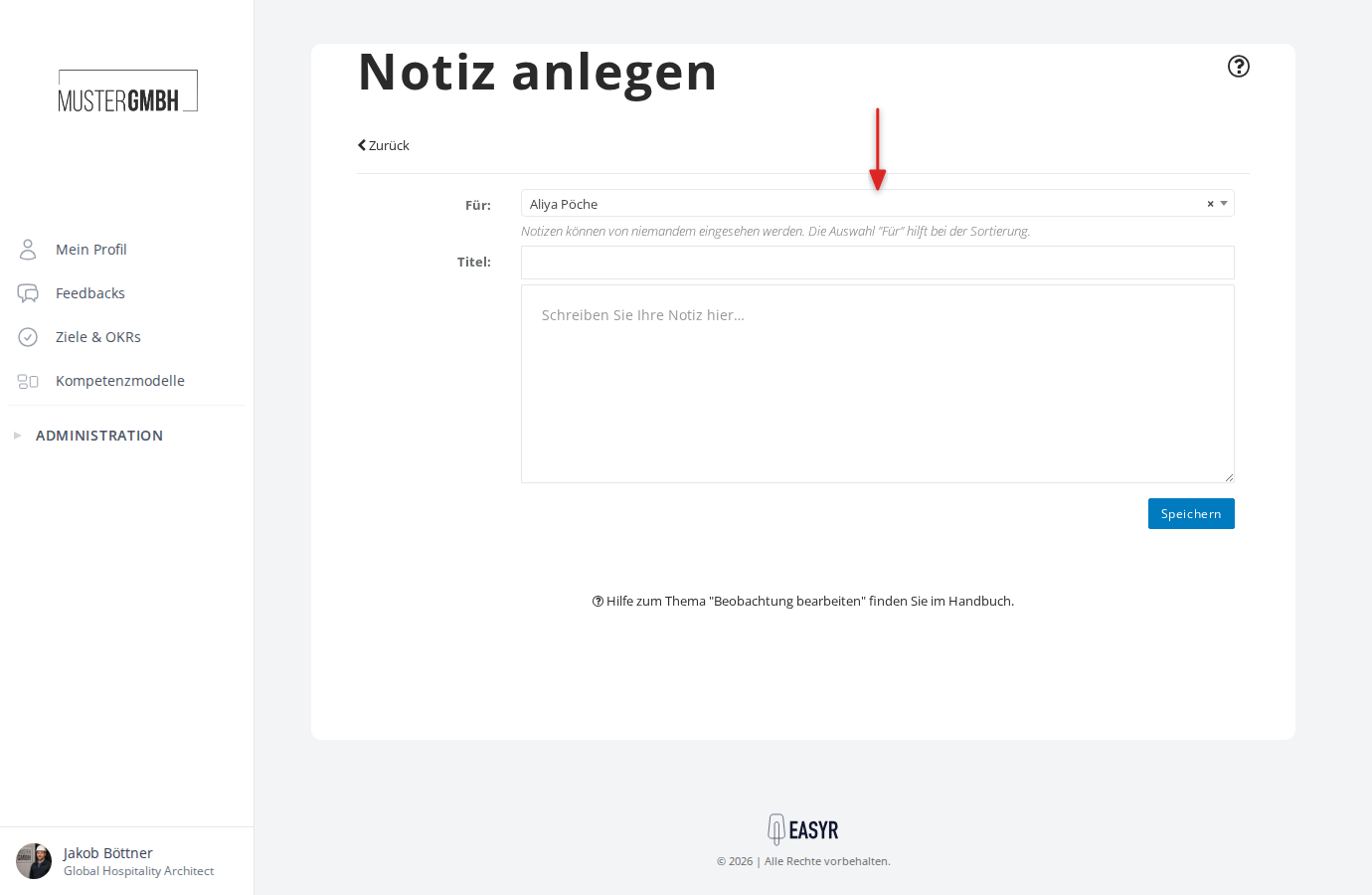
Record an observation / create a note
With the observations feature you can keep personal notes about your employees, for example impressions from day-to-day work, notes from conversations, or reminders for later feedback rounds. These notes are visible only to you and can’t be seen by anyone else.
Open your observations
The observations feature lives in the Notes tab on your profile page:
- In the left navigation, click Profile
- Select the Notes tab
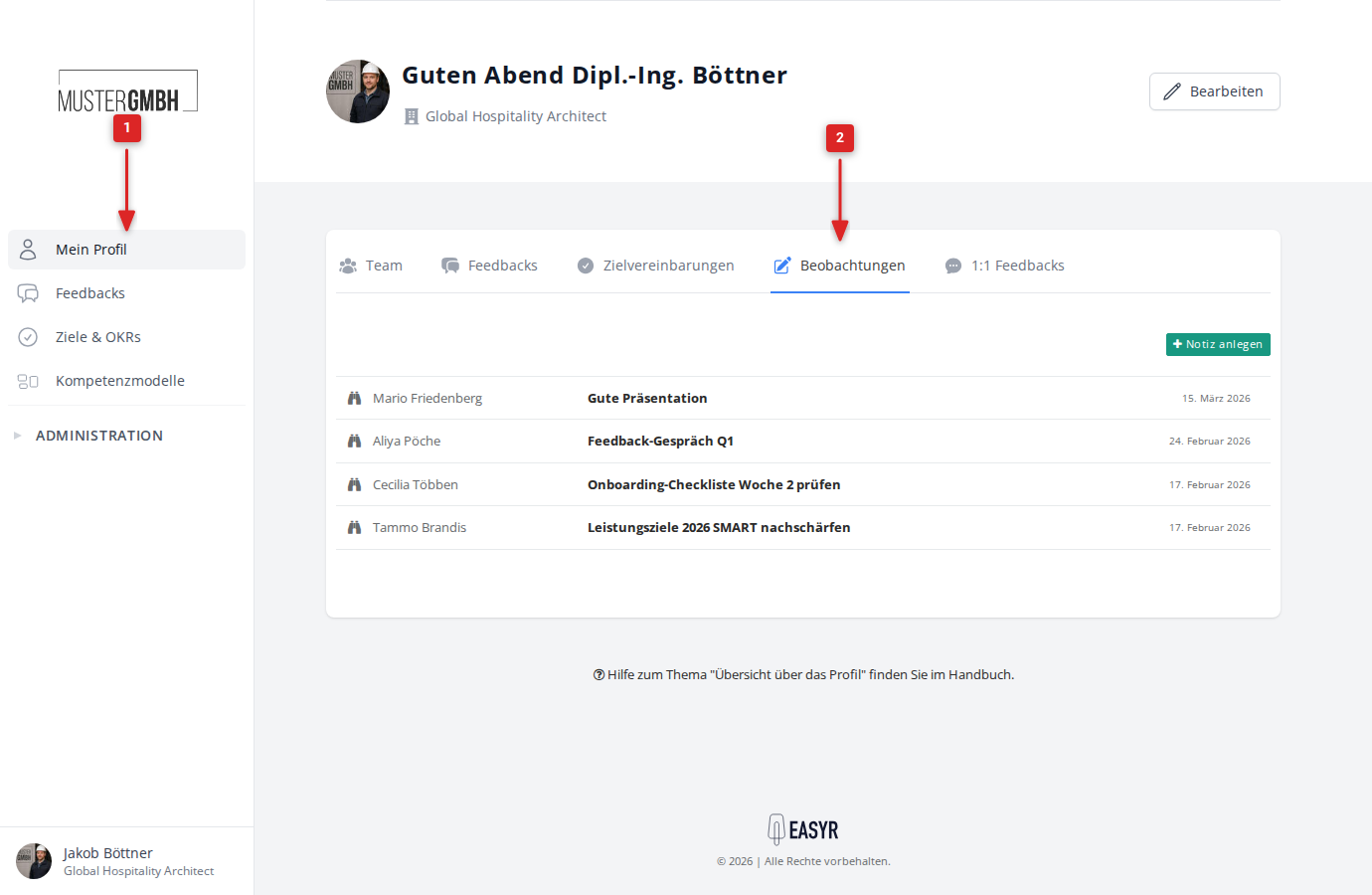
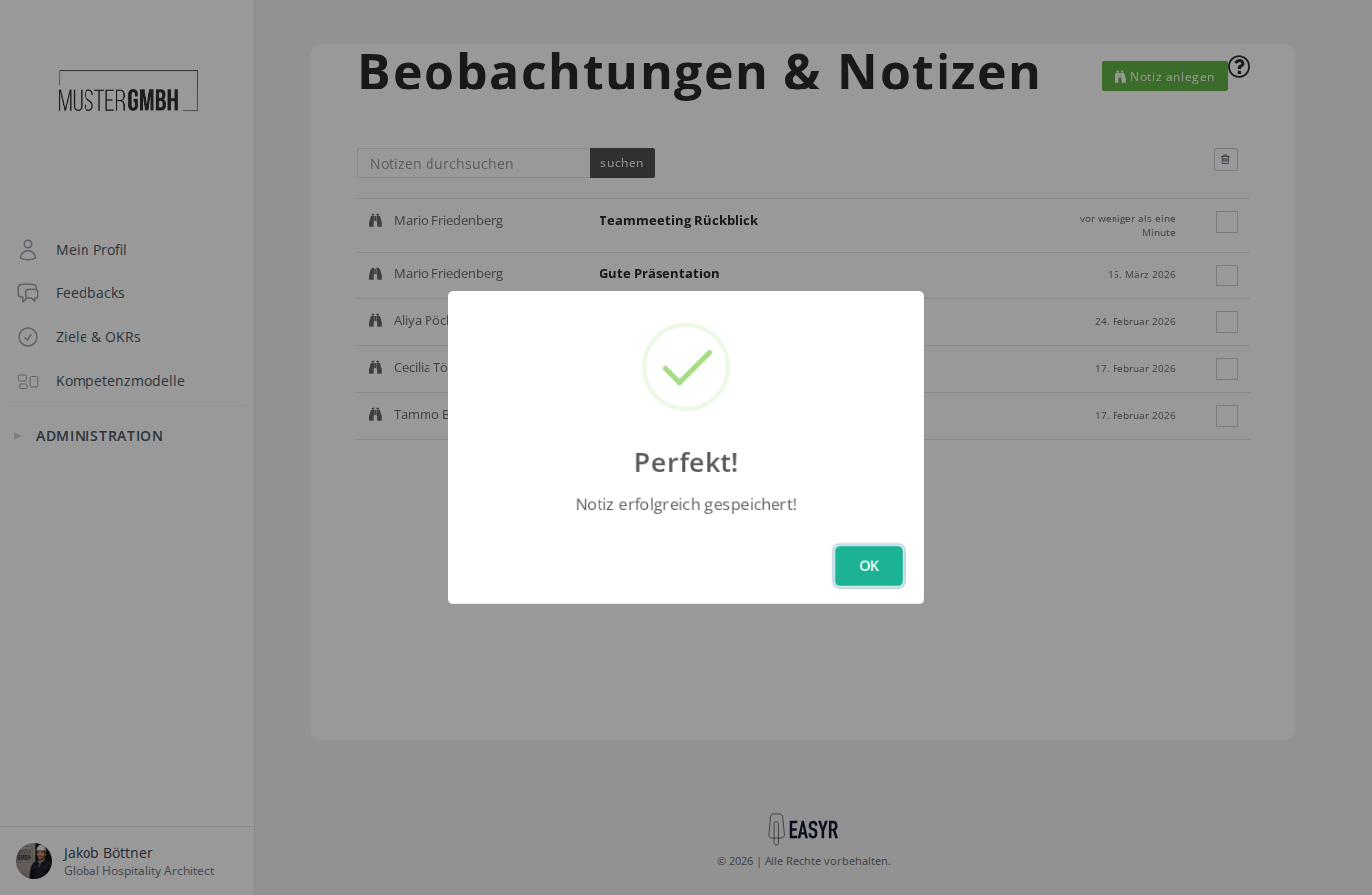
You now see an overview of all your notes so far. Each note shows the assigned recipient, the title, and the creation date.
Create a note
To create a new observation:
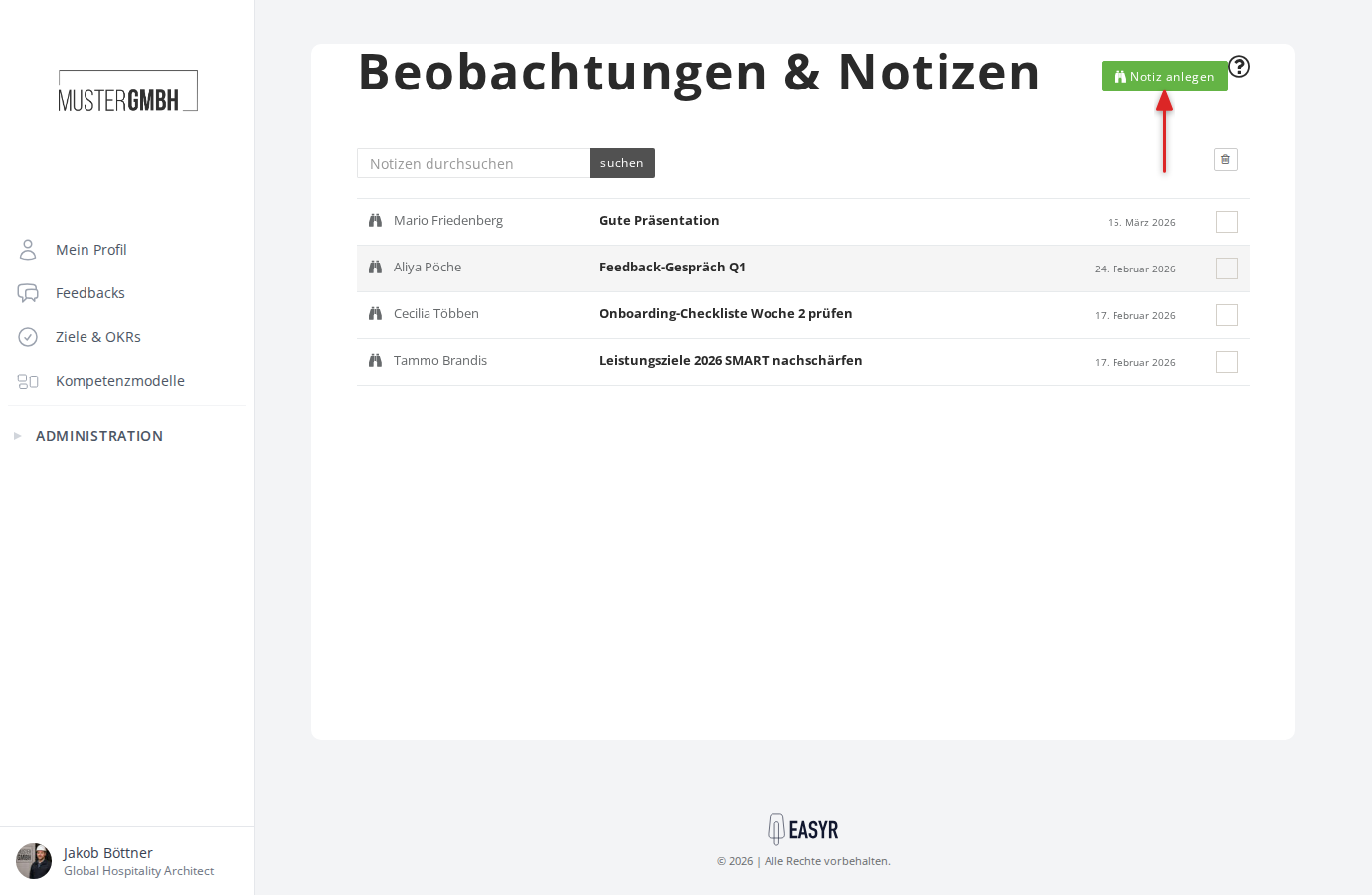
- Click the Add note button at the top right of the observation page
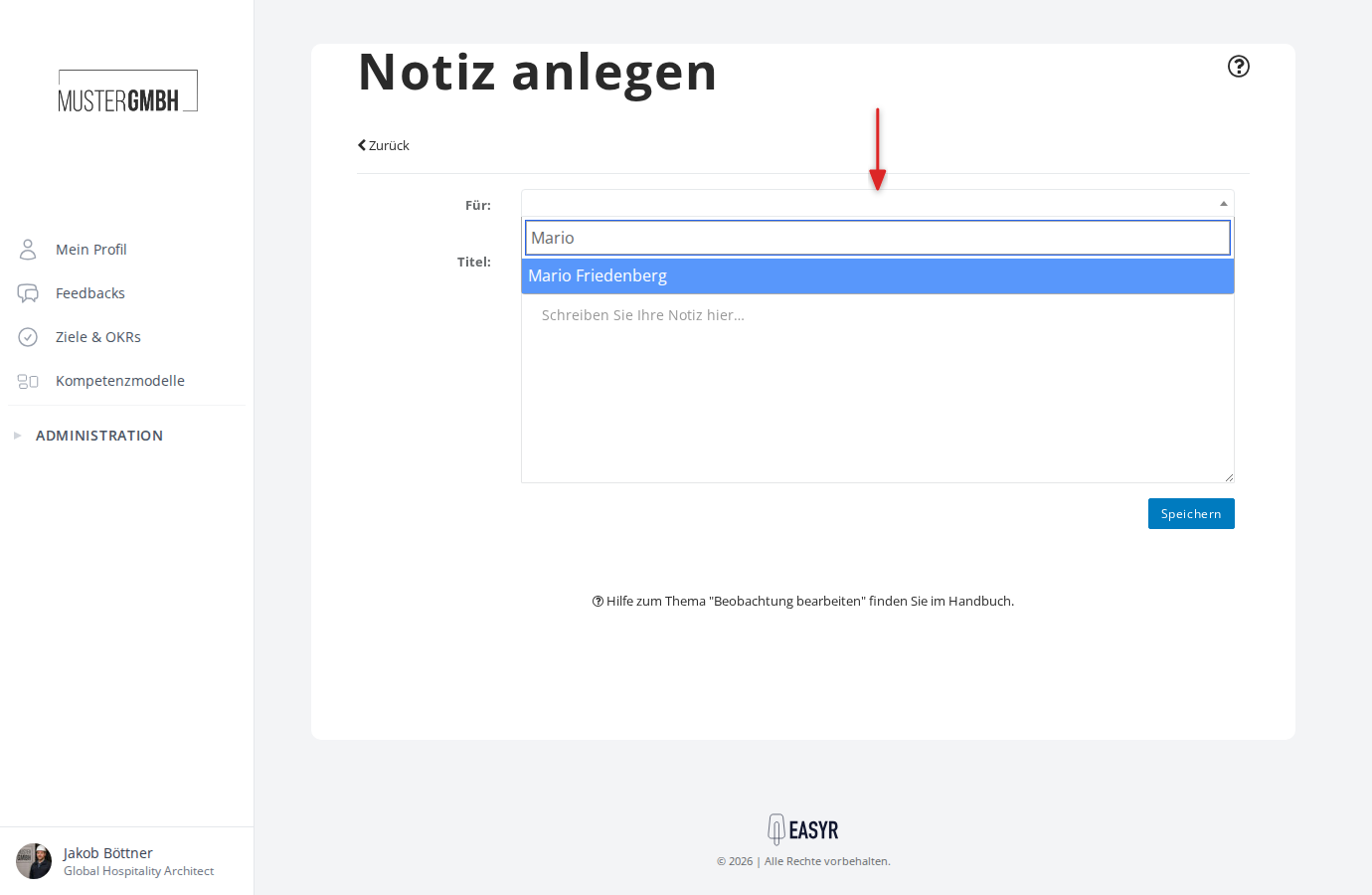
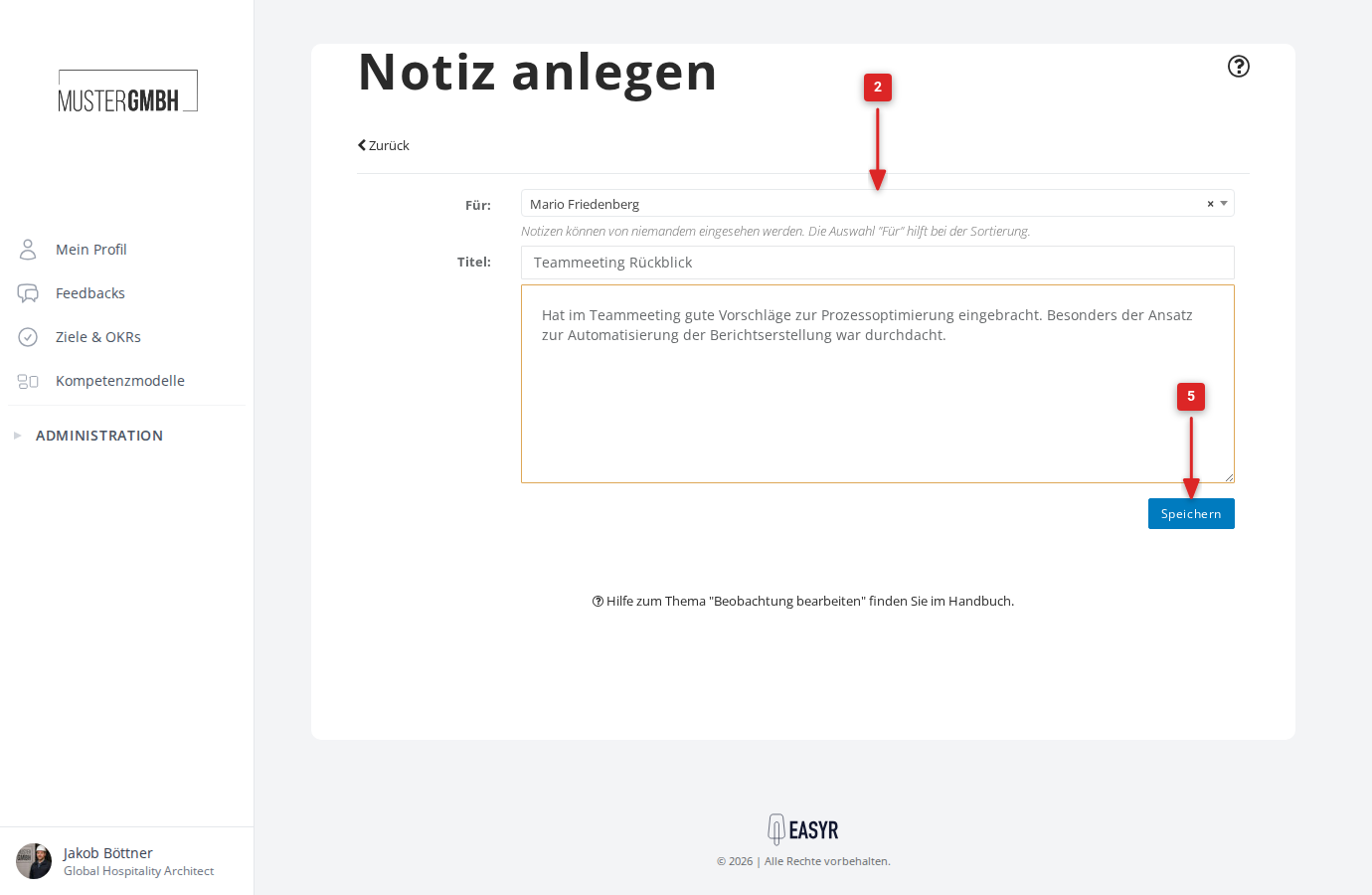
- In the For: field, select an employee. Type part of the name and pick the person you want from the suggestion list. This field is required. The selected person gets no access to your note.
- In the Title: field you can optionally enter a short subject for the note
- Enter the content of your observation in the large text field
- Click Save
After you save, the note is confirmed as created and you’re taken back to the overview.
Create a note from an employee’s profile
You can also create a note directly from an employee’s profile. In that case the recipient is filled in automatically:
- Open the profile of the employee you want (for example via the Team tab on your profile page)
- Switch to the Notes tab
- Click Add note
The For: field is already prefilled with the employee’s name. Add a title and note text as usual, then click Save.