Set up notifications for a feedback process
Your feedback process is set up, the participants are planned, and launch is near. Before the first emails reach your employees, it pays to walk through the notifications: are the texts, the recipients, and the reminder rhythm right? You can't break anything doing this. Invitations only go out once the edition's send time is reached or you invite manually.
Open the Notification Center
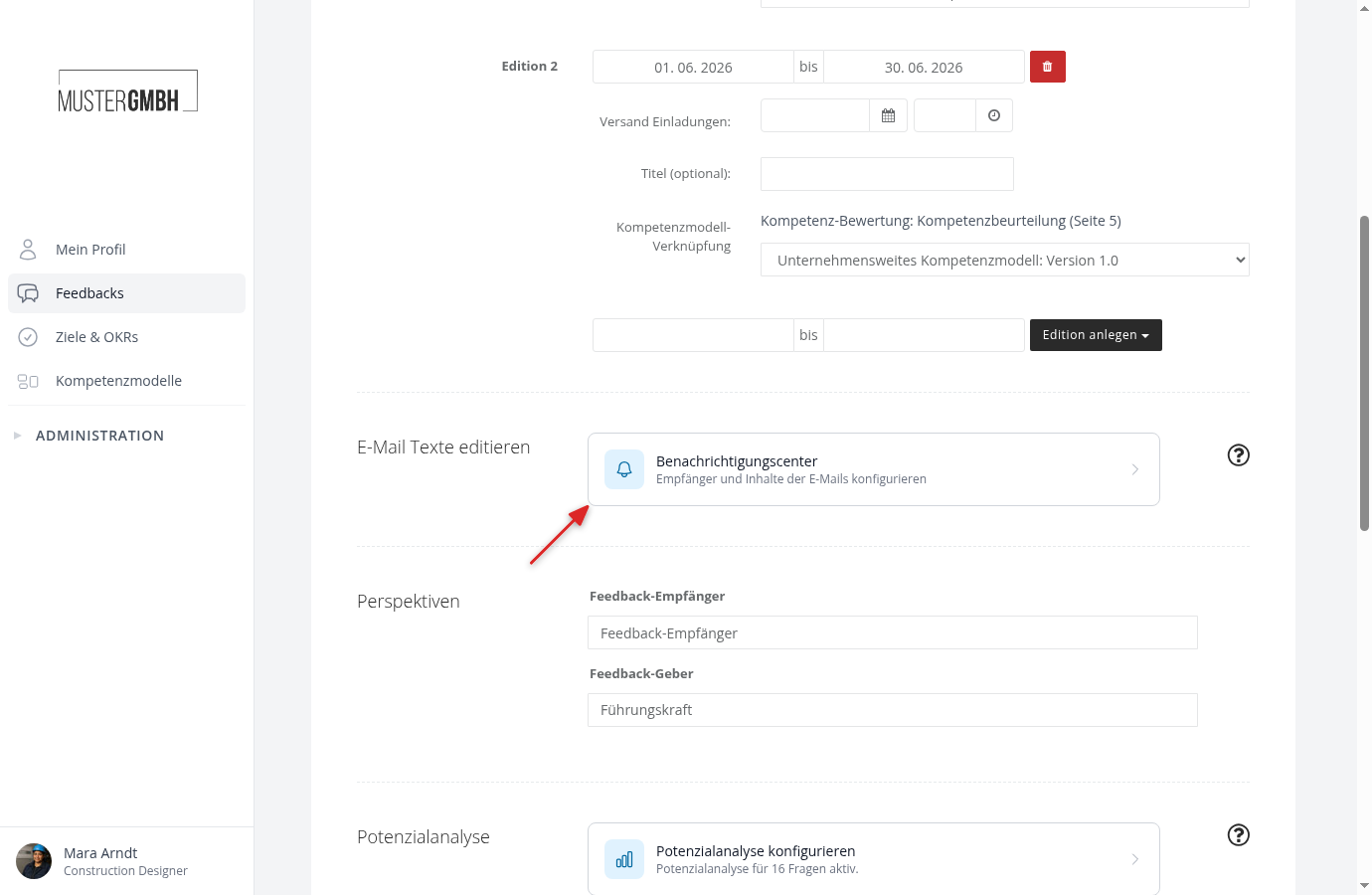
Open the settings of the feedback process and, in the "Basic settings" card, click "Edit" in the "E-mails" row.
Check the invitations
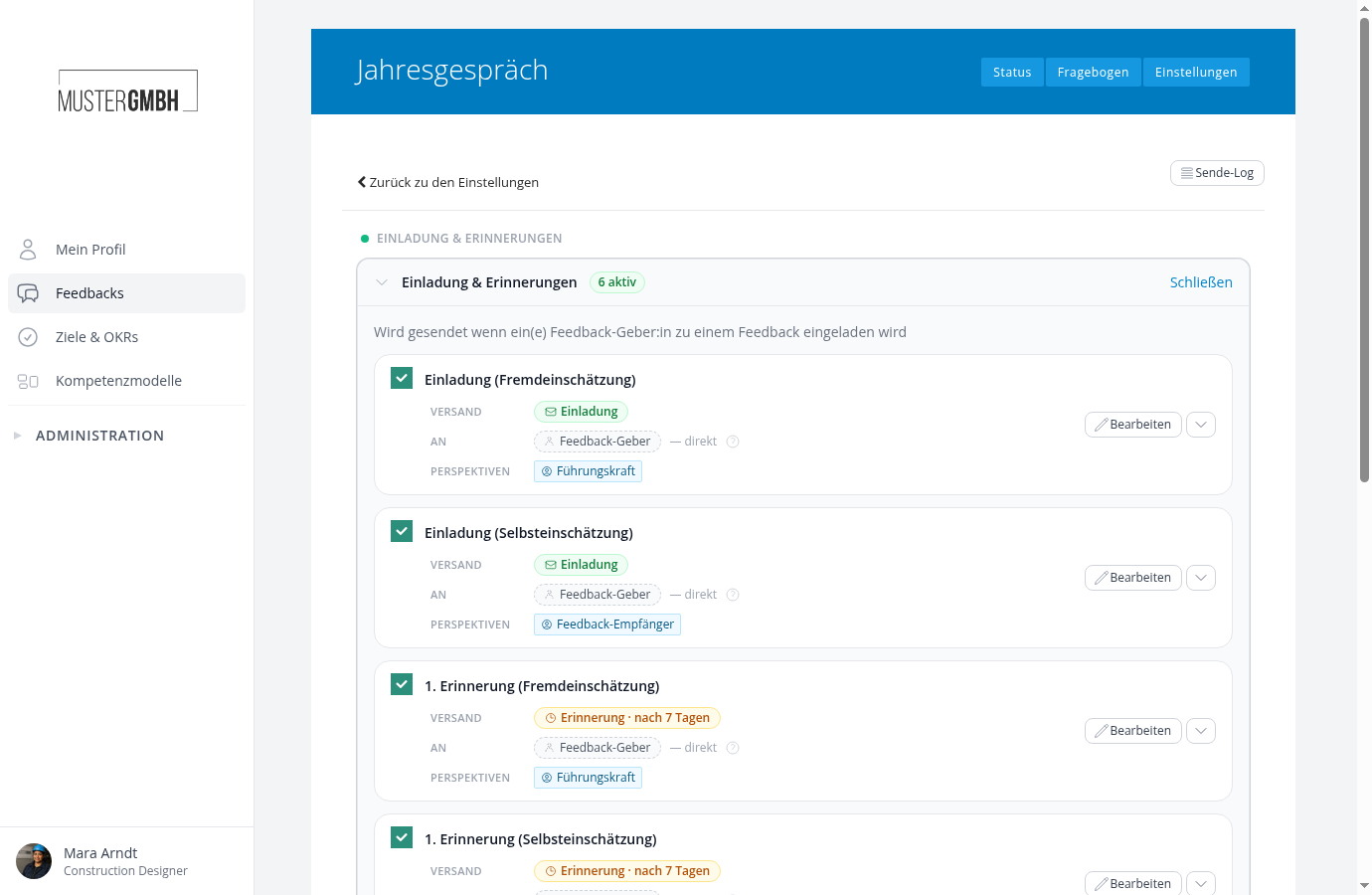
Expand "Invitation & reminders". You see the preconfigured rules, split by perspective: "Invitation (self-assessment)" for the person being reviewed and "Invitation (external assessment)" for the supervisor or other reviewers. For each invitation, check:
- Does the text fit the audience? Click "Edit" and adjust the subject and content in the Content tab. Placeholders such as
[First name]fill in the recipient's data automatically. - Are the recipients right? By default, the invitation goes straight to the reviewer. You can change that in the Recipients tab.
- Does a supervisor get many invitations at once? With "Send as digest" in the Settings tab they go out as one email. Its text lives in the Bundled tab.
Adjust the reminder rhythm
By default, easyreview reminds outstanding participants after 7 and after 14 days. Anyone who has submitted their participation is no longer reminded. If you want different intervals, open the relevant reminder rule, switch to the Settings tab, and change the days in the SENDING section. If you don't need a second reminder, turn the rule off using the checkbox in its row.
If nominations are switched on
If your feedback process uses nominations, the center also shows a "Nominations" group with nine emails. Walk through it once: for five of the types, every request appears twice, once for a person's own list and once for another person's list. Which one applies is controlled by "Applies to" in the Settings tab. In the same tab, "Send as digest" sets how many minutes easyreview collects before a person gets one combined email.
Check the sealing and completion emails
If your feedback process uses sealing, the center also shows the "Confirm sealing" and "Sealing completed" types. Under "Completion" you find the notifications for completed feedbacks and participation groups; these are off by default. Turn on whatever you need and adjust the recipients — for example, a copy to the supervisor via the hierarchy assignment.
Preview and test send
Open a rule and use the preview area in the Content tab. The bundled email has the same area in the Bundled tab.
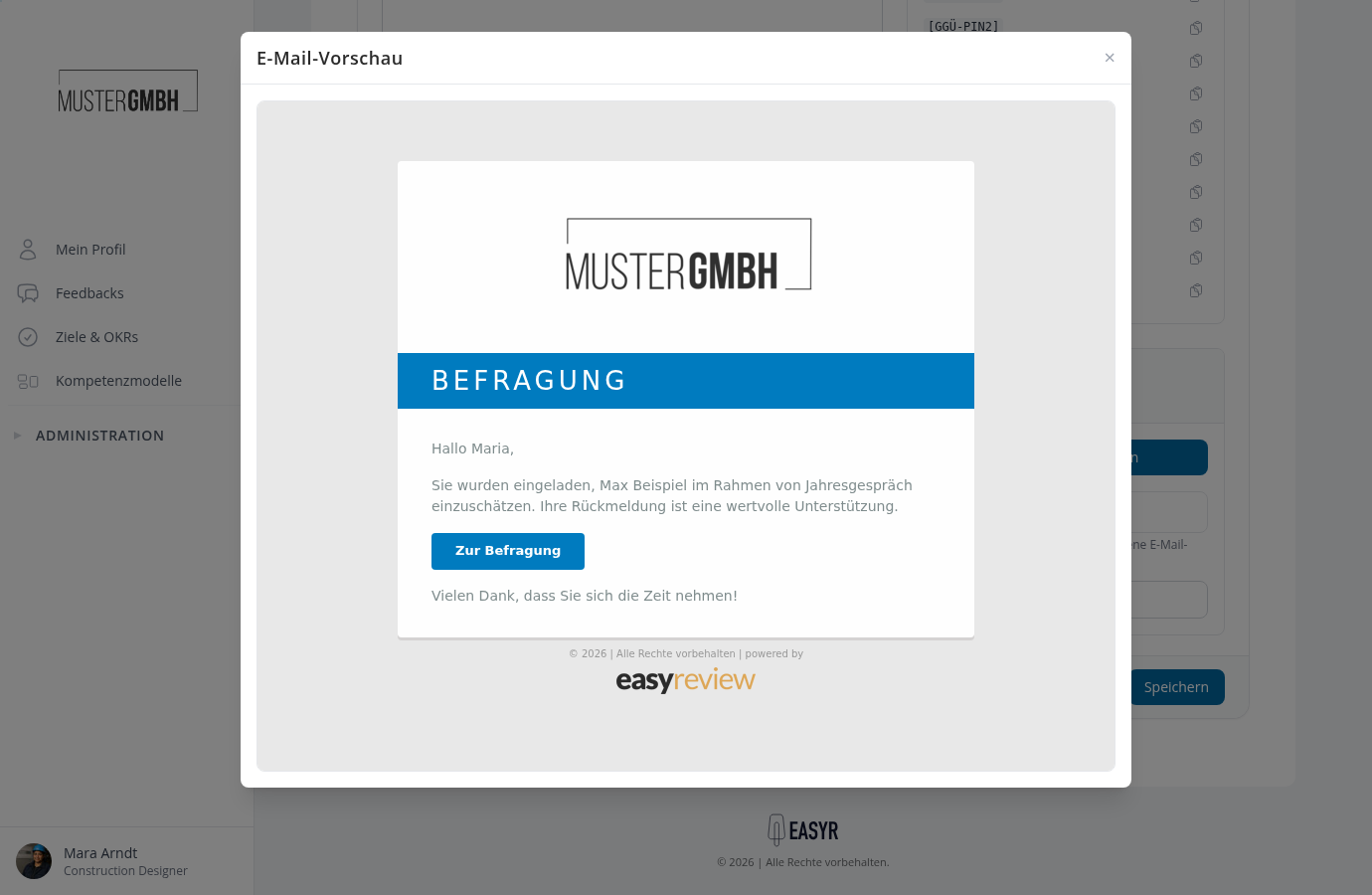
- "Show preview" renders the email directly in the browser, with sample data in the placeholders.
- "Send Preview" sends a test email to your own address.
Set the send time for the invitations
When the invitations go out is not controlled by the Notification Center but by the edition: set the date and time in the edition settings, or invite manually. The reminder countdown also starts once the invitation has been sent.
After go-live: verify delivery
Once invitations have been sent, the Delivery Log (button at the top right of the center) shows every email sent, with recipient and status. At a glance you can tell whether everything was delivered.
Reached the end?
Done – guide completed!
Check off the steps as you work through them. Your progress is shown on the left.
You have completed every step.