Getting started with 1:1 feedback
With 1:1 feedback in easyreview you can give a colleague direct praise, suggest an idea, or offer constructive criticism. A 1:1 feedback is a personal message between two people. Only the sender and the recipient can see it.
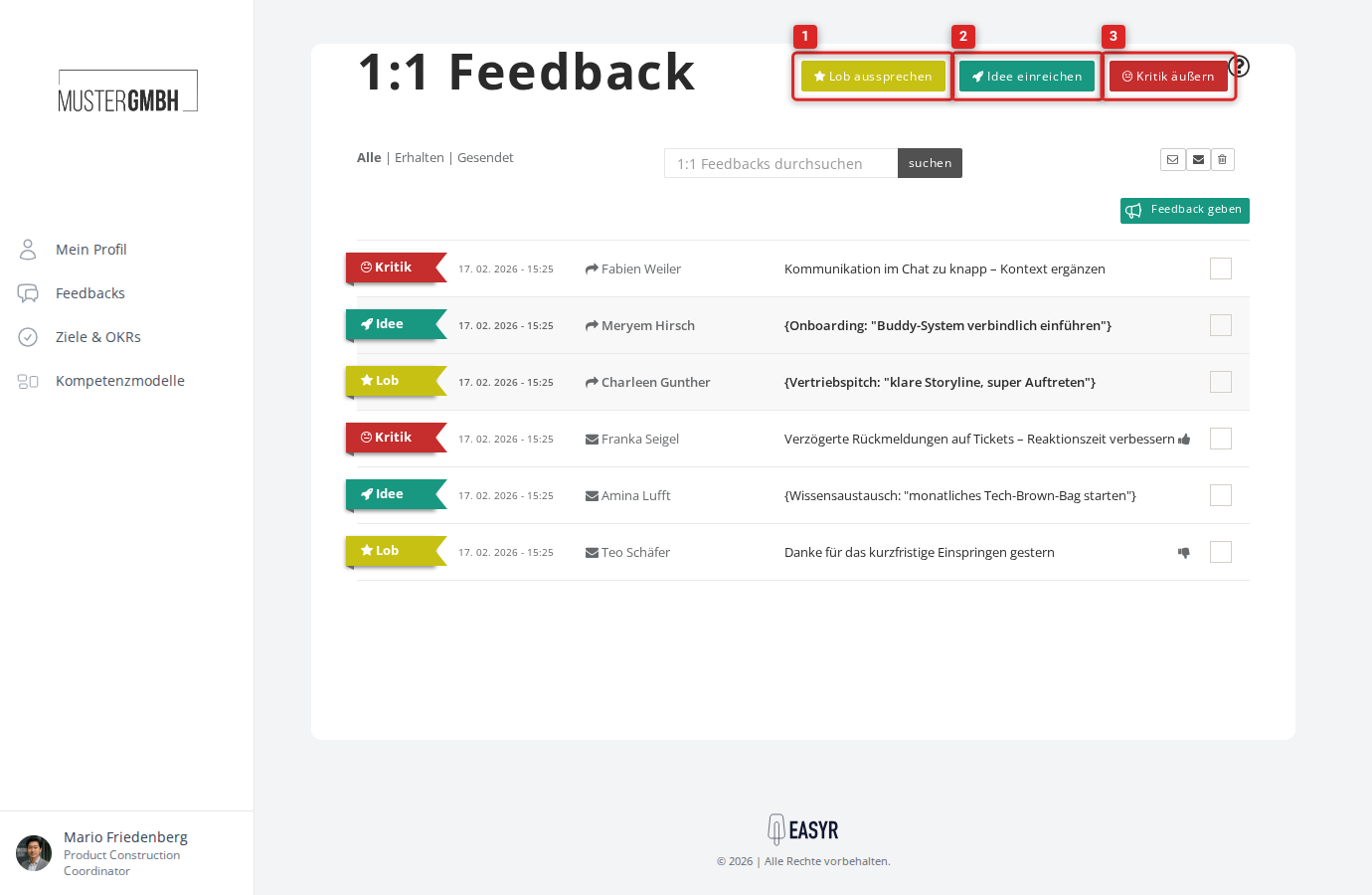
Where do I find 1:1 feedback?
You can reach 1:1 feedback in two ways:
- Click Profile in the sidebar and open the Feedbacks tab.
- Open a colleague’s profile and click the Feedbacks tab there to see the feedback exchanged between you and that person.
What kinds of 1:1 feedback are there?
easyreview offers three kinds of feedback, each marked with its own color:
- Praise (yellow) — recognize a colleague for good work.
- Idea (green) — suggest an improvement to a colleague.
- Criticism (red) — give a colleague constructive criticism so you can improve together.
The three kinds differ only in their name and color. The structure of a feedback message is the same for all of them.
How is a 1:1 feedback message structured?
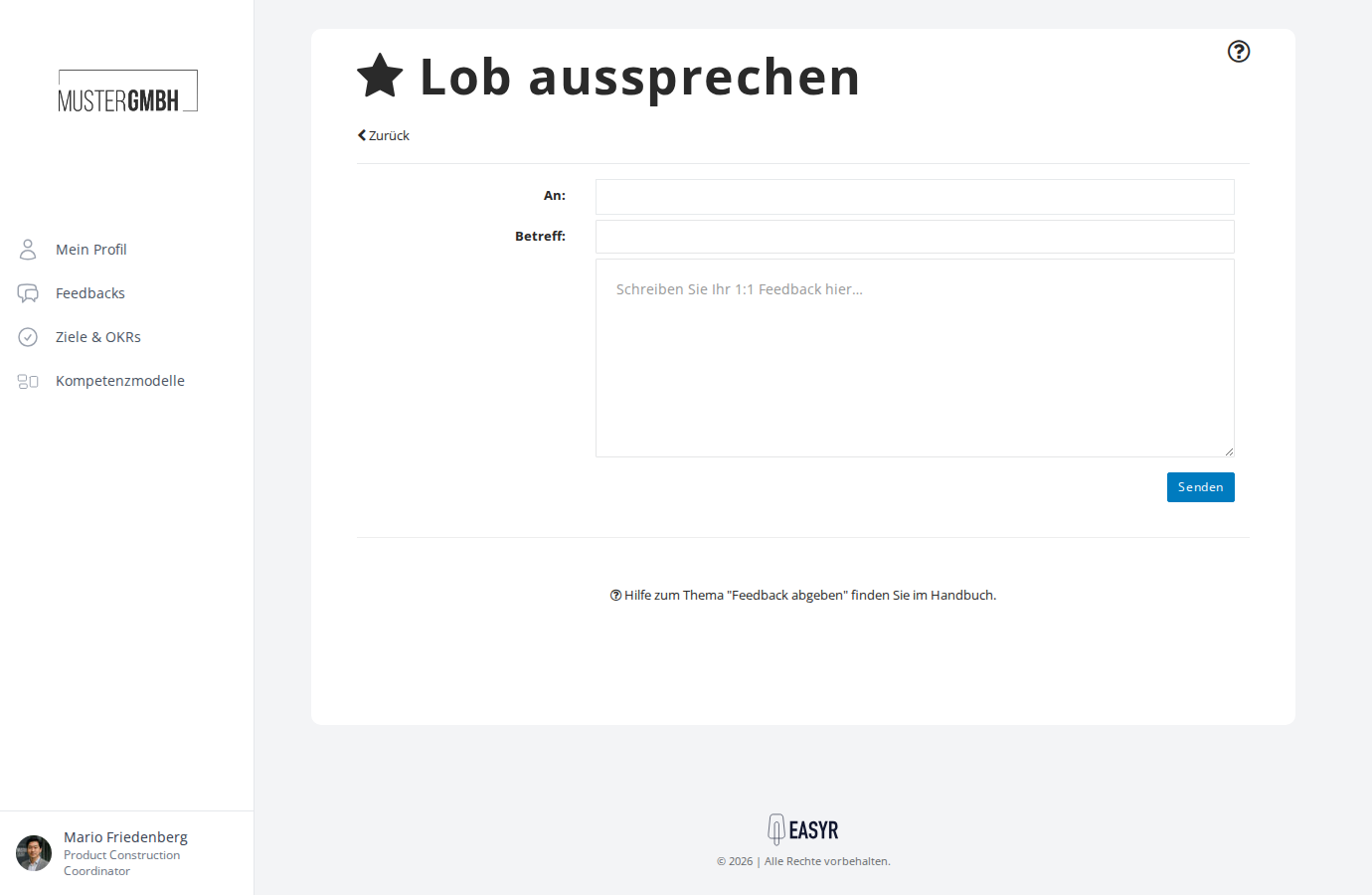
Every 1:1 feedback consists of:
- Recipient — the person the feedback is addressed to
- Subject — a short summary of the feedback
- Message — the detailed feedback text
Who can I send 1:1 feedback to?
You can send 1:1 feedback to any colleague in the company. A feedback is always delivered to a single person. If you want to give the same feedback to several colleagues, create a separate 1:1 feedback for each person.
How do I send a 1:1 feedback?
There are two ways to create a 1:1 feedback:
- From the 1:1 feedback overview: click one of the three buttons Praise somebody, Submit idea, or Express critique at the top of the page.
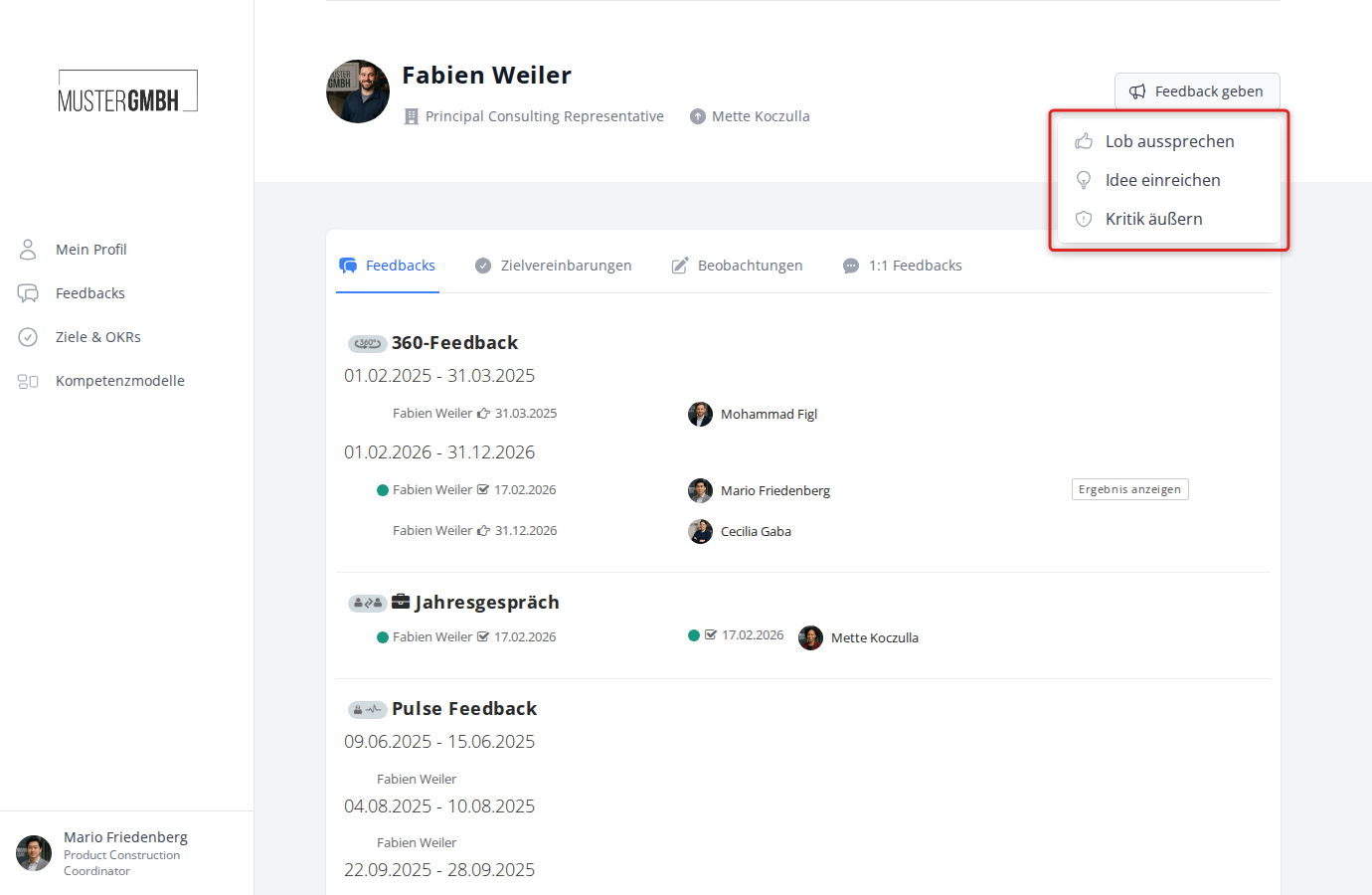
- From a colleague’s profile: click Feedback on the profile and pick the feedback kind from the menu.
Then fill in the form (recipient, subject, message) and click Send.
Who can see a 1:1 feedback?
1:1 feedback is private: only the sender and the recipient can see it. Other people in the company, including HR, have no access to the 1:1 feedback you send.
The recipient also gets an email notification, provided an email address is stored in the system. HR can adjust the content and recipients of this email — see Notifications for 1:1 feedback.
Can you reply to a 1:1 feedback?
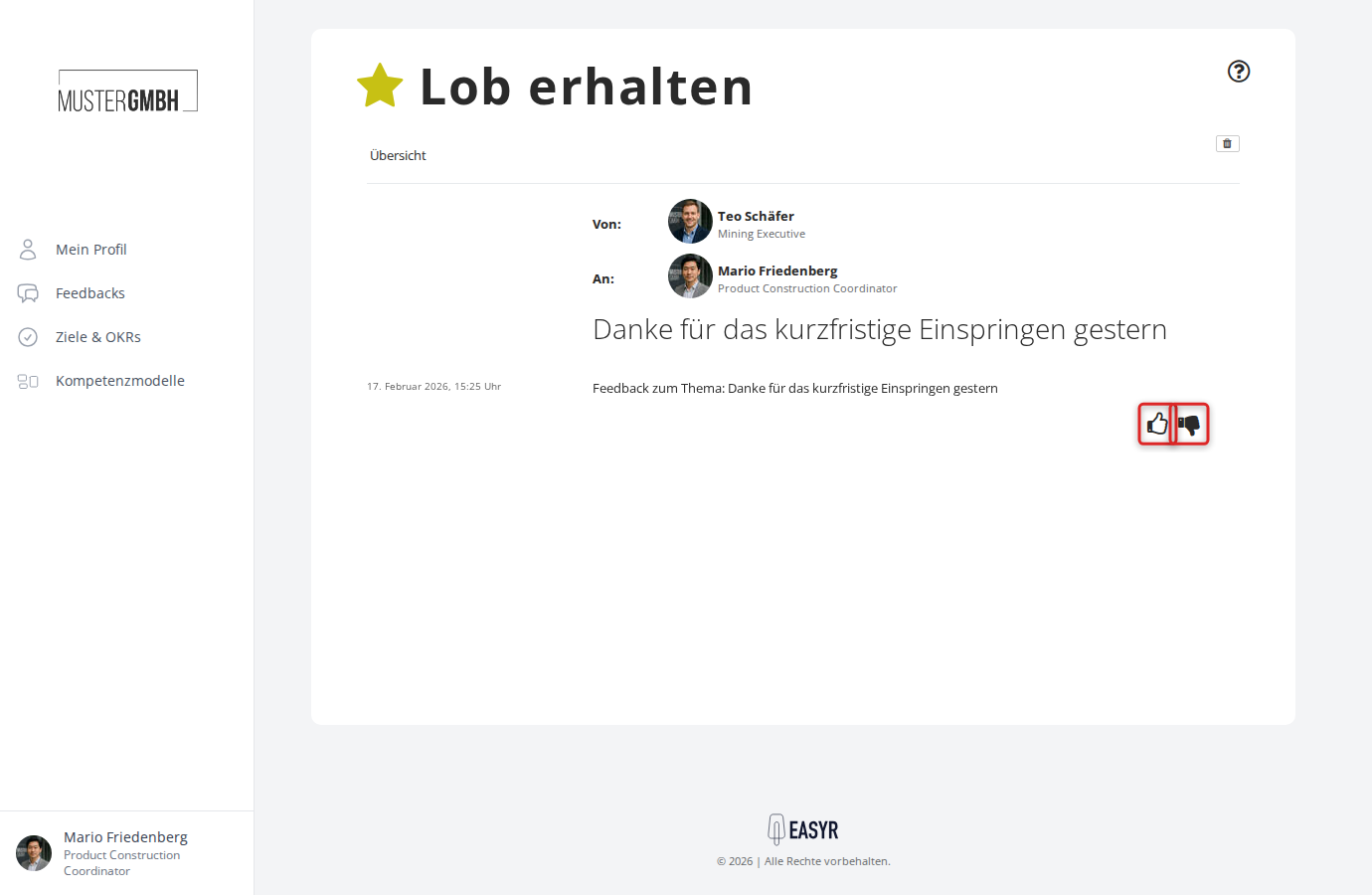
You cannot reply with a message directly. The recipient can, however, rate a 1:1 feedback they receive as helpful or not helpful, giving the sender a quick response.
Can a sent 1:1 feedback be edited?
No. Once a 1:1 feedback has been sent, it cannot be edited afterwards. Check the subject and message before you send.
More features of the 1:1 feedback overview
The 1:1 feedback overview offers a few more features:
- Filter: choose between All, Received, and Sent to narrow the list.
- Search: search your 1:1 feedback by keyword using the search field.
- Mark as read/unread: mark selected 1:1 feedback as read or unread.
- Delete: delete one or more 1:1 feedback. Only your own copy is removed; the other person keeps theirs.
Step-by-step guides for each of these are in the sub-articles.