Mark 1:1 feedback as read / unread
On the 1:1 feedback page you can mark one or several feedbacks as read or unread. Unread feedbacks appear in bold in the list; read ones appear in normal text.
Marking as read automatically
When you open a 1:1 feedback, it is marked as read automatically — you don’t have to do anything else.
- In the sidebar, click Profile.
- Open the Feedbacks tab.
- Click a feedback’s subject to open it.
Opening the feedback marks it as read, and it is then shown in normal text.
Mark several feedbacks as read or unread
On the dedicated 1:1 feedback page you can mark several feedbacks as read or unread at once. Each row has a checkbox on the right. Above the list, on the right, are three small icons: two envelope icons and a trash-can icon.
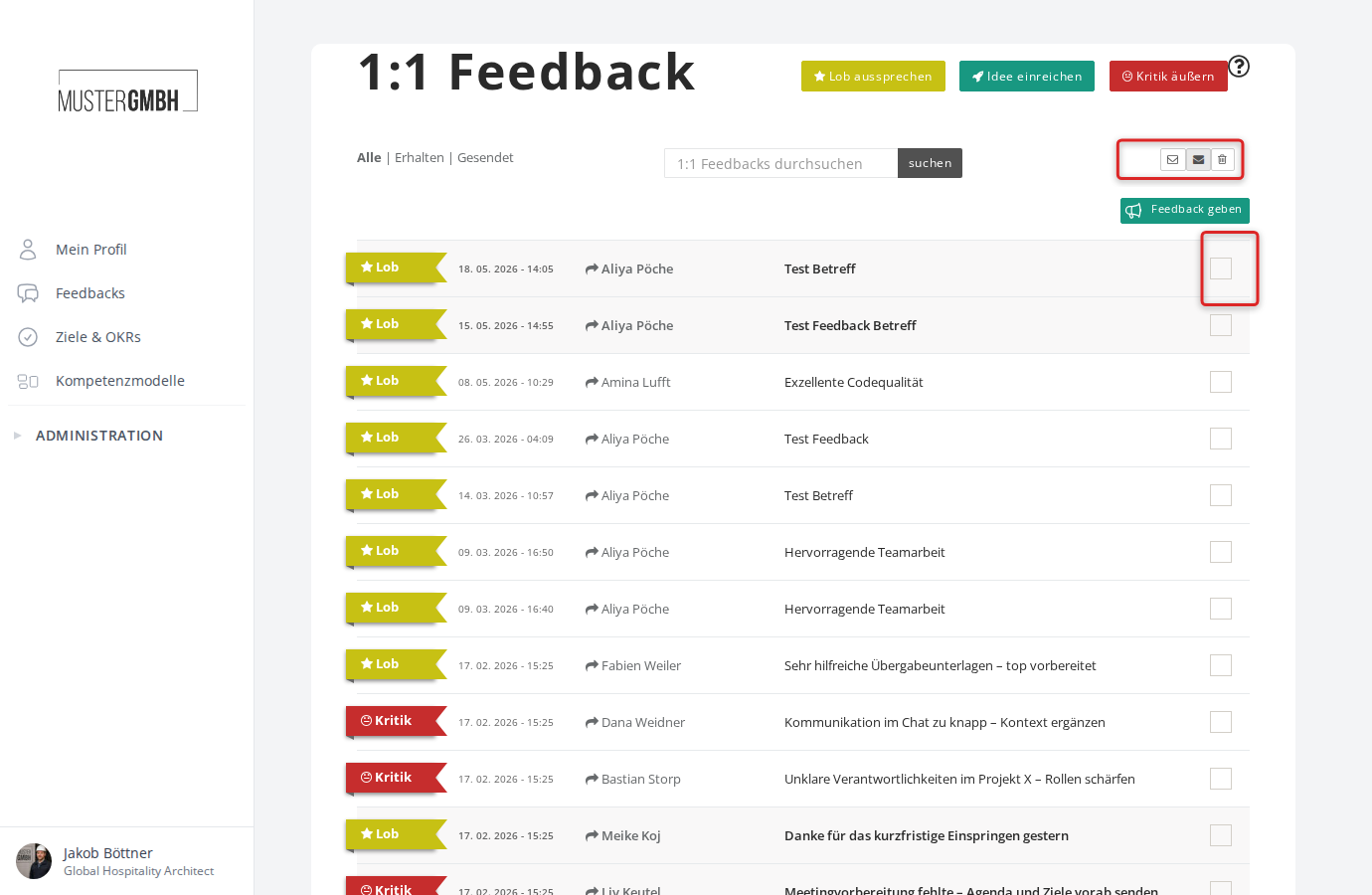
Mark as read
- Tick the feedbacks you want using the checkboxes on the right of the list.
- Click the open-envelope icon (first icon from the left).
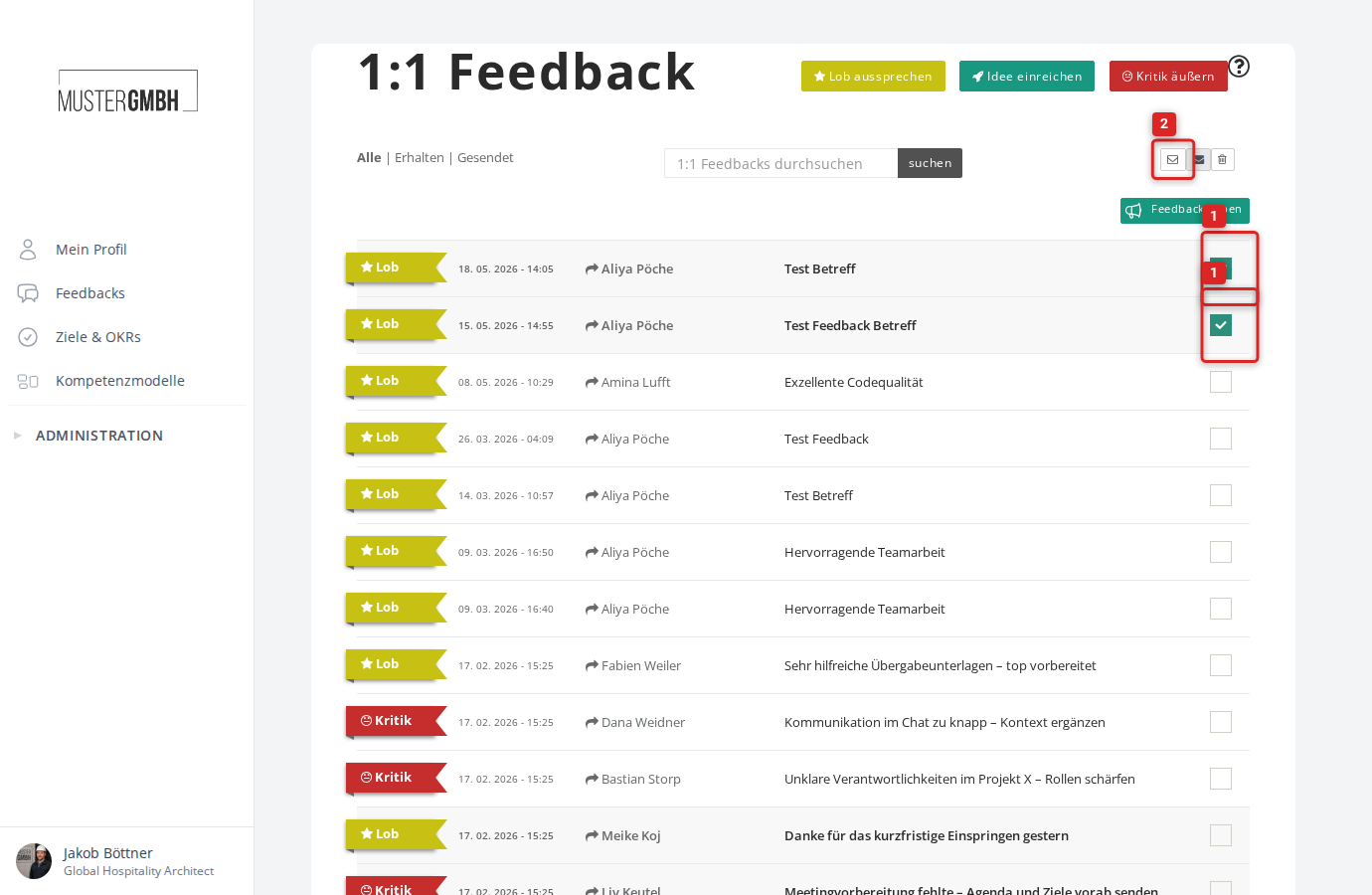
The selected feedbacks are marked as read and shown in normal text.
Mark as unread
- Tick the feedbacks you want using the checkboxes on the right of the list.
- Click the closed-envelope icon (second icon from the left).
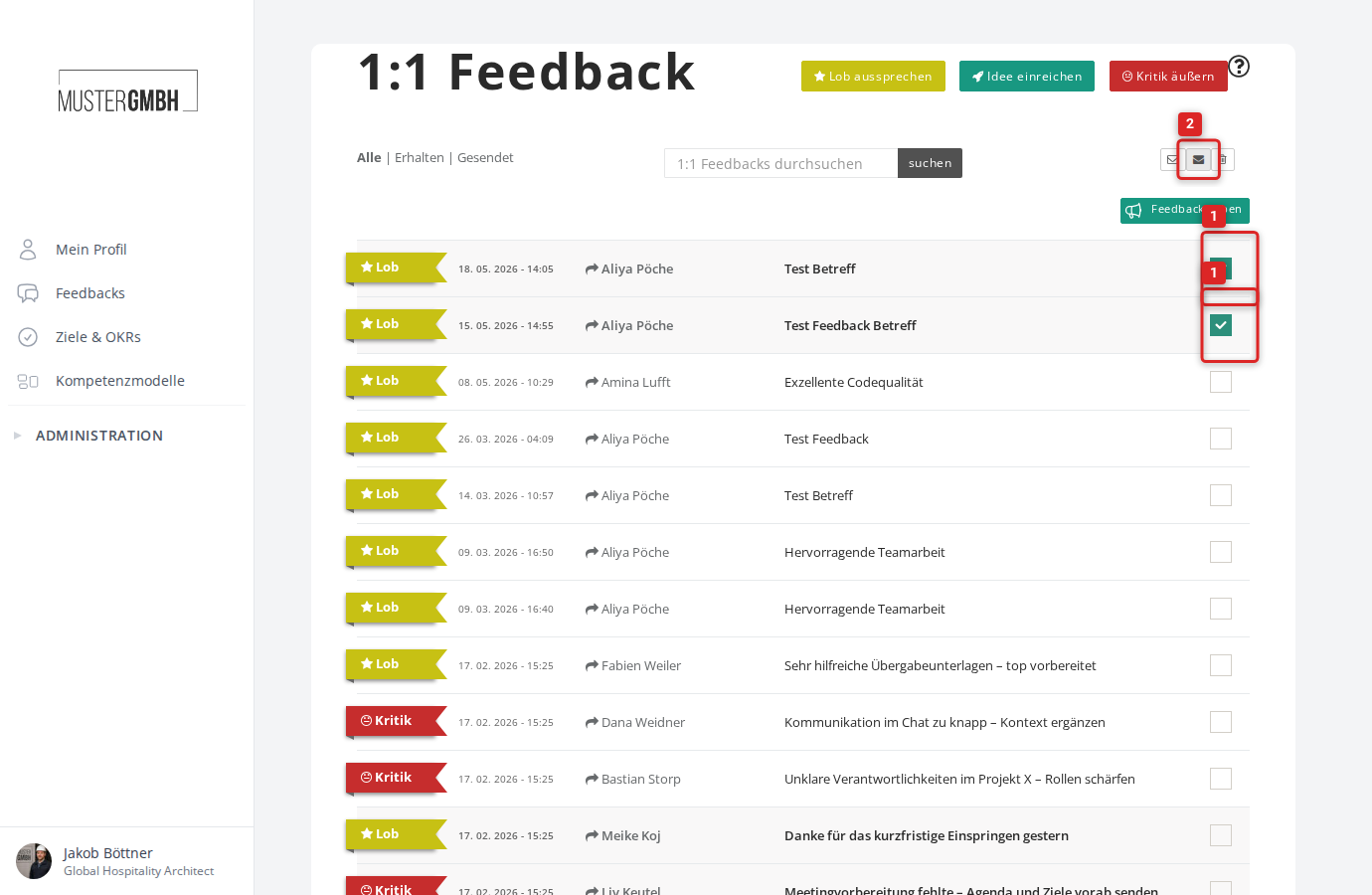
The selected feedbacks are marked as unread and shown in bold.