Sign in
Every company has its own easyreview address in the form your-company.easy-review.de. Your HR or IT department can tell you this address. Open it in your browser to reach the sign-in page.
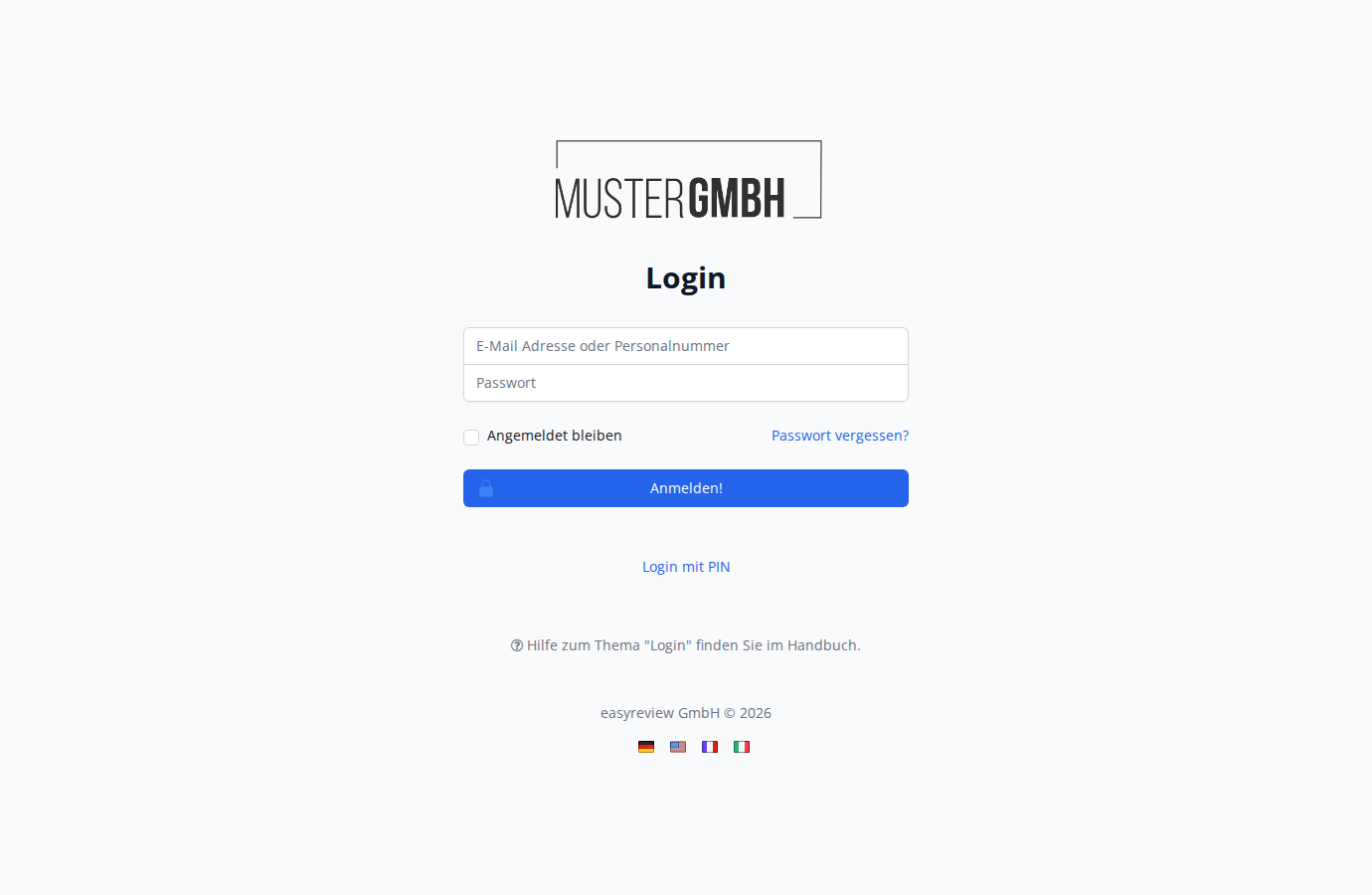
Sign in with email address or staff number
On the sign-in page, enter your email address or staff number and your password, then click Submit!.
For step-by-step instructions, see:
Sign in with Microsoft 365 (SSO)
If your company uses single sign-on (SSO) with Microsoft 365, the sign-in page shows a Sign in with Microsoft 365 account button. Click it and sign in with your Microsoft account; you are then logged into easyreview automatically.
When SSO is enabled, the regular email-and-password form appears below the SSO button, unless your administrator has switched it off.
Sign in with a PIN
For reviews, employees without an email address can be given participation PINs. The sign-in page then shows a Login with PIN link. On the PIN sign-in page, enter your two four-digit PINs (PIN 1 and PIN 2) and click Submit!.
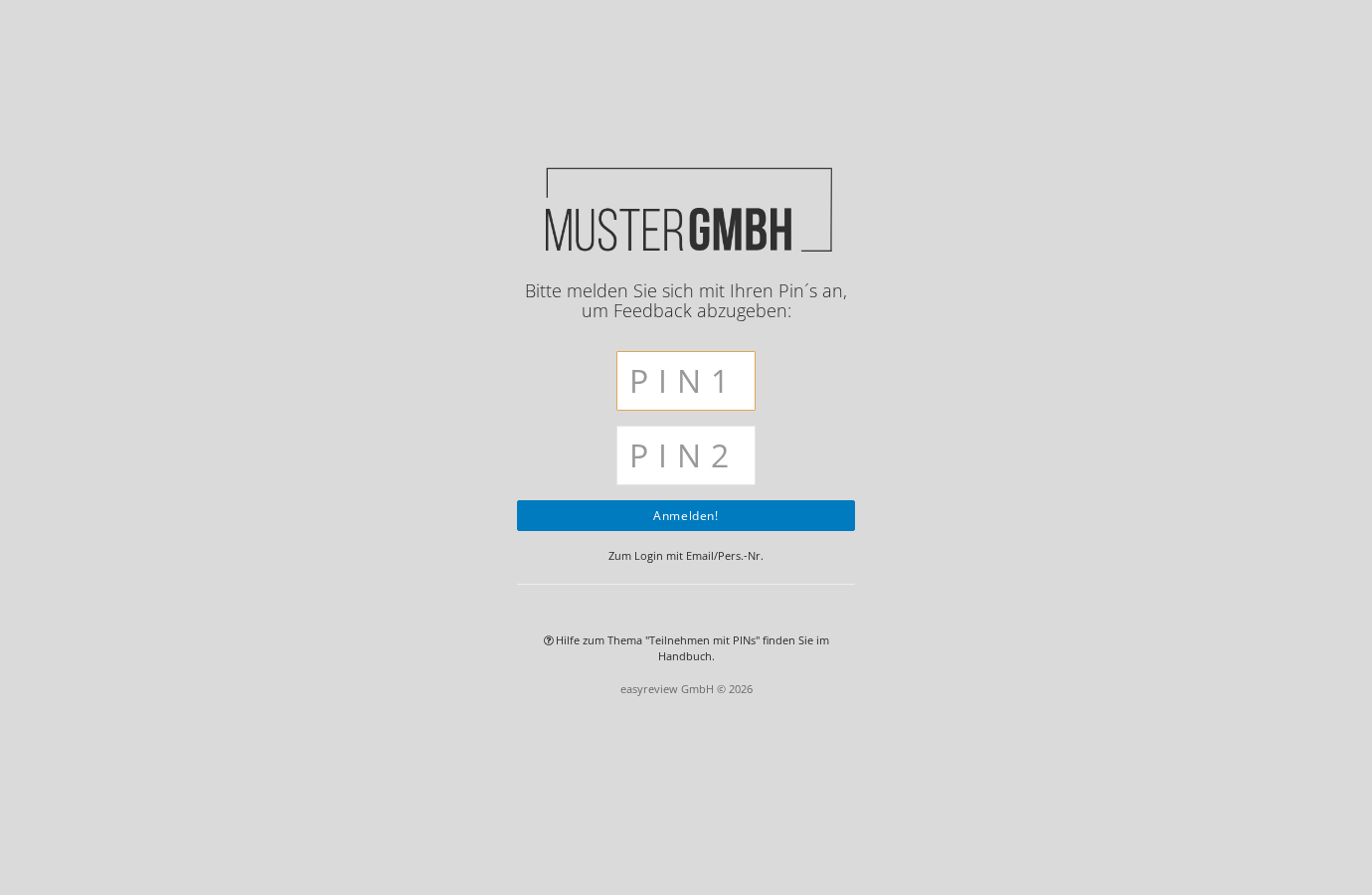
For more on participation PINs, see What are participation PINs?.
Stay signed in
Tick the remain signed in checkbox on the sign-in page if you do not want to sign in again on every visit.
Forgot your password?
If you have forgotten your password, click Forgot password? on the sign-in page. Enter your email address and click Reset password. You receive an email with instructions for resetting your password.
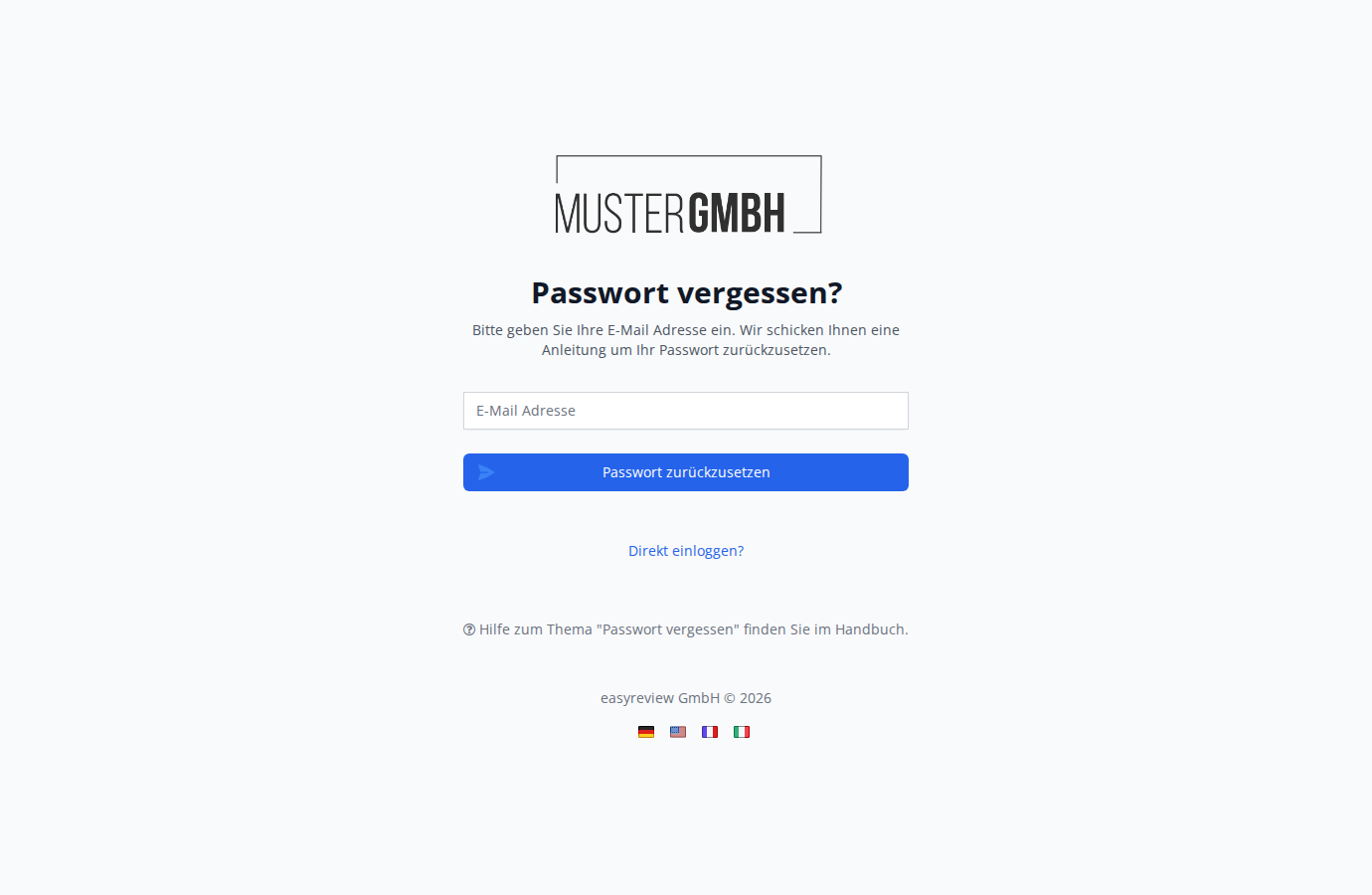
For more, see Forgot password.
Your first sign-in
If you are using easyreview for the first time, HR gives you a one-time password or an invitation email. After your first sign-in, you are prompted to set a personal password.
For more, see First sign-in and setting your password.
Change the language
At the bottom of the sign-in page you find flag icons for changing the interface language. The available languages depend on your company’s configuration.