Your first feedback analysis dashboard
Build a clear report for your next feedback discussion. Start with existing results, choose a few useful cards, and prepare the report for sharing or export. If you already use easyreview and cannot see the Analyses tab, Support can enable the new analyses for you.
Open the right feedback round
Under Feedbacks, open the process and choose the edition you want to discuss. Switch to Analyses, or Analyses (new) if both versions are active. Check the active filter to the right of the tabs. Start with All results for an initial overview.
See Classic and new analyses to understand which version is active for you.
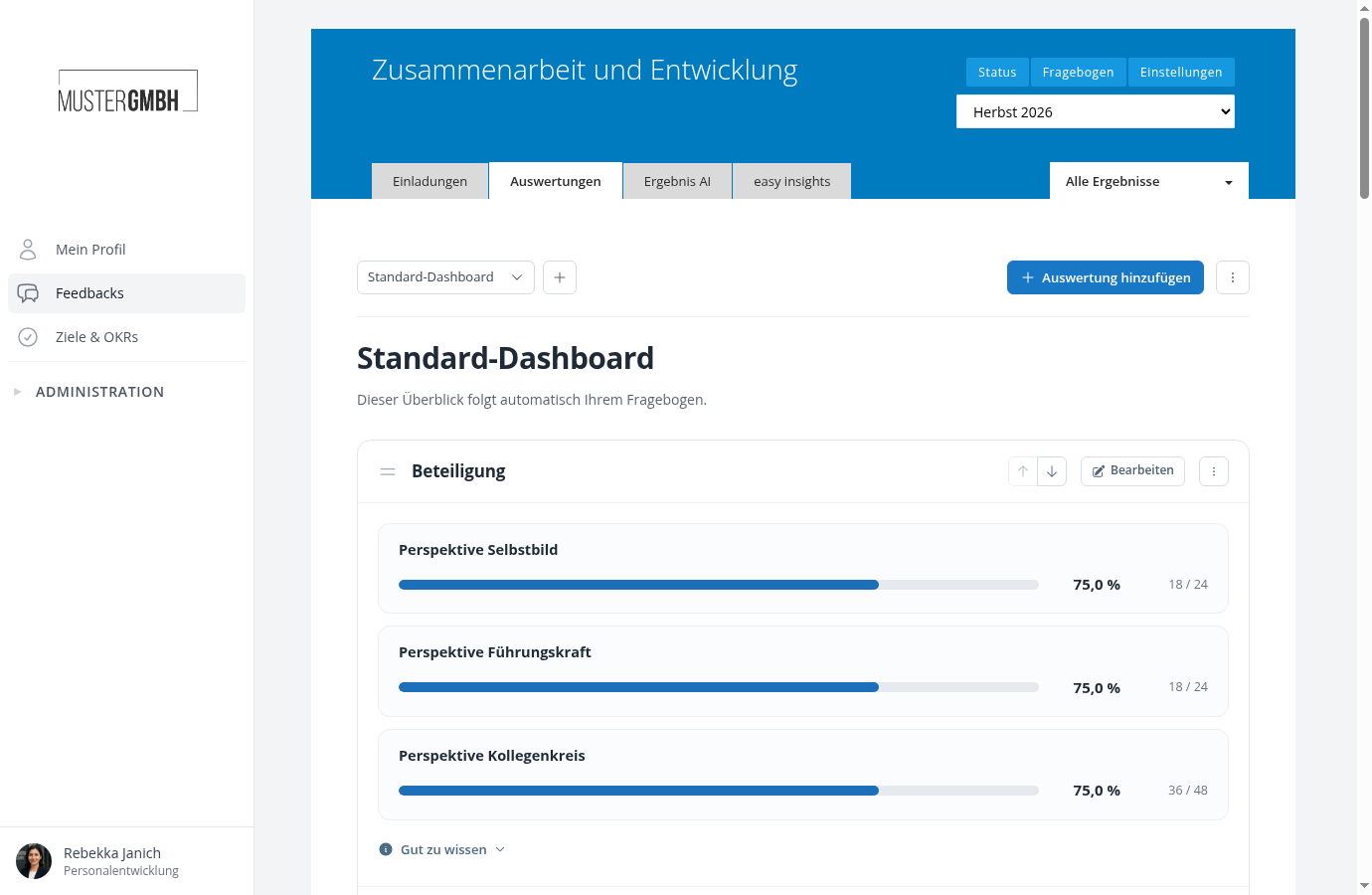
The standard dashboard shows participation and the questions available for analysis. If no responses are accessible yet, you can still prepare the report. Results appear when enough suitable data becomes available.
Create your own copy
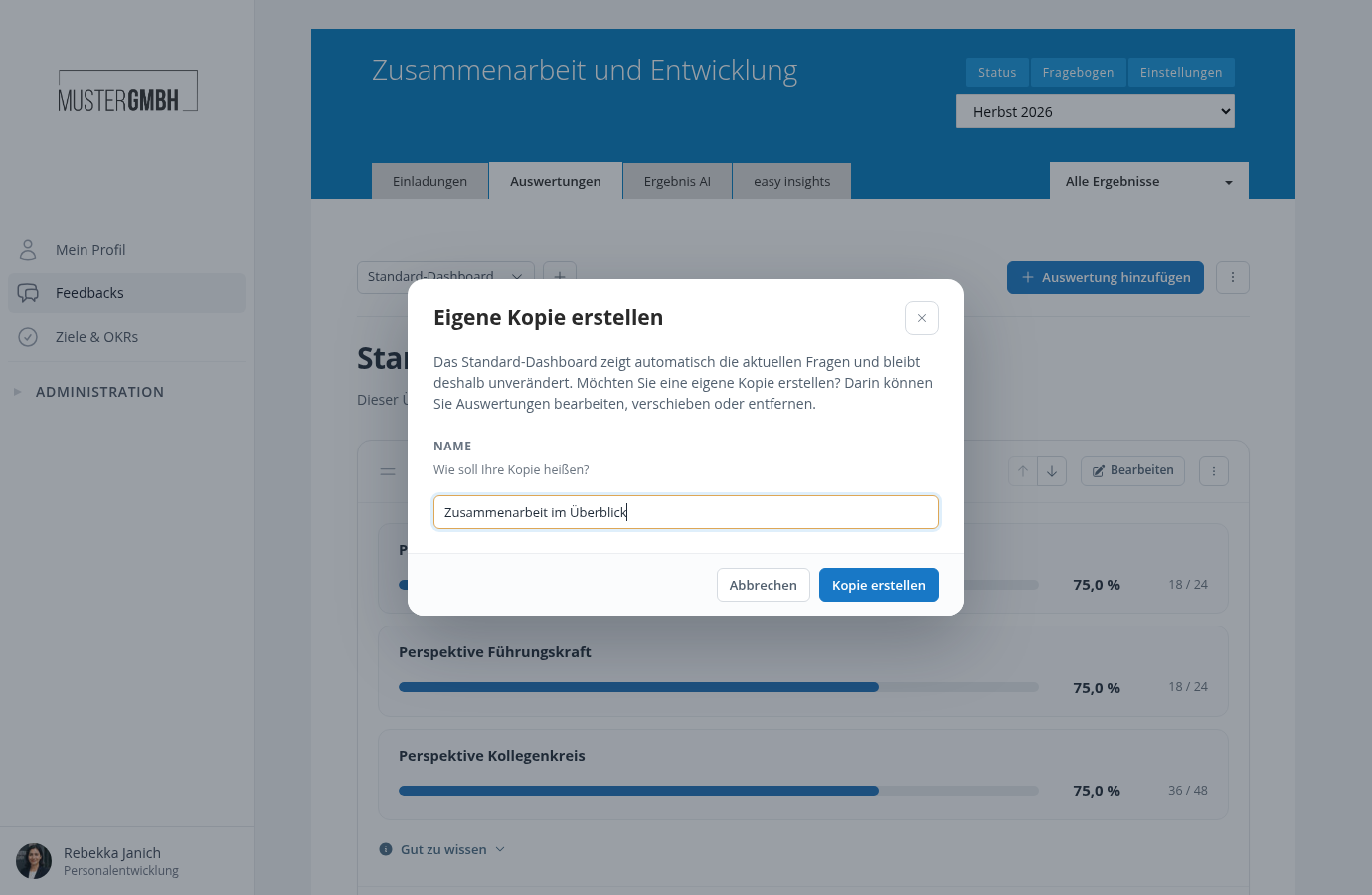
Choose Edit on a card in the standard dashboard. The dialog explains why the standard dashboard stays unchanged. Name your copy “Collaboration at a glance”, for example, and choose Create copy.
You can freely edit and remove cards in the copy. This does not change the questionnaire or submitted responses.
Focus on one question
Keep participation and a question that matters for your discussion. Remove other cards through their three-dot menus if needed. A few analyses are enough for a focused first report.
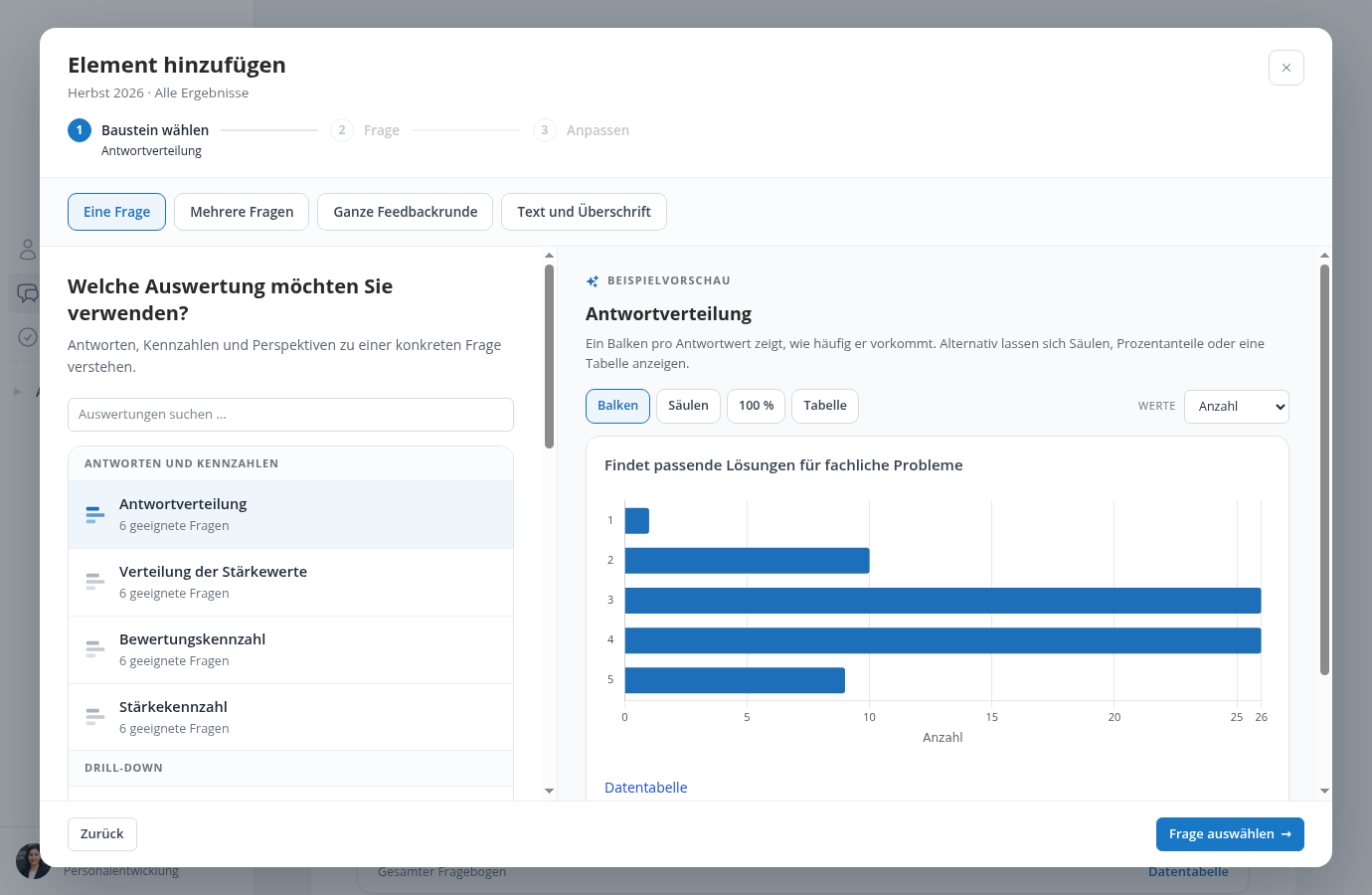
Open Edit on that question, or choose Add analysis → One question → Response distribution. Select your question and a bar display. Our example examines “Reliably follows through on agreements”. Percentages make it easier to compare departments of different sizes later.
Look for patterns across questions
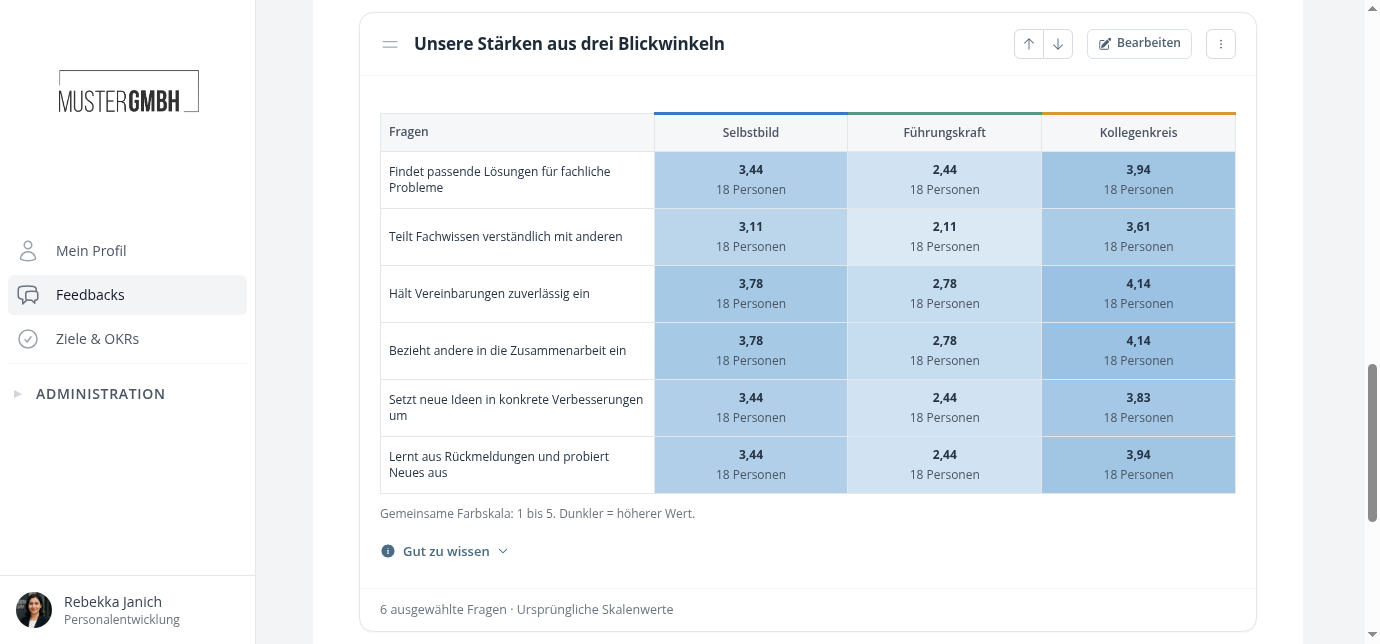
Add a question comparison under Multiple questions. Select two to six questions about related topics to see which receive higher or lower ratings.
If your process has multiple perspectives, try Perspective heatmap of ratings. Each row represents a question and each column a perspective. For questions with different scales, choose a suitable conversion or use a table with the original values.
Examine differences between departments
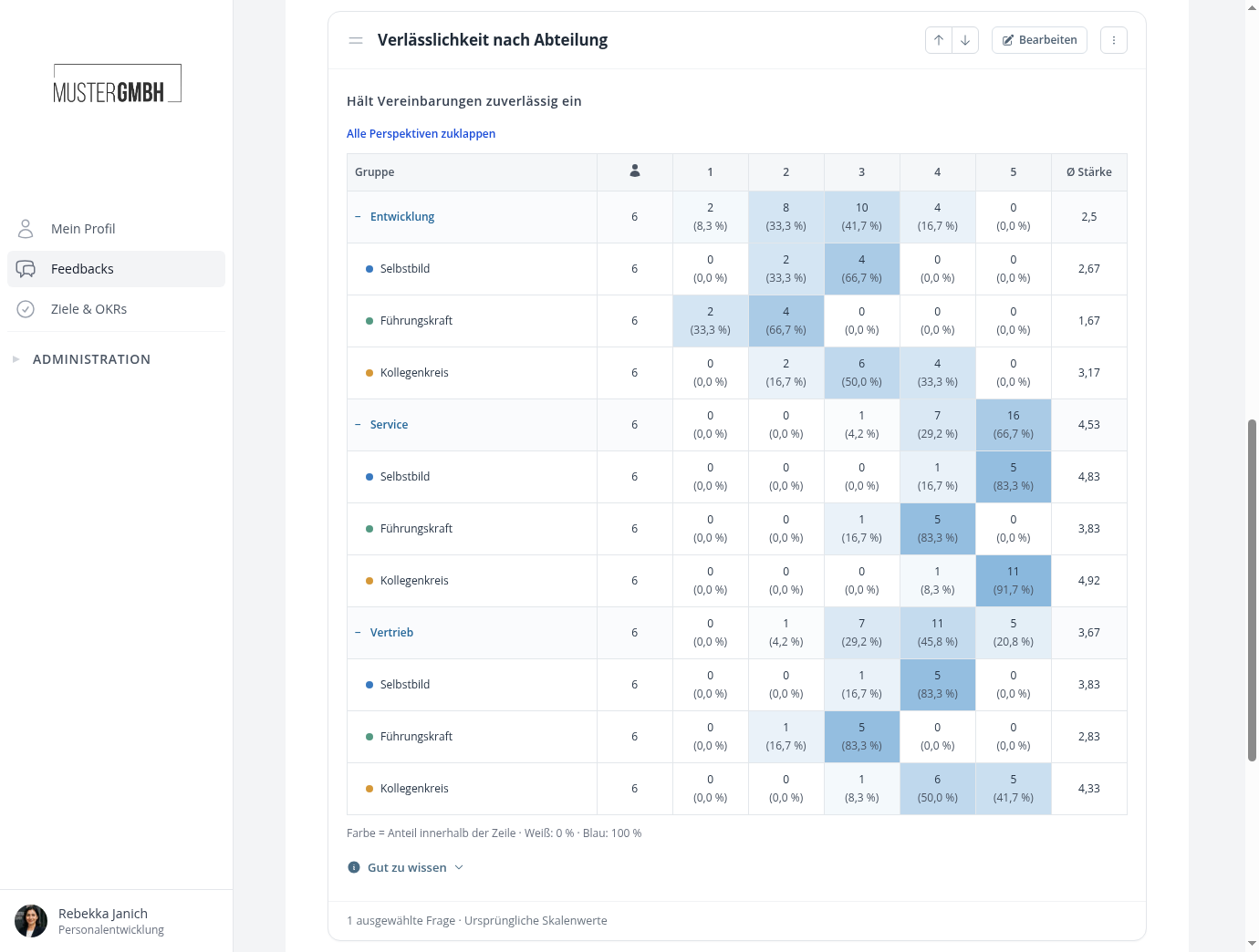
Under One question, add Drill-down: Responses for your focus question. Under Break down by, choose a list field such as “Department”. Departments appear in rows, with response options in columns.
If several perspectives are available, you can expand them. Skip this step for now if no suitable employee attribute is available. In anonymous surveys, small subgroups may fall below the required minimum count and show no values.
Arrange the report for your discussion
Give cards short, specific titles, such as “Reliable collaboration” and “Reliability by department”. Drag them by the handle to the left of the title to change their order. The blue line marks the insertion point. The arrow buttons on the card let you reorder without dragging.
If useful, add Text and heading with a discussion prompt, such as “Which two improvements shall we try before the next round?”. This is your own note, not a result calculated from responses.
Check, share, or export
Check the edition, filters, and perspectives once more. If a figure is unclear, open Good to know below that card.
Choose Sharing in the dashboard menu to make the report available to colleagues. They see its cards with their own data access rights. For a meeting handout, choose Download as PDF and check the file before sharing it.
To examine personal strengths and competency categories next, add the people overview.
Reached the end?
Done – guide completed!
Check off the steps as you work through them. Your progress is shown on the left.
You have completed every step.