Create and manage user groups
This is how you create a new user group, maintain its members, and rename or delete a group. Everything happens in the sidebar under Administration > User groups.
Create a user group
-
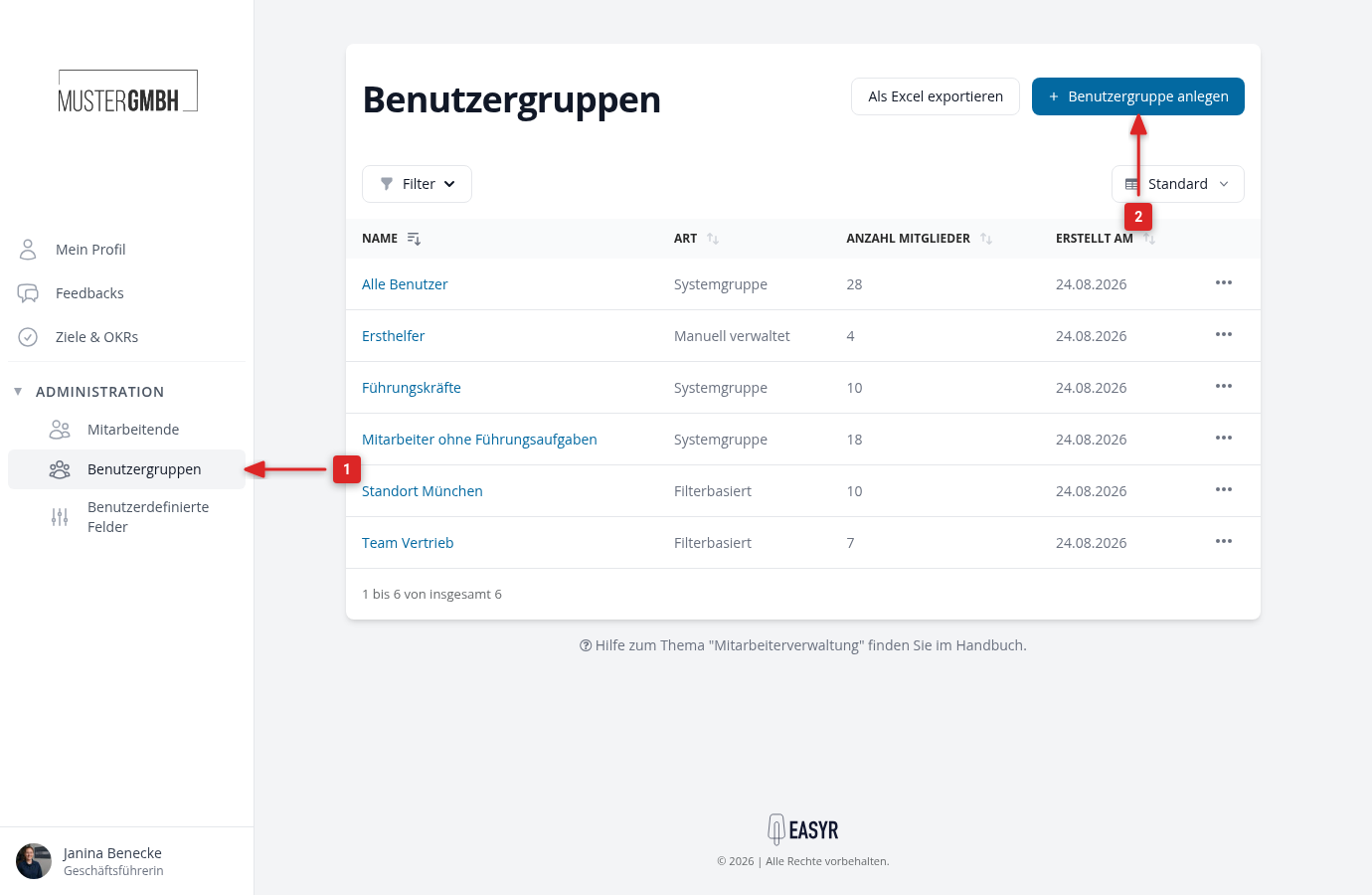
Open User groups in the sidebar.
-
Click Add user group.
-
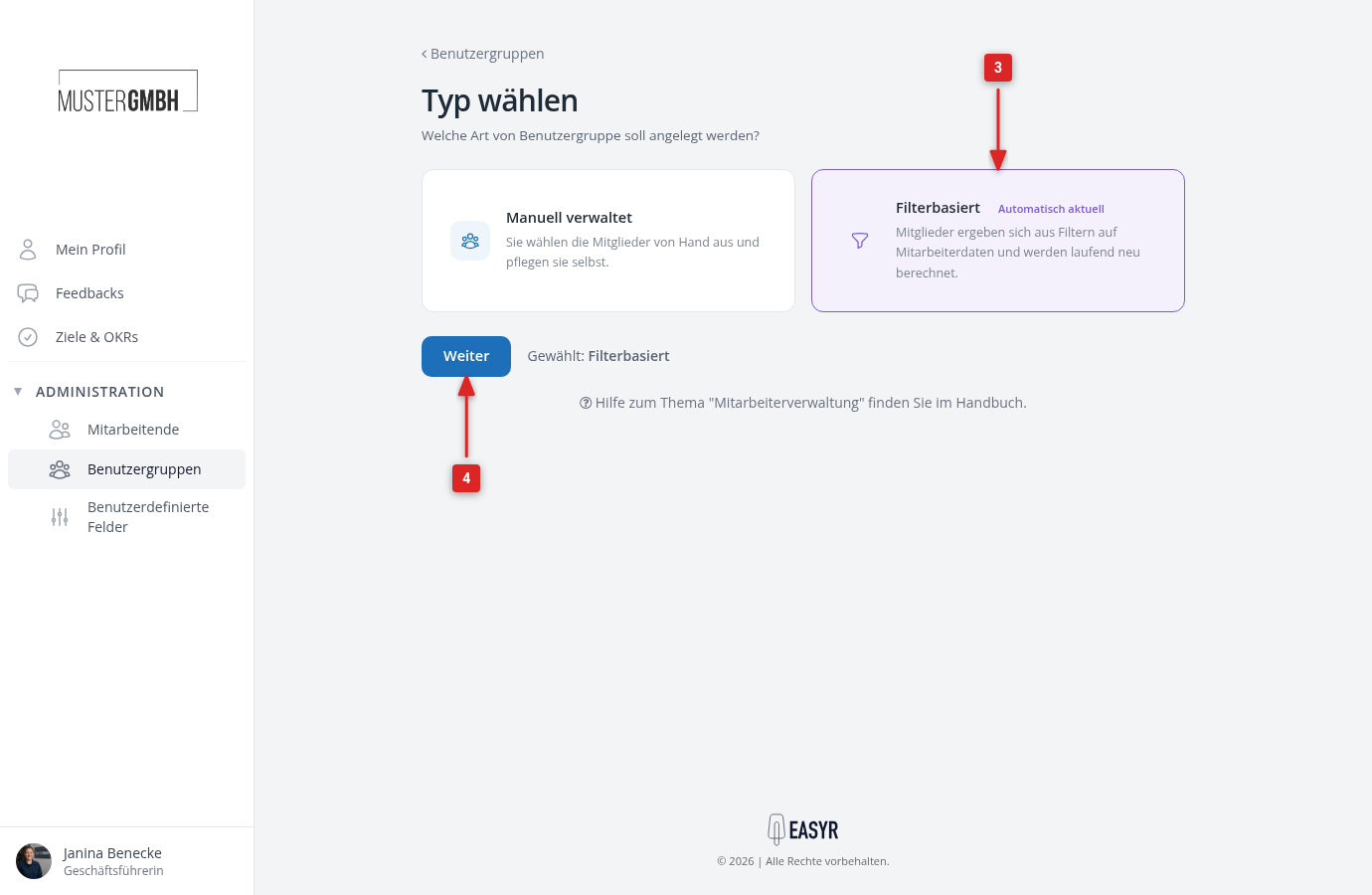
Choose the kind of group: Manually managed or Filter-based.
-
Click Continue.
-
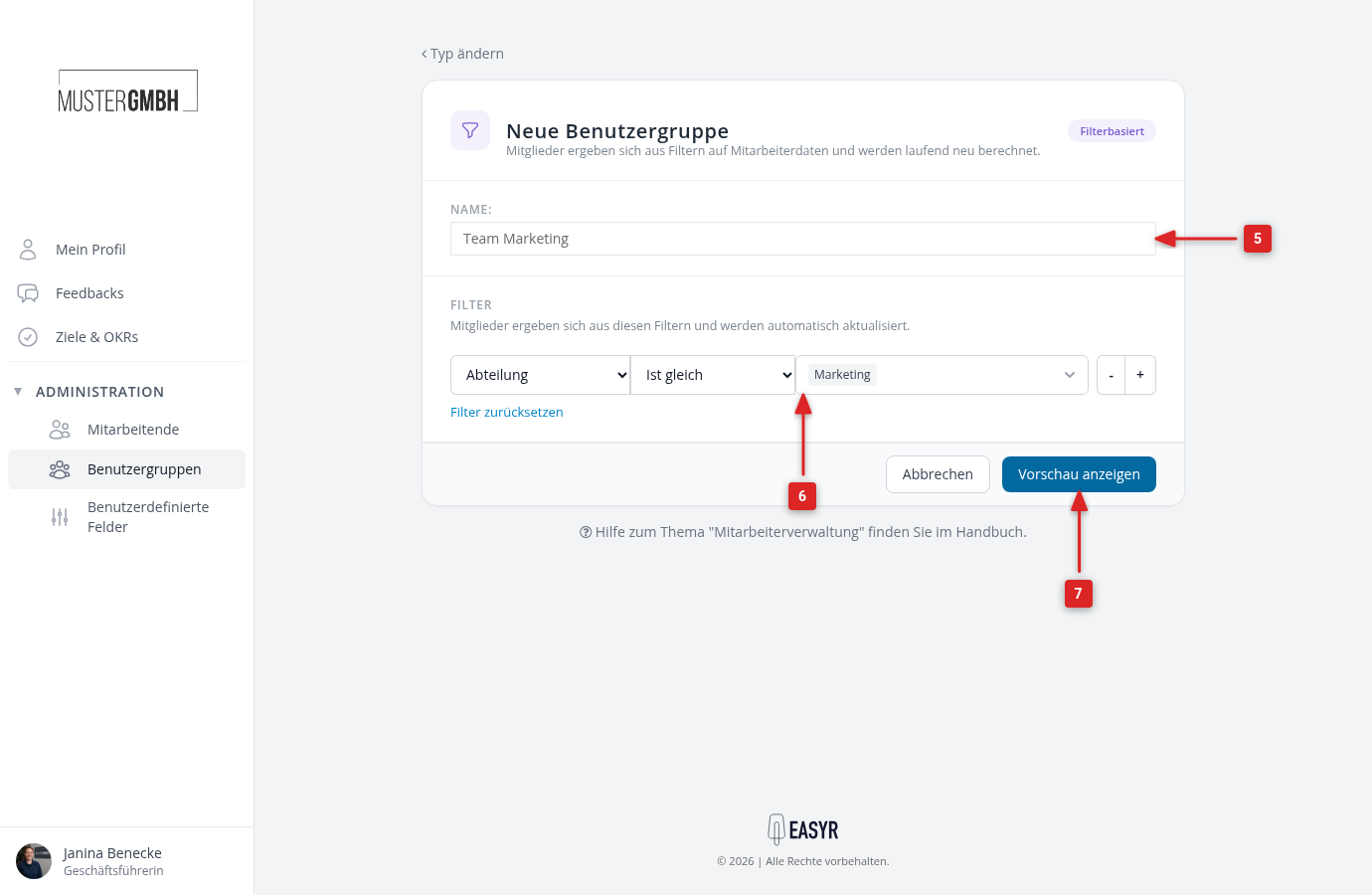
Give the group a name. For a manually managed group, now click Create user group directly.
-
For a filter-based group, define under Filters who should be a member, for example Department, Equals, Sales.
-
Click Show preview.
-
Check the list: it shows exactly the employees who will become members of the group. If the result looks right, click Create user group.
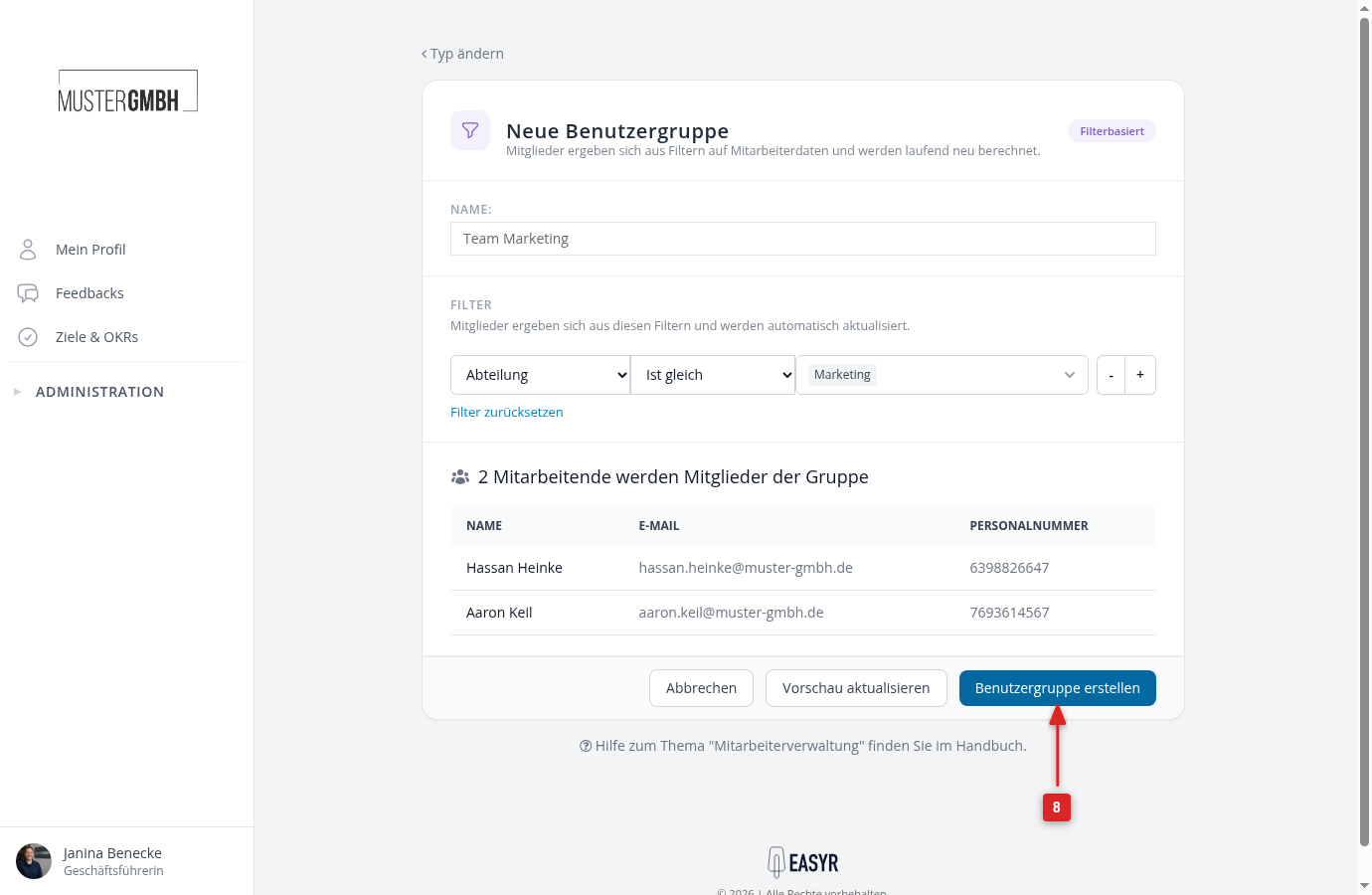
The member list of the new group opens. For a filter-based group the members are already set at this point, for a manually managed group you add them now.
Create a user group from a search
You can also create a filter-based group straight from the employee list:
-
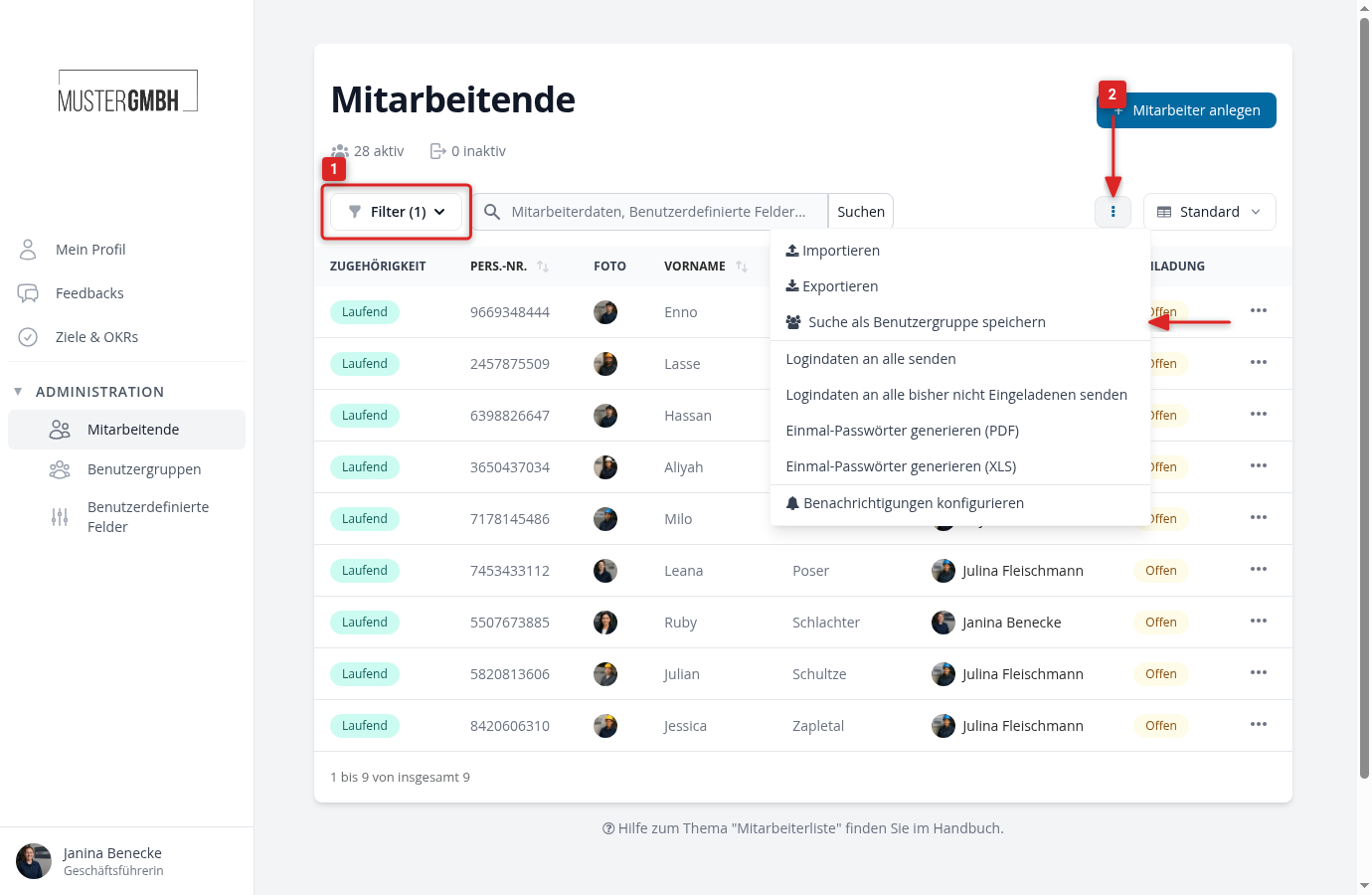
Filter the list under Administration > Employees so that it shows the people you want.
-
Open the actions menu next to the search field and click Save search as user group.
-
Enter a name and click Create user group.
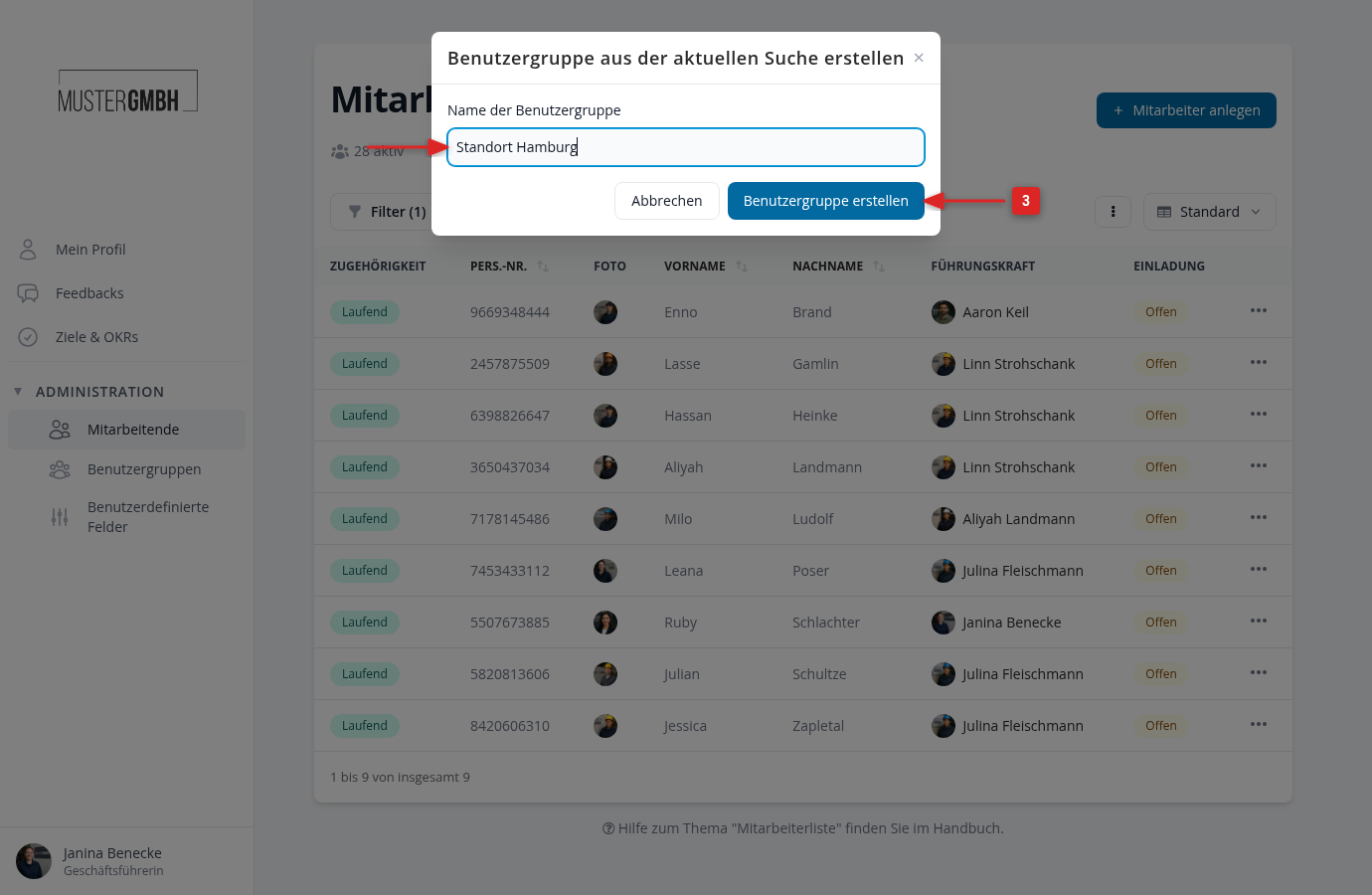
The new group takes over the list’s active filters and keeps itself up to date from now on. As long as no filter is set, the menu item stays grayed out.
Add and remove members
You only maintain members by hand in manually managed groups. For filter-based groups and system groups easyreview computes the members automatically, so these buttons do not exist there.
-
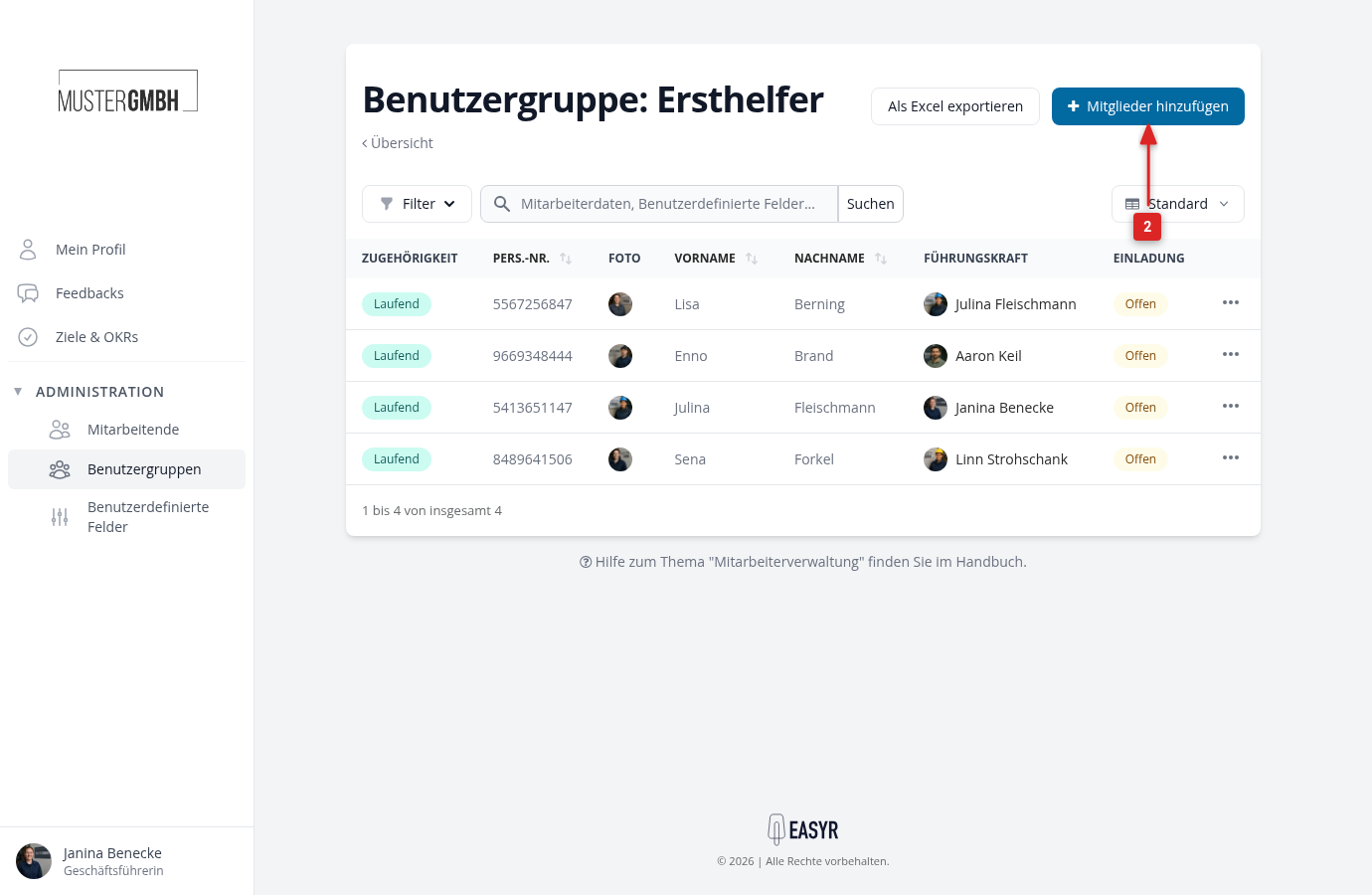
Open the group by clicking its name in the overview.
-
Click Add members.
-
Search by name and pick the people you want.
-
Click Add.
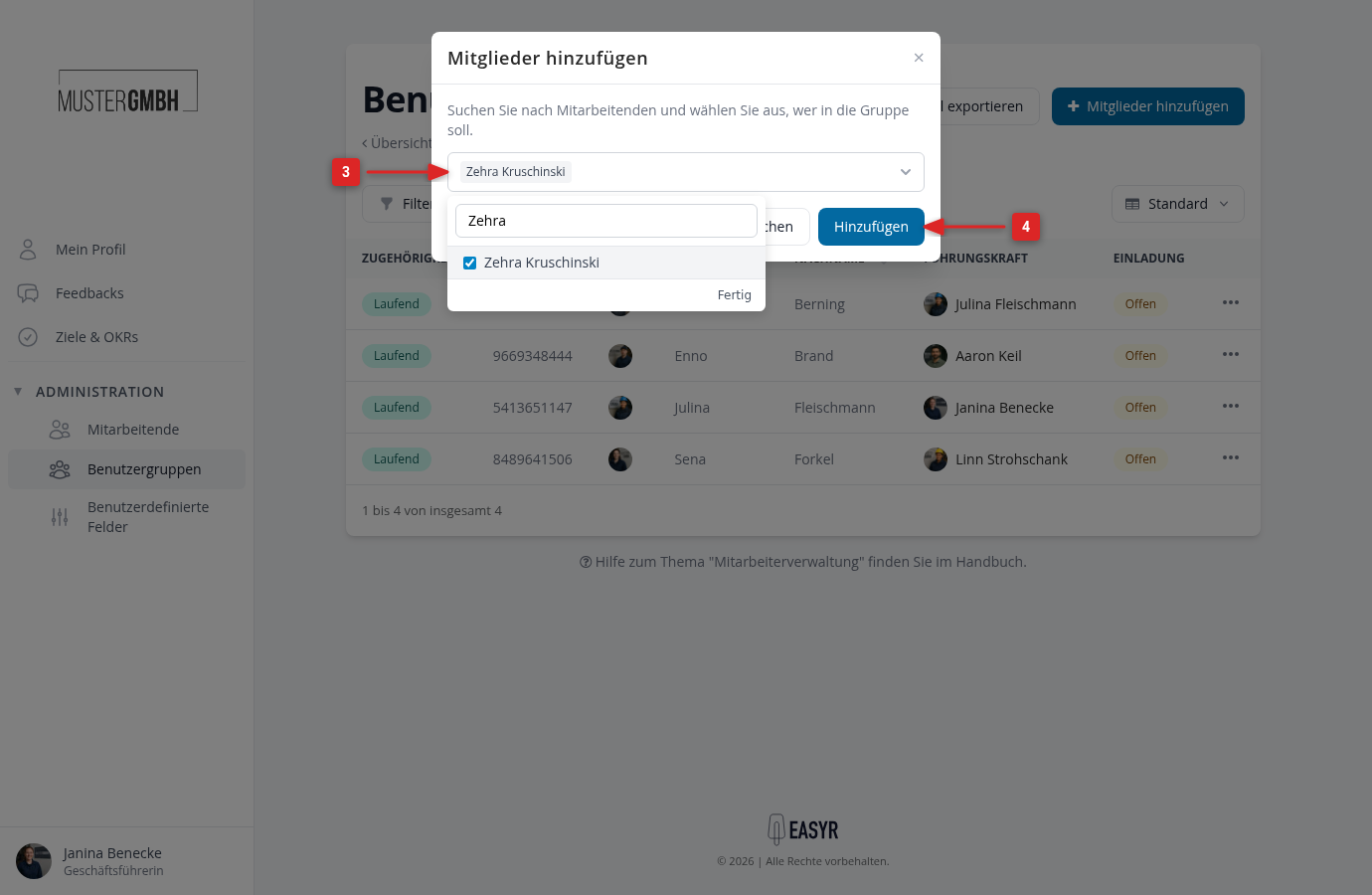
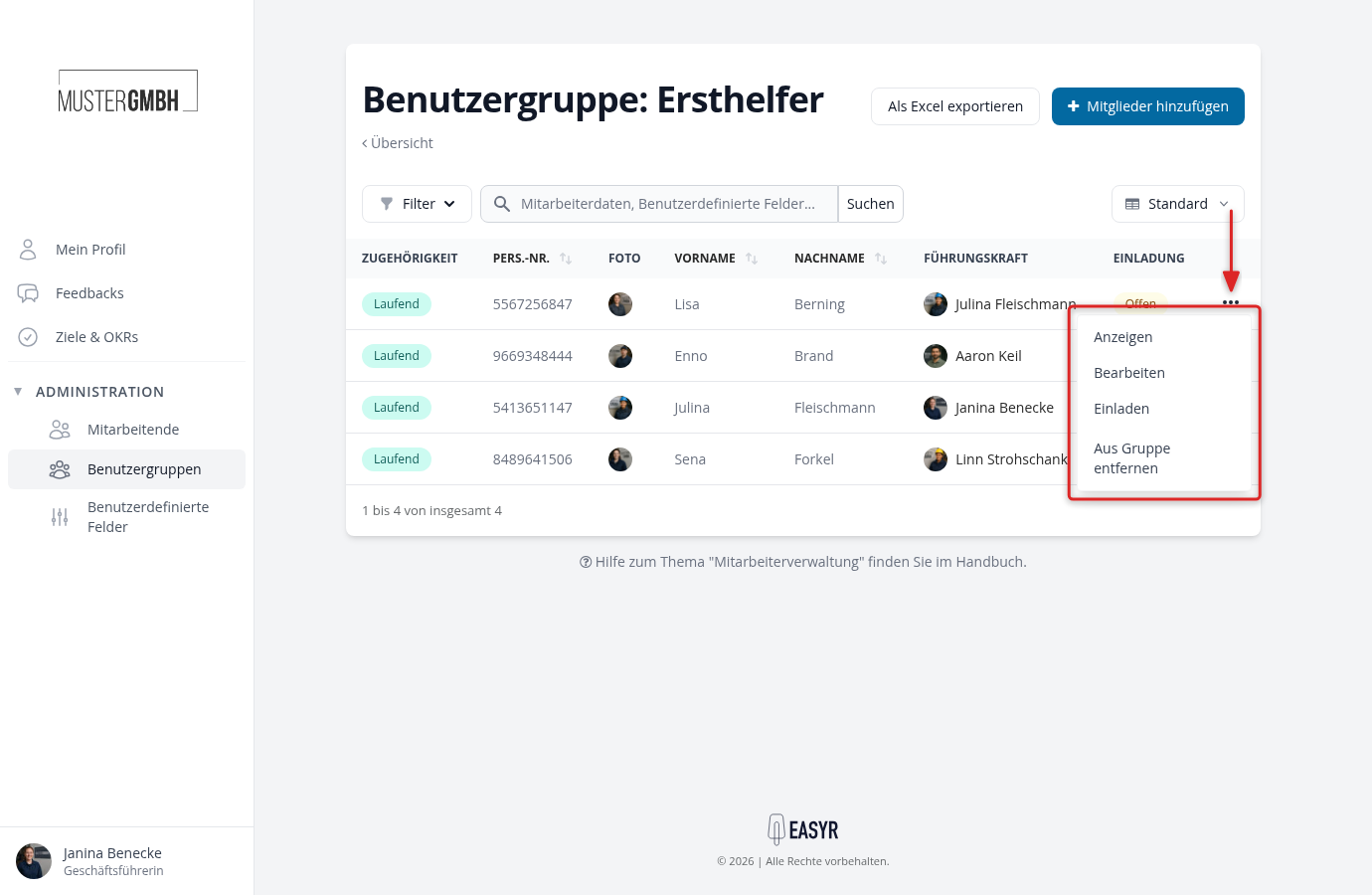
To remove someone, open the actions menu at the end of their row and click Remove from group. This only ends the group membership, the user account itself stays.
Rename or delete a user group
-
In the overview, open the actions menu at the end of the row.
-
Click Edit to rename the group, or Delete. Confirm the deletion with Delete now.
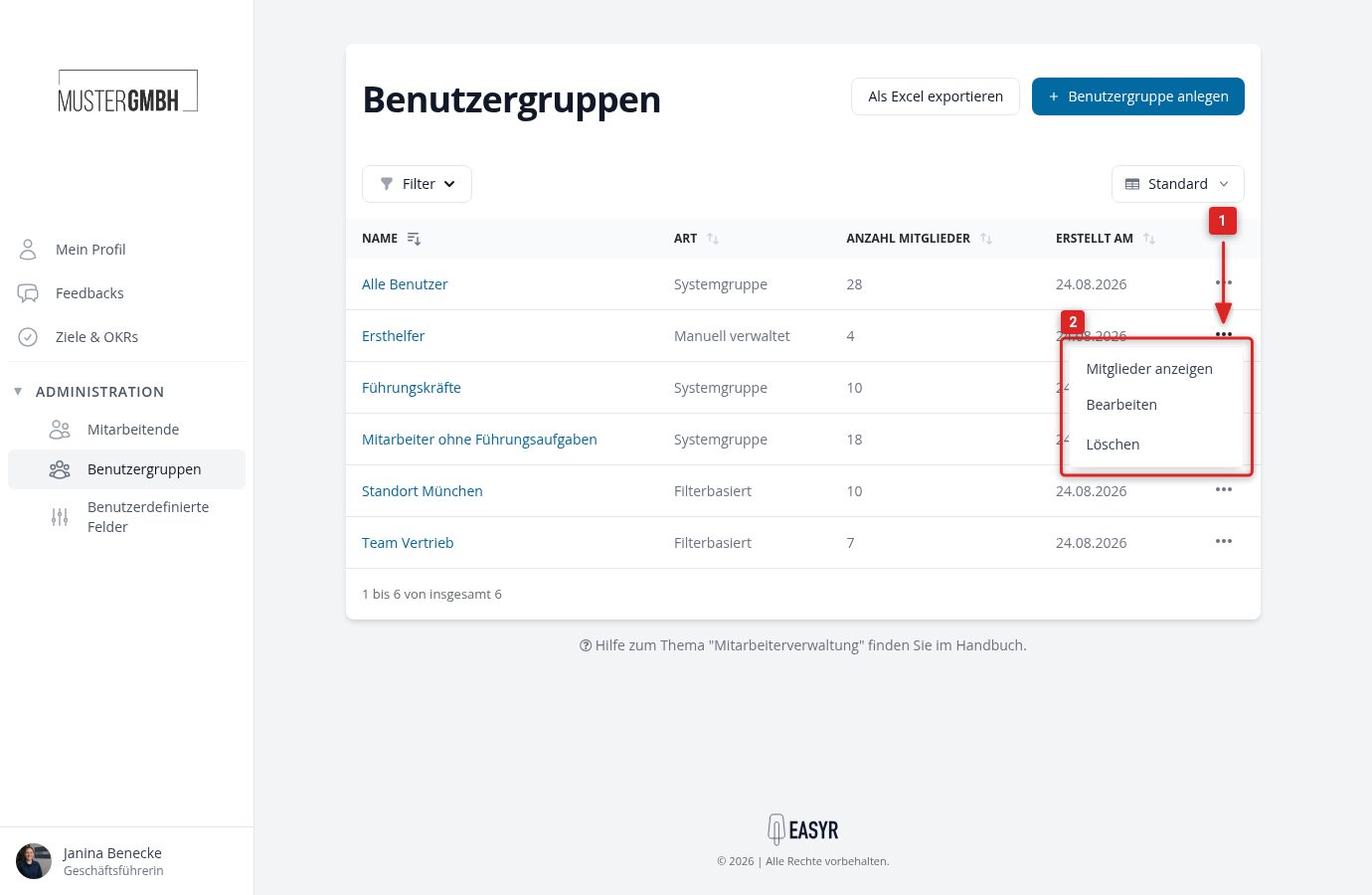
System groups cannot be edited or deleted, both menu items are missing for them.