Org chart
The org chart shows your organization as a hierarchy: who reports to whom, how large an area is, where a person sits in the chain. Open it from the employee list using the switch at the top right.
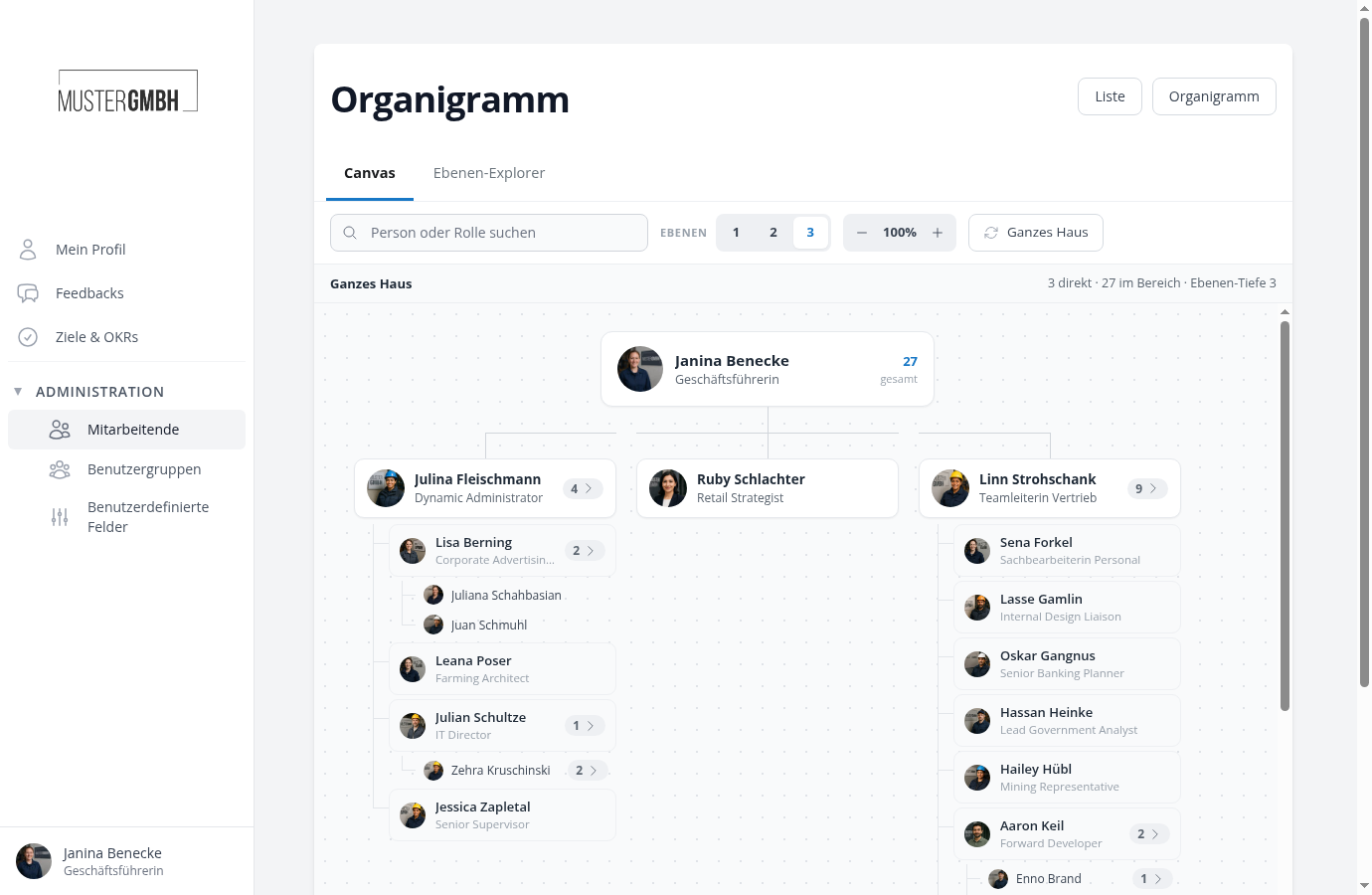
Two views for two situations
There are two tabs at the top. Canvas draws the classic tree view and is the normal case. Level Explorer presents the same people in columns, one column per level of the hierarchy. The explorer pays off when your structure is very deep or covers a lot of people, because columns do not grow sideways.
Both tabs share the same selection. Switch tabs and the person you were on stays in focus.
How much is visible at once
The Levels selector with 1, 2 and 3 determines how many levels below the current top are drawn at the same time. At 1 you see only the direct reports, at 3 you also see their teams and the level below that.
How many levels are preset when you open the page depends on the size of your company. Small organizations start fully expanded, large ones tighter so the page stays readable.
Going deeper into an area
Everything below the levels you have set is reachable through the cards themselves.
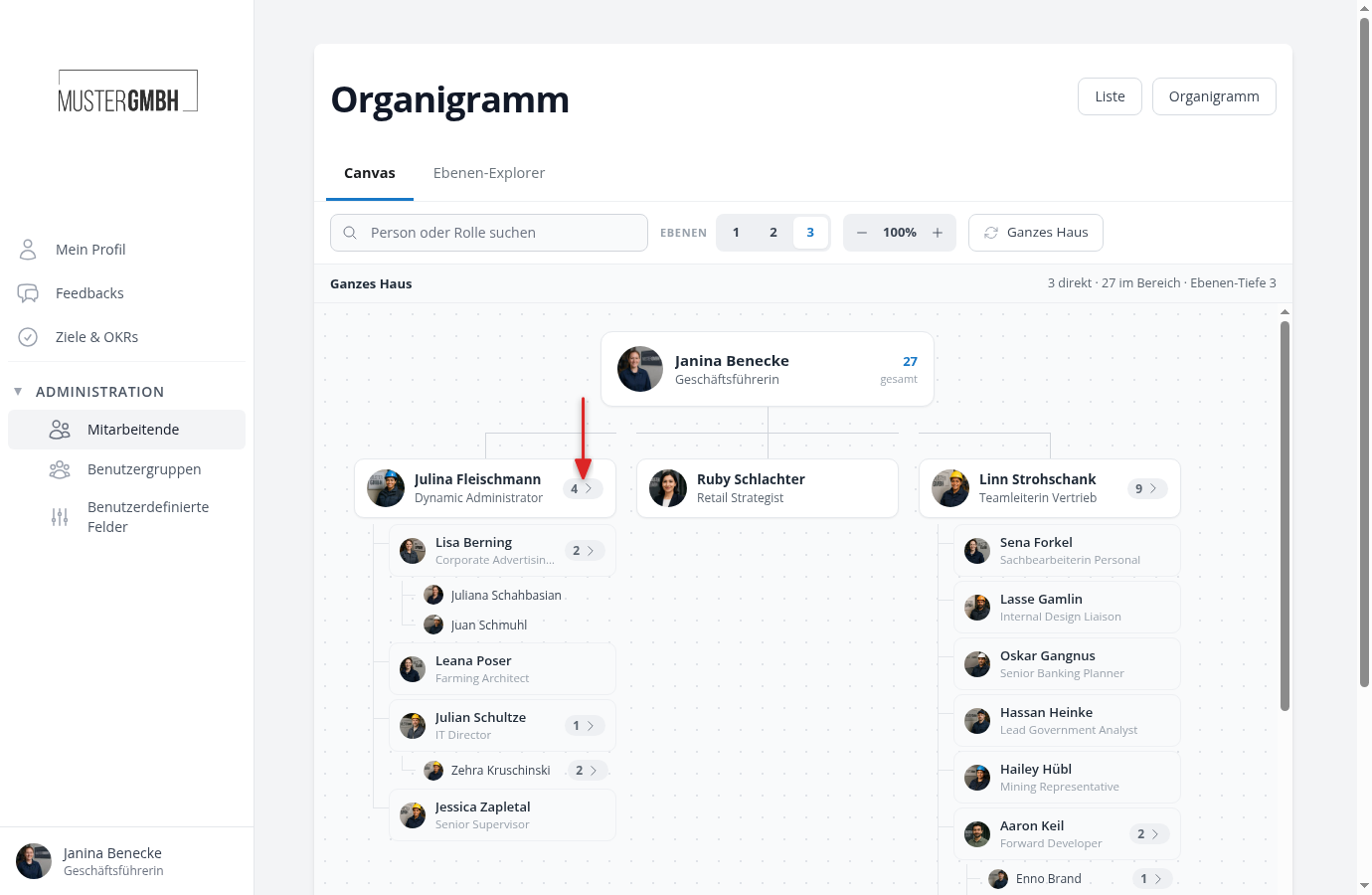
On every card of a person with reports, a number with an arrow sits on the right. The number names the direct reports. Clicking it makes that person the new top, the tree redraws from there and you see their area.
Clicking the card itself only opens the details, the view stays where it is. That way you can look at somebody without the whole picture rearranging.
You get back through the bar above the tree. It shows the path from Whole organisation down to the current top, and every station is clickable. The Whole organisation button in the toolbar resets everything: top, levels and zoom.
Finding a specific person
Type a name, a role or part of one into the search field. The result list opens below it, you pick with the arrow keys and confirm with Enter, or click the result.
The tree then jumps to that person and redraws from there. Below every result you see the path from the top down to them, so you pick the right person when names repeat.
What the detail panel shows
Clicking a card opens the detail panel on the right. It lies over the drawing, so nothing shifts.
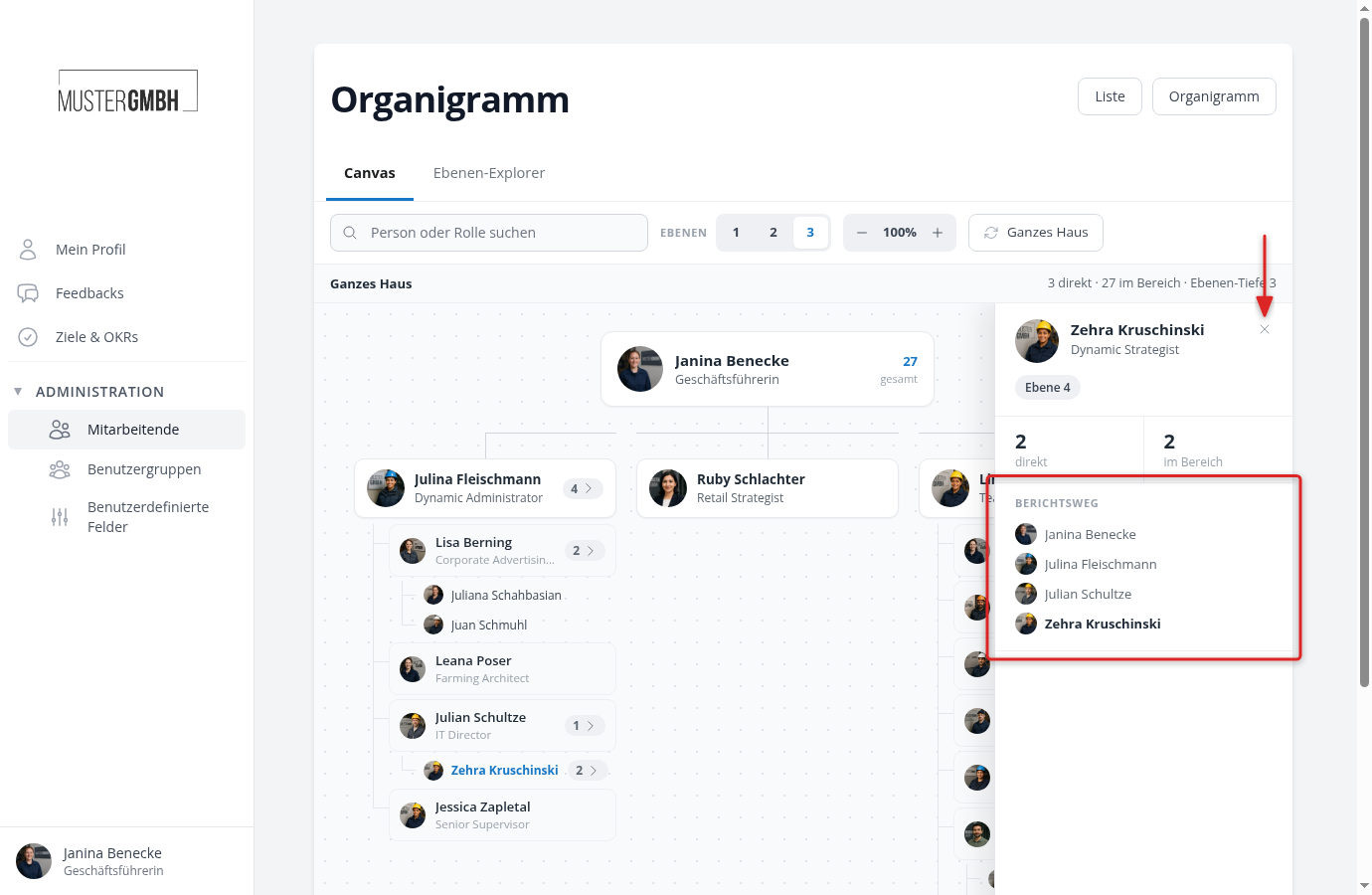
You see the level the person sits on, the number of direct reports and the total in their area, meaning all levels below them combined. Under that comes the Reporting line, the complete chain from the top down to this person. Every station in it is clickable.
The name is a link to the employee profile. The cross at the top right closes the panel again, and then nobody is in focus. That is also how the page starts.
Large and deep structures
When space runs out, use the Level Explorer tab.
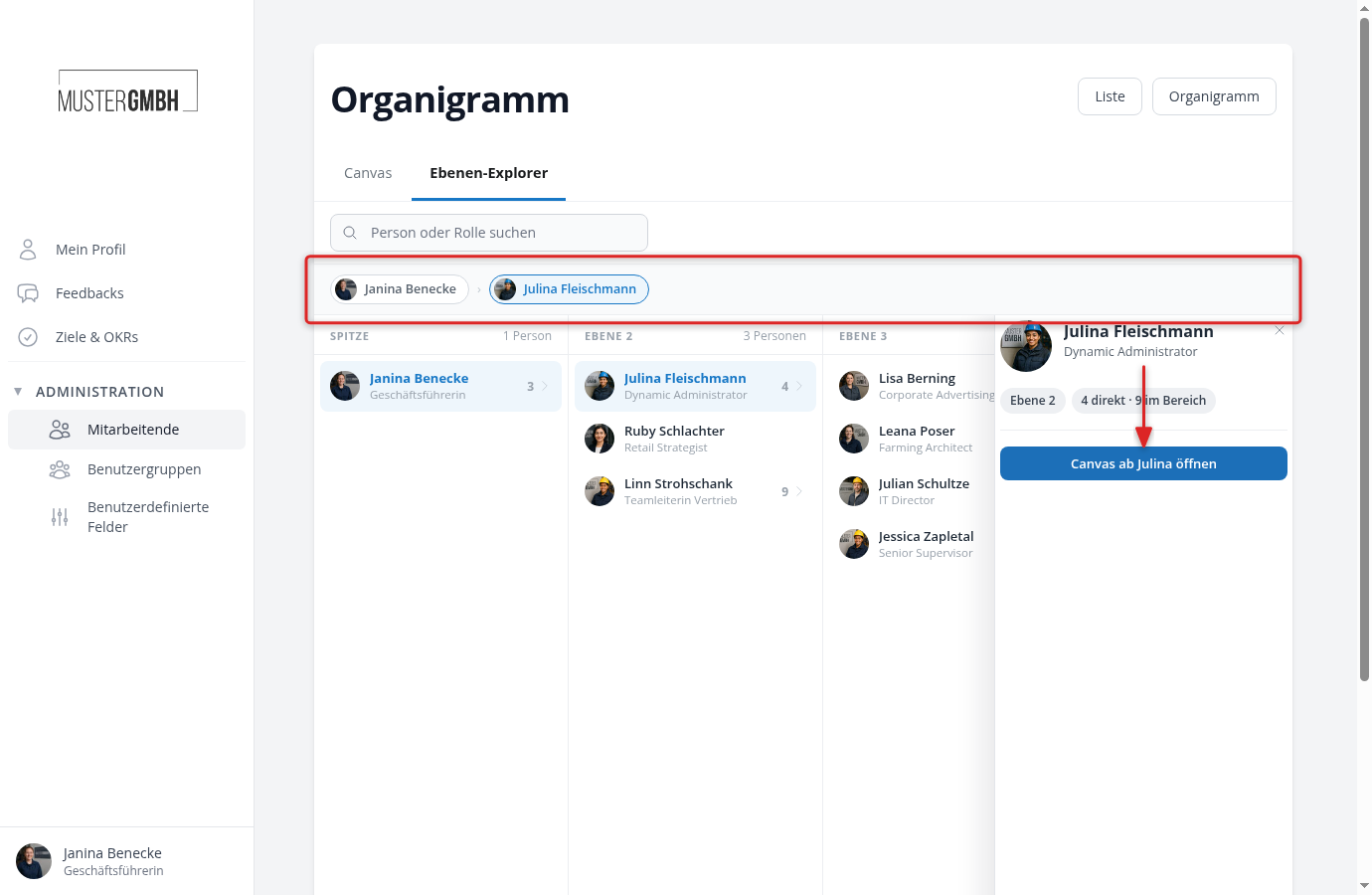
Every column stands for one level. On the far left the Top, next to it their direct reports, and so on. Clicking a person opens the next column with their team. The pills above let you follow the path you took and jump back.
The Open canvas from … button in the detail panel takes you back to the tree view with the same person.
When the structure is wrong
If somebody hangs in the wrong place or is missing entirely, that comes from the master data, not from the org chart. Open the person in the employee list through Edit and correct the supervisor field.
Two cases explain most surprises:
People without a supervisor appear at the very top as their own root. If your company has several of them, the org chart groups them under one shared node carrying your company name.
Terminated employees are not drawn. If one of them was a supervisor, their reports move up and stand there as their own root until you assign them a new supervisor.