Record notes on target agreements
In easyreview you can leave notes directly on a target agreement. Use them to document agreements, interim results or feedback on someone’s goals.
Notes can be public or private. Public notes are visible to everyone who has access to the target agreement. Private notes are visible only to you.
View notes
- Open the target agreement’s detail view.
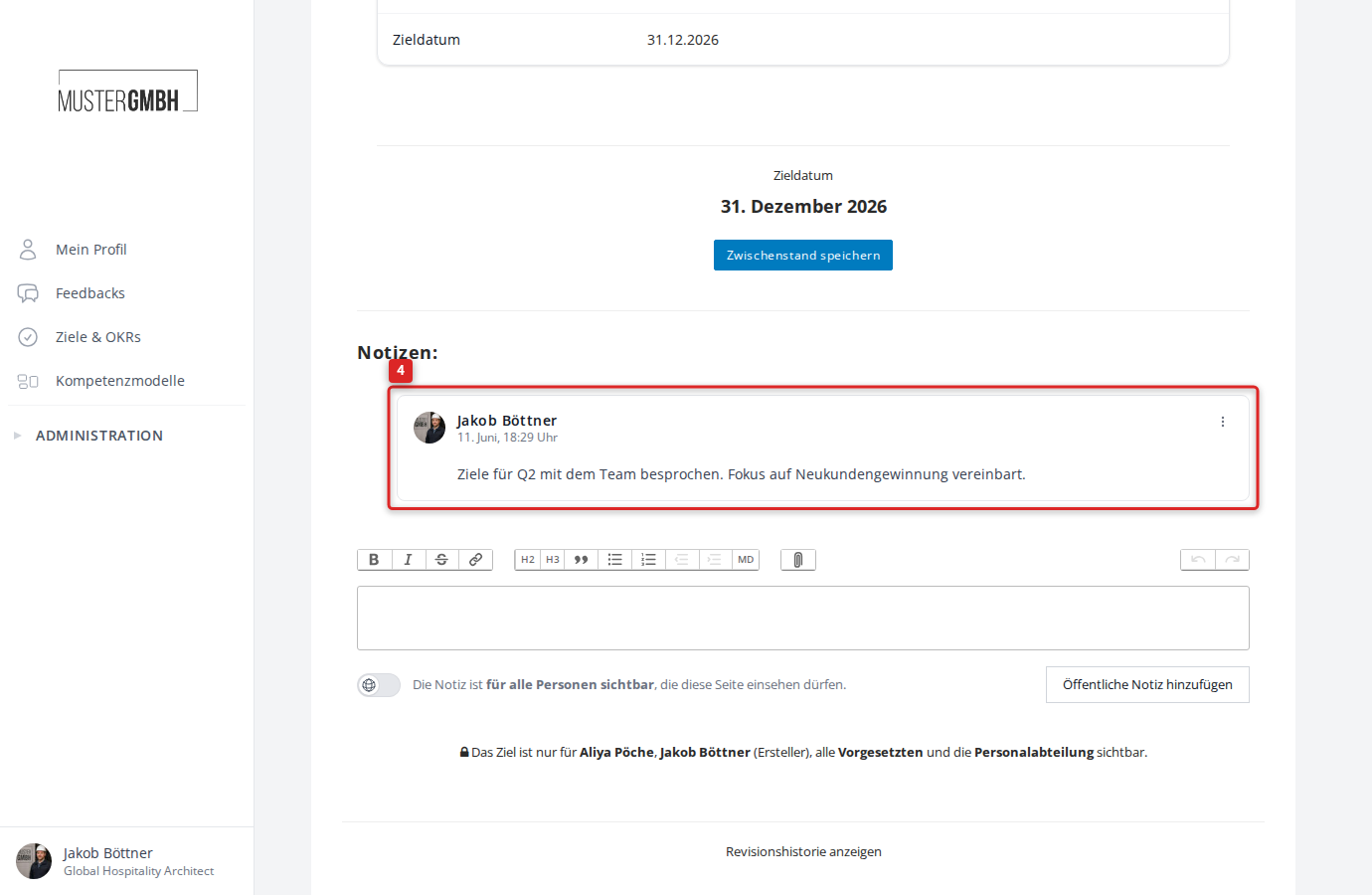
- Scroll to the lower part of the page. If notes already exist, the Notes: section appears automatically.
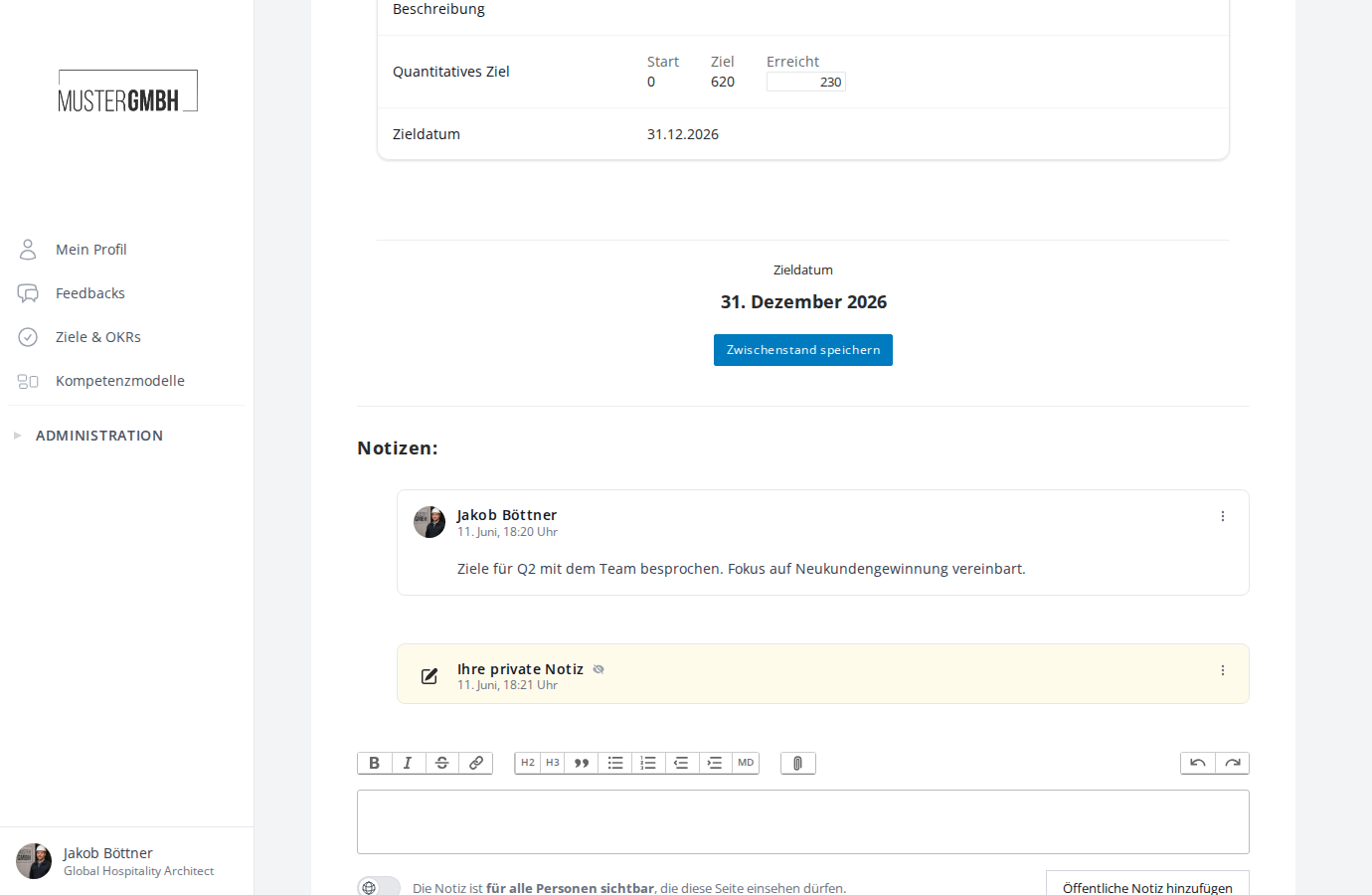
Each note shows the name of the person who wrote it, the date and the content. Your own notes are shown slightly indented.
Private notes have a yellow background and show a note icon instead of a profile picture. You can’t see the content of other people’s private notes.
Expand and collapse private notes
Private notes start out collapsed, so their content isn’t shown right away. To read a private note:
- Click the three-dot menu (⋮) in the top right of the private note.
- Click Show note.
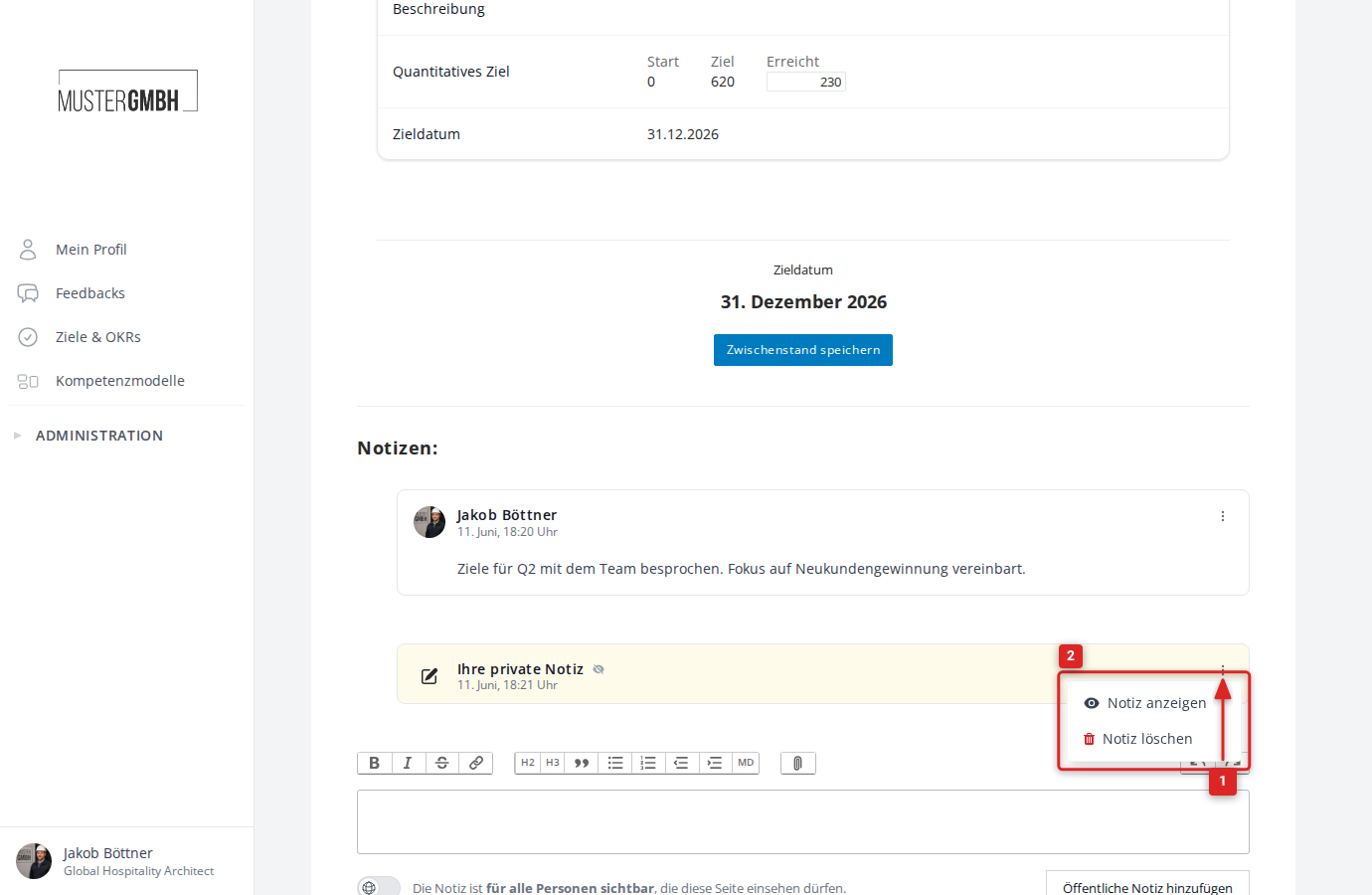
The note’s content then becomes visible. To collapse it again, open the three-dot menu once more and click Collapse note.
Add a note
- In the target agreement’s detail view, click the Add note link at the bottom of the page.
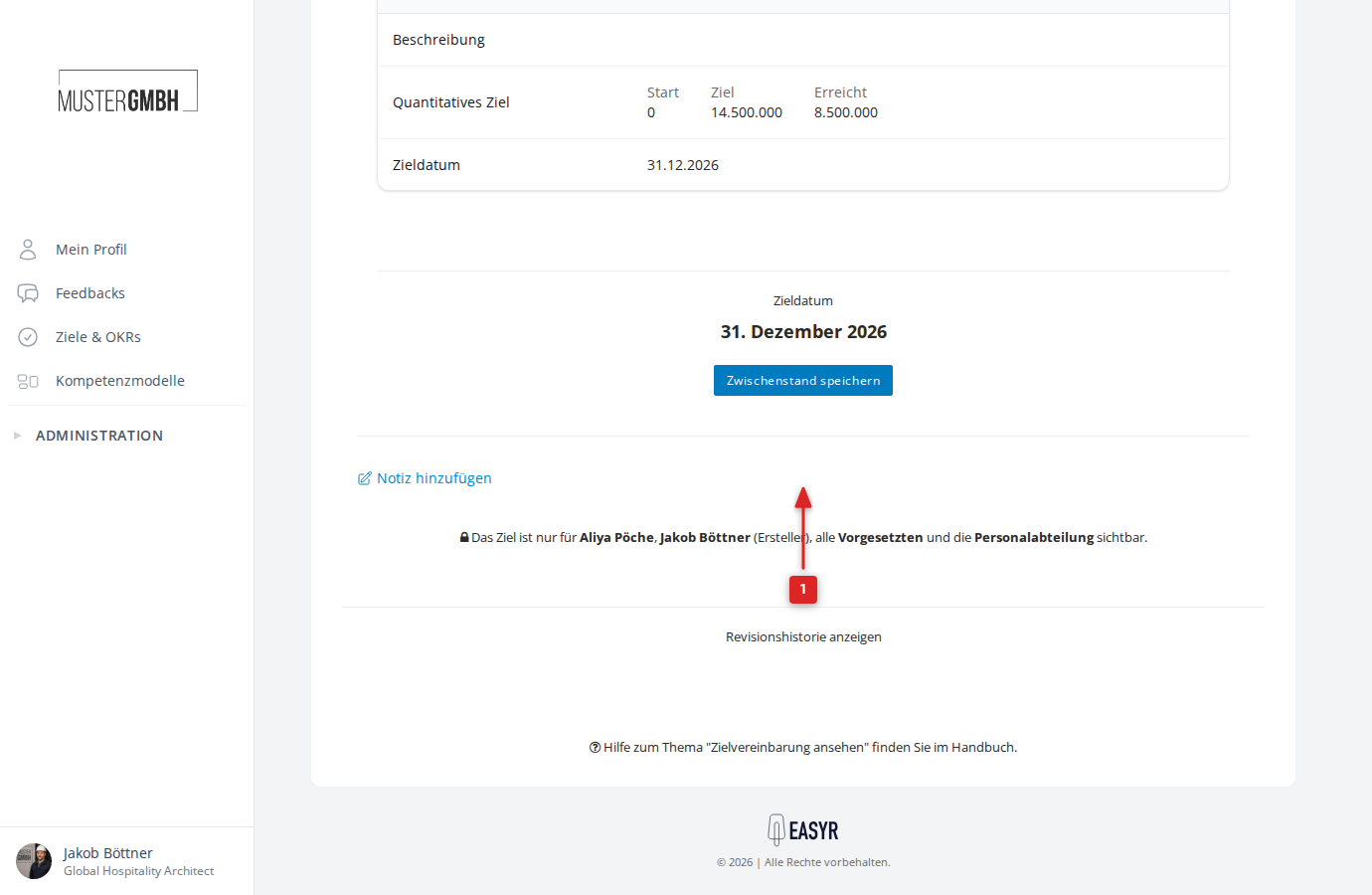
- The notes area opens with a text editor. Type your note into the text field. The editor offers formatting options such as bold, italic, headings, lists and links.
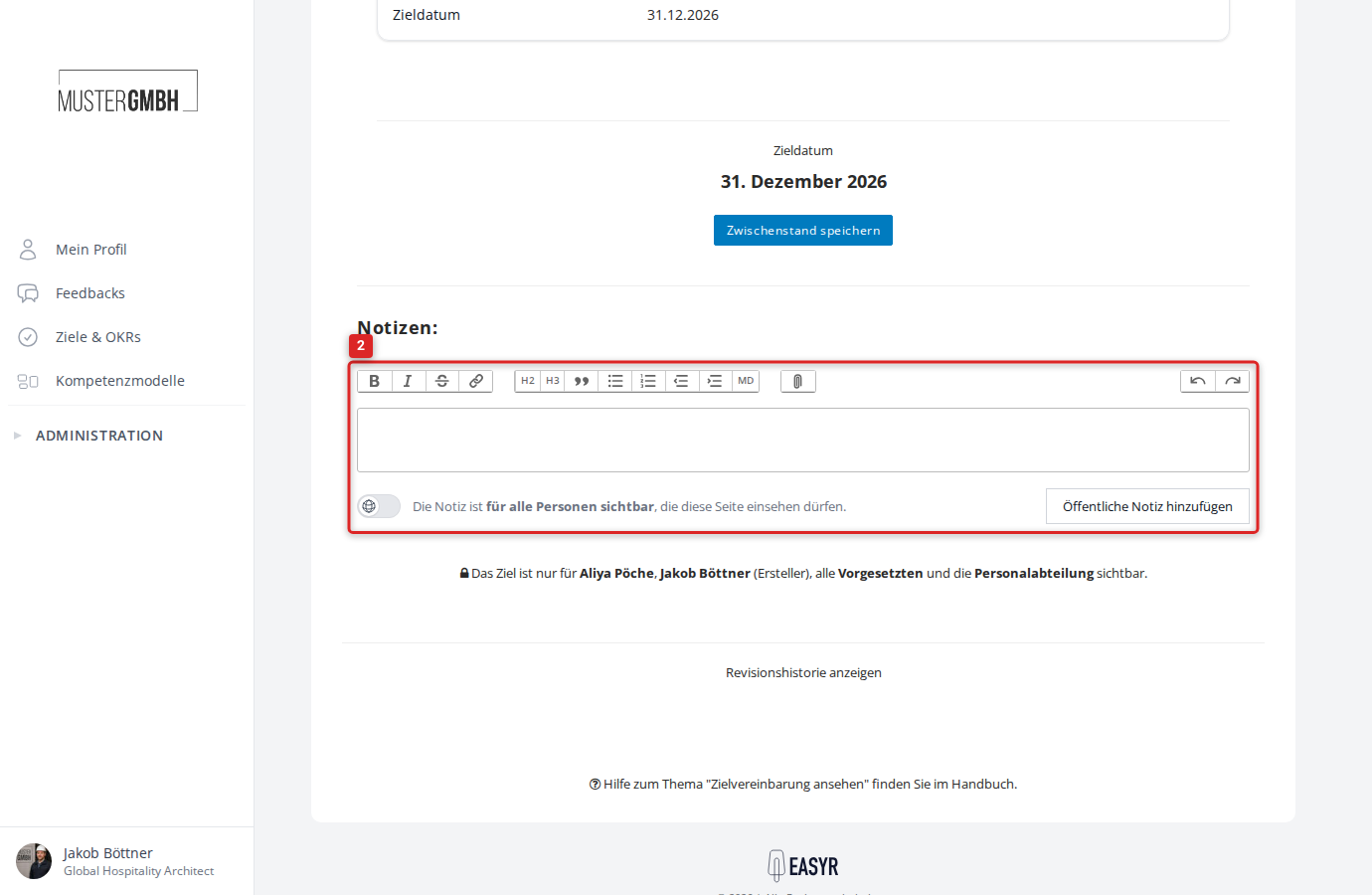
- Choose the note’s visibility. To the left of the submit button there’s a toggle:
- Public (default): The note is visible to everyone who has access to this target agreement. The toggle shows a globe icon.
- Private: The note is visible only to you. Turn the toggle on to make it private. It turns orange and shows a lock icon.
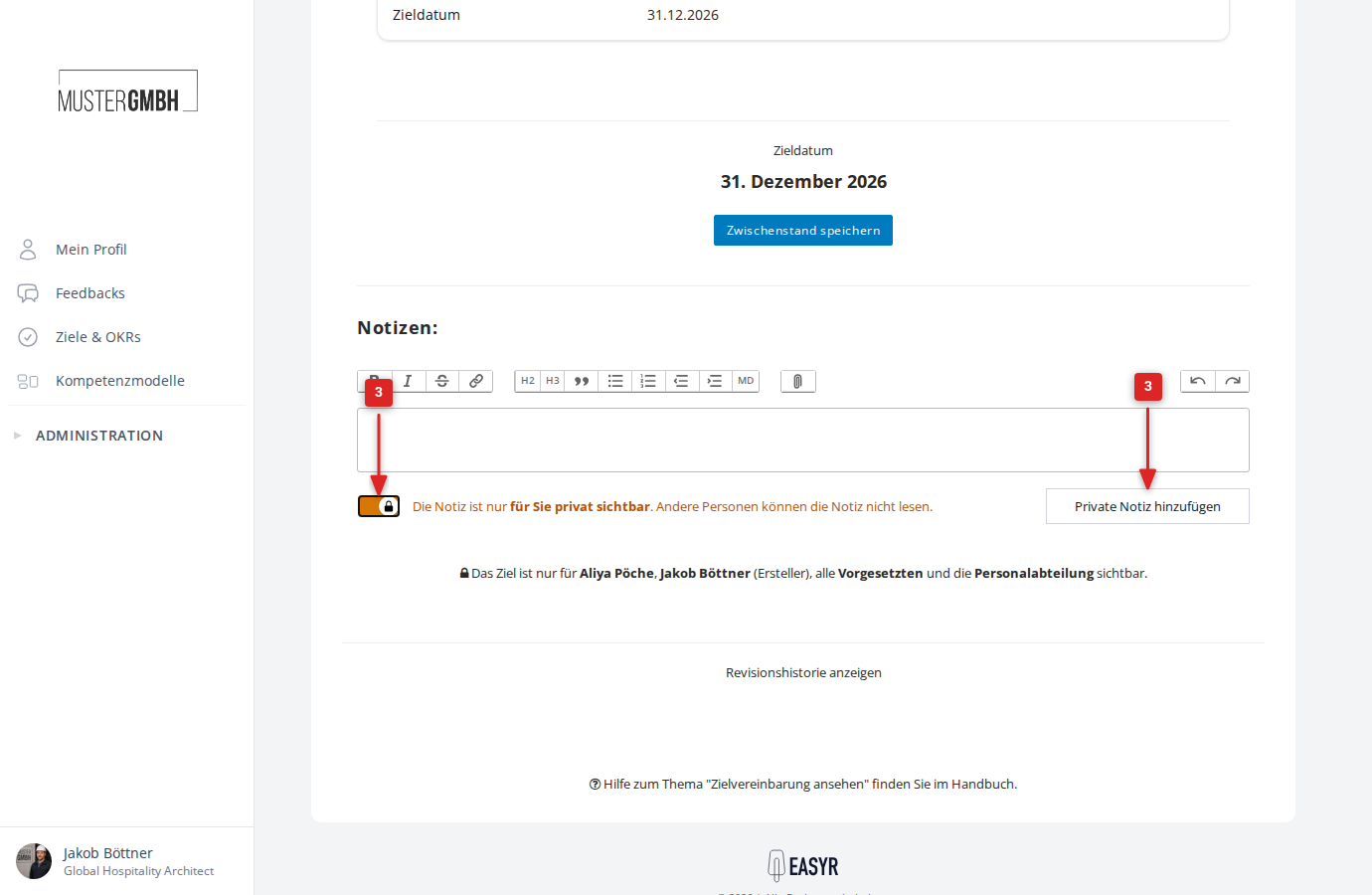
- Click Add public note or Add private note to save. The button text adapts automatically to the visibility you chose.
Delete a note
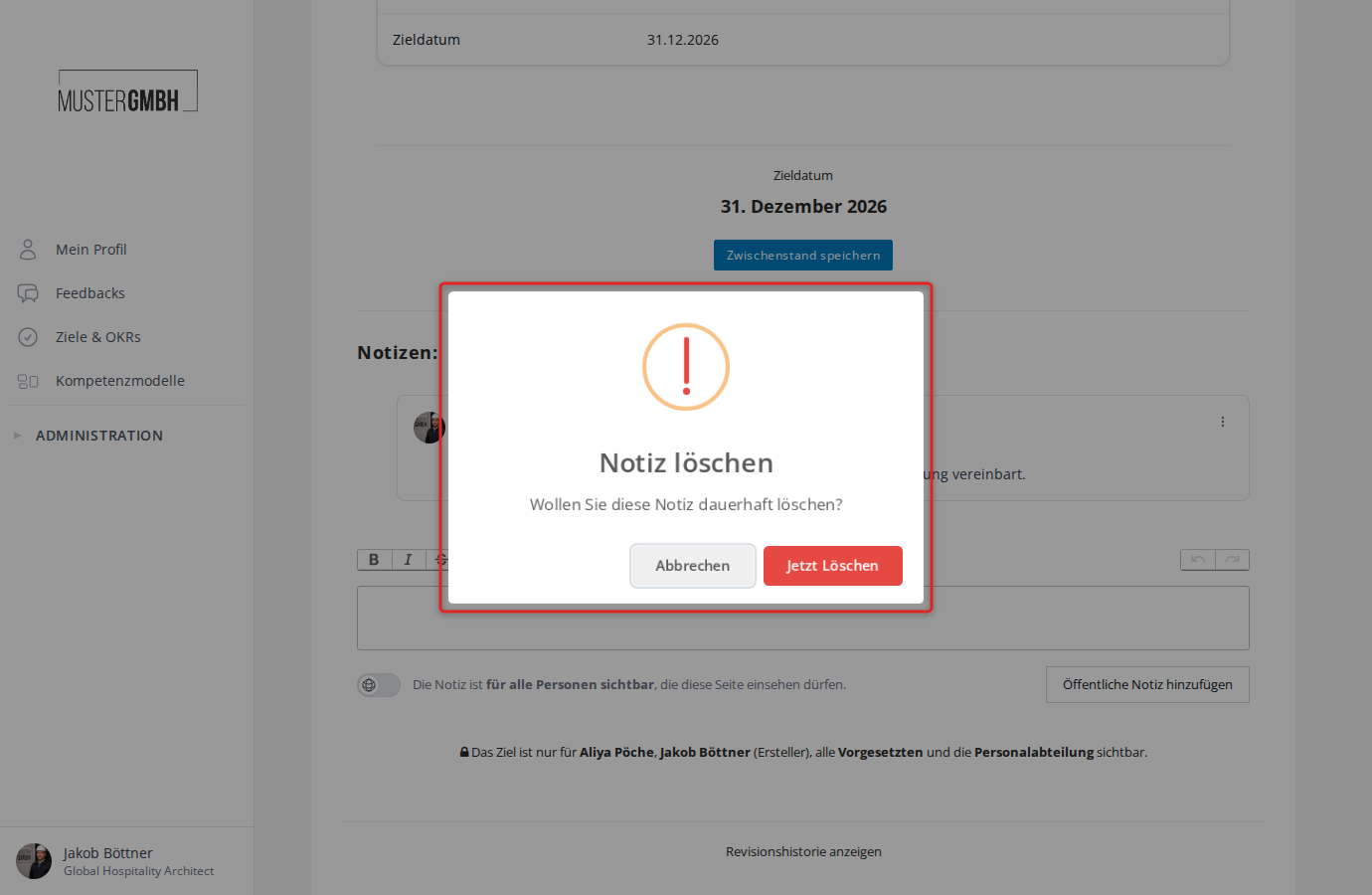
Public notes can only be deleted by people with the HR employee or Executive Management role. As the author of a private note, you can delete it yourself at any time.
- On the note you want, click the three-dot menu (⋮) in the top right of the note card.
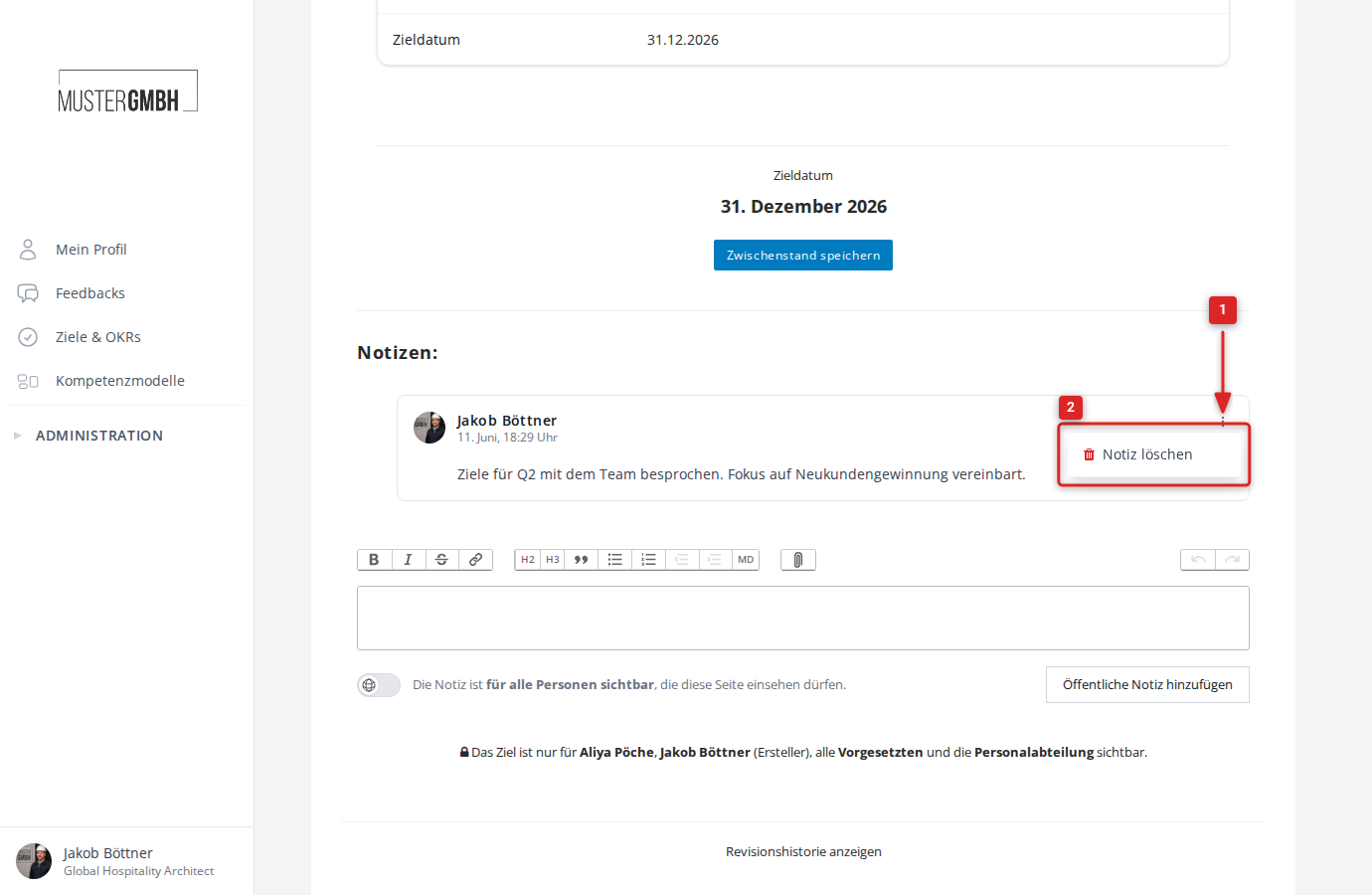
- Click Delete note.
- Confirm with Delete now in the dialog.