Set up reminders for target agreements
So that goals don’t quietly slip past their deadlines, easyreview reminds the people involved by email before a deadline is due. You don’t need to set anything up: out of the box, both the recipient and the creator of a target agreement get a reminder 7 days before every deadline. This article explains how these reminders work and how to adjust the lead time, recipients and wording to fit your process.
Who gets reminded, and when?
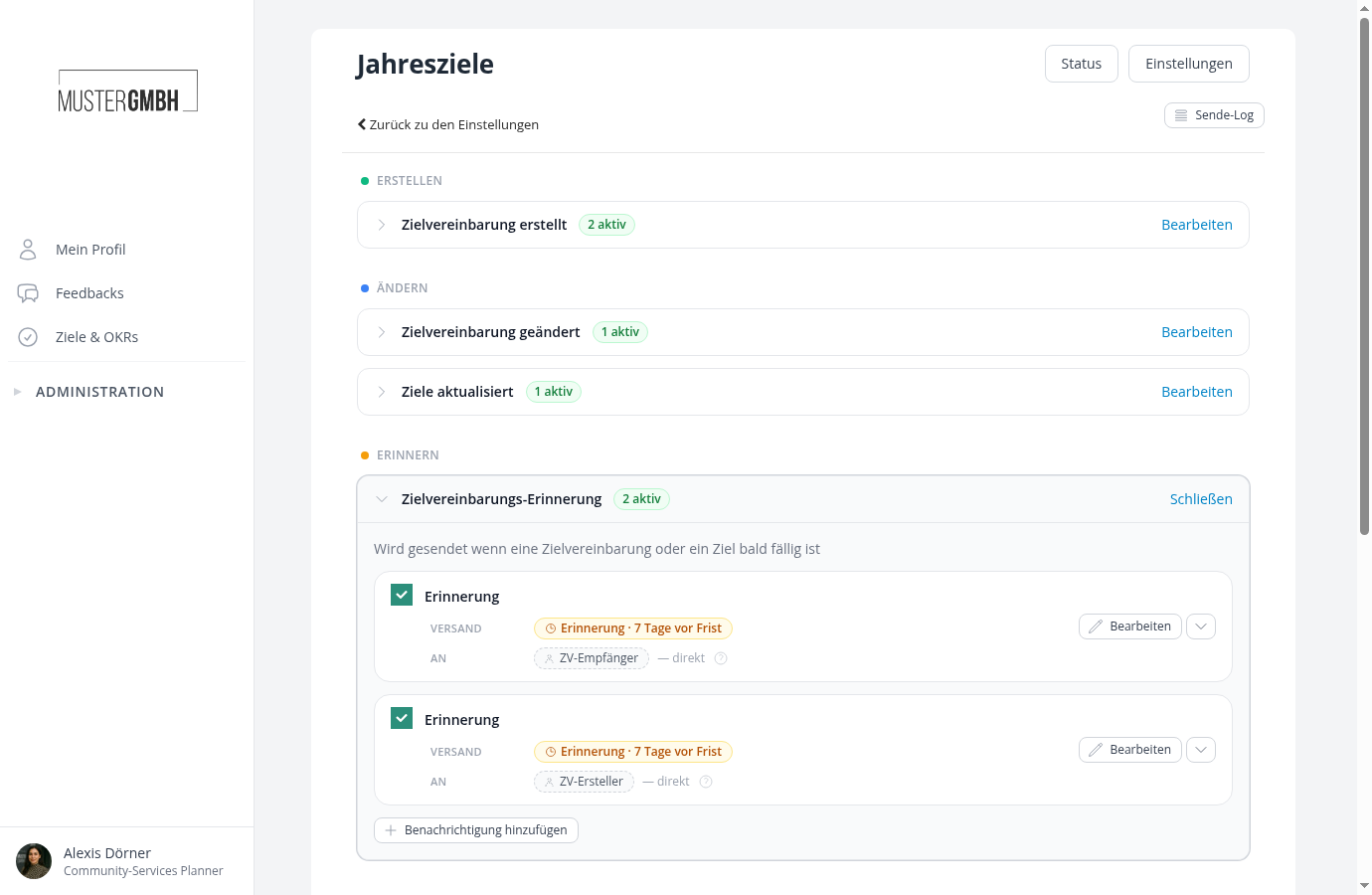
By default there are two reminders per target agreement process, each sent 7 days before the deadline: one to the recipient (the person the target agreement was created for) and one to the creator. You’ll find both in the Notification Center of the target agreement process, under Target Agreement Reminder:
A “deadline” is either of these:
- the overall due date of the target agreement (“overall goal to be reached by”)
- the due date of each individual goal
You set the deadlines on the target agreement itself, when you create or edit it. The reminders follow those dates automatically.
easyreview reminds with a sense of proportion:
- Goals that are already reached and completed target agreements are no longer reminded.
- If several goals fall due at the same time, easyreview combines them into a single email.
- Each deadline is reminded only once. If a deadline moves, a new reminder is sent for the new date.
What’s in the email?
The reminder names the goals or the target agreement that are due, together with the deadline. You can freely adjust the subject and body of each reminder, use placeholders for names and dates, and check the result in the preview. See Design content and use placeholders for the how-to.
Change the lead time
Want to remind earlier or later than 7 days in advance?
- Open the Notification Center of the target agreement process and expand Target Agreement Reminder.
- Click Edit on the reminder you want to change and switch to the Settings tab.
- In the Delivery section, adjust the number of days before the deadline.
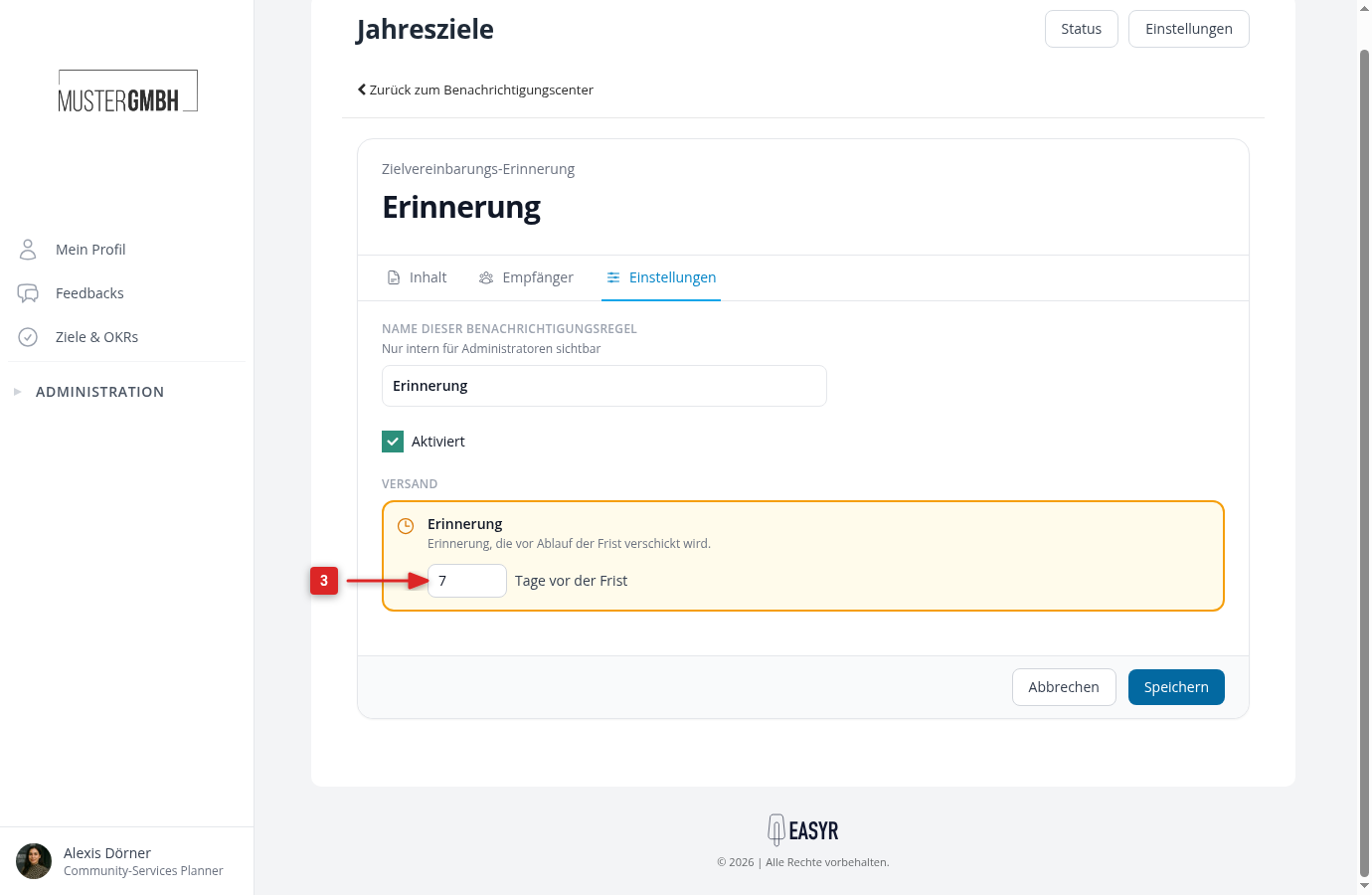
- Click Save.
Remind other people
You control who gets reminded per reminder, on the Recipients tab: the person themselves, their supervisor via the hierarchy, or a fixed contact such as someone in HR. See Set recipients for the how-to.
Add or turn off a reminder
- Add: Use Add Notification to create additional reminders, for example an extra reminder 30 days before the deadline with its own wording.
- Turn off: Clear the checkbox on the left of the rule row. The reminder is kept and can be reactivated at any time.