View a target agreement (detail view)
The detail view shows a single target agreement with everything that belongs to it: description, intermediate goals, progress, and notes.
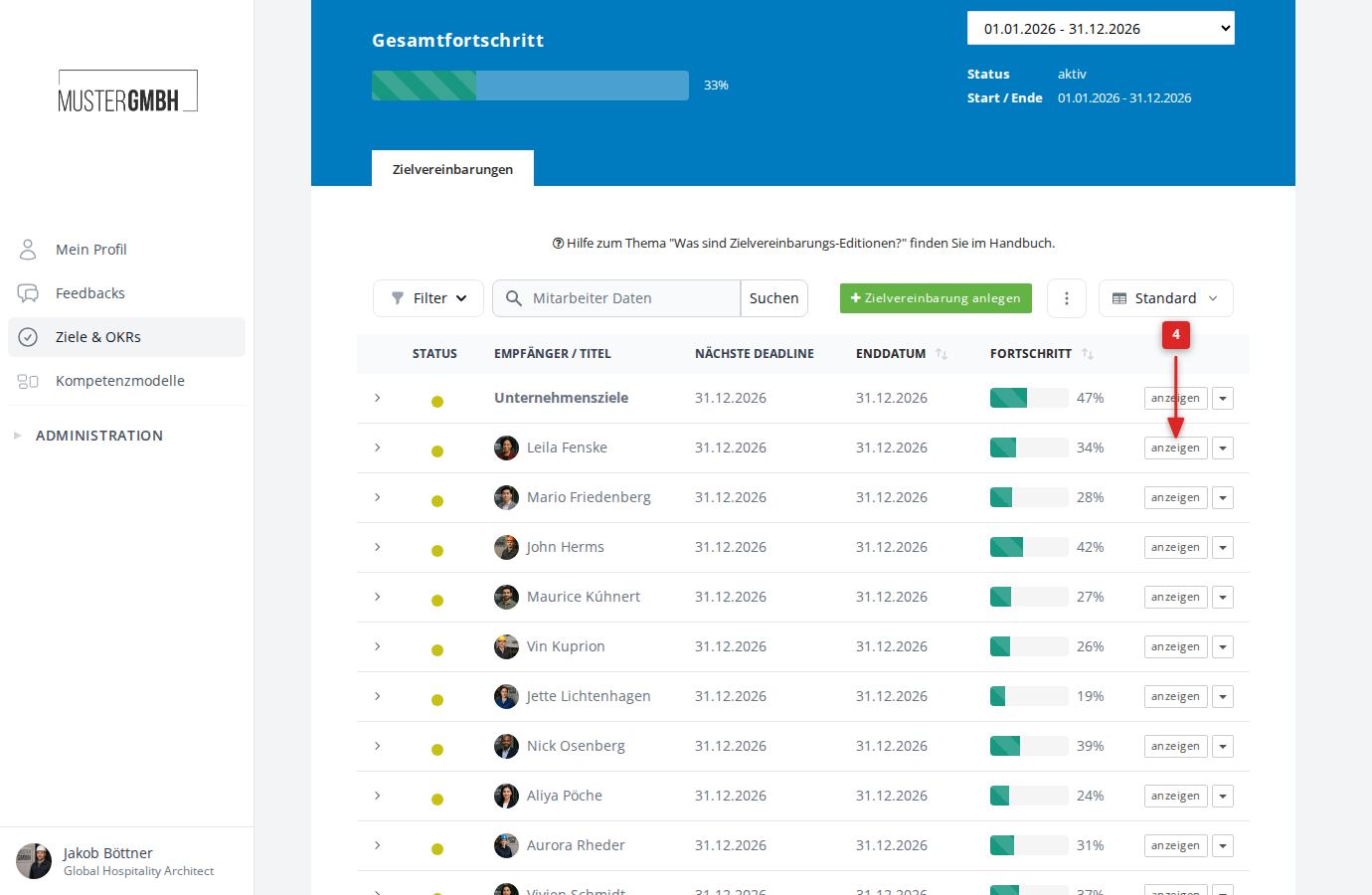
Open the detail view
To reach a target agreement’s detail view:
- Click Objectives in the sidebar.
- Select the process you want (for example “Annual goals”).
- Select the current edition.
- Click show in the row of the target agreement you want.
How the detail view is laid out
The detail view is divided into several areas.
Header
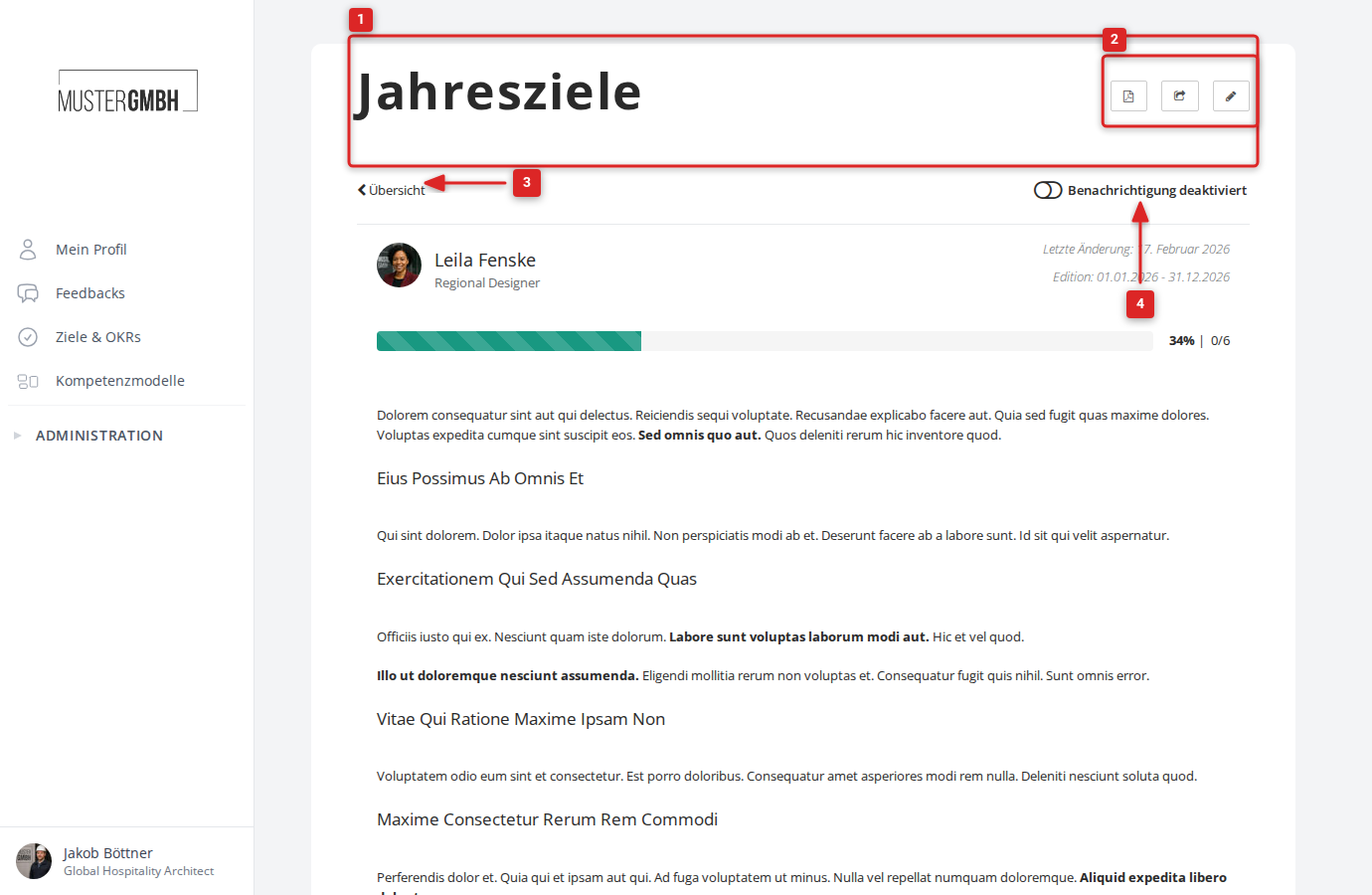
The header contains:
- The process name (for example “Annual goals”) as the page heading.
- Action buttons in the top right: download PDF, share, and edit.
- A back link (“Overview”) to the target agreement list.
- The notification toggle to turn email notifications for changes to this target agreement on or off.
- Recipient information: avatar, name, and position of the person the target agreement was created for. Click it to open their profile.
- Last change and Edition (the time period of the target agreement round).
Progress bar
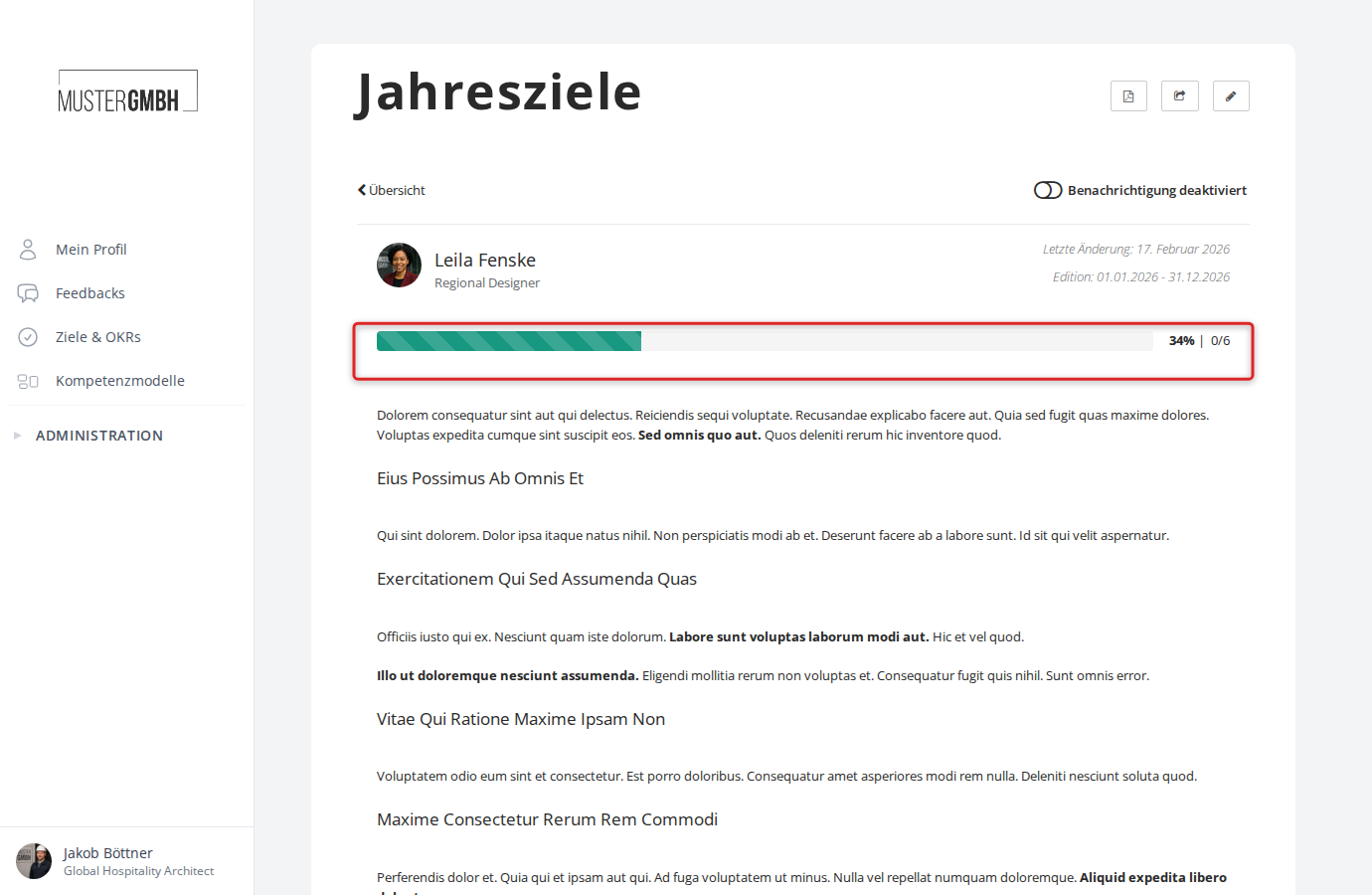
Below the header, a progress bar shows the overall progress of the target agreement. To its right you see the percentage and the number of completed goals (for example “34% | 0/6”).
Description
If a description exists, it appears directly below the progress bar. It can contain formatted text with headings, lists, and highlights.
Intermediate goals by group
The intermediate goals make up the main part of the detail view. If the process uses goal groups, the goals sit in one block per group, in the order of the groups. For weighted groups, the share of the overall goal achievement follows the group title, for example “Team goals (20%)”. Goals without a group sit in the Individual block. A weighted group without goals shows a note that there are no goals yet.
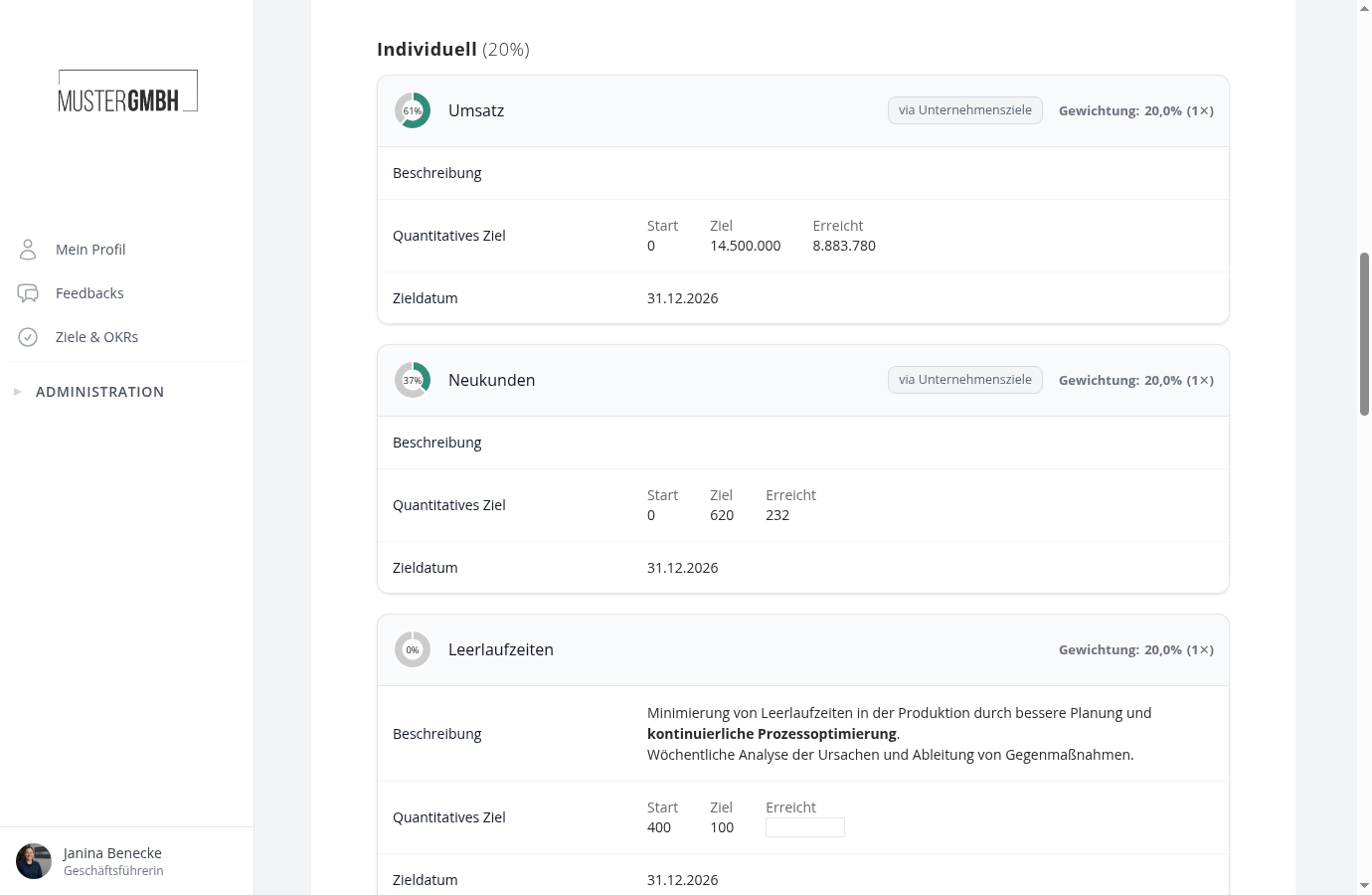
Within a block, the centrally managed goals come first, then the cascaded ones, then the person’s own goals. On the right of every card header you see the weighting as the share within the group and as a factor, for example “Weighting: 20.0% (1×)”.
- Centrally managed: the goal comes from a template set up by HR. The title of the template appears when you hover over the note. See Centrally managed goals and templates for details.
- via …: the goal is cascaded from the target agreement of the named person or department. For long names only “Cascaded” is shown; the full name appears on hover. See What are cascaded goals? for details.
For both, progress is usually measured at the source goal; the achieved value then cannot be entered here.
Goal cards
Each goal is shown as its own card. The display differs by goal type:
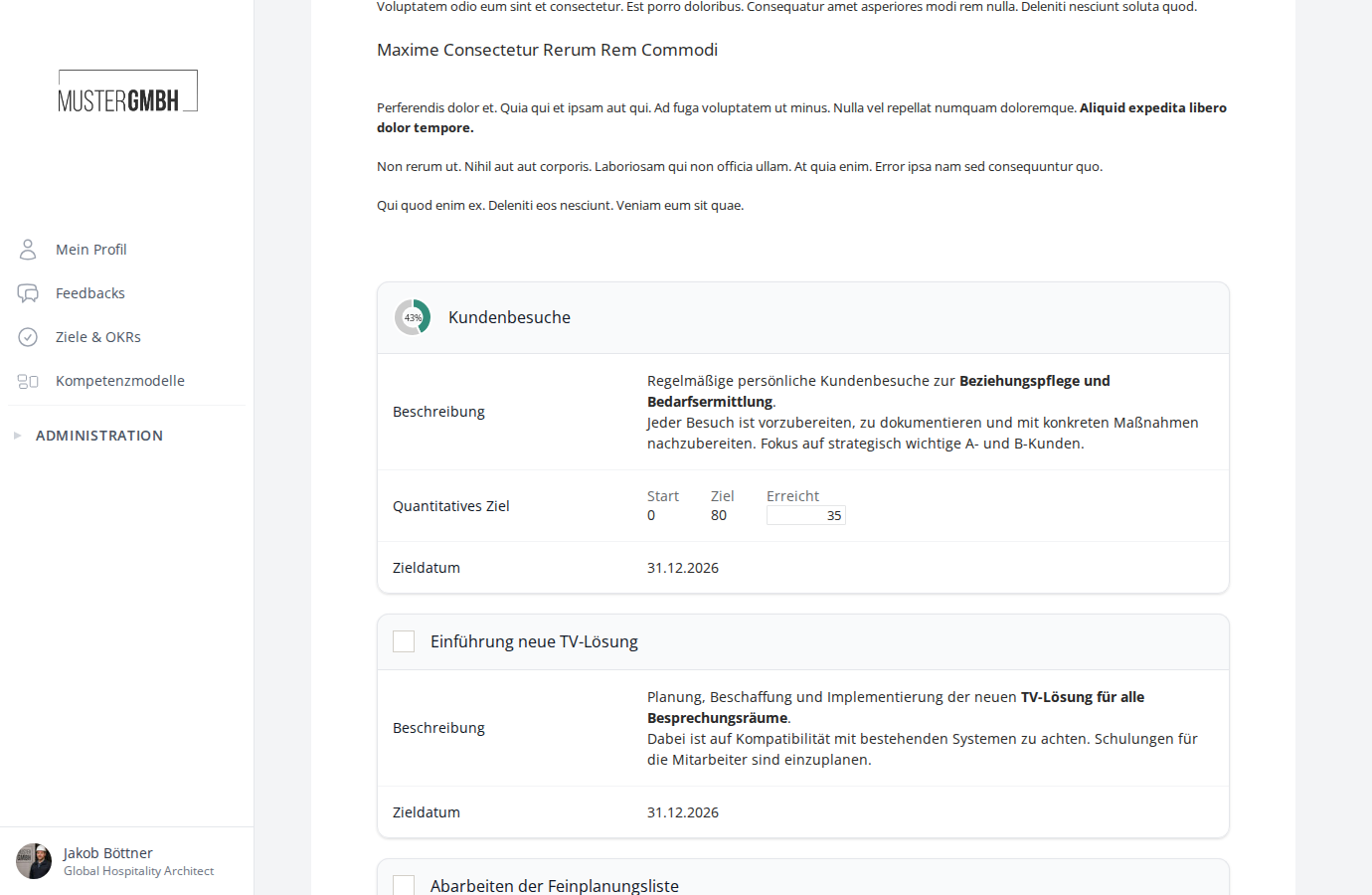
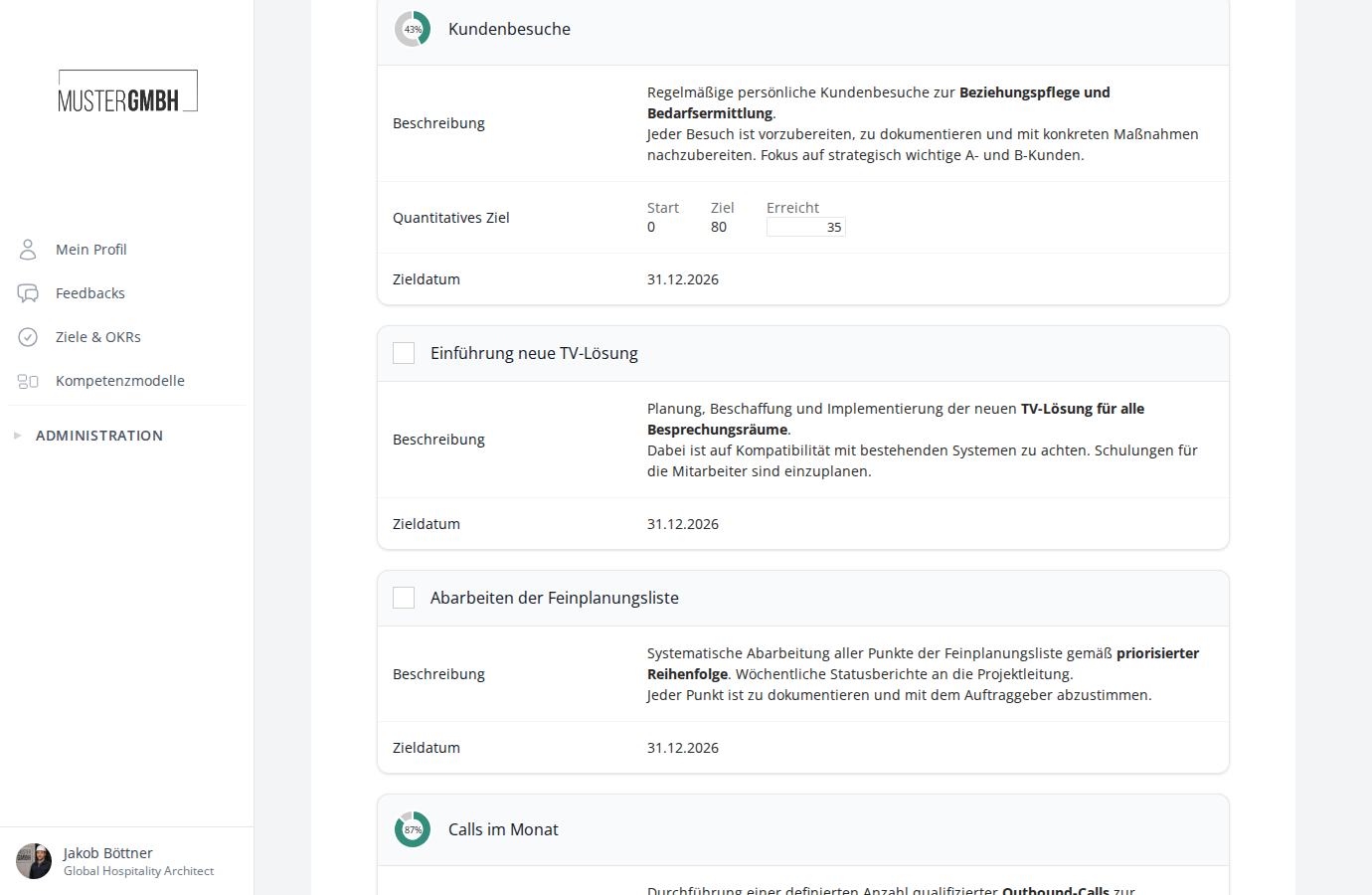
Quantified goals show a donut chart on the left with the current progress in percent. The card contains:
- Description: a detailed explanation of the goal.
- Quantified Target: start and target value, plus an input field for the value reached.
- Due date: by when the goal should be reached.
Boolean goals (achieved / not achieved) show a checkbox on the left instead of the chart. Click the checkbox to mark the goal as done.
If HR has set up an option list for the group, you pick the achievement level from a list instead of entering a number, for example “Partially achieved”. See Goal settings per group for details.
Saving progress
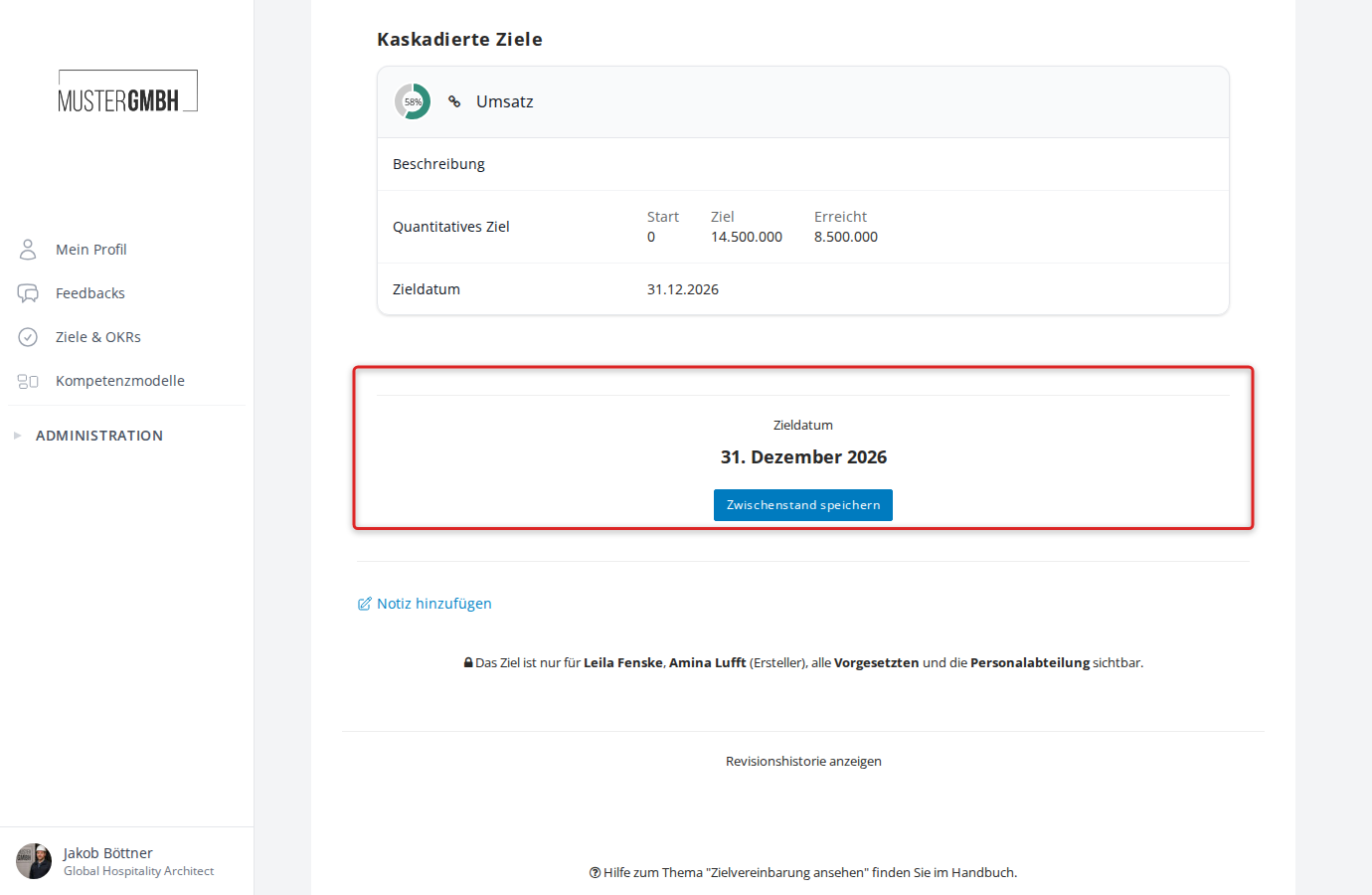
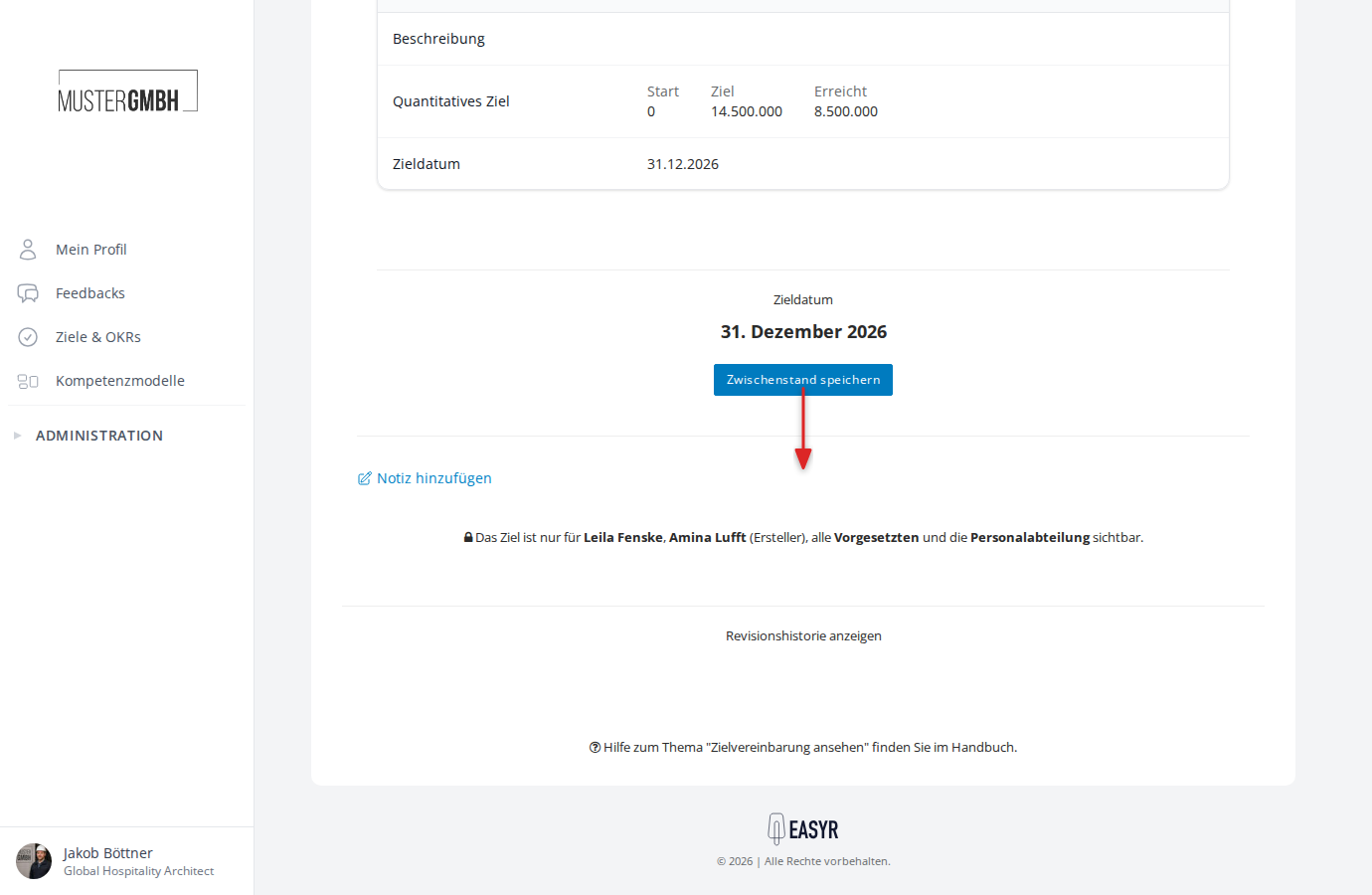
Once you have entered progress values on quantified goals, picked an achievement level, or ticked boolean goals as done, click Save results at the end of the goal list to save your entries.
Notes
Below the save button you find the notes area. Click Add note to write a new note.
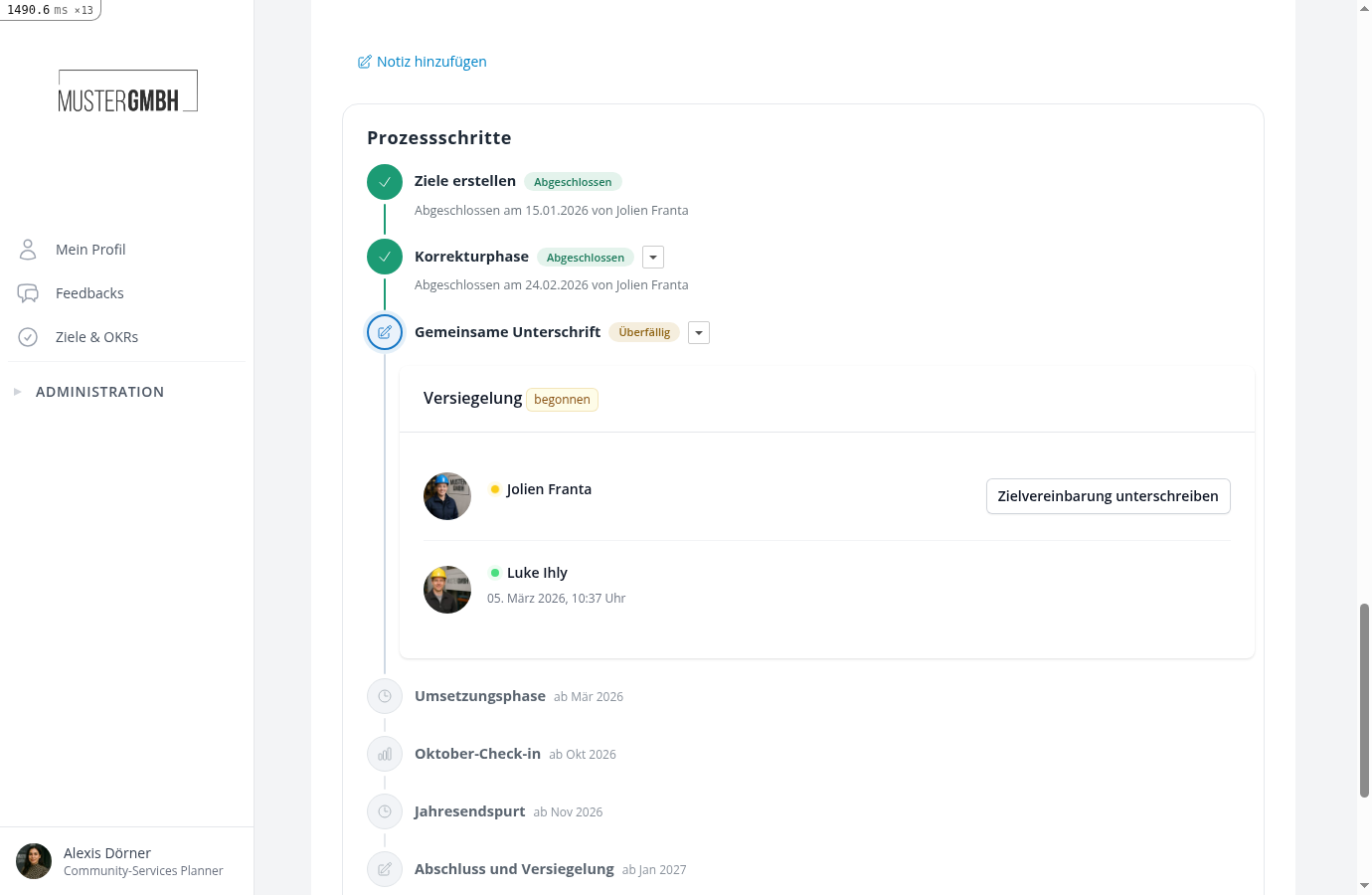
Process steps
If the process uses process steps, a dedicated area shows this target agreement’s path: completed steps with date and person, the active step with its pending action, and the steps still ahead. This is also where authorized people start and confirm sealings and download the PDF documents of completed steps.
Visibility hint
Below the notes, a lock icon shows who can see this target agreement (for example recipient, creator, supervisors, and HR).
Audit log
If you have the corresponding permission, a Show audit log link appears below the visibility hint. It takes you to the change history of the target agreement, where every edit is logged.
Action buttons
The header offers these actions:
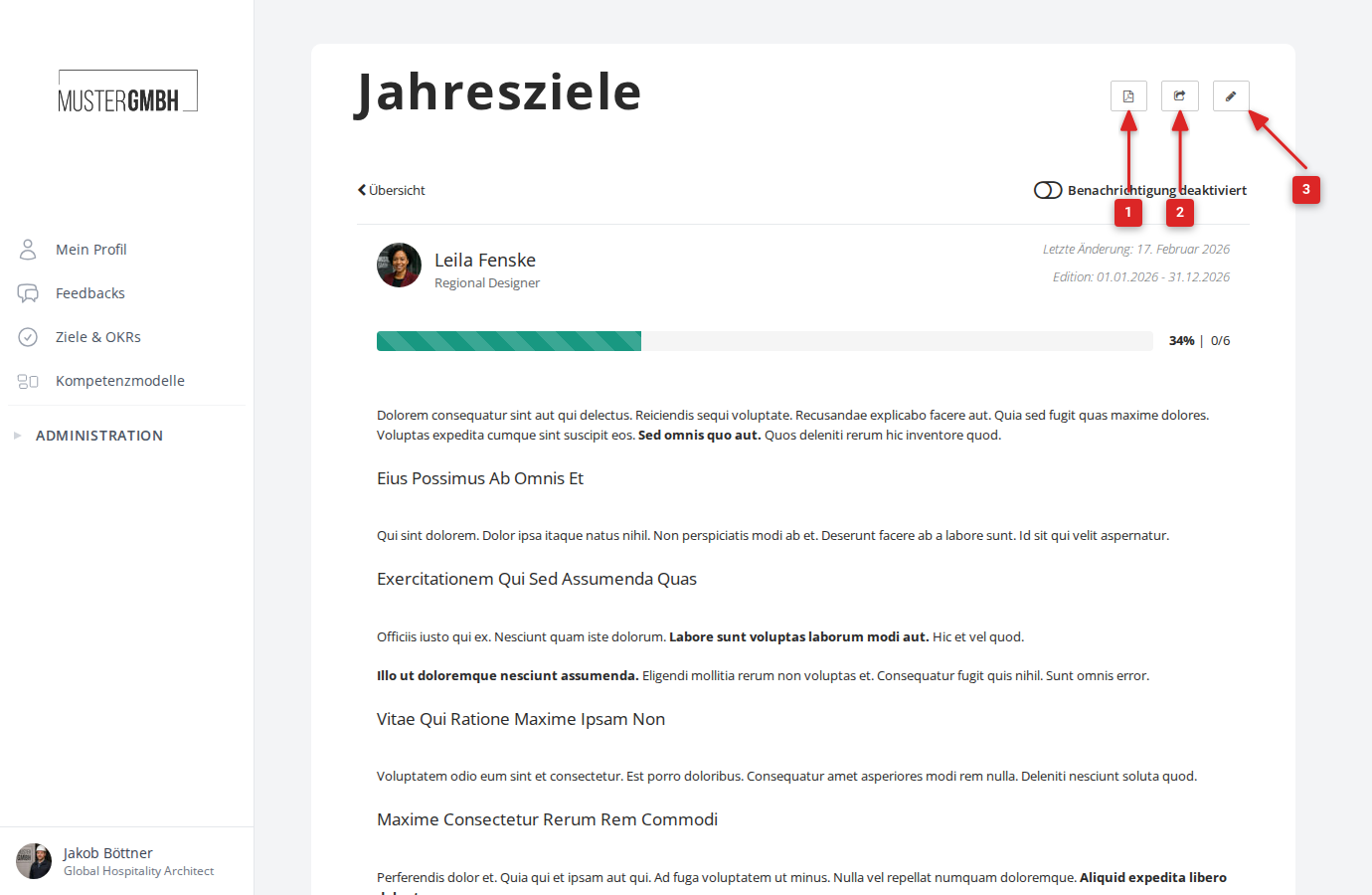
- Download PDF: exports the target agreement as a PDF document.
- Share: shares the target agreement with other people.
- Edit: opens the target agreement for editing (description, intermediate goals, settings).
Notifications
The notification toggle in the top right lets you turn email notifications for this target agreement on or off. When subscribed, you are informed by email about changes and progress. See Subscribe to target agreement notifications for details.