Set the schedule of an edition
Which process steps run in an edition and when they start is configured per edition. The 2027 annual process can be paced differently from 2026 without touching the steps themselves. You need HR access.
By default a step begins as soon as the previous one is completed. You only need dates when a step must not start before a fixed day or should get a deadline.
Open the schedule
- Open the Settings of the target agreement process.
- In the Editions section, click Set up edition for the edition you want.
- Scroll to the Process steps section.
Every step has its own card. A counter shows how many steps are active in this edition.
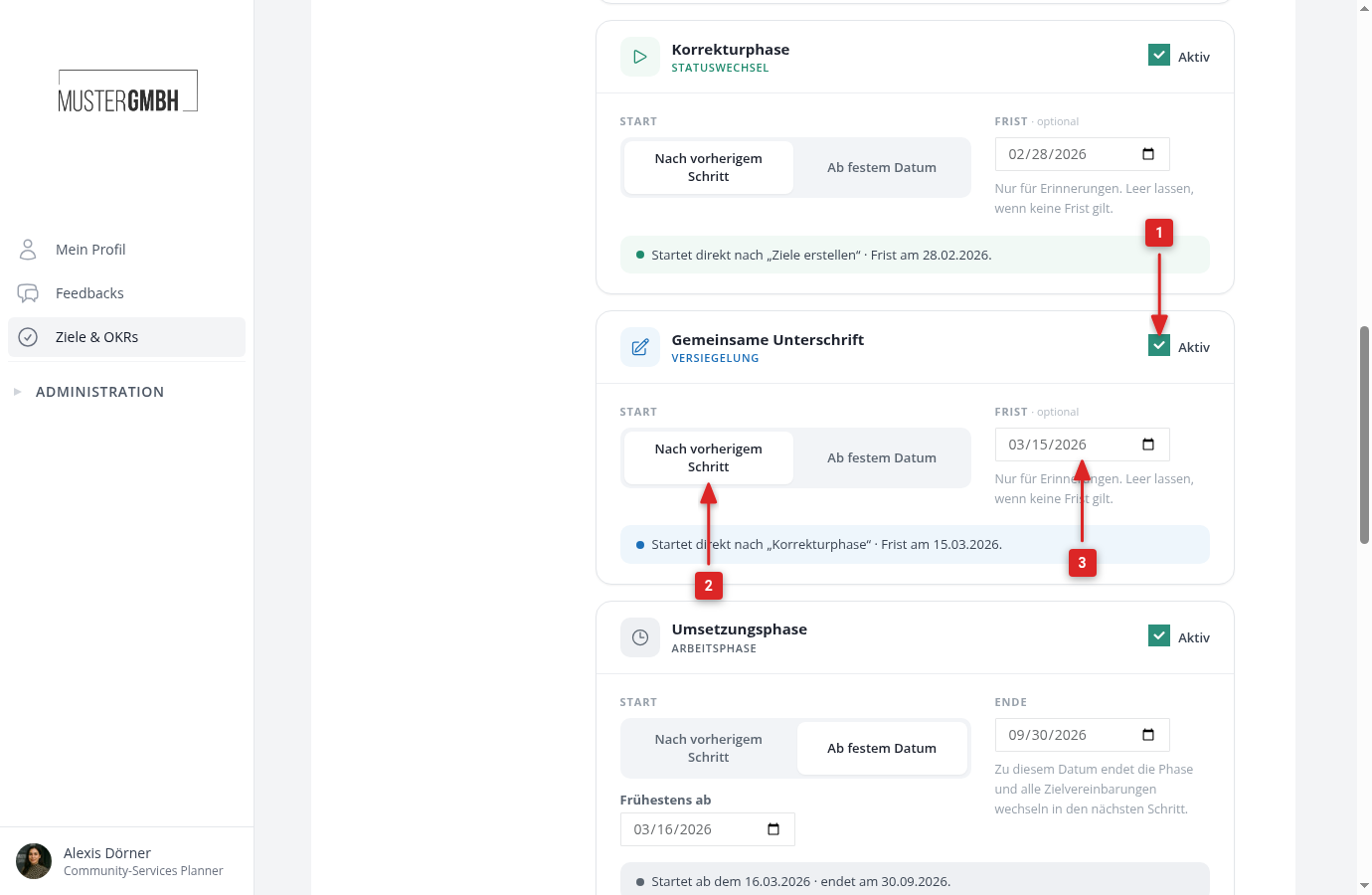
What you set per step
- Active: only active steps run in this edition. Deactivate a step and it no longer runs from now on, for example when a short edition should not have the mid-year check-in. Runs already completed (including sealed signature rounds) keep their timeline entries and documents.
- Start: After the previous step (default) or From a fixed date. With a date under Earliest from, the step begins on that day at the earliest, even if the previous step finishes sooner. This prevents, say, the year-end review from starting in October.
- Deadline: an optional date by which the step should be done. The deadline blocks nothing. It only drives the reminder emails and marks the step as “Overdue” in the timeline. For a working phase the field is called End and is required: on that day the phase ends automatically and the next step begins.
Below each card, one sentence summarizes the current setting, for example “Starts right after … without a deadline.”
Click Save at the bottom of the page.
What new editions inherit
When you create a new edition, it takes over the previous edition’s schedule: which steps are active and how they start. Concrete dates are not carried over, they belong to the old period. Steps set to “From a fixed date” behave like “After the previous step” until you enter the new date.