What are target agreement editions?
Editions are the time periods within a target agreement process. They let you repeat the same process regularly, for example every year or every quarter. Each edition has its own start and end date and its own list of participants.
What is an edition?
A target agreement process (for example “Annual goals”) sets the frame for target agreements. An edition is one concrete run of that process within a specific period. For example:
- You create the “Annual goals” process.
- The first edition runs from 01/01/2026 to 12/31/2026.
- For 2027 you create a new edition covering 01/01/2027 to 12/31/2027.
All editions of a process share the same base settings (visibility, permissions, goal groups), but each edition has its own participant list, its own target agreements, and its own rules for the goals. That lets you react to staff changes, new managers, or reorganized teams.
Editions on the status page
When you open a process, you see the status page of the current edition. In the top right there is a dropdown you use to switch between editions.
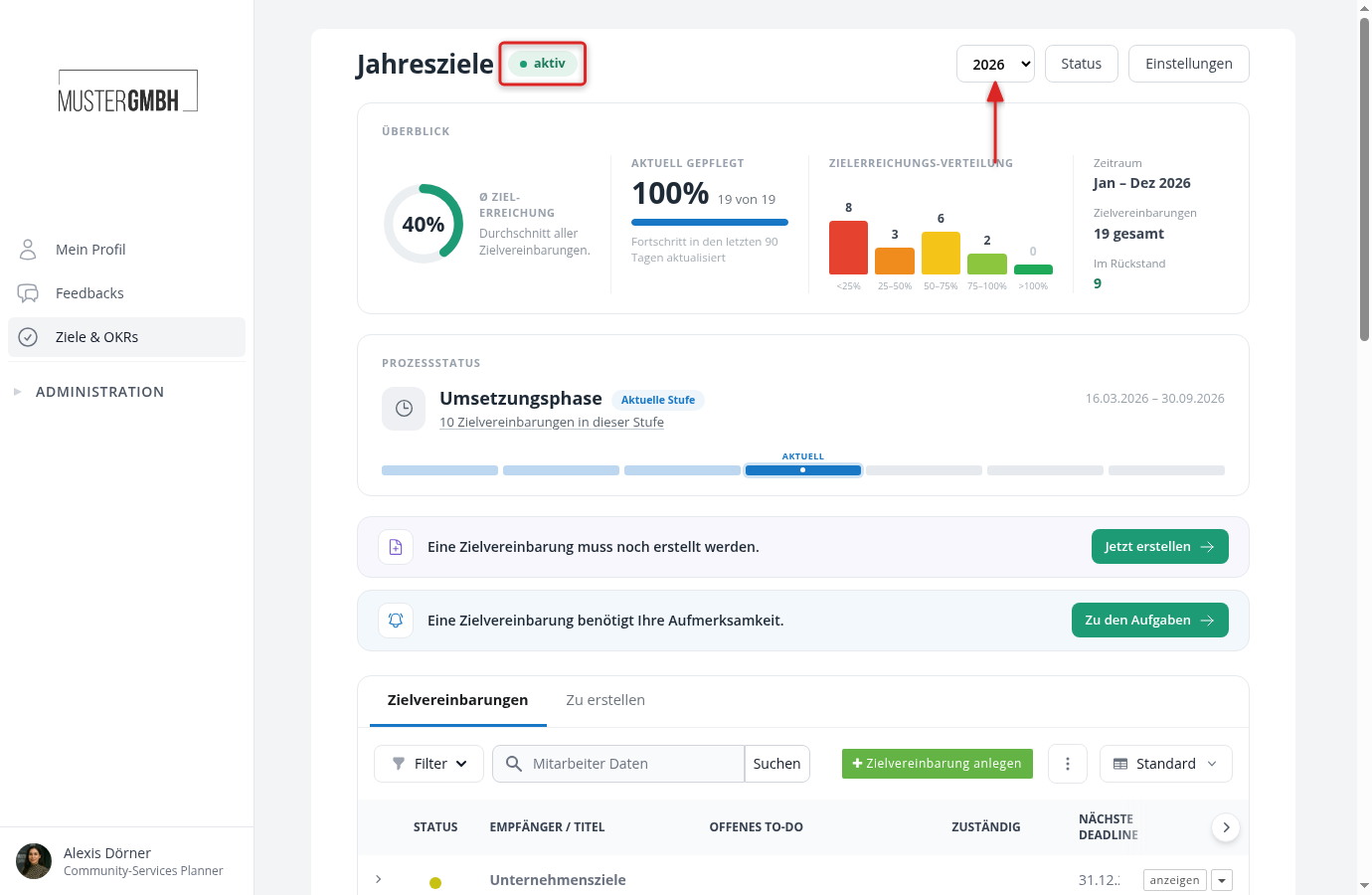
The status page shows:
- Edition dropdown (top right): Switch between the editions of the process. Each edition is shown with its period or a custom title.
- Status: Next to the title, a badge shows the edition’s automatic status:
- Active: The start date is in the past, the end date in the future.
- Not yet started: The start date is still in the future.
- Ended: The end date is in the past.
- Overview: The metrics bar shows the average achievement, the achievement distribution, and the period of the edition.
Further down the status page is the target agreement list with all target agreements of this edition.
Create a new edition
You create new editions from the process settings.
- Open the process and click Settings in the top right.
- Scroll to the Editions section.
- Under Add new edition, enter the start and end date you want.
- Click Add edition and choose one of three options:
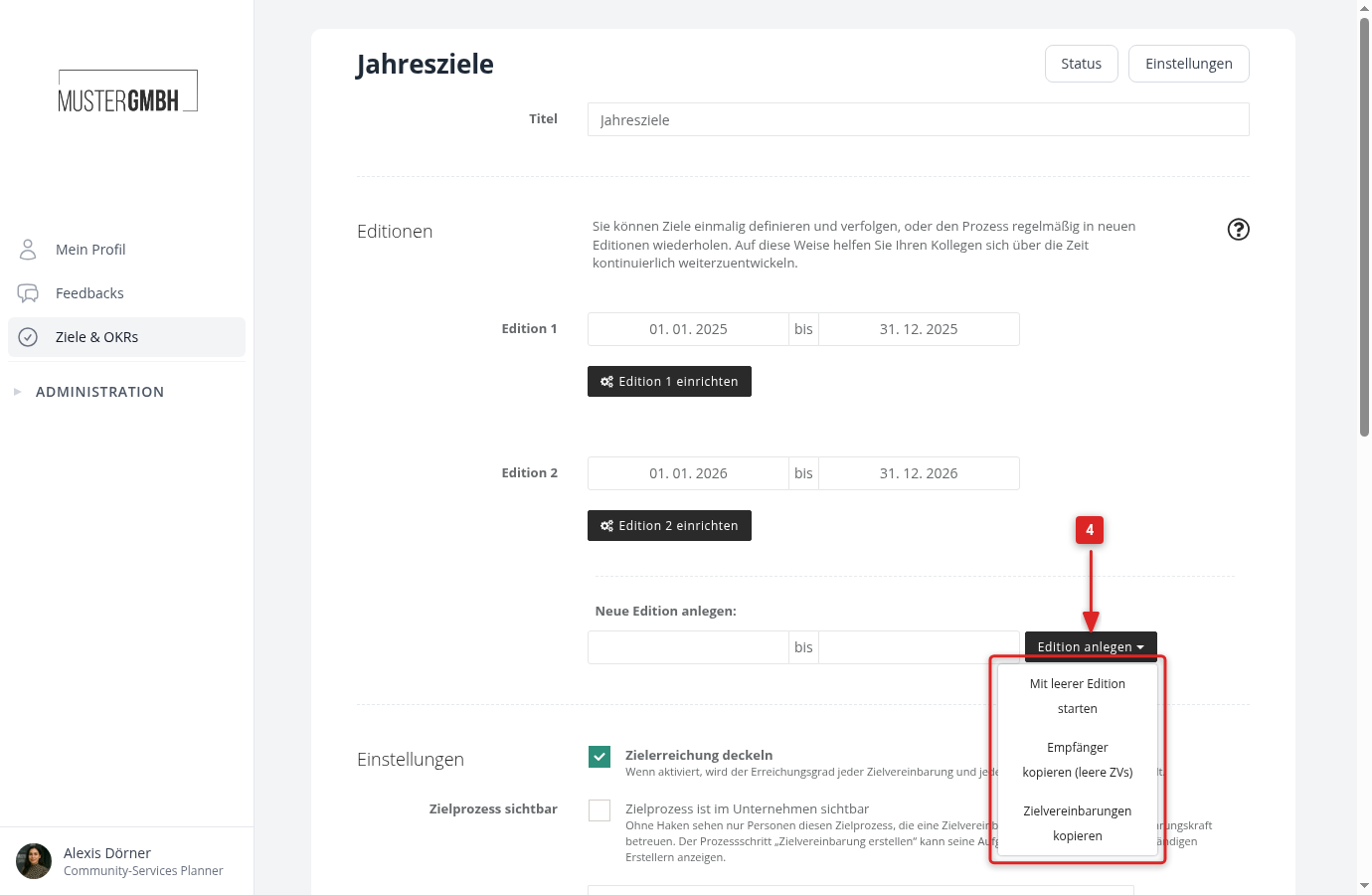
- Start with a blank edition: Creates a new edition with no content. You add the target agreements manually afterward.
- Copy recipients (blank target agreements): Carries over the recipients from the last edition. For each recipient, a blank target agreement is created for you to fill with new goals.
- Copy target agreements: Carries over the complete target agreements including all intermediate goals from the last edition. Handy when the goals barely change. Templates are copied along.
Set up an edition
Every edition has its own settings, which you reach via Settings for edition in the process settings.
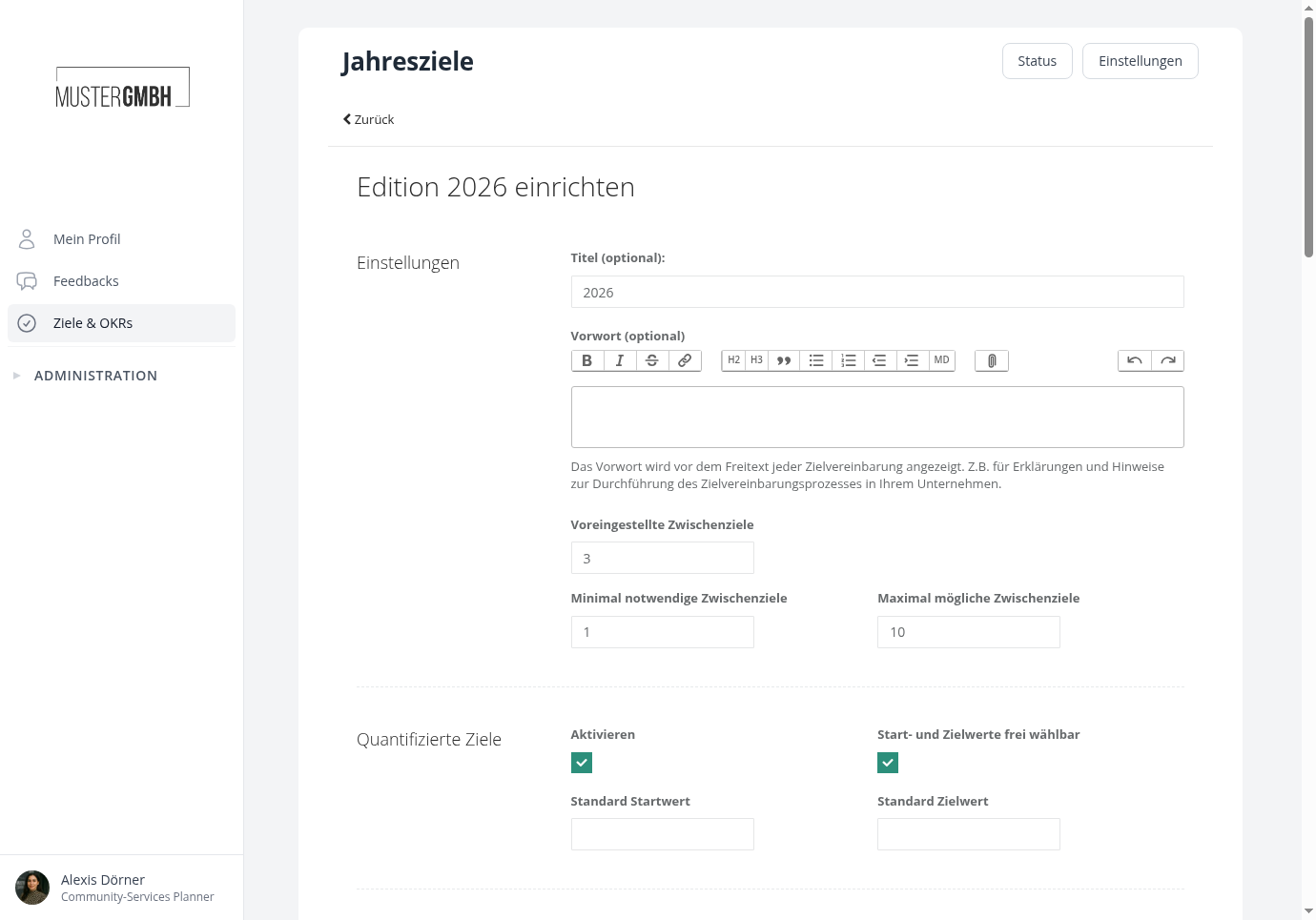
Title
Optionally, you can give the edition its own title (for example “Q1 2026”). Without a title, easyreview shows the period as the label.
Process notes
An optional free text shown before every target agreement in this edition. Use it, for example, to add guidance on how to run the process. The editor supports formatting such as bold, lists, and headings.
Goals in total
Minimum required goals (total) and Maximum possible goals (total) limit the total number of goals per target agreement, across all goal groups.
Goal group settings
Every goal group of the process has its own block: how many goals are prepared, required, and allowed, whether the goals are quantified, and whether the achievement level is entered freely or chosen from an option list. The check mark in the header switches a group off for this edition. See Goal settings per group for details.
If the process has no goal groups, there is exactly one block whose rules apply to all goals.
Weighting of the goal groups
Here you define how much the goal groups contribute to the overall goal achievement: equally, with fixed factors, by user groups, or individually per target agreement. See Weighting of goal groups for details.
Process steps
If the process uses process steps, this is where you set the edition’s schedule: which steps run in this edition, from when they start, and by when they should be done. See Set the schedule of an edition for details.
Click Save at the end of the page. Changes to the rules and the weighting take effect immediately for all target agreements of this edition, except sealed ones.
Delete an edition
An edition can be deleted if it has not started yet and contains no target agreements.
- Open the process Settings.
- Click the trash icon next to the edition’s date fields.
- Confirm the deletion in the dialog.
Example: quarterly target agreements
You want to agree on goals with your employees every quarter:
- Create a “Quarterly goals” process covering 01/01/2026 to 03/31/2026.
- Create the target agreements for Q1 and invite the employees.
- Toward the end of the quarter, create a new edition (04/01/2026 to 06/30/2026) and choose “Copy recipients (blank target agreements)” so all existing recipients are carried over automatically.
- Fill the new target agreements with the goals for Q2.
- Repeat this for every further quarter.
Using the edition dropdown on the status page, you can switch between quarters at any time and view earlier target agreements.