Create a target agreement process
A target agreement process is the overarching structure for target agreements in easyreview. It defines the frame: a title, a time period, and basic settings such as visibility and permissions. Inside a process you then create the individual target agreements for your employees.
Typical examples are annual goals, quarterly goals, or project-based goals. You can run as many processes in parallel as you like.
Create a new process
- Click Objectives in the sidebar.
- Click Create category in the top right.
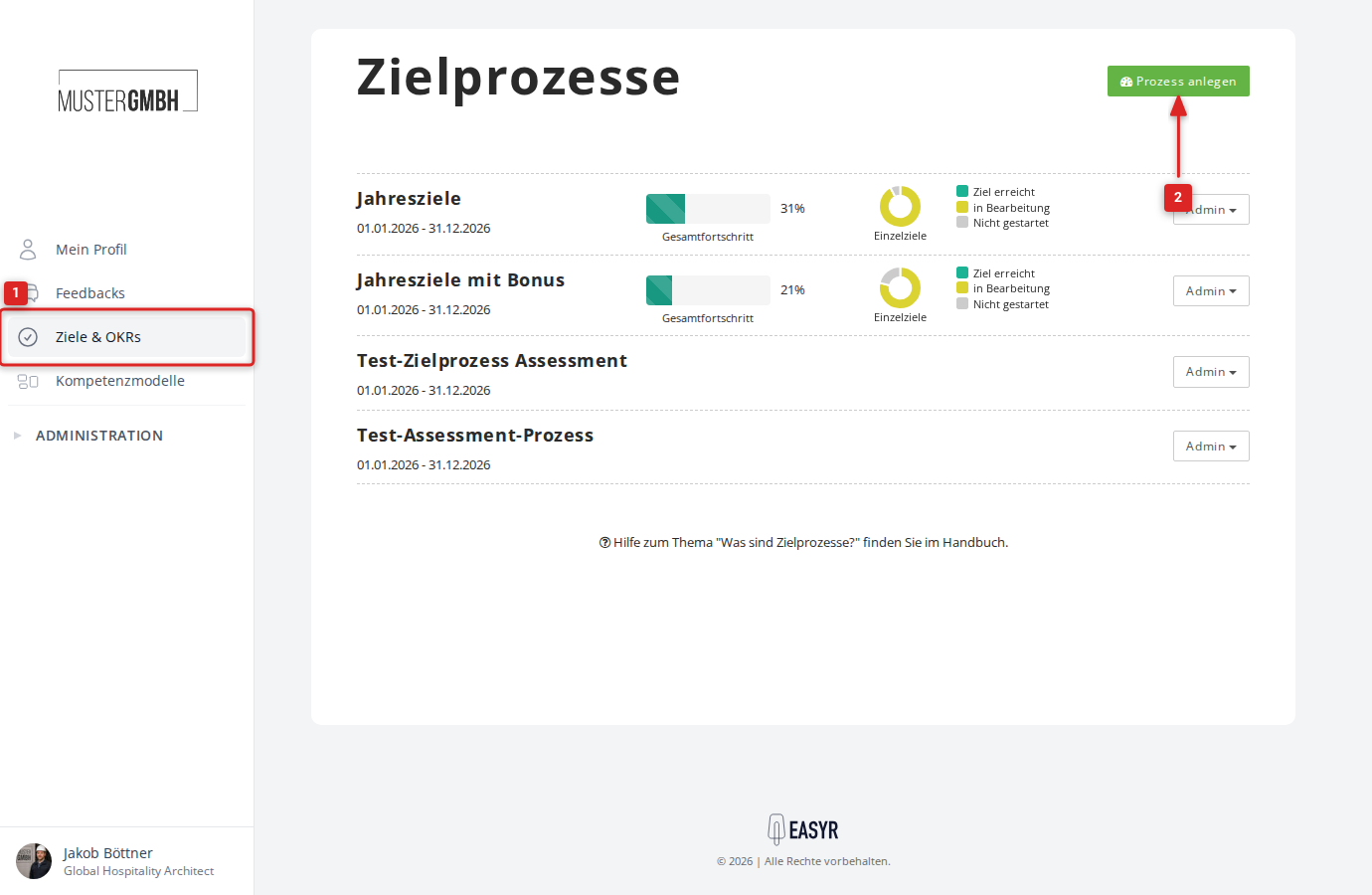
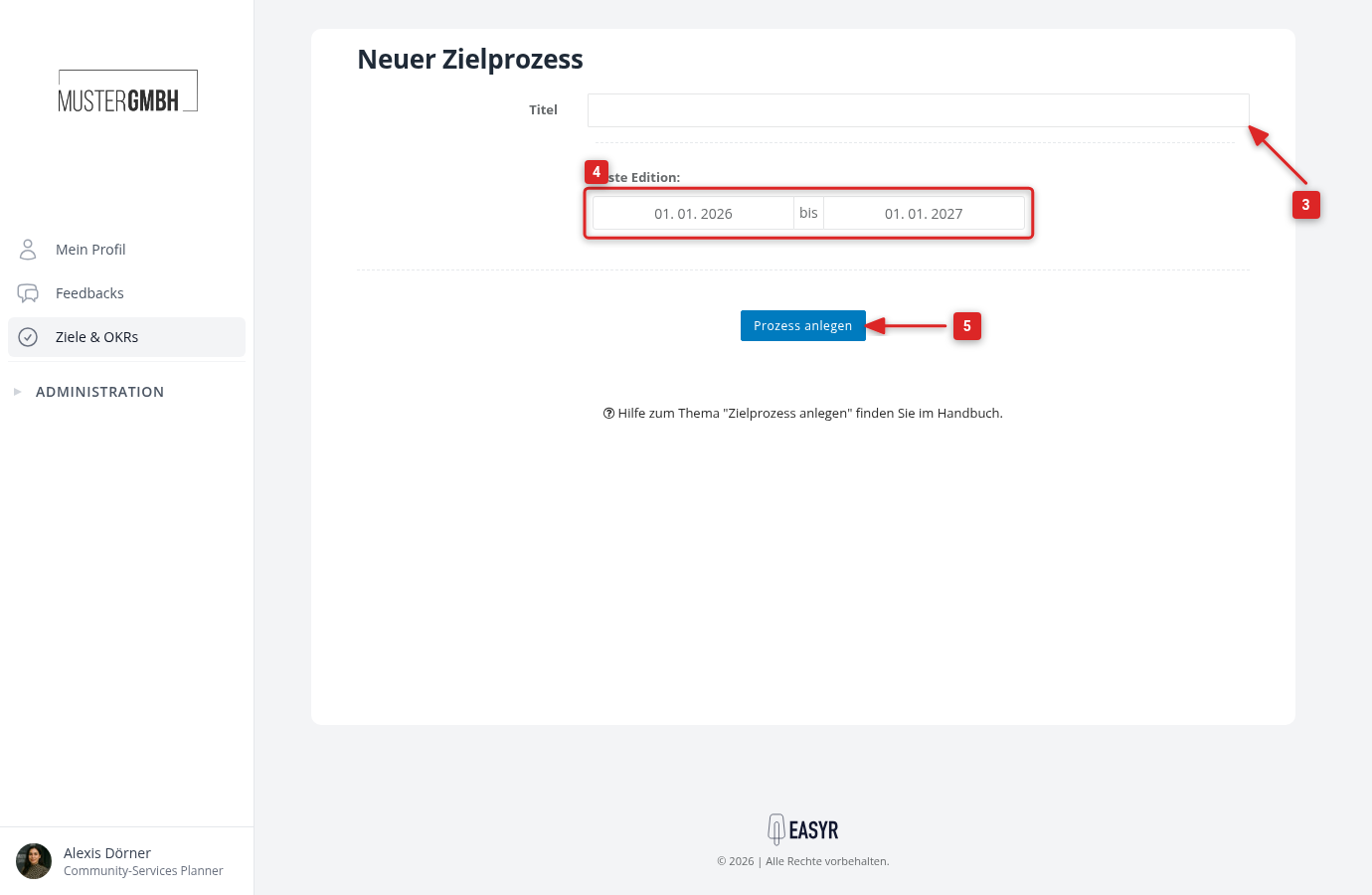
- Enter a title for the process (for example “Annual goals 2026” or “Quarterly goals Q1”).
- Set the time period of the first edition. The start and end dates are pre-filled with the current calendar year.
- Click Create category.
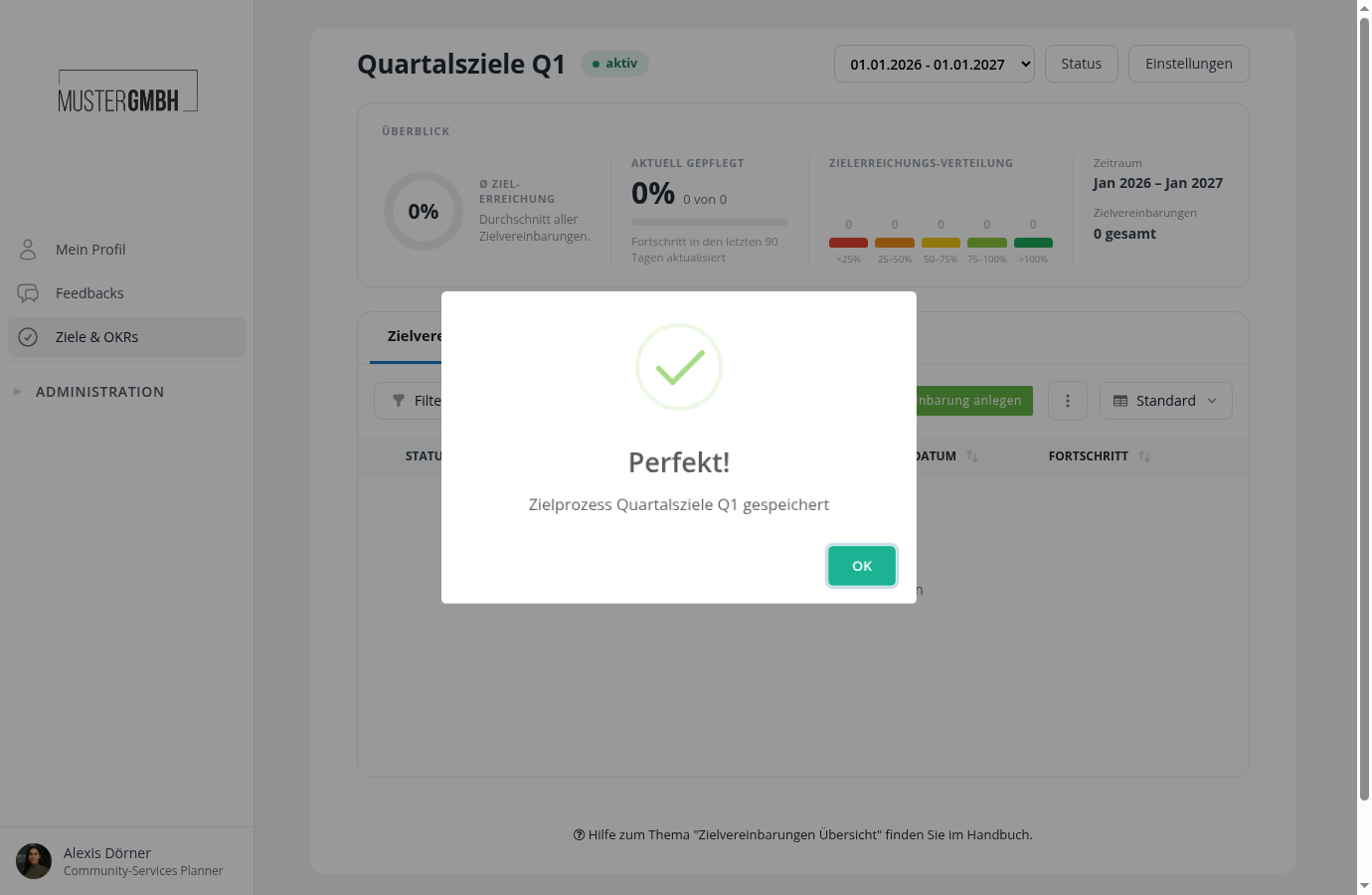
Once created, the status page of the new process opens and a confirmation shows that it was saved.
Adjust the settings
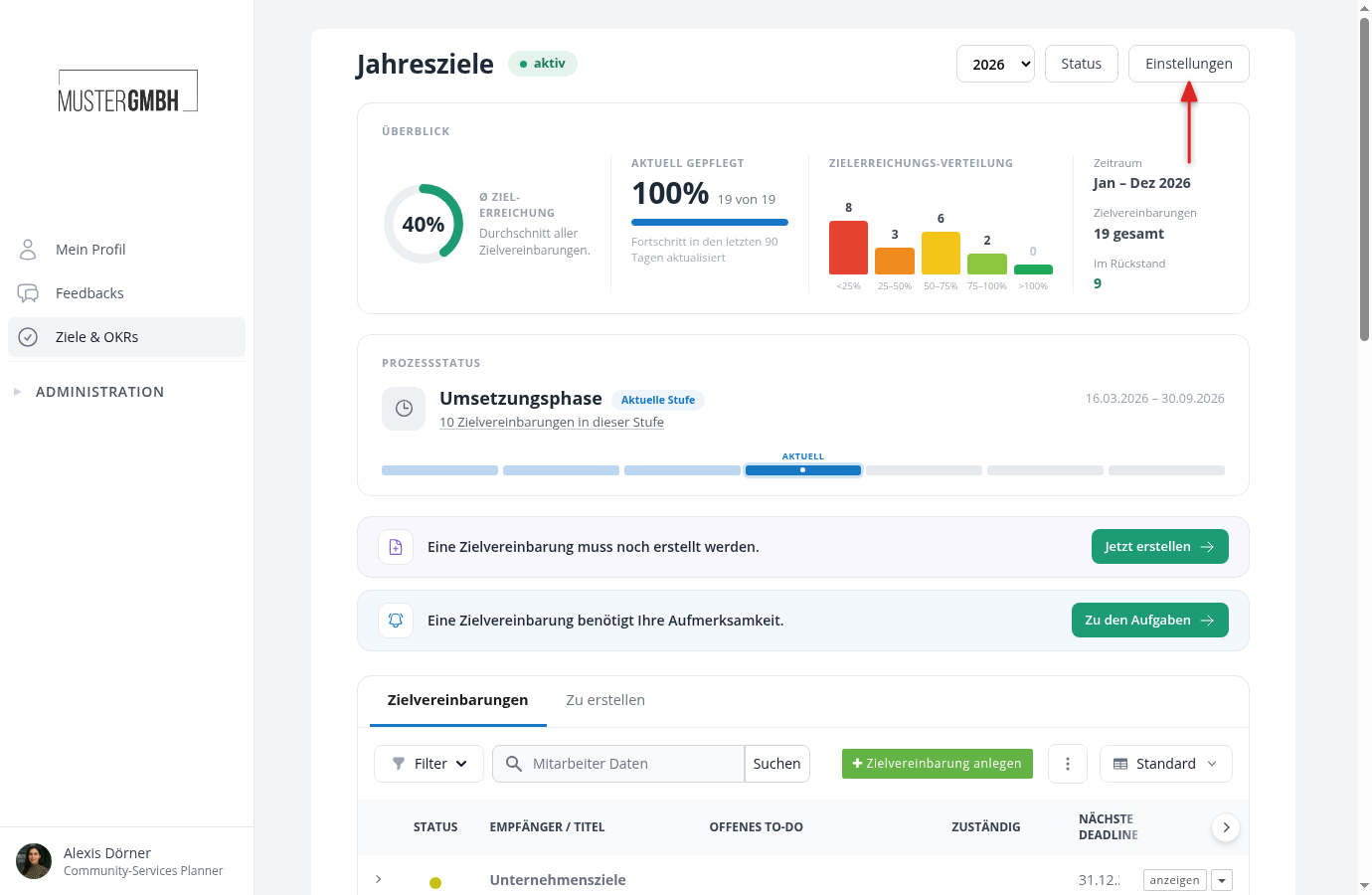
Open the Settings button in the top right of the status page to reach the process configuration.
Title
You can change the process title at any time.
Editions
Editions are time segments within a process. The first edition is created automatically when you create the process. Add further editions to repeat the process on a regular basis (for example yearly or quarterly).
For each edition you set a start and end date. The Settings for edition button takes you to that edition’s settings: process notes, rules for the goals per goal group, weighting of the goal groups, and the schedule of the process steps. See What are target agreement editions? for details.
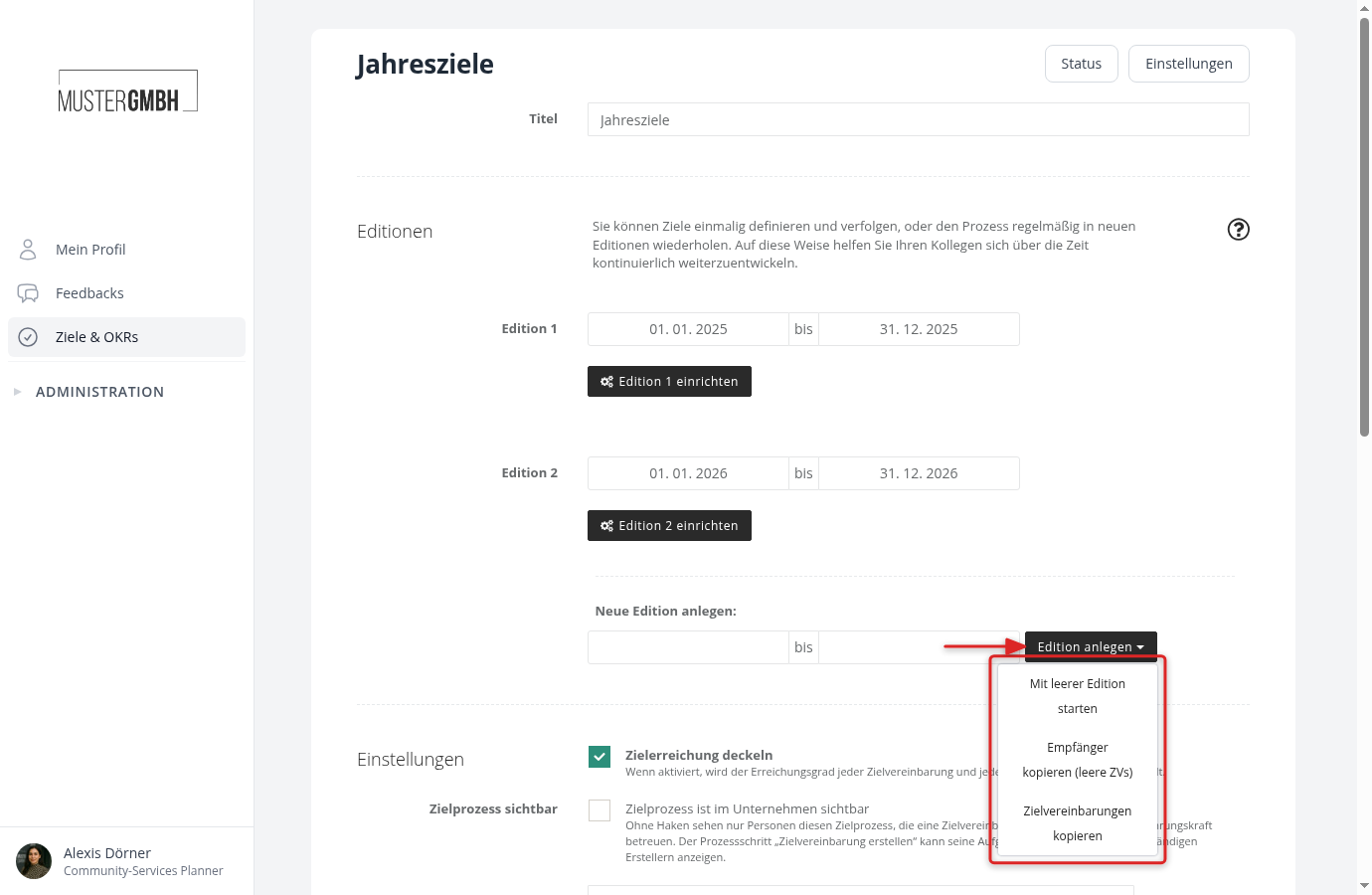
To add a new edition, enter the desired time period under Add new edition and pick one of three options from the Add edition dropdown:
- Start with a blank edition: creates an empty edition with no content.
- Copy recipients (blank target agreements): carries over the recipients from the previous edition but creates empty target agreements.
- Copy target agreements: carries over the complete target agreements, including their goals, from the previous edition.
Settings
In the Settings area you configure how the process behaves:
Completion level capped When enabled, the completion level of every target agreement and every intermediate goal is limited to a maximum of 100%. This option is on by default.
Process visible Controls whether the process is visible across the company. This option is on by default. When unchecked, only HR and people who have a target agreement in this process (or supervise one) can see it. If the process uses process steps, outside creators still find their open creations in the “To create” block on their own profile, for example employees who create their first target agreement themselves.
Visibility Determines who can see the target agreements in this process:
- Private: Only recipient
- Recipient and creator
- Recipient, direct supervisor and creator
- Recipient, all supervisors, HR and creator (default)
- Public (visible to all employees)
Edit objective When “Editable by recipient” is enabled, recipients can edit their own target agreements.
Update objectives When “Status of objectives updatable by recipient” is enabled, recipients can update the progress of their own goals themselves.
Progress display When enabled, progress bars and completion levels appear in every view. This option is on by default. On the process overview you then see the overall progress and a breakdown of the individual goals per process.
Notifications Use the “Notification Center” tile to manage all emails for the process: notifications for new, changed, and completed target agreements, as well as reminders before deadlines. See Notifications for target agreements for details.
Process steps Use the “Configure process steps” tile to optionally model the path every target agreement follows: creation, release, digital signature, interim update. See Set up process steps for details.
Goal groups
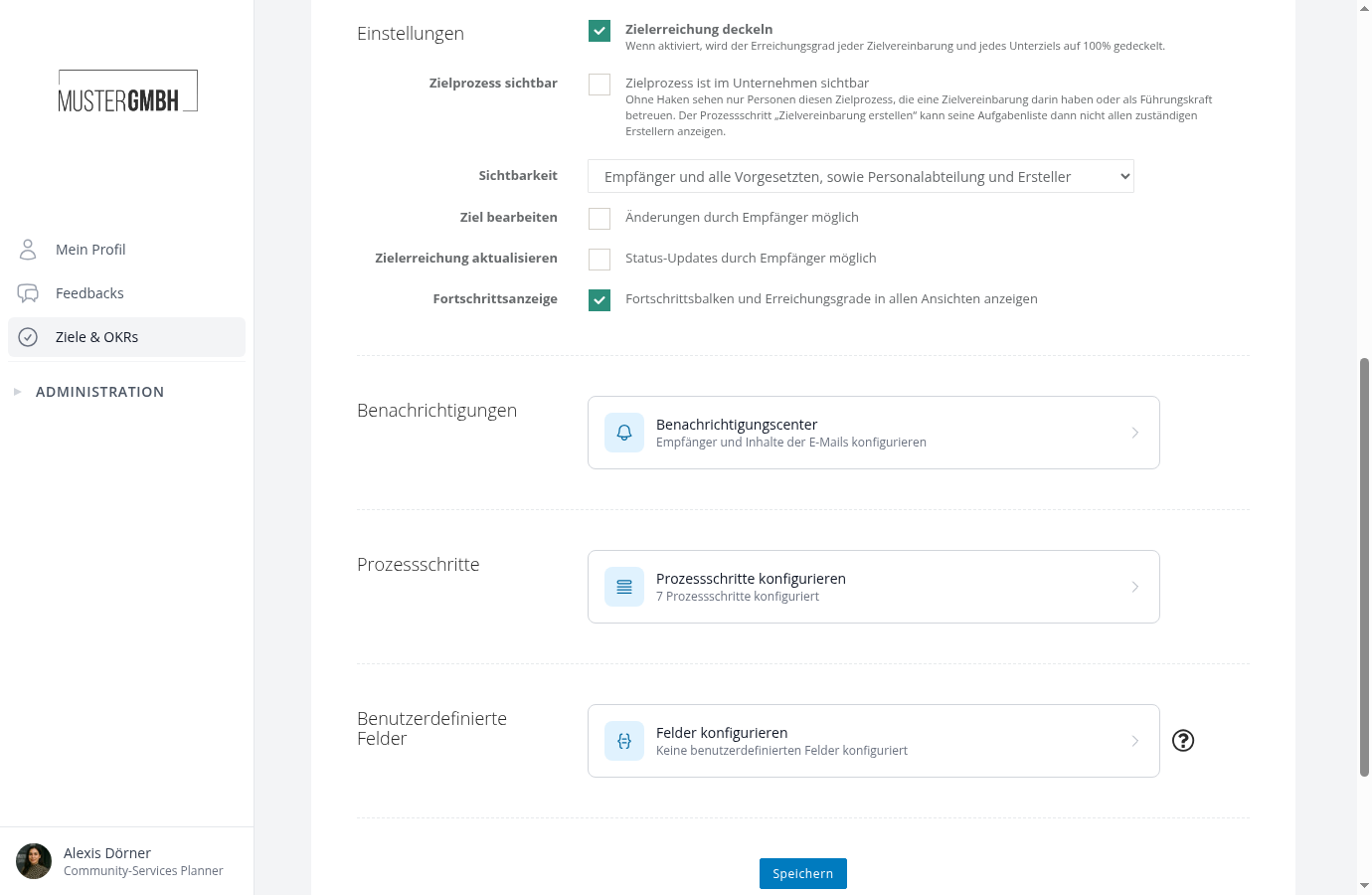
Use the Manage groups tile to split the goals of every target agreement into sections such as company goals, individual goals, and development goals. The tile shows how many groups are configured. Without groups, the target agreement stays a plain list of goals. See Set up goal groups for details.
Custom fields
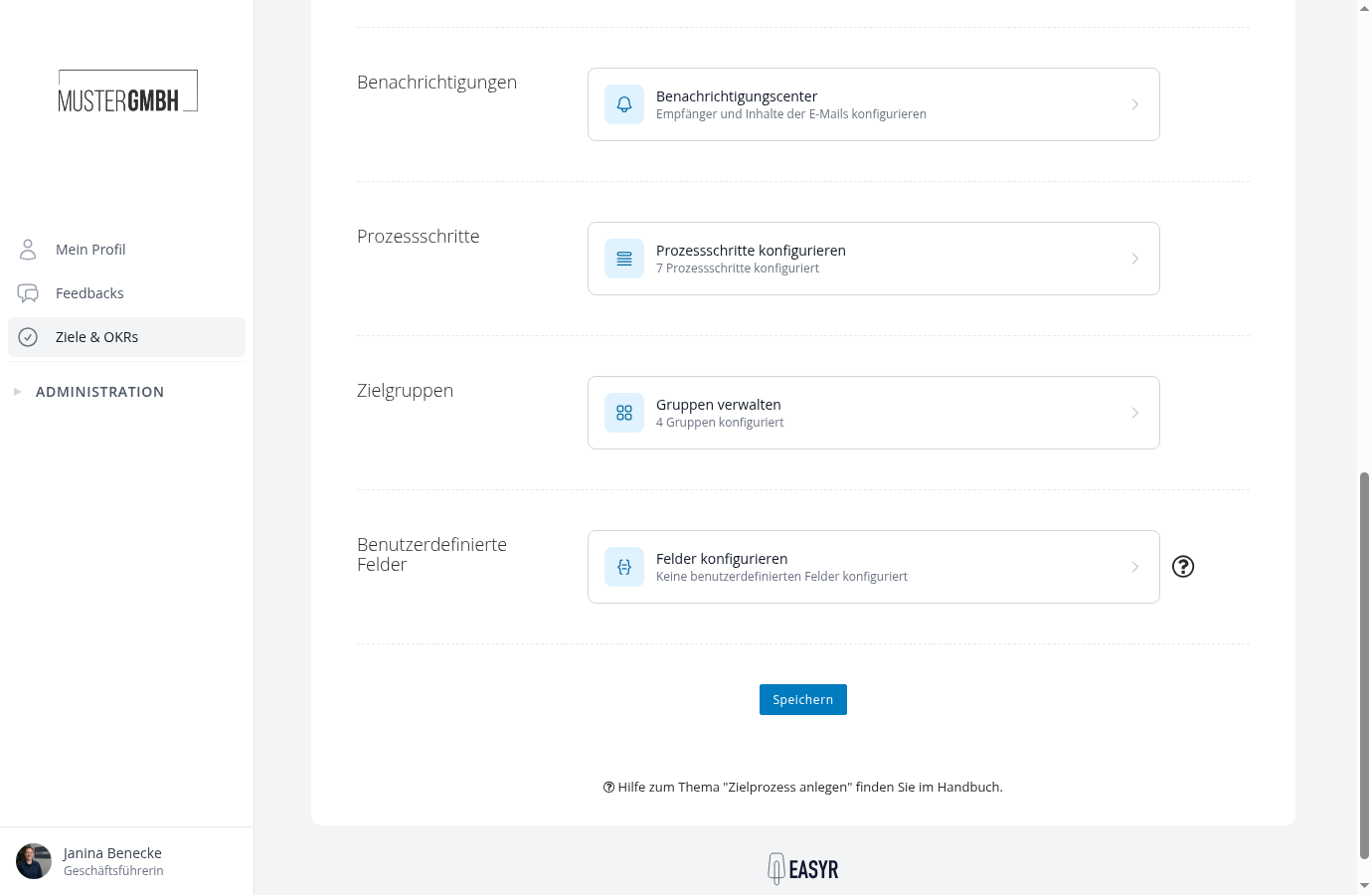
Use Configure Fields to define additional input fields for target agreements, goal groups, or intermediate goals. Available field types are text, date, integer, decimal, formula, yes/no, and select list.
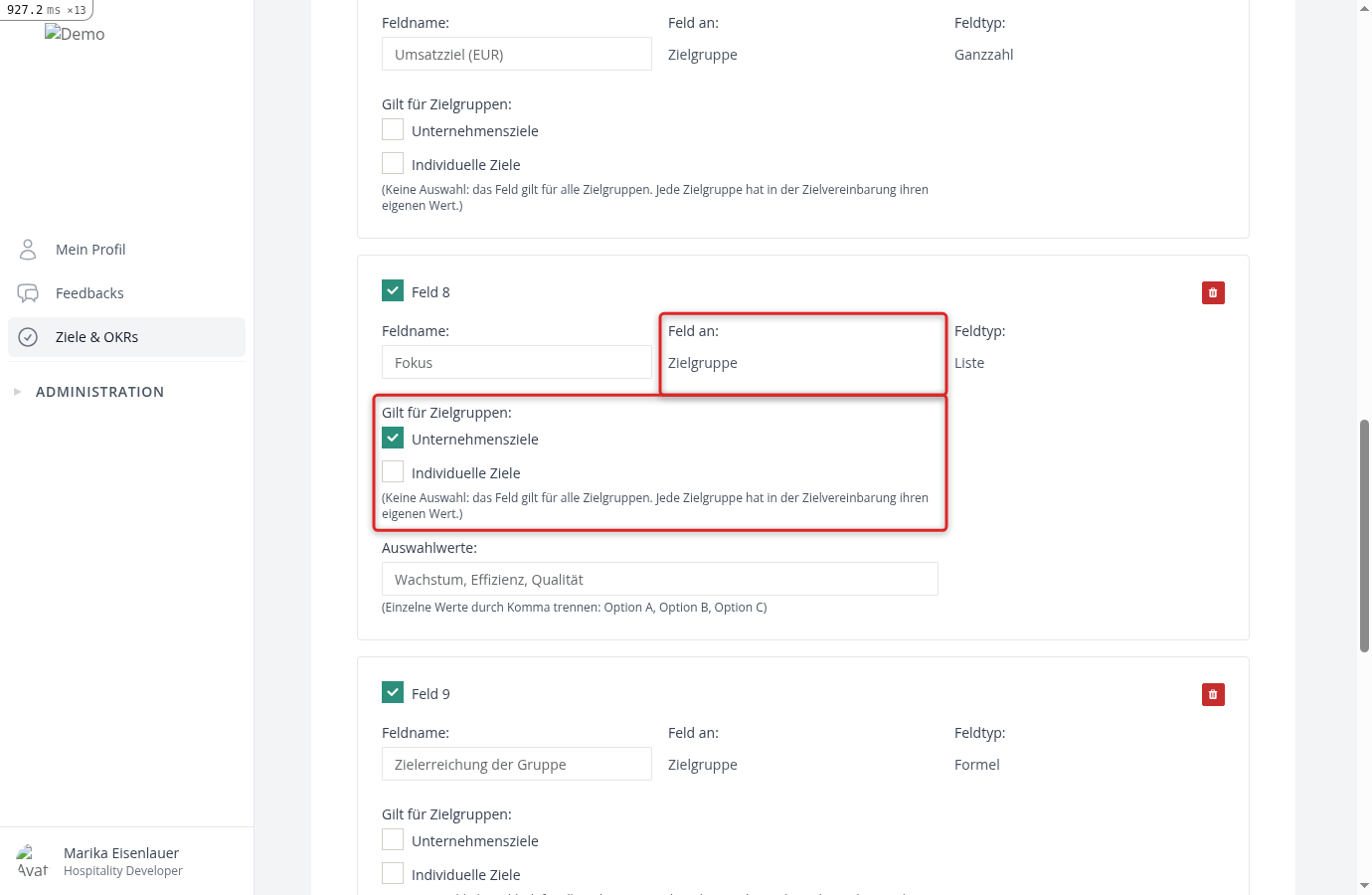
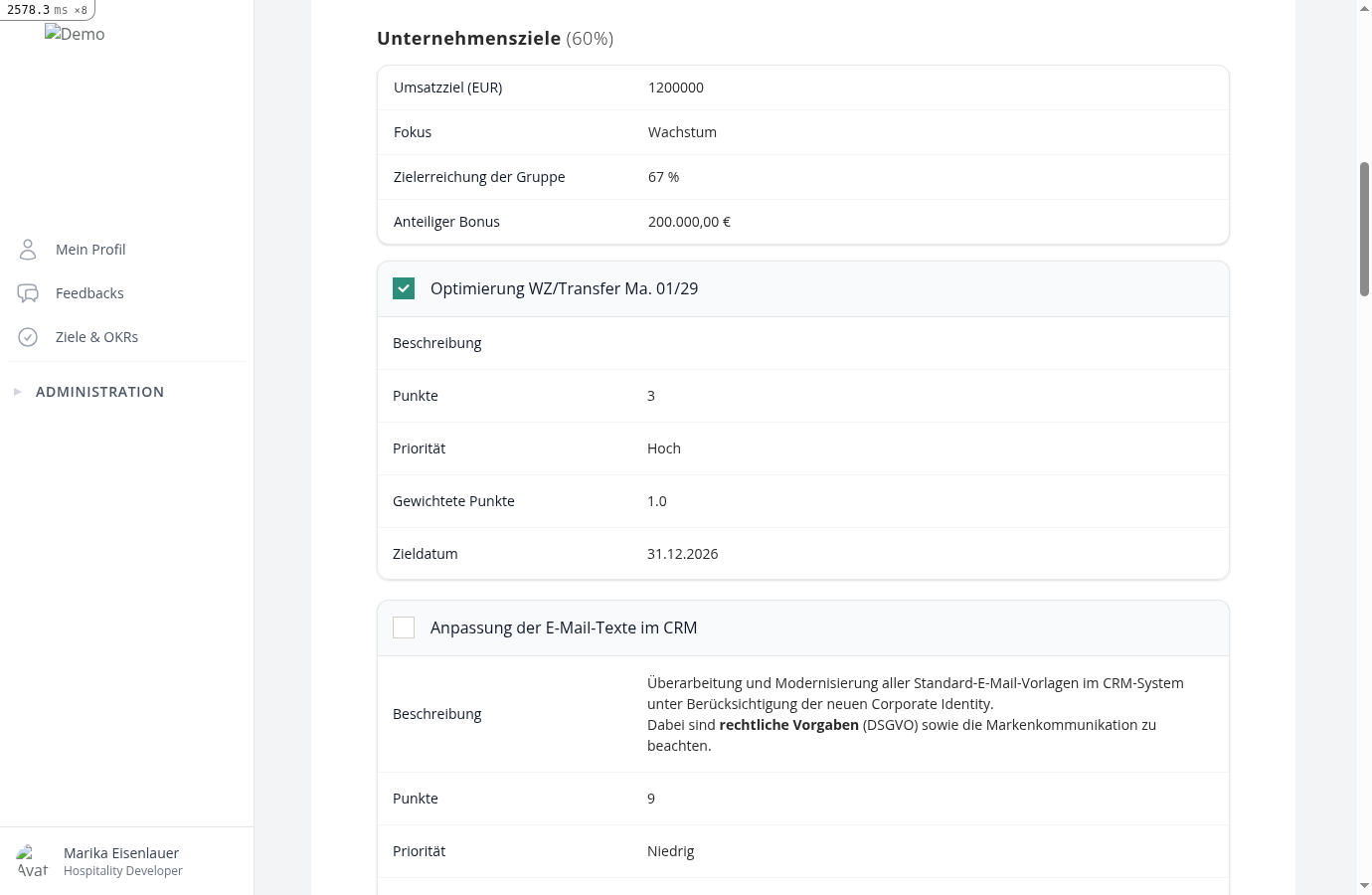
A field on a goal group has its own value per group in every target agreement, for example a revenue target for the group Company goals. It appears in the form and in the detail view at the top of the group’s section. By default a group field applies to every group of the process; use Applies to goal groups to restrict it to individual groups. These fields require the process to have goal groups.
Formula fields on a goal group calculate with the whole target agreement and additionally with the shortcut group, which holds only that group: group.share (the group’s share), group.completion (the group’s weighted achievement), group.goal_count, group.goals (the goals of the group) and group.custom_fields (the values of the group fields). An example: format_percentage(group.completion).
Click Save at the bottom of the page to apply all changes.
Next steps
Once the process is set up, you can: