Set up process steps
You configure process steps once per target agreement process. The steps then apply to all editions; when they run within an edition is set separately in the edition’s schedule. You need HR access.
If you are still deciding which steps your process needs, read What are process steps? first.
Open the step list
- Click Objectives in the sidebar and open the target agreement process.
- Click Settings at the top right.
- In the Process steps section, click the Configure process steps tile.
The list shows all steps in order. Reorder them by dragging the handle; only the “Create objective” step is always first.
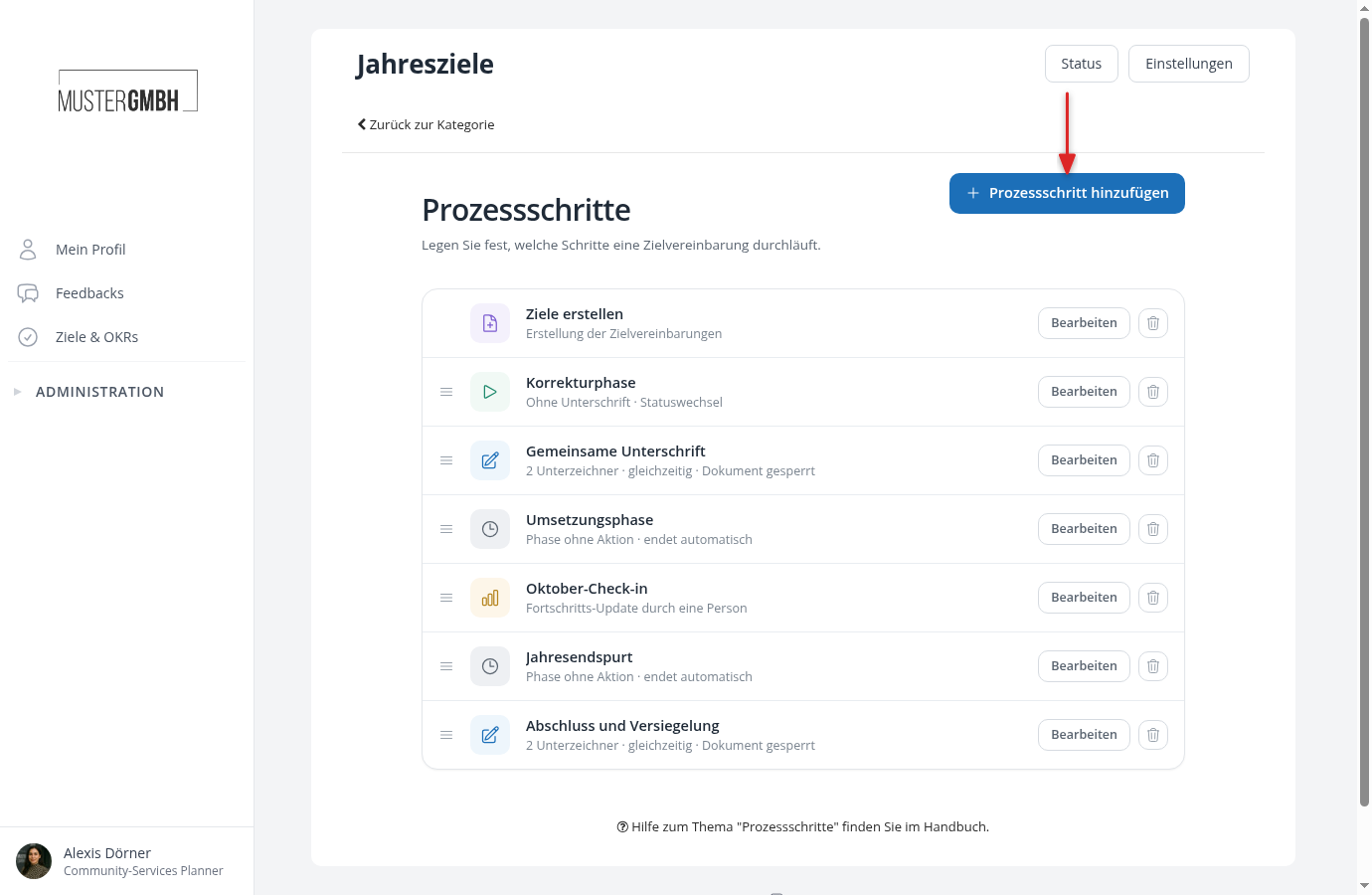
Add a step
- Click Add process step.
- Pick the kind of step under Choose type and click Continue. The type cannot be changed later.
- The editor of the new step opens. Enter a name at the top; it appears everywhere the step shows up (timeline, emails, tasks).
- Configure the step as described below and click Save.
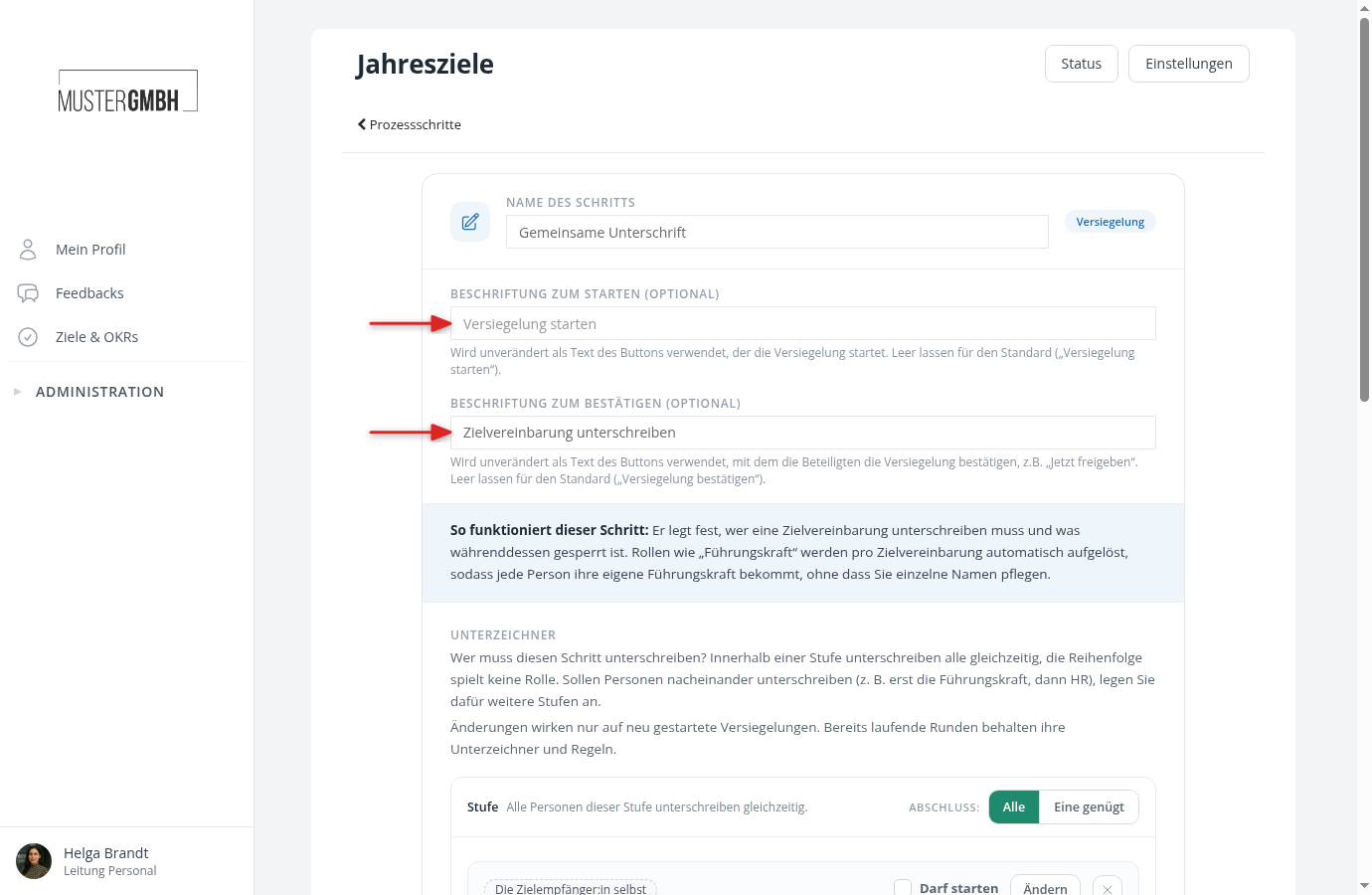
Optionally enter an action button label. This text replaces the default caption of the action button, for example “Release now” instead of “Trigger”. A sealing has two buttons and therefore two fields: the start button label for the button that starts the round (default “Initiate Sealing”), and the confirm button label for the signers’ button (default “Confirm Sealing”).
Create objective: audience and creator
The create step answers two questions: who should get a target agreement, and who creates it?
- Audience: without filters, every active employee gets one. Use filter rows to narrow the circle, for example by group, location or custom fields. The filters work like in the employee list, and easyreview shows a live count of people currently in the audience.
- Creator role: usually the supervisor. easyreview shows the responsible people every still-missing target agreement as a task list, in the To create block on their own profile. HR and supervisors also find the list in the edition’s To create tab.
- After creation: decide how a freshly created target agreement starts: visible or hidden from the recipient, content open or locked, progress open or locked. The default is a hidden draft with open content and locked progress.
Prefill new target agreements from the previous year
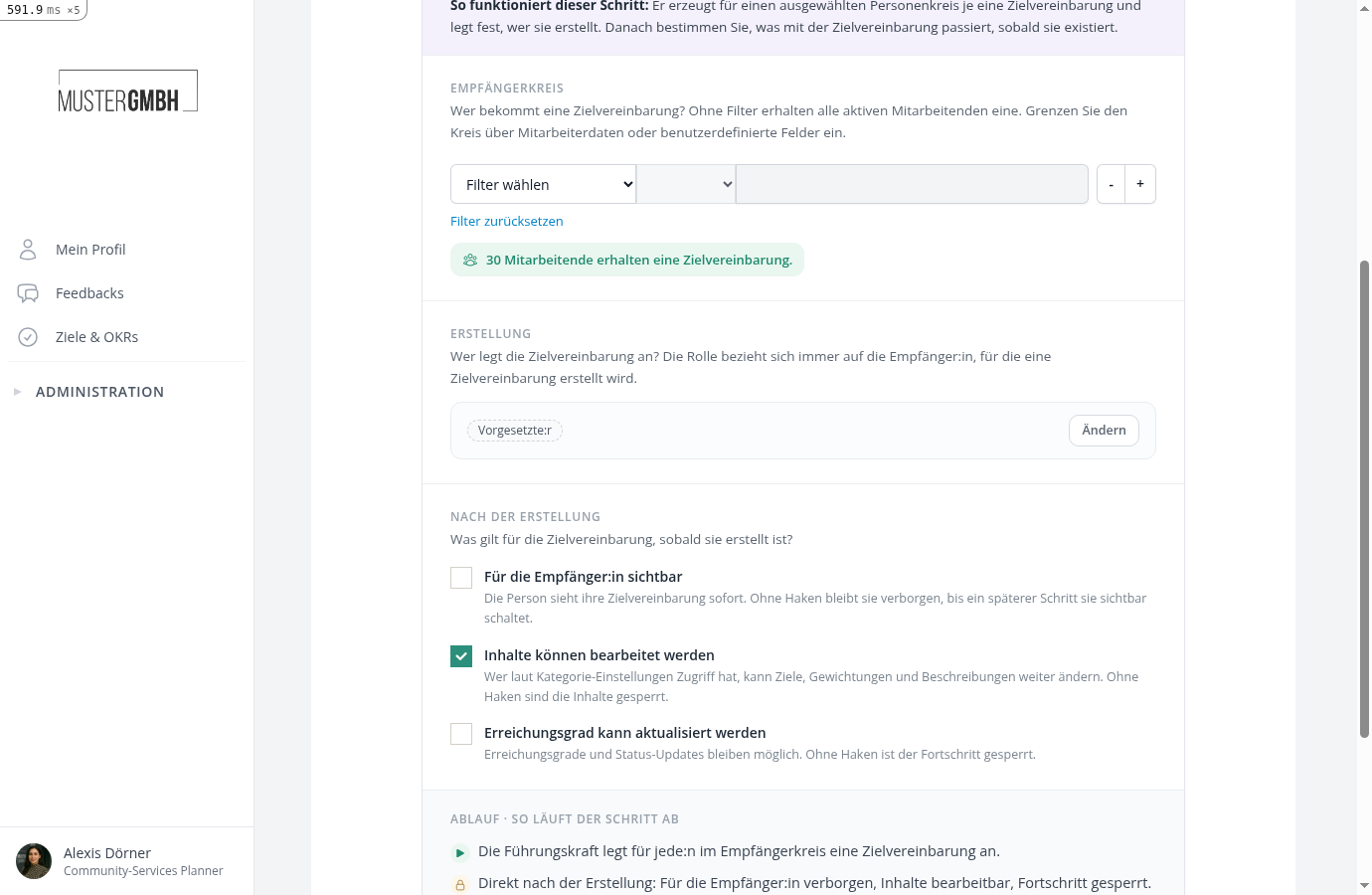
A new target agreement can start from the same person’s target agreement of the previous edition. Whoever creates it gets the normal form already filled in and reviews it before saving. For each goal group you decide what is carried over and what the creator may change.
- Open the “Create objective” step via Edit.
- In the Prefill section, check Prefill with the objective of the previous edition.
- Set the rules for each goal group in the table.
- Click Save.
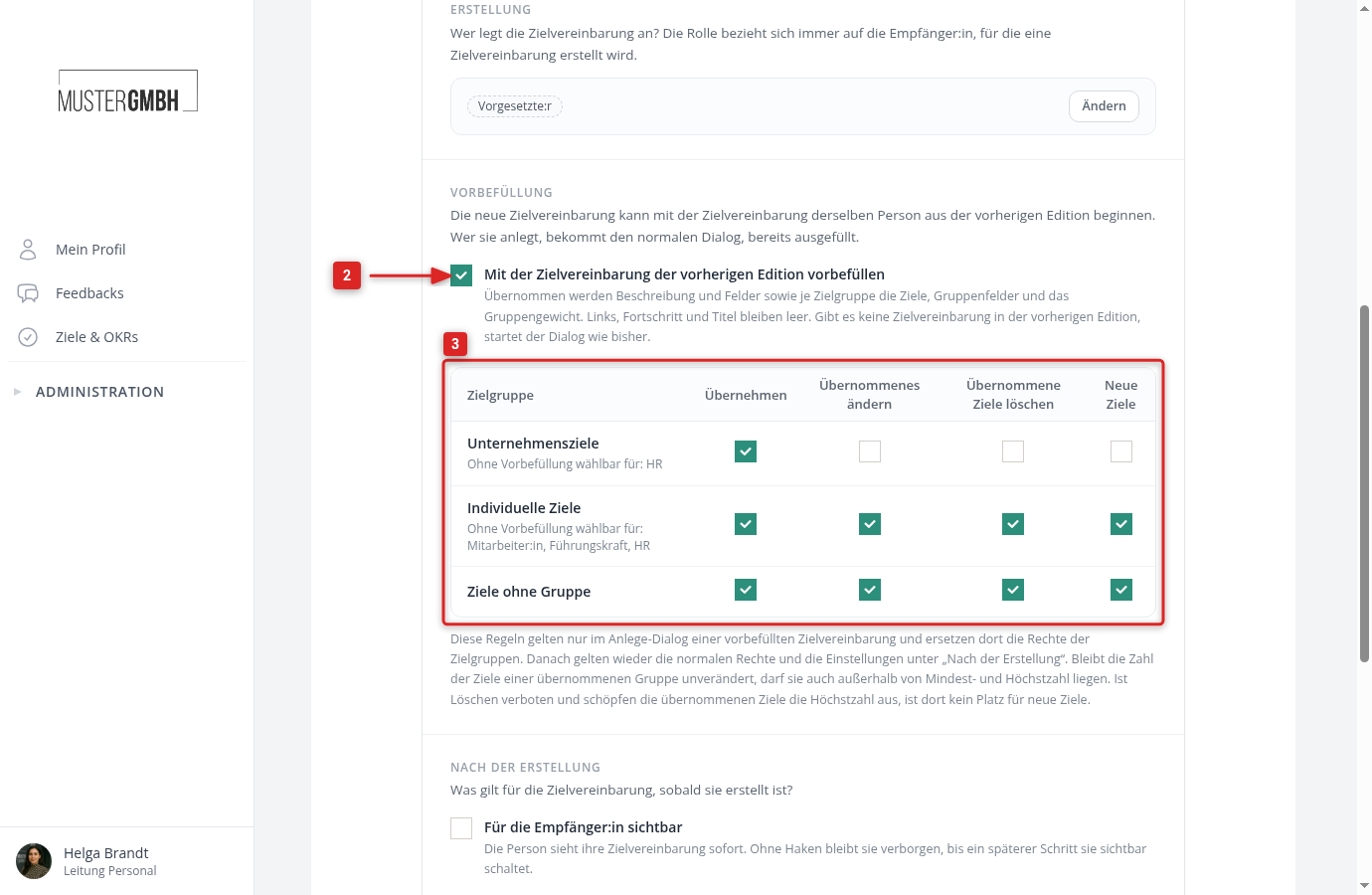
| Column | Effect in the form |
|---|---|
| Carry over | The group’s goals from the previous year appear in the form, together with the group fields and the group’s weighting. |
| Edit carried over | Carried-over goals, group fields and weighting may be changed. Unchecked, they are fixed. |
| Delete carried-over goals | Carried-over goals may be removed. |
| New goals | Further goals may be added to the group. |
The rules replace the goal group permissions in the form. For example, you carry over company goals that otherwise only HR may add as fixed goals, while the supervisor freely revises the individual goals. When you switch the prefill on, the boxes are set the way the goal group already allows it for the creator role. Below each goal group you see who may select it without the prefill. The row “Goals without a group” applies when an edition uses no goal groups.
Besides the goals, easyreview carries over the description and the fields of the target agreement. Due dates move into the new edition. Linked goals, progress and the title are not carried over.
The creator sees a notice above the form naming the edition it was prefilled from. Fixed goals are marked Carried over, not editable.
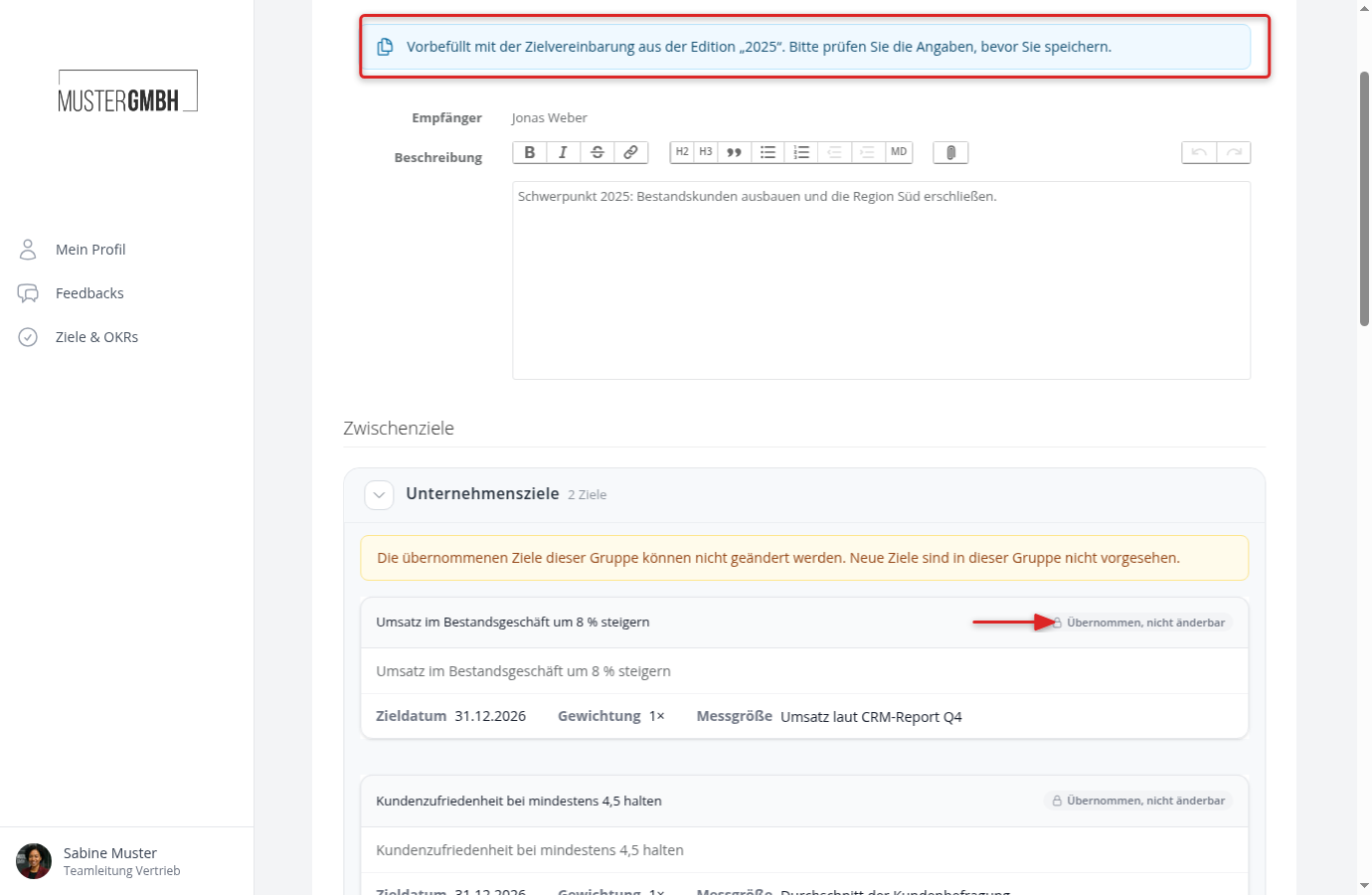
The form behaves differently in these cases:
- If the person had no target agreement in the previous edition, for example because they are new, the form starts empty as before, and the normal goal group permissions apply.
- If the creator may not see the previous year’s target agreement, the form starts empty as well.
- The carried-over goals may exceed a goal group’s minimum or maximum as long as their number stays unchanged. Whoever changes the number must end up within the limits. If deleting is not allowed and the maximum is already reached, nothing can be added to that goal group.
Sealing: who signs, in what order
In the Signers section you assemble the committee:
- Add the signers of the first stage. Available roles include the employee themselves, the supervisor, the next-level or top-level supervisor, a specific person, a user group or a person from a custom field.
- Within a stage, everyone signs in parallel. For the completion rule, choose All or One is sufficient. With “One is sufficient” the first signature completes the stage; the remaining requests of that stage are marked as no longer required.
- If people should sign one after another (first the supervisor, then HR), click Another stage (sign one after another) and fill the second stage. It only unlocks once the first one is complete.
- Mark at least one person with May initiate. These people may open the sealing round. HR can always start it.
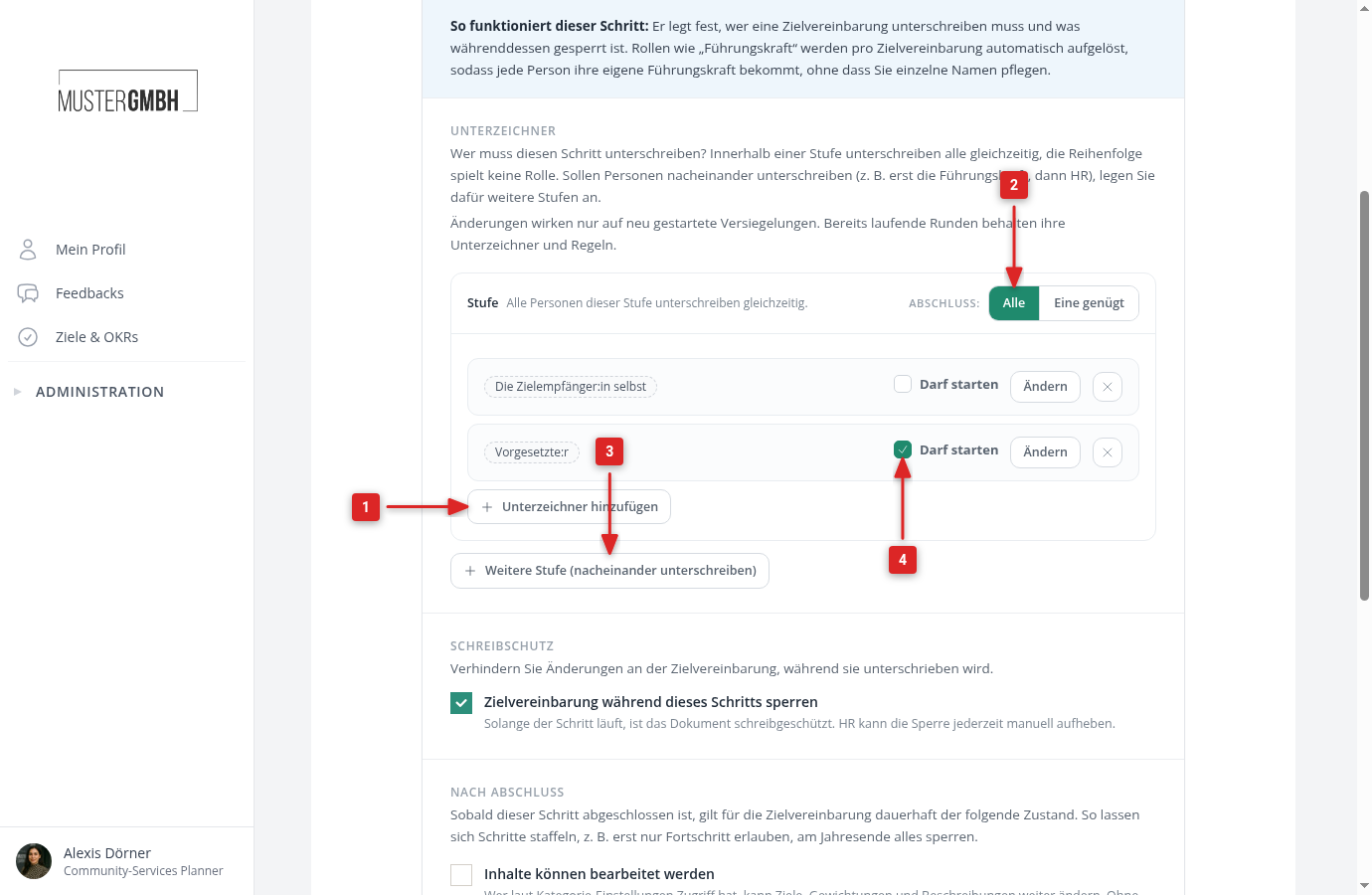
The flow preview below the committee describes in plain sentences how the step will run with the current configuration. Check it before saving.
You also define:
- Write protection: with “Lock the objective during this step” the document is read-only while it is being signed, so everyone signs the same state.
- After completion: whether content and progress are open or locked once the sealing is done.
Status change: release with one click
For a status change you define who may trigger it (a role, plus always HR) and what the click does: visibility, content and progress switch to the configured values. The most common use is releasing a hidden draft to its recipient.
When triggered, easyreview freezes the current state as a Status change document (PDF), so it stays traceable what exactly was released.
An accidentally triggered status change can be taken back: the authorized triggerers and HR find the Take back status change action in the small arrow menu next to the completed step in the timeline. The step reopens, its effects fall back to the previous state and the frozen document is discarded; triggering again freezes a new one over the then-current state. As with removing sealings, later steps must be taken back or removed first.
Record interim update: guided check-in
Here you only pick the responsible person (a role, for example the supervisor). How the step works for them is described in Record an interim update as a process step.
Working phase: a time window without a task
The working phase has no participants and no configuration besides its name. It ends automatically on the end date you set in the edition’s schedule. Use it to make visible in the timeline that people are currently working on their objectives.
Change, remove or archive steps
- Edit: open a step via Edit in the list. Changes to roles and settings apply immediately.
- Remove: a step no edition has scheduled yet is fully deleted when you remove it.
- Archive: if the step is already scheduled or has run, removing it archives it instead. Archiving stops the step immediately and everywhere: it no longer activates in any edition and sends no further notifications. Completed runs stay visible in the target agreements’ timelines. Signature rounds still running on the step are aborted and signatures already given become void; easyreview warns you beforehand with the exact count. If running signatures should finish first, archive the step later.
Emails for process steps
As soon as a process has process steps, its Notification Center gains four additional email types: the prompt to whoever a step is waiting for, the reminder before step deadlines, the signature request and the confirmation after a completed sealing. You customize all four as usual. See Notifications for target agreements.