Target agreements overview
There are two ways to view target agreements in easyreview:
- Your own target agreements in your profile
- Company-wide target agreements via “Objectives”
Your own target agreements
Your personal target agreements live in your profile.
- Click “My profile” in the sidebar.
- Open the “Objectives” tab.
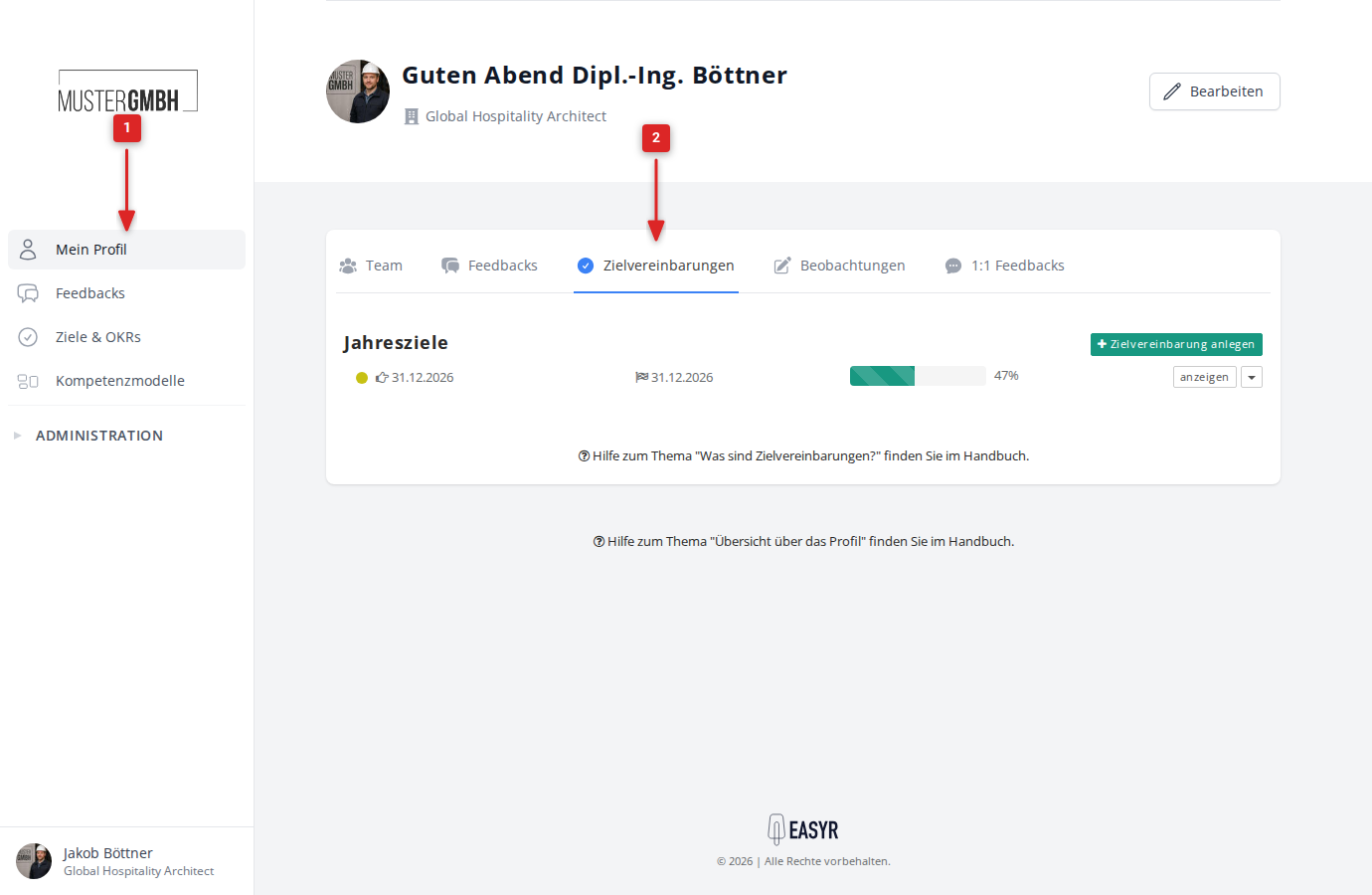
Here you see your target agreements grouped by process. Each row shows:
- the status as a colored dot (green = achieved, yellow = in progress, gray = not started)
- the next deadline of an intermediate goal (if any)
- the end date of the target agreement
- a progress bar with a percentage
- the “show” button that opens the detail view
Use the ”+ Add objective” button to create a new target agreement, if your company allows it.
Company-wide target agreements
Click “Objectives” in the sidebar.
Choosing a process
If your company uses several processes (for example “Annual goals” and “Quarterly OKRs”), you first see an overview of all processes. Each one shows its overall progress and the distribution of the individual goals. Click a process to reach its target agreements.
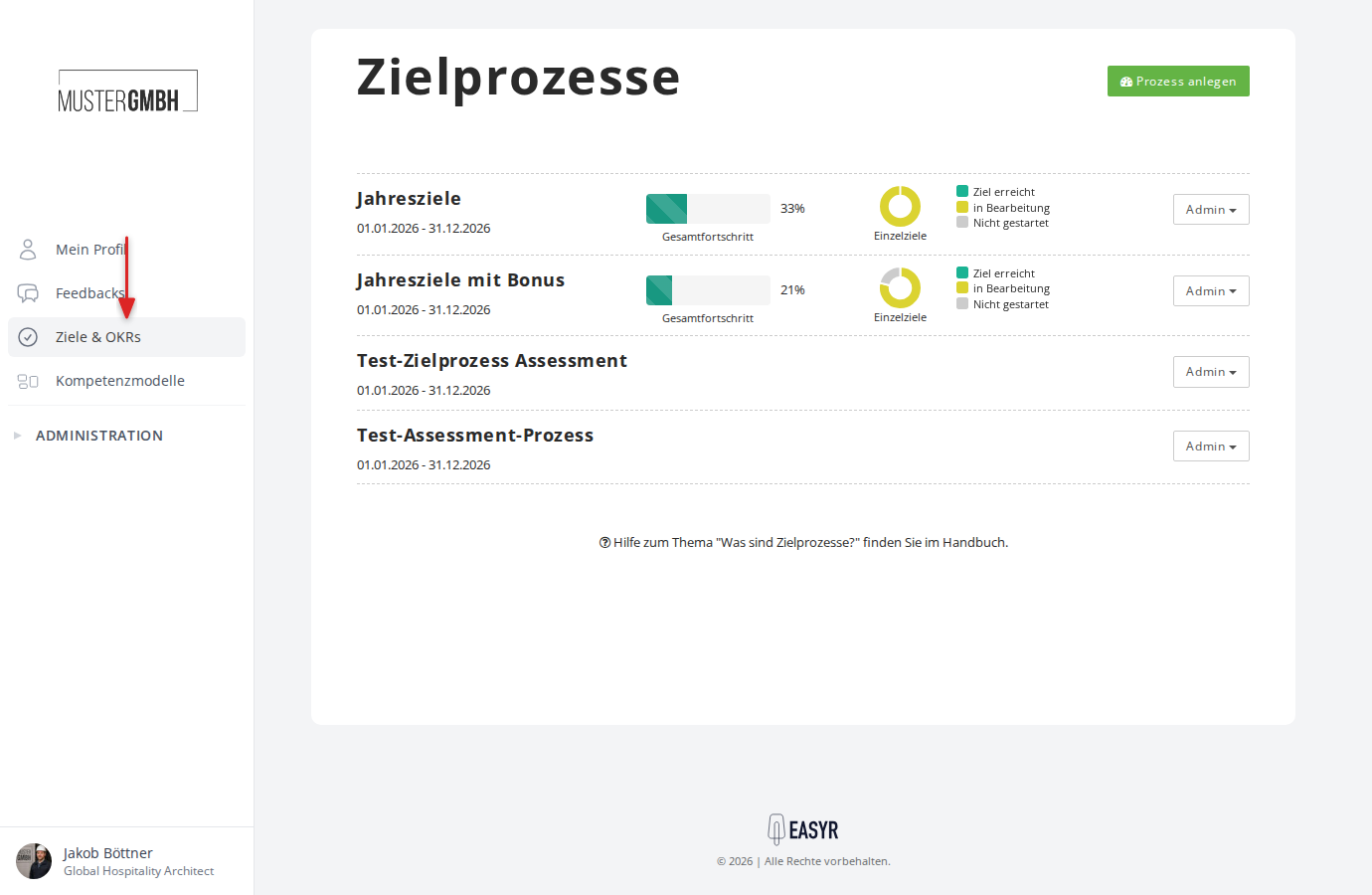
If only a single process exists, you go straight to its detail view.
Status overview
The top area shows the process with the edition’s status (for example “active”), a dropdown to select past or future editions, and, for HR staff, the “Status” and “Settings” buttons.
Below that, the Overview tile summarizes the edition:
- Ø achievement: the average progress of all target agreements
- Recently updated: how many target agreements have recently updated progress
- Achievement distribution: how the target agreements spread across achievement levels
- Period, number of target agreements and, for processes with a schedule, how many are behind schedule
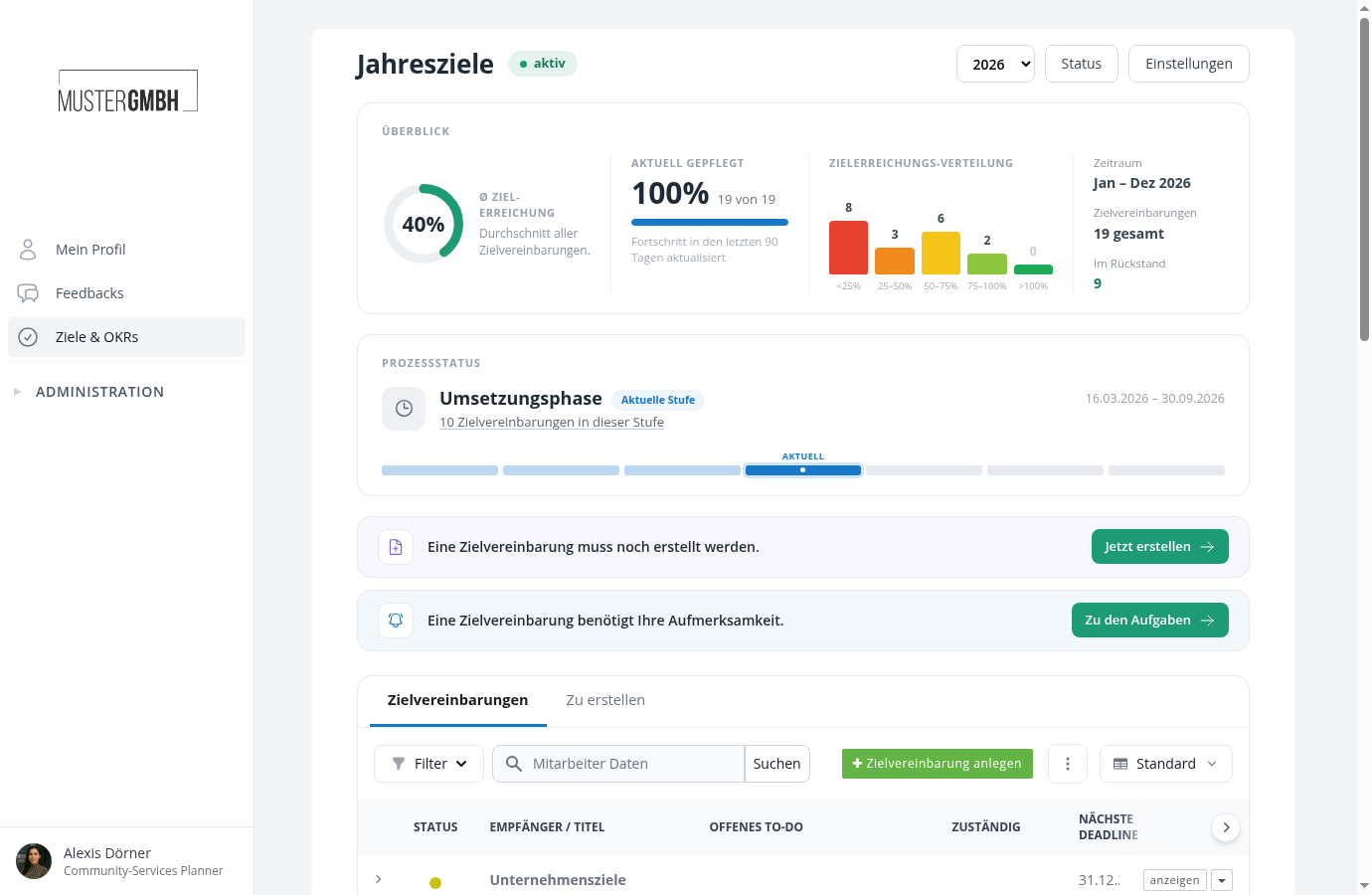
If the process uses process steps, the header also shows which step the process is currently in and points you to your open tasks, for example “3 objectives still need to be created” with a direct link. This creation hint only appears once the creation step has started. If its start date is still in the future, the header instead shows when it begins.
Below the header is the “Objectives” tab. Depending on the configuration, more tabs appear next to it: “To create” for processes with process steps and “Payouts” for processes with a bonus system.
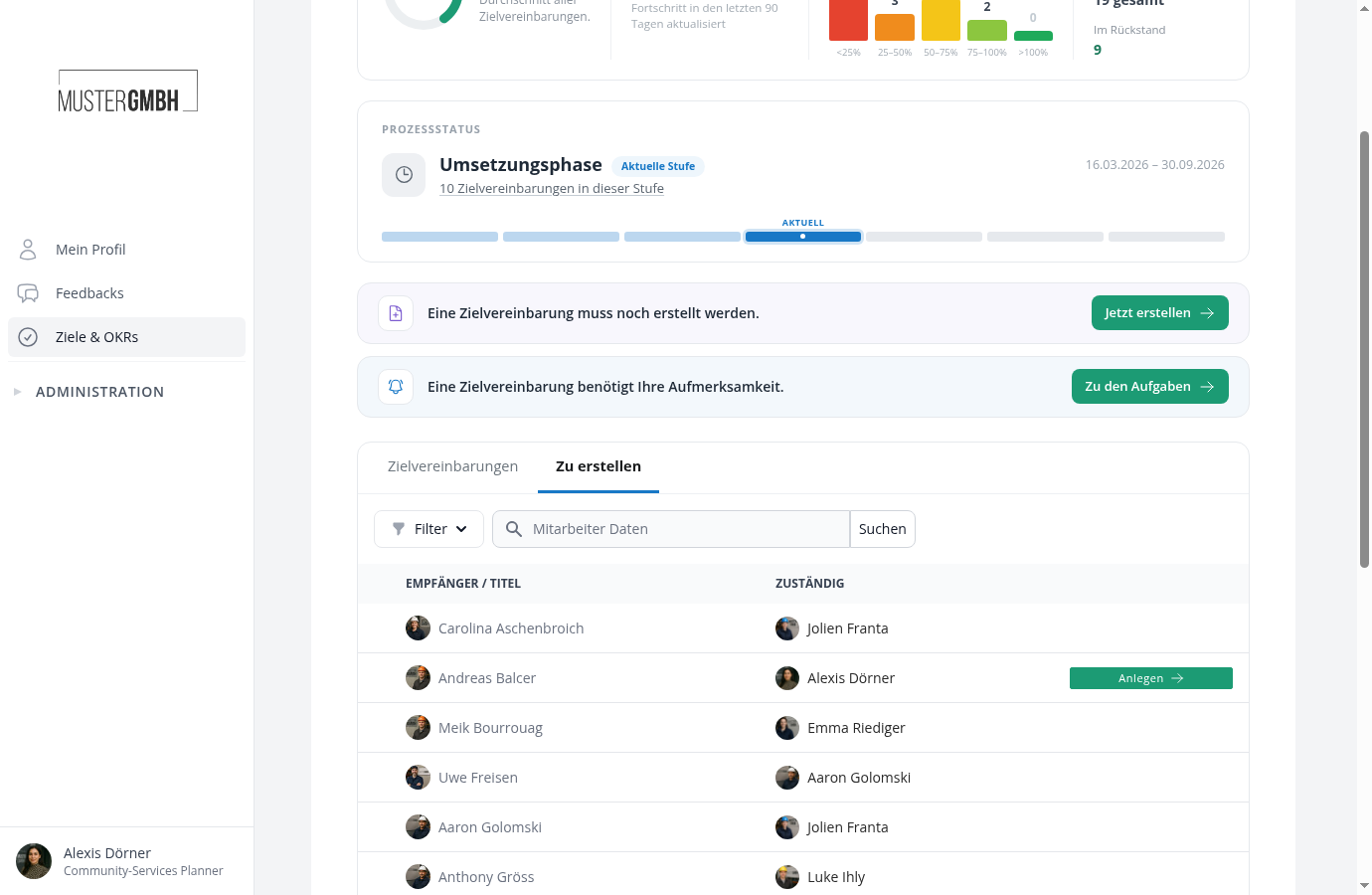
The “To create” tab
For processes with process steps, this tab lists everyone in the audience who does not have a target agreement in the edition yet, each with the responsible creator. On rows you are responsible for, click Create to open the creation form with the recipient preselected. Once everyone is covered, the tab shows “All created!”. The entries likewise appear only once the creation step has started. While its start date is still in the future, the tab lists no one yet.
The target agreement list
By default the table shows these columns:
| Column | Description |
|---|---|
| Status | Colored dot: green (achieved), yellow (in progress), gray (not started) |
| Recipient / Title | Name of the employee or the title of the target agreement |
| Next deadline | Date of the next due intermediate goal |
| End date | End date of the target agreement (sortable) |
| Progress | Progress bar with a percentage (sortable) |
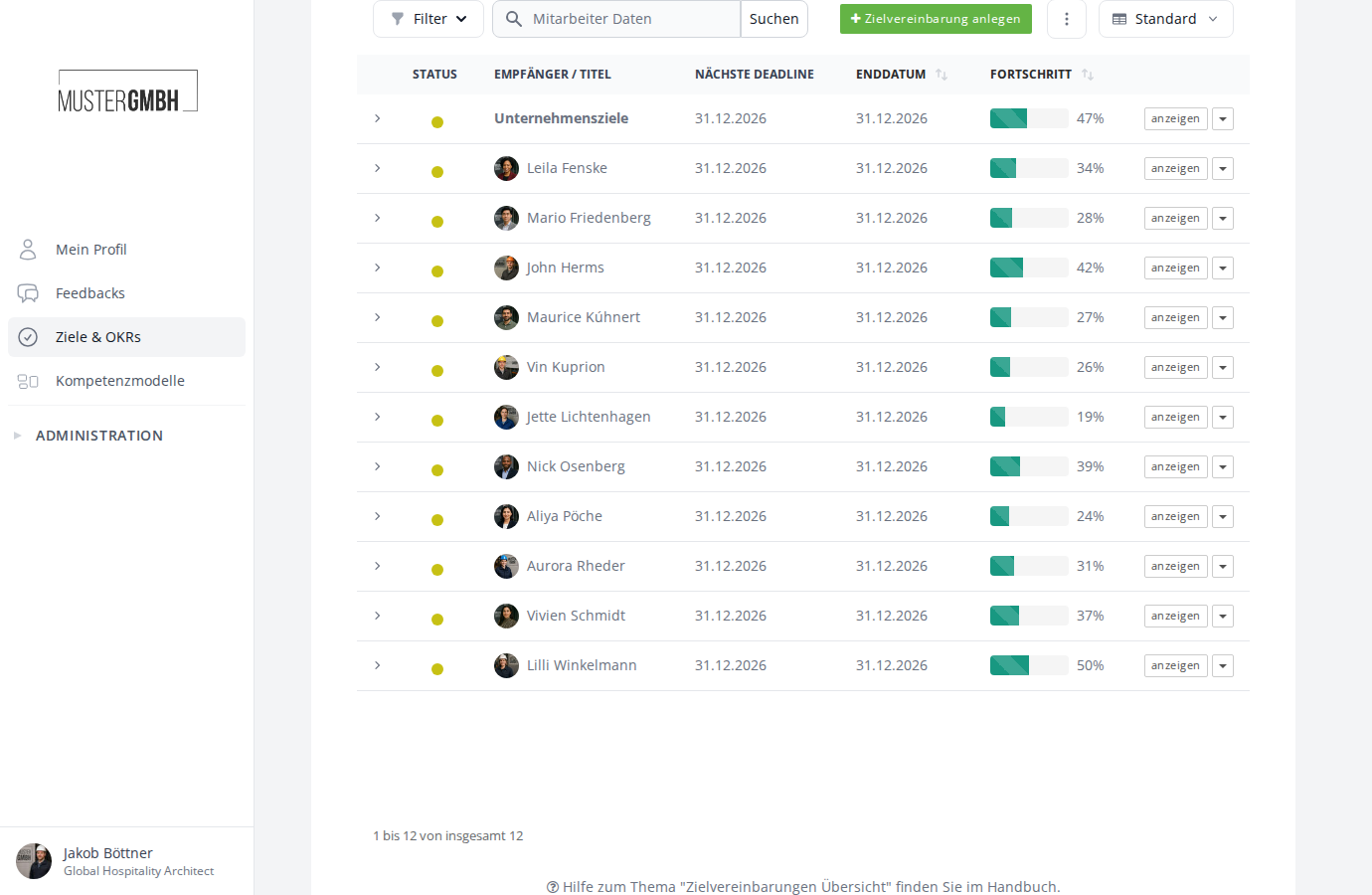
The “show” button takes you to the detail view of a target agreement.
Show intermediate goals
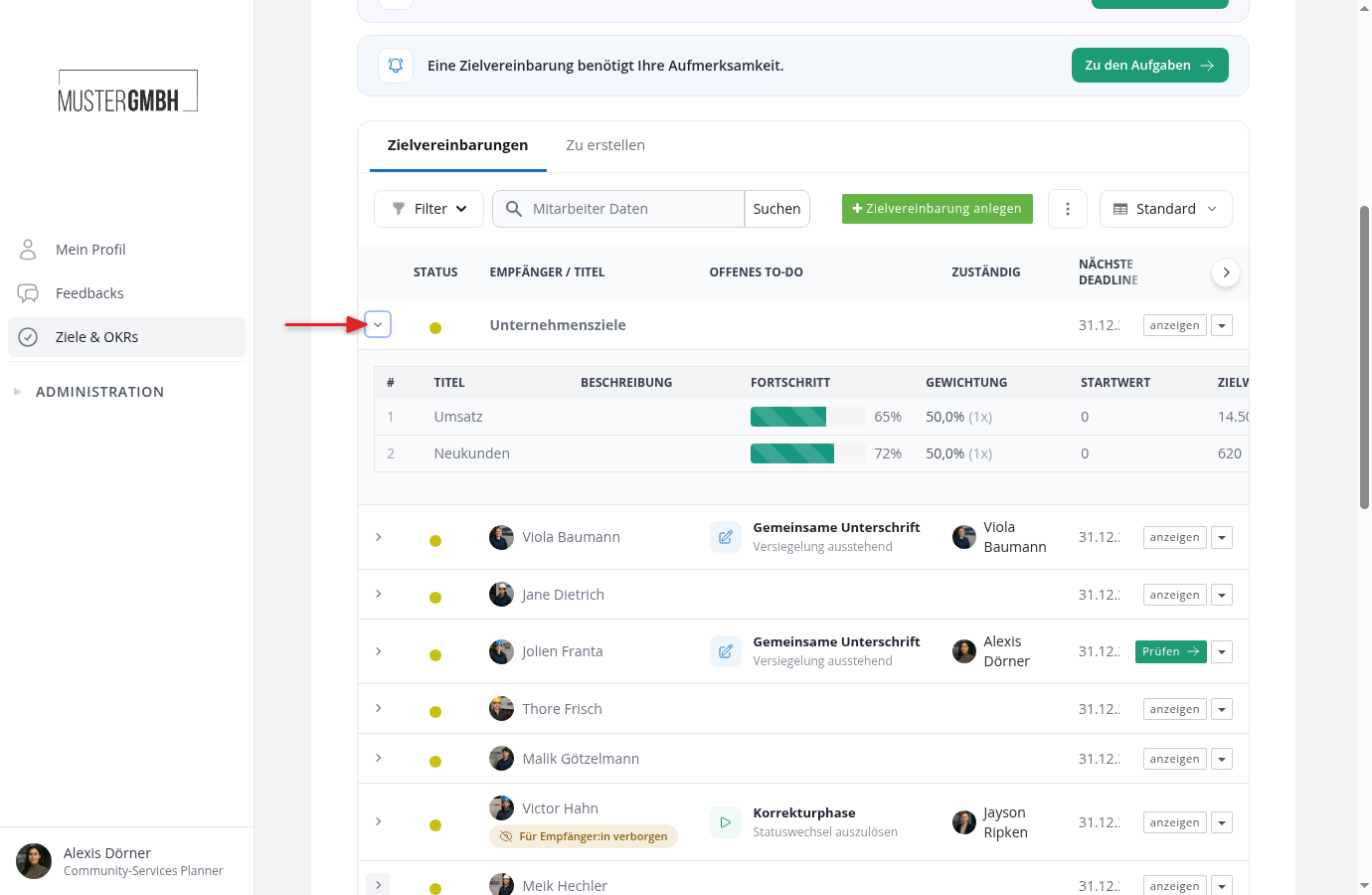
Click the arrow to the left of a target agreement to expand its individual intermediate goals. If the process uses goal groups, the goals are ordered by group, with a divider row per group. The intermediate-goal table shows, per goal:
- # (sequential number)
- Title and description
- Progress as a bar with a percentage
- Weighting as the share within the group and the factor
- Goal group
- Start value, Target value, and Value reached (for quantified goals)
Search and filter
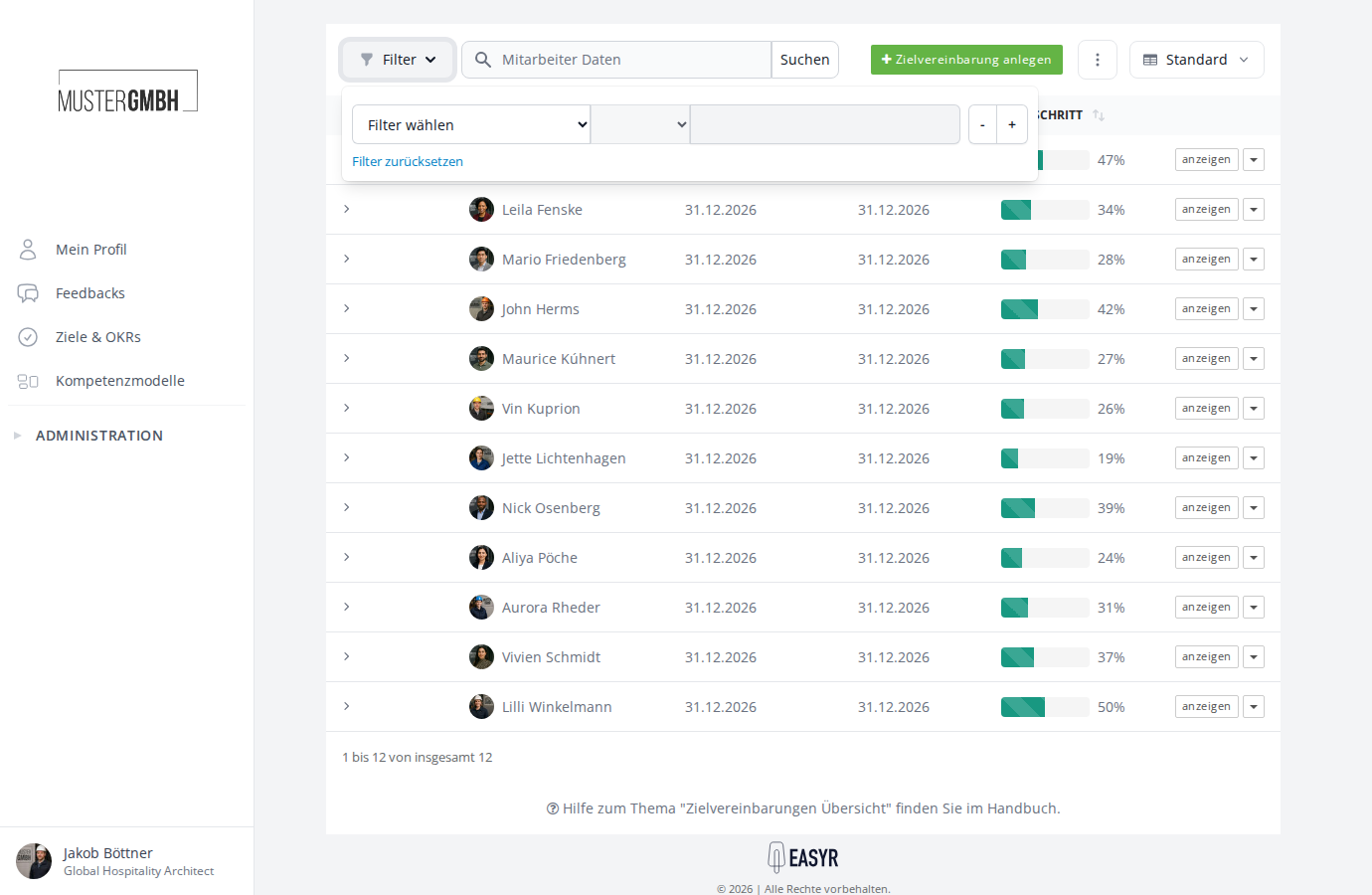
Use the “Employee data” search field to filter the list by name. Enter your search term and click “Search”.
Click the “Filter” button to open the filter panel. You can filter by various criteria, for example status, recipient, end date, or progress. “Reset filter” removes all active filters.
Sorting
The “End date” and “Progress” columns can be sorted by clicking the column header. A small arrow shows the current sort direction.
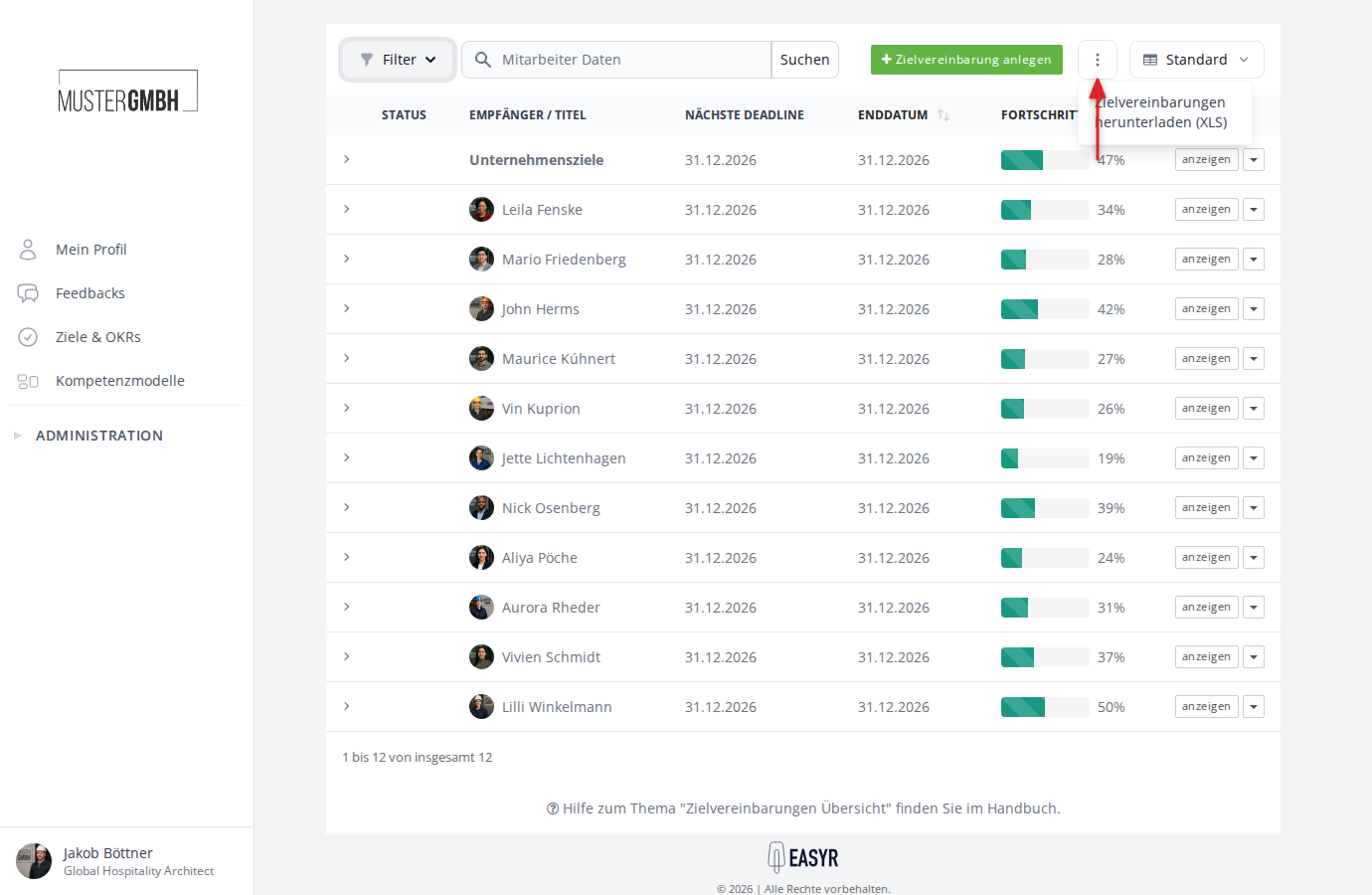
XLS export
Use the three-dot menu (⋮) in the toolbar to download the target agreements as an XLS file. The export follows the currently visible columns and active filters.
Customize the list view
Use the “Standard” button (on the right of the toolbar) to customize the list view:
- Click the button with the current view name (for example “Standard”).
- Choose “Edit columns” to add, remove, or reorder columns.
- Save your changes.
You can create several views, switch between them, and rename or delete them. Alongside the default columns, further columns are available depending on your configuration, for example “Recipient: Supervisor”, “Recipient: Groups”, or custom fields.
Pagination
Below the table you see the number of entries shown (for example “1 to 12 of 12 total”). With more than 20 entries, pagination appears for browsing.