Set up goal groups
Goal groups split the goals of a target agreement into sections, for example company goals, individual goals, and development goals. Each group defines who may select it when creating a goal. The rules per group (how many goals, whether they are quantified) and the weighting of the groups are set per edition afterwards.
Without goal groups everything stays as it is: the target agreement shows one plain list of goals. There is nothing to set up if you do not need sections.
When are goal groups worth it?
- You want every target agreement to contain certain kinds of goals, such as at least one team goal and no more than three professional goals.
- Some goals should only be entered by managers or HR, others by the employees themselves.
- The groups should count differently towards the overall goal achievement.
- Centrally defined goals should appear in the same section of every target agreement.
Open goal group management
- Open the target agreement process and click Settings at the top right.
- Scroll to the Goal groups section and click Manage groups. The tile shows how many groups are configured already.
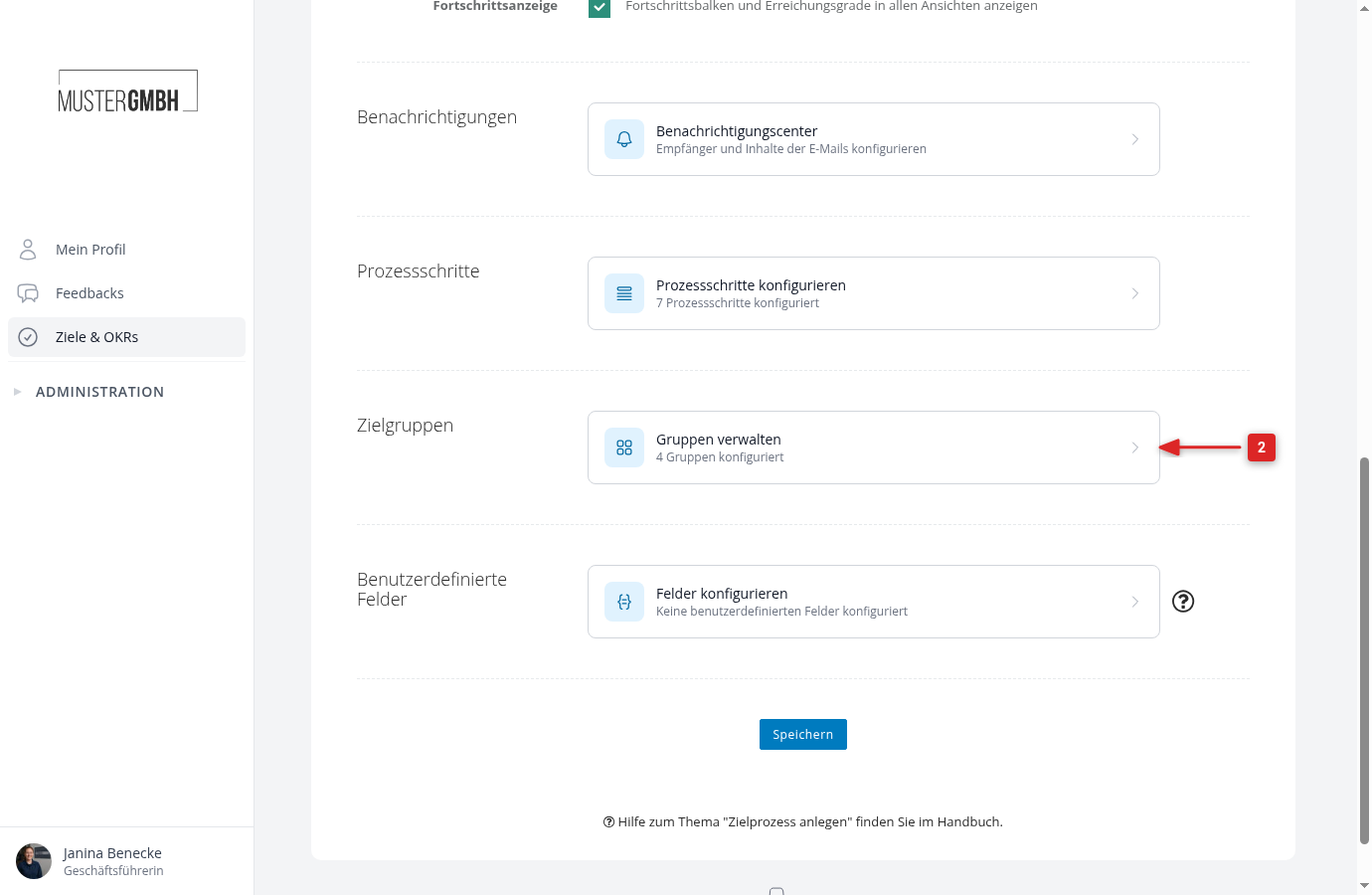
The Goal groups page lists all groups of the process in the order in which they later appear in every target agreement. Below each title you see who may select the group and in how many editions it is active. As long as no group exists, the page suggests common groups: company goals, individual goals, development goals.
Create a group
- Click Add group.
- Enter the Title as it should appear as the section heading in the target agreement. If you use several languages, you can enter the title per language.
- Under Selectable by, define who may choose this group when creating a goal: Employee (the recipient of the target agreement), Manager (the direct managers), and HR. Anyone not checked here sees the goals of the group but cannot create or edit them.
- Click Save.
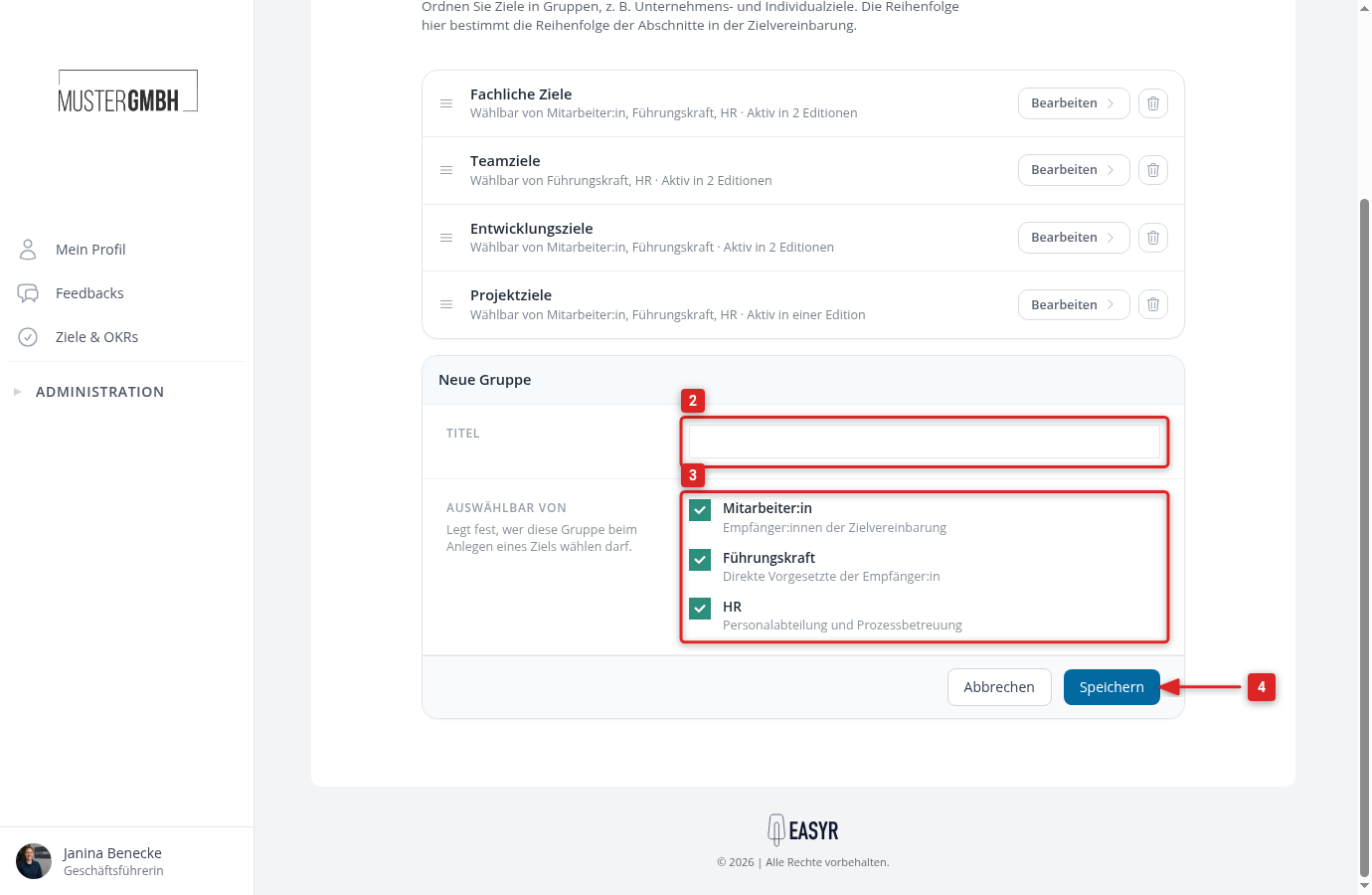
A new group is active in all editions of the process right away and gets default rules there (no minimum, no maximum, quantified goals allowed). Adjust the rules per edition afterwards, see Goal settings per group.
Example: Team goals should only be entered by managers and HR, employees should only read them. Check only Manager and HR for “Team goals”. In the target agreement, employees see the “Team goals” section with the entered goals, but without input fields and without the “Add goal” button.
Set the order
The order of the groups on this page is the order of the sections in every target agreement, in the form as well as in the view.
- Grab a group by the handle to the left of its title.
- Drag it to the desired position. A blue line shows where the group will land.
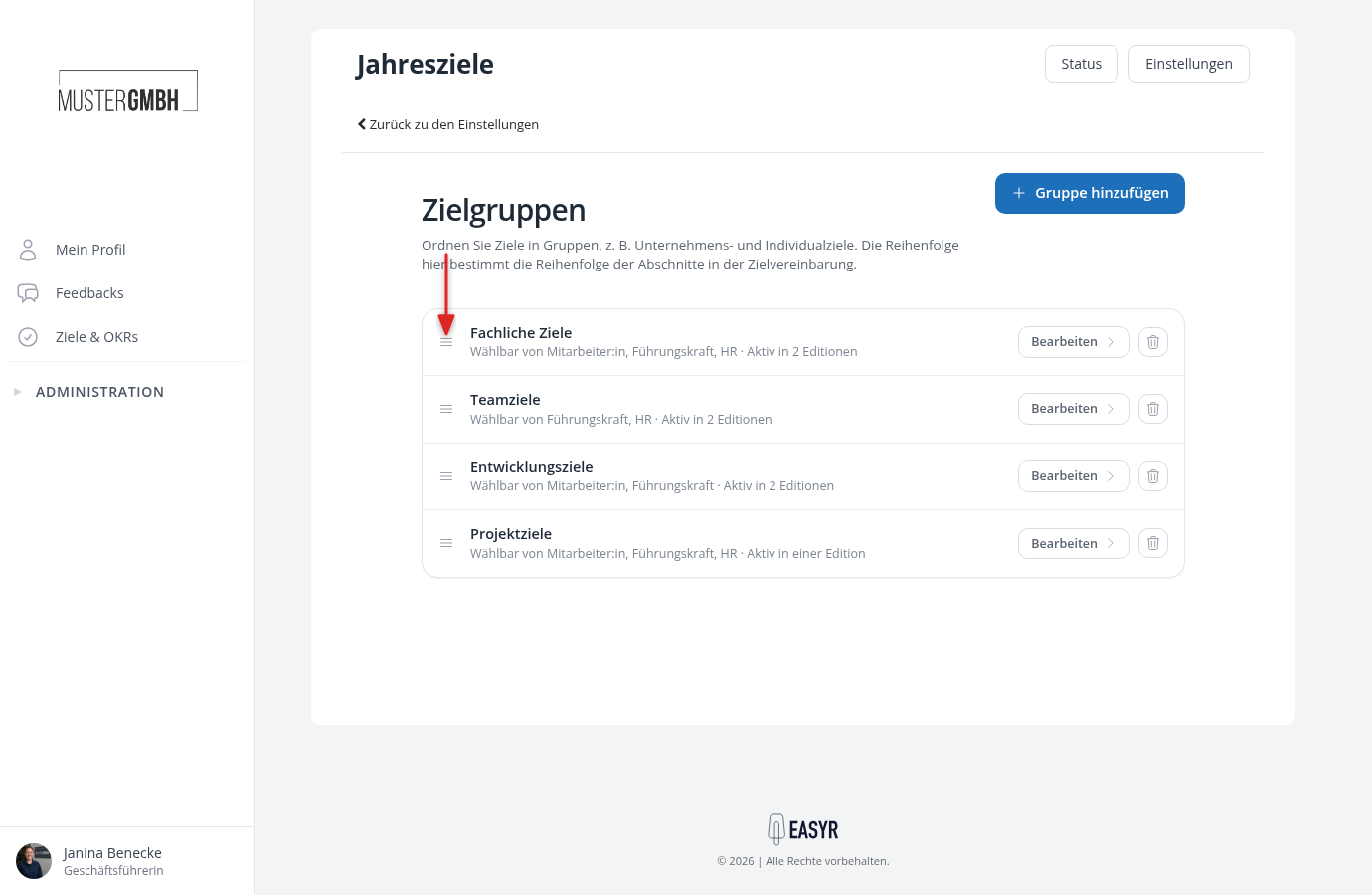
The new order is saved immediately. If saving fails, the list jumps back and you see a message.
Edit a group
Click Edit in the list or click the title of the group. The form unfolds below. Change the title or the roles and click Save. Existing goals in the group stay unchanged.
Deactivate a group in an edition
You no longer need a group in an edition but want to keep the goals of earlier editions? Then deactivate the group for that edition instead of deleting it.
- In the settings of the process, open the edition via Settings for edition.
- Scroll to the Goal group settings section. Every group has its own block there.
- Remove the check mark in the header of the block. The block collapses and shows “Deactivated in this edition”.
- Click Save at the end of the page.
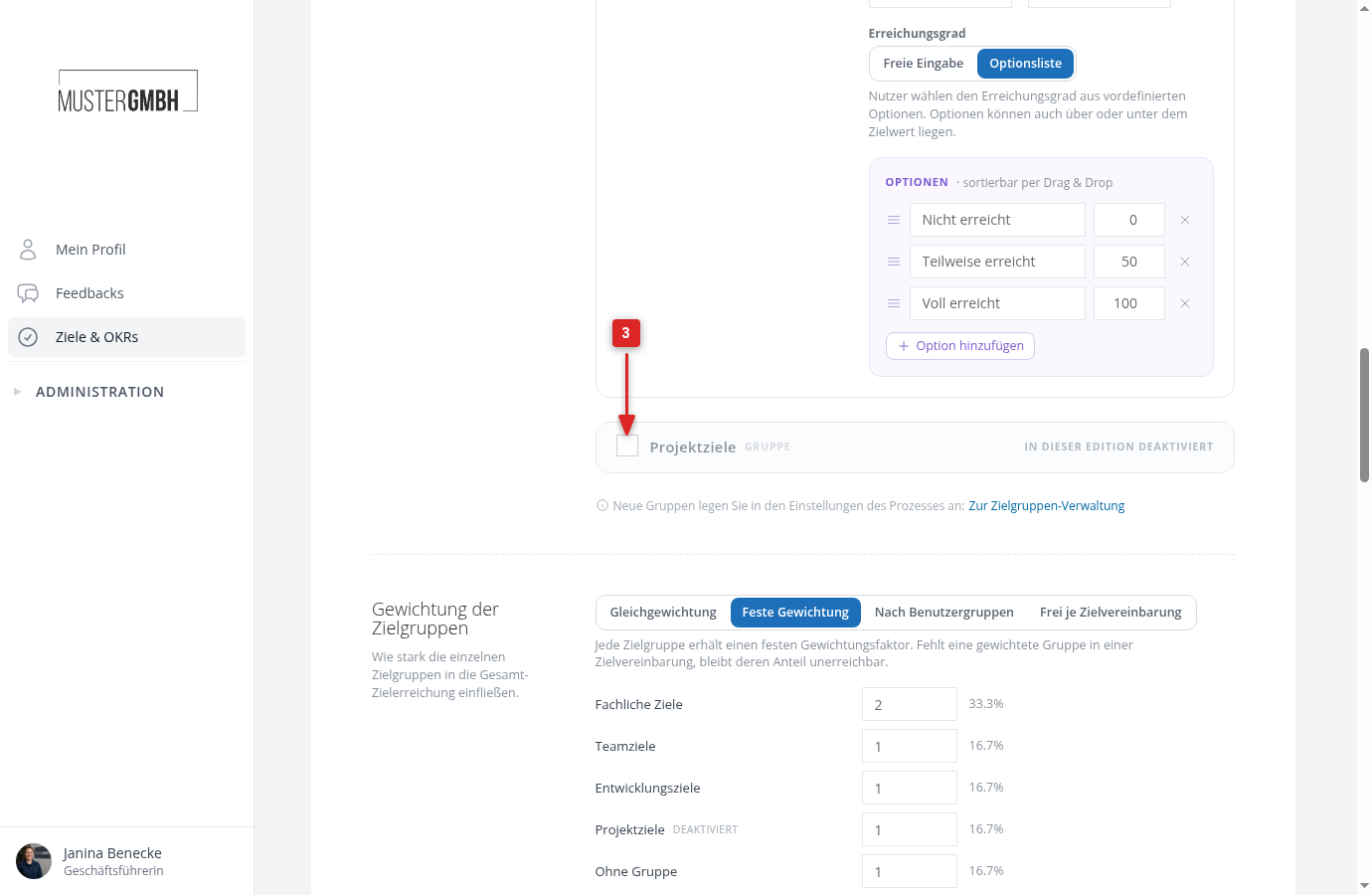
In this edition the group no longer appears as a section for new goals. Existing goals of the group are kept and still shown, but read-only. The same check mark activates the group again.
Delete a group
A group can only be deleted as long as no goal lies in it, in any edition. Click the trash icon in the list and confirm the prompt.
If the group already contains goals or sealed goal links, the trash icon is grayed out. Deactivate the group for future editions instead, as described above.
What employees and managers see
As soon as at least one group is active in an edition, the target agreement form shows a separate section per group. The header shows the title, the number of goals, and, for weighted groups, the share of the overall goal achievement. Every section has its own Add goal button, and goals can be dragged and dropped between sections.
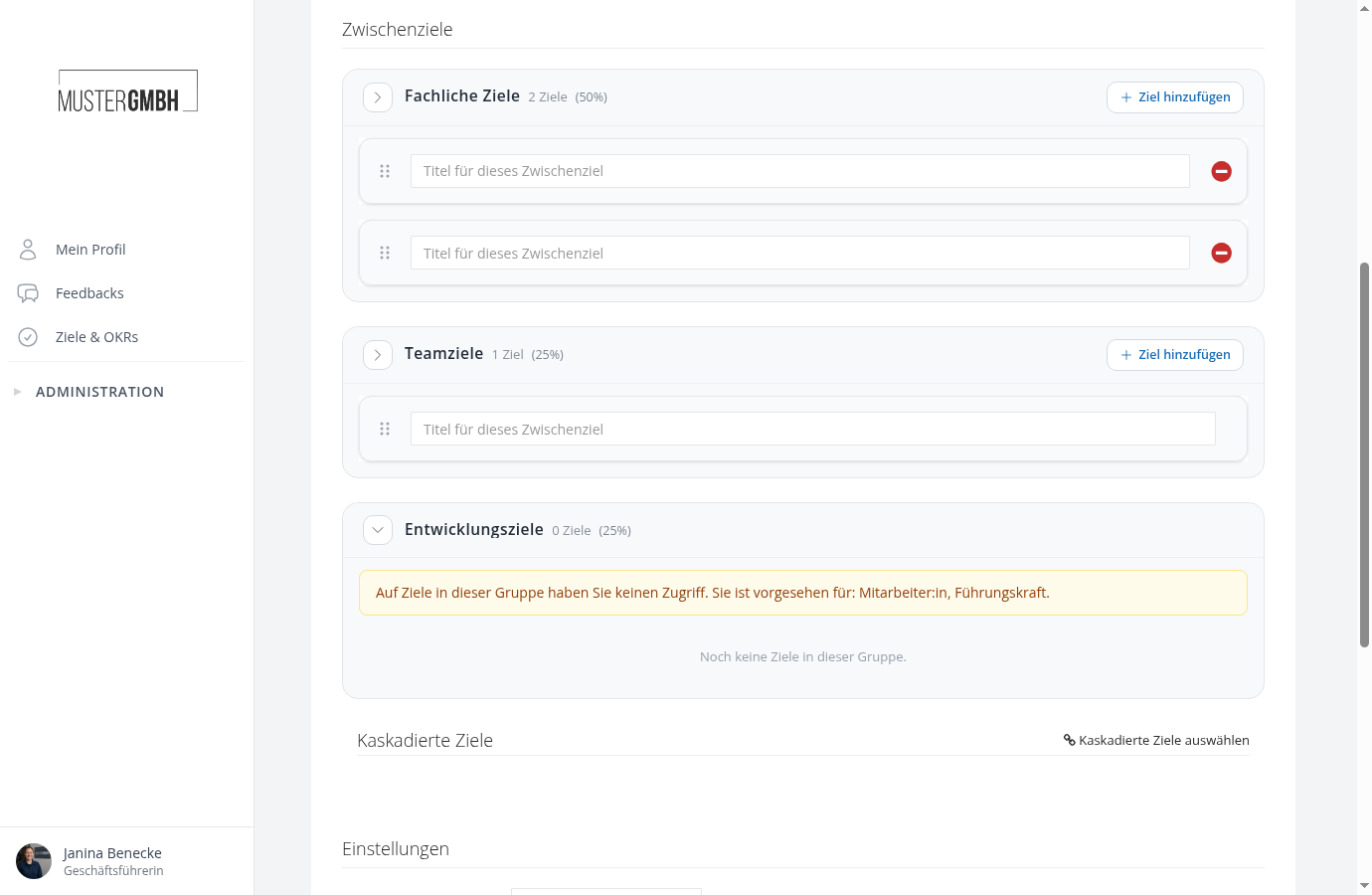
- Groups that your own role may not select appear with the note “You have no access to goals in this group” and the intended roles. The goals in them are read-only.
- Goals from the time before goal groups sit in the Without group section. Drag and drop them into a group so the rules of that group apply to them.
- The overview of the process gets a Group column as soon as the process has more than one group.