What are cascaded goals?
Cascaded goals are goals a supervisor creates and passes down to their employees. Typical examples are department or company goals that should feed into the employees’ target agreements.
Cascaded goals require a supervisor–employee relationship. When you create one, you decide whether the goal cascades to all employees (direct and indirect) or only to direct reports. Direct reports are everyone who has you listed as their supervisor.
The progress of a cascaded goal is tracked on the supervisor’s original goal. Employees can see the progress but can’t change it.
Create a cascaded goal as a supervisor
- In the sidebar, click Objectives and open the edition you want.
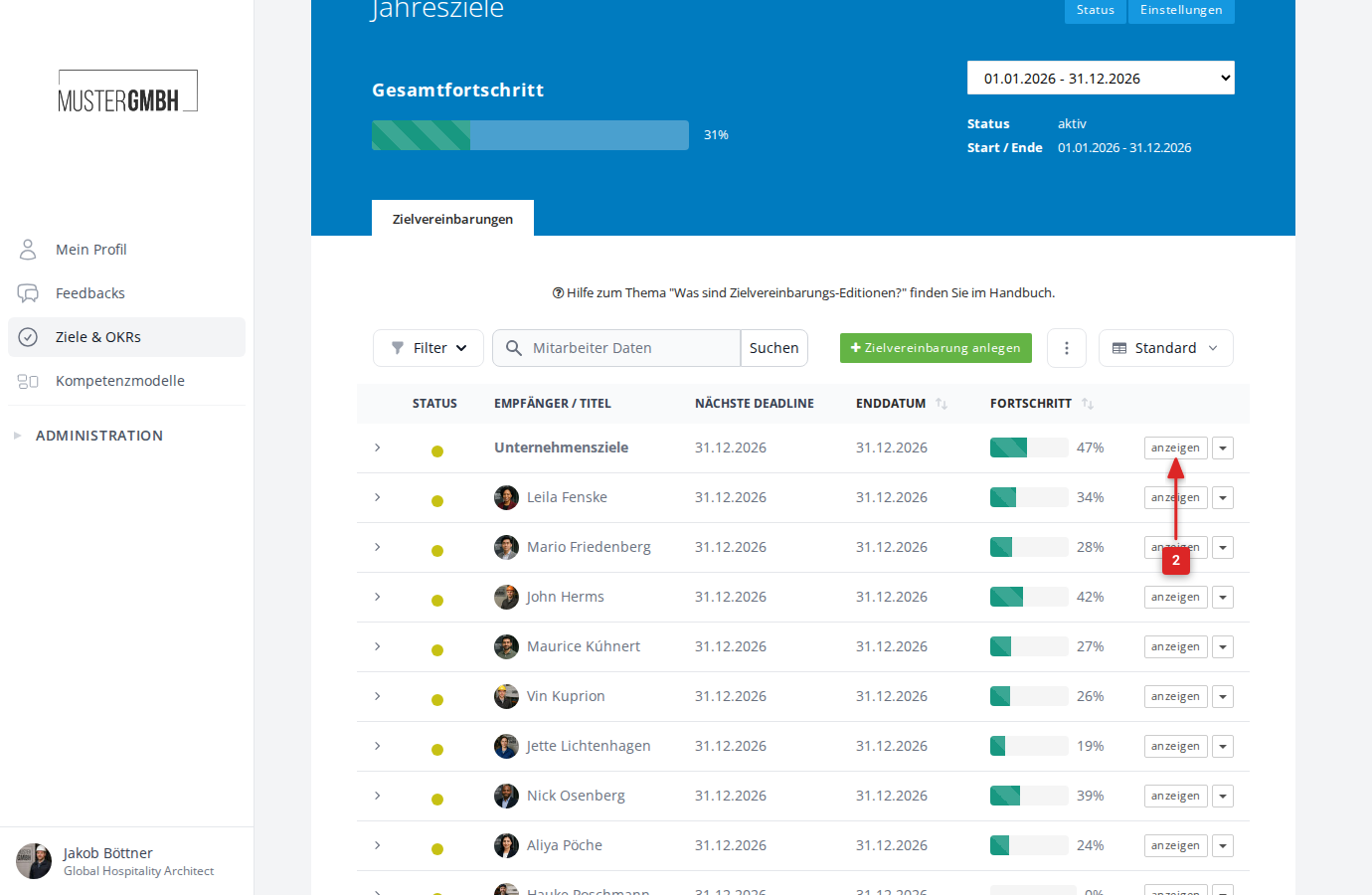
- In the list, click show on your own target agreement.
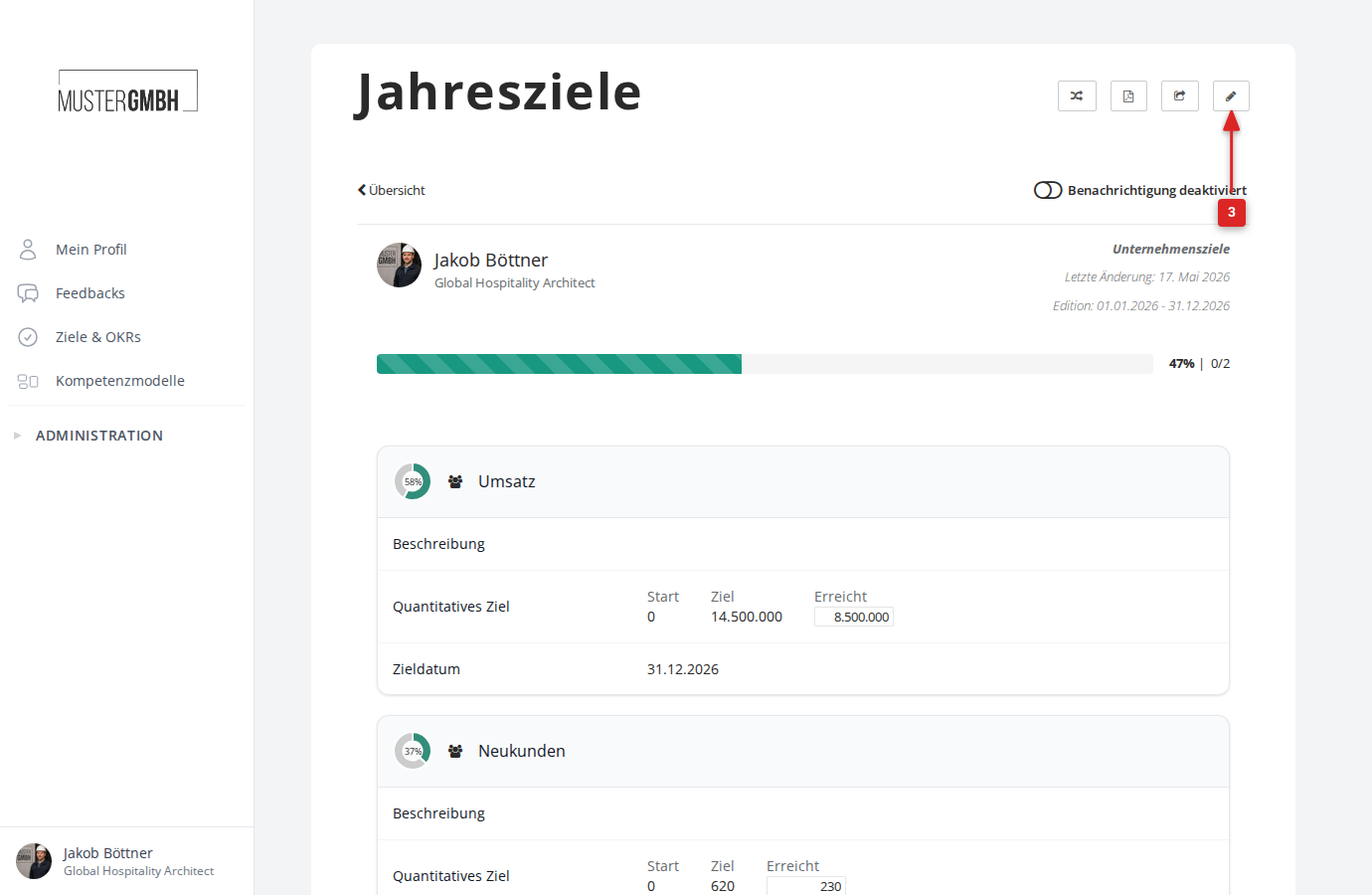
- Click the pencil icon in the top right to edit the target agreement.
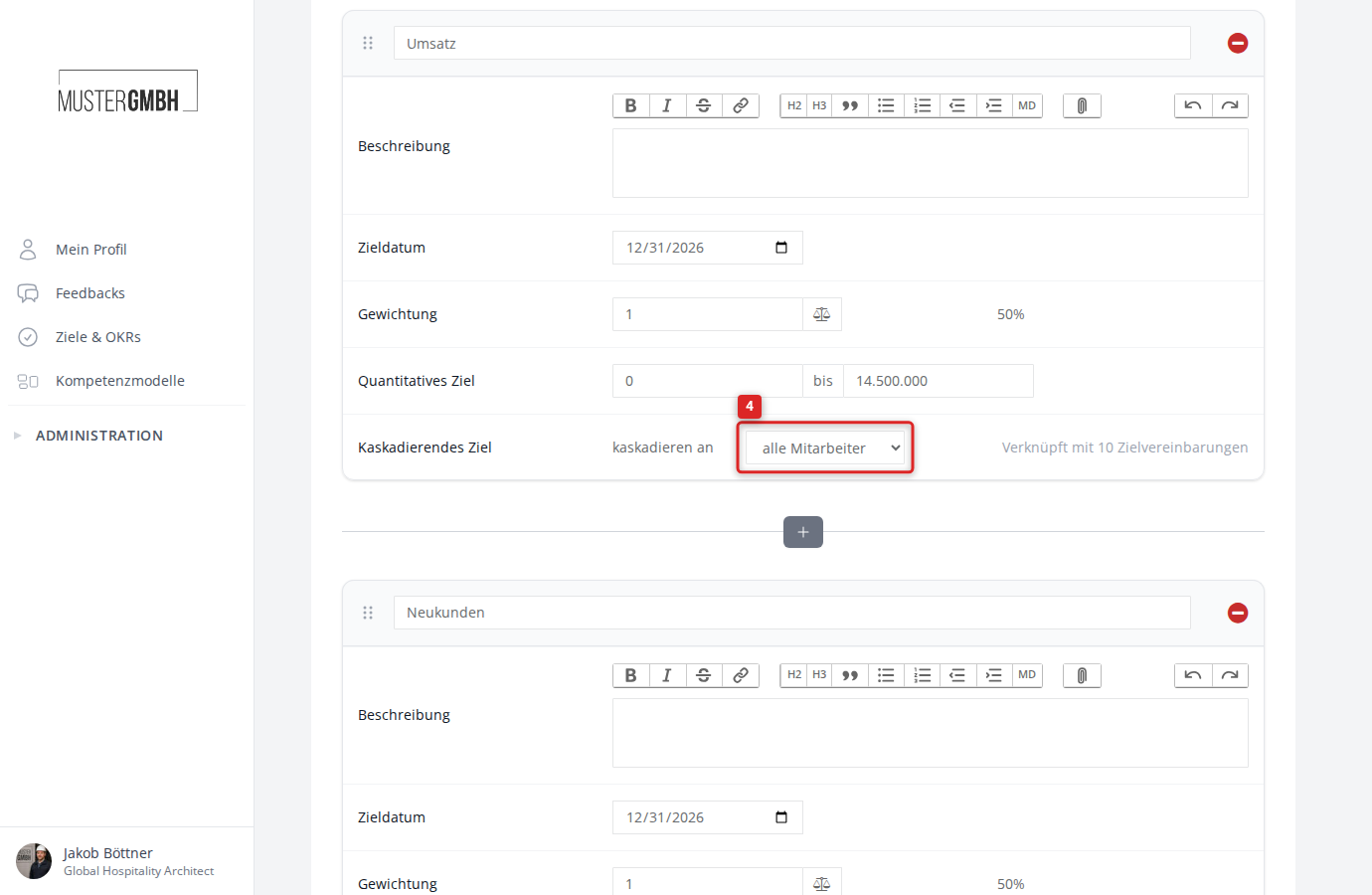
- Scroll to the intermediate goal you want. In the goal card you’ll find the Cascading Goal row. In the dropdown next to “cascade to”, choose all employees or direct reports.
- Click Save.
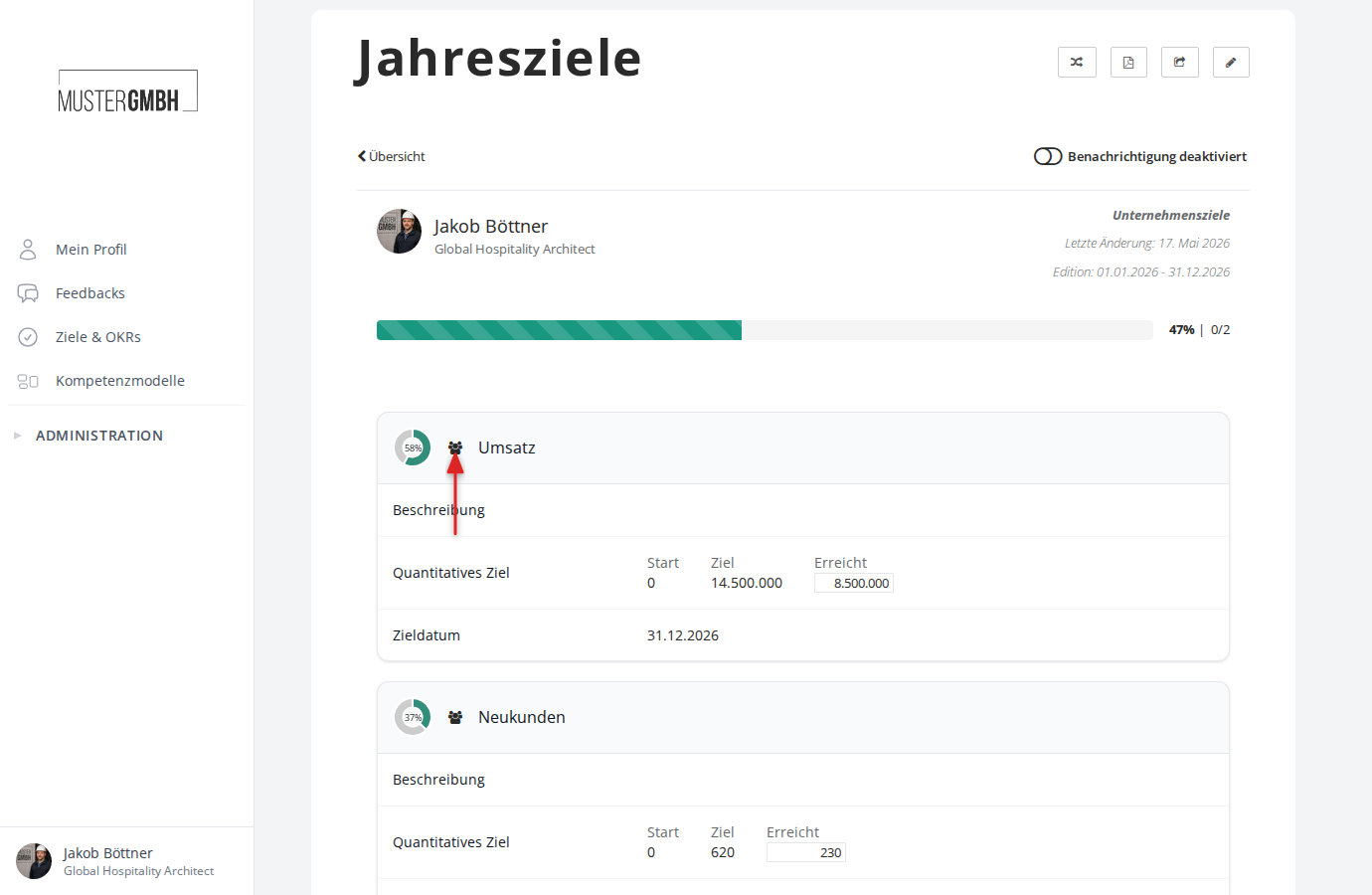
The goal is now released for cascading. In the target agreement’s detail view you can recognize cascaded goals by the group icon next to the goal title.
Add a cascaded goal to an employee
For a cascaded goal to appear in an employee’s target agreement, it has to be linked there. This can happen manually or automatically.
Link manually
- Open the employee’s target agreement and click the pencil icon to edit.
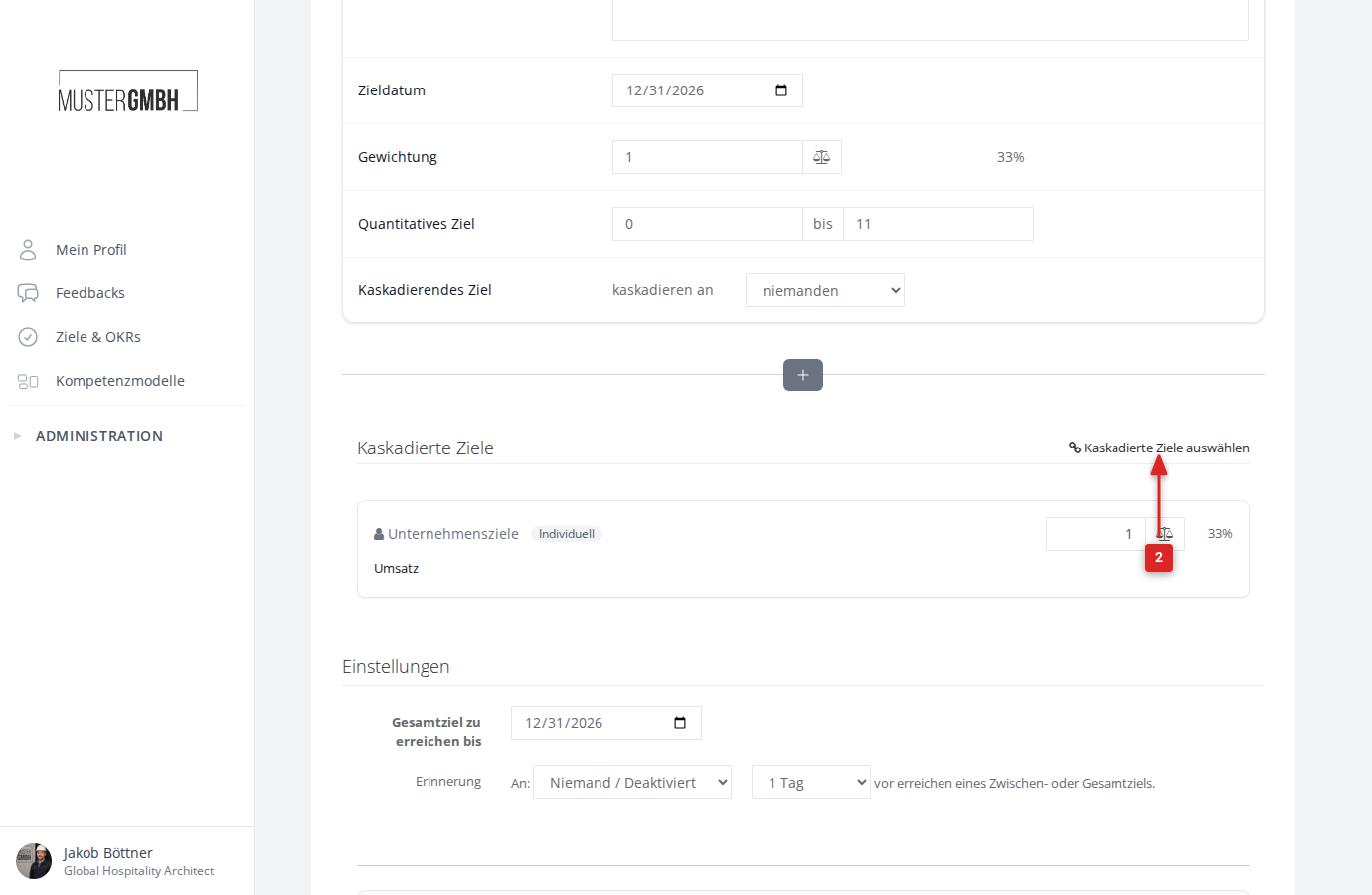
- Scroll down to the Cascaded objectives section. Click Pick cascaded objectives.
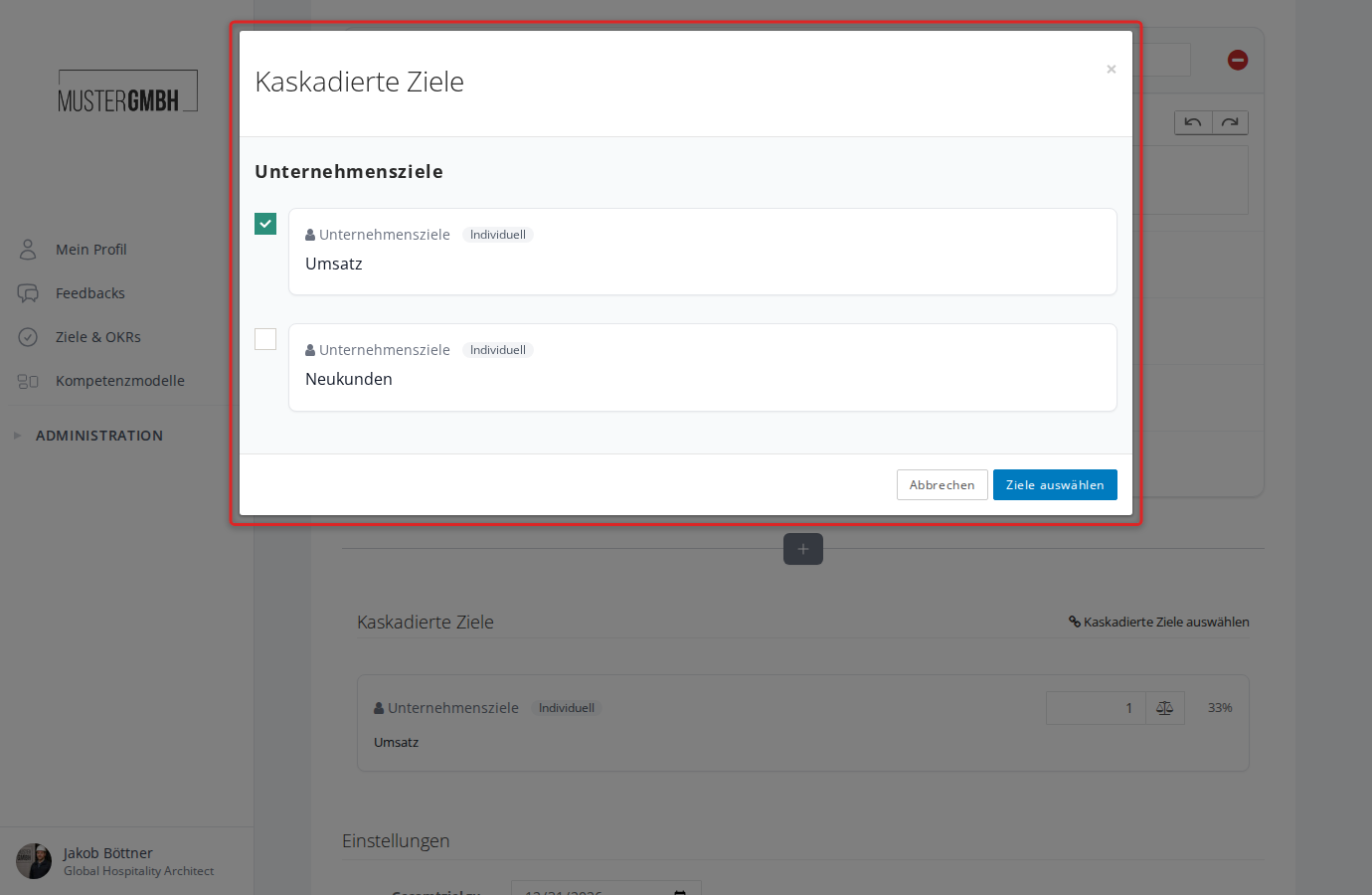
- The dialog shows the cascaded goals available from your supervisors. Select the goals you want with the checkboxes and click Select objectives.
- The cascaded goals now appear in the Cascaded objectives section. You can adjust the weighting per goal.
- Click Save.
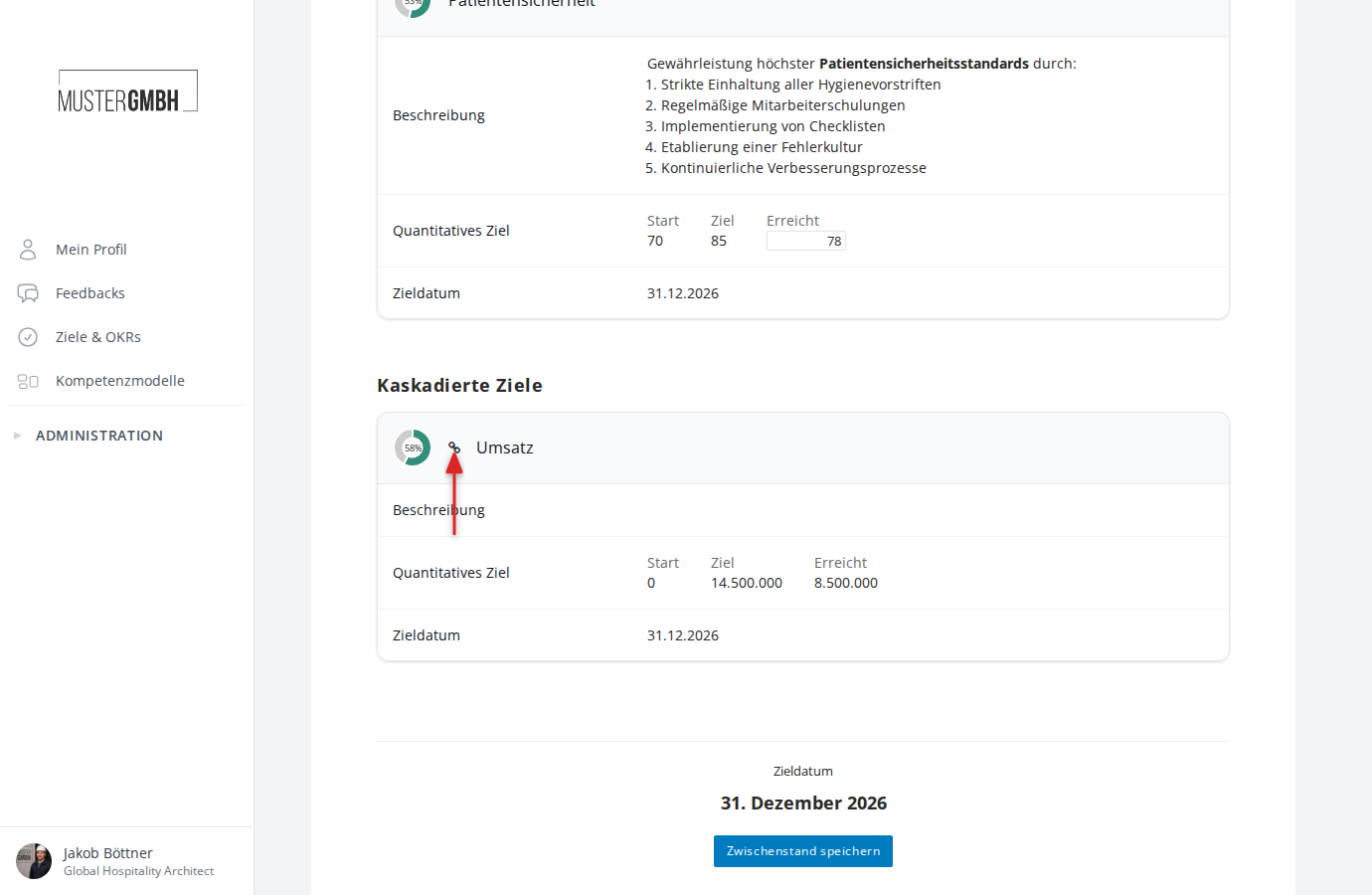
In the employee’s detail view, cascaded goals sit in the goal group the original goal belongs to; original goals without a group appear in the Individual block. The via … note next to the title names the target agreement the goal comes from. For long names only “Cascaded” is shown; the full name appears when you hover over it.
Force cascading
Instead of linking each employee goal individually, supervisors (or HR) can force cascading for all affected employees at once.
- Open the supervisor’s target agreement (detail view).
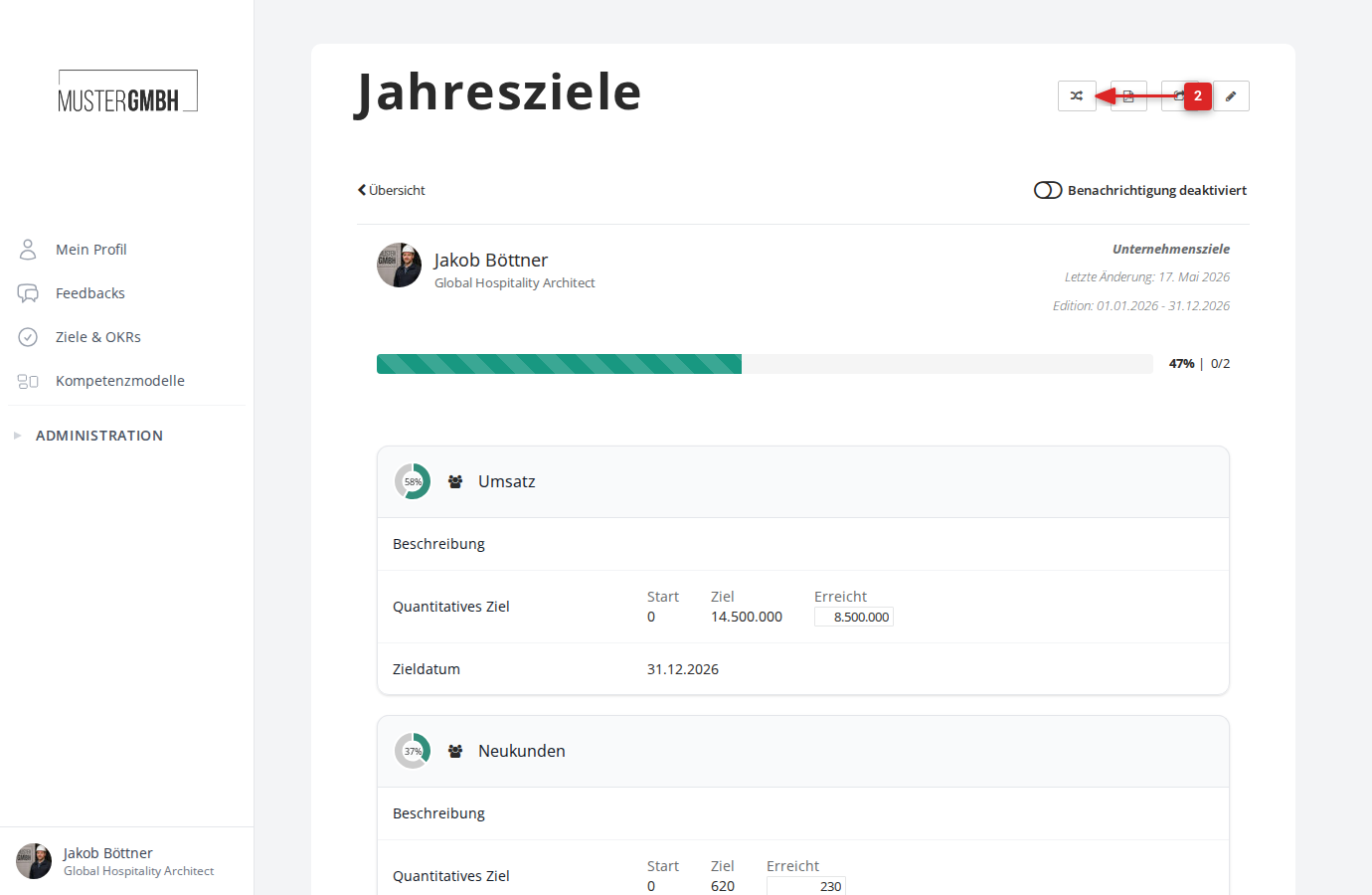
- In the top right, click the Force cascade objectives icon (arrow icon).
- Confirm in the dialog that appears.
Every intermediate goal released for cascading is automatically added to the target agreements of the affected employees. Target agreements that are already sealed or locked for changes are skipped and keep their signed state.
Important notes
- Cascaded goals can only be completed by the supervisor. Progress is measured on the original goal.
- The weighting of a cascaded goal can be adjusted individually on the employee’s side.
- A cascaded link can be removed again when editing the employee’s target agreement: open the edit form and remove the goal from the “Cascaded objectives” section.