Edit a target agreement
Open the detail view
First open the detail view of the target agreement you want to edit. You can reach the detail view, for example, from the target agreements overview or via the “Objectives” tab in the employee profile.
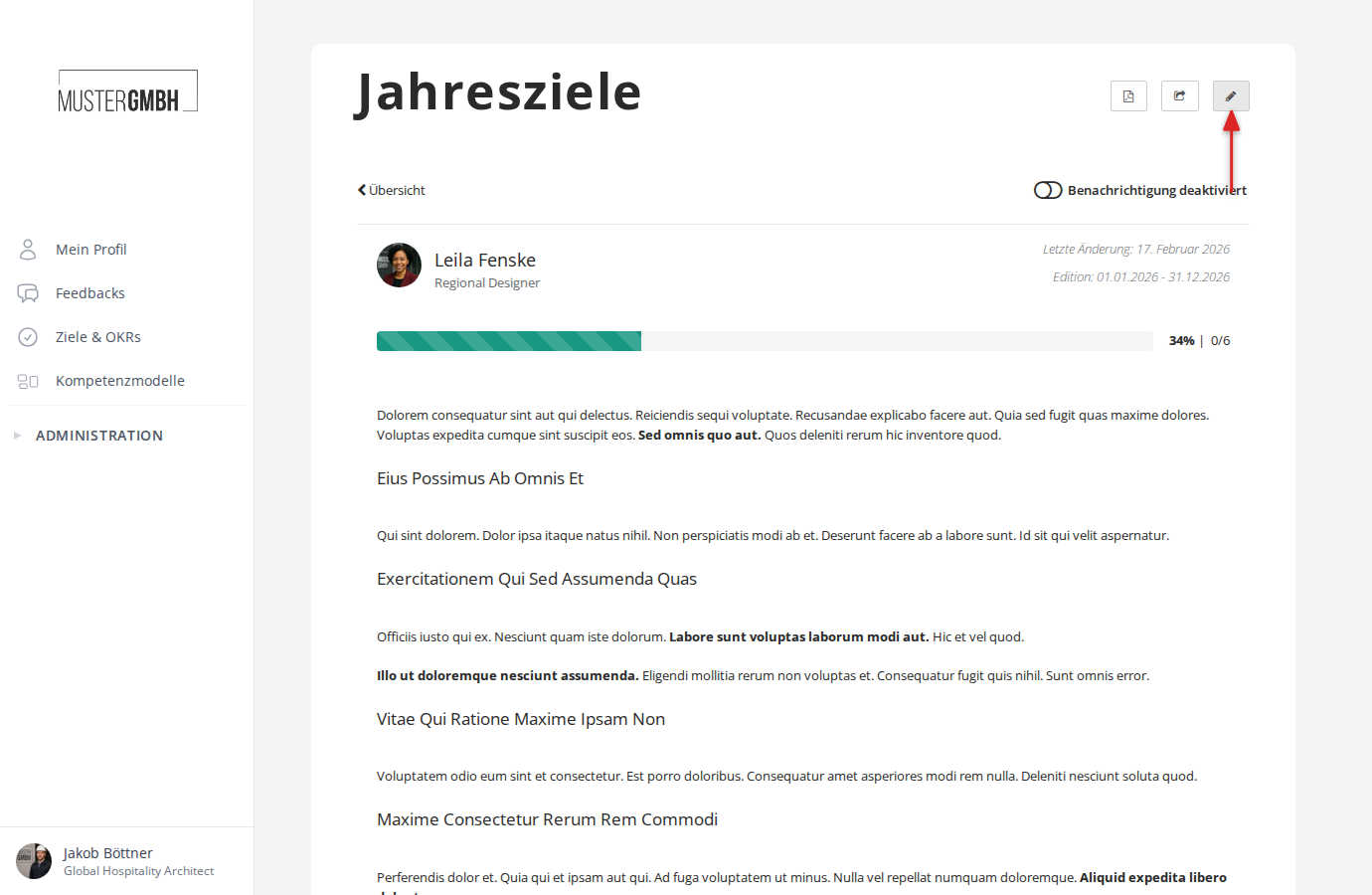
In the detail view you see three icons in the top right next to the title. Click the pencil icon to edit the target agreement.
Edit the form
Clicking the pencil icon opens the edit form. At the top you see a progress indicator with three steps. In edit mode you are on step 2 (“Setup objectives”).
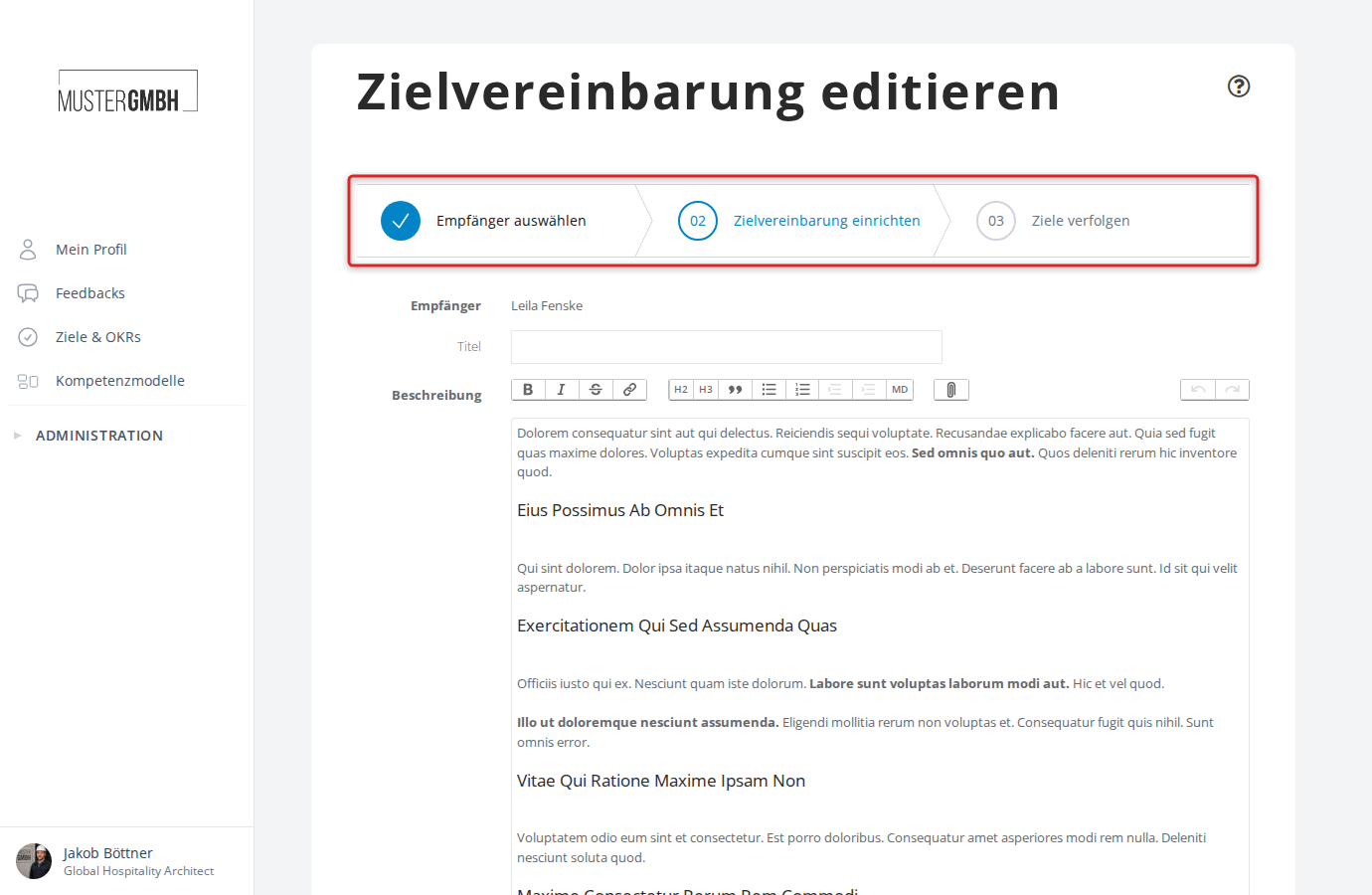
The form contains these areas:
Recipient
The recipient of the target agreement is shown at the top of the form. This field cannot be changed. If you want to assign the target agreement to a different person, create a new target agreement instead.
Title and description
- Title: the title of the target agreement. Only HR can edit this field.
- Description: a free-text field with formatting options (bold, italics, headings, lists, and so on).
Intermediate goals
If the process uses goal groups, the “Intermediate Goals” area is split into one section per group. The header of every section counts the goals and, for weighted groups, shows the share of the overall goal achievement. Use the arrow on the left to collapse or expand a section.
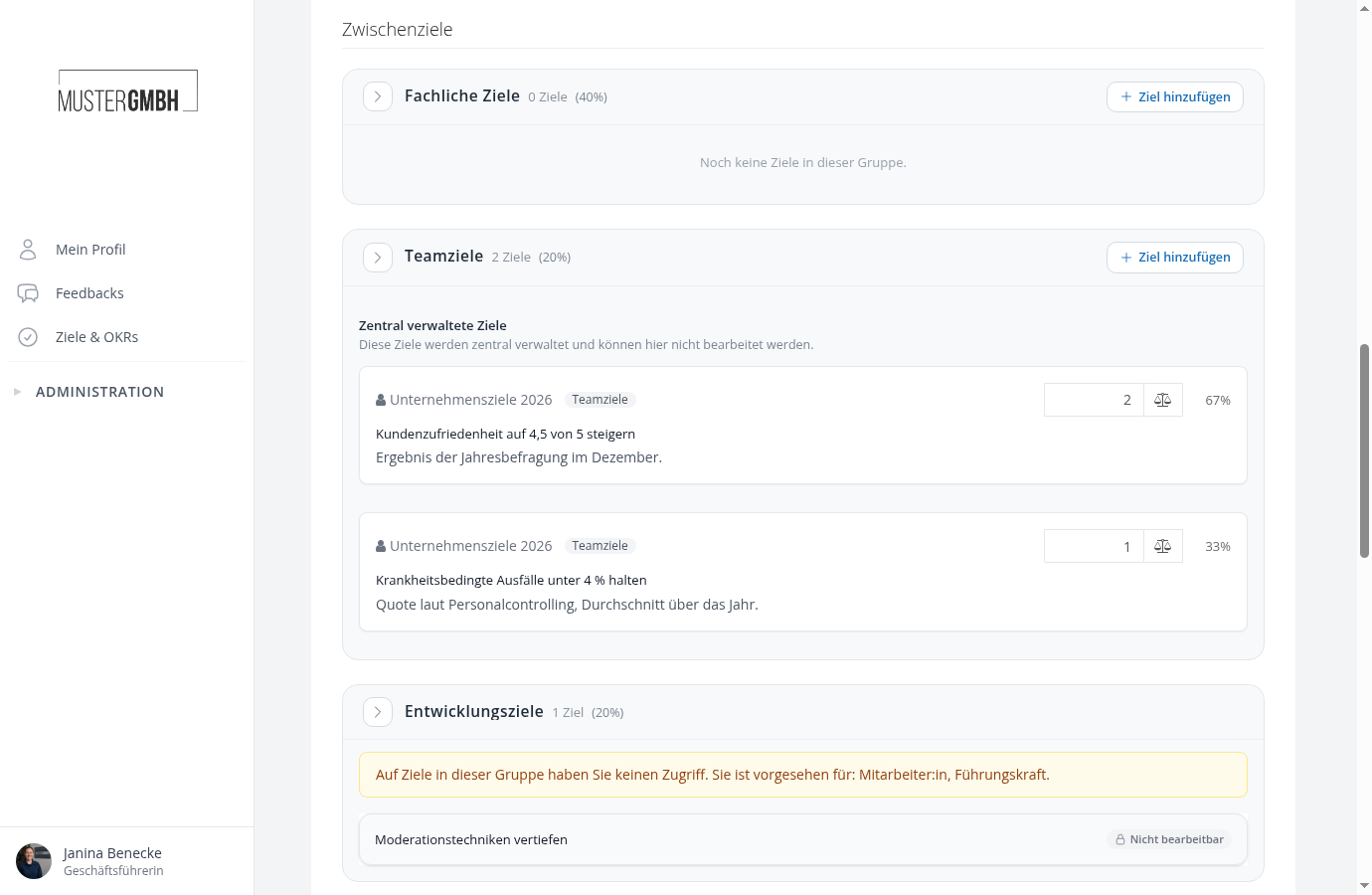
- Sections with the note “You have no access to goals in this group” are intended for other roles. You see the goals in them marked “Not editable”.
- Goals from the time before goal groups sit in the Without group section. Drag and drop them into a group.
- Every group has a minimum and maximum number of goals, plus total limits. If a group violates them when saving, the target agreement is not saved and the message names the group.
Each intermediate goal has these fields:
- Title: the name of the goal.
- Description: a detailed description with formatting options (rich text editor).
- Due date: the date by which the goal should be reached.
- Weighting: a numeric factor that sets the importance of the goal within its group. The percentage share within the group is calculated automatically and shown next to the field.
- Quantified Target: if enabled for the group, you can enter a start and target value (for example “0 to 80”).
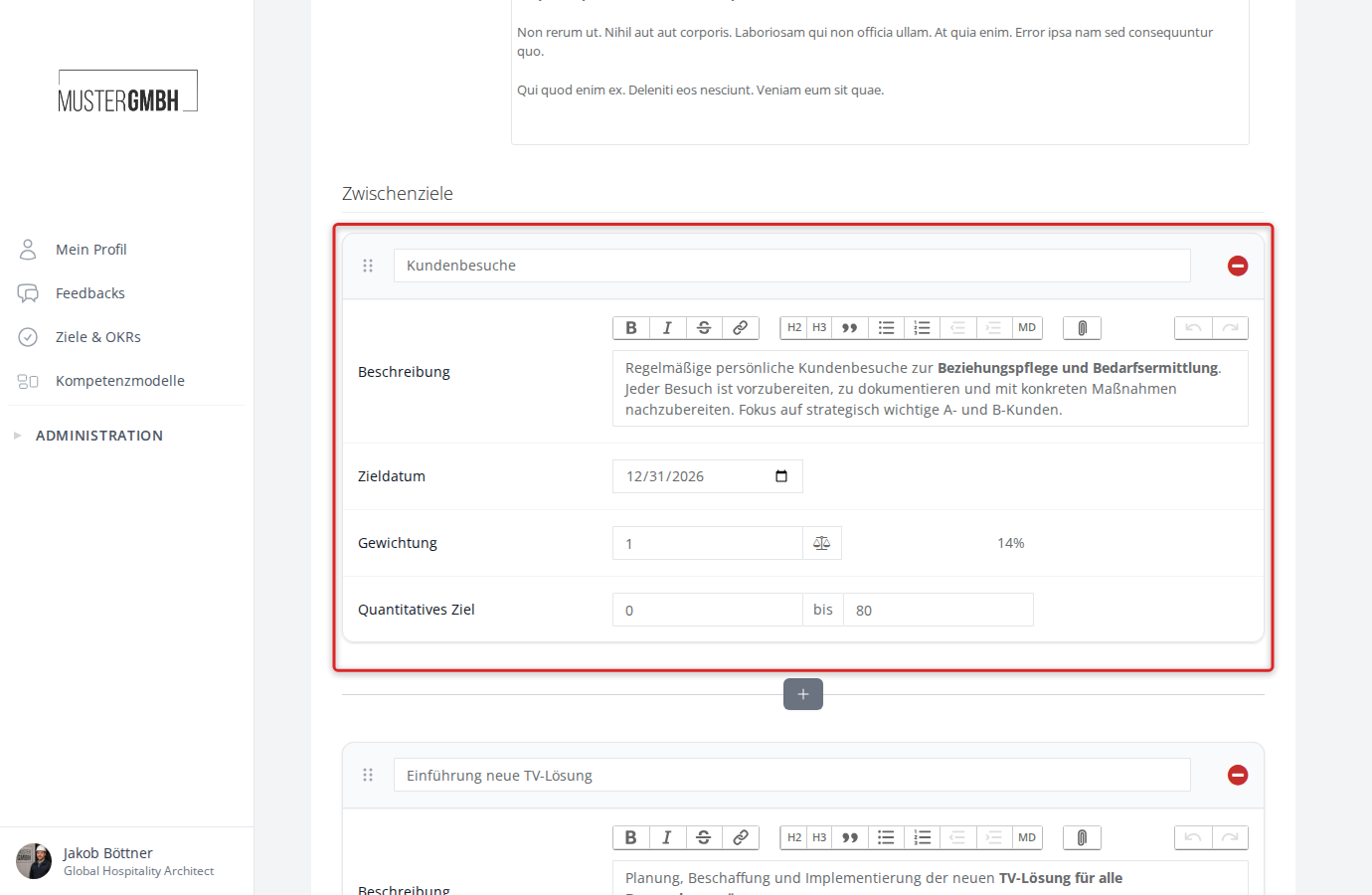
You can reorder intermediate goals by dragging the handle on the left, also into another section. Use the red minus button in the top right to remove a goal. Add new goals with Add goal in the section header or with the plus button between the existing goals.
Centrally managed goals
Goals from a centrally managed template sit in the Centrally managed goals block of their group. Title and description cannot be changed here; the weight and the fields only if the template allows it. See Centrally managed goals and templates for details.
Cascaded goals
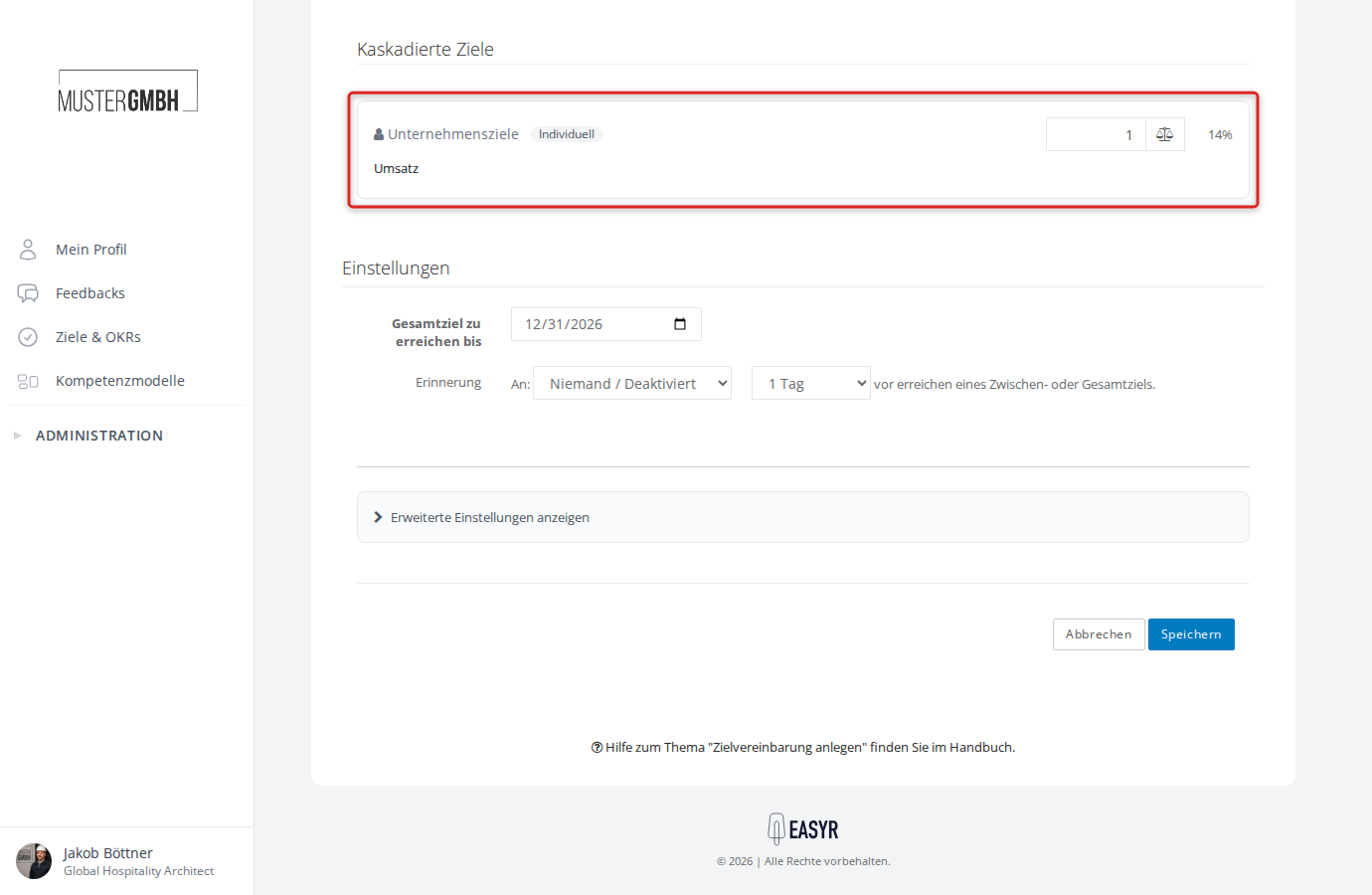
Cascaded goals linked to this target agreement sit in the Cascaded Goals area below the intermediate goals. These goals come from a higher-level target agreement and cannot be edited here. You recognize them by the source hint (for example “Company goals”) and the tag of the goal group the source goal belongs to; “Individual” stands for a source goal without a group. Enter the weight of the cascaded goal in your target agreement on the right.
Settings
At the bottom of the form you find the “Settings” area:
- Overall Goal to be Achieved By: the end date of the whole target agreement.
Advanced settings
Below the settings you find the “Show advanced settings” area. It is visible only to HR staff and turns the target agreement into a template, see Centrally managed goals and templates.
Save your changes
Click “Save” at the bottom of the form to save your changes. “Cancel” discards them and returns you to the detail view.
After saving, you are taken back to the detail view. A confirmation in the top right shows that the save was successful.