Goal settings per group
How many goals a target agreement must and may contain, whether goals are measured with start and target values, and how the achievement level is recorded is defined per edition and per goal group. This way a “Team goals” group can require exactly one mandatory goal while “Professional goals” allows up to five quantified goals.
There is nothing to set up for goals to work: a new group starts without a minimum or maximum, with quantified goals, and with free input of the achievement level. A new edition takes over all rules of the previous edition.
Open the settings
- Open the target agreement process and click Settings at the top right.
- In the Editions section, click Settings for edition next to the edition you want.
- Scroll to the Goal group settings section. Every active group has its own block there with the sections Key results and Quantified goals.
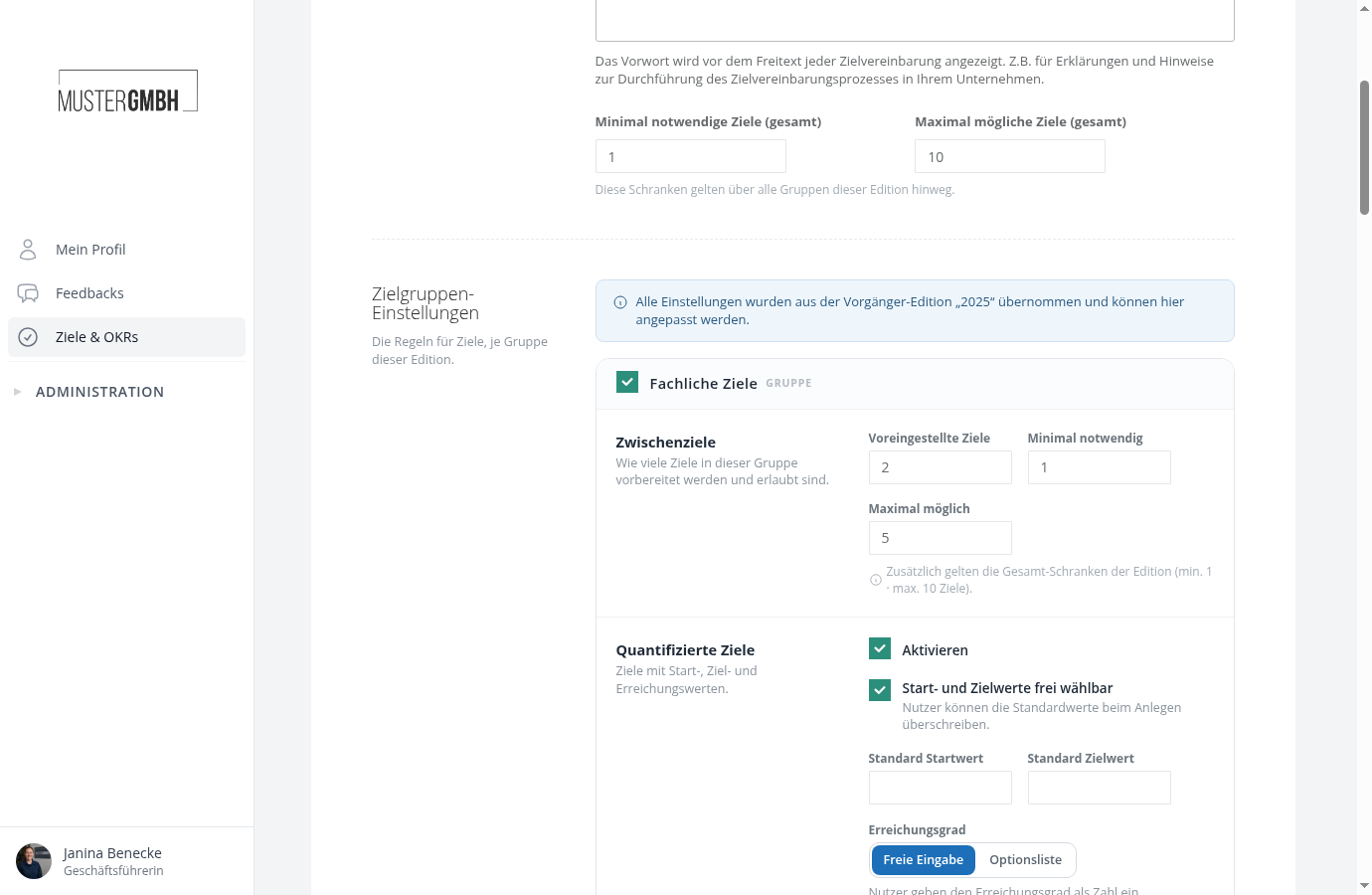
The blue note above the blocks shows that the rules were taken over from the previous edition. Changes only affect this edition.
How many goals in total?
Right above the group blocks are two limits that apply across all groups: Minimum required goals (total) and Maximum possible goals (total). A target agreement can only be saved if the total number of its goals lies within this range, no matter how the goals are distributed across the groups.
How many goals per group?
In the Key results section of a block you set:
- Preset goals: this many empty goal cards are prepared in this group when someone creates a new target agreement and may select the group.
- Minimum required: the group must contain at least this many goals for the target agreement to be saved.
- Maximum possible: the group does not accept more goals than this. Empty means unlimited.
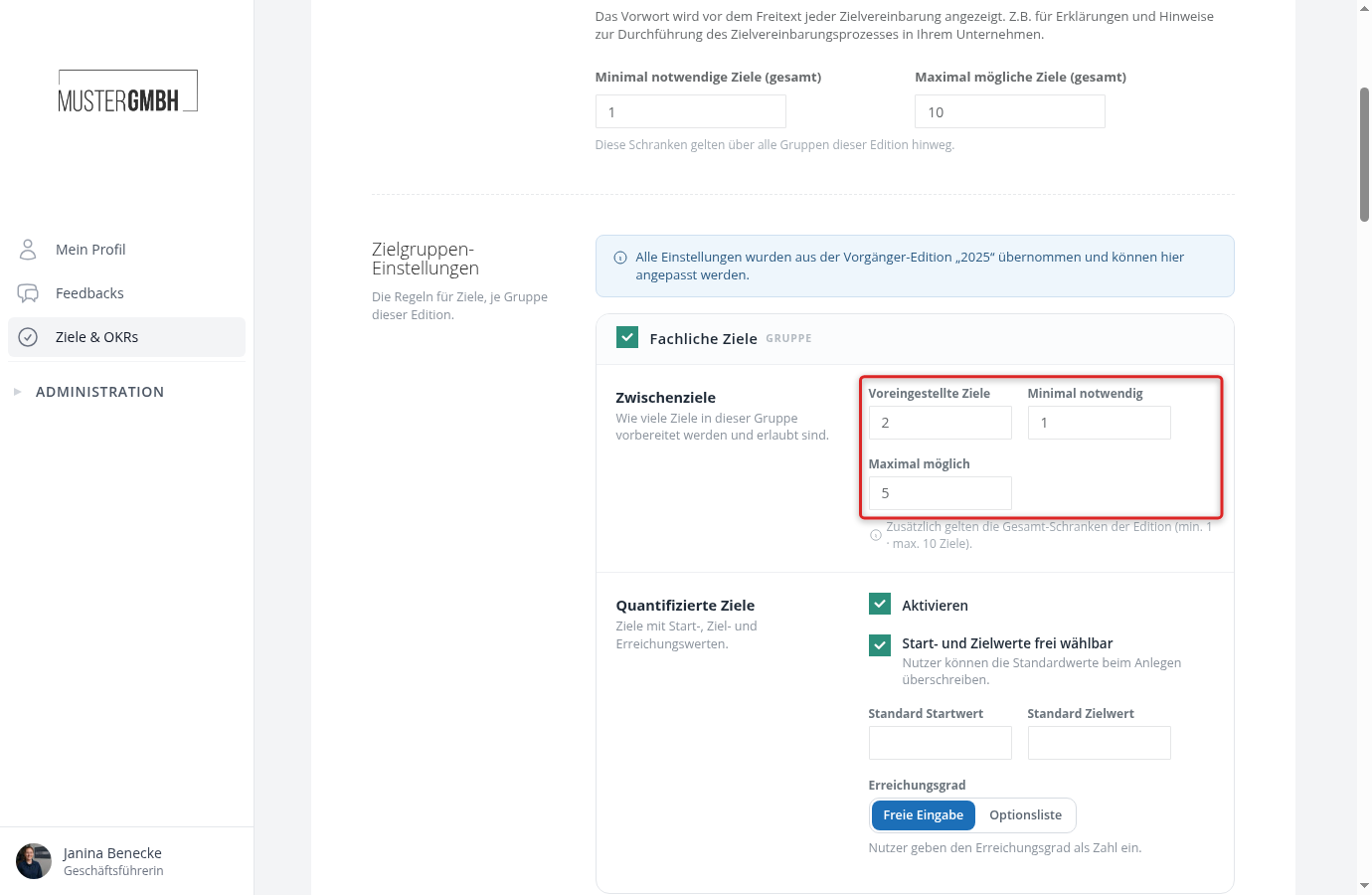
The header of every section in the target agreement counts the goals. If a group violates its limits when saving, the target agreement is not saved and the message names the affected group. Goals that come from a centrally managed template count as well.
Quantified goals per group
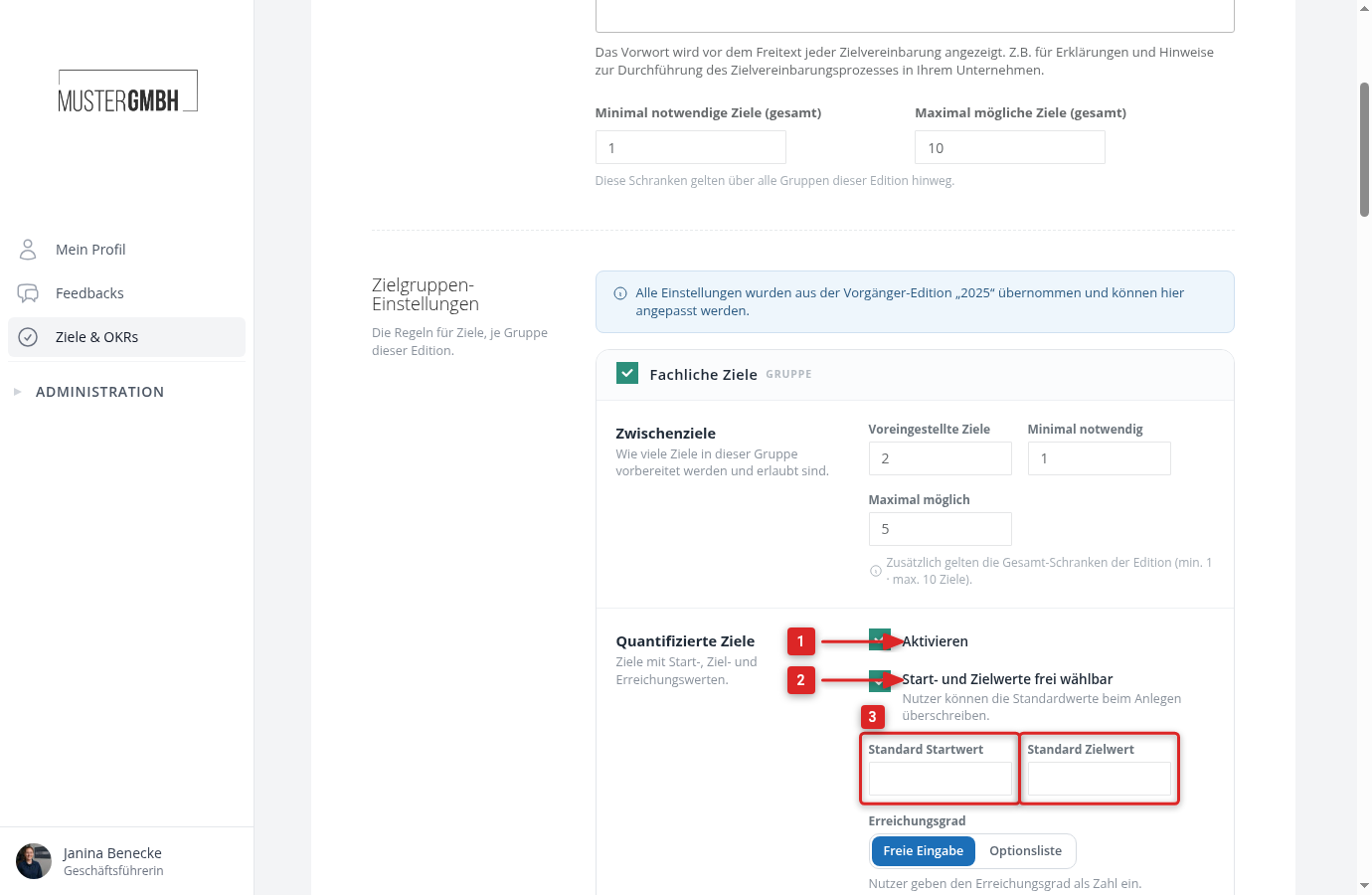
In the Quantified goals section you define whether the goals of a group are measured with numbers:
- Enable switches on start, target, and achievement values for the goals of this group. Without the check mark, the goals of the group are only completed as achieved or not achieved.
- Start and target values freely selectable allows entering custom values when creating a goal. Without the check mark, the default values apply to all goals of the group.
- Default start value and Default target value are the presets for new goals.
How quantified goals look in the target agreement and how progress is calculated is described in Quantified intermediate goals.
Achievement level as an option list
Instead of a number, employees and managers can pick the status of a goal from a list, for example “Not achieved”, “Partially achieved”, and “Fully achieved”. This suits groups whose progress is hard to measure, such as development goals.
- Under Achievement level, select Option list. When switched on for the first time, three options are prepared.
- Adjust the label and the value of each option. The value counts like an entered actual value: with a target value of 100, the values 0, 50, and 100 give the achievement levels 0 %, 50 %, and 100 %. Values above the target value are allowed.
- Use Add option to add further levels and the cross to remove one. Change the order by dragging the handle on the left.
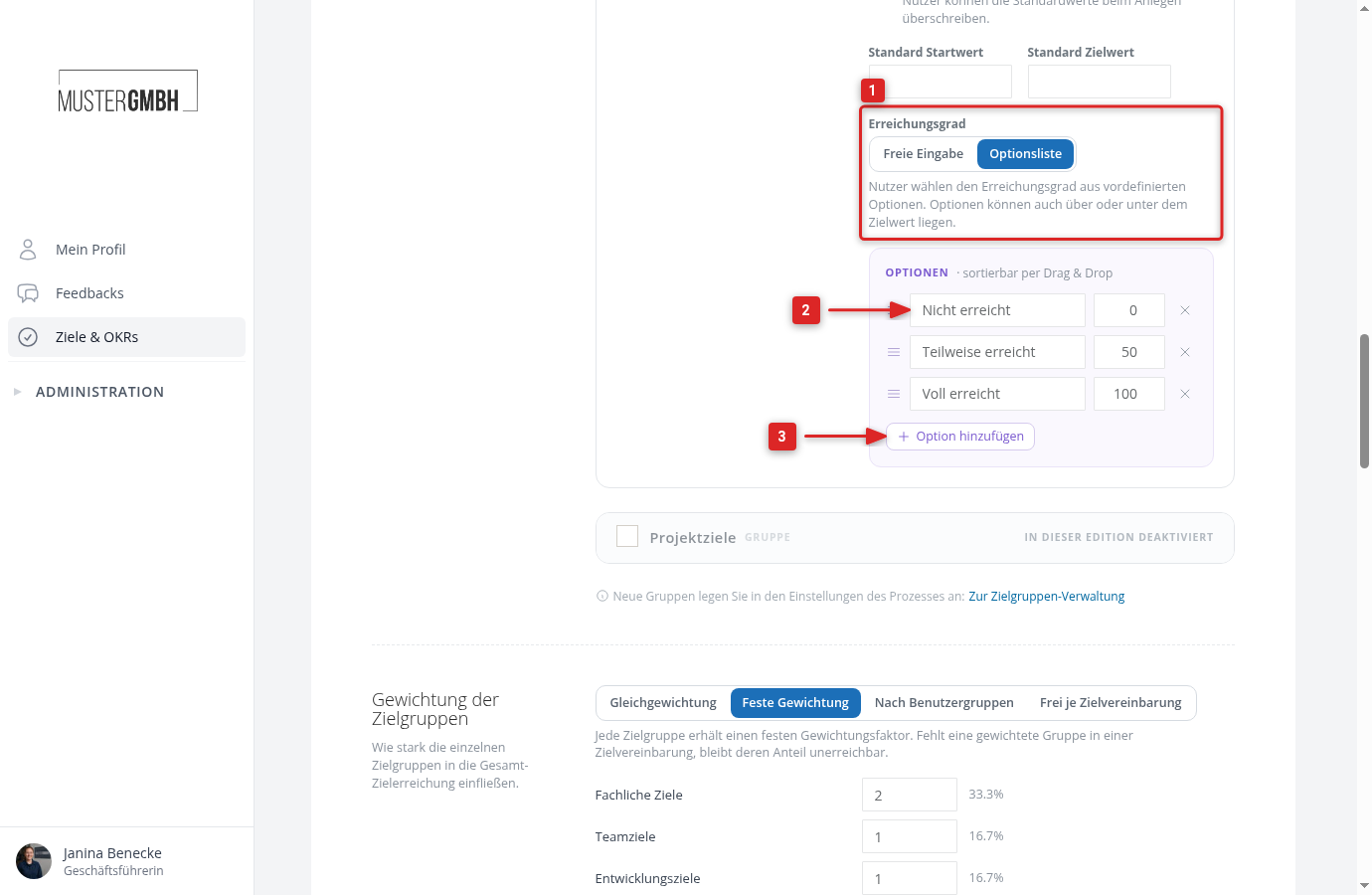
In the target agreement, every goal of this group shows a selection under Achieved instead of a number field. The selected entry is saved with Save results and counts towards goal achievement like a numeric value.
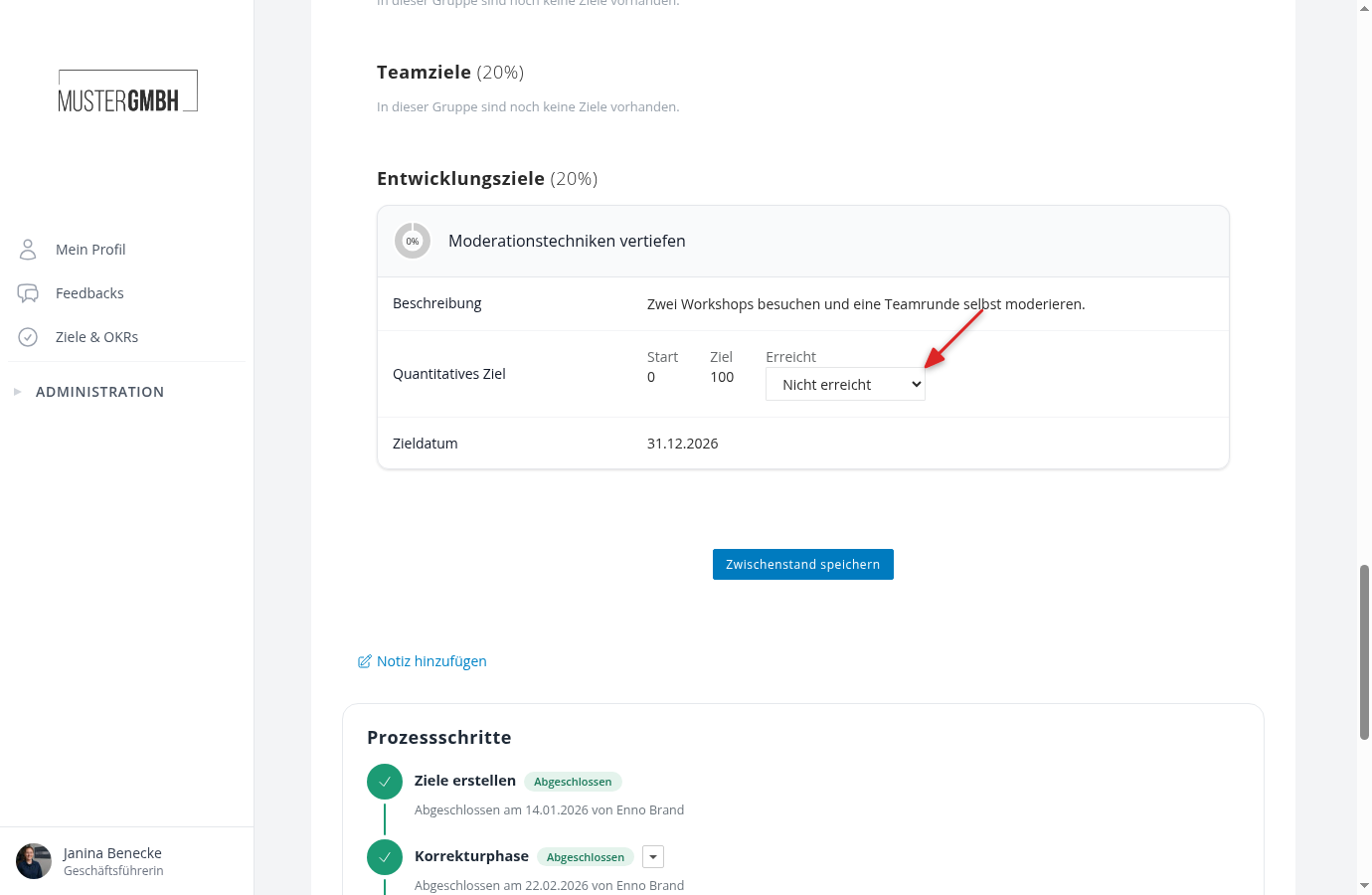
If you switch back to Free input, the number field applies again. Values saved so far are kept.
Deactivate a group in this edition
The check mark in the header of a block switches the group off for this edition. Existing goals are kept, new ones can no longer be created in the group. Details in Set up goal groups.
Processes without goal groups
If the process has no active group, the page shows a single block without a group title. Its rules apply to all goals of the edition. As soon as you activate a group, the rules of the groups apply.