Matrix
The matrix question lets you ask about several aspects of an overarching topic using one closed set of answer options. Participants rate several sub-topics on a single, uniform scale.
Example
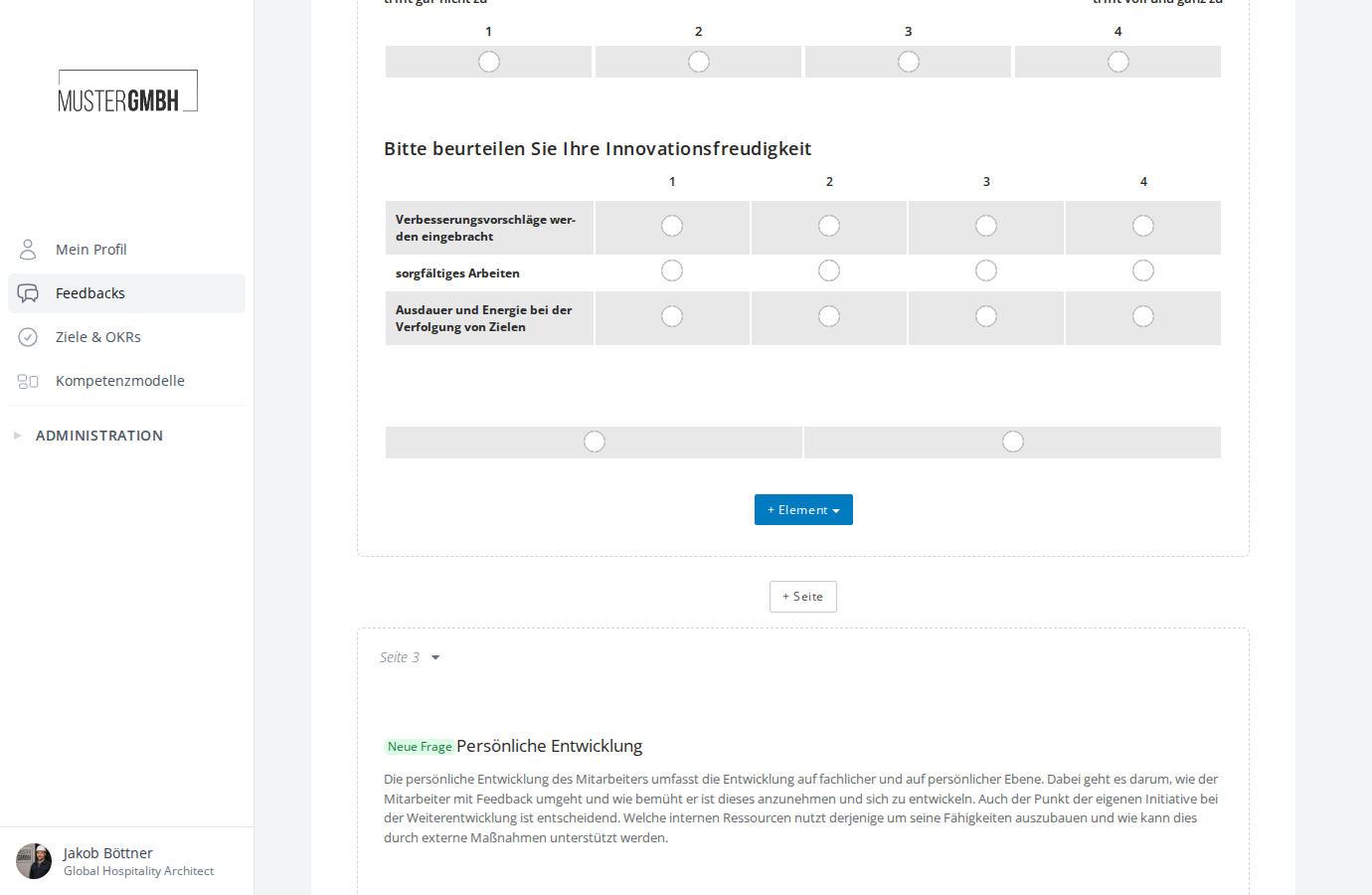
A typical example of a matrix question is asking about the overarching topic “openness to innovation”. The employee is asked to rate three specific sub-topics, all judged on the same scheme:
Add a matrix question
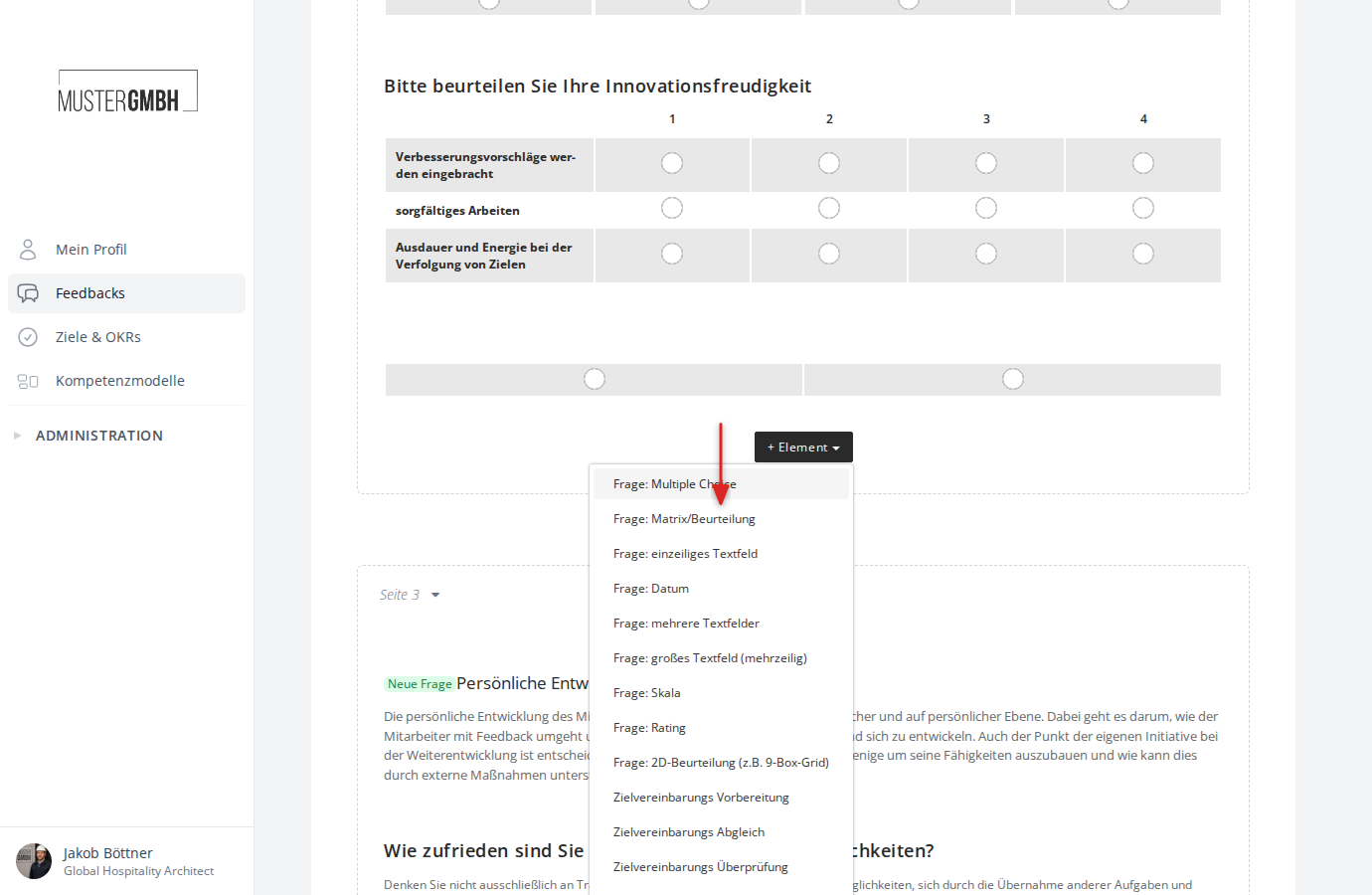
- To add a matrix question, click ”+ Element” in the questionnaire editor and choose the “Question: Matrix” type.
Configure a matrix question
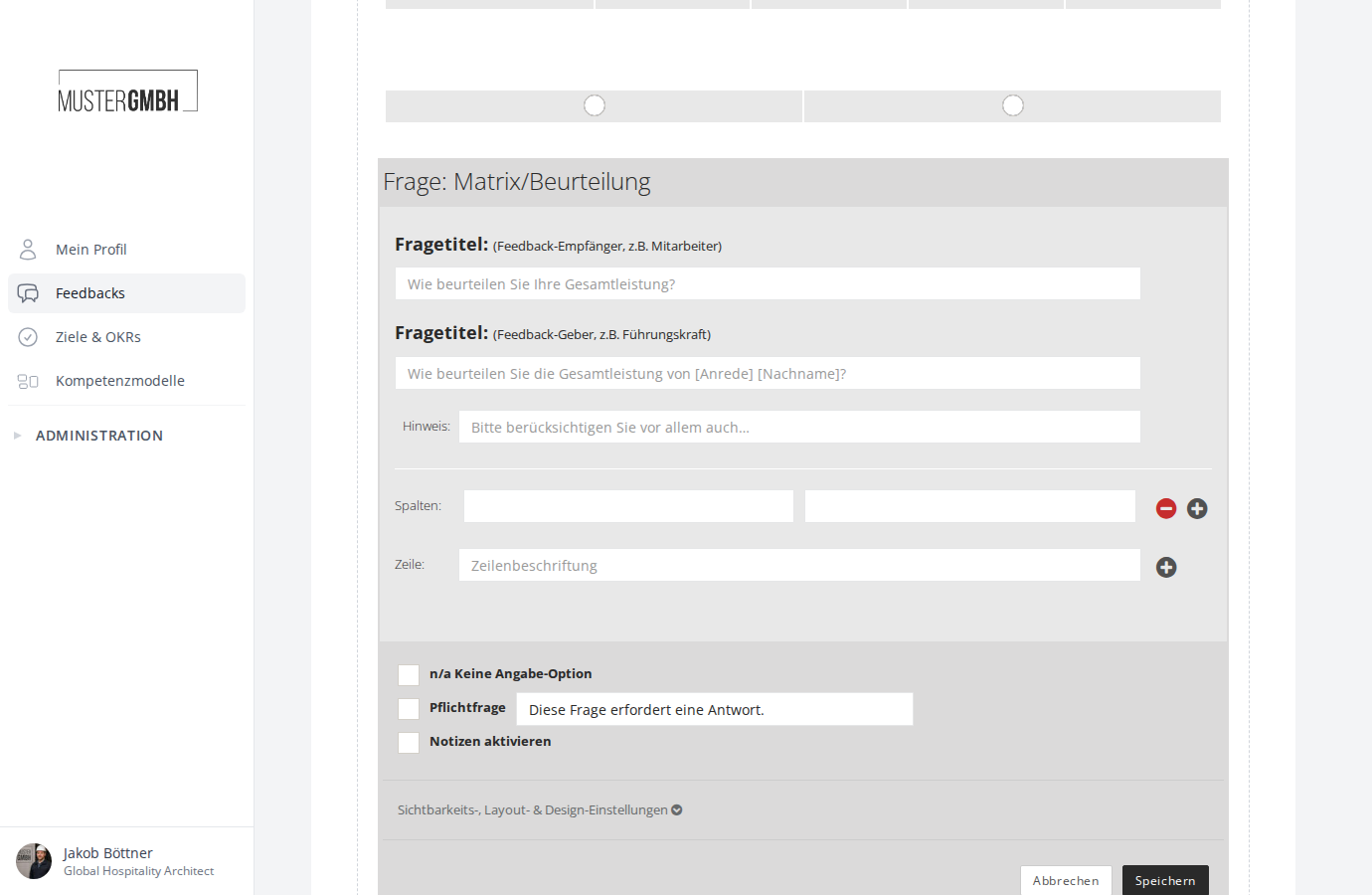
After adding it, the matrix question’s configuration form opens. It consists of these sections:
Question title
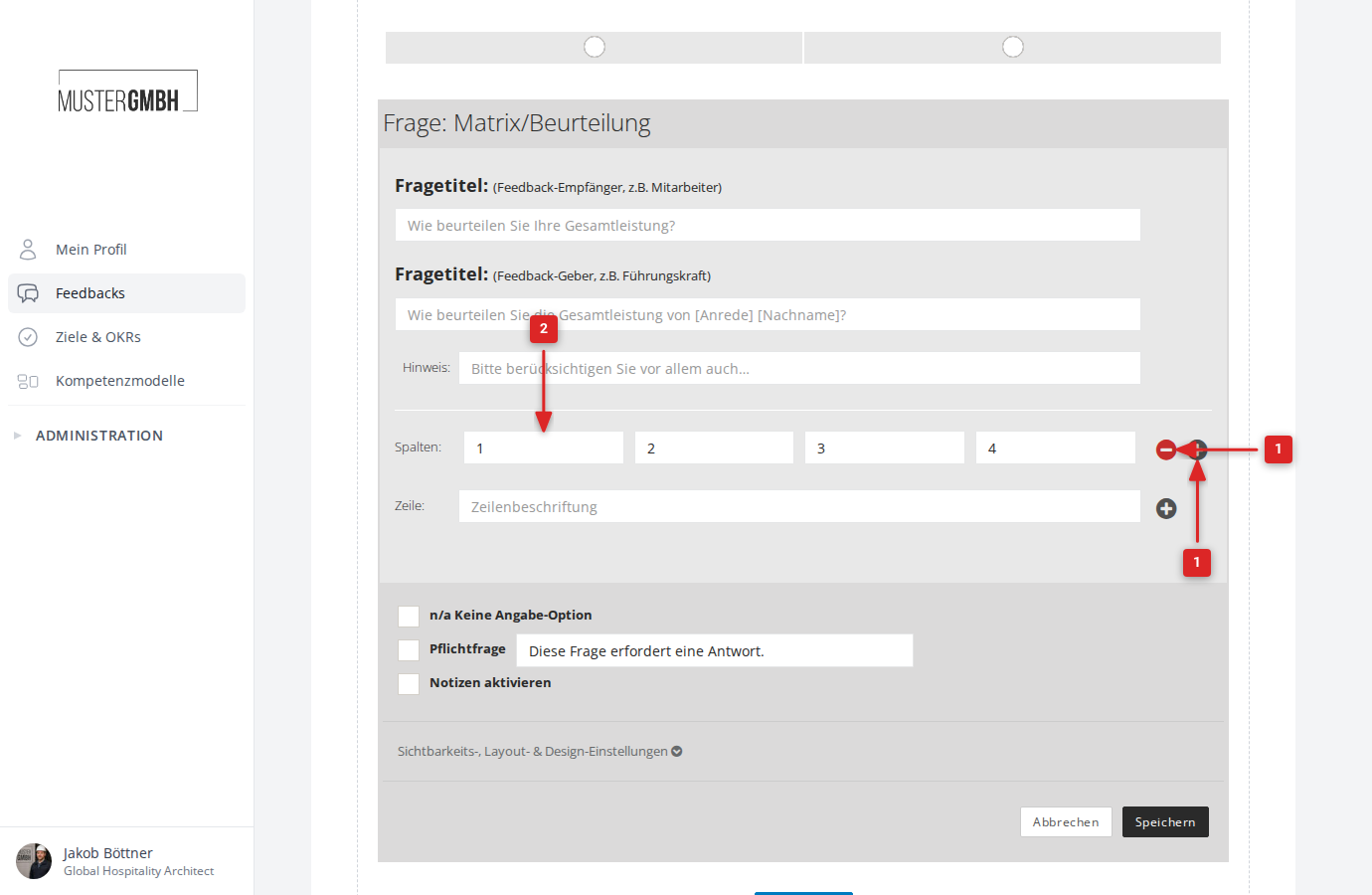
The form contains two question-title fields:
- Question title (feedback recipient, e.g. employee): This title is shown to the person being assessed (for example in a self-review).
- Question title (feedback giver, e.g. supervisor): This title is shown to the person doing the assessing.
You can also enter an optional hint below the question titles, shown to participants as supplementary information.
Configure the columns
The matrix columns define the rating scale (for example “1” to “6” or descriptive text such as “does not apply” to “fully applies”).
- Decide how many rating columns you need. Use the plus and minus icons at the right of the row labeled “Columns”. Up to 16 columns are possible.
- Enter the label you want for each column in its text field in the “Columns” row.
Configure the rows (answer options)
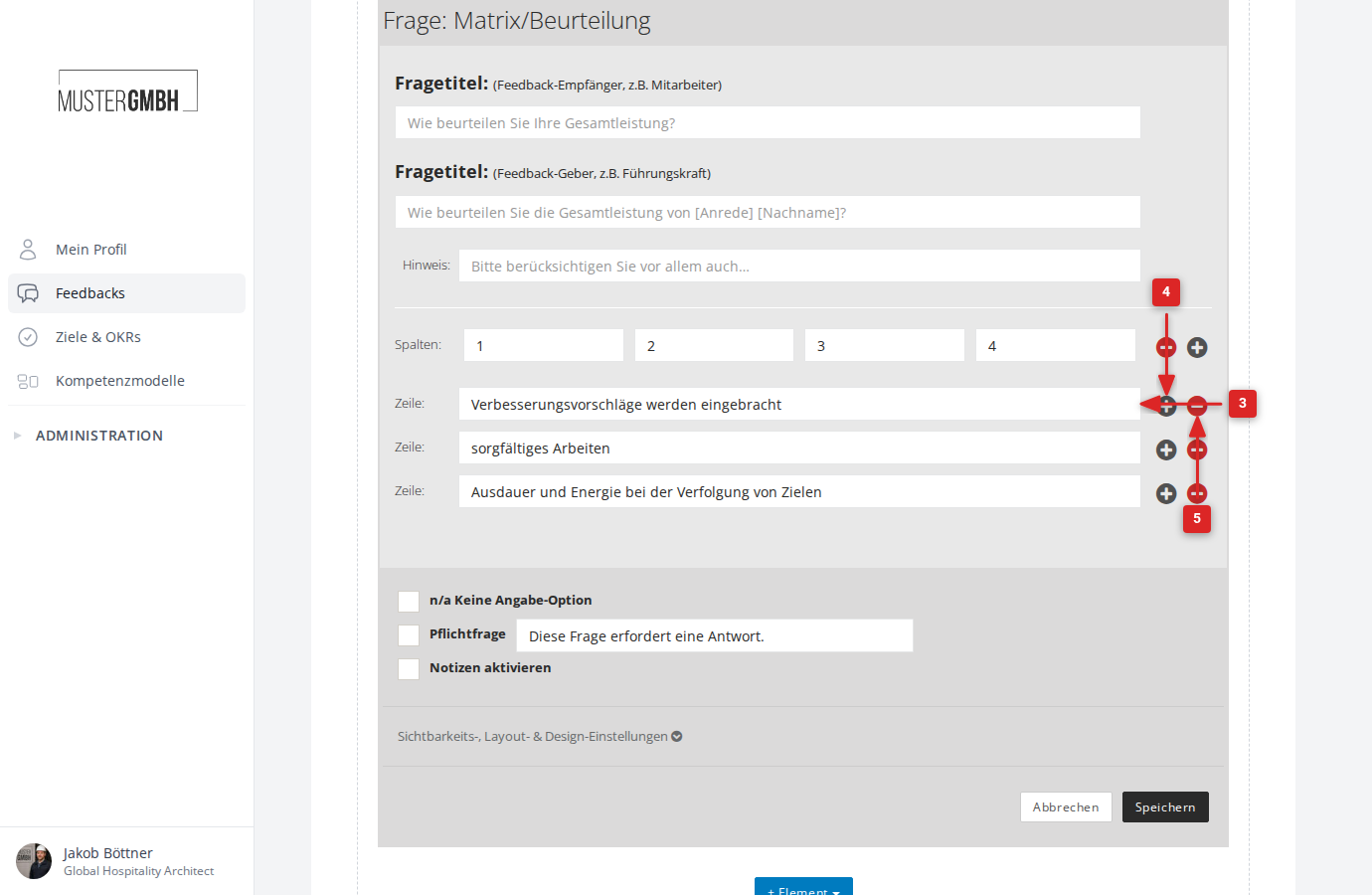
The matrix rows represent the individual aspects to be rated (for example different competencies or behaviors).
- Enter the titles of the answer options in the respective “Row” text field.
- Click the plus icon at the right of a row to add a new answer option directly below it.
- To remove an answer option, click the minus icon at the right of the respective row. The minus icon appears only once more than one answer option exists.
General settings
In the lower part of the form you find the general settings:
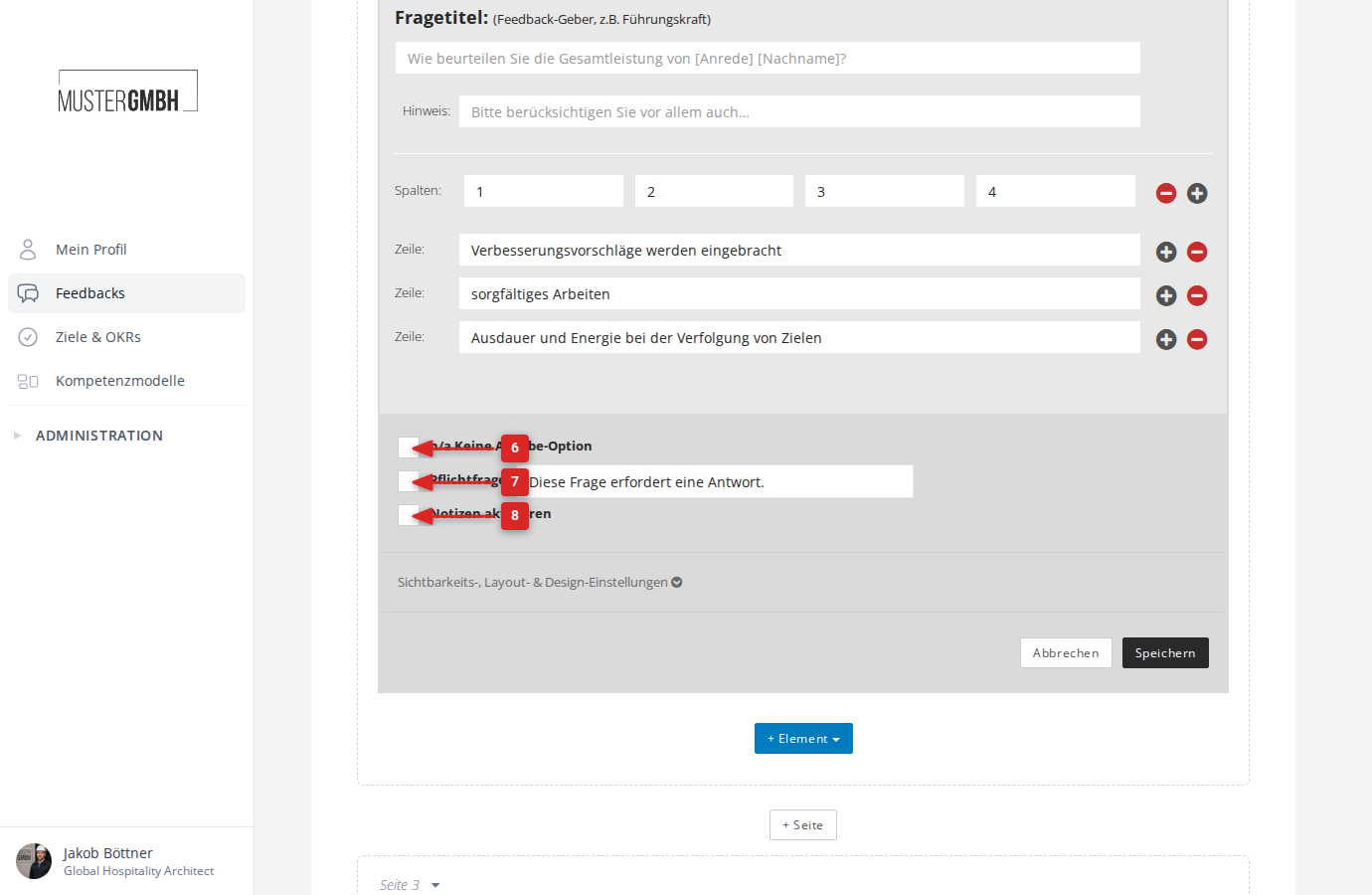
- Add “n/a” column: Enable this checkbox to show an additional “No statement” column.
- Required question: Enable this checkbox to mark the question as required. Participants must then select an answer for every row before they can submit the questionnaire. The hint text (by default “This question requires an answer.”) can be adjusted.
- Enable notes: Enable this checkbox to offer participants an additional free-text field below the matrix.
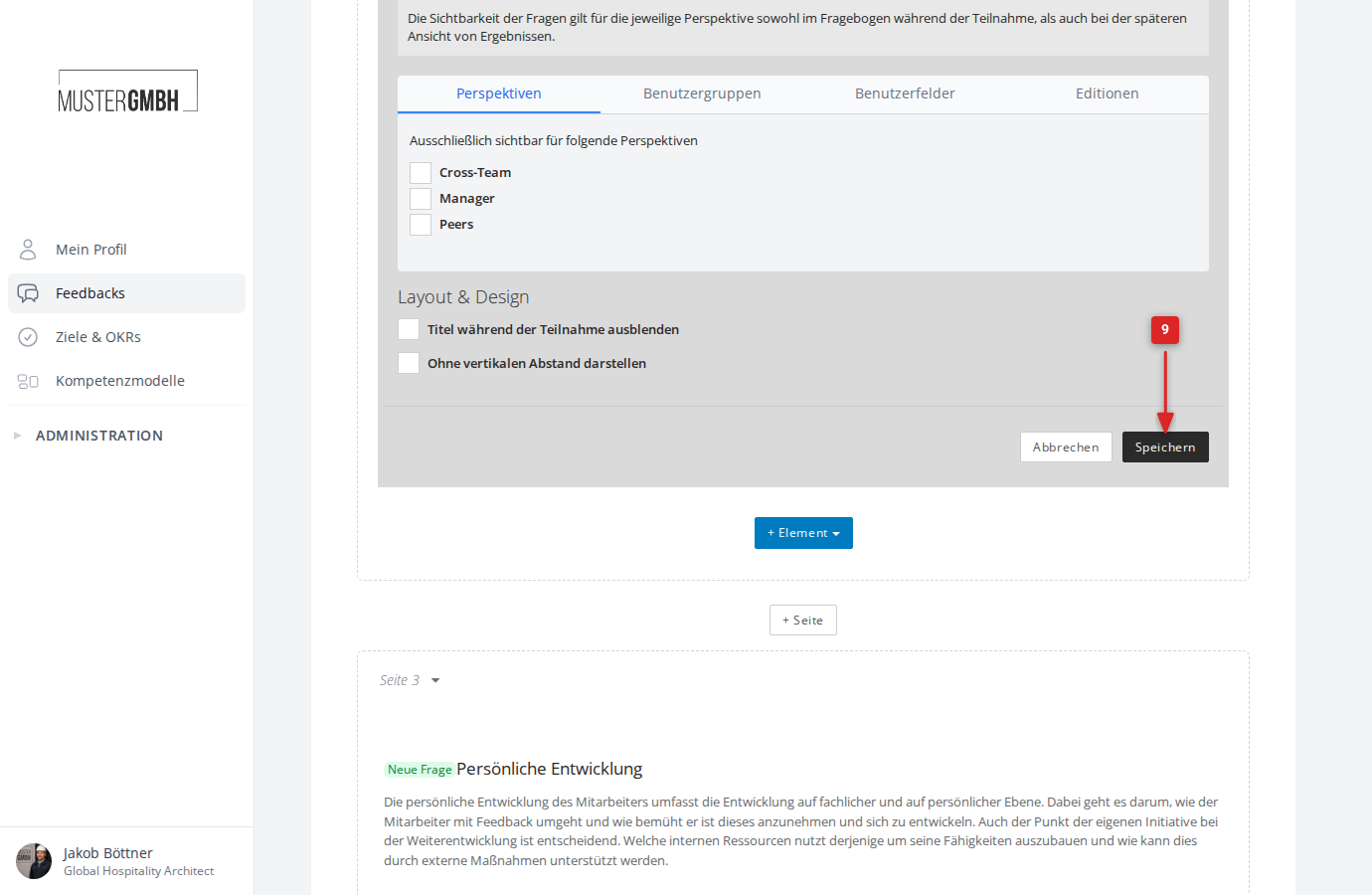
Visibility, layout & design settings
Below the general settings you find the expandable “Visibility, layout & design settings” section. Click it to open the advanced settings.
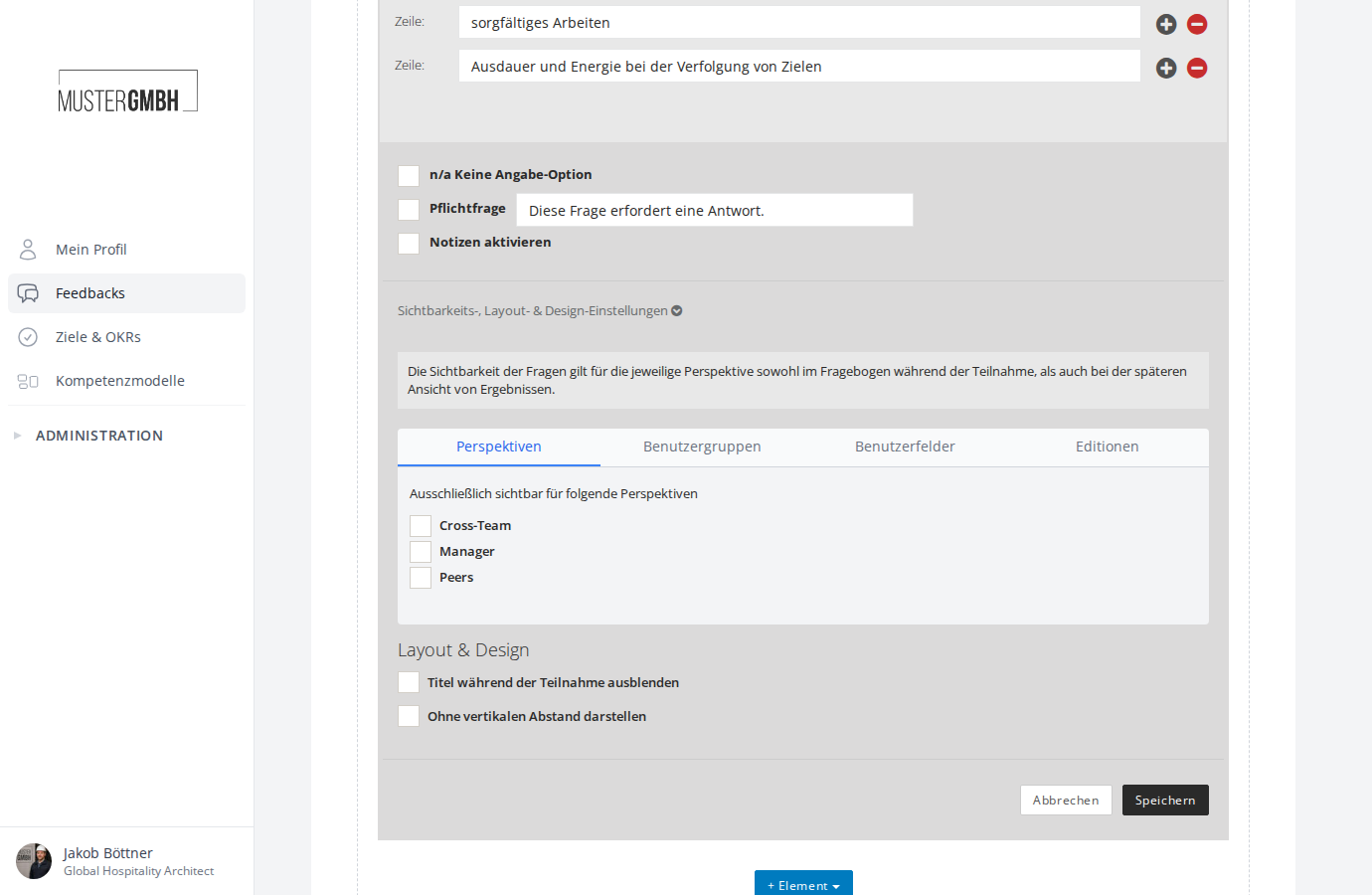
These settings are organized into tabs and let you control how the question is displayed:
- Perspectives: Decide whether the question should be shown only to certain perspectives (for example only to the feedback giver).
- User groups: Restrict visibility to specific user groups.
- User fields: Restrict visibility based on user master-data values (for example only for certain departments).
- Editions: Decide which editions the question is visible in.
Below the tabs you find the layout & design options:
- Hide title during participation: Hides the question title in the questionnaire.
- Display without vertical spacing: Shows the question without extra space to the previous element.
Save
- Click “Save” to save the matrix question.