Question about the employee's overall satisfaction
The question about the employee’s overall satisfaction is one of the four performance questions in easyreview. It is shown only to the feedback recipient in the self-assessment. The feedback giver (for example the supervisor) does not see this question.
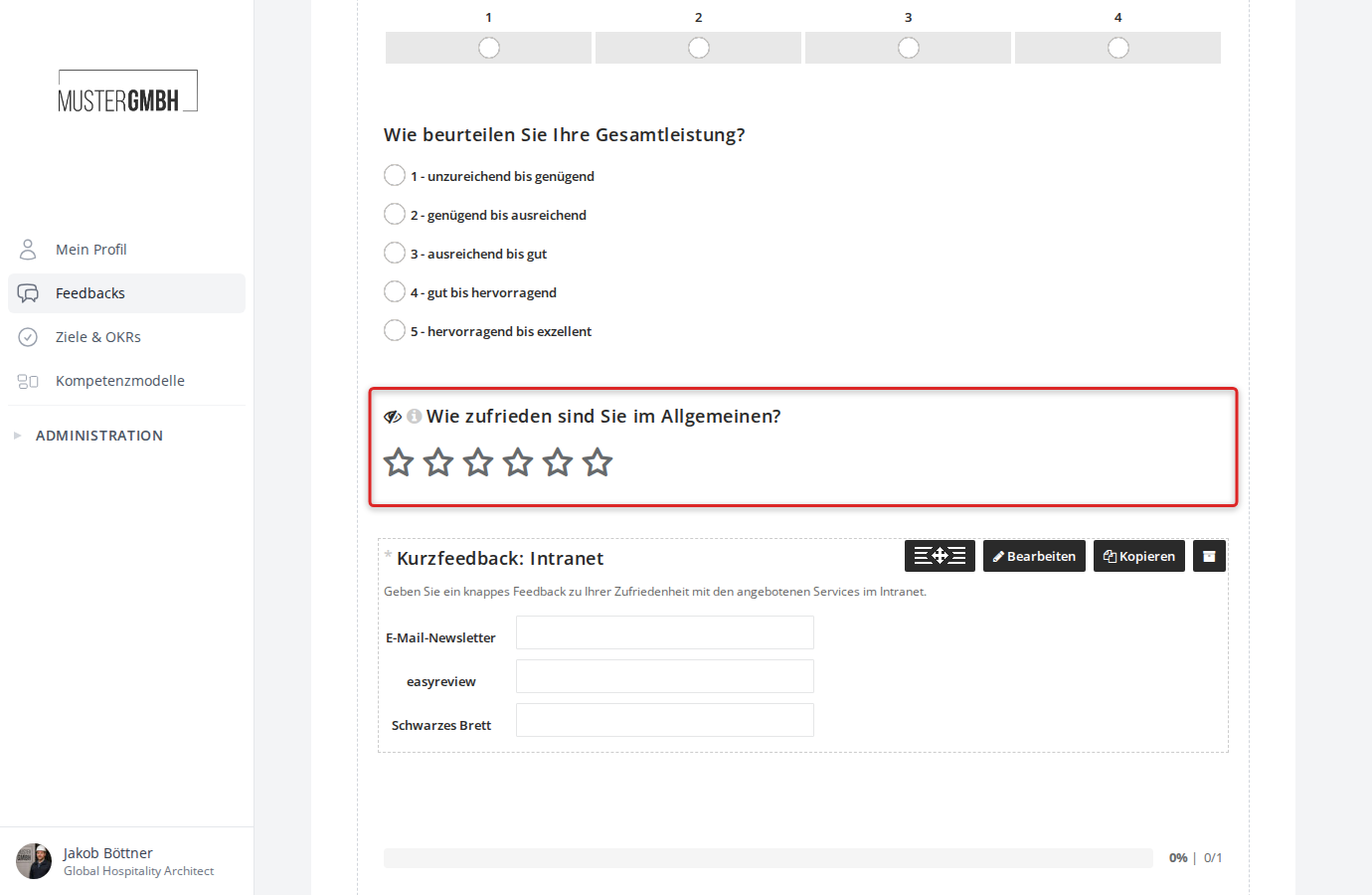
In the questionnaire, the question is shown as a star rating (rating question):
Turn on and configure the question
This function is only available to users with the HR employee access level.
-
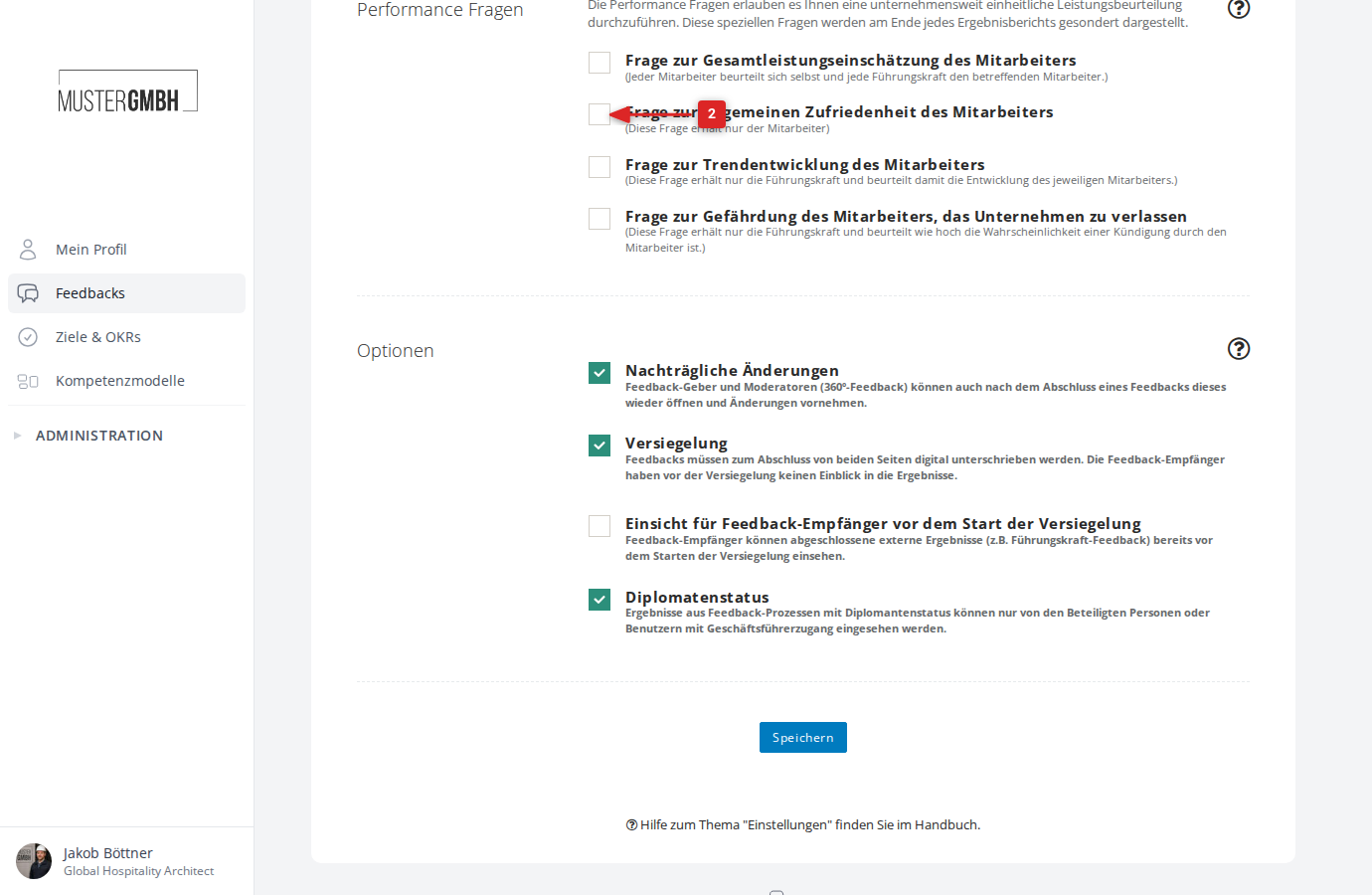
Scroll to the Performance Questions section below the potential analysis. There you’ll find the four available performance questions as checkboxes.
-
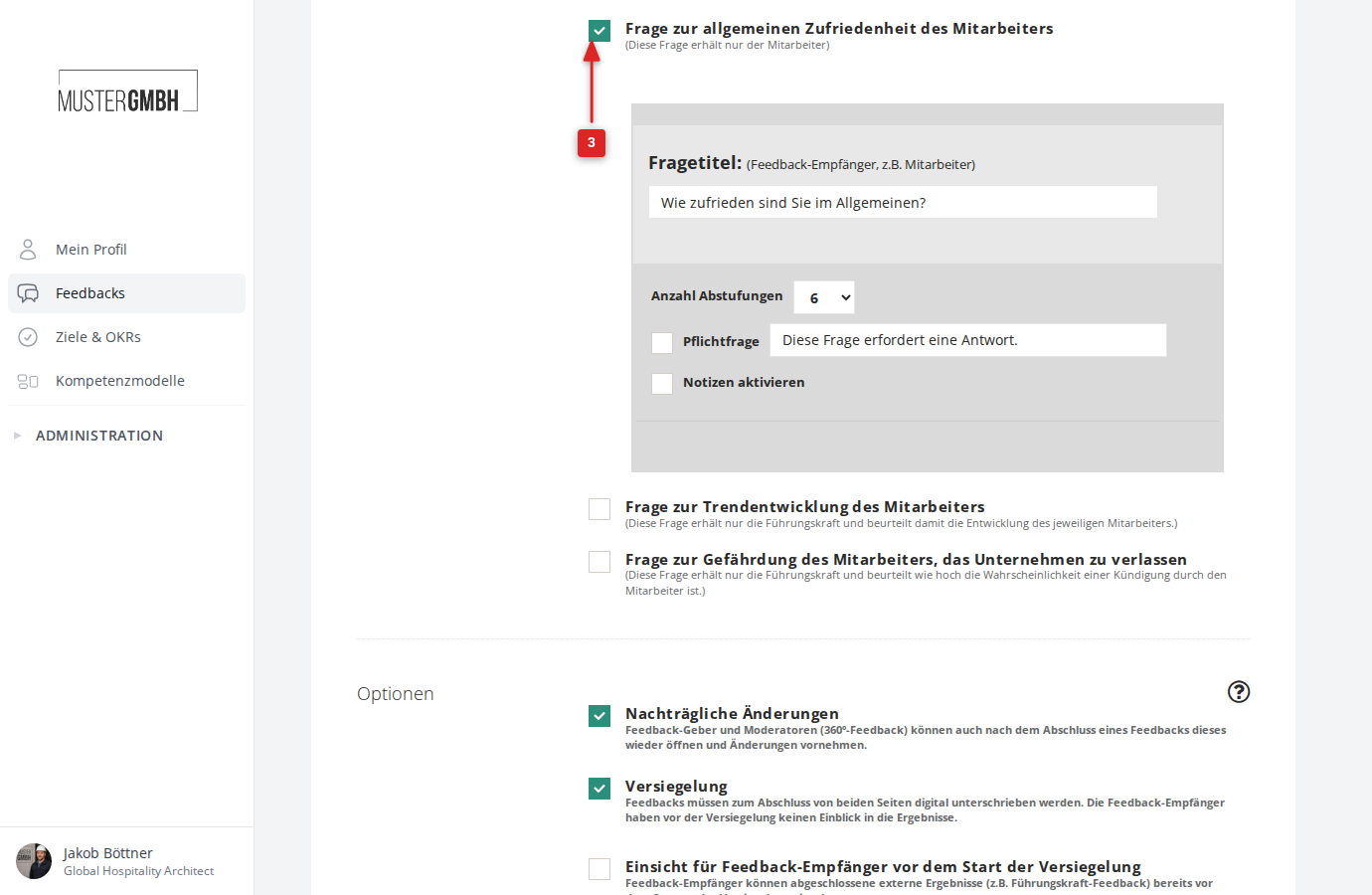
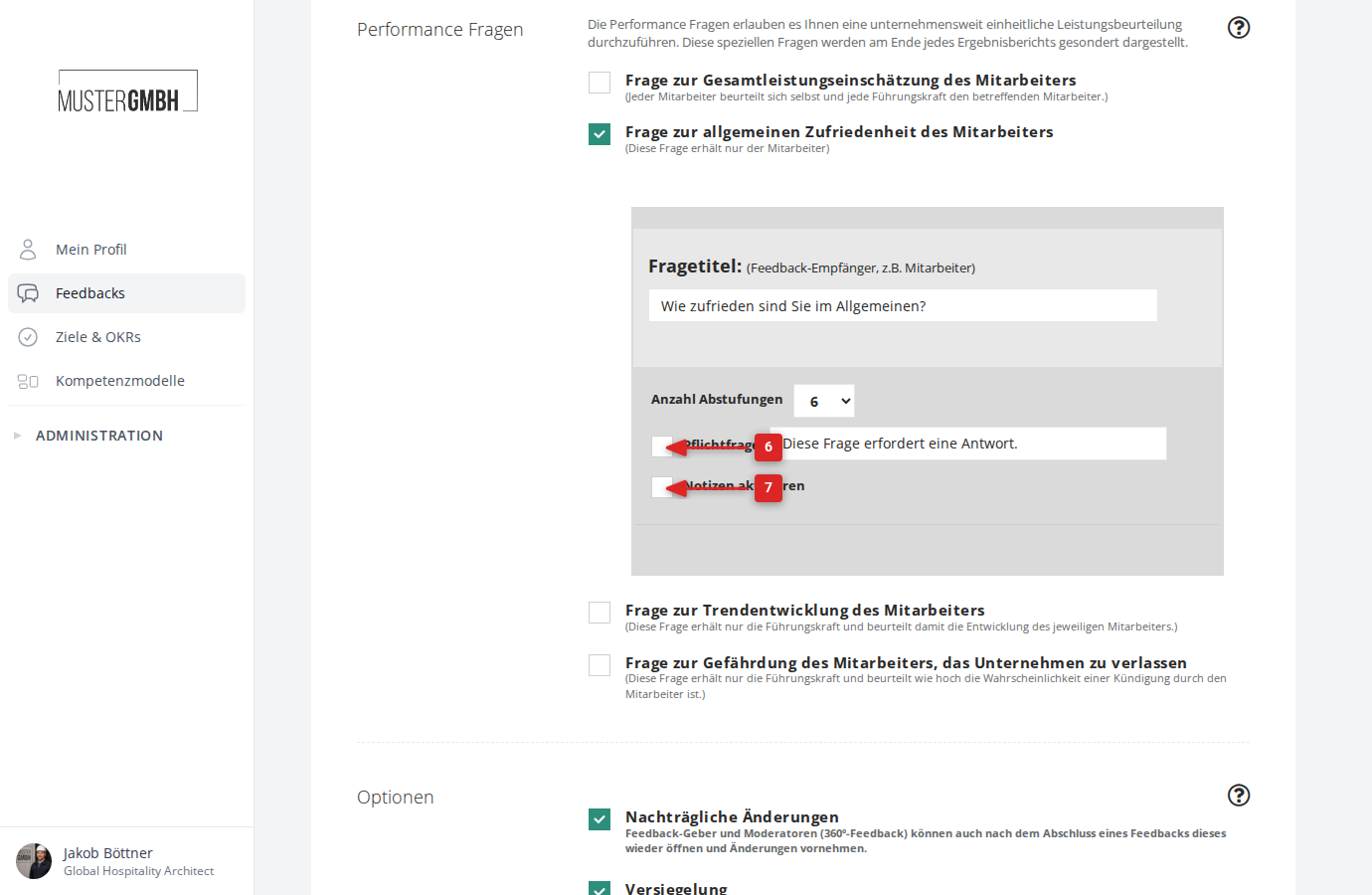
Turn the question on by clicking the checkbox next to Question about the overall satisfaction of the employee. The configuration form opens below the checkbox.
-
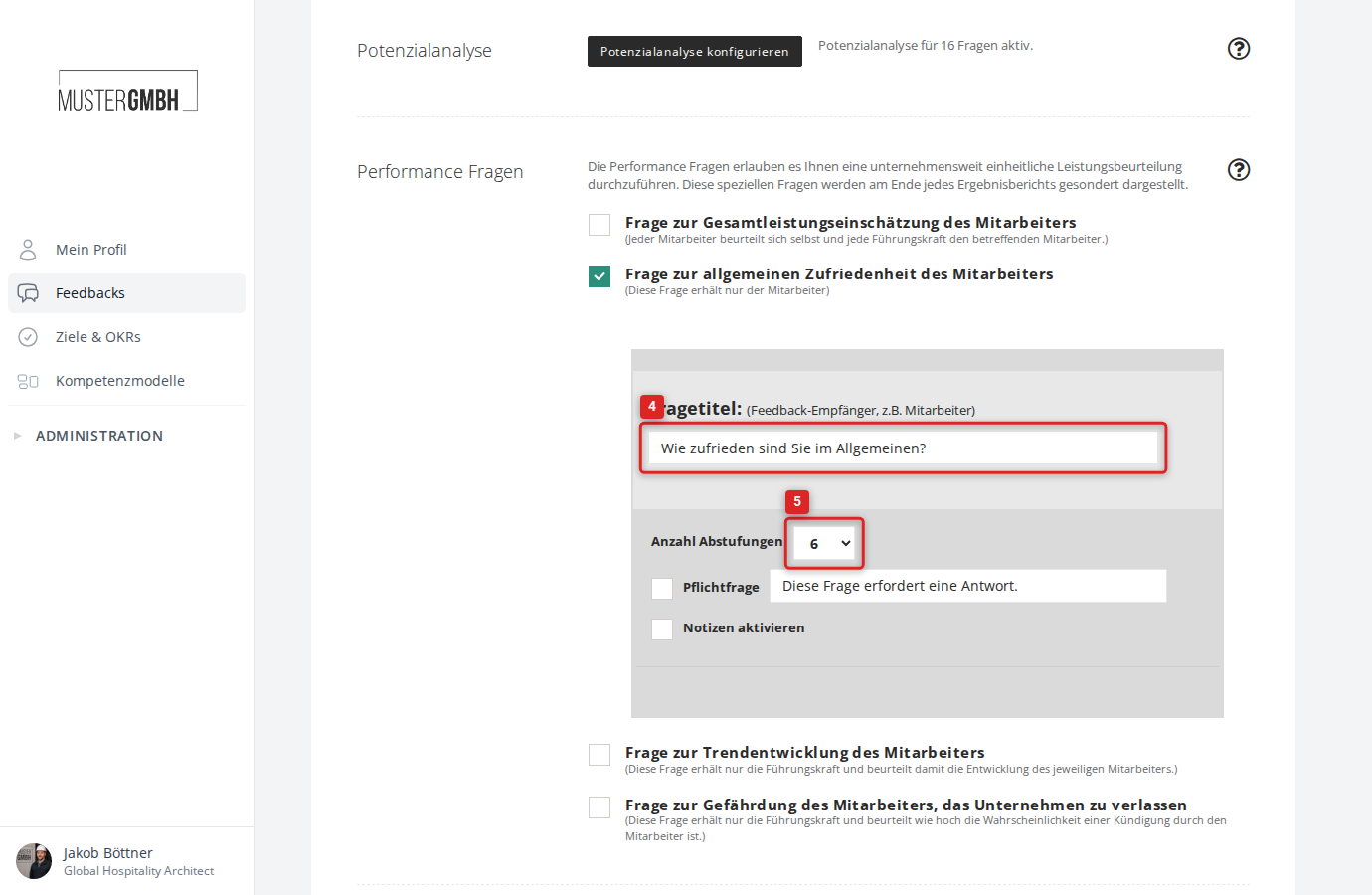
Enter the question wording in the Question title: field. The default text is “How satisfied are you overall?”.
-
In the Number of gradations menu, choose how many rating steps to offer (1 to 10). The default is 6.
-
If you want, tick the Required question checkbox and adjust the hint text.
-
If you want, tick the Enable notes checkbox to give feedback recipients a free-text field for additional comments.
-
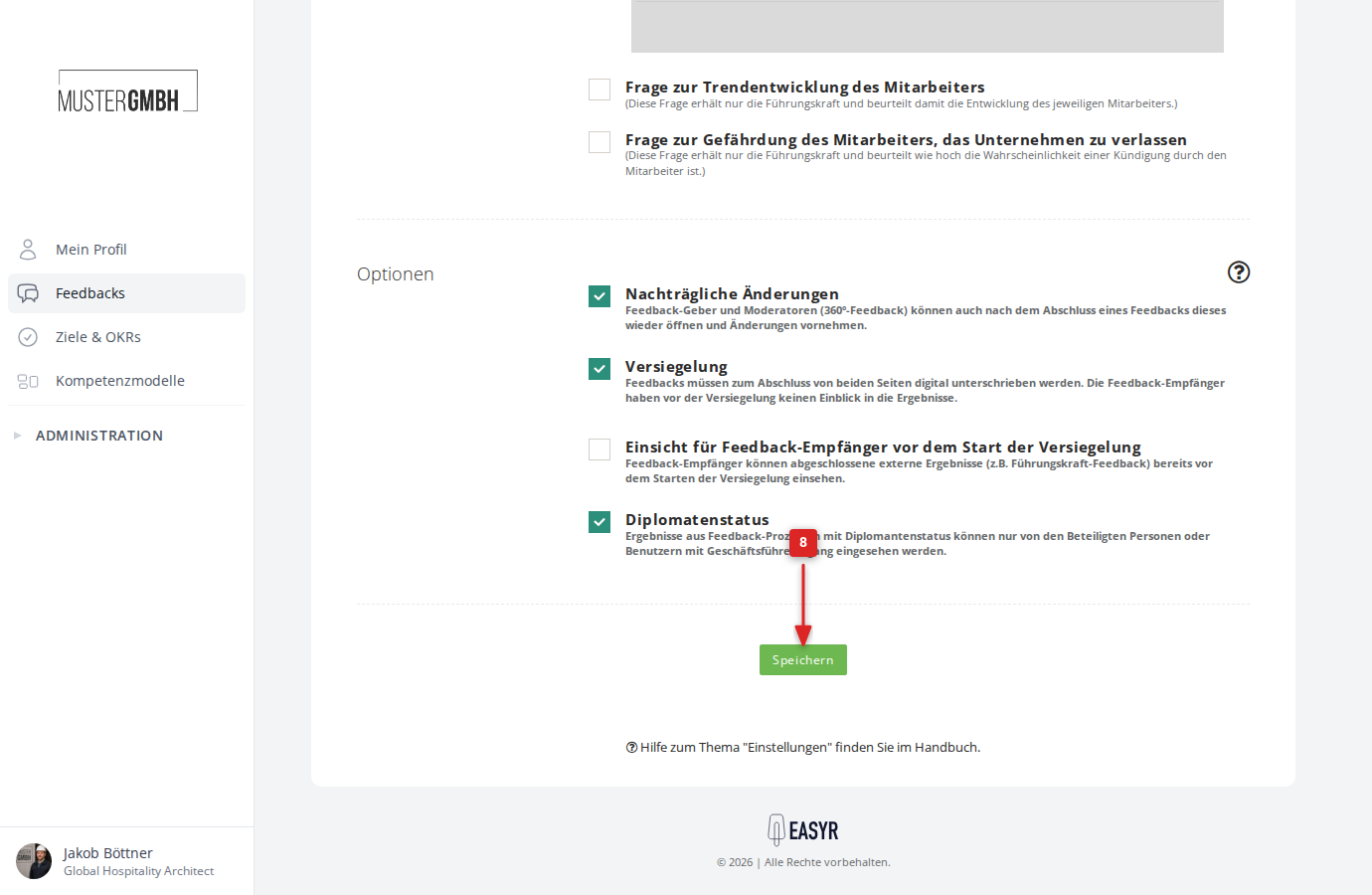
Click Save at the bottom of the page.
-
You can move the question to the right place in the questionnaire just like any other element.
Turn off the question
To turn the satisfaction question off again, clear the checkbox next to Question about the overall satisfaction of the employee and click Save.