Open the settings
The settings page is where you configure every parameter of a review: title, editions, email texts, perspectives, potential analysis, performance questions, and further options. This article explains how to open the settings and which sections you’ll find there. For details on each section, see the overview article Review settings.
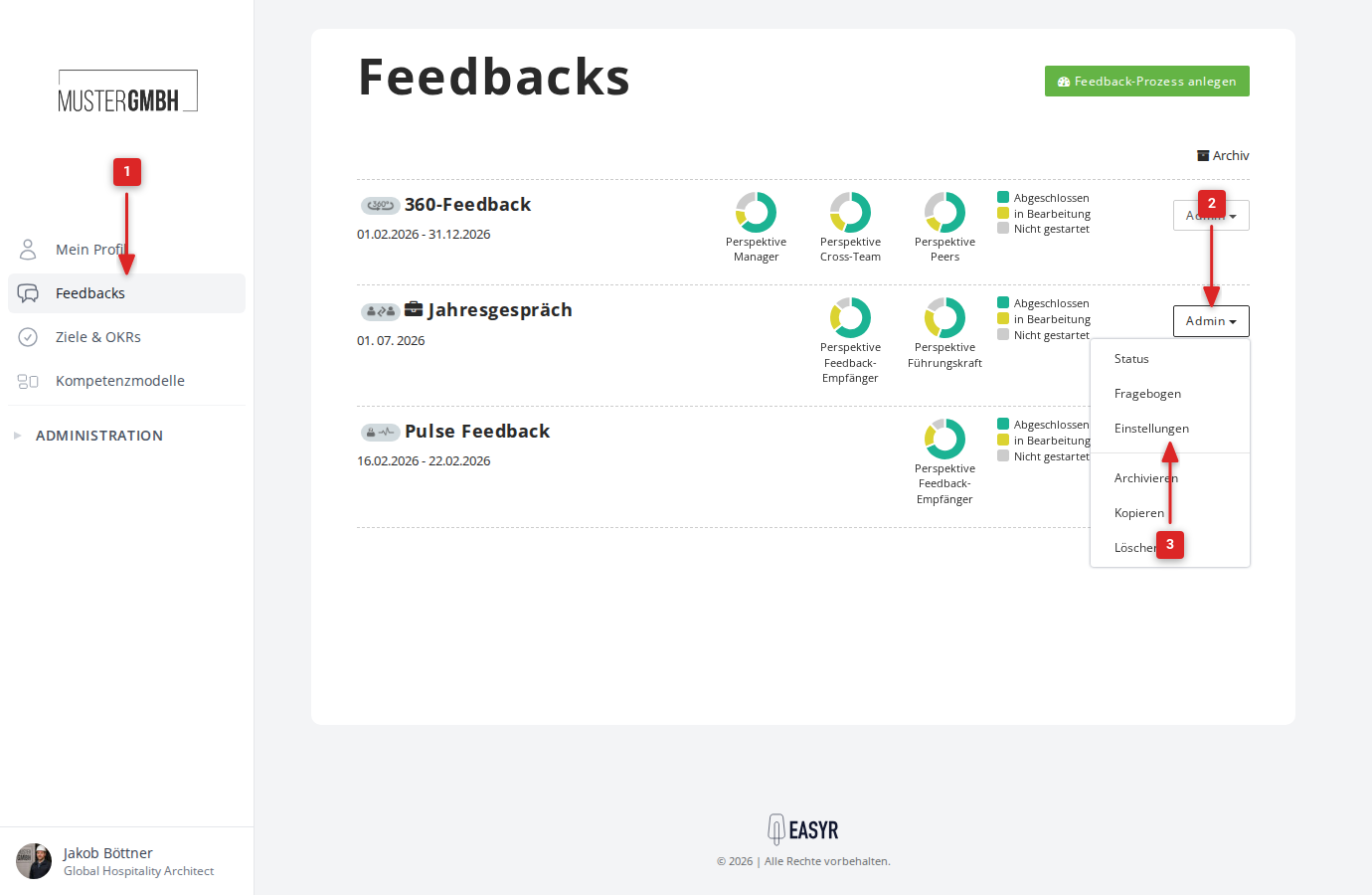
Open the settings from the feedbacks overview
- Click “Feedbacks” in the sidebar.
- Click “Admin” on the review you want.
- Choose “Settings”.
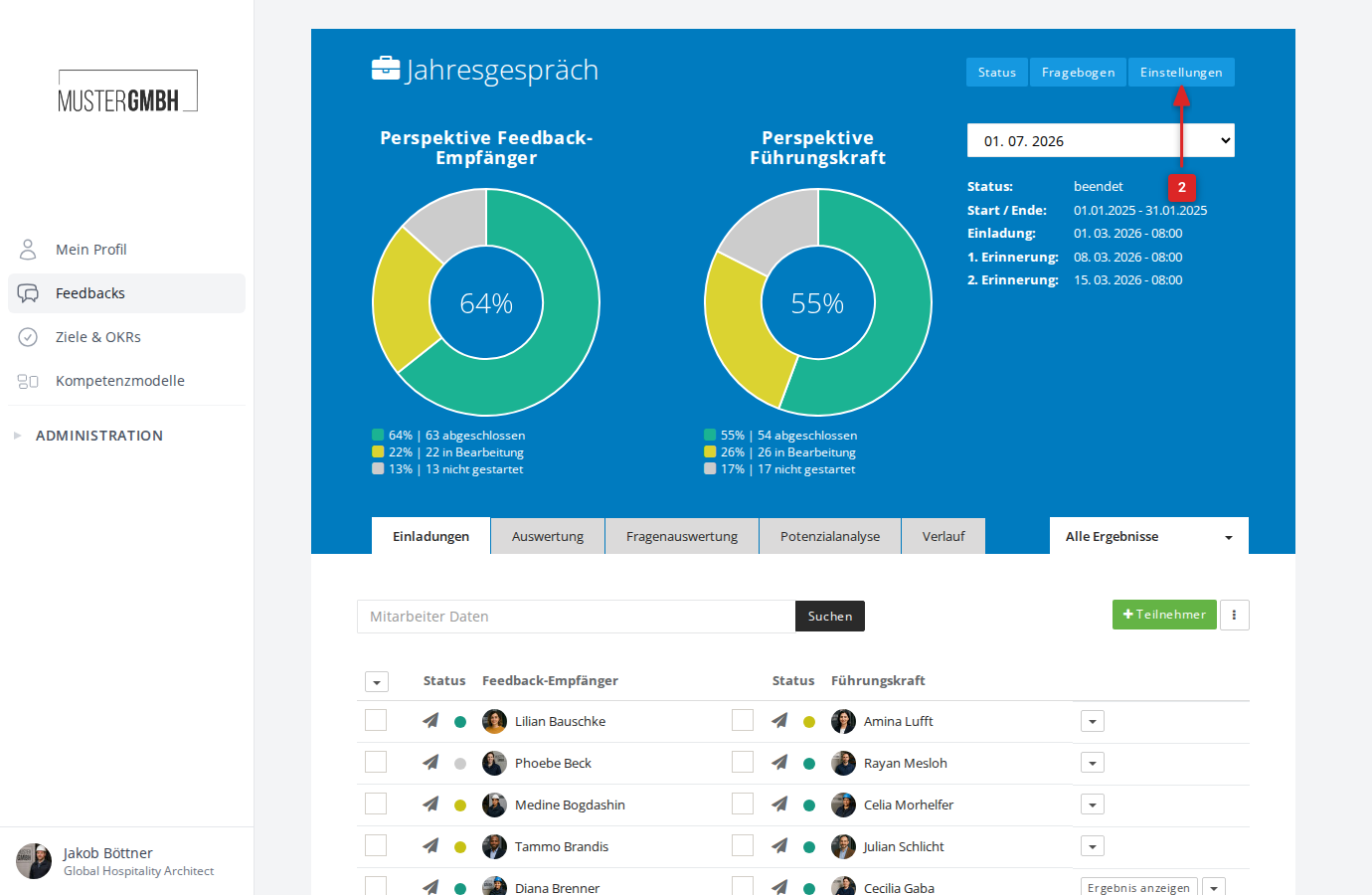
Open the settings from the status page
- Open the status page of the review.
- Click “Settings” in the top-right header bar.
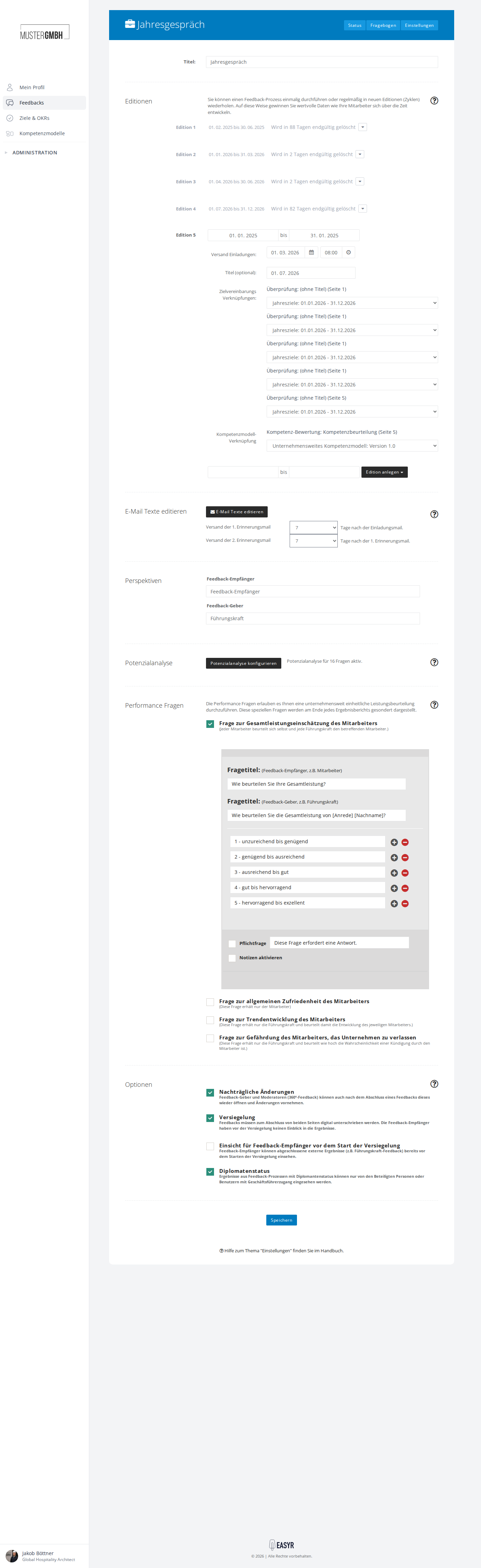
Overview of the settings page
The settings page is divided into the following sections. Depending on the review type, not all of them are shown.
Title
In the “Title” field you give the review its name. This name appears in the overview, in invitation emails, and for the participants.
Editions
Editions are the cycles in which a review runs. You can run a feedback process once, or repeat it regularly in new editions. Each edition has a start and end date, an optional send date for automatic email invitations, an optional label, and, where applicable, a link to a competency model.
Related articles:
Email texts
Here you adjust all of the review’s emails: invitations, reminders, and sealing and completion notifications. The “Notification Center” tile takes you to the management view.
Related articles:
Perspectives
Perspectives define which roles give feedback. A two-sided feedback has two perspectives (for example, feedback recipient and supervisor); a 360° feedback can have several.
Related articles:
Potential analysis
The potential analysis lets you assign strength values to questions in the questionnaire and produce a quantitative evaluation. The “Configure potential analysis” button opens the configuration page.
Related articles:
- What is the potential analysis?
- Configure the potential analysis
- Configure potential values / strength values
- Include and exclude questions in the potential analysis
Performance questions
Performance questions are special questions that enable a company-wide performance assessment. They are shown separately at the end of each results report. Turn the ones you want on or off with a checkbox.
Related articles:
Further settings
The “Further Settings” section holds options that control how the feedback process behaves, for example subsequent changes, sealing, and diplomatic status.
Related articles:
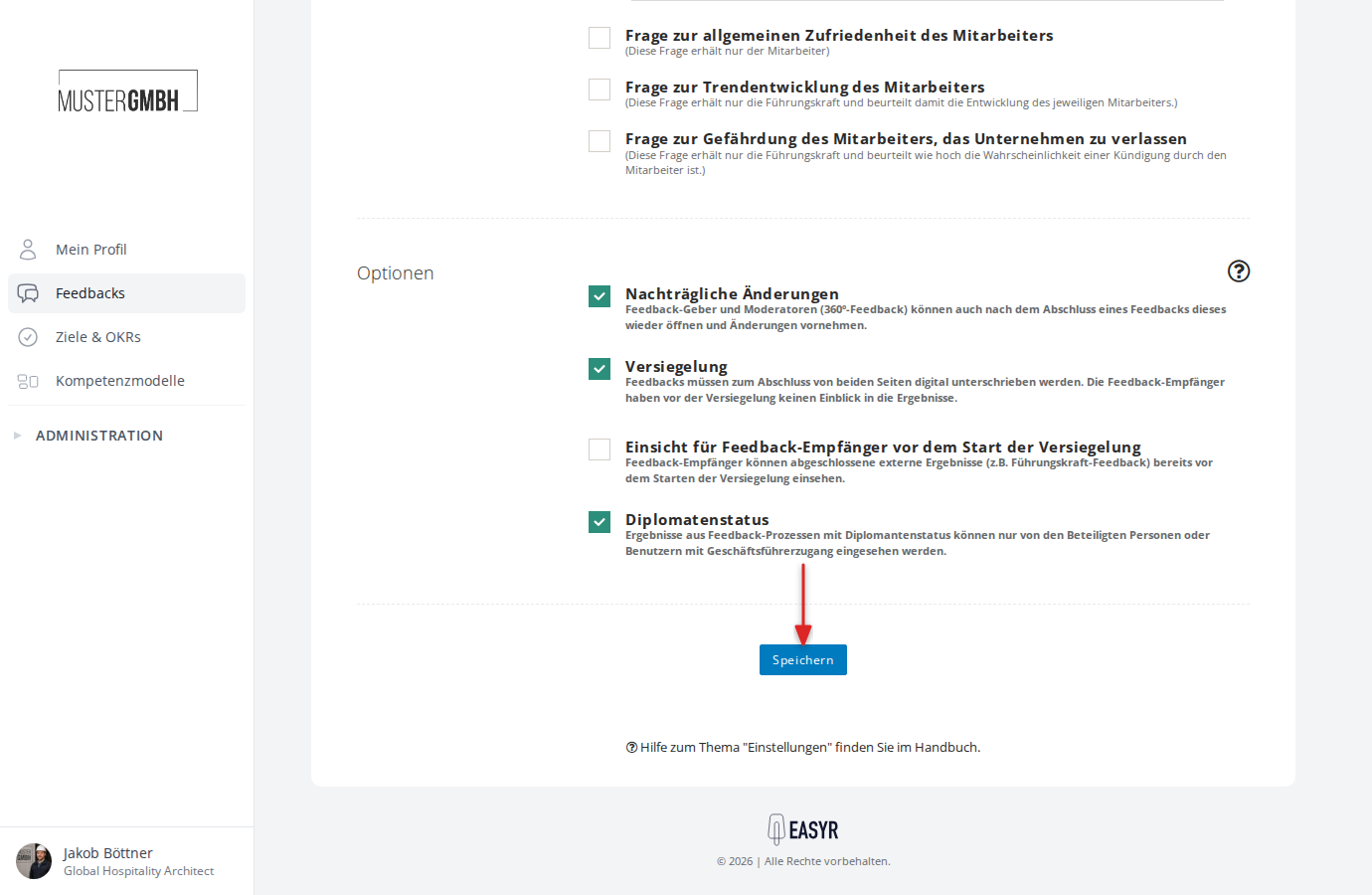
Save your changes
Once you’ve adjusted all the settings you want, click “Save” at the bottom of the page to apply the changes.