Scale
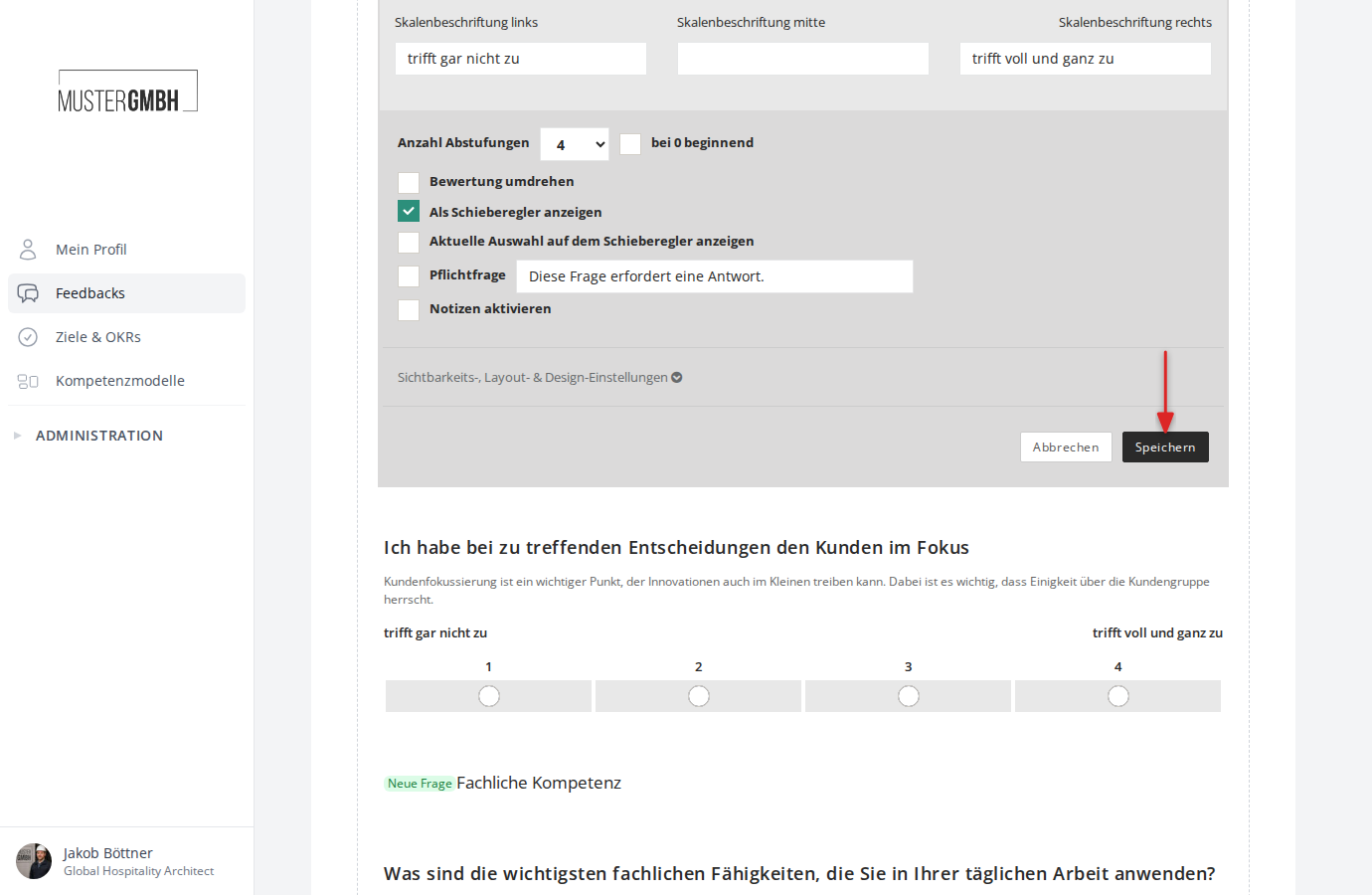
With a scale question, you ask participants to give a rating on a continuous, whole-number scale. The scale can be shown either as radio buttons or as a slider.
Add a scale question
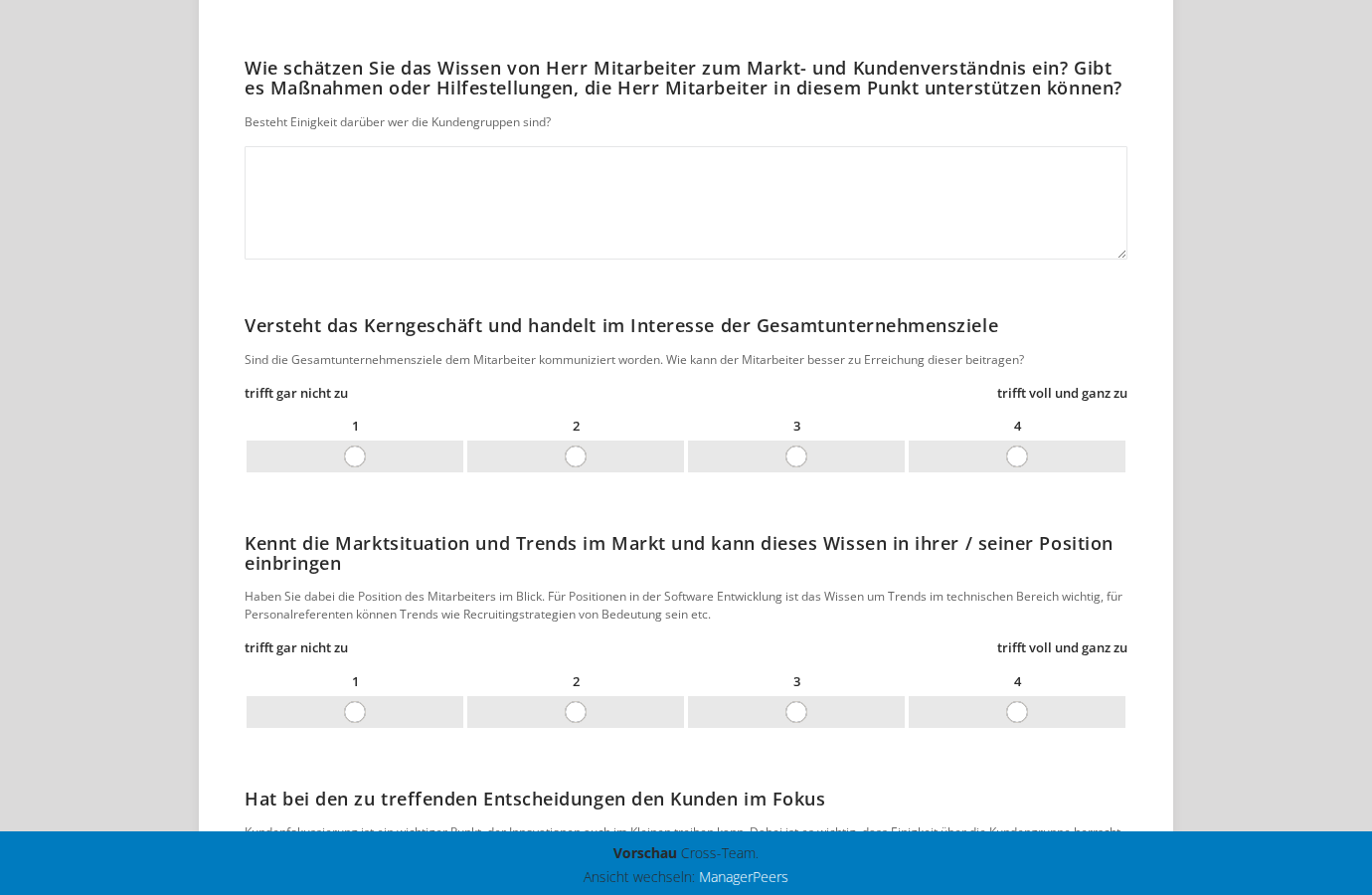
- In the questionnaire editor, click ”+ Element” and then “Question: Scale”.
Configure a scale question
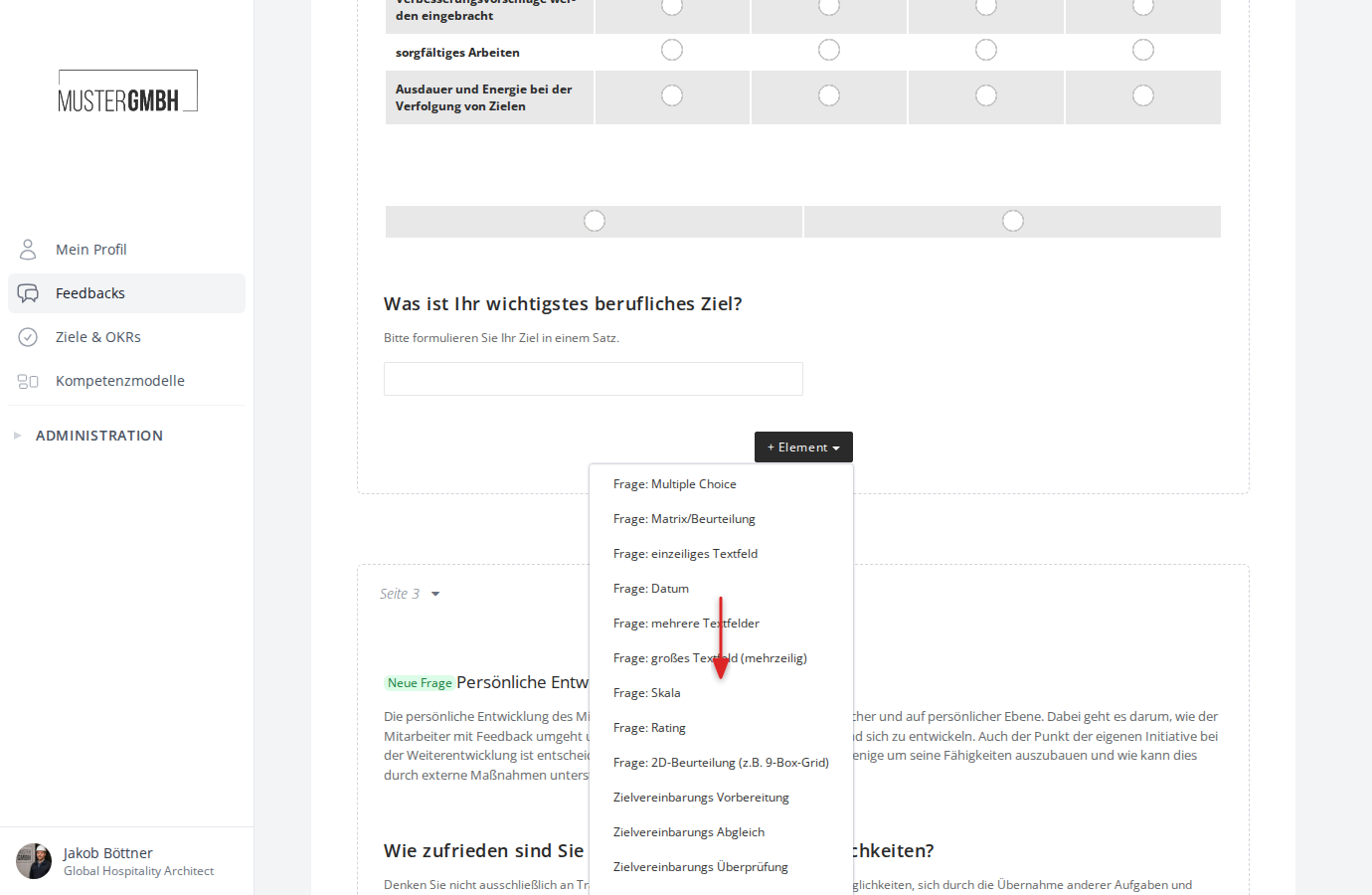
After adding it, the scale question’s configuration form opens.
Scale labels
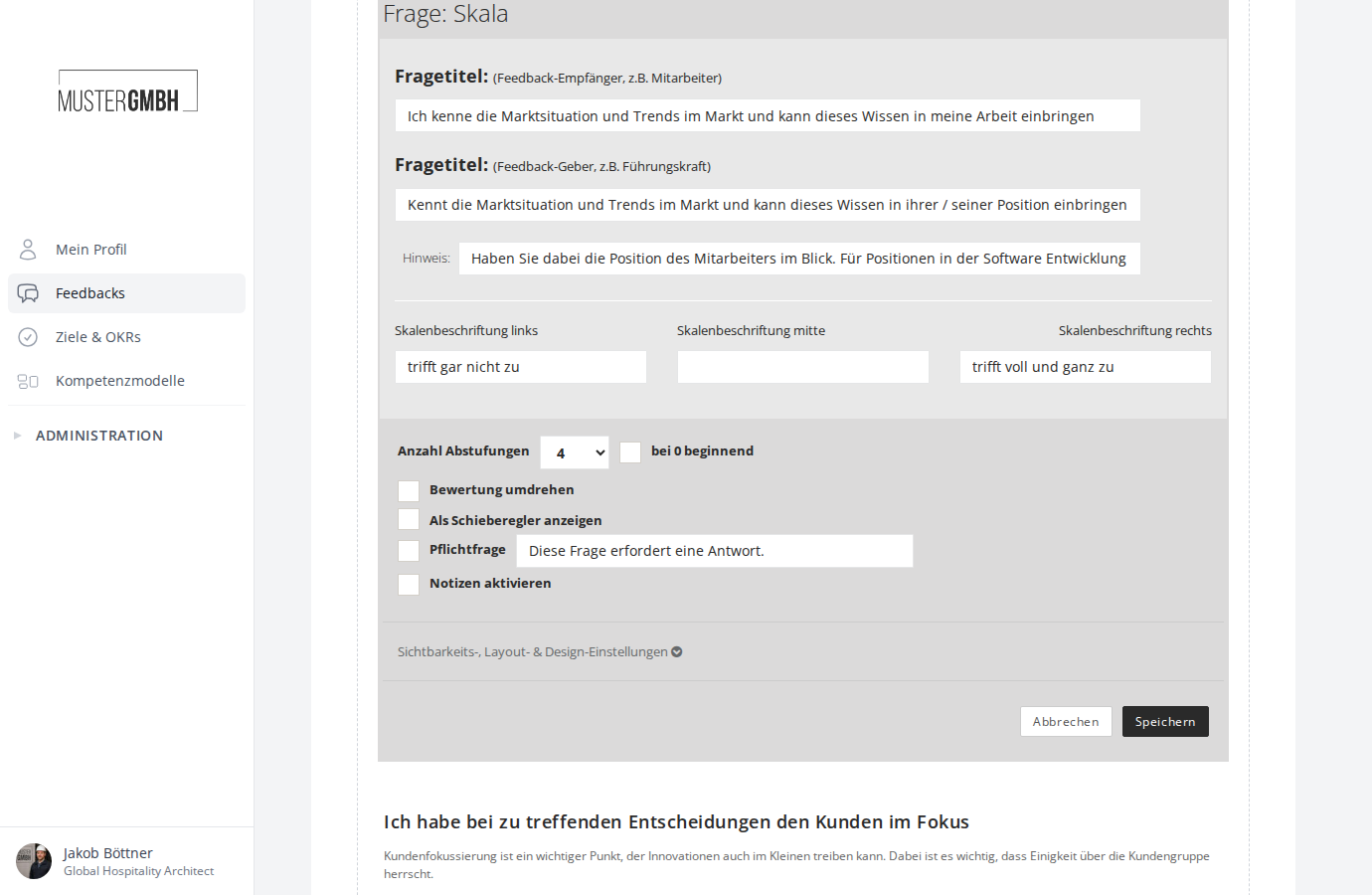
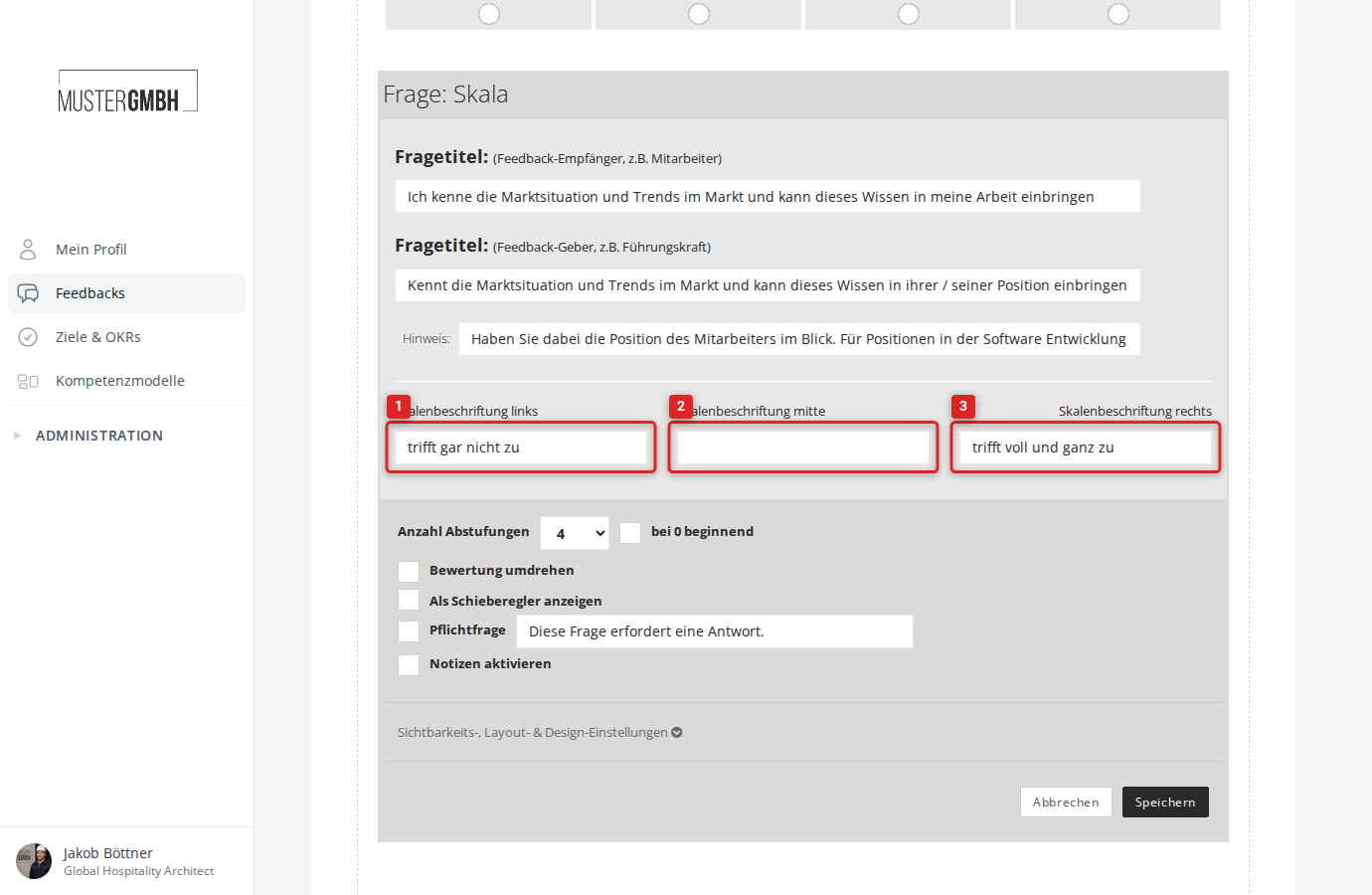
The scale is labeled in three positions: left, center, and right. Enter the text you want in the “Scale label left”, “scale label center”, and “Scale label right” fields.
Number of gradations
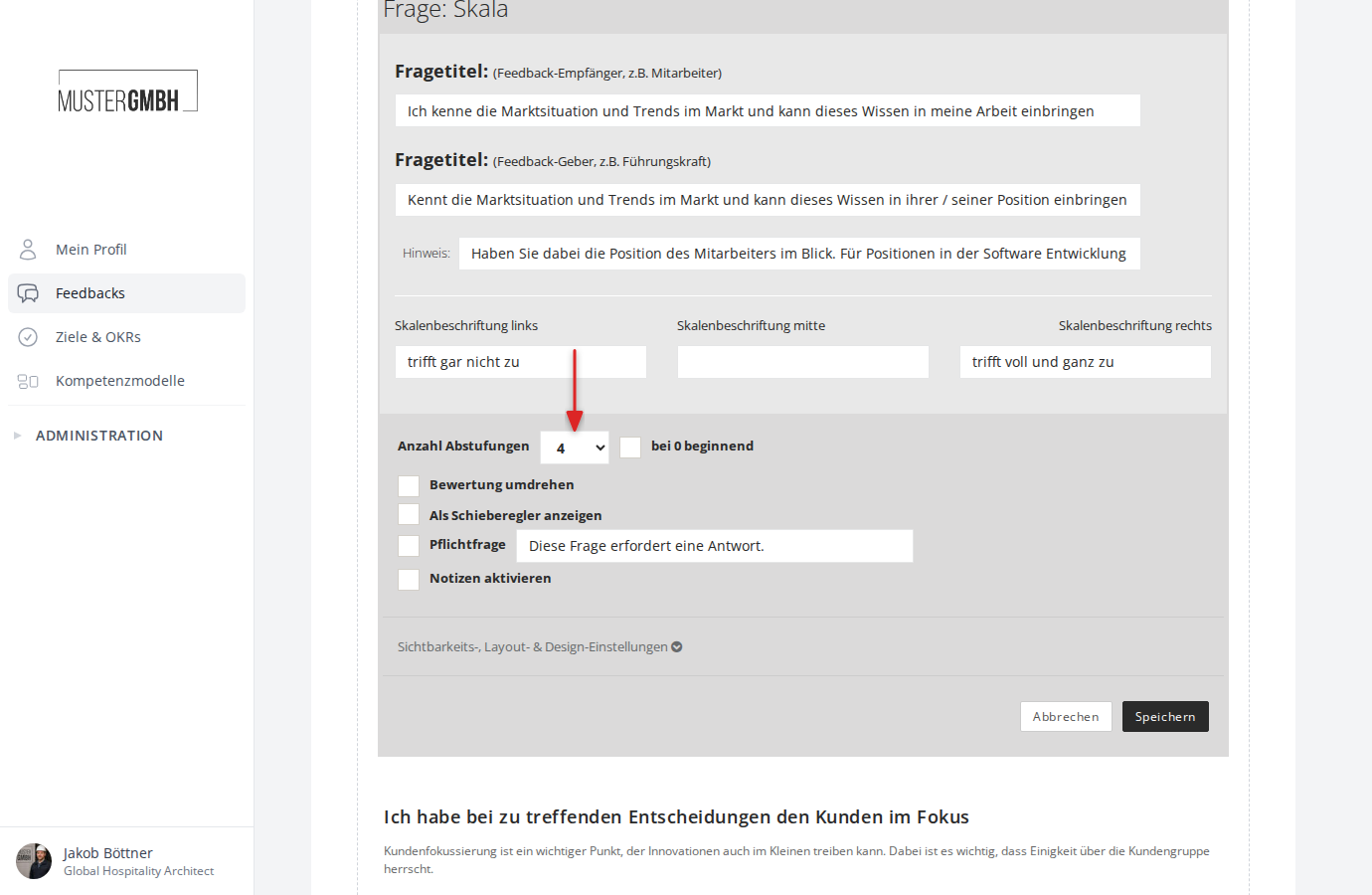
Click the “Number of gradations” dropdown and choose how many steps the scale has. Available are 1 to 20 gradations as well as the values 50 and 100.
Starting at 0
By default the scale starts at 1. Tick the “starting at 0” checkbox to have the scale start at 0 instead.
Turn rating around
By default the lowest value is on the left and the highest on the right. Tick “turn rating around” to reverse the order.
Show as slider
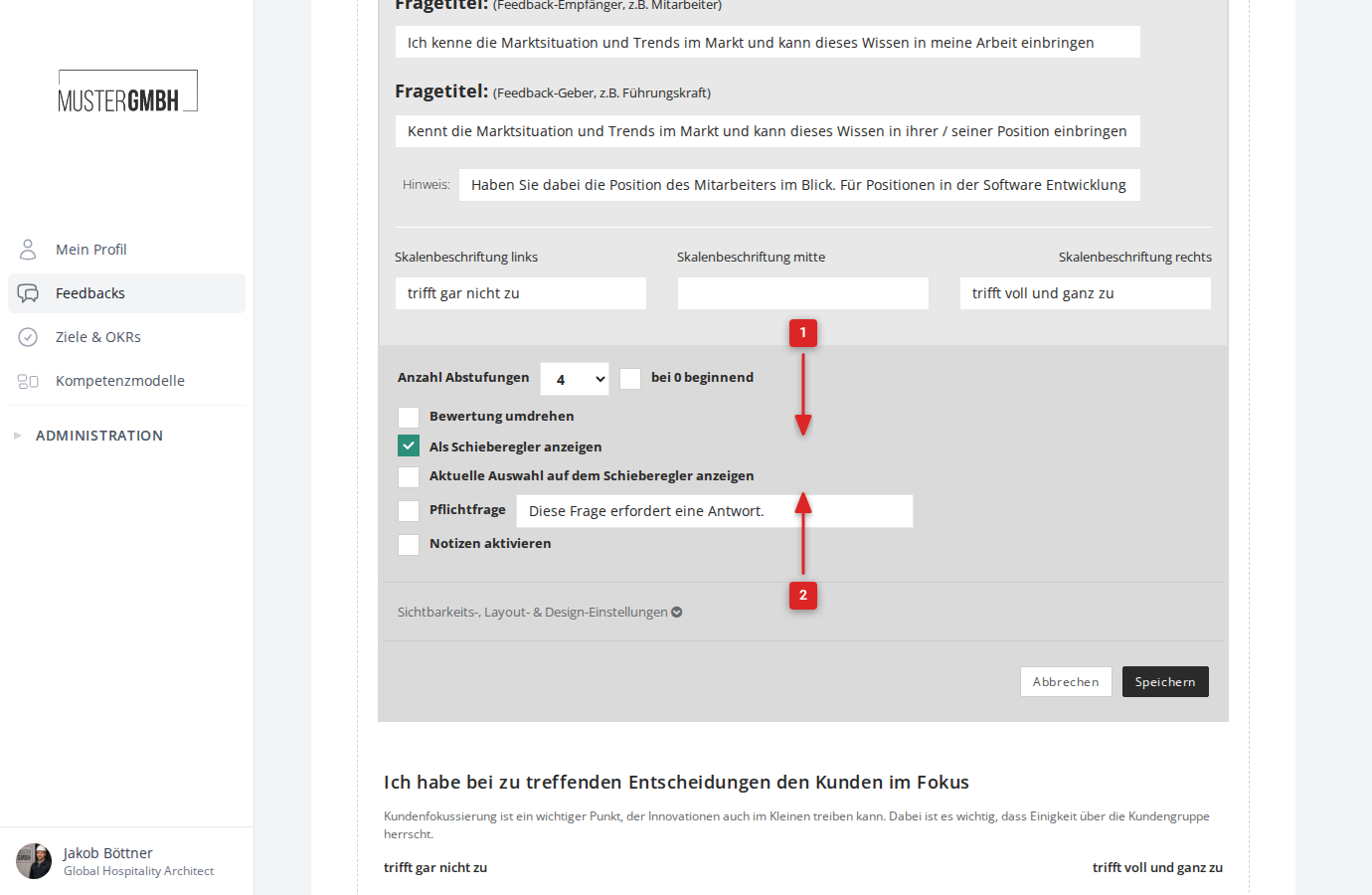
Tick the “Show as slider” checkbox to display the scale as a slider instead of radio buttons. Participants then drag a control along the scale rather than clicking one of the numbered values.
When you enable this option, an extra checkbox appears: “Show current selection on the slider”. This shows participants their currently selected value below the slider (for example, “Your selection: 3”).
Required question
Tick “Required question” to make answering this question mandatory. You can adjust the hint text that is shown.
Save
Click “Save” to store the scale question.