Move an element
Drag and drop moves elements and questions to another position in the questionnaire. You can also drag an element onto a different page.
Move an element within a page
- Open the questionnaire editor.
- Hover over the element or question you want to move. The toolbar appears at the top of the element.
- Click and hold the move icon (the handle) in the toolbar.
- Drag the element to the position you want in the questionnaire.
- Release the mouse button.
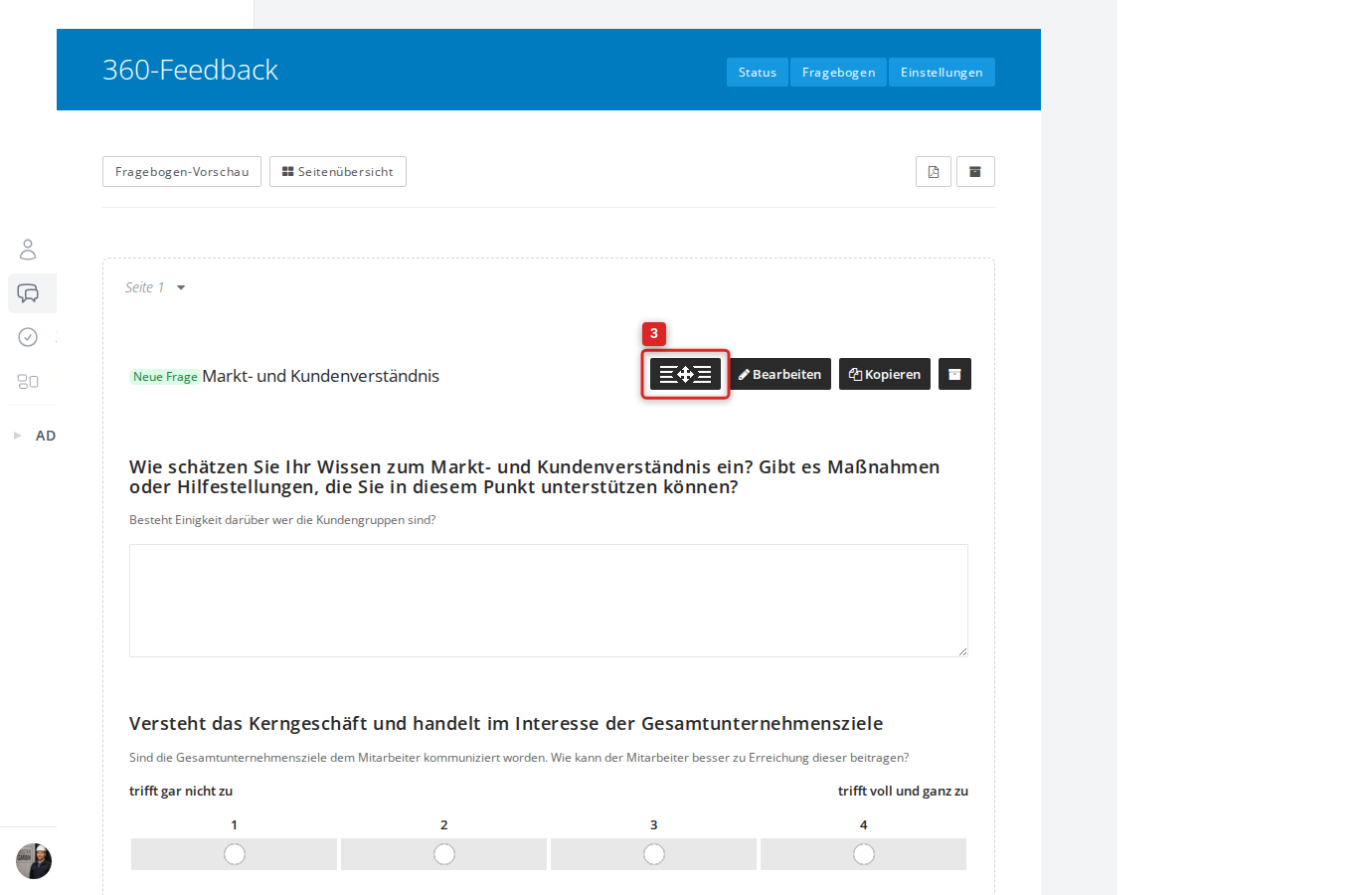
The new position is saved immediately and automatically.
Move an element to another page
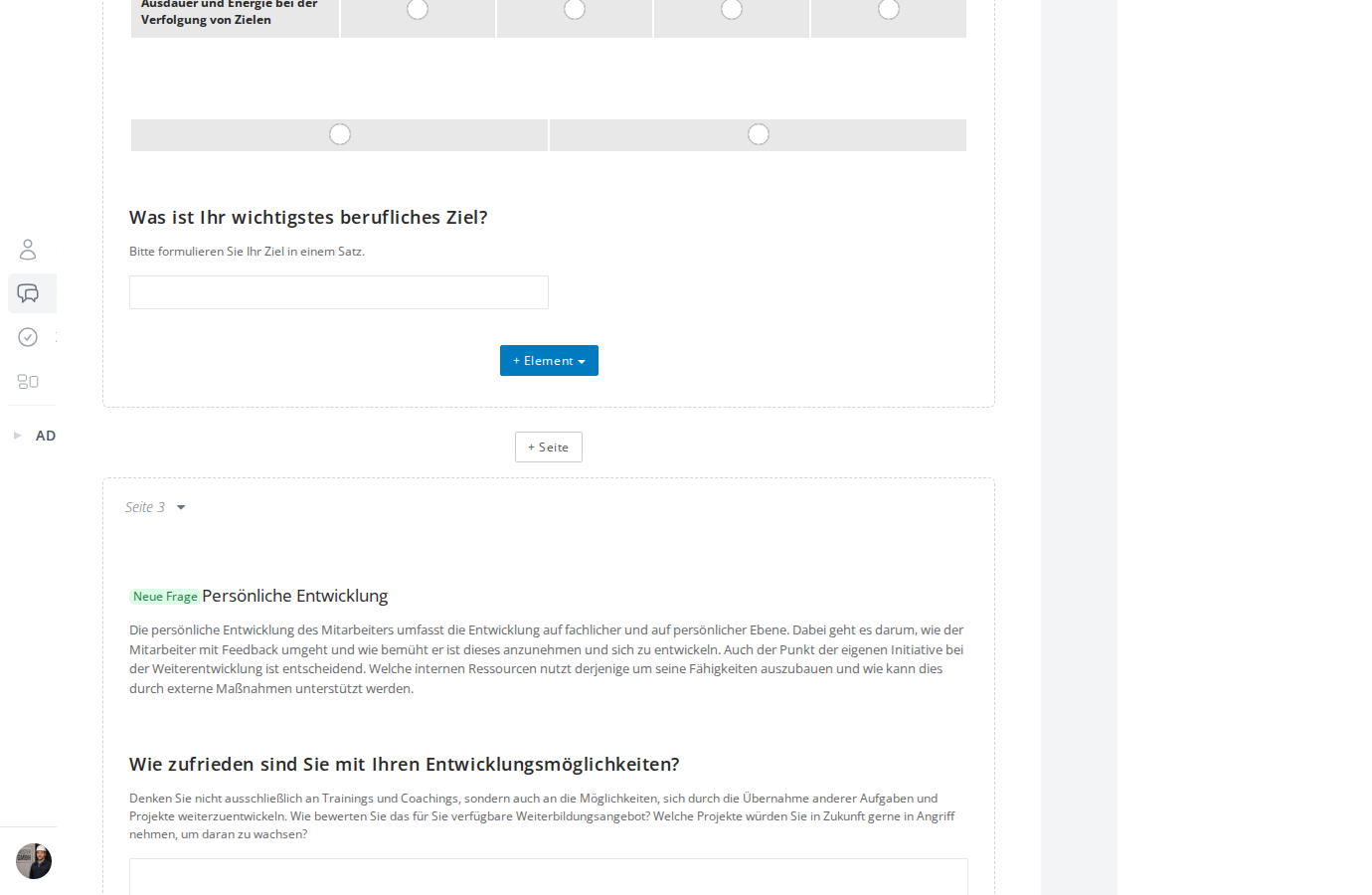
If your questionnaire has several pages, you can also move elements between pages. Just drag the element across the page boundary onto the page you want.
Notes
- Only active (non-archived) elements can be moved. Archived elements do not show the move icon.
- Position changes apply to the whole questionnaire, and therefore to all editions of the feedback process.