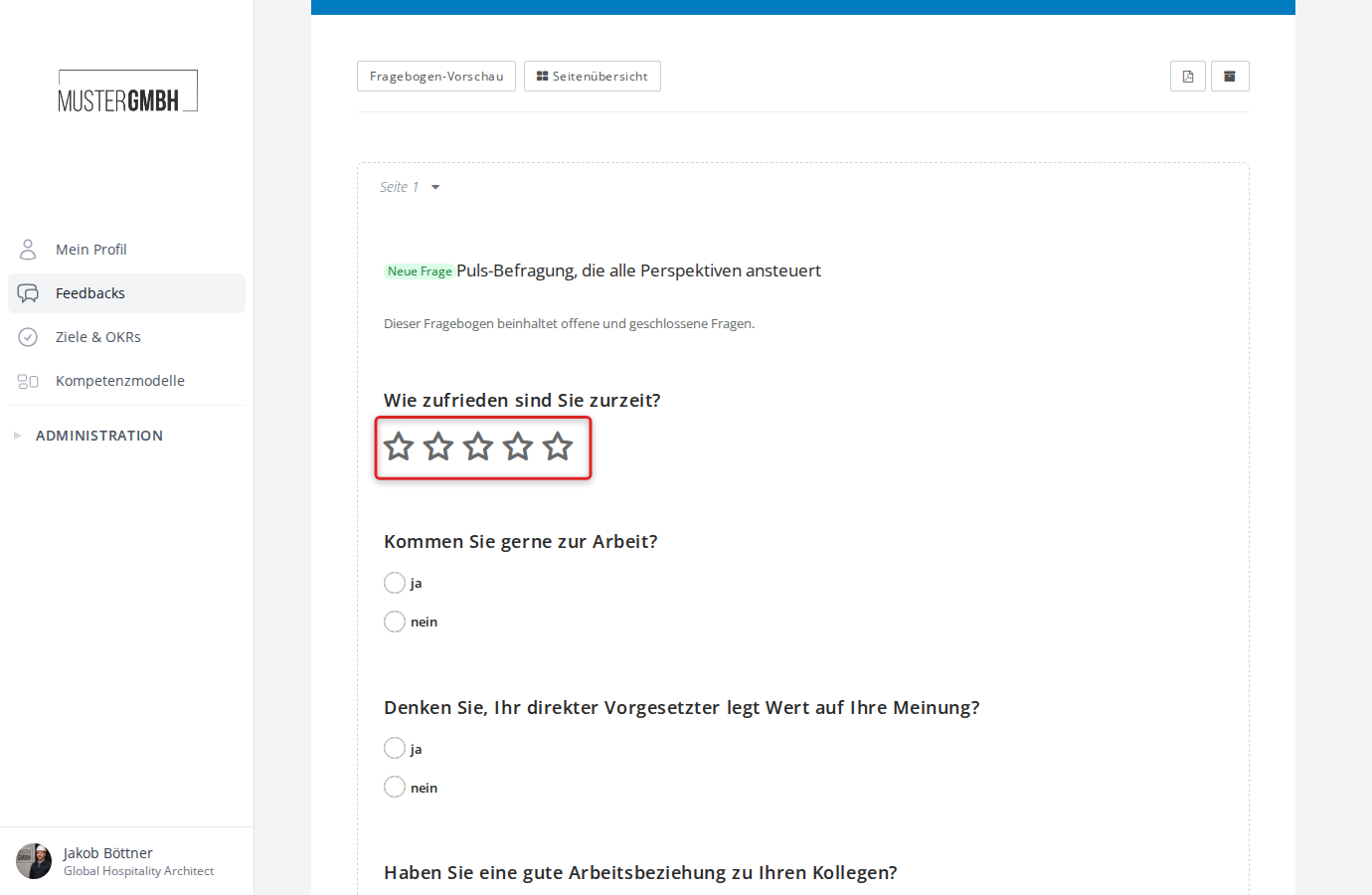
Rating
With a rating question, participants give a visual assessment. The display with stars or dots is familiar from app stores and is immediately understandable to most participants.
Add a rating question
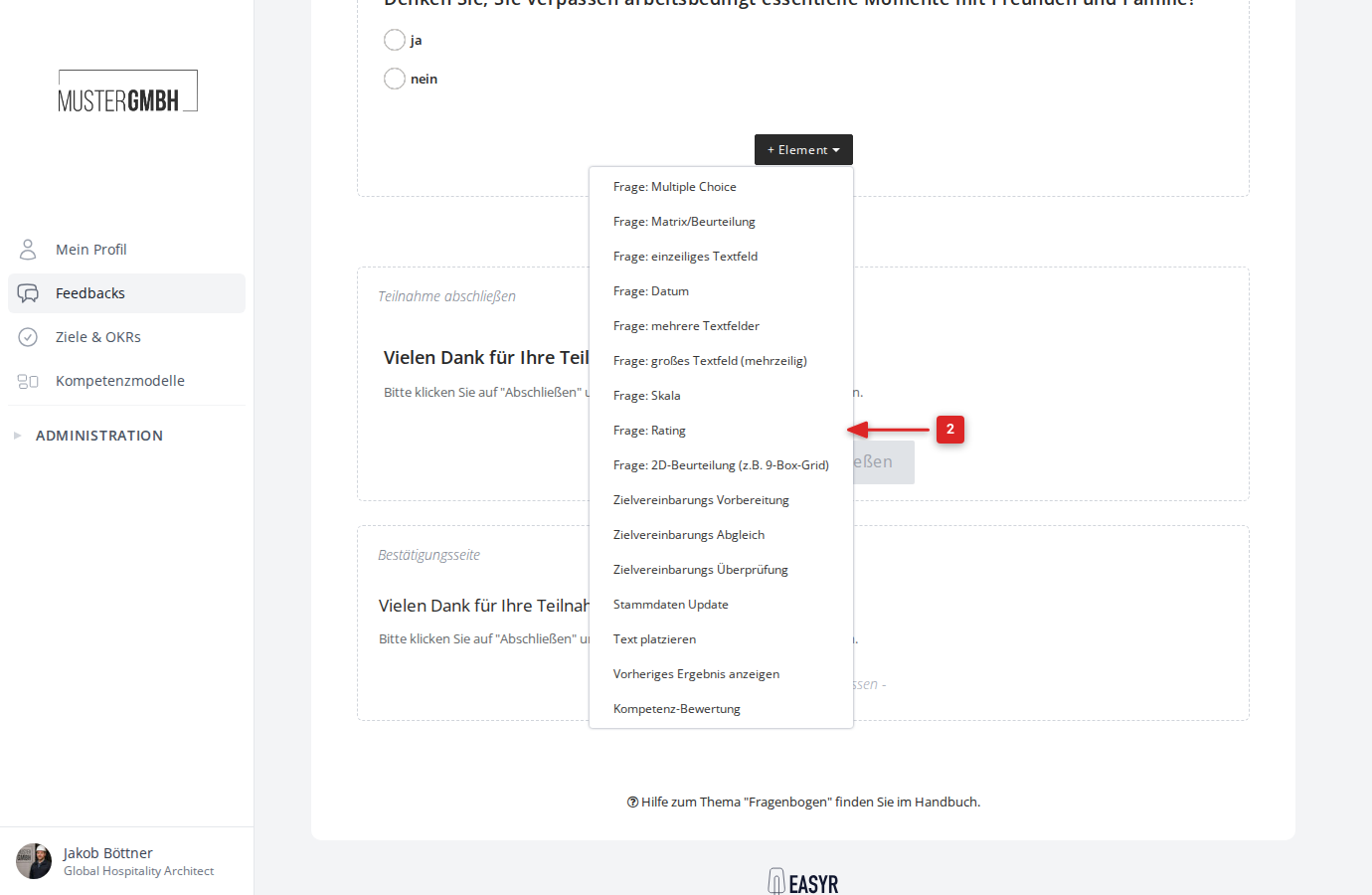
- In the questionnaire editor, click ”+ Element”.
- Choose “Question: Rating” from the list.
Configure a rating question
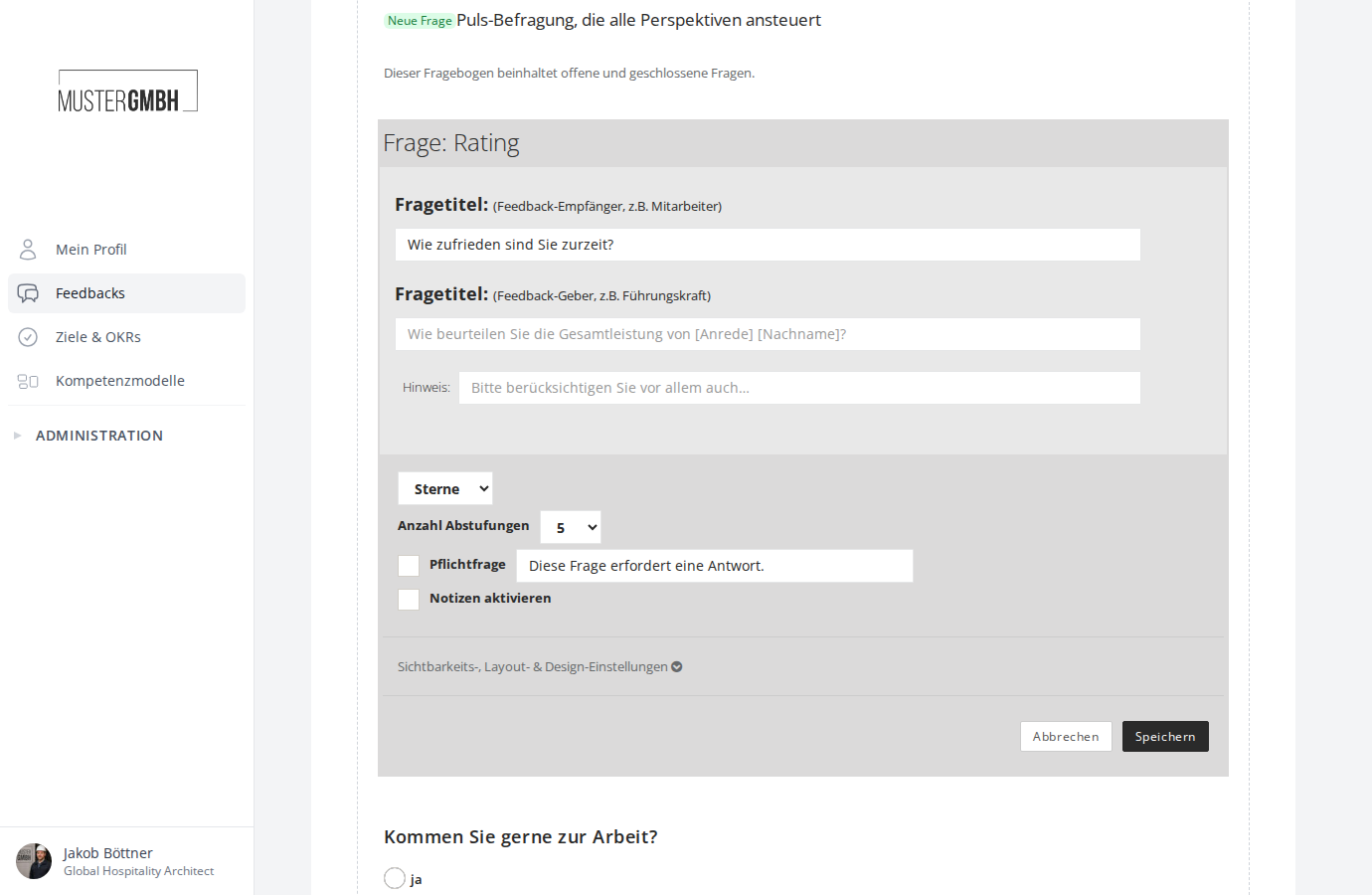
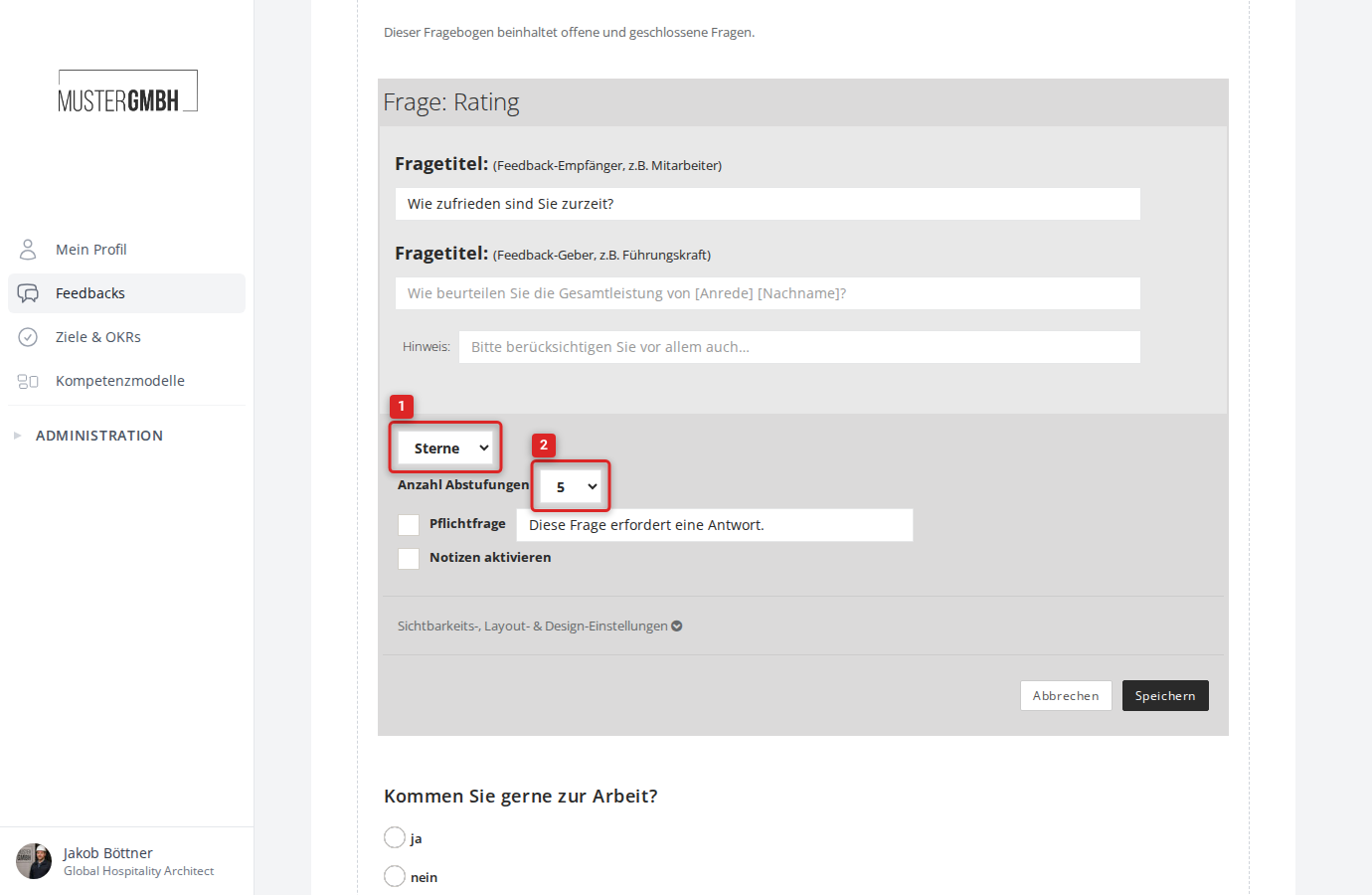
After adding it, the configuration form opens directly in the questionnaire editor.
Question title
Enter a separate question title for each perspective:
- Question title (Reviewee): The title the feedback recipient (for example, the employee) sees.
- Question title (Reviewer): The title the feedback giver (for example, the supervisor) sees.
Optionally, in the “Hint” field you can add explanatory text that appears below the question title.
Display and gradations
- In the dropdown, choose the display: Stars or Dots.
- In the “Number of gradations” field, set how many rating levels are shown (1 to 10).
Further settings
- Required question: Enable this option if the question must be answered. You can adjust the hint text (“This question requires an answer.”).
- Enable notes: Lets participants leave an additional free-text comment on their rating.
Visibility, layout & design settings
Under the expandable “Visibility, layout & design settings” section you control which perspectives, user groups, or editions can see the question. You can also configure layout options such as hiding the title or removing the vertical padding.
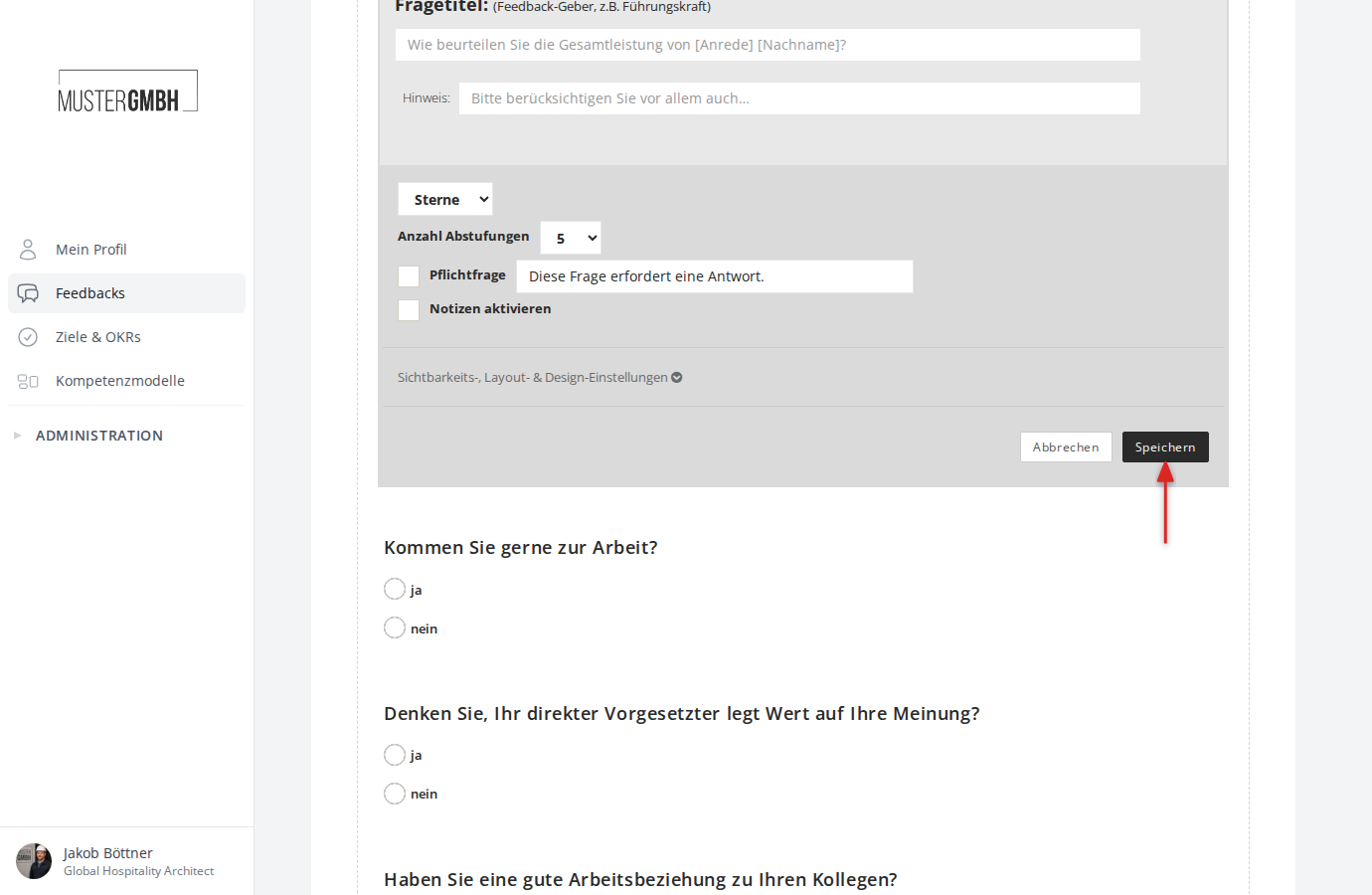
Save
Click “Save” to apply the settings. “Cancel” discards your changes.