Determine feedback providers through nominations
With nominations, the people involved propose the feedback providers themselves, and every proposal runs through review, acceptance and approval before anyone is invited. At first this changes nothing in your participant lists: a proposal only becomes a feedback provider when its list closes with “Invitation confirmed”.
If you do not switch nominations on, everything stays as it is. You enter the feedback providers yourself, or leave that to the managers.
Which feedbacks can use nominations?
Every feedback whose participants are known by name: general reviews, employee reviews, employee reviews by others and the 360° feedback. They pay off most in a 360° feedback, because several perspectives with several feedback providers each come together there.
The “Nominations” row is missing from the settings overview when the feedback is anonymous, when it is an external survey over a shared link, or when its editions are created automatically at an interval, as they are for a pulse survey.
The self-assessment is never nominated. It therefore does not appear among the nomination paths.
Switch nominations on
- Open the settings of the feedback.
- In the “Nominations” row, click “Set up”. If nominations are already on, the button reads “Edit”.
- Under “How are feedback providers determined?”, choose “Through nominations”.
- Click “Save” at the bottom of the page.
- In the “Nomination paths” card, click “Add nomination path”.
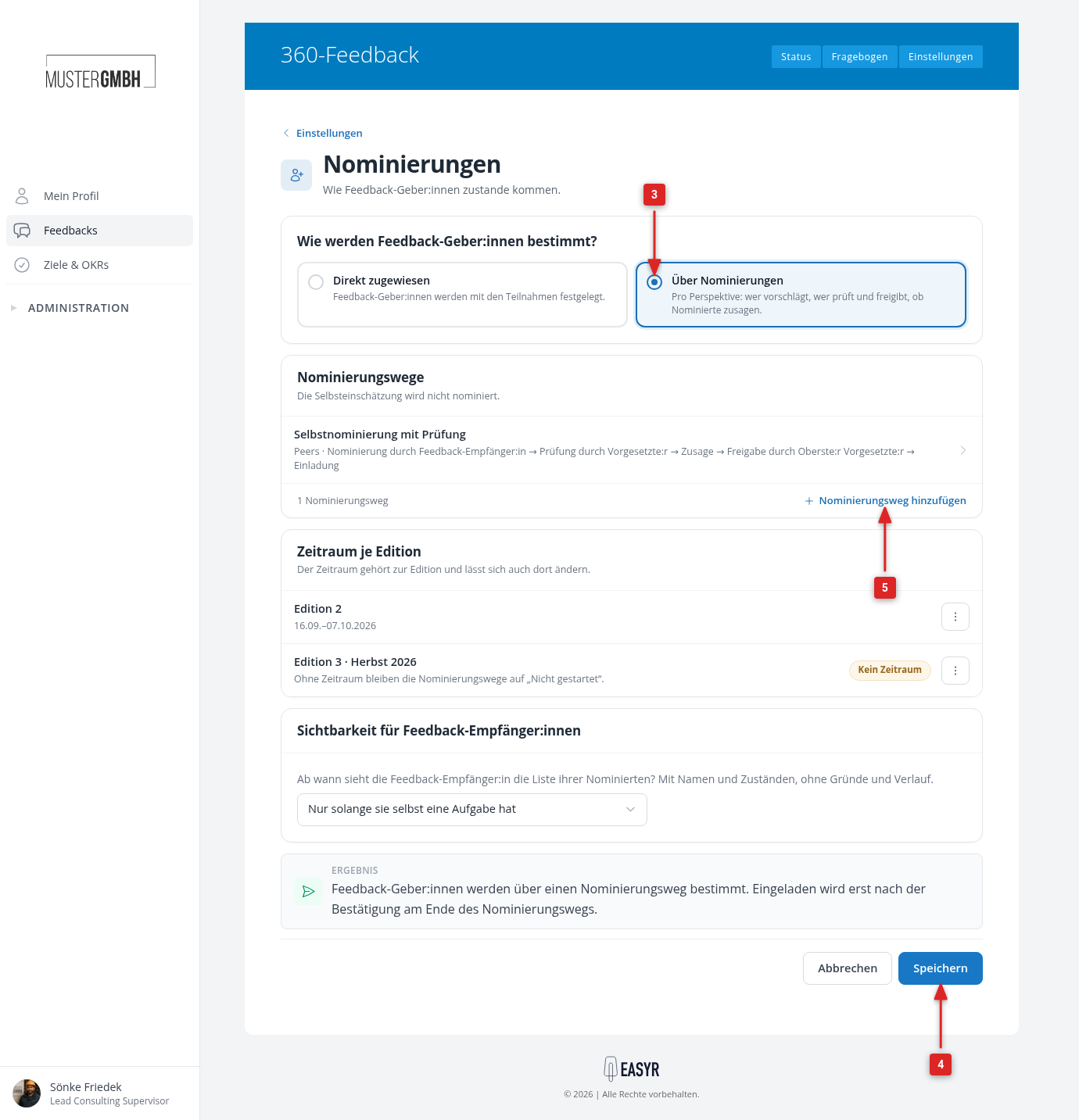
In the nomination path you define, per perspective, who proposes, who reviews, whether the proposed people have to accept and who approves: Set up nomination paths. As long as a perspective has no path, nothing happens for it. The “Nomination paths” card lists all paths you set up; click a row to open the path.
The result sentence at the bottom of the page sums up how feedback providers are determined, for example “Feedback providers are determined through one nomination path. Invitations go out only after the confirmation at the end of the nomination path.”
Saving also creates the notifications of the nomination: nine email types, from the request to nominate to the end of the nomination period, each with its default rules. You change recipients, texts and reminders in the Notification Center of the feedback: Notifications for nominations.
What the feedback recipient sees of their list
When the feedback recipient is up themselves, because they are to nominate or to propose a replacement, they always see their list. You decide from which step they may watch otherwise, in the “Visibility for feedback recipients” card. The preset is “Only while they have a task themselves”.
| Setting | The feedback recipient sees their list |
|---|---|
| Only while they have a task themselves | Only when they are up themselves, otherwise not at all. |
| From the start of the nomination | From the very beginning, including while others propose for them. |
| From the acceptance step | As soon as the proposed people are asked whether they take part. |
| From the first approval stage | As soon as the finished list goes to approval. |
| From the approval of the list | Only once the invitation is confirmed. |
They only read along. The list shows names and states, but no reasons for declines and rejections and no history. They cannot change anything from this view.
If a nomination path does not know the step you picked, for example because it runs without the acceptance step, the list becomes visible with the next step.
Set the nomination period per edition
Nominations do not start on their own. Every edition needs a nomination period for that. The “Period per edition” card on the “Nominations” page lists all running and planned editions with their period. Where it is missing, the row shows “No period”.
- In the “Period per edition” card, click the ⋮ menu next to the edition and choose “Edit”.
- In the dialog, enter start and end under “Nomination period”.
- Click “Save”. easyreview confirms with “Dates saved.”
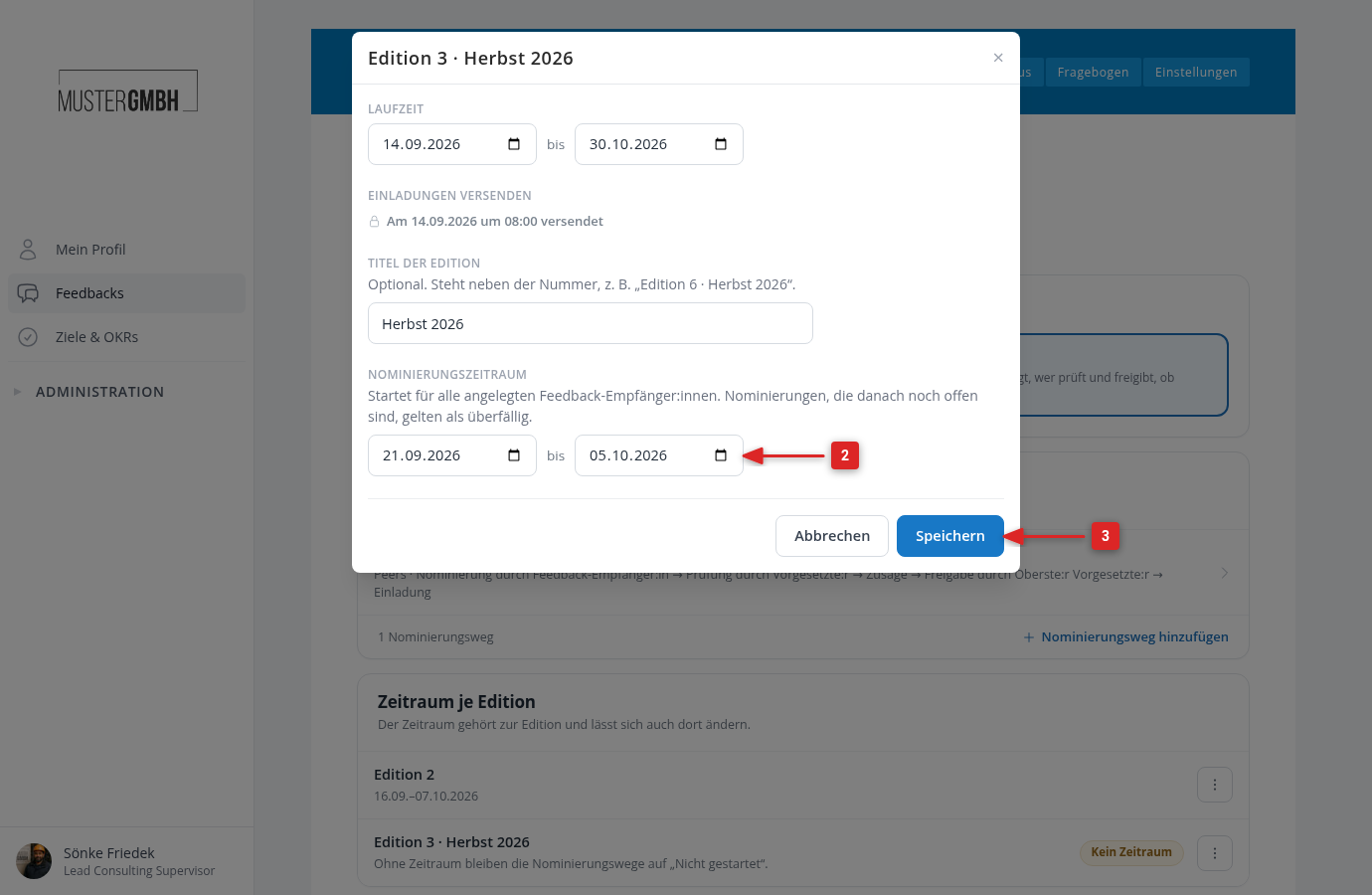
You can open the same dialog from the ⋮ menu of the edition in the “Editions” card of the settings overview.
On the first day of the period, the lists start for all feedback recipients who already exist in the edition. For anyone you add later, the lists start right away.
The end is a deadline, not a barrier. After it, open nominations count as overdue and easyreview reports that by notification. Nothing is cancelled or advanced on its own: you or the managers with management rights move latecomers on by hand.
What changes in the participant list
Nominated feedback providers only appear in the participant list once their list has closed with “Invitation confirmed”. Until then it holds the feedback recipients and the people you entered yourself. External people nominated through a nomination path also only join with the approval and are invited on the invitation date of the edition. If no date is pending any more, they receive their invitation right away with the approval. Under every feedback recipient with running nominations sits the link “Nomination”, which leads to their nomination page.
You can still enter feedback providers yourself. Those people count towards the minimum and maximum of the perspective, so the nomination needs correspondingly fewer proposals. Watch the perspective when you do: a person can only be in one perspective per feedback recipient. If you enter somebody who is currently nominated for the same person in another perspective, that blocks the nomination until one of the two is gone.
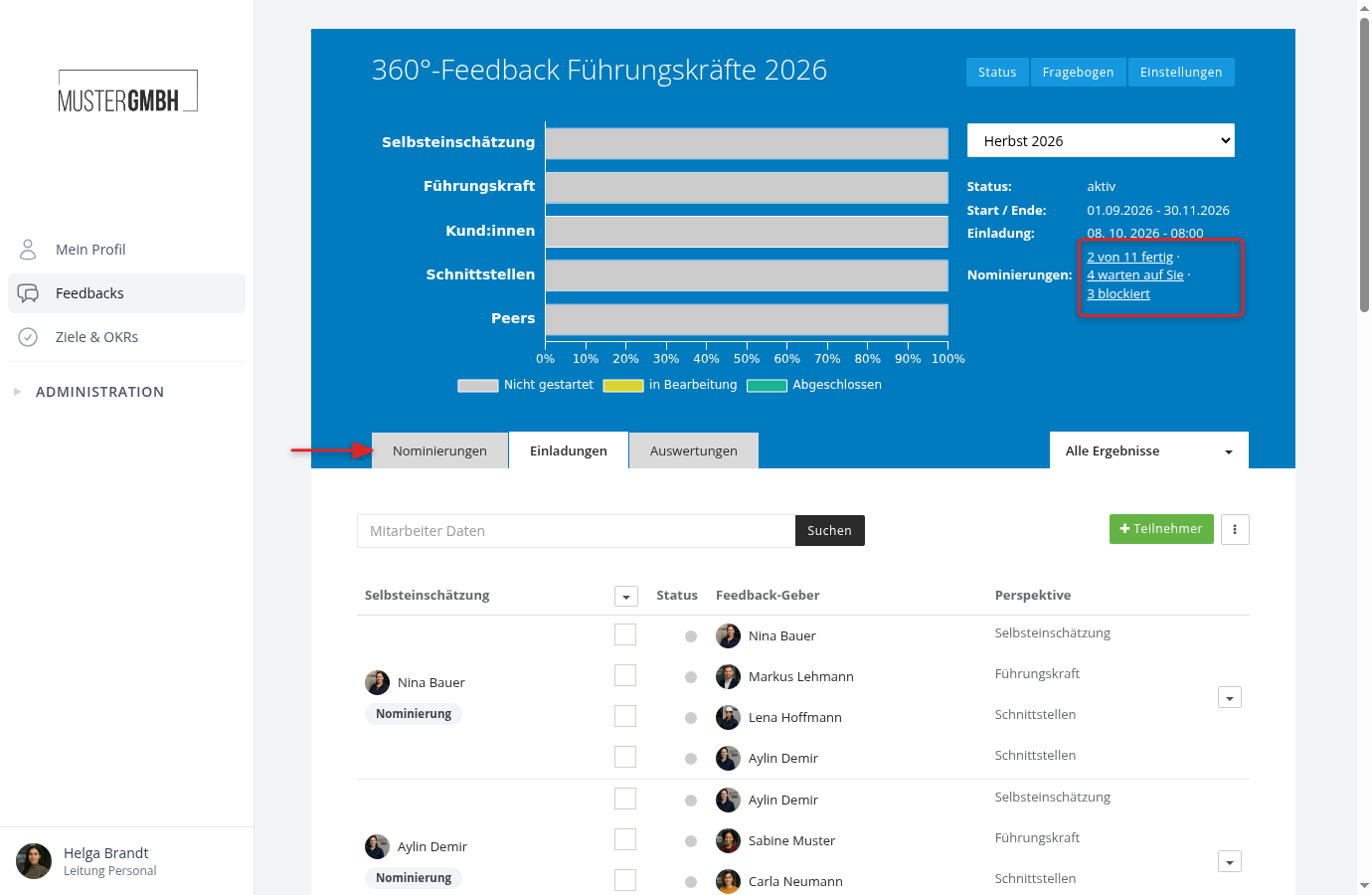
Where the nominations of the edition stand right now is shown at the top of the status page, in the “Nominations:” row, and in the “Nominations” tab next to the participant list.
What comes next
The next step is the paths themselves: Set up nomination paths. What the people involved do afterwards is in Nominate, review and accept. How you follow the state of all lists is in Keep an eye on nominations. The whole way from the first setting to the invitation is covered by the guide Set up a 360° feedback with nominations.