Text field
With the “single-line text field” question element, you can collect short, qualitative feedback on an open question. Participants type their answer into a single-line free-text field. This question type is especially suited to brief answers such as names, keywords, or short statements.
Add a text field question
- In the questionnaire editor, click ”+ Element”.
- Choose “Question: single-line text field” from the dropdown menu.
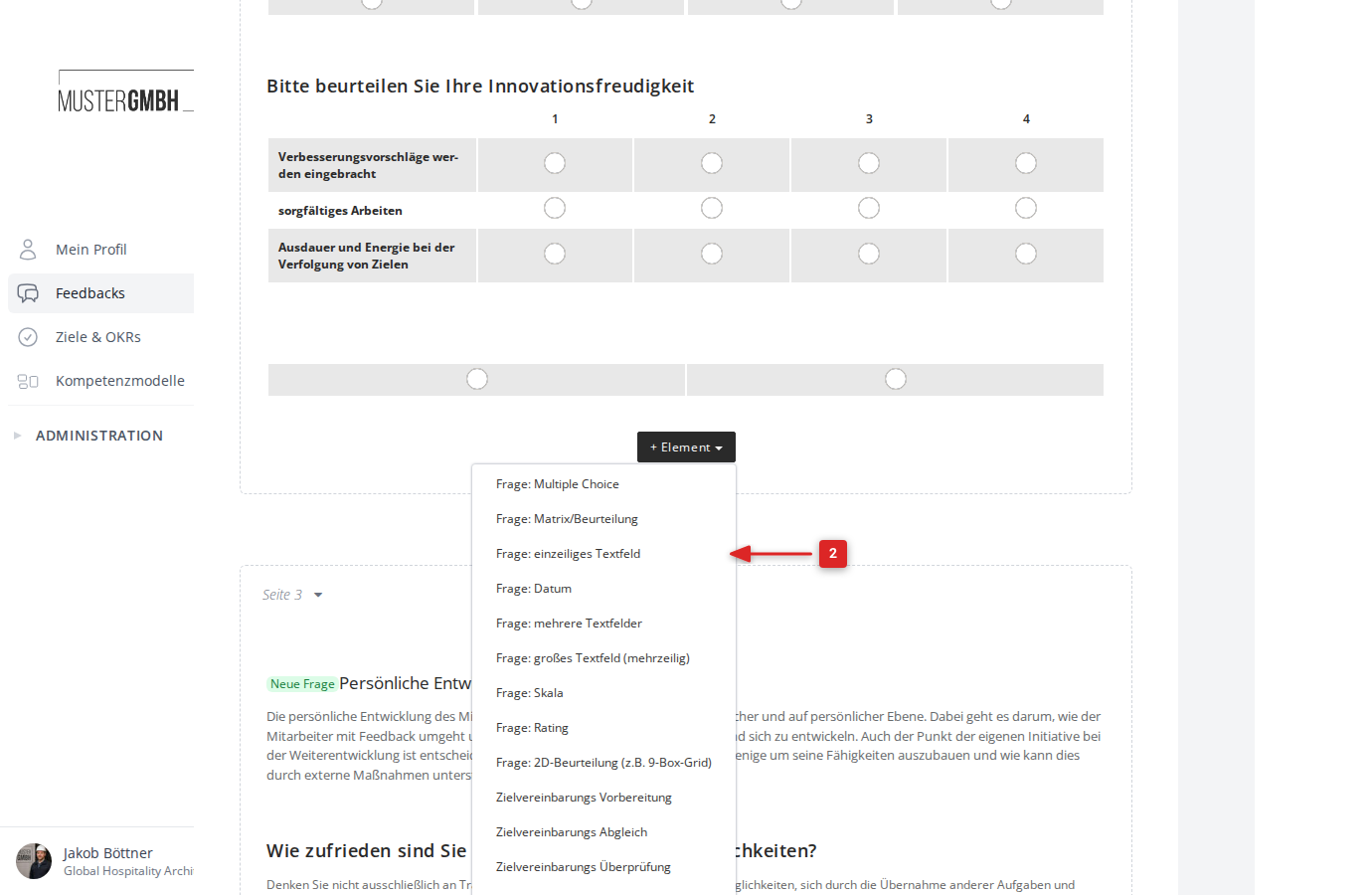
The edit form for the new text field question appears directly in the questionnaire.
Configure a text field question
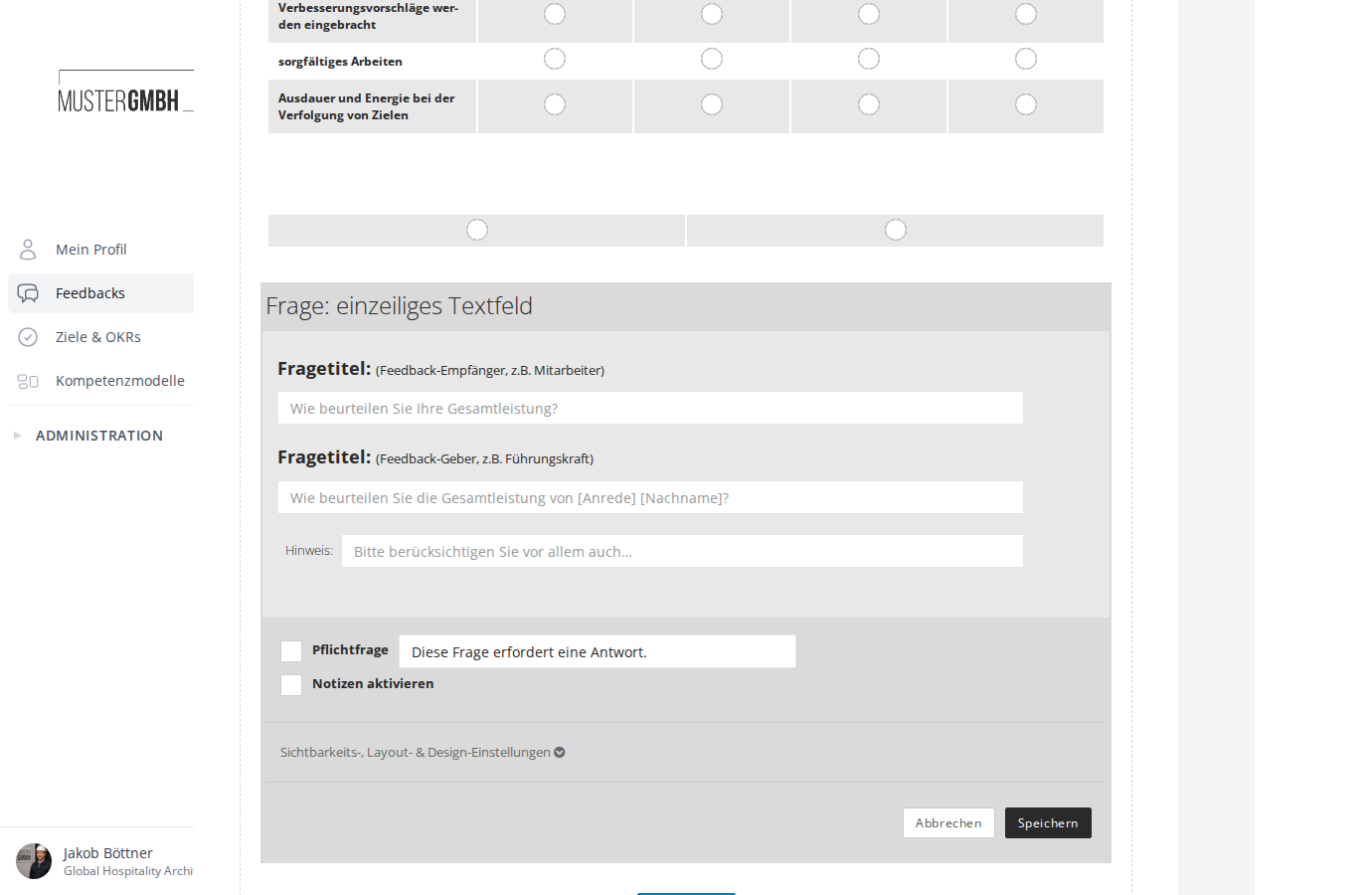
Question title
You can set two different question titles:
- Question title (Reviewee, eg employee): The title the feedback recipient (for example, the employee themselves) sees when answering the question. Example: “What is your most important professional goal?”
- Question title (Reviewer, eg supervisor): The title the feedback giver (for example, the supervisor) sees. Here you can use placeholders such as
[Salutation]and[Last Name]so the title is automatically tailored to the respective feedback recipient. Example: “What is the most important professional goal of [Salutation] [Last Name]?”
Hint
In the “Hint” field you can enter explanatory text that appears below the question title. Use this field to give participants extra information or instructions for answering the question.
Required question
Tick the “Required question” checkbox if the question must be answered. In the text field next to it you can adjust the hint text shown when a participant has not answered the question (default text: “This question requires an answer.”).
Enable notes
The “Enable notes” checkbox lets participants leave a note in addition to their answer.
Visibility, layout & design settings
Under the expandable “Visibility, layout & design settings” section you can control the visibility and appearance of the question:
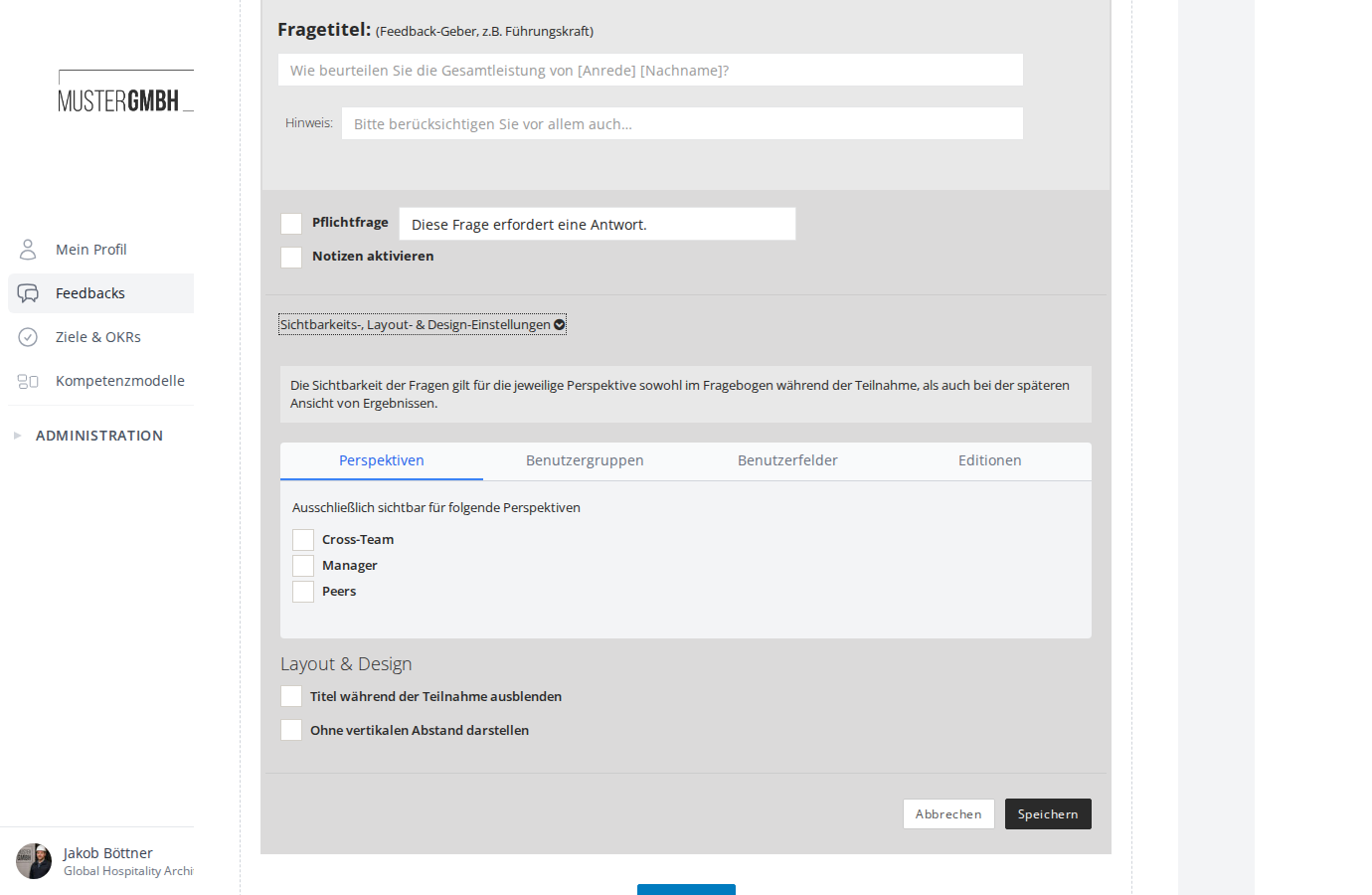
The visibility settings are organized into tabs:
- Perspectives: Choose which perspectives see the question. If you select no perspective, the question is visible to all perspectives.
- User groups: Restrict visibility to specific user groups.
- User fields: Restrict visibility to users with specific field values (only shown when matching user fields are configured).
- Editions: Decide in which editions the question appears.
Tabs that have a restriction configured are shown in bold.
Below the tabs you find the layout options:
- Hide title during participation — hides the question title from participants and shows only the input field.
- Display without vertical padding — reduces the vertical spacing to the previous question.
Finally, click “Save” to save the question.
How participants see it
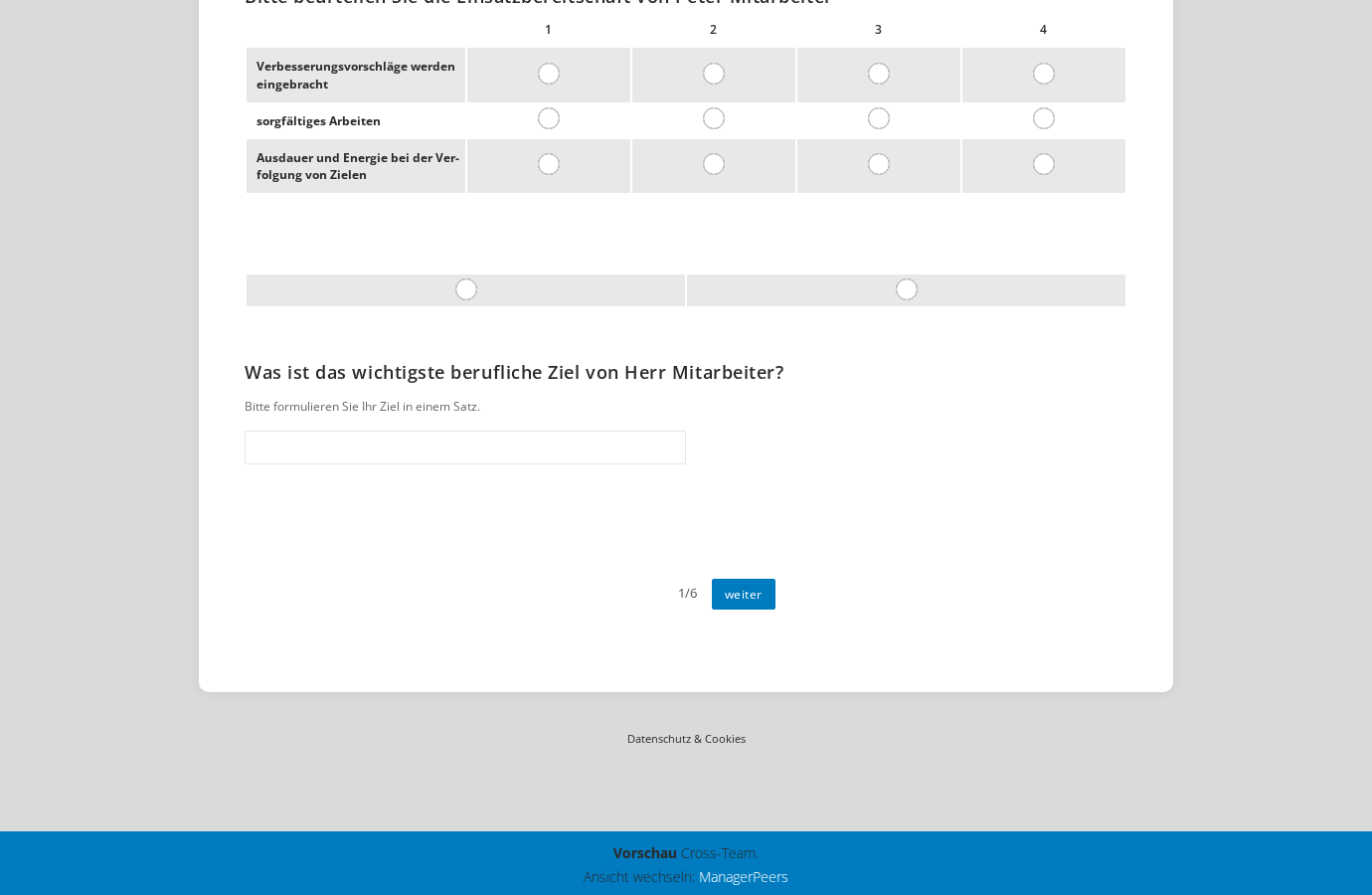
While taking part in the feedback, participants see the question title, the optional hint, and a single-line text field to enter their answer. If the question is configured as a required question, a red asterisk appears next to the question title.
Evaluate results
In the results view, the text answers are grouped by perspective. Each answer appears with the answer text and — unless the feedback process is anonymized — the participant’s name and perspective.
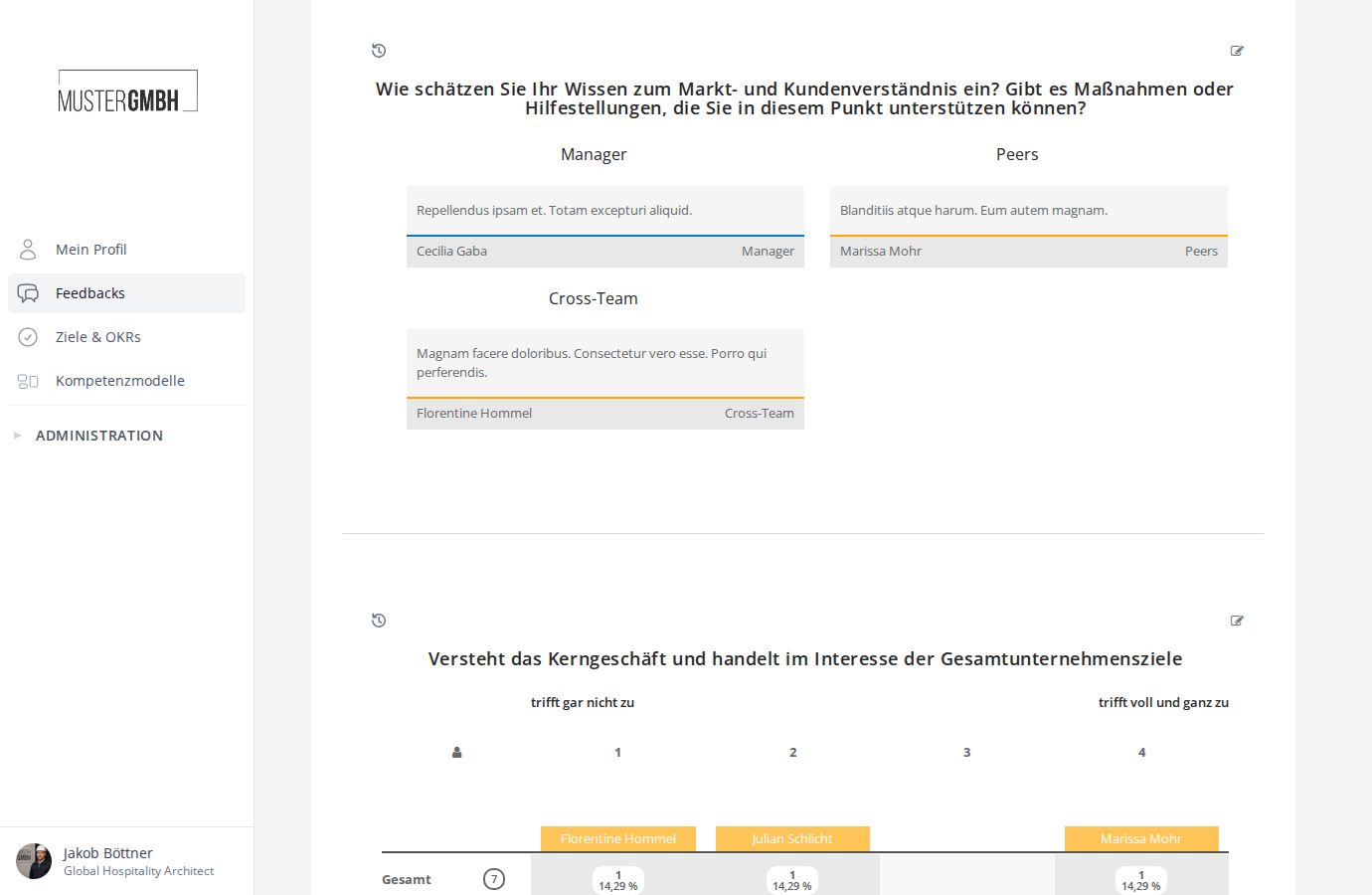
You can expand and collapse the list of answers using the “Show answers” link.