Free text
Free-text elements place formatted text anywhere in the questionnaire. Use them for section headings, hints, explanations, or instructions for your participants. The text can be styled with formatting such as bold, headings, or lists.
In the questionnaire editor dropdown this element type is called “Place text”.
Add a free text
- Open the questionnaire editor of the review you want.
- Click the ”+ Element” button at the end of a questionnaire page.
- Choose “Place text” in the dropdown.
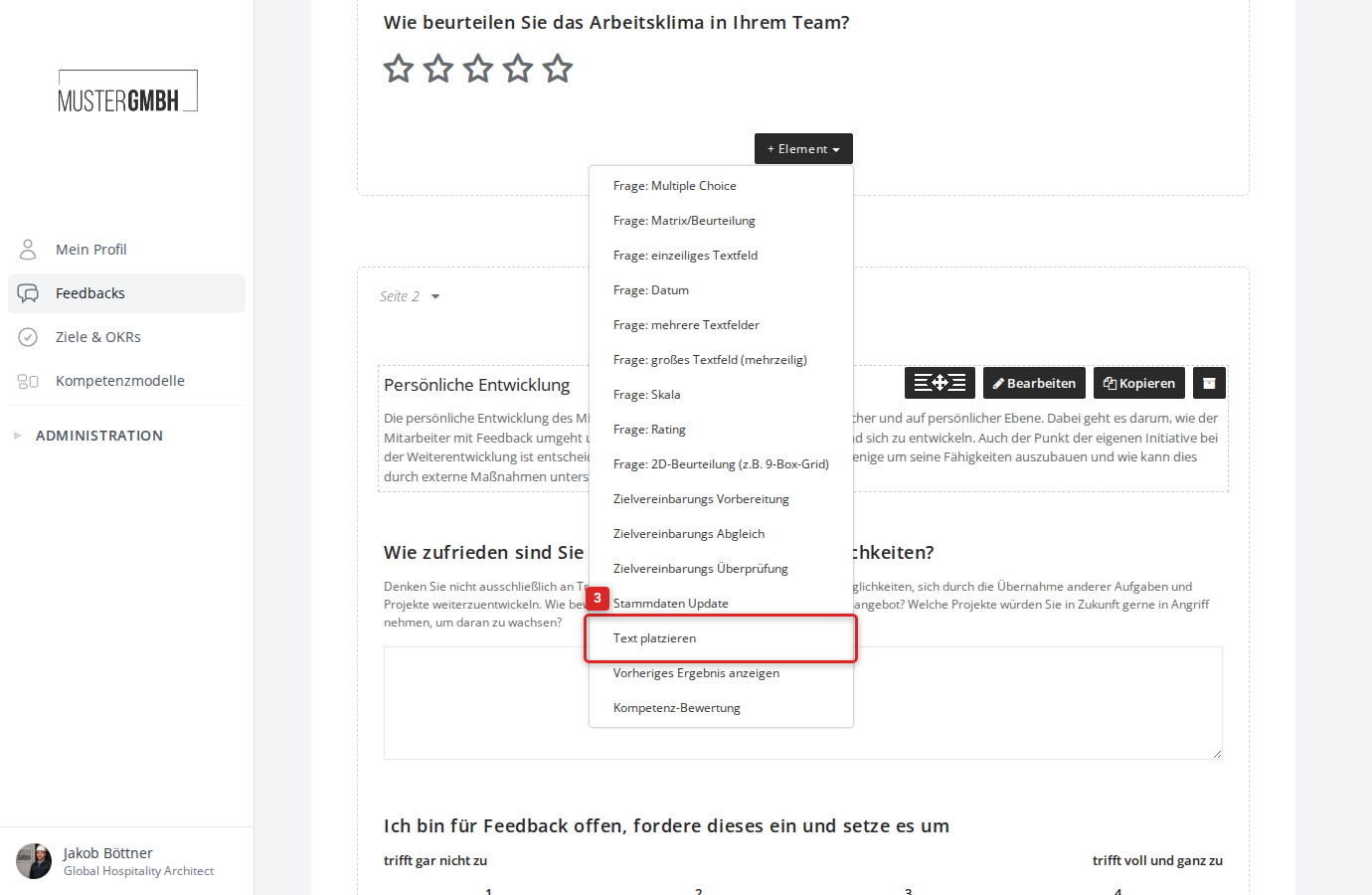
The form for editing the free text appears directly in the questionnaire.
Configure a free text
The editing form consists of the rich-text editor for the text content and the advanced settings.
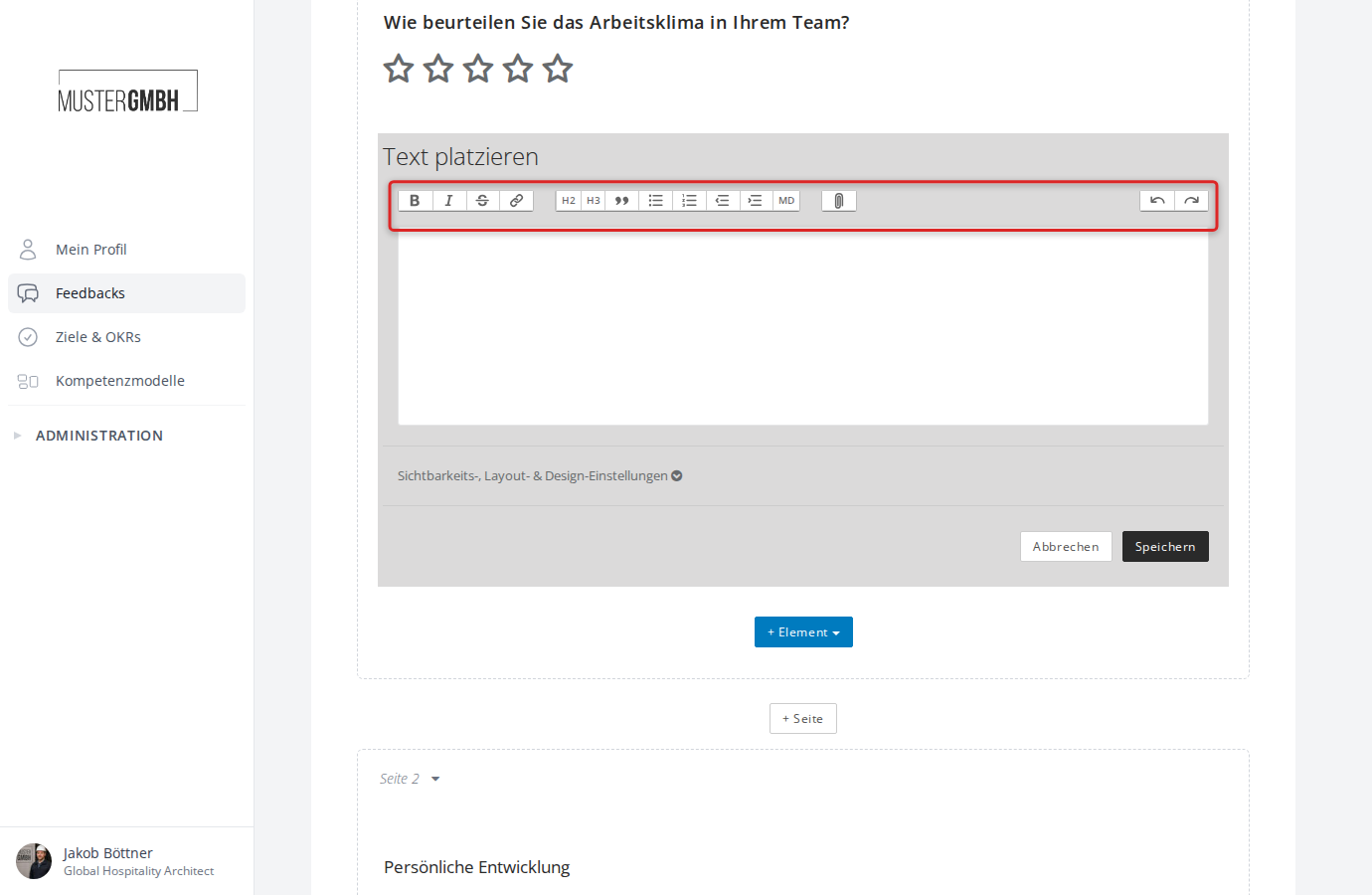
Enter and format text
Type the text you want into the text field. The toolbar above the text field offers formatting options:
- Character formatting: Bold, italic, strikethrough, insert link
- Paragraph formats: Headings (H2, H3), block quote
- Lists: Bullet list, numbered list, indent, outdent
- More: Markdown mode (MD), file attachment, undo/redo
Placeholders
In free-text elements you can use placeholders that are automatically replaced with each participant’s own data during participation. Write the placeholder in square brackets, for example [Salutation] or [Last Name].
Available placeholders:
[Salutation],[First Name],[Last Name][Reviewee](the feedback recipient)[Reviewer](the feedback giver)[Title](the title of the review)
This lets you write personalized greetings, for example: “Dear [First Name] [Last Name], welcome to your feedback.”
Visibility, layout & design settings
Click “Visibility, layout & design settings” to expand the advanced settings. Here you control who sees the free text and how it is displayed.
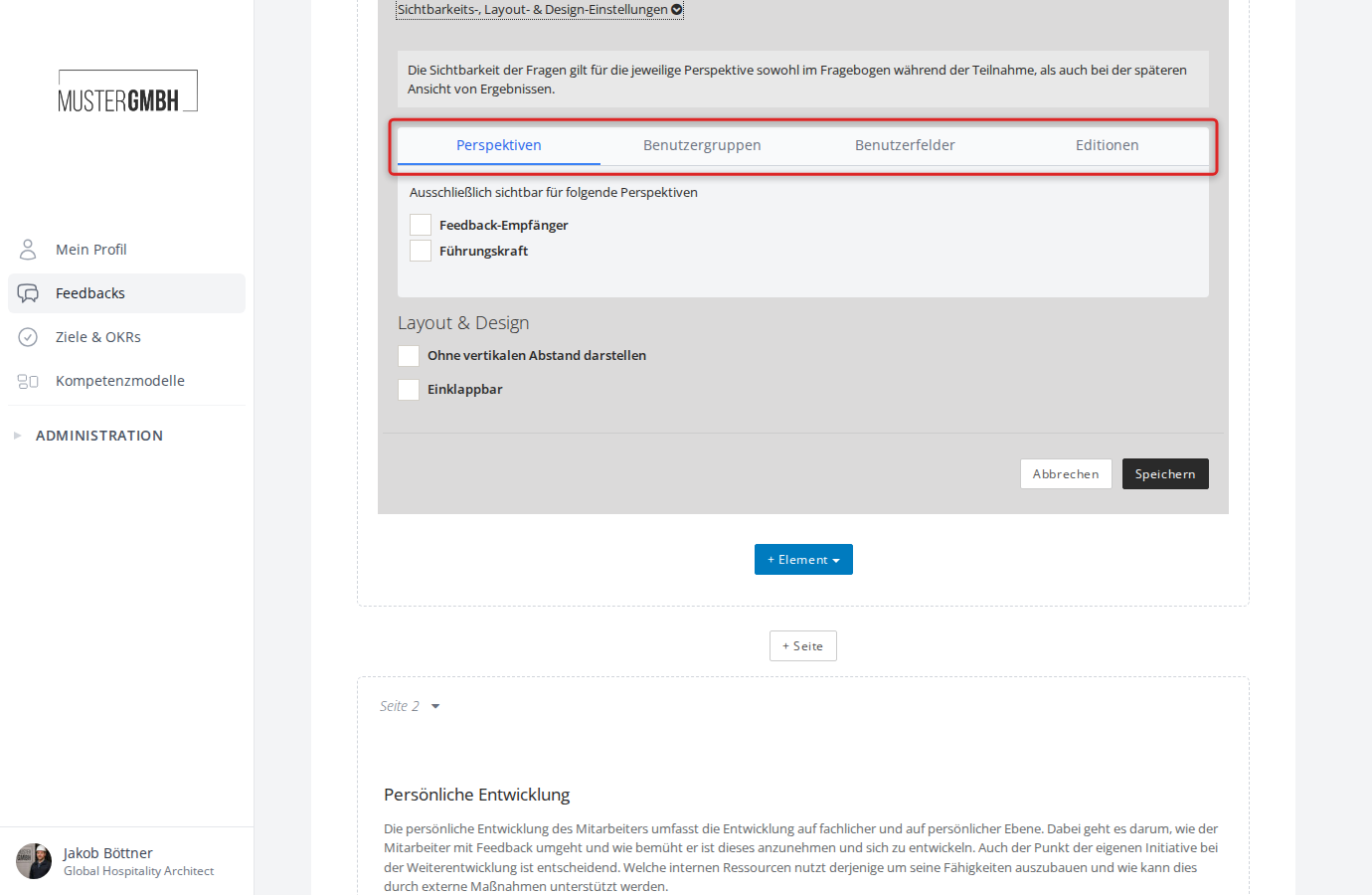
The visibility settings are organized into tabs:
- Perspectives: Make the free text visible only to certain perspectives (for example only to “Feedback recipient” or only to “Supervisor”). With no selection, the free text is visible to all perspectives.
- User groups: Restrict visibility to members of specific user groups.
- User fields: Restrict visibility based on specific values in user list fields.
- Editions: Show the free text only in certain editions of the review. Completed editions are locked and can no longer be changed.
Below the tabs, the “Layout & design” section offers these options:
- Display without vertical spacing: Removes the space between this element and the previous one. Useful when several free texts should follow one another directly.
- Collapsible: Shows the free text collapsed. Participants can expand it by clicking “Show details”. This lets you fit longer hints into less space.
Save
Click “Save” to apply the free text. “Cancel” discards your changes.
How participants see it
Participants see the formatted text while filling in the questionnaire. If the “Collapsible” option is active, only a “Show details” link is shown; clicking it expands and collapses the text content.