Manage the nominations of one person
Behind “Open” in the “Nominations” tab sits the page of a single person. It shows, per perspective, who has been proposed as a feedback provider, which step the list stands at and who is up next. This is where you step in: remind, nominate somebody else, remove a person, approve the list or end the path early. Everything you do here concerns this one person only.
How to read the tab as a whole is covered in Keep an eye on nominations. How to run the same actions for many people at once is covered in Handle several nominations at once.
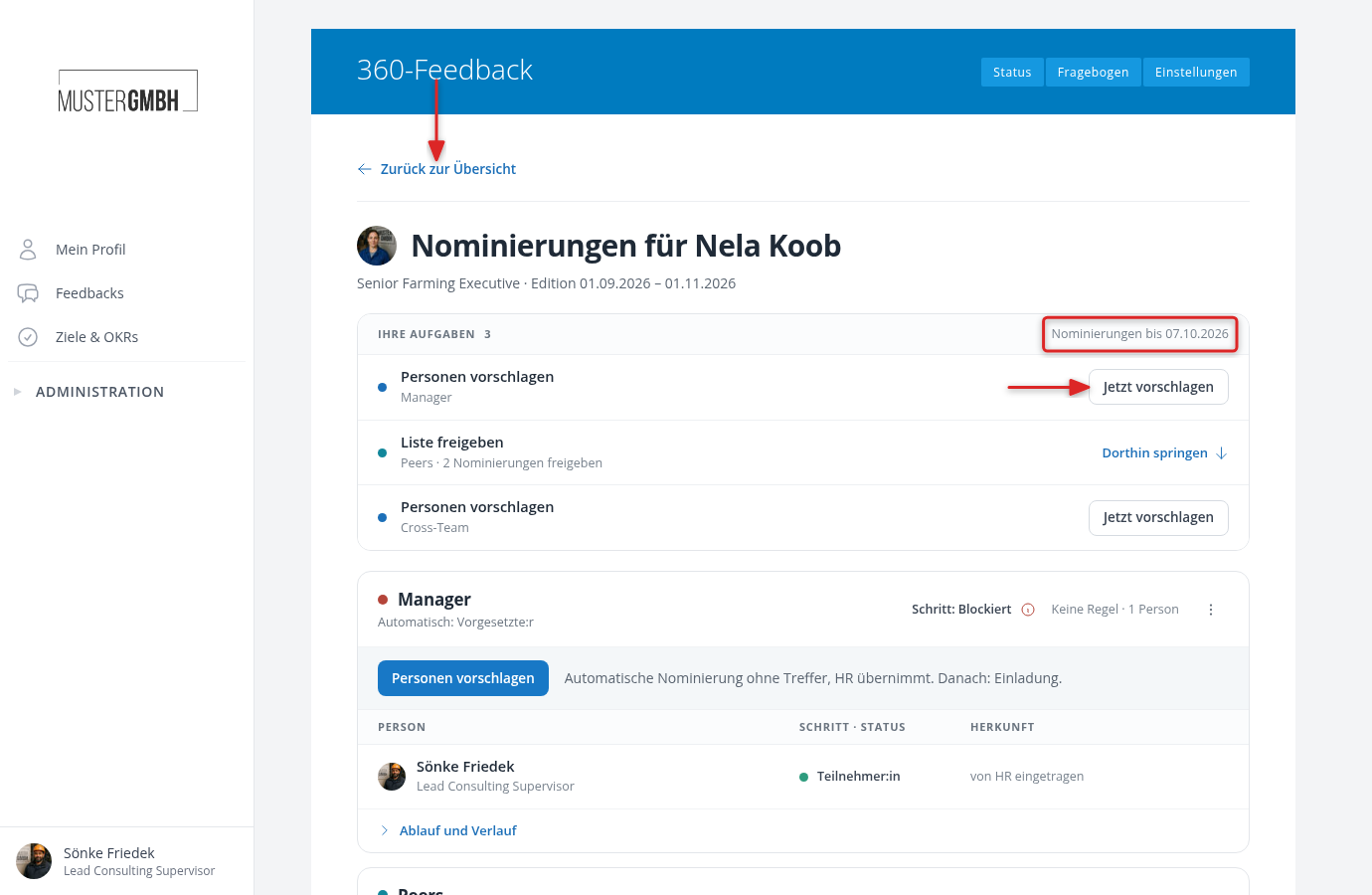
The head: for whom, until when, what is on you
“Back to the overview” at the top left returns you to the tab, with the filter you had set there. If you came through the chip in the participant list, the link reads “Back to the participant list”. Anyone who opens the page from an e-mail and may not see the edition itself gets “Back to your feedbacks” and lands in their own profile.
Below that sit the avatar and “Nominations for Nina Bauer”, and one line further down the job title and the period of the edition. The name of the feedback stands in the blue header above.
The white block below is your entry point. If you have something to do for this person, it is called “Your tasks” and names the count. Every row consists of the dot of the step, the verb and the scope: “Propose people · Interfaces · 1 more person needed”, “Complete review · Peers · Review and confirm 3 people”, “Approve list · Peers · Approve 3 nominations”. For “Propose people”, “Propose now” opens the dialog in which you choose the people straight away. Every other row jumps to the matching perspective block with “Jump there”, and you act there.
The deadline sits at the top right, “Nominations until 06.10.2026”. If several lists of this person are waiting for your own approval and at least one of them can actually be approved, “Approve” appears next to it. The dialog behind it shows per list what your approval does, and works like the bulk dialogs of the tab: Handle several nominations at once.
If you have nothing to do, the same block is called “Status” and names, per running list, the sentence from the tab, for example “Peers · 2 of 4 acceptances pending, waiting for Marie Schulz and Jonas Weber”. Once nothing is open any more, it says “All perspectives are complete.”
Reading a perspective block
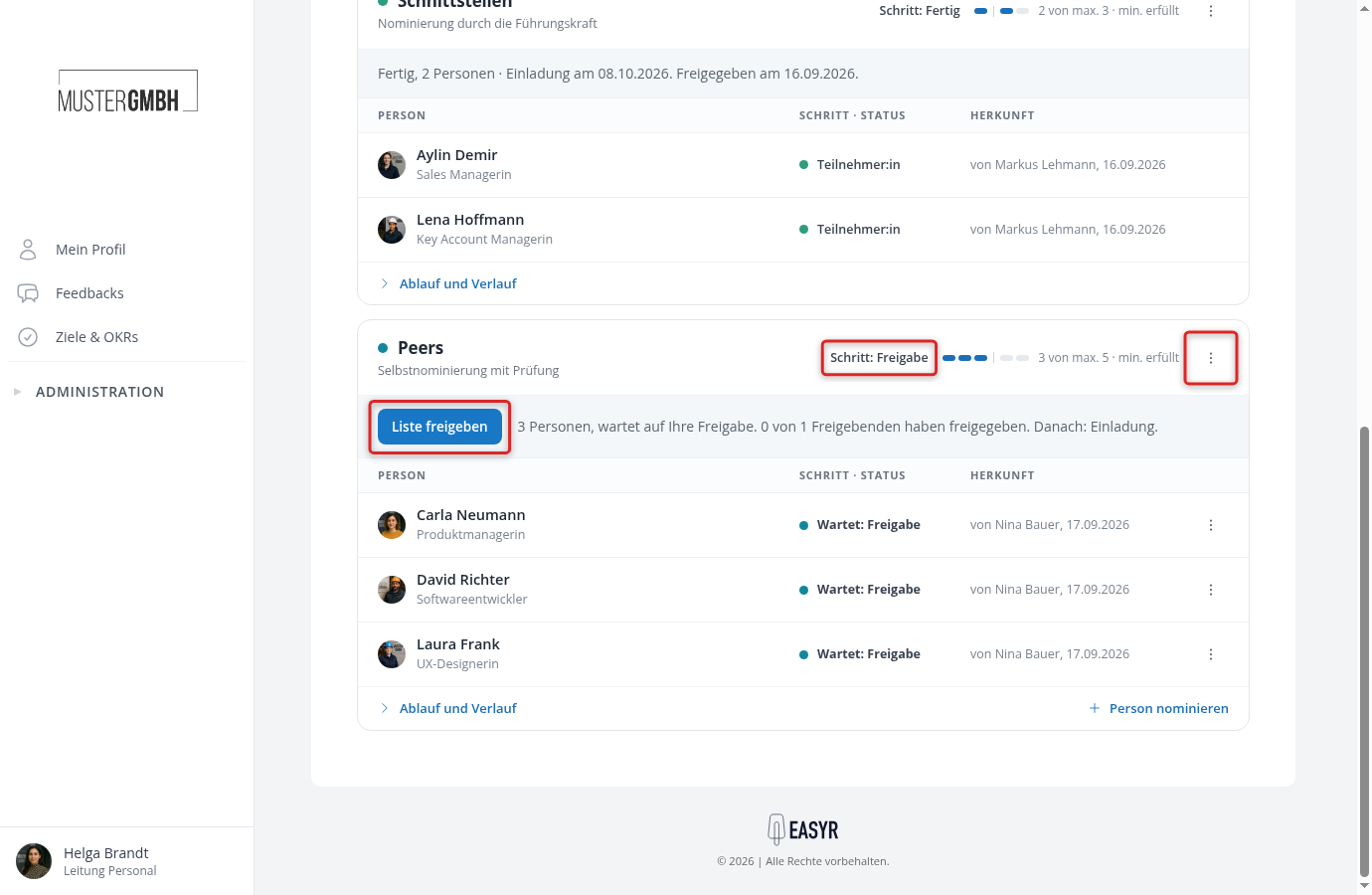
What follows is one bordered block per perspective, in the order of the feedback. The block head holds the dot of the step, the perspective name and, below it, the name of the nomination path, for example “Self-nomination with review”.
Next to it stands “Step: Approval”. With “Step: Blocked” an info icon sits behind it, which opens the same “Why blocked?” window as the tab. The eight messages and their ways out are covered in A nomination is blocked: what to do.
Then come the place marks of the rule: “3 of max. 5 · min. met”, in amber “1 more person needed” or “1 person too many”. If the perspective has no rule, it only says “No rule · 1 person”. The perspective’s ⋮ menu sits at the far right.
The grey strip below says what the list is waiting for and what comes next: “3 people, waiting for your approval. 0 of 1 approvers have approved. Next: Invitation.” The strip stays after the approval and names the outcome: “done, 3 people · invitation on 08.10.2026. Approved on 20.09.2026.” An override or a cancellation appears with date, name and reason in exactly this line.
Exactly one blue button sits at the left of the strip, and only when you are up yourself: “Propose people”, “Complete review”, “Approve list”, “Propose replacement” or “Accept”. Otherwise there is none. If the approval is blocked, “Approve list” stays grey. Hover over it and the hint names the reason.
A perspective without a nomination path has no strip and no menu. Below its name it says “No nomination. People come from the participant list.”, the people carry the source “entered by HR”, and “To the participant list” in the footer takes you where you change them.
Who is on the list
The table in the block has four columns: Person, “Step · Status”, Source and the row’s menu. The state says what this one person is waiting for. If nobody is on the list yet, the table is missing and the block says “No one nominated yet.”
| State | What it means |
|---|---|
| Waiting: review | Proposed, the reviewing role has not completed the list yet. |
| Waiting: acceptance | The person has been asked and has not answered yet. |
| Accepted | The person has accepted. |
| Accepted (auto) | The person has no e-mail address. easyreview cannot ask them and counts the acceptance as given straight away. |
| Waiting: approval | Accepted, now it hangs on an approval. Shown in bold, because this is where you act. |
| Participant | Approved or entered by HR: the person is a feedback provider. |
| Declined, Rejected, Removed | No longer on the list. The name is struck through and the row moves to the end. |
For a decline and for a rejection the reason stands directly under the name. For a removal it does not, you find that one in the history. If a red note under a name says that the person already takes part as another perspective, they are already giving feedback in a different perspective of the same feedback, and the list only moves on once one of the two nominations disappears.
The “Source” column says how the person got onto the list: “by Nina Bauer · 17.09.2026” for a proposal, “automatic” for an automatic nomination path, “entered by HR” for a person from the participant list and “replacement for Marie Schulz” when they replace somebody. If a perspective runs several nomination paths, the name of the path appears on a second line below.
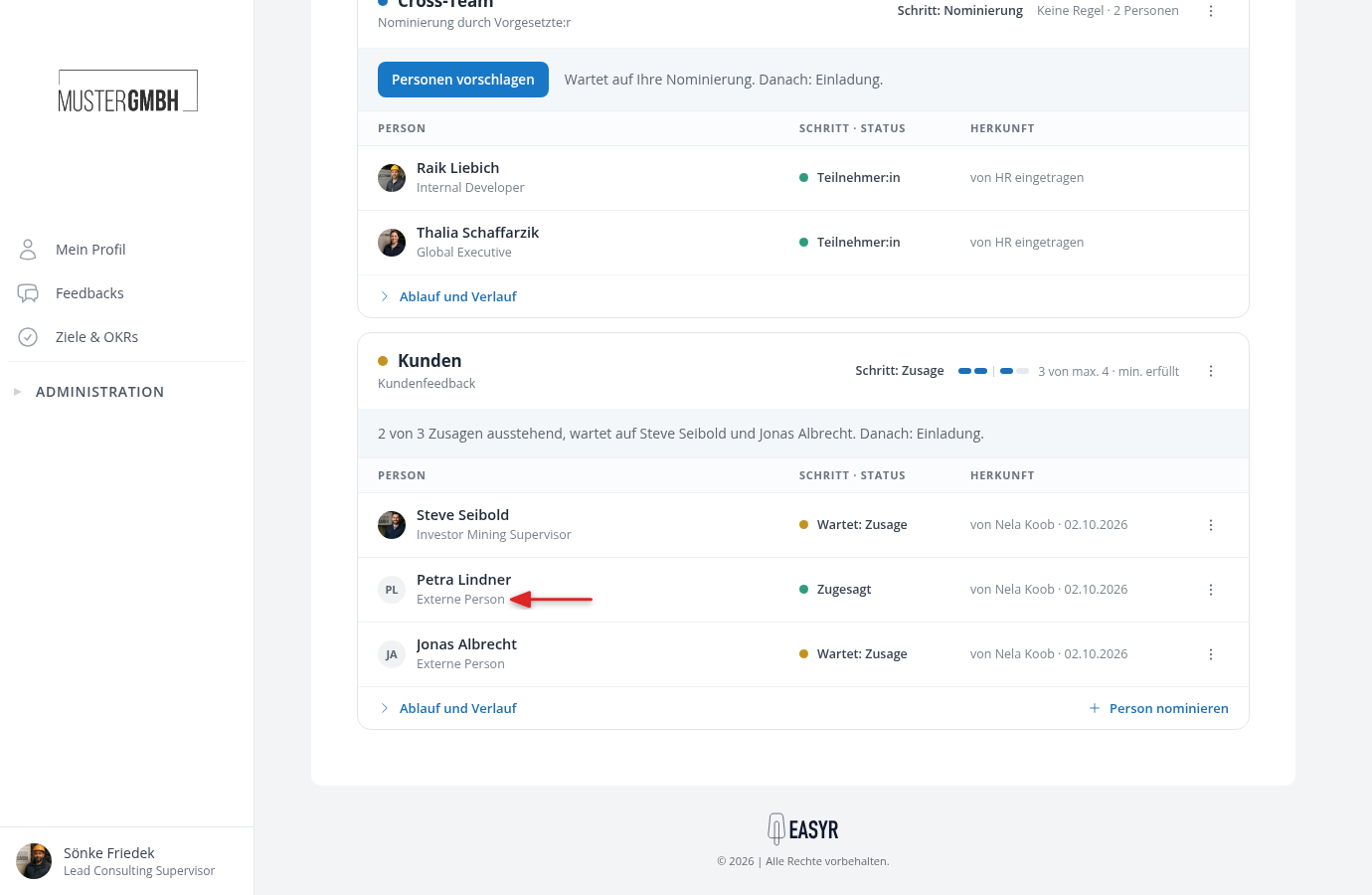
People without an easyreview account can be on the list too, if the nomination path allows external people. You recognize them by the note “External person” under the name, where employees show their job title. They have no photo, the circle shows their initials. States, source and menu are the same as for employees.
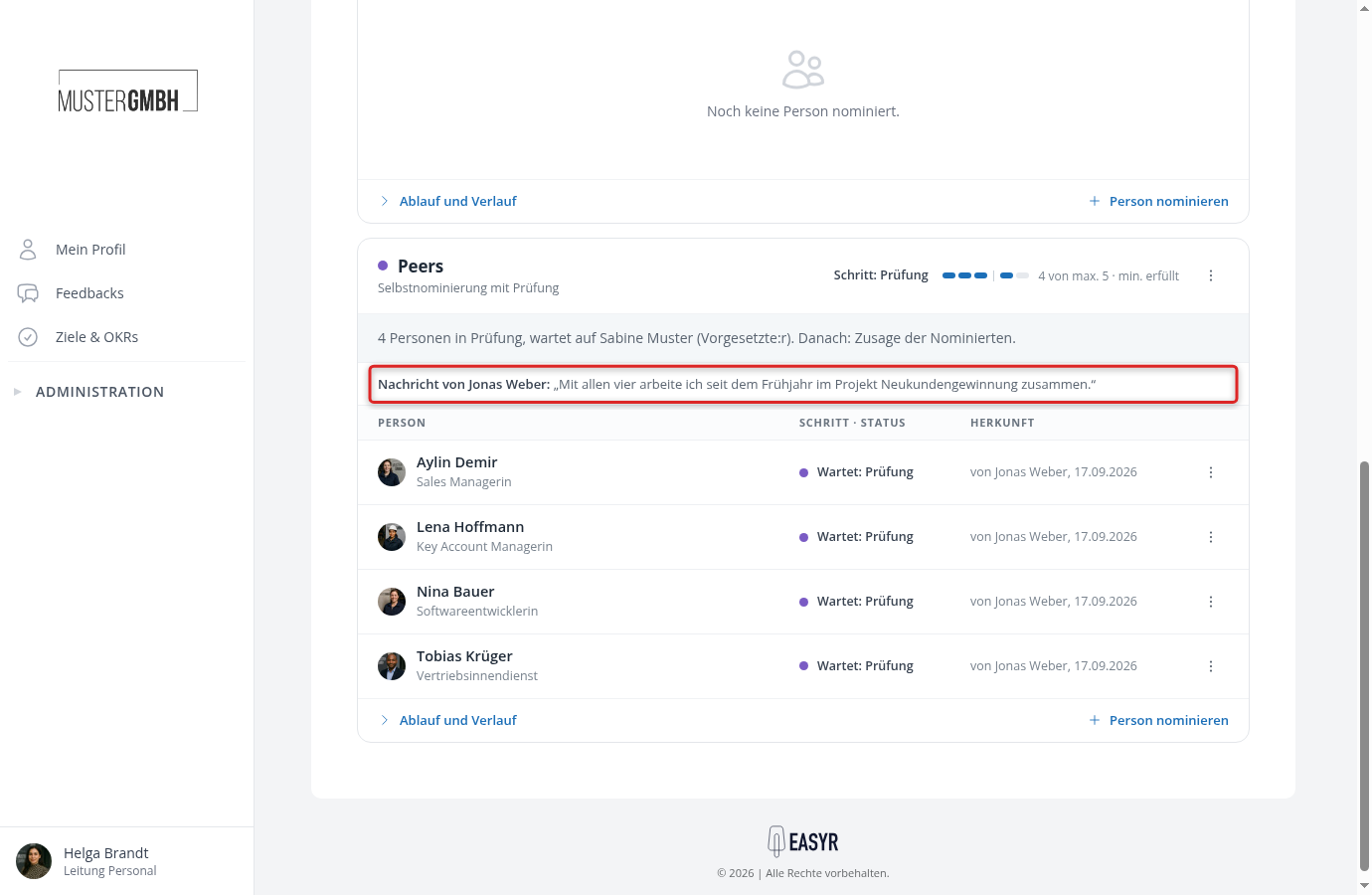
If the nominating person wrote something along with their proposal, it stands above the table: “Message from Jonas Weber:” and their sentence below it. If somebody added a note with their acceptance, it stands under their name as “Note on the acceptance:”.
Moving the whole list: the perspective menu
The ⋮ menu in the block head only exists while the nomination path is running, and only for people who may manage the participations of this feedback. It has up to four entries: “Send reminder”, “Advance”, “Confirm invitation (override)” and, behind a line and in red, “Cancel nomination”. “Advance” is missing as soon as there is no running step left to finish. If your own role task is due and is not already the blue button in the strip, you find it at the top of the menu as well.
Every entry opens a dialog, and that dialog is the actual work. It names the list at the top (“Nina Bauer · Peers · Approval”), and below that, in bold, the effect and the people it concerns, by name, one per line:
- “The reminder goes to: Helga Brandt”
- “Effect: The approval is completed. Next: Invitation. If the rule is not met by then, the list stays blocked.” with “The approval is dropped for: Helga Brandt”
- “Become feedback providers: Carla Neumann, David Richter, Laura Frank” for the override
- “Are removed: Carla Neumann, David Richter, Laura Frank” for the cancellation
If the action would do nothing, a grey “not possible: nobody is waiting” or “not possible: nobody has accepted” appears instead of the effect, and the button stays disabled. A reason is required for the override and optional for the cancellation. What Advance and the override do exactly, step by step, is covered in A nomination is blocked: what to do.
“Cancel” at the bottom left and the Esc key close every dialog without triggering anything. Once the list is approved, only “To the participant list” remains in the menu.
Changing one person
Every row of a running list has its own ⋮ menu. Which entries it holds depends on the step the list stands at.
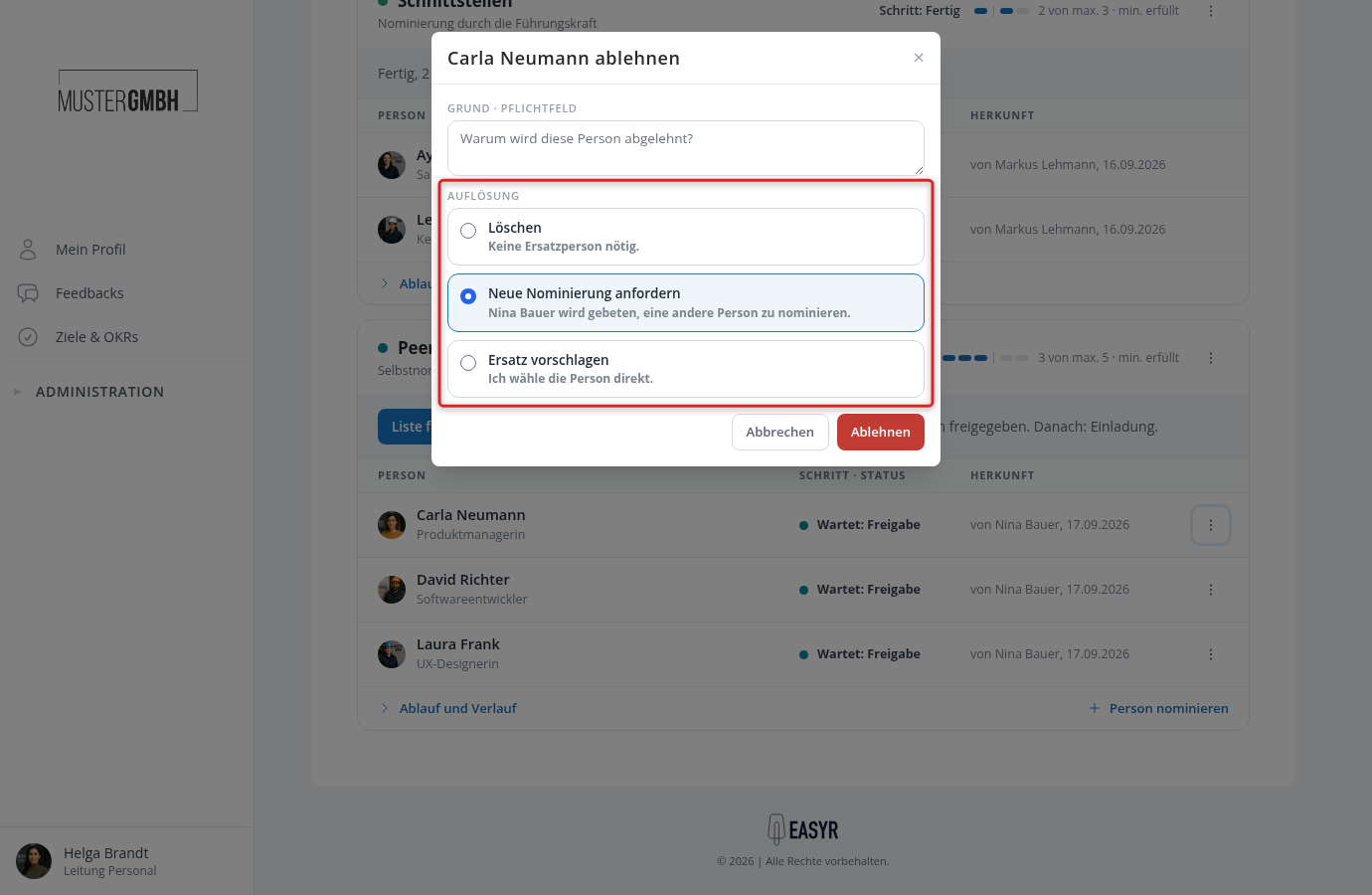
During the approval the row offers “Reject”. The dialog asks for a reason and one of three resolutions: “Delete” (no replacement needed), “Request a new nomination” (the nominating person is asked to name somebody else) or “Propose replacement” (you pick the person yourself).
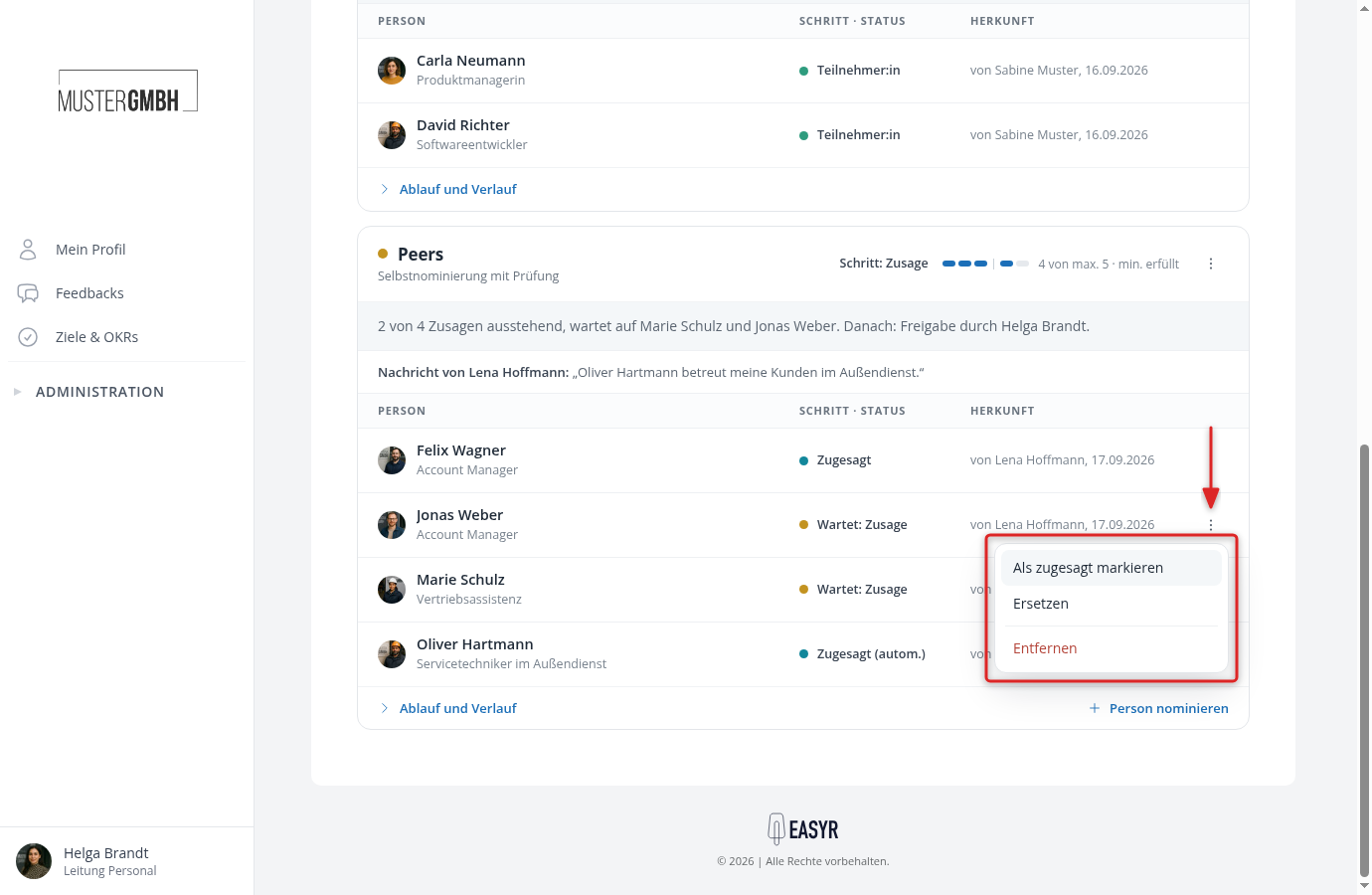
Before that, so during the nomination, the review and the acceptance, the row offers “Replace” and “Remove”. Replace swaps the person for another one in a single move, a reason is required. Remove takes them off the list; the reason is required here too, except while the nomination is still running.
“Mark as accepted” only appears for a person whose acceptance is still open, and only HR sees the entry. The acceptance then counts as if the person had answered themselves. The reason is required and appears in the history. This is the way out when somebody can no longer answer at all, for example after the end of the edition.
If somebody declined and a replacement has been requested, their struck-through row offers “Propose replacement” and nothing else. The picker opens below it and replaces the person who declined with the new one.
On a path that allows external people, any replacement can also be an external person. The “Replace” dialog, the “Reject” dialog with the “Propose replacement” resolution and the picker behind “Propose replacement” then also offer the “Add external person” section. The replacement is always exactly one person: a colleague from the search or an external person, for whom you enter first name, last name and email address.
These actions are not for the administration alone. Whoever made a proposal may take it back while the nomination or the review is running, and the reviewing role may change the list during its review. Once the list moves into the acceptance step, only the administration is left, plus the approvers during the approval. People HR entered directly into the participant list have no menu at all. You change those in the participant list.
Nominating somebody afterwards
“Nominate person” in the block footer opens the “Propose people” dialog, the same one the nominating role fills its list with. The link is there when you may nominate in this list and the grey status line does not already carry the “Propose people” button. If proposing is your task anyway, use that button or “Propose now” under “Your tasks”.
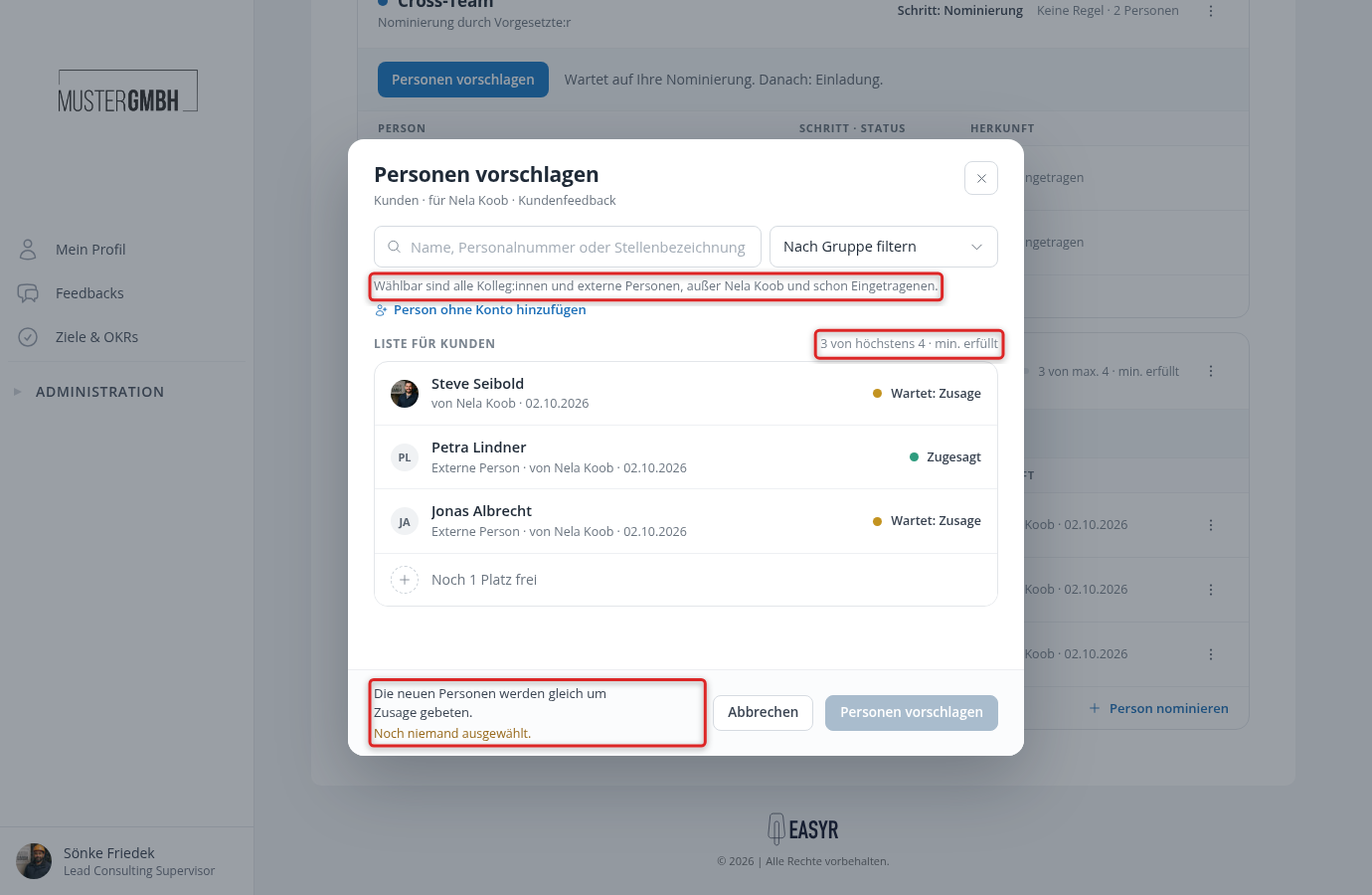
Below the search field the dialog names whom you may choose from, for example “You can choose any colleague or external person, except Nela Koob and people already on the list.”
If the nomination path narrows down the group of people, that applies to you as well. The sentence then mentions “the group of people of the nomination path”, and anyone who does not match the filter appears neither in the search nor in a group. The filters themselves are in the nomination path.
If “Nobody can be selected here at the moment” appears instead of the search, easyreview can no longer apply a filter of the path. The group of people is then locked, also for “Replace” and for “Reject” with “Propose replacement”, until someone corrects the filter in the nomination path.
Search by name, staff number or job title, or choose a group next to the search field. The matches unfold below the search field, and one click puts the person on the list. The list below shows everyone already on it with their state, plus your new people highlighted in blue with “New” and the free places. Above it on the right easyreview counts along, for example “3 of at most 4 · min. met”. The maximum cannot be exceeded: once every place is taken, the list accepts nobody else.
At the bottom left the dialog says what happens to the new people, for example “The new people are asked to accept right away.” or “The new people join the review in progress.” As long as nobody is selected, “Nobody selected yet.” appears below it and the button stays disabled. If somebody still reviews the list, you can add a message through “Message to the reviewers”. It later appears above the list of people.
If the nomination path allows external people, “Add person without an account” sits below the search. There you enter the first name, last name and email address, as described in Nominate, review and accept. If the path nominates external people only, the search is missing.
What has already happened: Process and history
“Process and history” in the footer of every block unfolds the story of the list. Only people with insight into the list see this line.
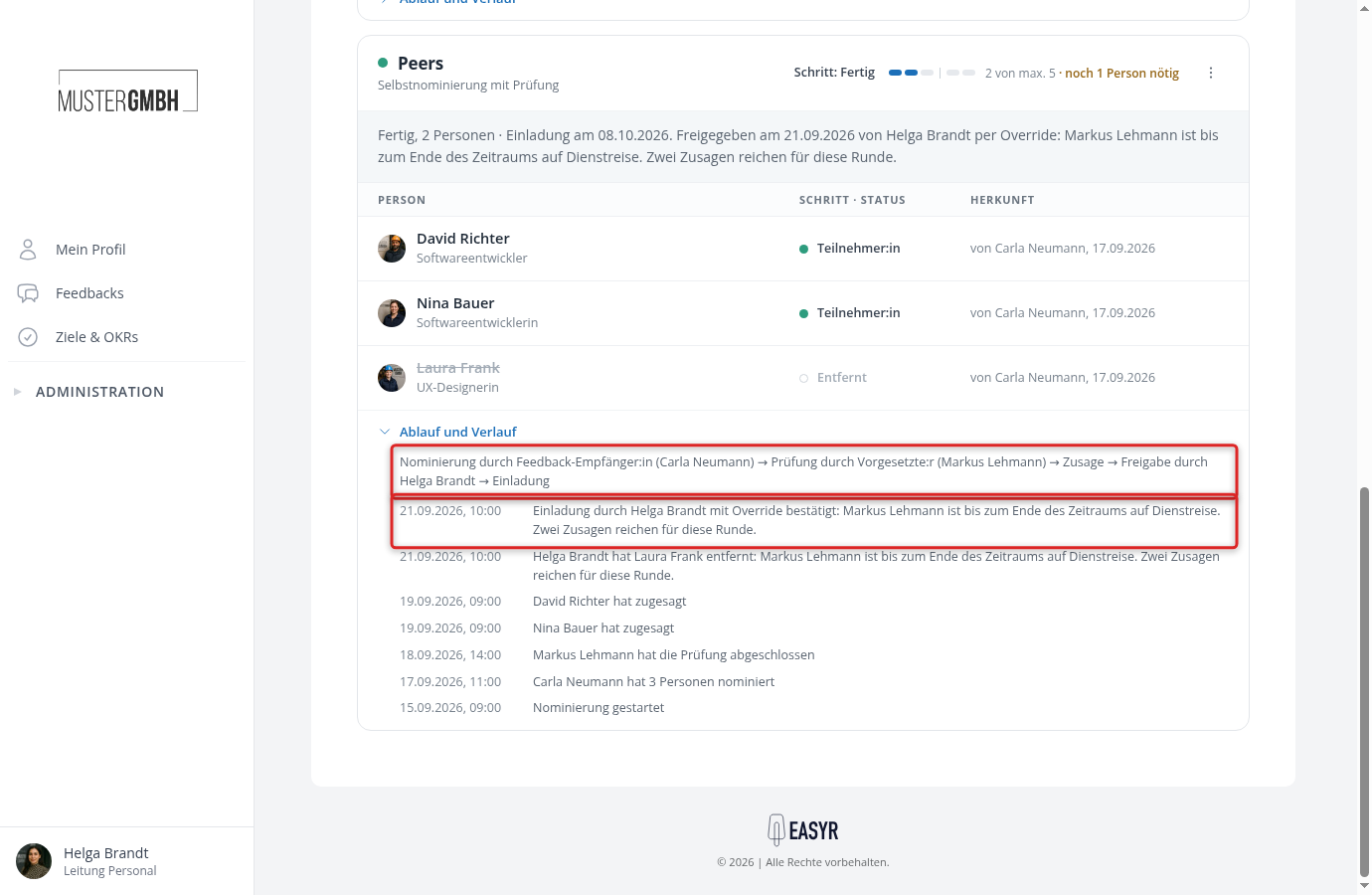
At the top stands the process as one line of text, built from the step list that was frozen when the path started, with the names behind each role: “Nomination by Feedback recipient (Carla Neumann) → Review by Supervisor (Markus Lehmann) → Acceptance → Approval by Helga Brandt → Invitation”. While an approval is running, its progress follows, for example “Approval by Helga Brandt, 0 of 1”. Whatever somebody changes later in the nomination paths no longer changes this line.
Below it stands the history, newest entries first, each with date and time: who nominated and how many, who completed the review, who accepted or declined and why, who removed or rejected whom and with which resolution, who approved, whether the invitation was confirmed via override and with which reason, and whether the path was cancelled. Anyone skipped when the acceptance step was advanced appears there as removed with the reason “No answer”.
The entry “Nomination cancelled” does not name the reason. That one stands in the grey strip of the block, together with the date and the name.
What the feedback recipient sees
When the person opens their own page, it is called “Your nominations”, the avatar is missing, and the line below it starts with “Feedback recipient”. They see the same blocks with the same states, but neither the perspective menu nor “Process and history”, and reasons only for proposals they made themselves. They may still change their own proposals until the review ends.
From which step they get to see the list at all is something you set in the settings of the feedback: Set up nominations. What the people involved do with their tasks is covered in Nominate, review and accept.