Keep an eye on nominations
While nominations are running for an edition, the “Nominations” tab answers three questions at a glance: how far along are we, where is it stuck, and what do you have to do yourself? This article shows you how to read the tab. What you do afterwards is covered in the articles linked here.
You find it on the status page of the edition, to the left of the “Invitations” tab that holds the participant list, because the nomination comes before the invitation. The tab only exists for feedbacks with nominations switched on. HR and the management see every feedback recipient of the edition there, managers see their own employees. Every figure in the tab only counts what you are allowed to see.
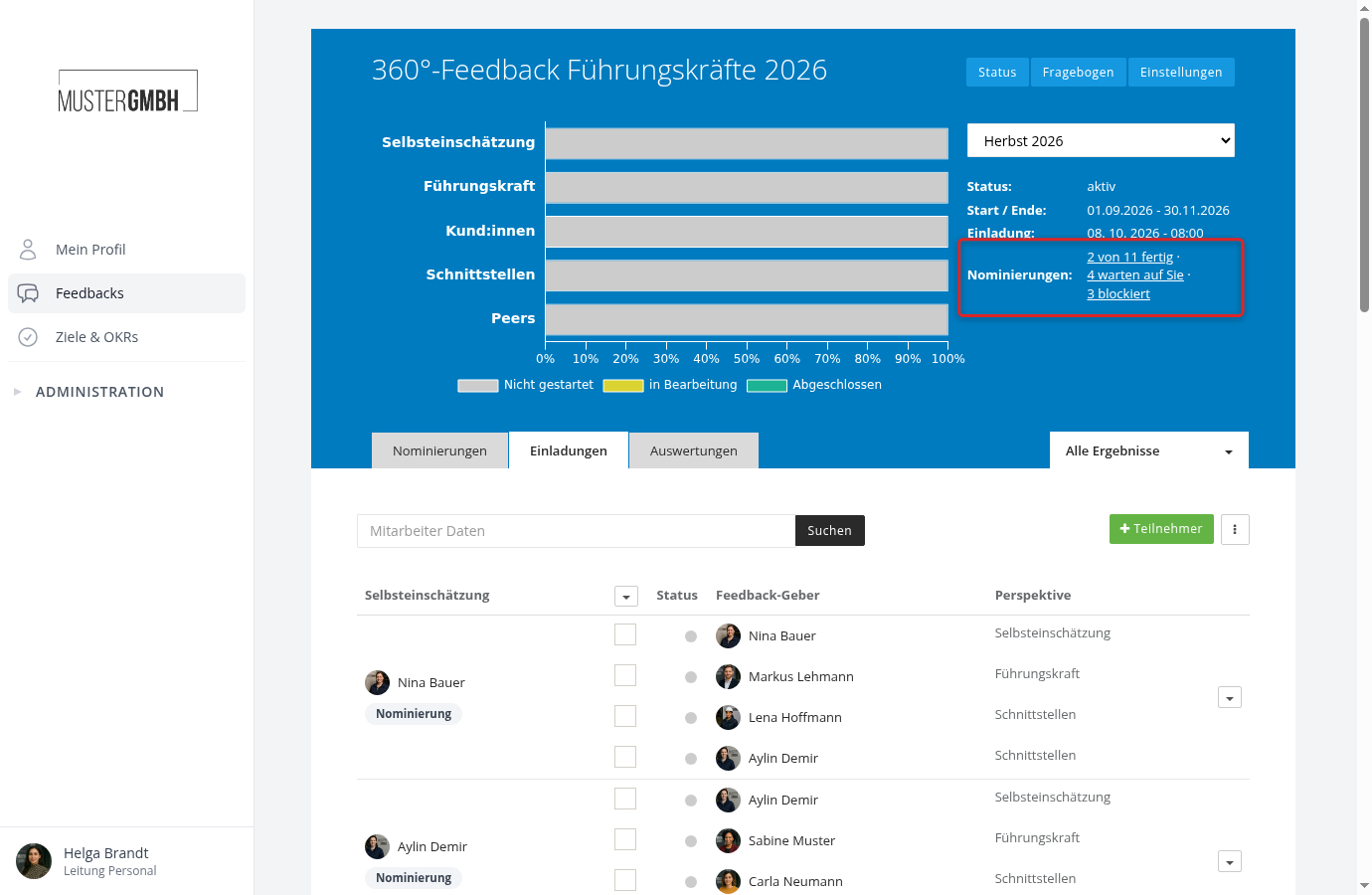
You get a first impression above it, in the blue header of the edition. The “Nominations:” row says how many feedback recipients are done, how many are waiting for you and how many are blocked. Each of the three figures is a link and opens the tab with the matching filter.
How much time is left, and what is on you?
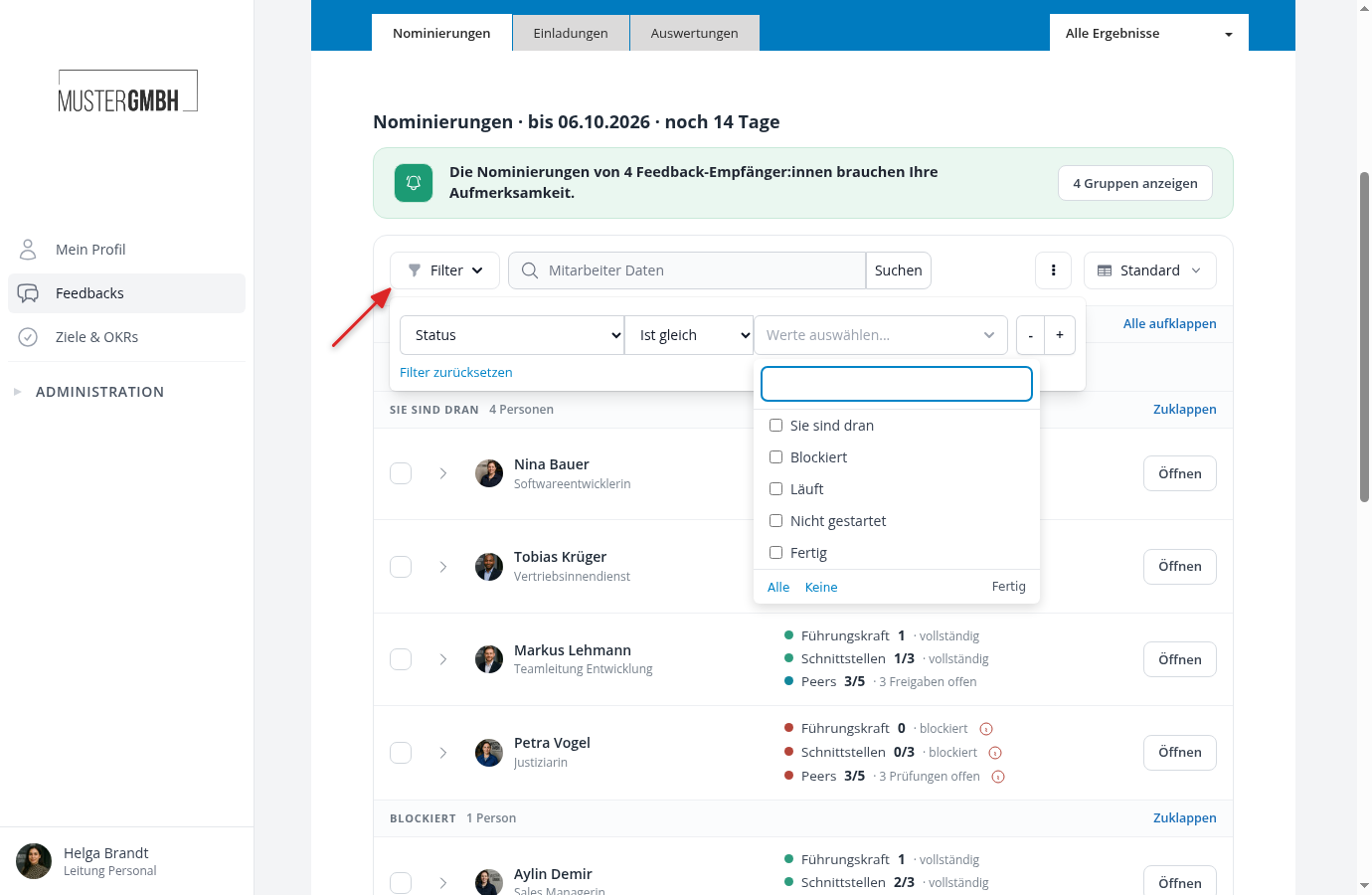
The title line in the tab says both things about the period: “Nominations · until 06.10.2026 · 14 days left”. Before the start it says “from” with the start date, for a period without an end “since” with the start date, and after the end “ended 12 days ago”. If the edition has no nomination period at all, that stands there too, and nothing is running.
Below it, a green strip counts your own work: “The nominations of 4 feedback recipients need your attention.” The “Show 4 groups” button filters the list to the status “Your turn”. When you have nothing to do, the strip is missing.
If the automatic invitation date of the edition falls on the day the period ends or before it, an extra warning sentence appears under the title line. The invitation then goes out before the last lists can be finished, and anyone not confirmed by then has to be invited by hand. Only people who may change the settings of the feedback see that sentence.
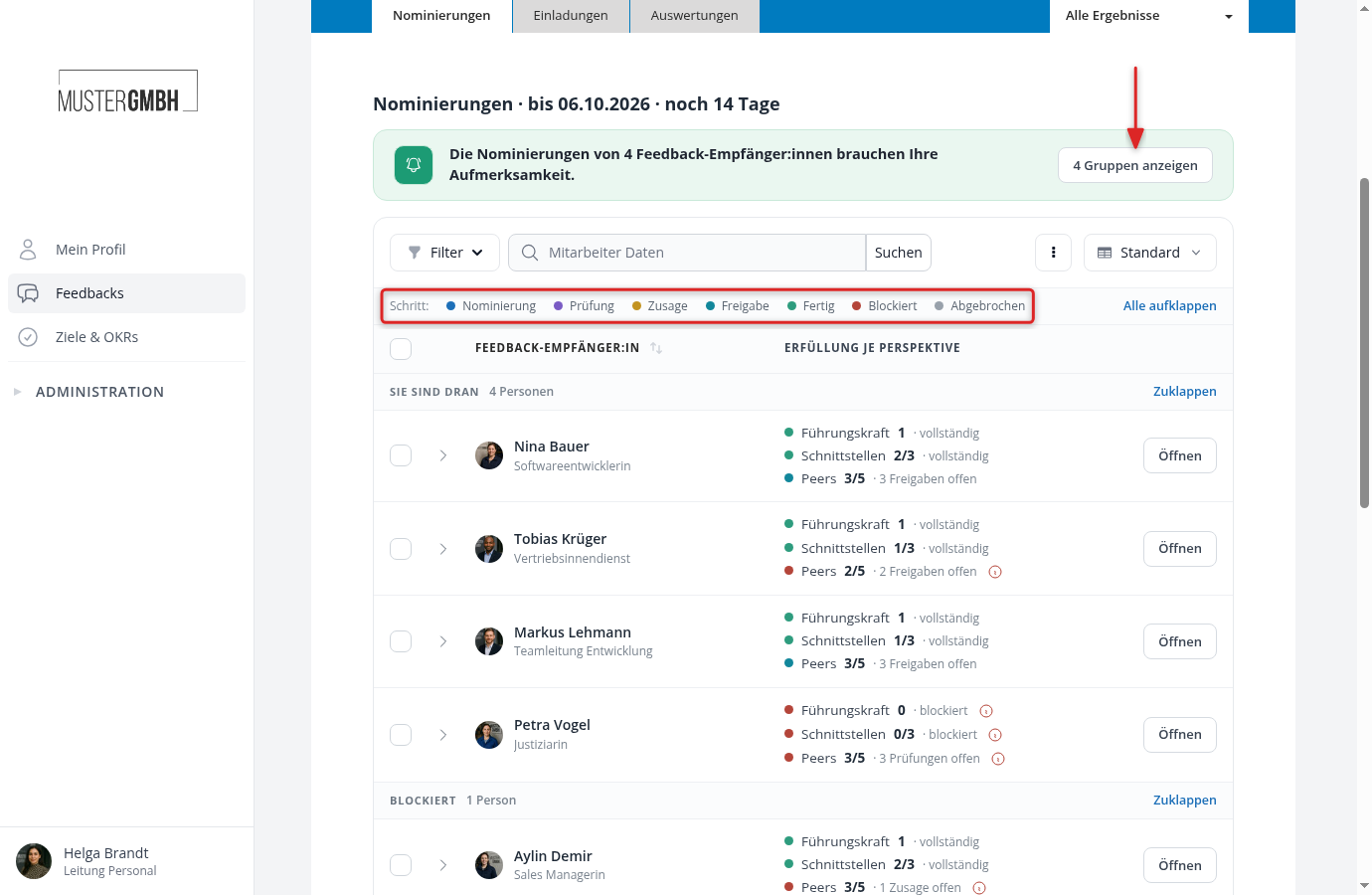
Above the table sits the legend “Step:” with the seven dots that recur throughout the tab: Nomination, Review, Acceptance, Approval, Done, Blocked and Cancelled. Next to it, “Expand all” opens every row at once and “Collapse all” closes them again.
The five groups: where is it stuck?
The table shows one row per feedback recipient, sorted into five groups. The order is always the same, every group names its count, and “Collapse” on the right folds it away.
| Group | What it means |
|---|---|
| Your turn | In at least one perspective a task is on you: nominate, review, approve, propose a replacement or accept. |
| Blocked | Nothing moves without the administration, because the responsible role is unfilled, too few people are on the list or the period has expired. |
| Running | Other people are up and still have time. There is nothing for you to do. |
| Not started | There is no running nomination for this person, because none has started yet or all of them were cancelled. |
| Done | Every list is approved. The feedback providers are settled. |
Each person appears in exactly one group, and “Your turn” wins. Tobias Krüger in the picture above has a red Peers list, yet he still shows up under “Your turn”, because a task for you sits there as well. The other way round, “Running” really does mean: nothing to do, somebody else is on the clock.
What the “Fulfillment per perspective” column tells you
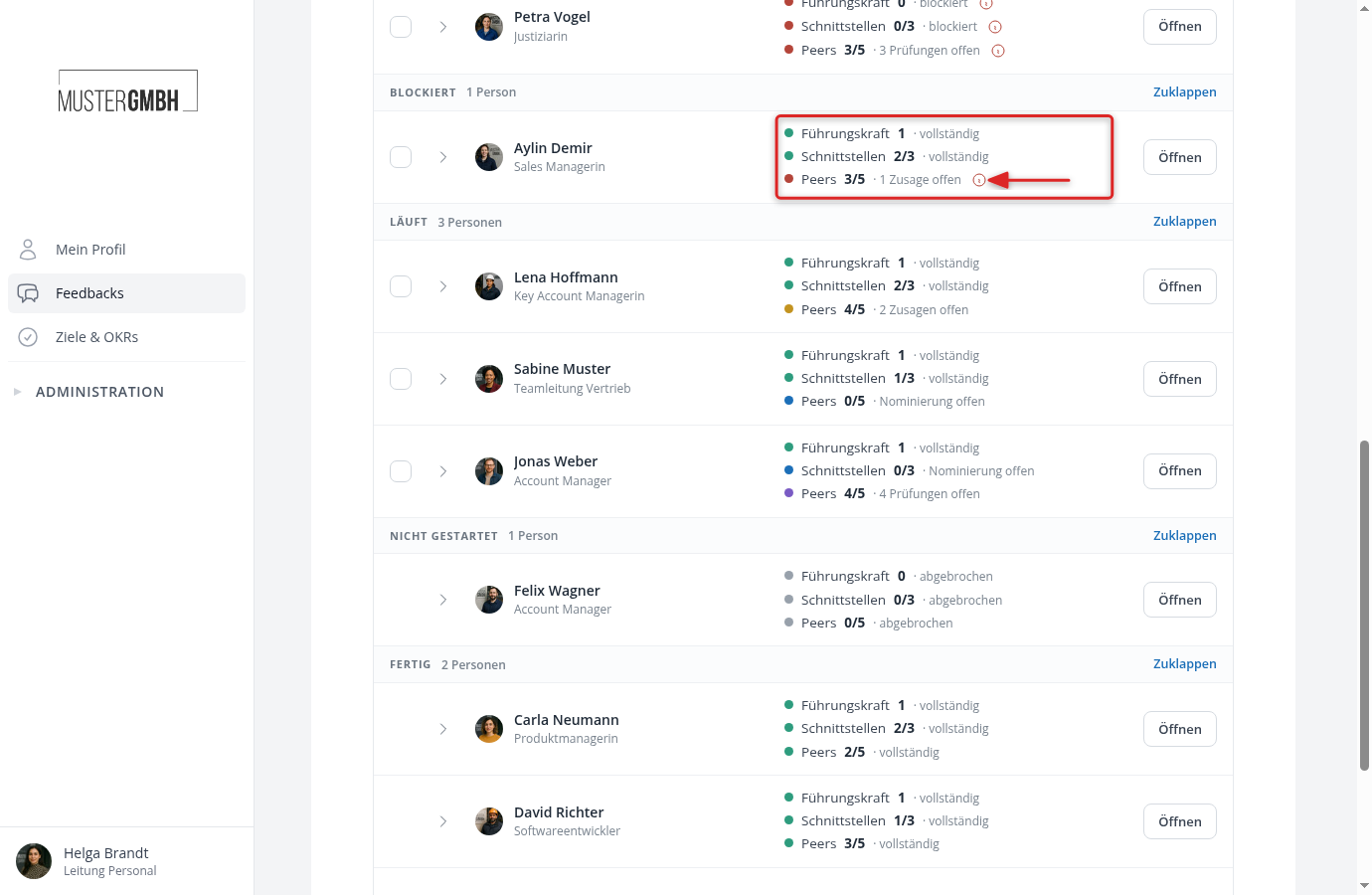
This column holds one line per perspective, for example “Peers 3/5 · 3 approvals open”. In front of it sits a dot in the color of the step the perspective currently stands at.
The counter is the figure the rule of the perspective is measured against: feedback providers already entered plus the nominations still running, against the maximum. If the perspective has no maximum, only the figure appears.
After it comes what is being waited for: “3 approvals open”, “2 acceptances open”, “4 reviews open” or “nomination open”. When nobody is waiting any more, it says “complete”, “blocked” or “cancelled”. If the column shows nothing but “Not started” for a person, there is no nomination for them that you are allowed to see.
The dot turns red as soon as a perspective is blocked, green when everything is approved, and grey for cancelled lists. Hover over it and a hint names the perspective, the step and the rule, for example “Peers · Acceptance · min.: 3 / max.: 5”.
A red perspective carries an info icon behind its text. One click opens “Why blocked?” with the reason and the responsible person. Esc closes it again. What the individual reasons mean and how you resolve them is covered in A nomination is blocked: what to do.
Who is on the list?
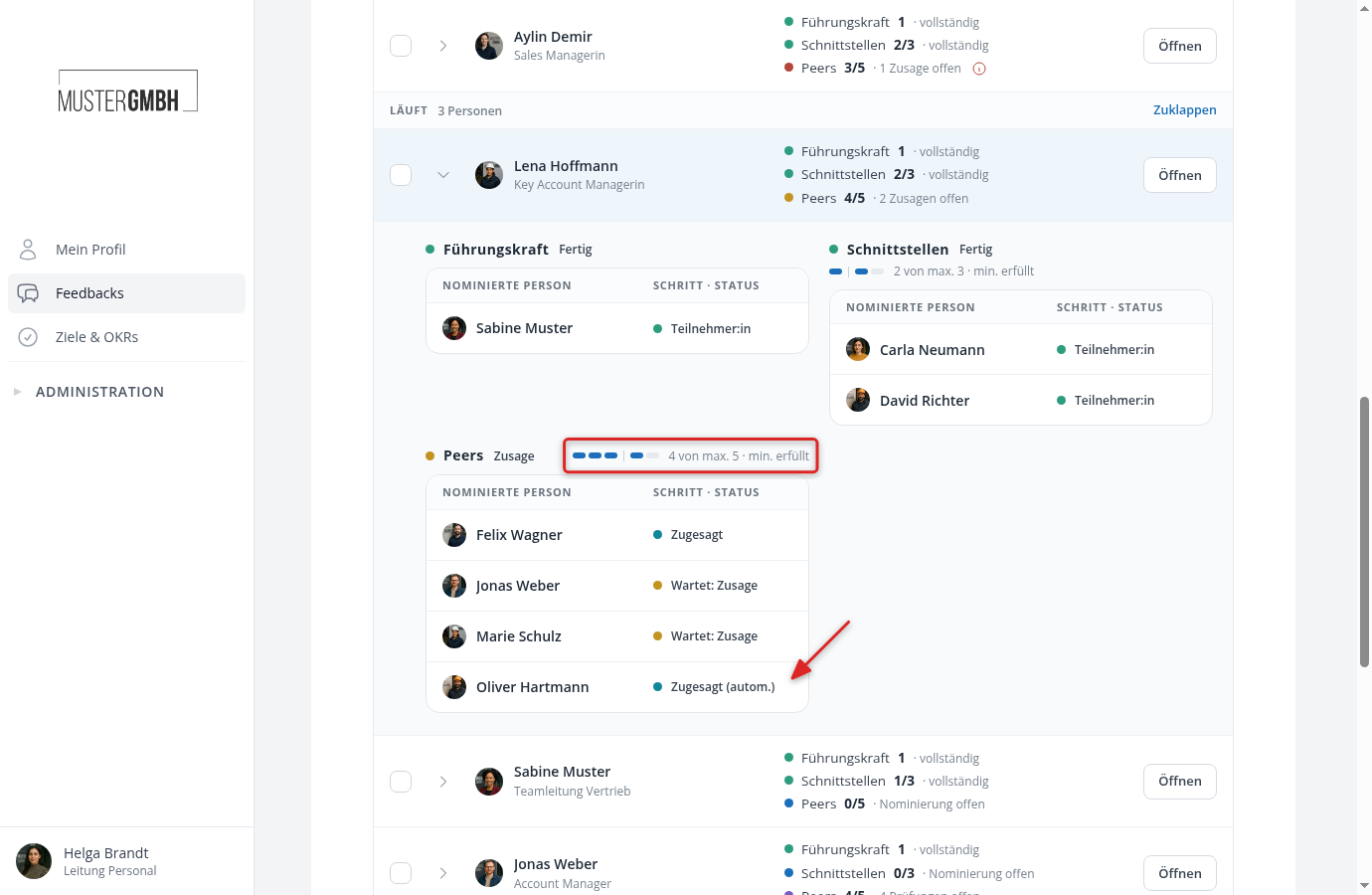
The arrow in front of the name expands the row. You then see one block per perspective: dot, perspective name and the word of the step, and to the right the place marks with the text “4 of max. 5 · min. met”. If people are missing, it says “1 more person needed” in amber, if there are too many, “1 person too many”. Perspectives without a rule and cancelled lists carry no marks.
Below that stands the list itself, each person with a dot and their state: “Waiting: review”, “Waiting: acceptance”, “Accepted”, “Accepted (auto)”, “Waiting: approval” or “Participant”. External people without an easyreview account carry the note “External person” under their name. People who declined, were rejected or were removed stand struck through at the end of the list. If a red note under a name says that the person already takes part as another perspective, they are already giving feedback elsewhere, and the list only moves on once one of the two nominations disappears.
Search, filter, export
The search next to the “Filter” button searches the feedback recipients, not the nominated people. “Filter” narrows the list further, and two filters are made for this tab:
- “Status” with the five groups. The green strip and the figures in the edition header set exactly this filter.
- “Whose turn” with everybody who currently holds something; you yourself appear as “You” at the top.
The filter bar, the views and the export work like in the employee list. The menu behind the three dots downloads the list as an Excel file. It carries the same line per perspective as the tab, with the nominated people and their states underneath. Your view sits next to that menu, and “Edit columns” adds “Deadline”, “Blocked”, “Supervisor”, “User groups” and your own data fields. Sorting runs over the column headers, by name and, once the column is active, by deadline. Without a sort of your own, the overdue rows stand at the top of each group.
From the overview to a single nomination
“Open” on the right edge leads to the nomination page of that person, and straight to the perspective where your most urgent task sits. What you can do there is described in Manage the nominations of one person.
The checkboxes on the far left, and the bar that appears above the table once you select something, only show up on rows you are allowed to manage. How you remind, advance, confirm or cancel several nominations at once is covered in Handle several nominations at once.
What happens after “Done”
With the approval, easyreview creates the nominated people as participations. From then on the usual invitation mechanics of the edition apply: if the automatic invitation date lies in the future, the people wait for it, otherwise you invite them by hand. External people wait for an invitation date in the future in the same way. If none is pending any more, they receive their invitation to the questionnaire right away with the approval.
The “Invitations” tab shows the result. Under every person whose nomination is not finished yet sits the chip “Nomination”, which leads to their nomination page. Their feedback providers that are not approved yet are missing from the participant list. Until then they only appear in the “Nominations” tab.
Once the nomination period is over
The end of the period is a deadline, not a lock. easyreview cancels nothing and advances nothing. The title line now counts backwards (“ended 12 days ago”), and every list that is not approved slips into the “Blocked” group. “Why blocked?” names the expired period as the reason.
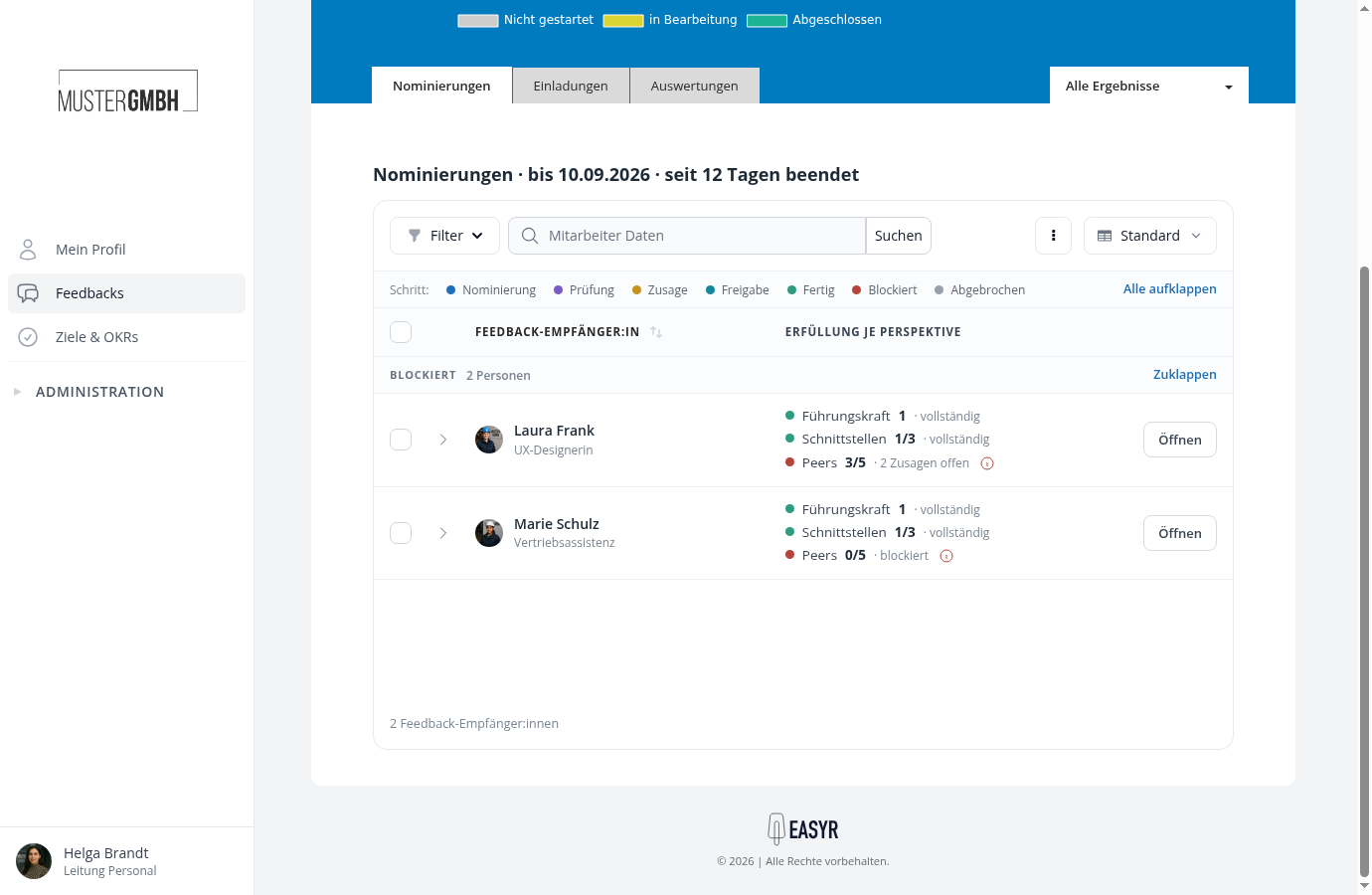
These rows stay where they are until somebody touches them. You move them on one by one from the nomination page, or, when there are many of them, several at once.