Multiple choice
The multiple choice question element lets you ask closed questions. Participants choose one or more answers from a predefined set of options. You can present the element in several ways:
- Single selection: dropdown menu
- Single selection: radio buttons
- Multiple selection: checkboxes
Add a multiple choice question
- In the questionnaire editor, click the ”+ Element” button.
- Choose “Question: Multiple choice” from the dropdown menu.
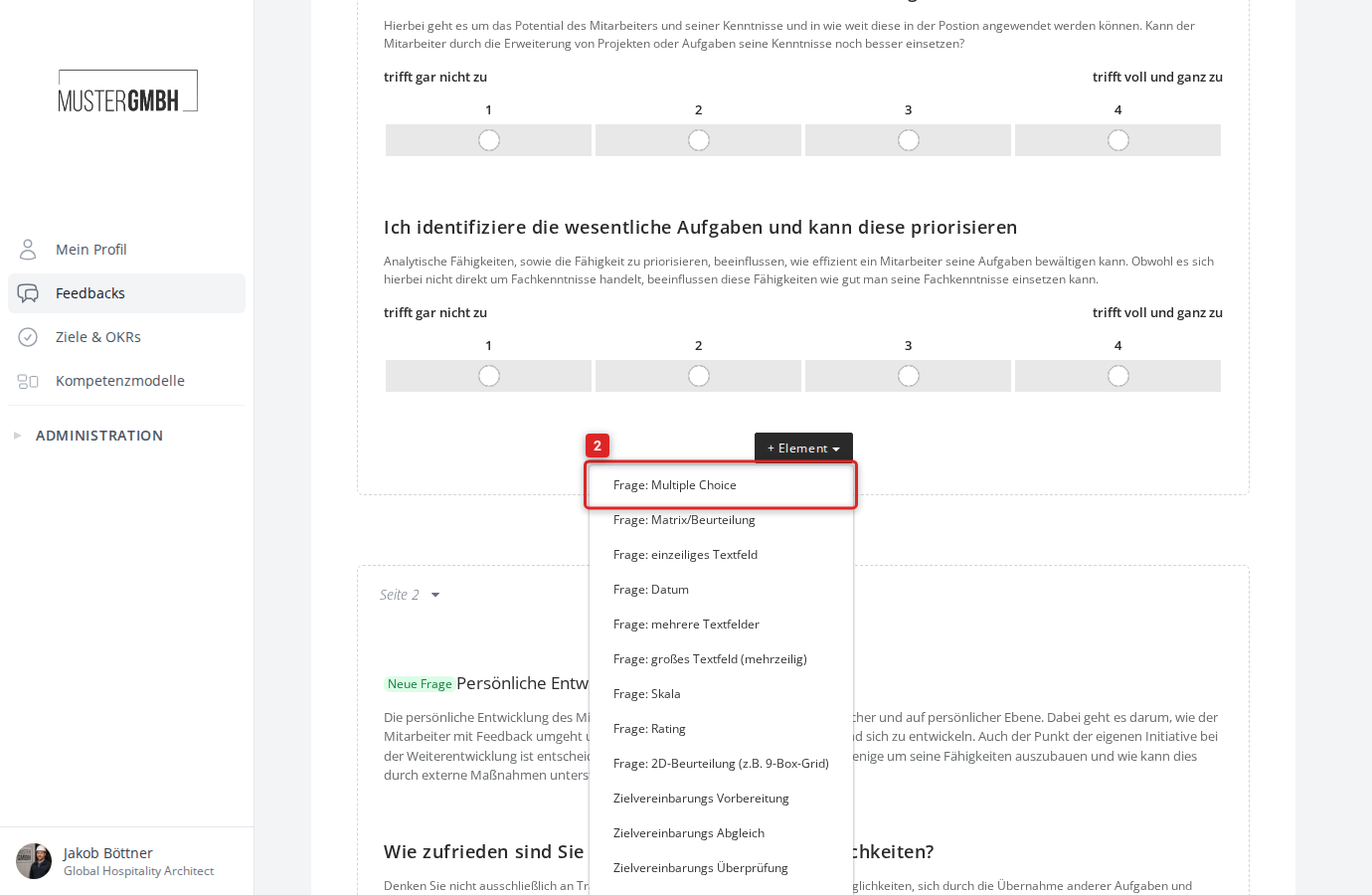
The configuration form for the multiple choice question opens directly in the questionnaire.
Configure a multiple choice question
Question title
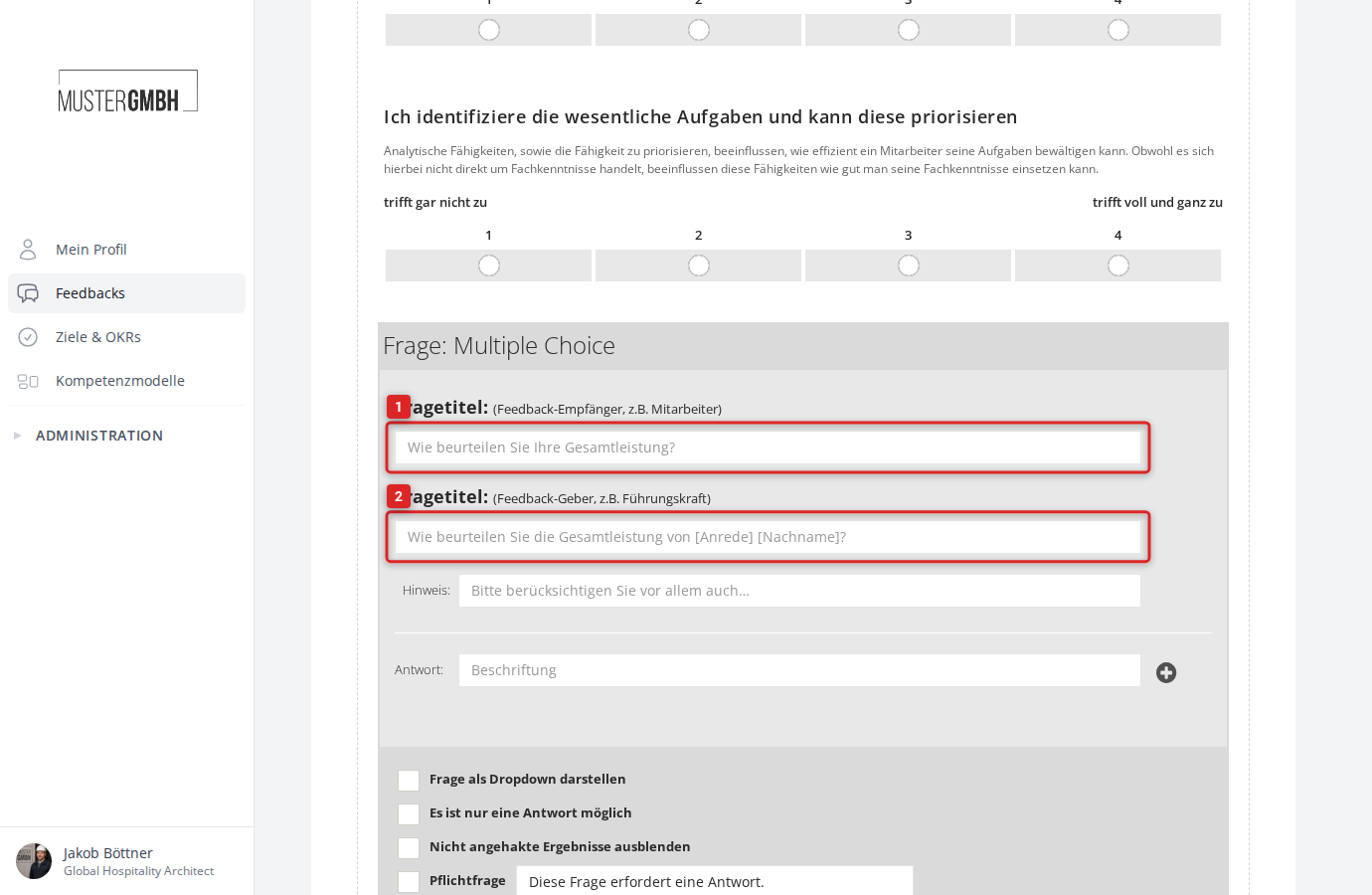
The form has two title fields:
- Question title (Reviewee, eg employee): This title is shown to the person being assessed, for example during a self-assessment.
- Question title (Reviewer, eg supervisor): This title is shown to the people giving the feedback.
This lets you tailor the wording to each perspective. Example: “How do you rate your overall performance?” (feedback recipient) and “How do you rate the overall performance of [Salutation] [Last Name]?” (feedback giver).
Hint
In the “Hint” field you can enter additional text that appears below the question title for participants.
Answer options
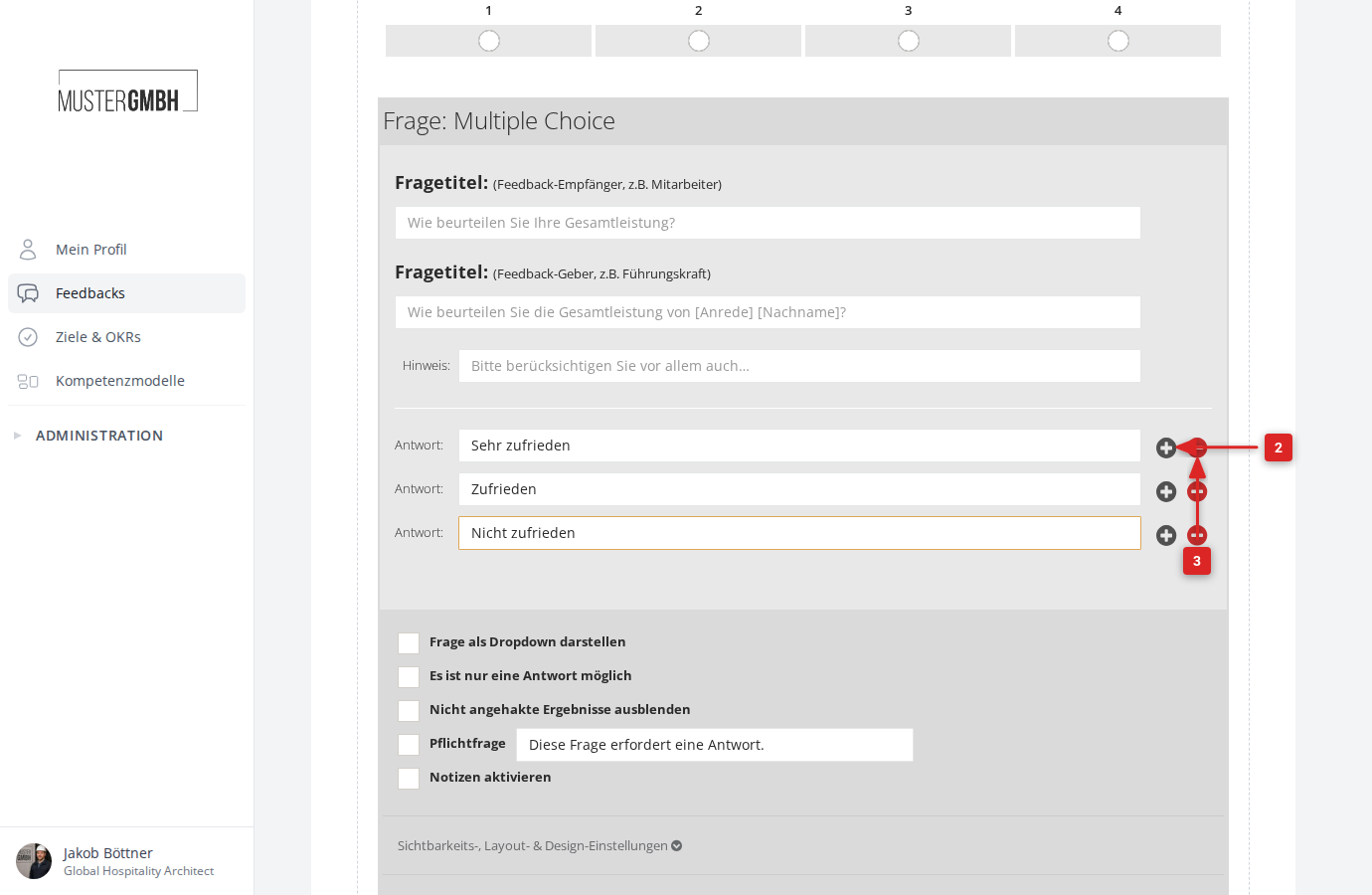
- Enter the label of an answer option in the “Answer” field.
- Click the plus icon at the right edge of the row to add another answer option. The new option appears directly below the existing one.
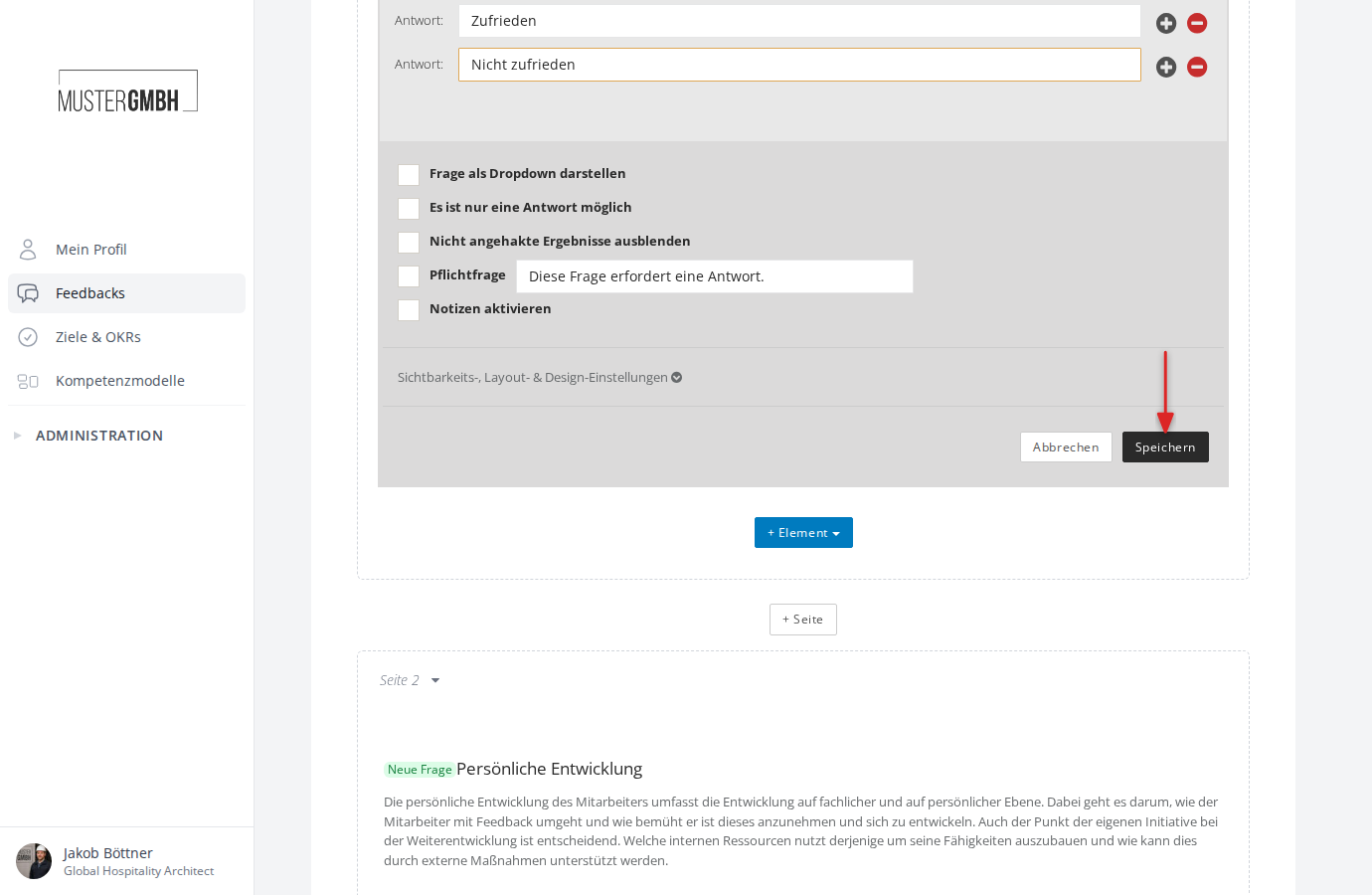
- Once you have configured more than one answer option, you can delete any option again. To do so, click the minus icon at the right edge of the relevant row.
Settings
The lower part of the form contains the following settings:
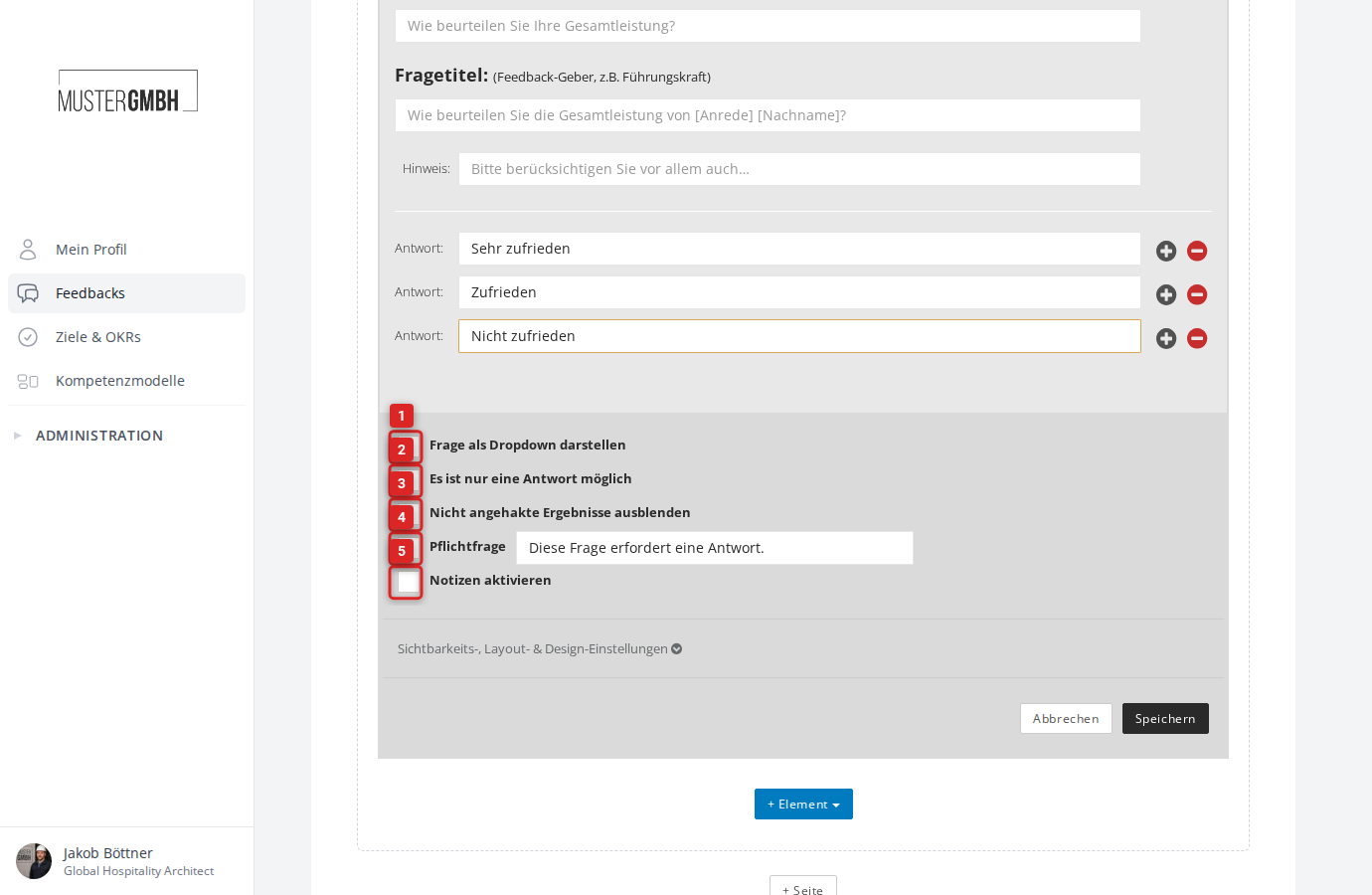
- Show question as a dropdown: Displays the answer options as a dropdown menu instead of a list of checkboxes or radio buttons.
- Only one answer is possible: Allows only a single answer option to be selected. Without this option, participants can tick several options.
- Hide un-selected options in results: In the results, only the chosen answer options are shown. Options that were not selected are hidden.
- Required question: Makes the question mandatory. In the text field next to it you can adjust the hint shown when the question is left unanswered (default: “This question requires an answer.”).
- Enable notes: Lets participants enter a free-text comment in addition to their selection.
Visibility, layout & design settings
Below the checkboxes you find the expandable “Visibility, layout & design settings” section. Here you control which perspectives, user groups, and editions can see the question. Layout options are also available:
- Hide title during participation: Hides the question title while participants fill in the questionnaire.
- Display without vertical padding: Removes the spacing to the previous question. Useful when several questions visually belong together.
Save
Click “Save” to add the question to the questionnaire.