Set up nomination paths
A nomination path defines, for one perspective, who proposes the feedback providers, who reviews the proposals, whether the nominees have to accept, and who approves the list at the end. You set it up once. easyreview then resolves the roles separately for every feedback recipient: “Supervisor” is always the manager of the person the feedback is about. You never maintain individual names.
Nominations have to be switched on for this feedback first. That is also where you set the nomination period for each edition. As long as a perspective has no nomination path, nothing changes for it: you add its feedback providers yourself, as before.
The “Nomination paths” page
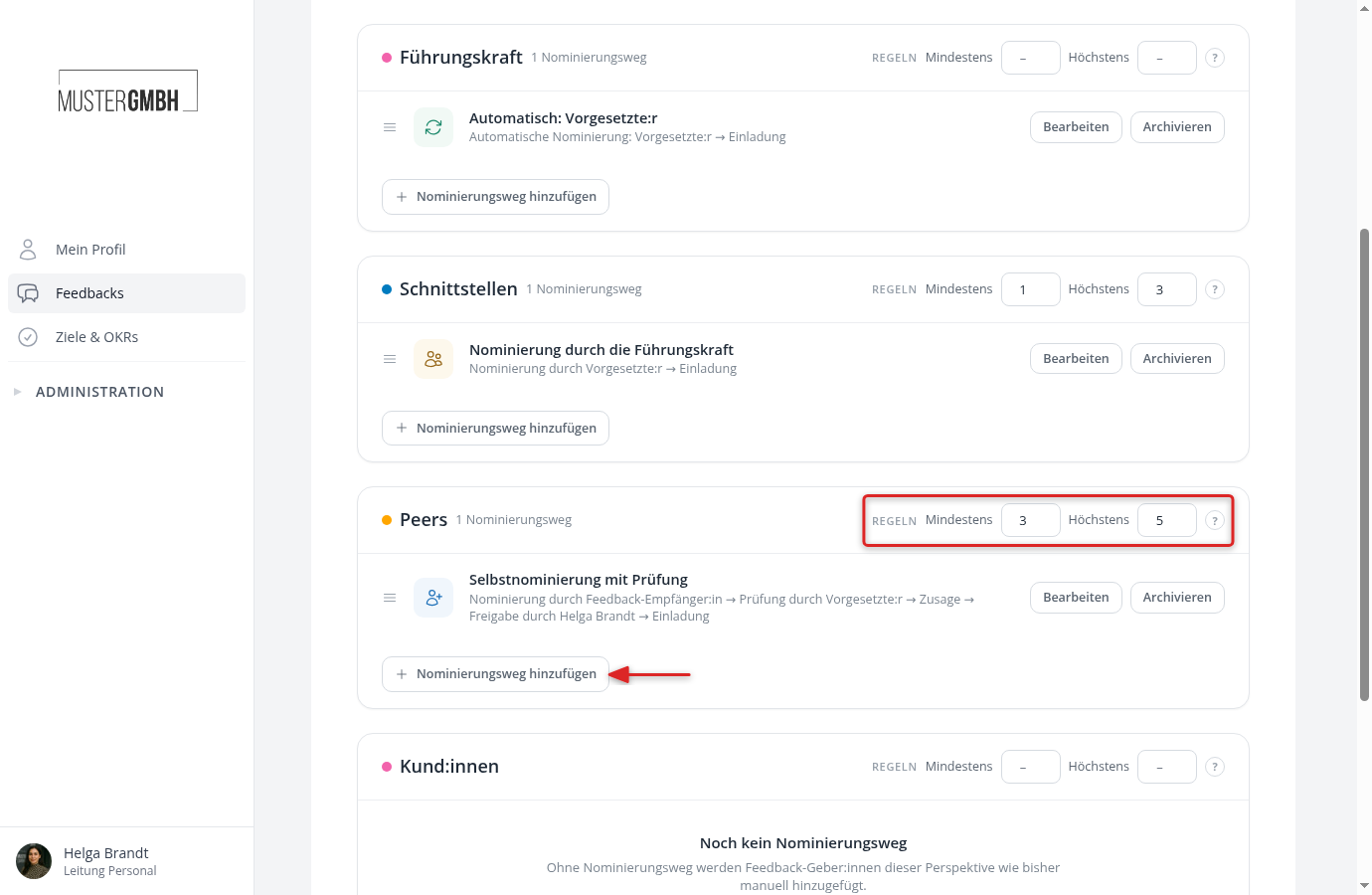
Open the settings of the feedback, click “Edit” in the “Nominations” row and then “Add nomination path” in the “Nomination paths” card. You can also open an existing path directly there by clicking its row. After saving, you return to the page you came from.
You see one card per perspective that gives feedback. Each card lists the paths of that perspective with their process in a single line, and “Edit” and “Archive” next to each one. The rules of the perspective sit in the top right of the card, and the “Add nomination path” button below the list. The self-assessment does not appear, because it is not nominated.
Create a nomination path
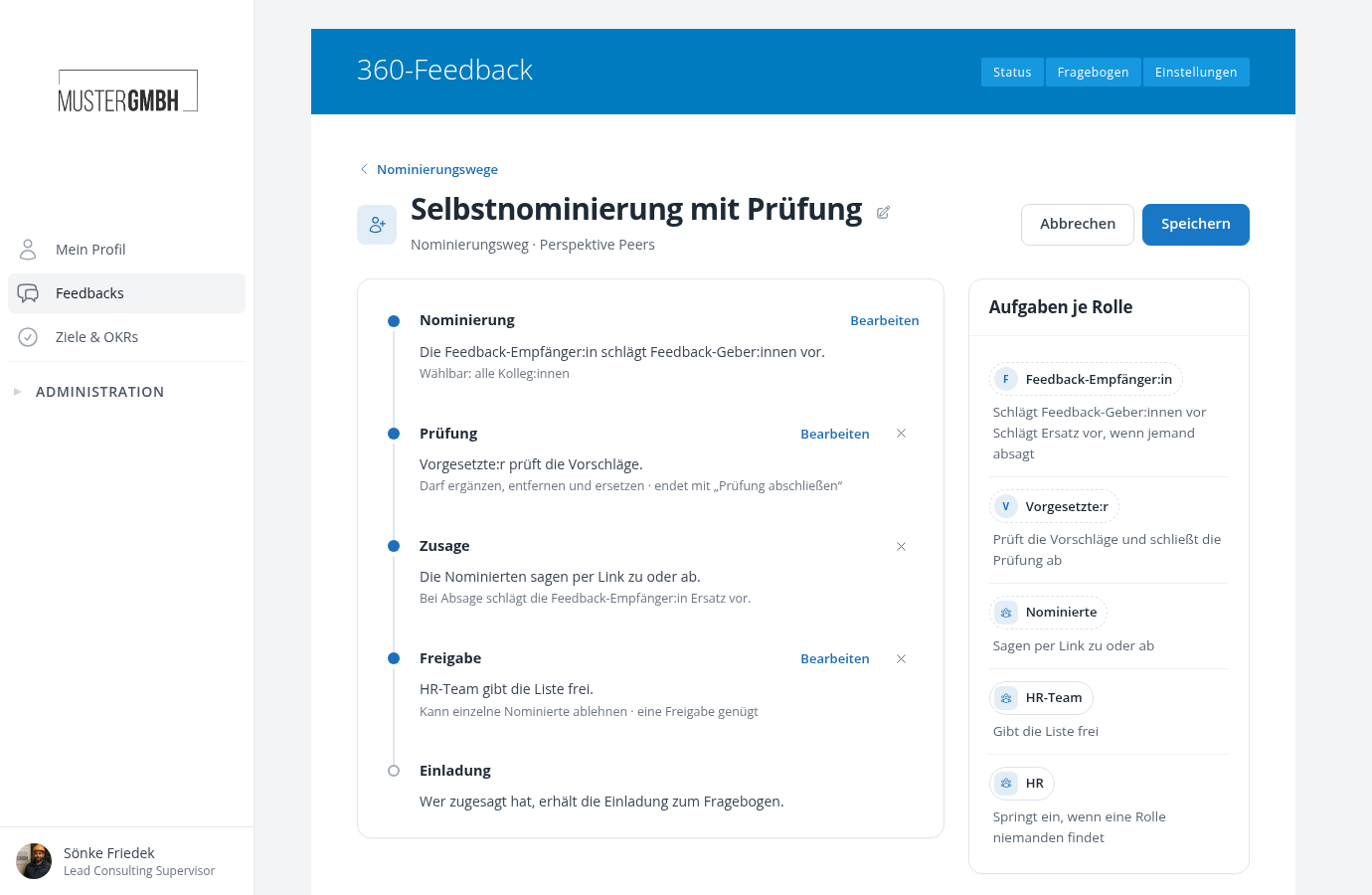
Click “Add nomination path” in the card of the perspective. The editor shows the five steps of a path one below the other: Nomination, Review, Acceptance, Approval, Invitation. Each step says in one sentence what it does. “Edit” opens a step, “Done” closes it again. Only one step is open at a time, and a new path opens at its nomination.
Review, acceptance and approval can be left out. A step that is left out stays in its place in grey, marked “optional”. “Add” puts it into the path, the x on the right of its row takes it out again.
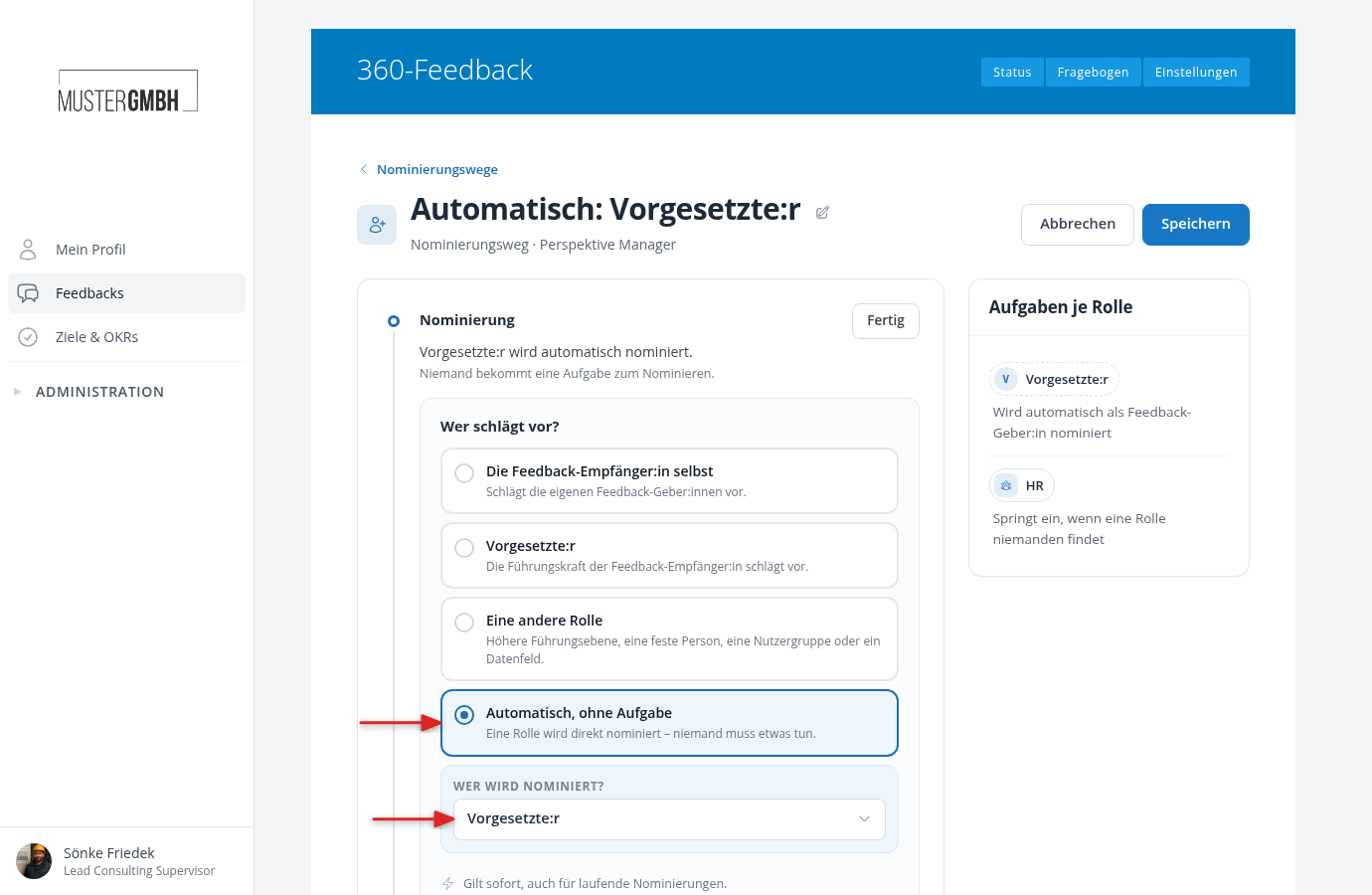
- Under “Who proposes?”, choose who proposes the feedback providers. “The feedback recipient themselves” and “Supervisor” are available directly. With “Another role”, pick a higher management level, a fixed person, a user group or a data field below it. With “Automatic, no task”, easyreview resolves a relation of the feedback recipient and nominates that person right away, without anybody having to do anything. Which role that is, you set under “Who is nominated?”.
- Under “Who can be proposed?”, set the selection scope. “All colleagues” offers every active person in the company, “Your direct reports” only the direct and indirect reports of the person who nominates. The scope is therefore counted from the nominating person, not from the feedback recipient. The recipient themselves can never be selected. If only certain people should be eligible, narrow down the group of people below it, as described further down in “Make only certain people selectable”. If the perspective allows external feedback providers, the checkboxes “Employees” and “External people” appear here as well, as described further down in “Let external people be nominated”.
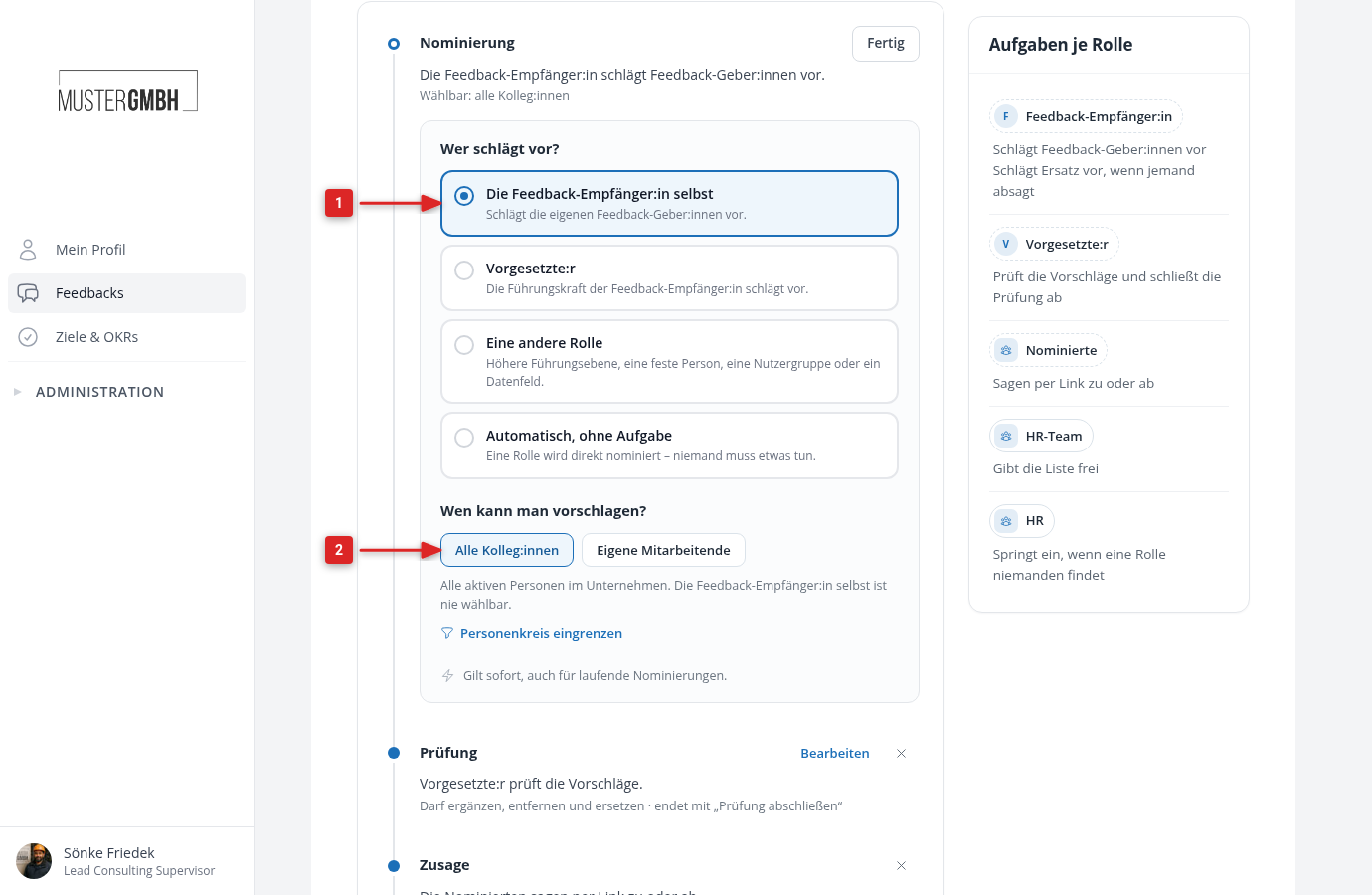
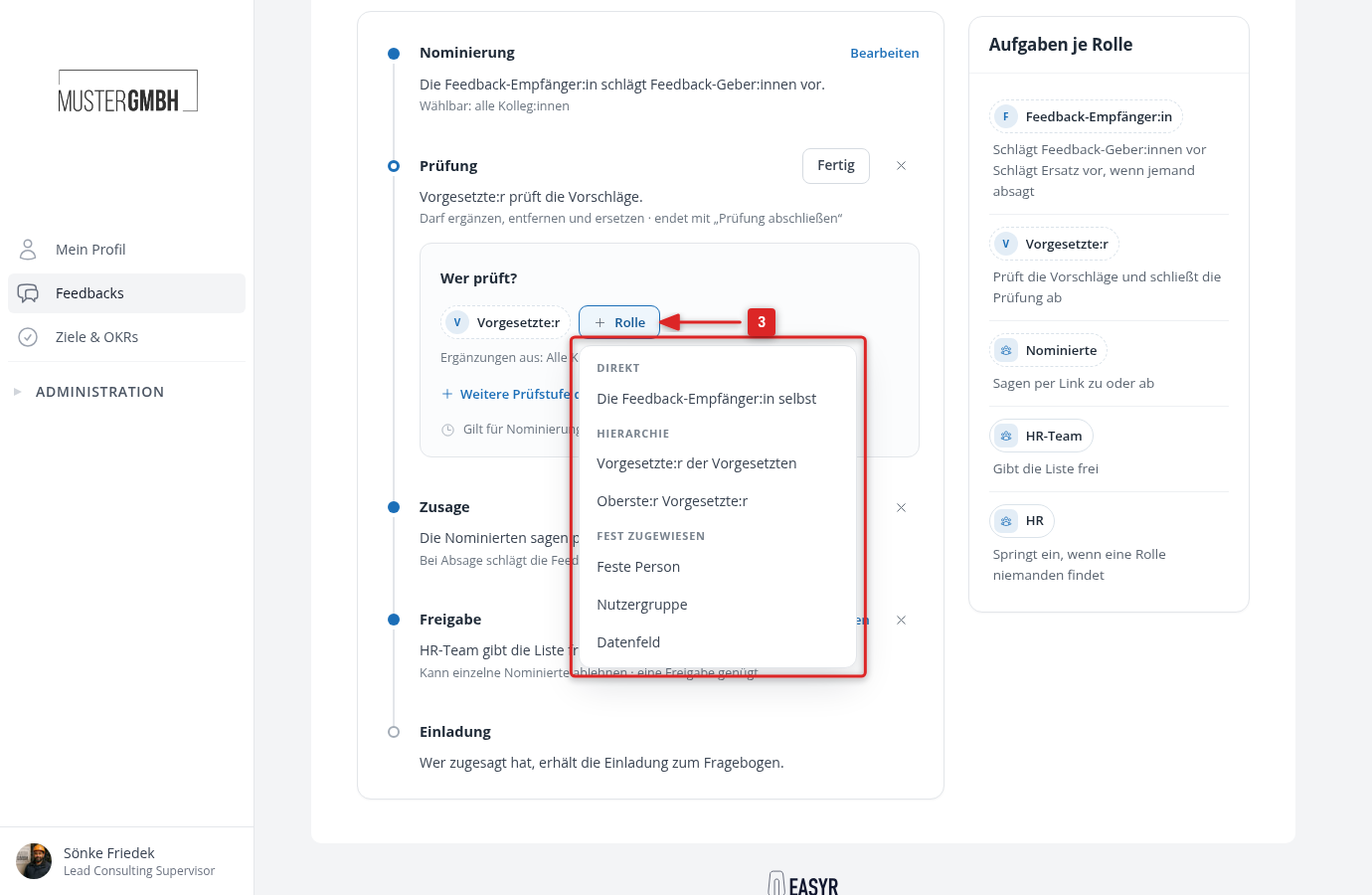
- If somebody should look through the proposals, click “Add” in the “Review” row. easyreview creates a review stage with the role “Supervisor”. Add more roles with “Role”, and take a role out again with the x next to its name. Whoever sits in a stage may add, remove and replace people. “Another review stage after this one” adds a stage that only begins once the previous one is done. A stage only ends when the responsible person clicks “Complete review”, never by time running out. If a stage stalls, you can advance the review as HR.
- If the proposed people should answer for themselves, click “Add” in the “Acceptance” row. They receive a link without a login and either accept or decline with a reason. A decline creates the task to propose a replacement for the nominating role. People without an email address count as accepted automatically.
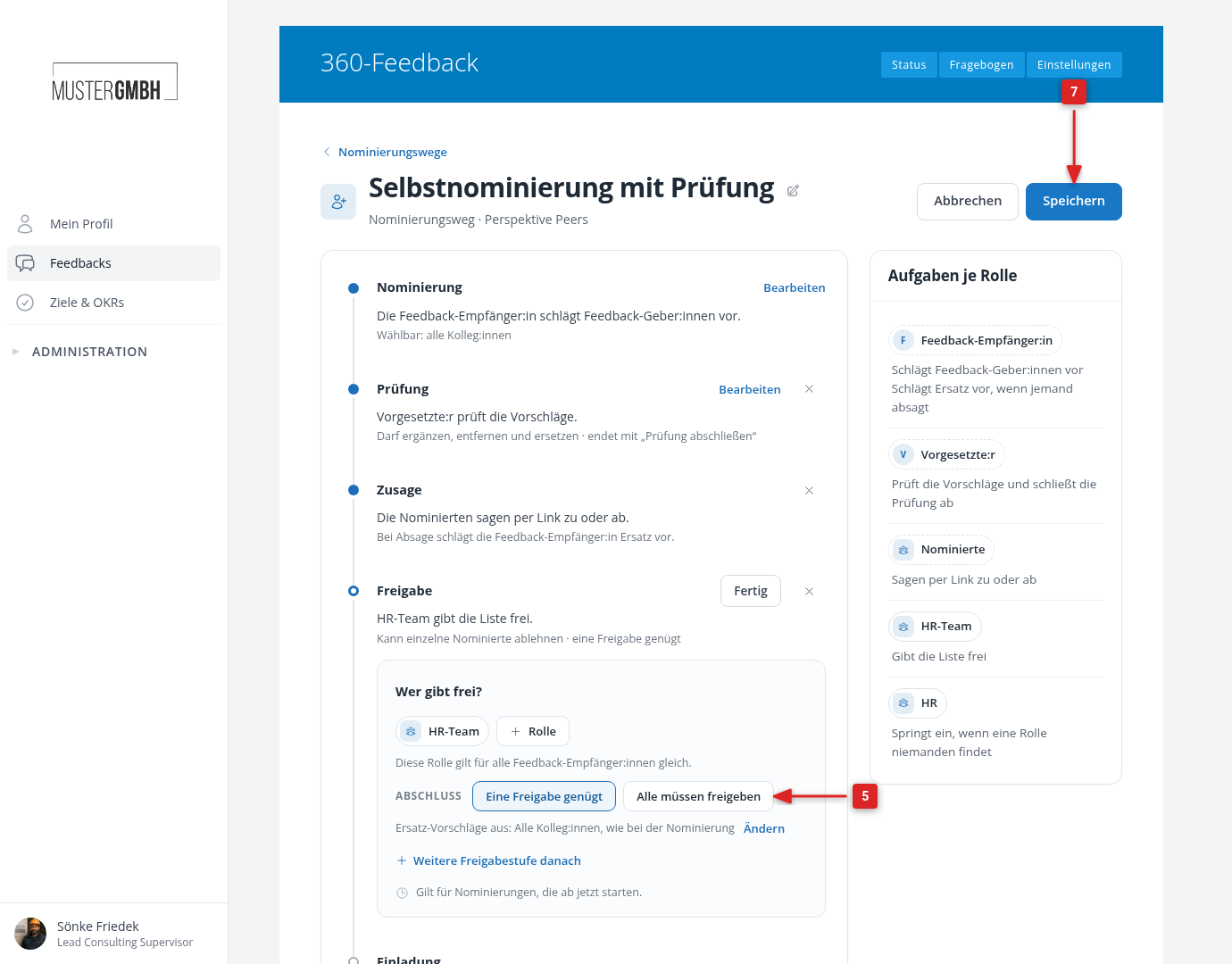
- If somebody should confirm the finished list, click “Add” in the “Approval” row. Approvers see the list and can reject individual nominees. If an approval stage has several roles or a user group, choose under “Completion” whether “One approval is enough” or whether “Everyone must approve”.
- Check the name above the editor. easyreview fills in a suggestion that matches the chosen nomination, such as “Self-nomination” or “Automatic: Supervisor”, and keeps it in step as long as you have not changed it yourself. The pencil next to the name renames the path. The path appears under this name on all nomination pages.
- Click “Save” in the top right. If something is still missing, “Save” stays greyed out and the text next to it names what is missing, for example “The approval still lacks a target.”
If you choose a fixed person, a user group or a data field for a stage, a selection appears below it in which you set the person, the group or the field. Until then, the role has a red outline and the path cannot be saved.
See what the path does before you save
Each step sums up in one sentence what it does, for example “Supervisor reviews the proposals.” Below it, a grey line says what that means, such as who proposes a replacement after a decline. Next to the editor, “Tasks per role” lists who gets which task on this path: who proposes, who reviews, who approves and, with acceptance, the nominees themselves. HR is always listed, because HR steps in if a role finds nobody.
Both change with every setting. Read them before you save and you see straight away whether the path runs the way you mean it to. Afterwards, the overview shows the process of the path in one line under its name, for example “Nomination by Feedback recipient → Review by Supervisor → Acceptance → Approval by HR-Team → Invitation”.
Make only certain people selectable
If only certain people should be nominated, for example only other managers in a 360° feedback for managers, restrict who is eligible at all under “Who can be proposed?” in the “Nomination” step. Without it, the selection scope alone decides. The restriction only exists when a role proposes. A path with “Automatic, no task” always nominates its role. If the path nominates external people only, the restriction is missing as well.
- Click “Narrow down the group of people” below the selection scope. The “Only people who match” box opens.
- Pick a field in “Choose filter”, for example “User groups”. The same fields are available as in the filter of the employee list, including your custom fields.
- Choose the condition, for example “In group”.
- Choose the value, for example the group “Managers”.
- If you need another condition, add a row with the plus button. Only people who match every row can then be selected. The minus button removes a row again, “Reset filter” removes all of them. “Remove” at the top of the box takes the restriction out completely.
- Check the number below the filters, for example “11 active employees in the group of people”. It recalculates with every change. If nobody matches the filters, it reads “Nobody matches this filter”. If it reads “At least one filter cannot be applied”, a row is incomplete, its field no longer exists, or its user group was deleted or archived. You can then only save the path once you correct or remove that row.
- Click “Save”.
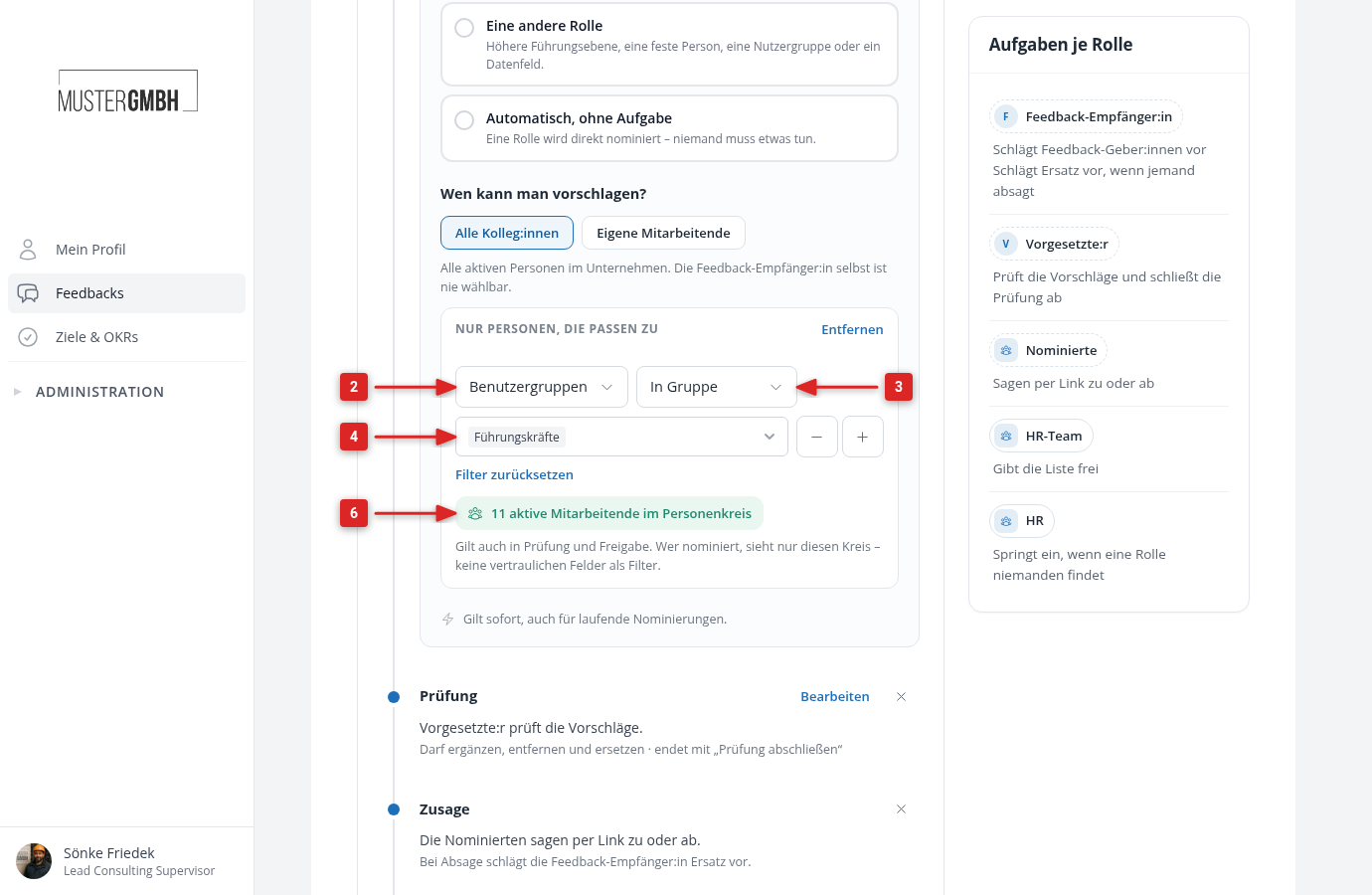
The number covers every active employee who matches the filters. When people nominate, the selection scope applies on top: with “Your direct reports”, only those reports of the nominating person who are also in the group of people can be selected. The “Nomination” step and the overview now say “Group of people narrowed down”.
The restriction applies to the whole path: when proposing, when adding people in a review stage and for every replacement. HR and managers who manage the nominations also choose from this group only. Anyone outside the group appears neither in the search nor in a group when people are nominated. The filters themselves are only shown in the editor of the path. People who nominate only read the hint below the search field: “You can choose colleagues from the group of people of the nomination path, except Talia Weber and people already on the list.”
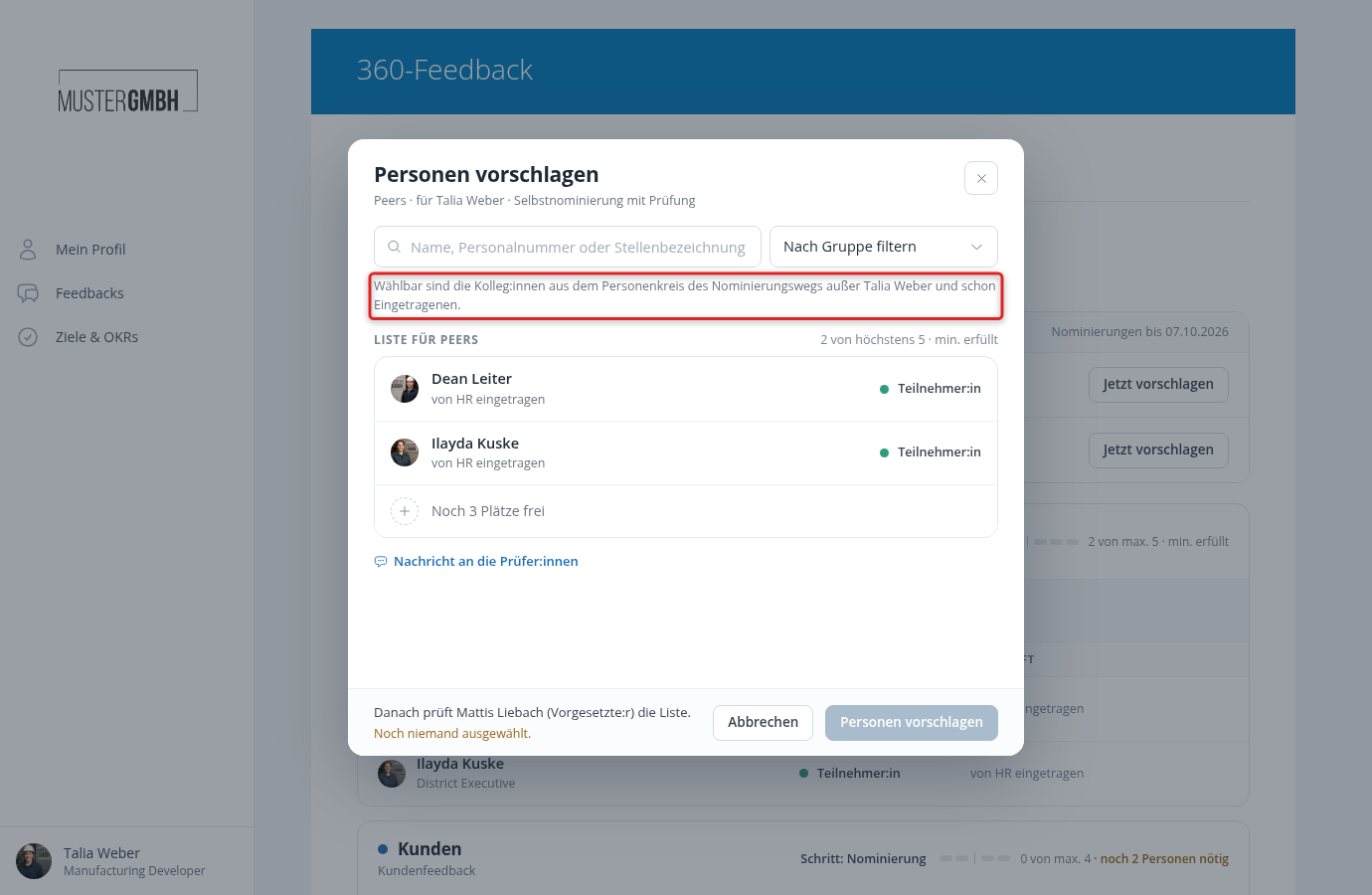
Nominators can still tell from their search results who belongs to the group of people. So do not narrow it down by confidential fields, such as a field for the salary grade. The editor reminds you of this in the box.
Feedback providers you enter directly into the participant list and external people are not affected by the restriction.
Let external people be nominated
If a perspective allows external feedback providers, such as customers or suppliers, its nomination path can also nominate people without an easyreview account. Whoever nominates then enters a first name, last name and email address instead of picking someone from the people search. Which perspectives allow external feedback providers is set up by your contact at easyreview. For every other perspective the checkboxes are missing, and the path nominates employees only.
- Under “Who proposes?”, choose a role, not “Automatic, no task”. An automatic path always nominates employees.
- Under “Who can be proposed?”, tick the boxes you need: “Employees”, “External people” or both. Only “Employees” is ticked by default. Without any box ticked, the path cannot be saved.
- Click “Save”.
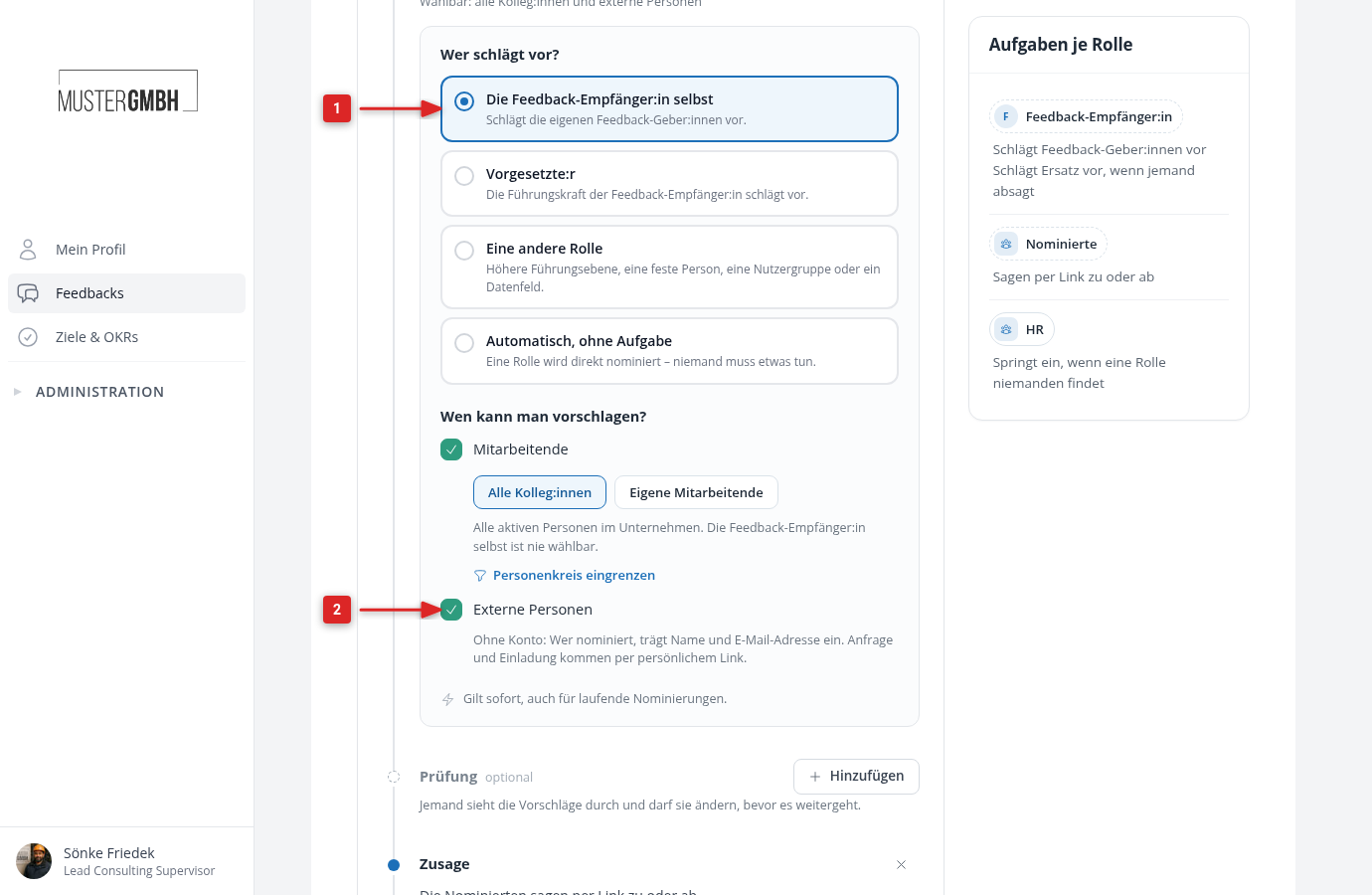
With both boxes ticked, the selection scope and “Narrow down the group of people” stay in place. They only apply to the employees. With only “External people” ticked, the editor hides both. Whoever nominates then sees no people search, only the fields for external people. A saved filter does not apply in that case.
External people count towards the minimum and maximum of the perspective just like employees. So that a list cannot send any number of emails to outsiders, it accepts at most 40 external people. Anyone who was removed, declined or was rejected counts too. On top of that, a person who nominates can enter at most 100 external people within 24 hours, across all lists. easyreview does not accept the address of the feedback recipient or of an active person with an easyreview account: colleagues get onto the list through the people search, so that the selection scope and the group of people apply to them as well. The same address can only appear once in a participation group, across several paths too, and also if you have already invited the person there yourself. If you invite a nominated address yourself only later, the approval takes over that participation, and the person does not receive a second invitation.
If the path asks for acceptance, external people receive the request by email with a personal link and answer without signing in. They receive their invitation to the questionnaire like the employees of the list: if the automatic invitation date of the edition still lies in the future, it comes on that date. Otherwise it goes out right away with the approval, exactly as for external people you invite yourself. If an external person does not end up taking part, for example because they decline or are removed, easyreview deletes their name and email address within a week after the list has ended. The list then shows “Deleted external person” in their place.
Which role fits?
Wherever you pick a role, the same seven options are available:
| Role | Who that is |
|---|---|
| The feedback recipient themselves | The person whose feedback this is about. |
| Supervisor | One level up in the hierarchy. |
| Supervisor’s supervisor | Two levels up in the hierarchy. |
| Top supervisor | Right at the top of the management line. |
| Fixed person | Always the same, fixed person. |
| User group | All members of a user group. |
| Data field | The person from a master data field of the feedback recipient. |
The first four roles and the data field are resolved per feedback recipient. In a feedback with 200 people, “Supervisor” therefore means 200 different managers. In the editor these roles have a dashed outline. A fixed person and a user group, on the other hand, are the same for every feedback recipient. They have a solid outline, and the editor points that out.
A stage may have several roles. In a review stage they all work at the same time. In an approval stage, “Completion” decides whether one approval is enough or everyone has to approve. The choice appears as soon as the stage has several roles or a user group.
If a role finds nobody, for example because no manager is stored for a person, HR takes the task over. The list shows up as blocked until then. What to do about it is in Nomination blocked, what to do?.
Three paths as they look in practice
The manager joins automatically
Perspective “Manager”, “Automatic, no task” under “Who proposes?” with the role “Supervisor”, no review, no acceptance, no approval. The process has two steps: “Automatic nomination: Supervisor → Invitation”. As soon as the nomination period begins, the manager of every feedback recipient is on their list. Nobody has to do anything, nobody gets a task.
The person proposes their peers, the manager reviews, HR approves
Perspective “Peers”, “The feedback recipient themselves” under “Who proposes?” with “All colleagues”, one review stage with “Supervisor”, an acceptance step and one approval stage with the user group “HR-Team” and “One approval is enough”. The process reads: “Nomination by Feedback recipient → Review by Supervisor → Acceptance → Approval by HR-Team → Invitation”. This is the long path that a 360° feedback usually needs for peers.
The manager names the interfaces
Perspective “Interfaces”, “Supervisor” under “Who proposes?”, nothing else. The process reads “Nomination by Supervisor → Invitation”.
A path this short has no step that closes the nomination. easyreview confirms the invitation as soon as the first nomination is submitted. The editor points this out under “Invitation”, and the manager’s dialog says so too: their button reads “Complete list” instead of “Propose people”. The manager therefore picks every person in one go before clicking; afterwards the list is out of their hands. If they are supposed to fill the list bit by bit and close it themselves, add a review stage with the same role “Supervisor”: the list stays open until they click “Complete review”, and until then they may keep adding people.
Several paths in one perspective
A perspective may have several paths, for example one for self-nomination and one through which the manager names additional people. The paths run independently and at the same time, for each feedback recipient. For the rules of the perspective, the feedback providers of all paths are counted together. The card points that out as soon as there is more than one path.
Minimum and maximum per perspective
The fields “At least” and “At most” sit under “Rules” in the top right of every perspective card. They save as soon as you leave the field. Empty means no rule.
Counting runs across all nomination paths of the perspective, and people you entered into the participation group as feedback providers yourself count too. The maximum applies immediately: anyone who would exceed it cannot propose another person. The minimum applies at the end: if it is not reached, the approval waits, the invitation is not confirmed and nobody is invited until somebody nominates another person. How to get such a list moving again is in Nomination blocked, what to do?.
Change or archive a path
Changes to review, acceptance and approval only affect nominations that start afterwards. Lists that are already running keep the process they started with. A review stage you add today will not show up in a running list. The nomination itself is different: the nominating role, the selection scope of the nomination, the eligible nominees and the restriction of the group of people apply as soon as you save, including lists that are already running. People who are already on such a list stay on it. The editor says so at the foot of every open step: “Applies immediately, including running nominations.” for the nomination, “Applies to nominations that start from now on.” for review and approval.
If you no longer need a path, click “Archive” in its row. easyreview tells you beforehand how many running nominations will be cancelled. Invitations that have already been confirmed remain, and the feedback providers concerned keep their invitation. The path disappears from the list and no longer starts for new feedback recipients. If a path has never triggered a nomination, it is deleted permanently instead.
What happens when you copy a feedback
When you copy a feedback process, the nomination paths come along, with their stages, roles, eligible nominees and the restriction of the group of people. The nomination periods do not. The new edition has none, and without a period no nomination starts. Add it in the settings of the edition.
What comes next
Everyone who nominates, reviews and approves sees their tasks in their own profile and on the nomination page of the feedback recipient: Nominate, review and accept. You keep an eye on all lists of an edition through the “Nominations” tab: Monitor nominations. Reminders and e-mails around the nomination are set up in the Notification Center: Notifications for nominations.