A nomination is blocked: what to do
Blocked means that this list will not move on by itself. easyreview waits, cancels nothing and nominates nobody on its own. Until somebody steps in, none of the nominees becomes a feedback provider, and the invitation goes out without them.
There are eight messages easyreview can show, each with its own way out. Below you find, per message, how to recognize it and what to do. How to read the “Nominations” tab as a whole is covered in Keep an eye on nominations.
Reading the reason
Every red perspective in the tab carries an info icon. One click opens “Why blocked?”: the message in red, below it the sentence with the figures, the names and, where there is one, the responsible person. Esc closes the window again.
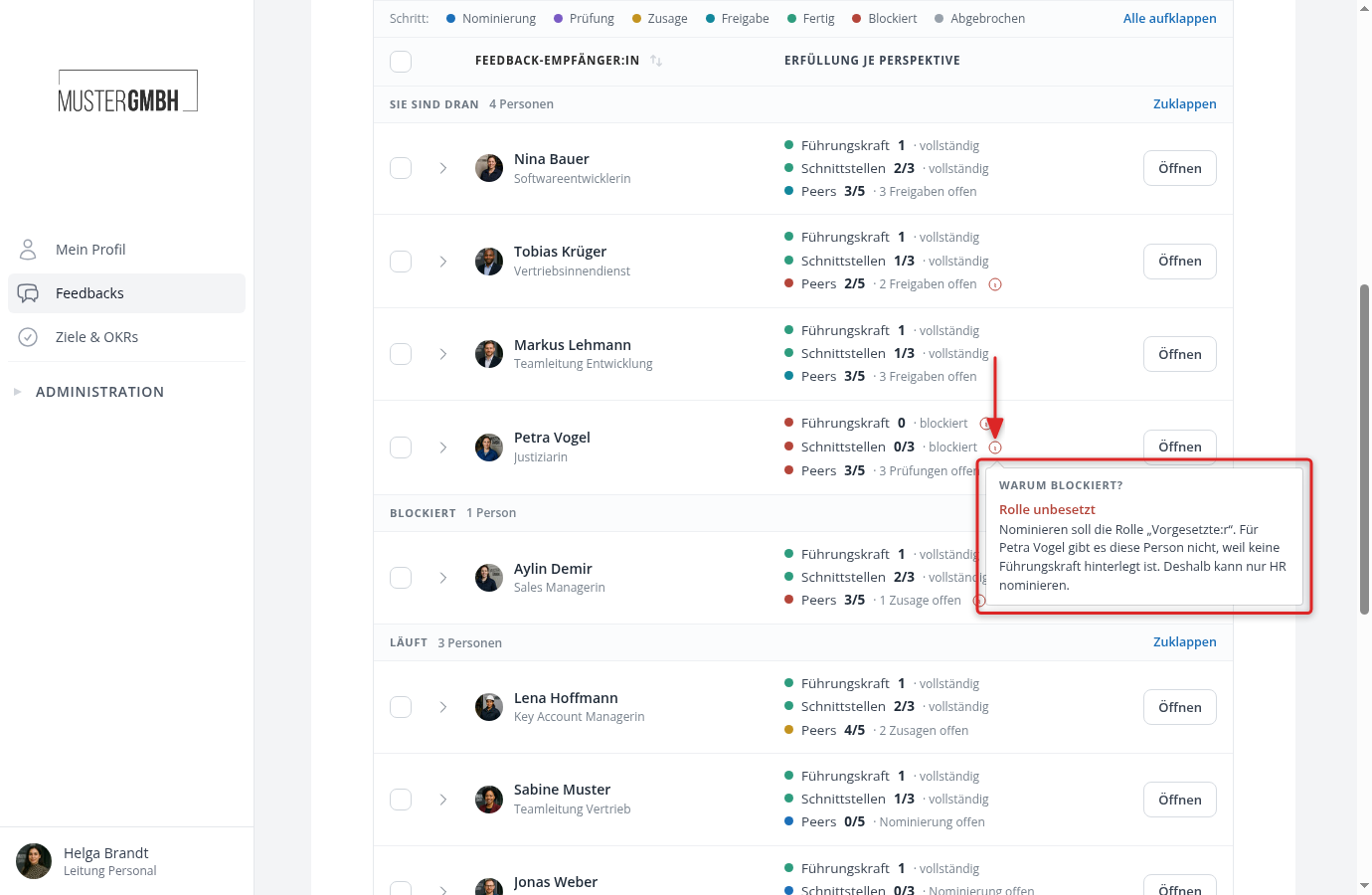
One row can carry several messages. Petra Vogel in the picture is stuck in all three perspectives, so each one has its own info icon with its own text. On the nomination page of that person you find the same icon next to “Step: Blocked” in the head of the perspective block. The grey sentence below it also says what is being waited for and what comes next.
If you would rather see the reasons in the table than click through them one by one, add the “Blocked” column through “Edit columns”. It shows the short forms as red chips, for example “Rule violated” or “Replacement open”. The exact sentence stays in the window.
Why some blocked rows sit under “Your turn”
Every person appears in exactly one group, and “Your turn” wins over “Blocked”. When a blocked person also holds a task for you, you find them at the top under “Your turn” instead of in the “Blocked” group. Petra Vogel and Tobias Krüger in the picture above are exactly that case.
The “Status” filter set to “Blocked” goes by the list, not by the group: it brings every row with at least one blocked list, including those under “Your turn”. The “blocked” number in the blue edition header counts the same rows. The bulk bar accepts such a selection from both groups; only “Advance” stays out for blocked rows.
Role unfilled
The window says “Role unfilled” and below it a sentence like “The role “Supervisor” is supposed to nominate. Petra Vogel has no such person, because no supervisor is on record. That is why only HR can nominate.” For an automatic nomination path it reads “The automatic nomination finds nobody for Petra Vogel.”
The nomination path asks for a role, and for this feedback recipient that role resolves to nobody. Usually the supervisor is missing in the employee profile. The sentence also names the step that is stuck: nominating, reviewing, approving or nominating the replacement.
You have two ways out. The quick one: you do the step yourself.
- Open the nomination page of that person through “Open” on the right edge of the row.
- The red perspective block carries the button of the step easyreview handed to you, for example “Propose people” or “Complete review”. The same tasks appear again at the top of the page under “Your tasks”.
- Click it and work through the step like any other task.
The clean one: you add the missing supervisor.
- Open the employee profile of that person and set the “Supervisor” field.
- Reload the tab. The role resolves again, the task sits with the supervisor, the message is gone.
- easyreview does not send a new request email for this. If you want to nudge the supervisor, use “Send reminder” in the ⋮ menu of the perspective.
Too few people
The window says “Too few people”: “There are 2 people on the list, at least 3 are required. The approval waits until more people are nominated. Responsible: Tobias Krüger.”
The perspective has a minimum and the list stays below it. People who declined, were rejected or were removed do not count, which is why a list often drops below the minimum only after a rejection. The perspective block then reads “1 more person needed”, and “Approve list” stays greyed out.
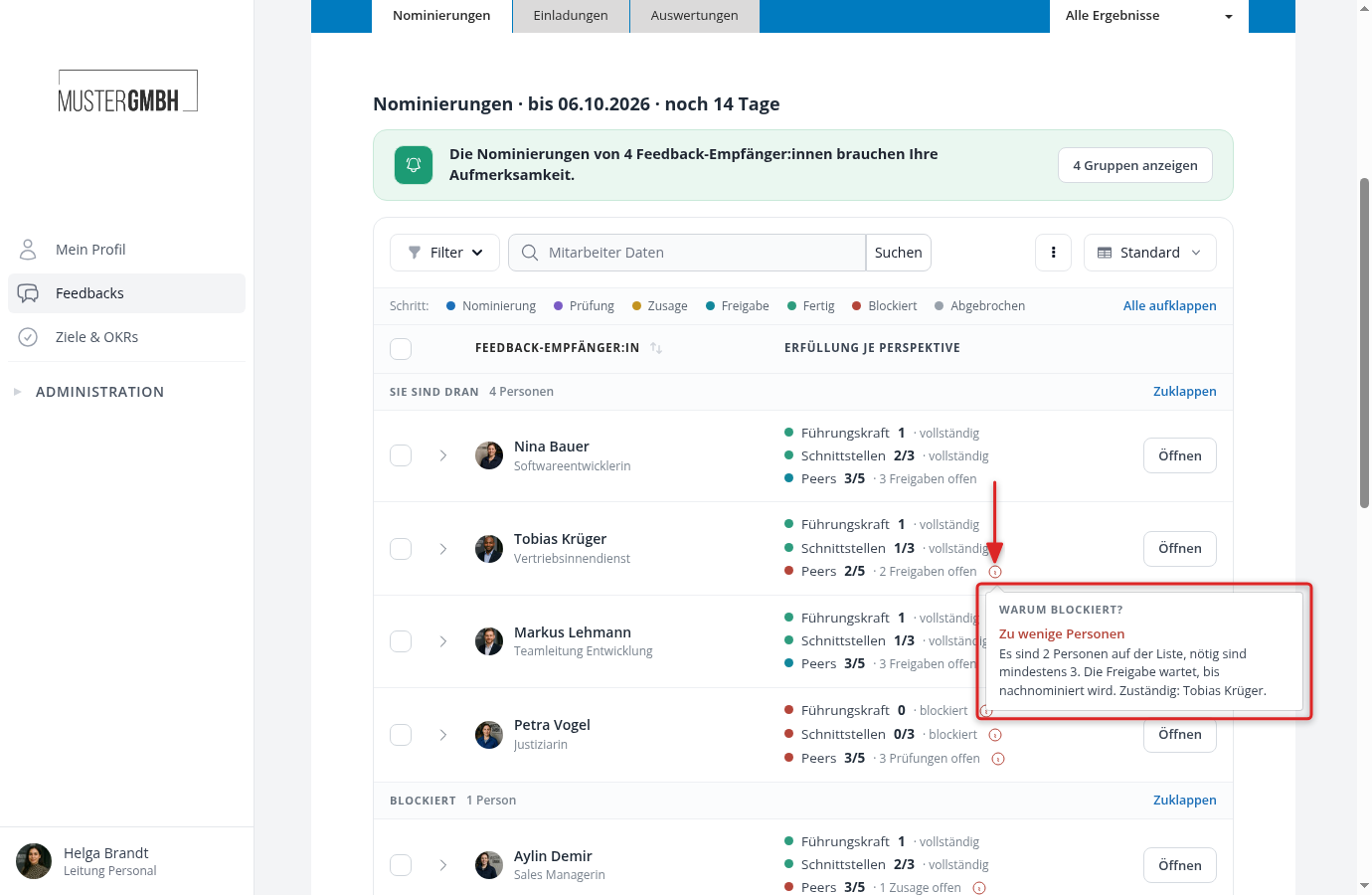
Responsible is the role that nominates, so with self-nomination that is the feedback recipient themselves. That person finds the “Propose people” button on their nomination page and tops the list up. As soon as somebody is added, the approval starts over, so that the approvers see the changed list again.
You yourself have three options:
- Nominate somebody yourself: “Nominate person” at the foot of the perspective block opens the “Propose people” dialog. How it works is described in Manage the nominations of one person.
- Follow up: ⋮ menu of the perspective, “Send reminder”. As long as the minimum is not reached, the “Approval blocked” email goes to the people who can add nominations, even if the list is already at the approval. The dialog names them beforehand.
- Move on without the missing person: “Confirm invitation (override)”. That approves the list although the rule is violated. The reason is required and appears in the history afterwards.
Too many people
The window says “Too many people”: “There are 4 people on the list, at most 3 are allowed. The approval waits until people are removed or rejected.”
Nominating cannot cause this: the “Propose people” dialog does not let anyone exceed the maximum. It happens when you enter people directly into the participant list, because those count towards the same rule, or when the maximum of the perspective is lowered afterwards.
Removing is the administration’s job here. The role that nominated can no longer touch its own proposals once the list has left the review.
- Open the nomination page and decide who has to go.
- In the ⋮ menu of that person choose “Remove”. While the list is in the approval, “Reject” works too.
- Once the maximum is met again, the message disappears and the approval carries on.
Check first whether the maximum itself is still right. If it is set too low, change it rather than the list: Set up nomination paths.
Already in another perspective
The window says “Already in another perspective”: “Marie Schulz already takes part as Peers. A person gives feedback in one perspective only. Remove the nomination or the other participation in the participant list.”
A person can hold only one role in a participation group. Once they are a feedback provider in one perspective, they cannot join a second one. On the nomination page a red note under their name says that they already take part as that other perspective.
You decide which of the two stays:
- If the other participation stays, remove the nomination: ⋮ menu of that person, “Remove”.
- If the nomination stays, delete the other participation in the participant list of the edition.
A typical trigger is a change of supervisor. Whoever becomes the new supervisor enters the group through the automatic nomination path as the manager, and collides there with a nomination that had long been running as a peer.
Replacement open
The window says “Replacement open”: “A replacement has been requested for Marie Schulz, but nobody has been nominated yet. Responsible: Aylin Demir.”
Somebody declined, or was rejected with “Request a new nomination”. That sent the request back to the person who made the proposal, and they have not named anybody yet. On the nomination page the person who declined stands struck through at the end of the list, with their reason underneath.
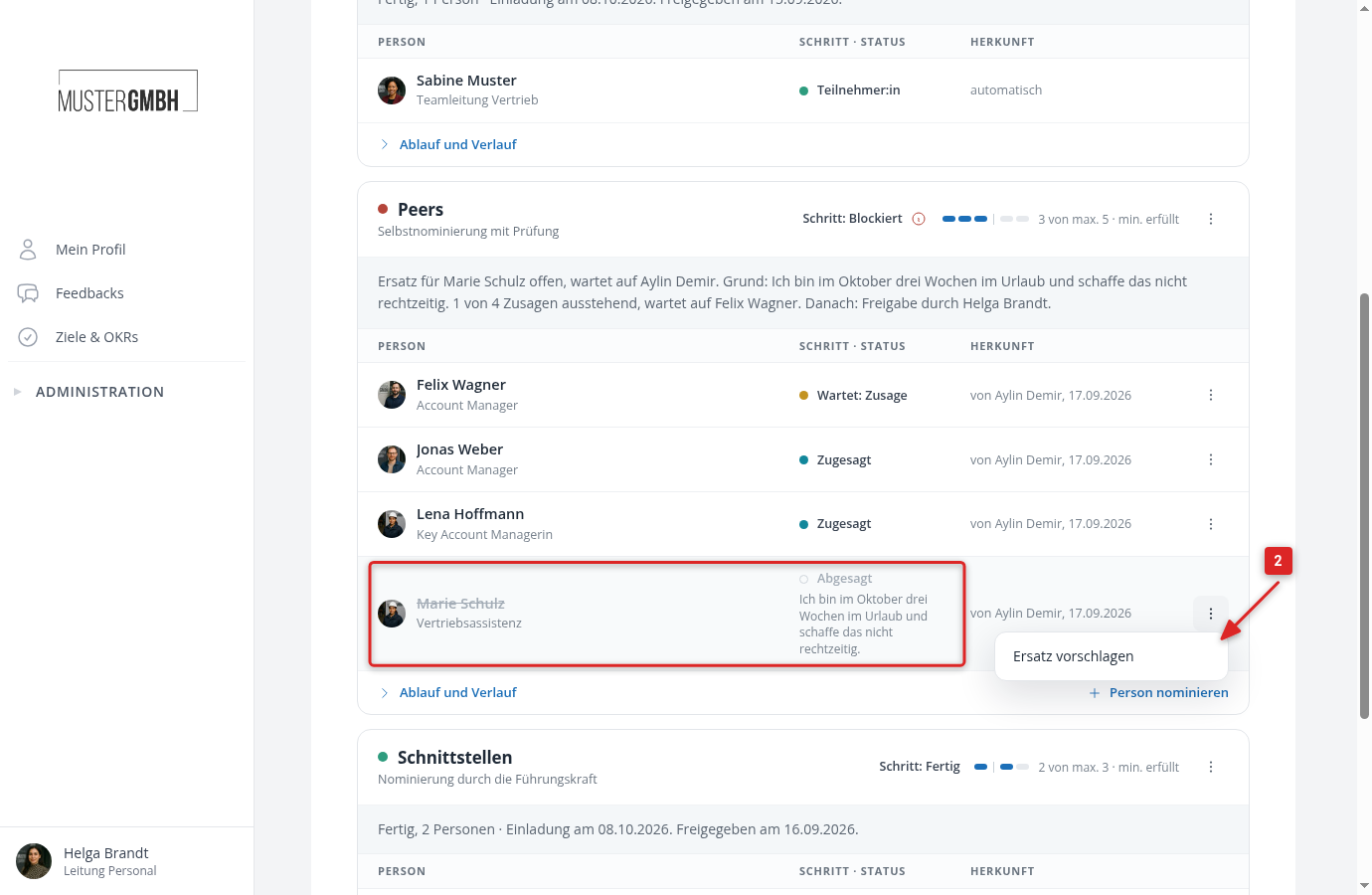
The responsible person finds the “Propose replacement” button on their nomination page and picks somebody else. You reach the same place:
- Open the nomination page and look for the struck-through row.
- The ⋮ menu of that row holds “Propose replacement”. The picker swaps the person who declined for the new one.
- If the list is long enough without a replacement, you do not need one: “Confirm invitation (override)” closes the nomination and drops the open request.
If you only want to nudge the responsible person, use “Send reminder” in the ⋮ menu of the perspective. The request for a replacement then goes out again.
Nobody on the list
The window says “Nobody on the list”: “All nominated people have been removed from the list. The approval waits until somebody new is nominated.”
The list was close to approval and then the last proposal fell away. Without a single person easyreview cannot approve anything, not even by override: an approval without feedback providers is refused.
Two ways are left. Either you nominate somebody through “Nominate person” at the foot of the perspective block, and the path carries on. Or this perspective is not supposed to collect feedback for this person at all, in which case you end it through “Cancel nomination” in the ⋮ menu. Feedback providers already on the list stay.
Acceptance after the end of the edition
The window says “Acceptance after the end of the edition”: “Felix Wagner has not accepted yet. The edition has ended, accepting is no longer possible. HR can confirm the invitation by override.”
This is about the end of the edition itself, not the end of the nomination period. After that date the acceptance page turns down every answer. The nominated person simply cannot accept any more, however often you remind them.
- Check first whether the edition was supposed to end at all. If it was set too short by mistake, extend it in the settings of the feedback. The person can then accept again.
- If the edition stays closed and the person should still give feedback, choose “Mark as accepted” in their row. The acceptance then counts as if the person had answered themselves, and your reason appears in the history.
- If the person should go, confirm the invitation by override. Anyone who has not accepted is removed without accepting, and the dialog lists beforehand who that hits.
Period expired
The window says “Period expired”: “The nomination period ended on 09.10.2026, the list has not been approved yet. Responsible: Marie Schulz.”
The end of the nomination period is a deadline, not a lock. easyreview cancels nothing and advances nothing, all open lists of the edition simply drop to “Blocked”. The sentence names who would be up. When nothing but acceptances is outstanding, that is “the nominated people”.
- Remind first: ⋮ menu of the perspective, “Send reminder”. It costs nothing and settles most cases.
- If there is no time left for that, extend the period in the dialog of the edition under “Nomination period”. You open the dialog in the settings of the feedback on the “Nominations” page, through the ⋮ menu of the edition and “Edit”. That puts all overdue lists of the edition back in the race at once.
- If it has to go on without the stragglers, advance the step or confirm the invitation by override.
When it is many rows, do not work through them one by one. The checkboxes on the left of the table let you remind, advance, confirm and cancel for several people at once: Handle several nominations at once.
What “Advance” and the override really do
Both entries sit in the ⋮ menu at the head of the perspective block, together with “Send reminder” and “Cancel nomination”.
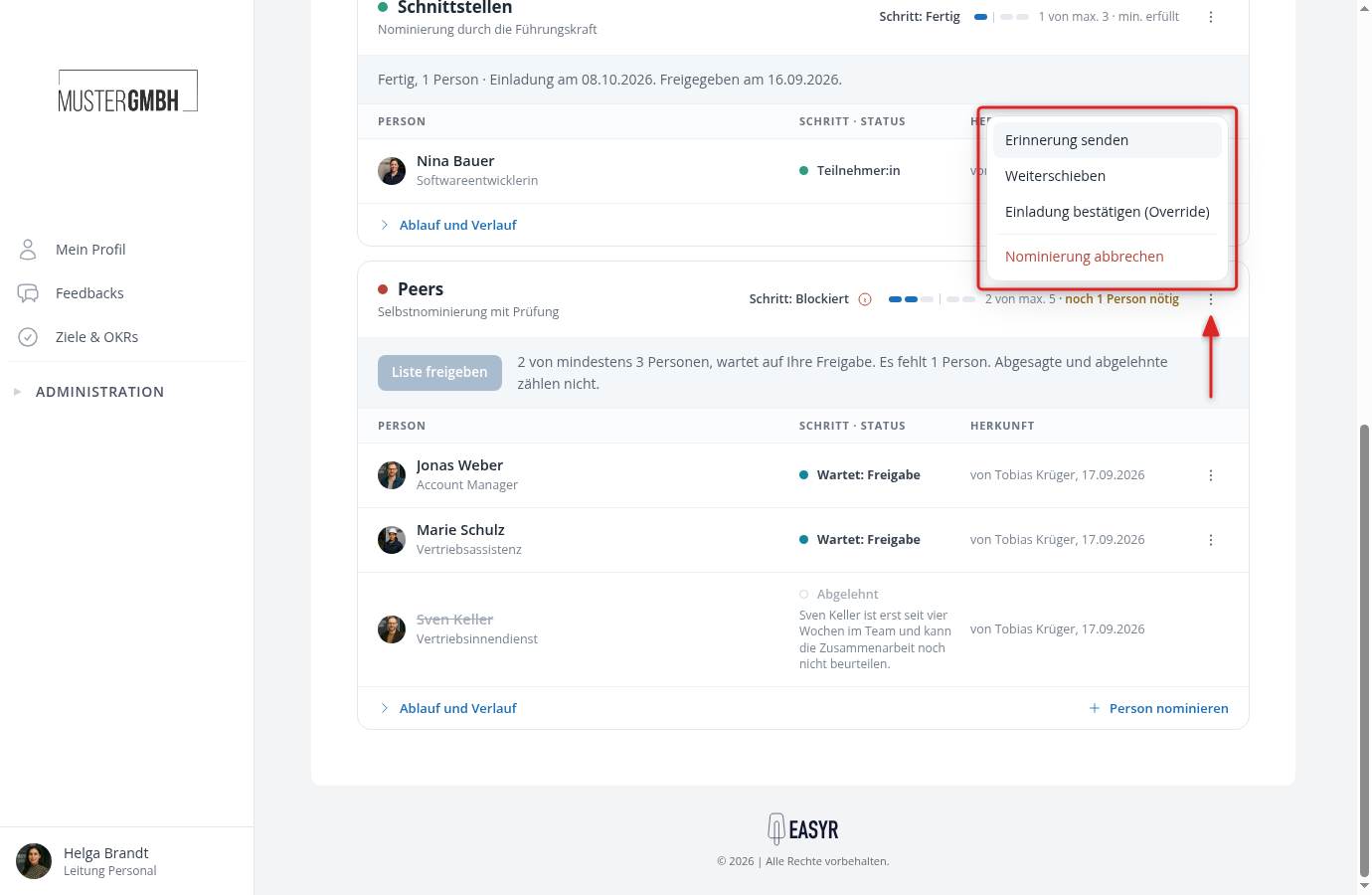
“Advance” ends the step the list currently stands at, without waiting for the stragglers. What that means depends on the step:
| Step | Effect |
|---|---|
| Review | The review counts as completed and the list moves to the next step. |
| Acceptance | Everyone who has not answered is taken off the list with the note “No answer”. If nobody has accepted, it does not work. |
| Approval | The approval counts as given. If the rule is violated afterwards, the list stays blocked. |
Once a list has all its steps behind it and hangs on nothing but the rule or an open acceptance, easyreview stops offering “Advance” at all. Only the override helps there.
“Confirm invitation (override)” ends the nomination path early. Open reviews and approvals are dropped, the rule of the perspective is bypassed, and the nominees who have accepted become feedback providers. Anyone who has not accepted by then is removed without accepting. The dialog lists both groups by name before you confirm.
The reason is required. It lands in the history of the participation group together with your name and the date, and it later appears in the status sentence of the perspective as well. A confirmed invitation cannot be taken back. The feedback providers exist from then on and are invited by the usual invitation mechanics of the edition. The same applies to external people. If no invitation date is pending any more, they receive their invitation right away.
The override has a limit too: if the participation group of the person is sealed or its sealing is running, it takes nobody new, neither employees nor external people. A list that completes all its steps in that time stays at “approval blocked: participation group sealed”. “Confirm invitation (override)” is then greyed out, and if you confirm several rows at once, easyreview skips this list. Only once the sealing has been removed can the invitation be confirmed by override.